How to Fix iPhone Boot Loop Problems
If your iPhone keeps restarting over and over and never reaches the Home screen, you’re likely dealing with iPhone boot loop problems. This issue is frustrating, but the good news is that most boot loop problems can be fixed without being a tech expert.
In this guide, you’ll learn how to fix iPhone boot loop problems step by step. The explanations are simple, beginner-friendly, and based on real-world situations. Whether the issue started after an update, a battery problem, or an app crash, this article will help you find the right solution.
What Is an iPhone Boot Loop?
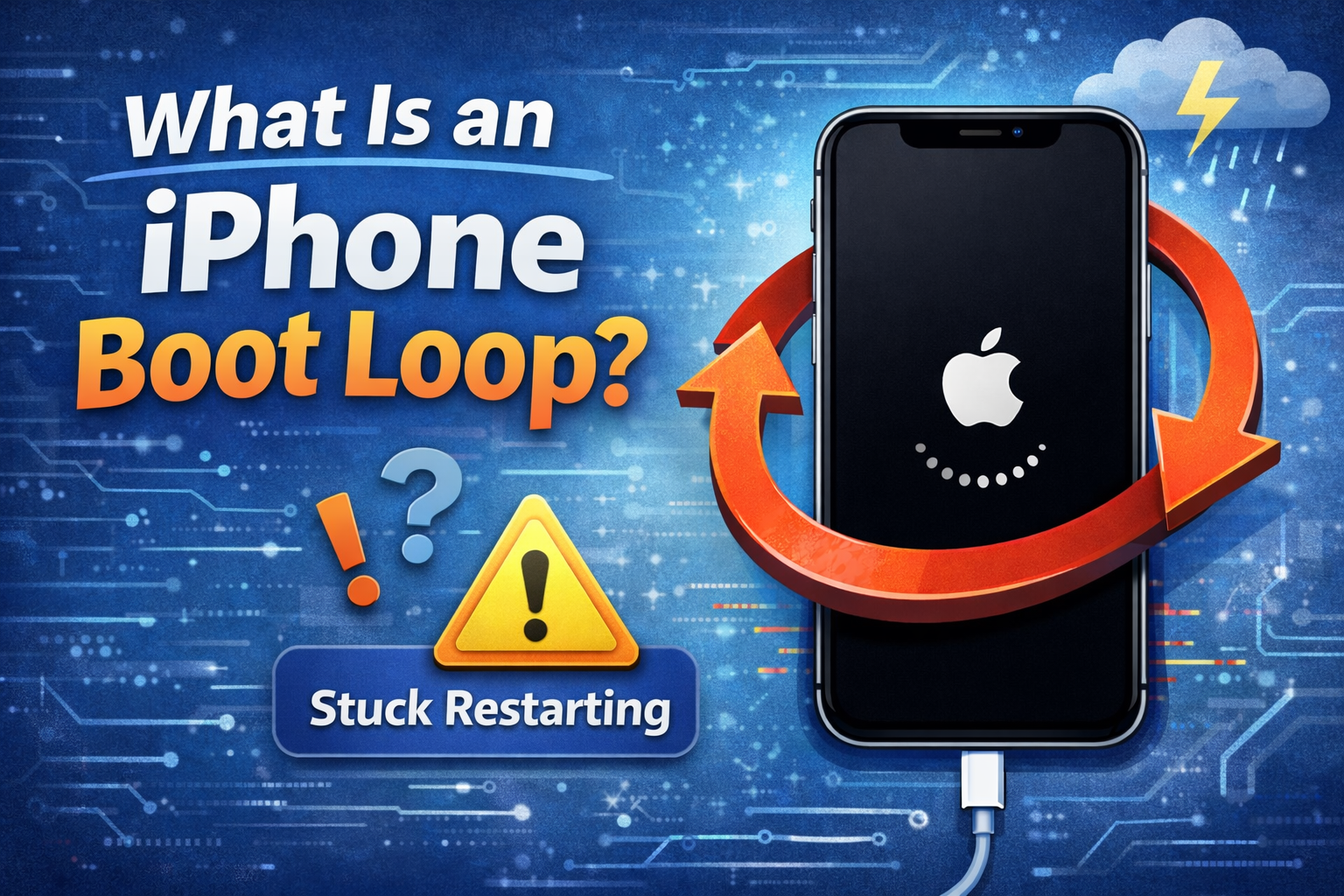
An iPhone boot loop happens when the device:
- Turns on
- Shows the Apple logo
- Restarts again
- Repeats this cycle endlessly
Your iPhone never fully loads iOS, making it unusable.
Common Signs of an iPhone Boot Loop
- Apple logo appears and disappears repeatedly
- iPhone restarts every few minutes
- Stuck on Apple logo after update
- iPhone turns on but never reaches the lock screen
Why iPhone Boot Loop Problems Happen
Understanding the cause helps you choose the best fix.
Software-Related Causes
- Failed or interrupted iOS update
- Corrupted system files
- Incompatible or buggy apps
- Jailbreaking gone wrong
Hardware-Related Causes
- Old or damaged battery
- Water damage
- Faulty charging port
- Internal component failure
Real-world example:
A user updated their iPhone overnight while charging with a cheap cable. The update failed due to unstable power, and the phone started looping at the Apple logo.
How to Fix iPhone Boot Loop Problems (Step by Step)
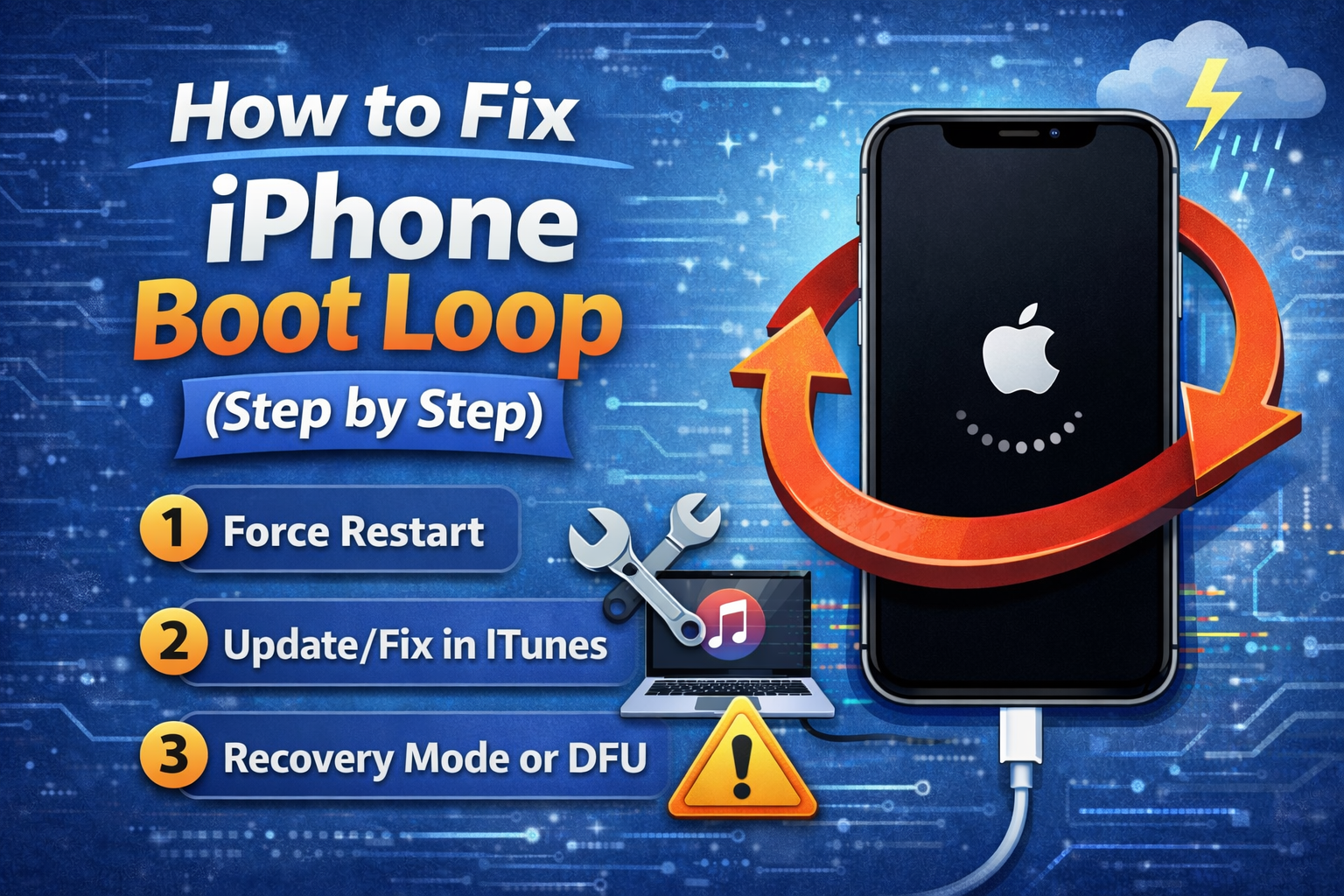
Start with the easiest solutions first. You don’t need to try everything—stop once your iPhone works normally.
Fix 1: Force Restart Your iPhone (Quick and Safe)
A force restart clears temporary system glitches and often fixes minor boot loop issues.
Steps for Different iPhone Models
iPhone 8 and newer (including Face ID models):
- Quickly press and release Volume Up
- Quickly press and release Volume Down
- Press and hold the Side button
- Release when you see the Apple logo
iPhone 7 / 7 Plus:
- Press and hold Volume Down + Power
- Release when the Apple logo appears
iPhone 6s and earlier:
- Press and hold Home + Power
- Release when the Apple logo appears
When this works:
- Boot loop caused by temporary iOS crash
- App froze the system
Fix 2: Remove the Case and Let the iPhone Cool Down
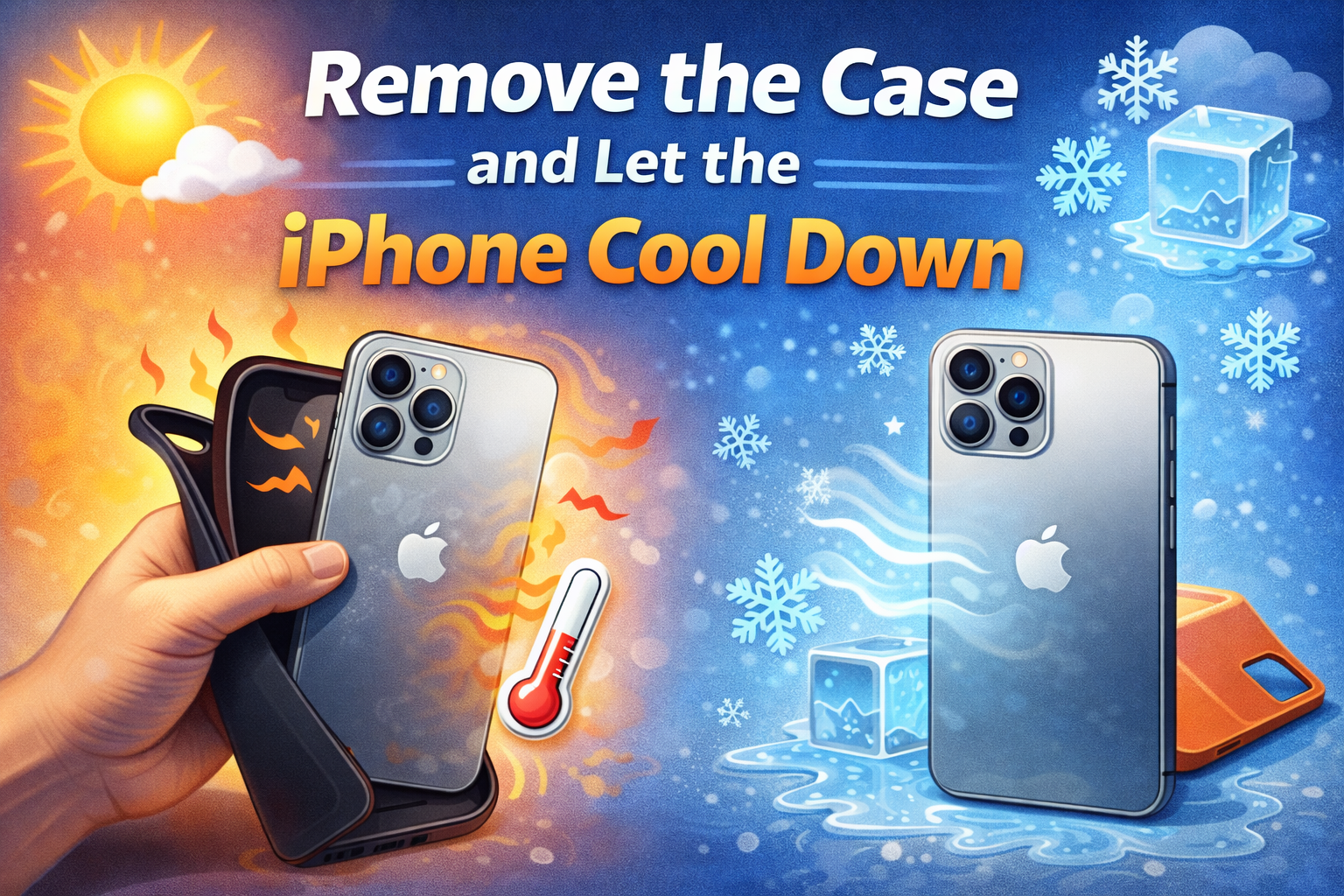
Overheating can trigger iPhone boot loop problems.
What to Do
- Remove the phone case
- Disconnect the charger
- Place the iPhone on a cool, flat surface
- Wait 20–30 minutes
- Try turning it on again
Real-world example:
An iPhone kept restarting during gaming. After cooling down, the boot loop stopped completely.
Fix 3: Charge the iPhone with a Certified Charger
A weak or unstable power supply can cause constant restarts.
Steps
- Use an original or certified cable
- Plug into a wall charger, not a laptop
- Charge for at least 30–60 minutes
- Try turning the phone on
Why this works:
A failing battery or low power can interrupt startup, causing the iPhone to reboot repeatedly.
Fix 4: Update iOS Using Recovery Mode (No Data Loss in Many Cases)
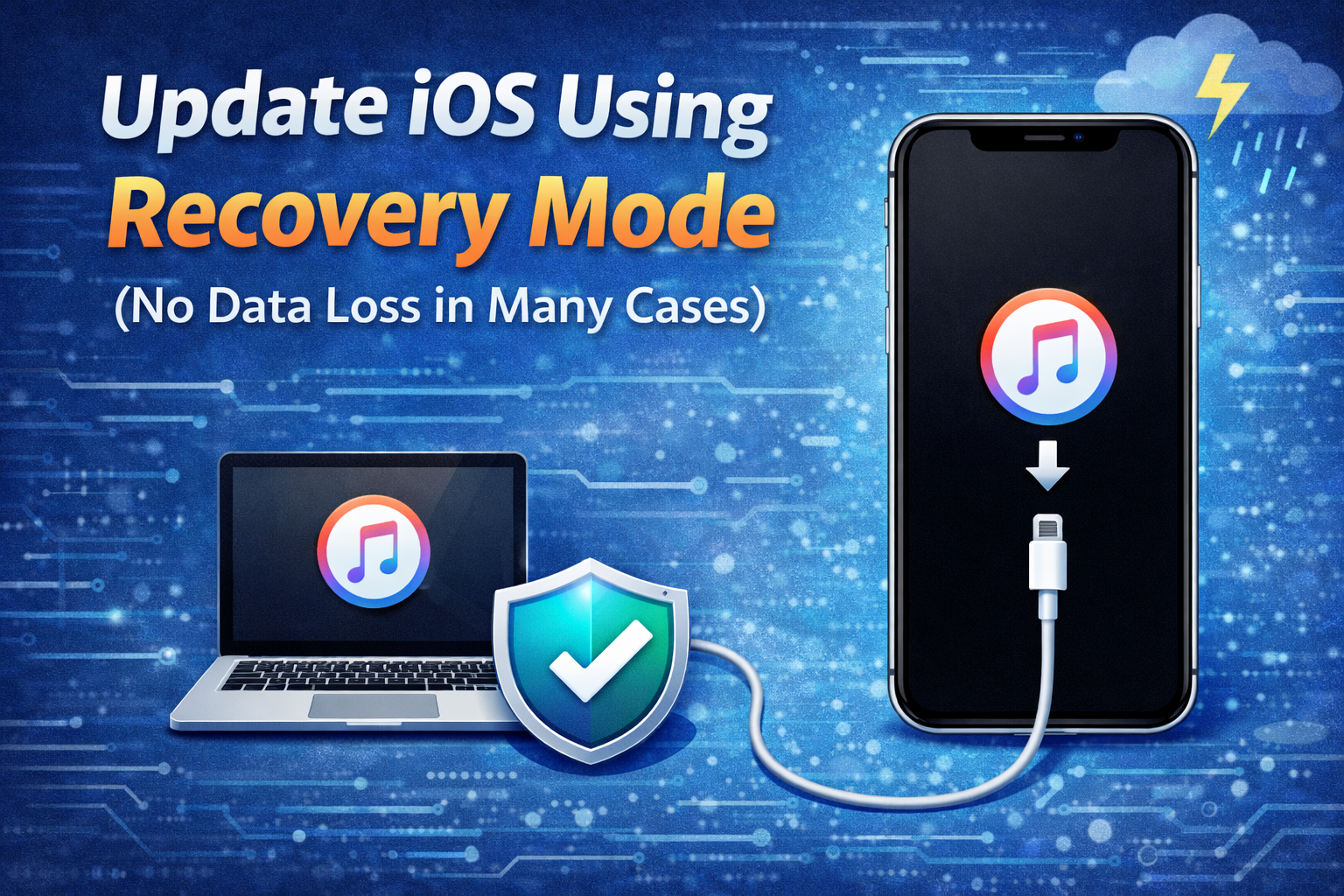
If your iPhone boot loop problems started after an update, this is one of the best fixes.
How to Enter Recovery Mode
- Connect iPhone to a computer
- Open Finder (Mac) or iTunes (Windows)
- Force restart but keep holding the button
- Release only when you see the Recovery Mode screen
What to Choose
- Select Update (not Restore)
- Wait while iOS reinstalls
Good for:
- iPhone stuck in boot loop after iOS update
- Corrupted system files
Fix 5: Restore iPhone Using Recovery Mode (Data Will Be Erased)
If “Update” doesn’t work, restoring may be necessary.
Steps
- Enter Recovery Mode
- Choose Restore
- Wait for the process to finish
- Set up iPhone again
Warning:
This will erase all data unless you have a backup.
Real-world example:
A user installed a beta iOS version. The phone boot looped until a full restore fixed it.
Fix 6: Use DFU Mode (Advanced but Effective)
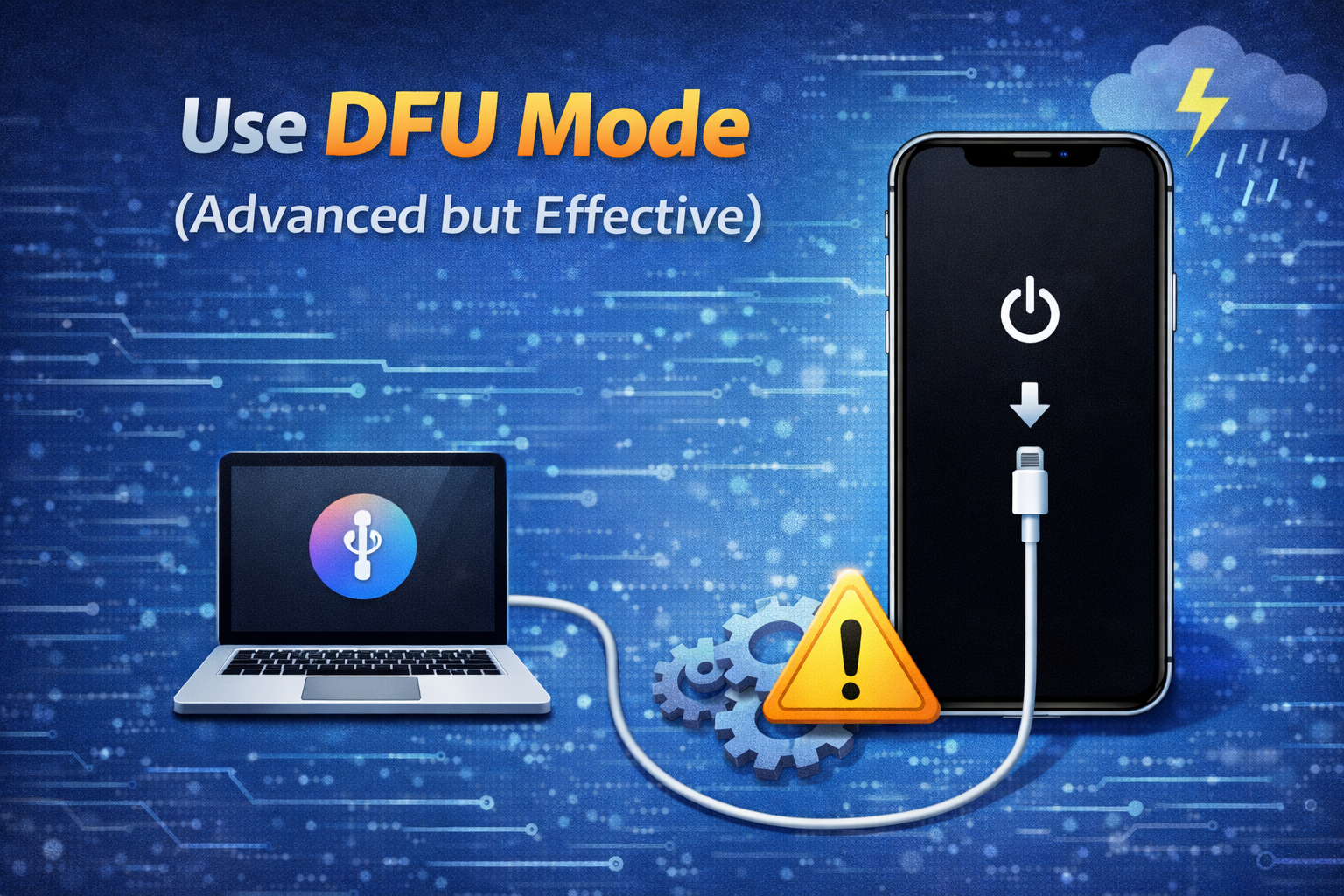
DFU (Device Firmware Update) mode reloads both firmware and software.
When to Use DFU Mode
- Recovery Mode fails
- iPhone stuck in boot loop for hours
- Serious system corruption
Basic DFU Steps (Summary)
- Connect iPhone to computer
- Enter DFU button combination
- Screen stays black
- Restore using iTunes/Finder
Note:
DFU mode is powerful but erases all data.
Fix 7: Check Battery Health
A worn-out battery is a very common cause of iPhone boot loop problems.
Signs of Battery Issues
- iPhone restarts below 30%
- Boot loop when unplugged
- Phone works only while charging
What to Do
- If you can access Settings:
- Go to Battery → Battery Health
- If not:
- Visit a repair shop for battery testing
Real-world example:
An iPhone X kept restarting every 2 minutes. Battery replacement fixed it instantly.
Fix 8: Remove Recently Installed Apps (If Possible)
Some apps can crash the system at startup.
Try This If You Can Access the Home Screen
- Delete apps installed recently
- Restart the iPhone
- Observe if the boot loop stops
Fix 9: Check for Water or Physical Damage
Even small water exposure can cause boot loops.
What to Look For
- Phone was dropped in water
- Humidity exposure
- Screen flickering + rebooting
In this case, software fixes may not work. Professional repair is recommended.
When to Visit a Repair Center
Seek professional help if:
- DFU mode fails
- iPhone won’t stay on at all
- Water or hardware damage is suspected
Sometimes the issue is the logic board, charging IC, or battery connector.
FAQ: iPhone Boot Loop Problems
1. Can an iPhone boot loop fix itself?
Rarely. Most boot loop problems require at least a force restart or software fix.
2. Does a boot loop always mean hardware damage?
No. Many cases are caused by software issues, failed updates, or apps.
3. Will I lose my data when fixing iPhone boot loop problems?
Force restart and Update in Recovery Mode usually keep data. Restore and DFU will erase data.
4. How long should I wait during an Apple logo boot loop?
If it loops for more than 10–15 minutes, manual intervention is needed.
5. Can a bad charger cause iPhone boot loop problems?
Yes. Unstable power can interrupt startup and trigger repeated restarts.
Conclusion
iPhone boot loop problems can look scary, but most are fixable with the right steps. Start with simple solutions like force restart and charging properly, then move to Recovery Mode or DFU if needed. In many real-life cases, software fixes or a battery replacement solve the issue completely.
If your iPhone still won’t work after trying everything, a trusted repair center is the safest next step. Acting early can save both your data and repair costs.