How to Fix iPhone Camera Not Working or Black Screen
If you’re dealing with an iPhone camera not working or black screen, you’re not alone. This is one of the most common iPhone problems faced by everyday users. You open the Camera app, and instead of seeing the viewfinder, you get a black screen—or the app freezes, crashes, or refuses to open.
The good news? In most cases, you can fix an iPhone camera issue at home without going to a repair shop. This guide is written in simple, clear English for beginners and normal users. We’ll walk through step-by-step solutions, explain why the problem happens, and help you decide when it’s time for professional repair.
Why Is My iPhone Camera Not Working?
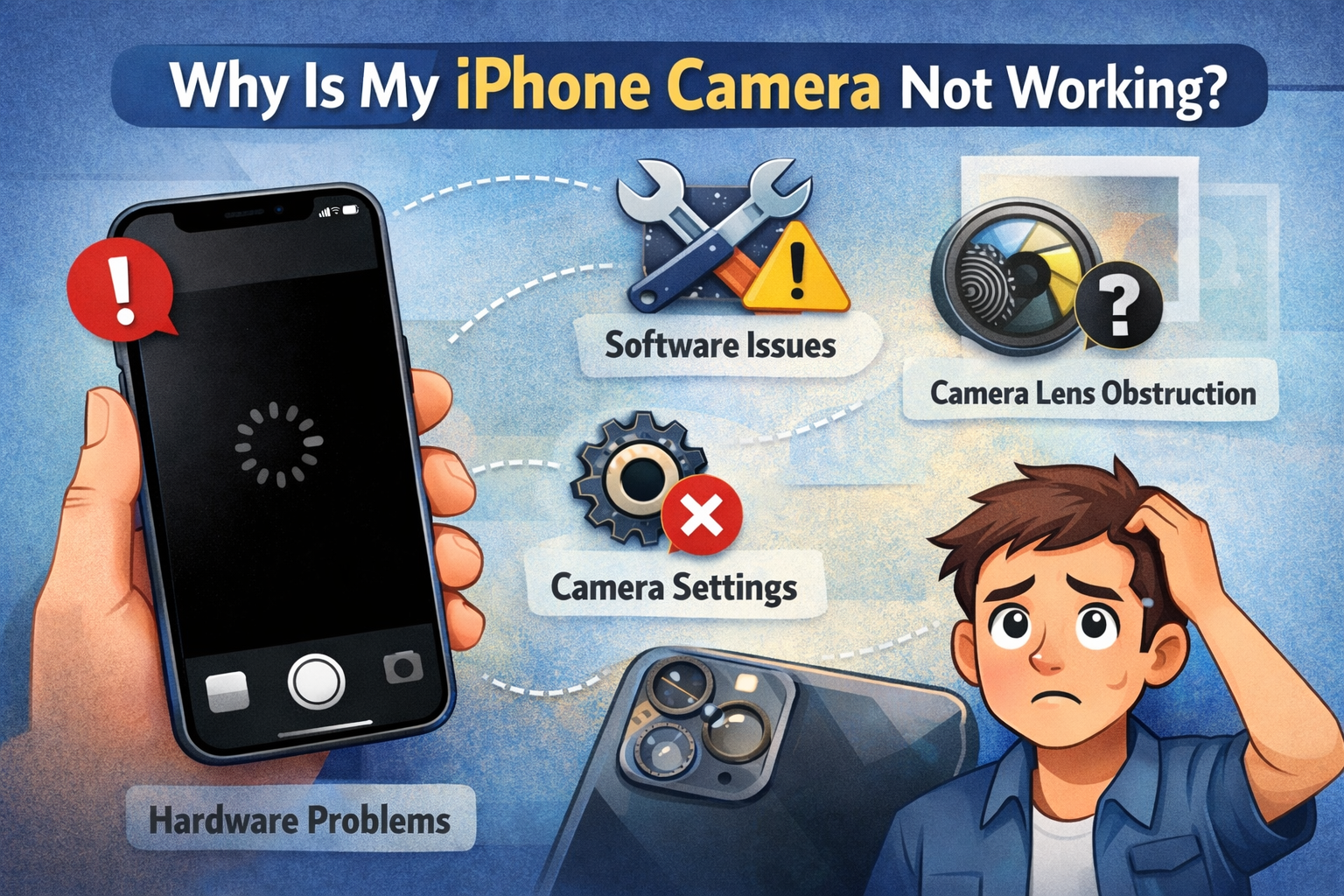
Before jumping into fixes, it helps to understand the common causes behind an iPhone camera black screen or camera not working issue.
Common reasons include:
- Temporary software bugs in iOS
- A frozen or crashed Camera app
- Low storage space
- App conflicts (Instagram, Snapchat, Zoom, etc.)
- Outdated iOS version
- Hardware damage from drops or water
- Camera access disabled in Settings
Real-world example:
Many users report that their camera stops working right after an iOS update. The screen stays black, but other apps work fine. This usually points to a software glitch, not broken hardware.
Basic Checks Before Trying Advanced Fixes
1. Clean the Camera Lens
This sounds too simple, but it works more often than you’d expect.
Steps:
- Use a clean microfiber cloth
- Gently wipe the rear and front camera lenses
- Remove any thick phone case or lens cover
A dirty or blocked lens can confuse the camera sensor and cause a black screen.
2. Close and Reopen the Camera App
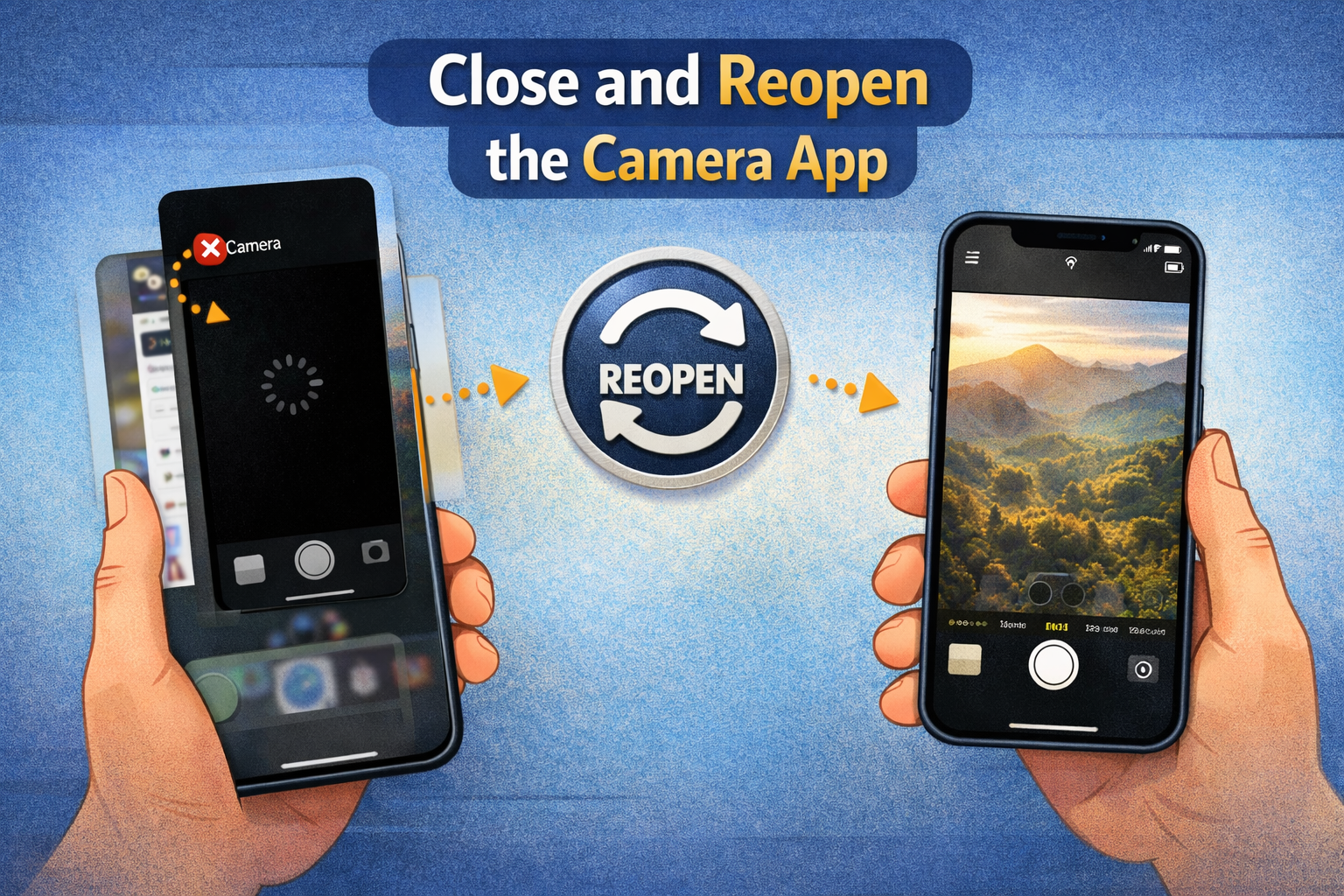
The Camera app may be frozen.
Steps:
- Swipe up from the bottom (or double-tap Home button)
- Find the Camera app
- Swipe it up to close
- Open Camera again
If the camera works normally now, the issue was just a temporary app crash.
Restart Your iPhone (Most Effective Basic Fix)
A simple restart clears temporary system errors.
Steps to restart:
- iPhone with Face ID:
Hold Side button + Volume button → Slide to power off - iPhone with Home button:
Hold Power button → Slide to power off
Wait 30 seconds, then turn it back on.
Real-world example:
Many users fix the iPhone camera black screen instantly after a restart, especially if the phone was running for days without rebooting.
How to Fix iPhone Camera Not Working Using Settings
Check Camera Permissions
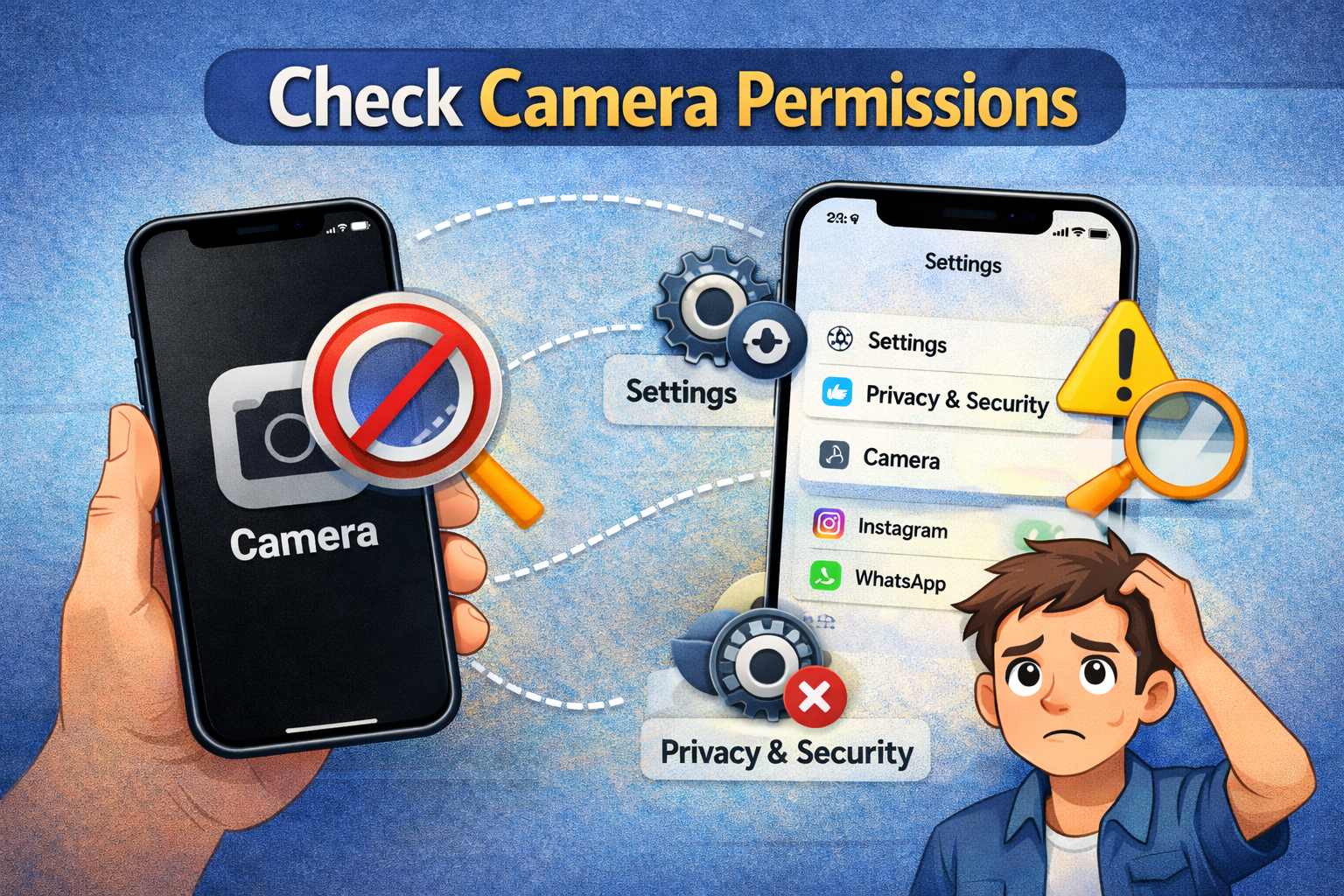
If camera access is disabled, the Camera app or other apps won’t work.
Steps:
- Go to Settings
- Tap Privacy & Security
- Select Camera
- Make sure Camera and required apps are enabled
If permissions were off, turning them back on usually fixes the issue immediately.
Turn Off VoiceOver (Surprising Fix)
VoiceOver can interfere with camera controls.
Steps:
- Open Settings
- Go to Accessibility
- Tap VoiceOver
- Turn it Off
This fix has helped users who experienced a black screen after enabling accessibility features.
Free Up Storage Space
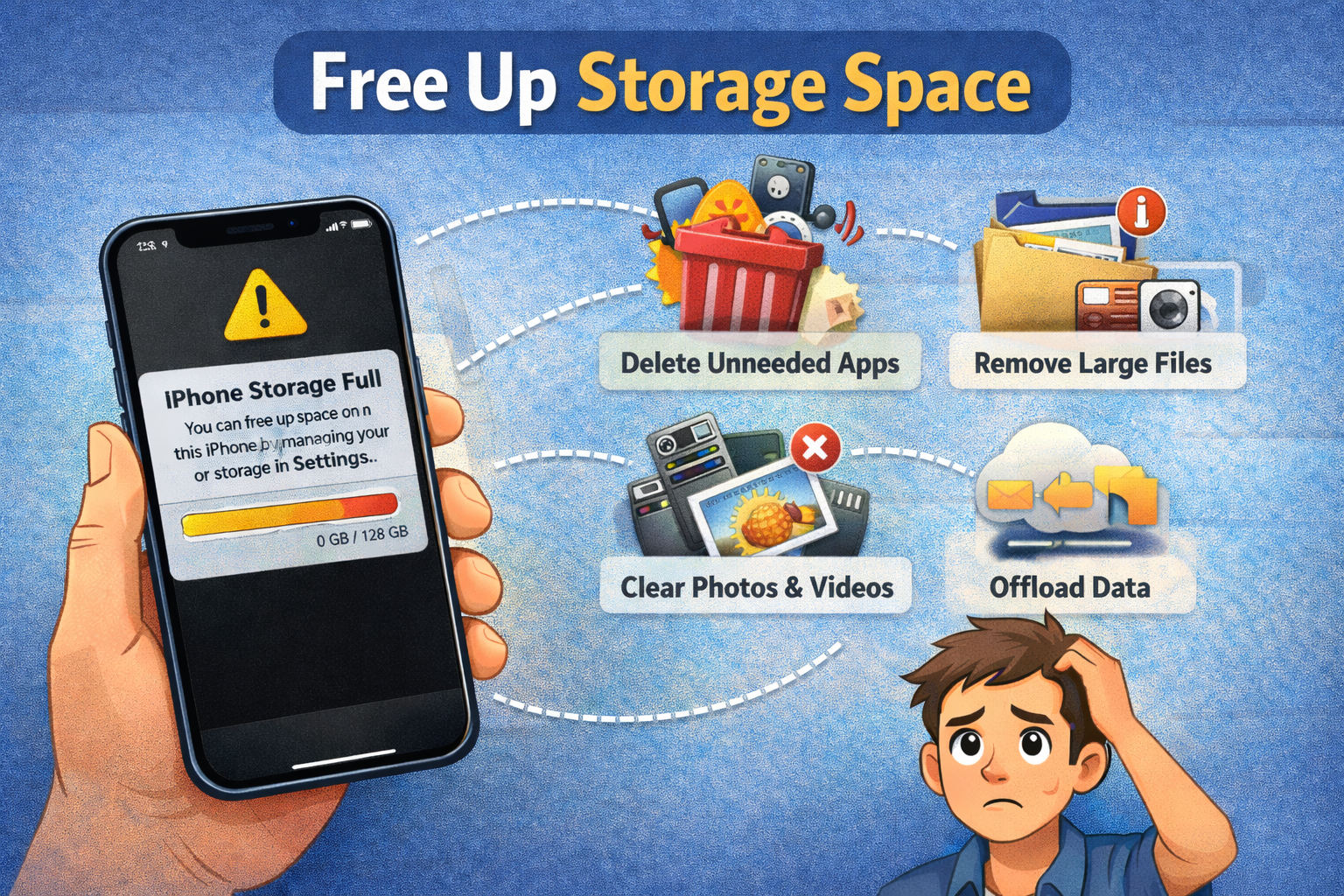
Low storage can stop the camera from opening or saving photos.
Steps:
- Go to Settings → General → iPhone Storage
- If storage is almost full:
- Delete unused apps
- Remove old videos and photos
- Clear large files
Real-world example:
An iPhone with only 200MB free storage often shows camera freezing or black screen issues.
Update iOS to the Latest Version
Running an outdated iOS version can cause camera bugs.
Steps:
- Open Settings
- Tap General → Software Update
- Download and install the latest iOS version
Apple regularly releases bug fixes that solve camera problems.
Force Restart Your iPhone (Advanced but Safe)
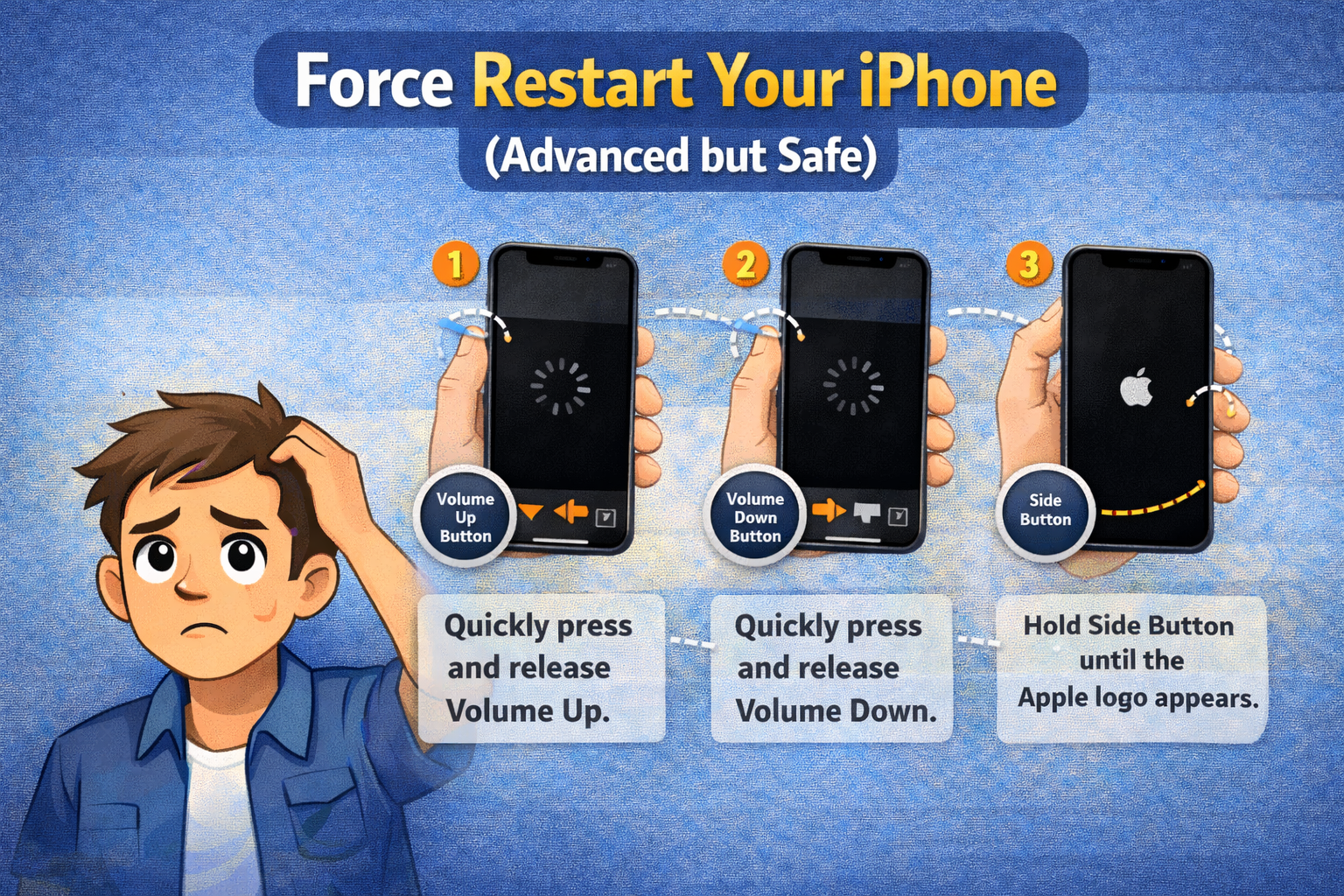
A force restart refreshes system processes without deleting data.
Steps (Face ID models):
- Press Volume Up, release
- Press Volume Down, release
- Hold Side button until Apple logo appears
This method fixes deeper software freezes causing the camera black screen.
Reset All Settings (No Data Loss)
If misconfigured settings are causing the issue, this helps.
Steps:
- Go to Settings → General
- Tap Transfer or Reset iPhone
- Select Reset → Reset All Settings
This resets Wi-Fi, Face ID, and preferences—but does not delete data.
Check for App Conflicts
Some third-party apps use the camera in the background.
What to do:
- Close all camera-related apps
- Restart the iPhone
- Try the Camera app again
Apps like Instagram or Snapchat can lock the camera and cause a black screen.
When the Problem Is Likely Hardware-Related
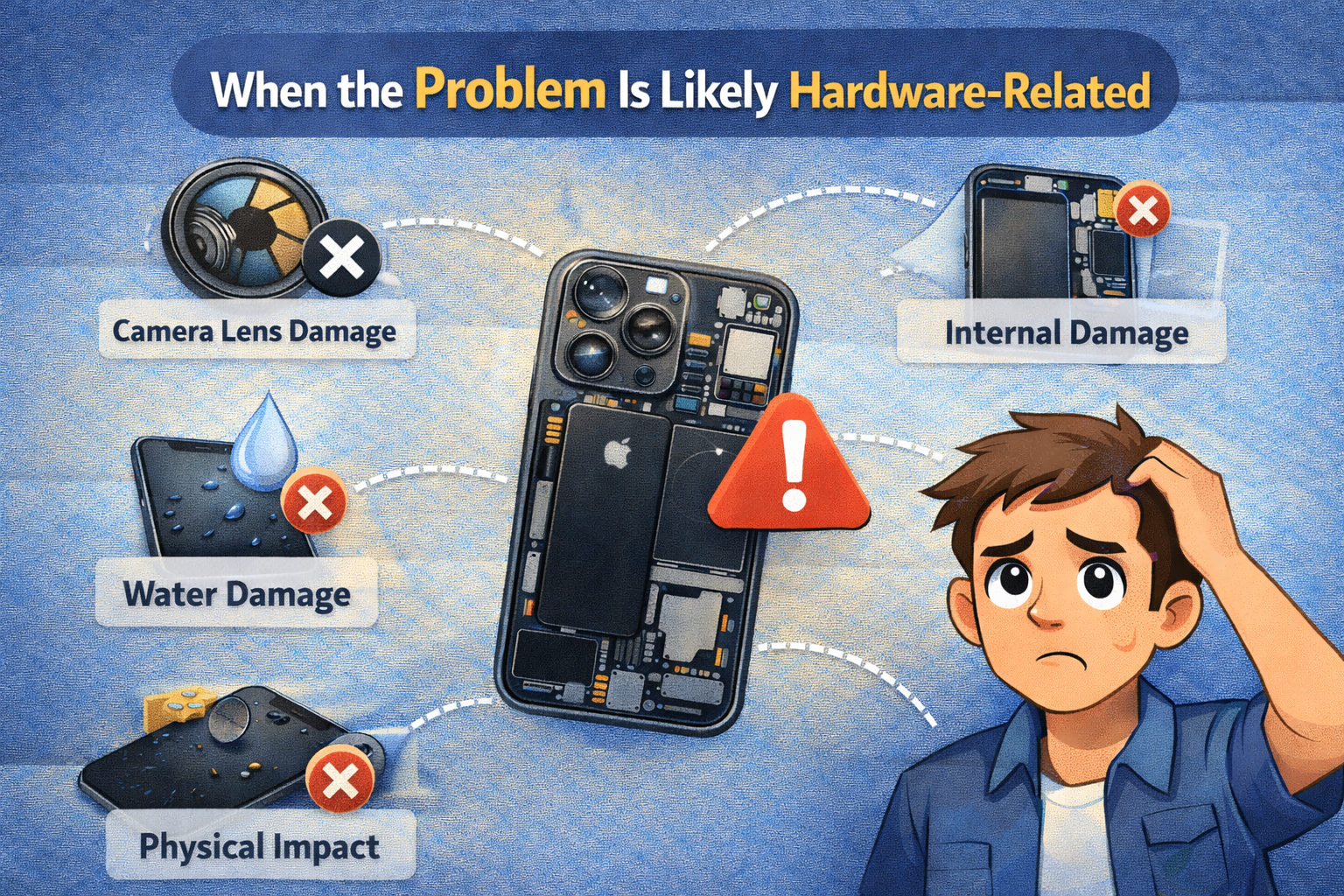
If none of the software fixes work, hardware damage may be the cause.
Signs of hardware issues:
- Camera never works, even after reset
- Black screen after dropping the phone
- Camera app crashes instantly
- Blurry or shaking image
Real-world example:
An iPhone dropped on concrete may still turn on, but the internal camera module can disconnect or fail.
In this case, professional repair is the safest solution.
Factory Reset (Last Resort)
Only do this if everything else fails.
Steps:
- Back up your iPhone
- Go to Settings → General → Transfer or Reset iPhone
- Tap Erase All Content and Settings
This removes all data but fixes deep system corruption.
Frequently Asked Questions (FAQ)
1. Why is my iPhone camera showing a black screen?
Most commonly due to software glitches, low storage, or app conflicts. Hardware damage is less common but possible.
2. Can a software update fix iPhone camera issues?
Yes. Many camera bugs are fixed through iOS updates released by Apple.
3. Does resetting settings delete my photos?
No. “Reset All Settings” does not remove photos or apps.
4. Why does my camera work in apps but not in the Camera app?
The Camera app may be corrupted or frozen. Restarting or updating iOS usually fixes this.
5. Should I replace my iPhone camera myself?
Not recommended unless you have experience. Camera modules are delicate and easily damaged.
Conclusion
An iPhone camera not working or black screen problem is frustrating, but in most cases, it’s fixable without professional repair. Simple steps like restarting your iPhone, checking permissions, updating iOS, or freeing storage can solve the issue quickly.
If software fixes don’t work and your phone has been dropped or exposed to water, the problem is likely hardware-related—and a repair shop may be needed.
Try each solution step by step, and you’ll greatly increase your chances of getting your iPhone camera working again.