How to Fix Android Voicemail Not Working
If Android voicemail not working is causing you to miss important calls, you’re not alone. Many Android users face problems like voicemail not showing up, voicemail notifications missing, or messages that won’t play at all. The good news? Most voicemail issues on Android can be fixed with simple steps—no technical skills needed.
In this beginner-friendly guide, you’ll learn how to fix Android voicemail not working using clear, step-by-step solutions. We’ll cover common causes, real-world examples, and practical fixes that work on most Android phones, including Samsung, Pixel, Xiaomi, and more.
Why Is Android Voicemail Not Working?
Before jumping into fixes, it helps to understand why voicemail problems happen in the first place.
Common Reasons Android Voicemail Stops Working
- Poor mobile network signal
- Voicemail not set up correctly
- Carrier-related issues
- Voicemail app bugs or outdated software
- Incorrect voicemail number
- Battery or data restrictions blocking the app
Real-world example:
You miss a call while driving. Later, you expect a voicemail—but nothing appears. The call shows as missed, but voicemail never arrives. This usually points to a network or app issue rather than a serious phone problem.
Basic Checks Before Advanced Fixes
These quick checks solve voicemail issues for many users.
Restart Your Android Phone
Restarting refreshes network connections and clears temporary glitches.
Steps:
- Hold the Power button
- Tap Restart
- Wait for the phone to turn back on
Check Your Mobile Signal
Voicemail relies on your carrier’s network.
- Make sure you have at least 2–3 signal bars
- Try moving to an open area
- Turn Airplane Mode ON for 30 seconds, then turn it OFF
How to Fix Android Voicemail Not Working (Step-by-Step)
Check Voicemail Setup on Android
Sometimes voicemail was never fully activated.
Steps:
- Open the Phone app
- Tap the three-dot menu → Settings
- Select Voicemail
- Tap Advanced Settings
- Confirm voicemail is enabled
If voicemail is not set up, follow the on-screen instructions to complete activation.
Verify Your Voicemail Number (Important Fix)
An incorrect voicemail number can break voicemail completely.
Steps:
- Go to Phone app → Settings
- Tap Voicemail → Advanced Settings
- Tap Voicemail number
- Compare it with your carrier’s official voicemail number
Example:
A user switched carriers but kept the same phone. The old voicemail number was still saved, causing voicemail to stop working.
Fix Android Voicemail Not Working Due to App Issues
Clear Cache and Data of the Phone App
Corrupted cache files often cause voicemail problems.
Steps:
- Open Settings
- Tap Apps → Phone (or Dialer)
- Tap Storage
- Select Clear Cache
- If needed, tap Clear Data
Clearing data won’t delete contacts, but it resets phone app settings.
Update the Phone App
An outdated app can cause voicemail glitches.
Steps:
- Open Google Play Store
- Search for Phone or Dialer
- Tap Update if available
Check Voicemail Notifications Settings
Many users think voicemail isn’t working when it’s actually a notification issue.
Enable Voicemail Notifications
Steps:
- Go to Settings → Apps → Phone
- Tap Notifications
- Enable:
- Voicemail notifications
- Sound
- Lock screen alerts
Real-world example:
A user enabled “Silent notifications” during a meeting and forgot to turn them back on. Voicemails arrived—but with no alerts.
Fix Android Voicemail Not Working on Mobile Data
Allow Background Data Usage
Voicemail apps need data access.
Steps:
- Open Settings → Apps → Phone
- Tap Mobile Data & Wi-Fi
- Enable:
- Background data
- Unrestricted data usage
Turn Off Battery Optimization for the Phone App
Battery-saving features can block voicemail.
Steps:
- Go to Settings → Battery
- Tap App battery usage
- Select Phone
- Choose Unrestricted or Don’t optimize
Fix Carrier-Related Voicemail Problems
Contact Your Mobile Carrier
If nothing works, the issue may be on the carrier side.
Ask your carrier to:
- Reset voicemail on your line
- Re-send voicemail settings
- Check account-level voicemail activation
Example:
Some carriers disable voicemail after plan changes or SIM replacement.
Reinsert or Replace the SIM Card
A faulty SIM can break voicemail.
Steps:
- Turn off your phone
- Remove the SIM card
- Clean it gently
- Reinsert and restart
If voicemail still fails, ask for a SIM replacement.
Use Visual Voicemail (If Supported)
Many Android phones support Visual Voicemail, which shows messages like emails.
Enable Visual Voicemail
Steps:
- Open Phone app → Settings
- Tap Voicemail
- Enable Visual Voicemail
If your carrier supports it, this often fixes traditional voicemail issues.
Reset Network Settings (Last Resort)
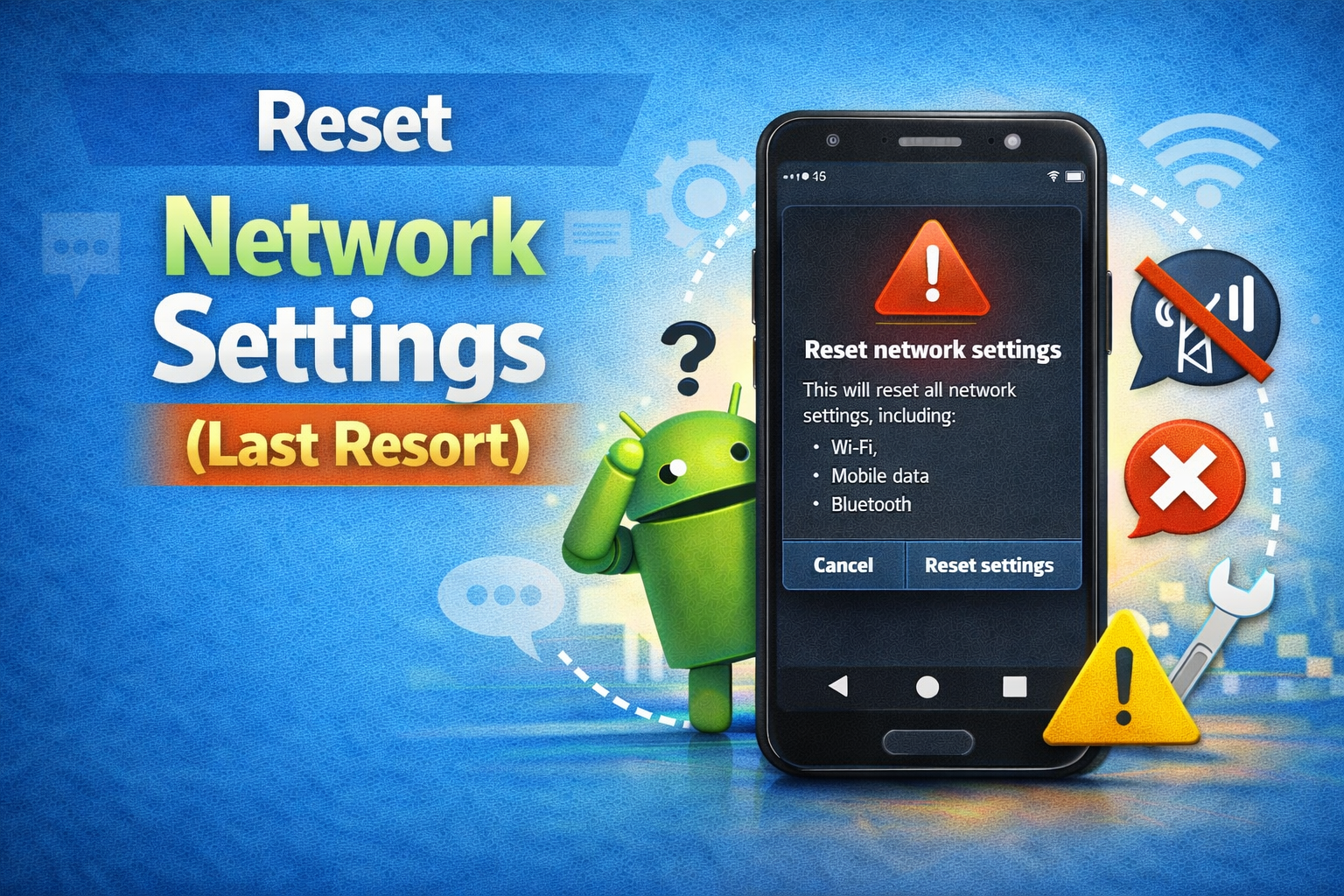
If Android voicemail not working persists, resetting network settings may help.
Steps:
- Open Settings
- Tap System → Reset options
- Select Reset Wi-Fi, mobile & Bluetooth
- Confirm reset
This removes saved Wi-Fi networks and Bluetooth devices.
Frequently Asked Questions (FAQ)
1. Why is my Android voicemail not showing up?
This usually happens due to poor signal, disabled notifications, incorrect voicemail number, or carrier issues.
2. Why can’t I listen to voicemails on Android?
The voicemail app may be outdated, restricted by battery settings, or lacking data access.
3. Does voicemail need mobile data?
Yes, especially for Visual Voicemail. Standard voicemail mainly relies on your carrier network.
4. Will resetting my phone delete voicemails?
A full factory reset may delete voicemails. Always try simpler fixes first.
5. Can voicemail stop working after an Android update?
Yes. Updates can reset app permissions, notifications, or battery settings.
Conclusion
When Android voicemail not working, it can feel frustrating—especially when you miss important messages. Fortunately, most voicemail problems are easy to fix with the right steps. By checking voicemail settings, fixing app issues, adjusting notifications, and contacting your carrier when needed, you can restore voicemail functionality quickly.
Try the solutions in this guide one by one, and you’ll likely have your Android voicemail working again in just a few minutes.