
How to Fix Android Apps Not Updating on Play Store
If your Android apps are not updating on Play Store, you are not alone. This is one of the most common problems Android users face. You tap Update, but nothing happens. Apps stay stuck on “Pending”, or the download fails again and again.
In this guide, you’ll learn how to fix Android apps not updating on Play Store using simple, beginner-friendly steps. These solutions work for most Android phones and do not require technical knowledge.
Why Android Apps Are Not Updating on Play Store
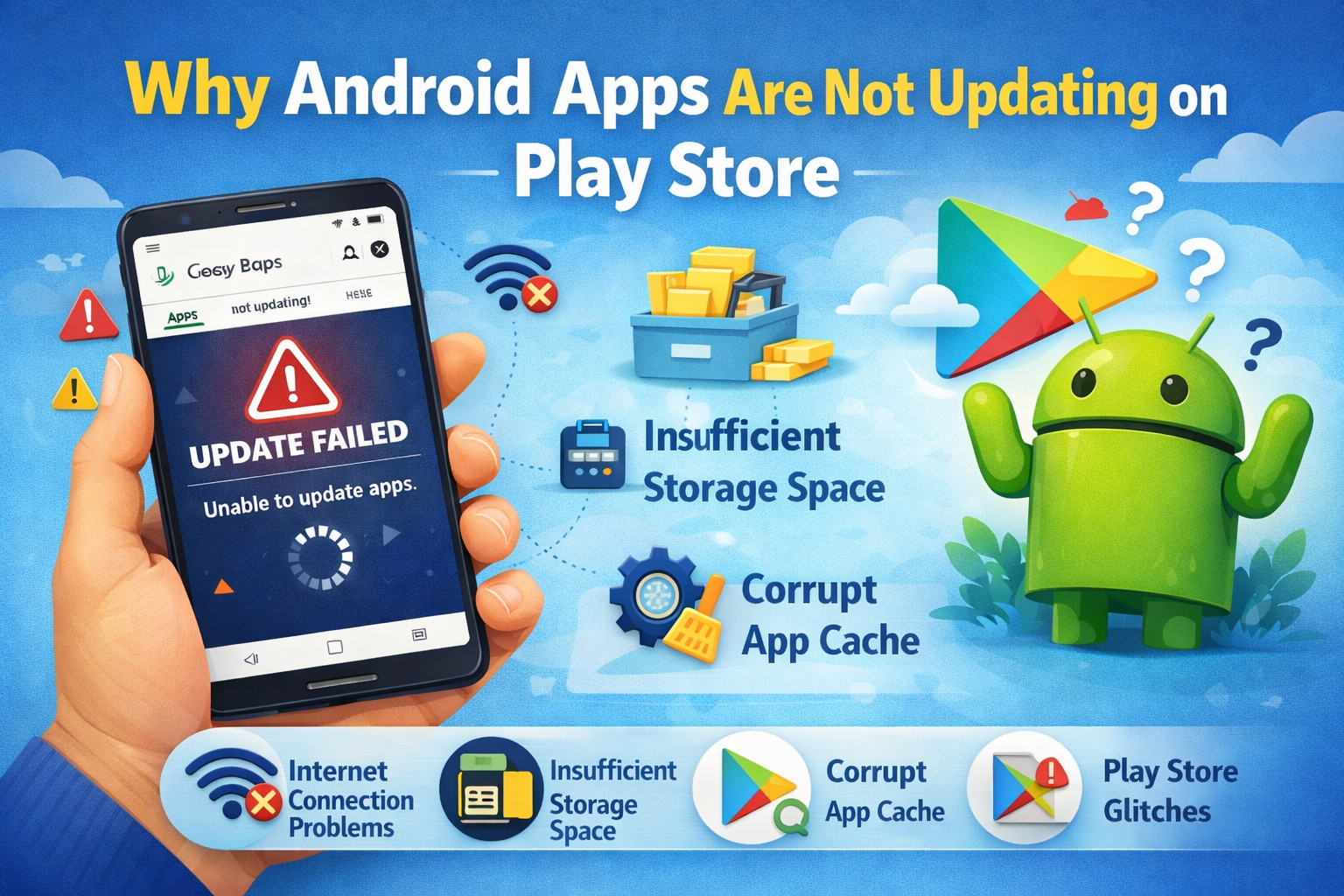
Before fixing the issue, it helps to understand why it happens. Here are the most common reasons:
- Poor or unstable internet connection
- Low phone storage space
- Corrupted cache or data
- Outdated Play Store version
- Google account sync problems
- Incorrect date & time settings
The good news is that most of these problems can be fixed in a few minutes.
Basic Checks Before Trying Advanced Fixes
Check Your Internet Connection
Make sure your phone is connected to a stable Wi-Fi or mobile data network.
Tip:
Try opening a website or watching a YouTube video. If it loads slowly, your internet may be the problem.
Restart Your Android Phone
A simple restart can fix many temporary system issues.
Steps:
- Press and hold the Power button
- Tap Restart
- Wait for the phone to turn back on
How to Fix Android Apps Not Updating on Play Store (Step-by-Step)
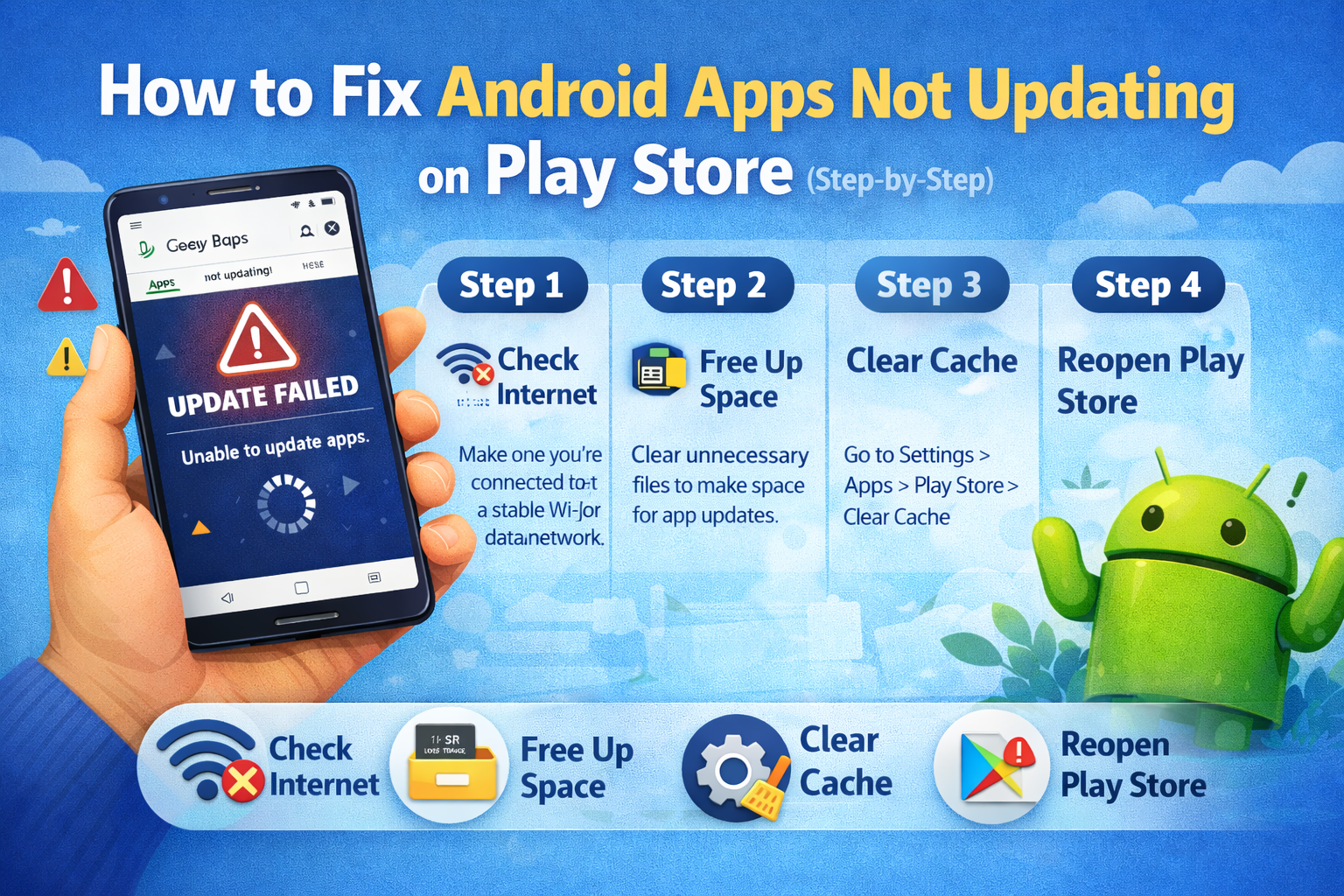
1. Clear Google Play Store Cache and Data
Cache files can become corrupted and stop updates.
Steps:
- Open Settings
- Go to Apps or Apps & notifications
- Tap Google Play Store
- Tap Storage
- Select Clear Cache
- Tap Clear Data
Now open the Play Store again and try updating the app.
Real-world example:
Many users report that apps stuck on “Download pending” start updating immediately after clearing cache.
2. Clear Google Play Services Cache
Google Play Services runs in the background and is essential for app updates.
Steps:
- Open Settings
- Tap Apps
- Find Google Play Services
- Go to Storage
- Tap Clear Cache
Do not clear data unless necessary.
3. Check Available Storage Space
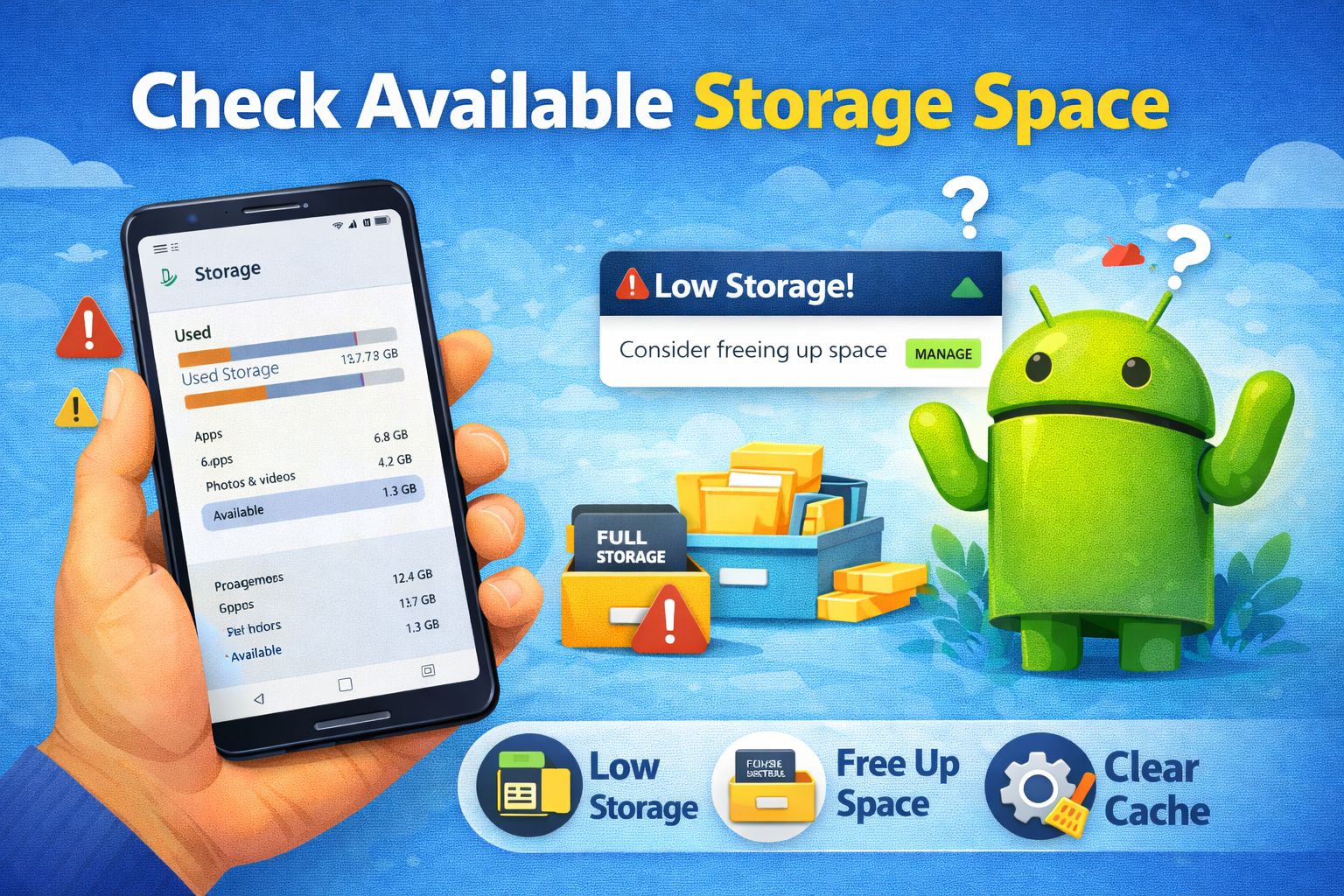
Apps need free storage to download and install updates.
Steps:
- Open Settings
- Tap Storage
- Make sure you have at least 1–2 GB free space
Fix if storage is low:
- Delete unused apps
- Remove old photos or videos
- Clear large app caches
4. Update Android System WebView
Outdated system components can cause Play Store issues.
Steps:
- Open Play Store
- Search for Android System WebView
- Tap Update (if available)
5. Check Date and Time Settings
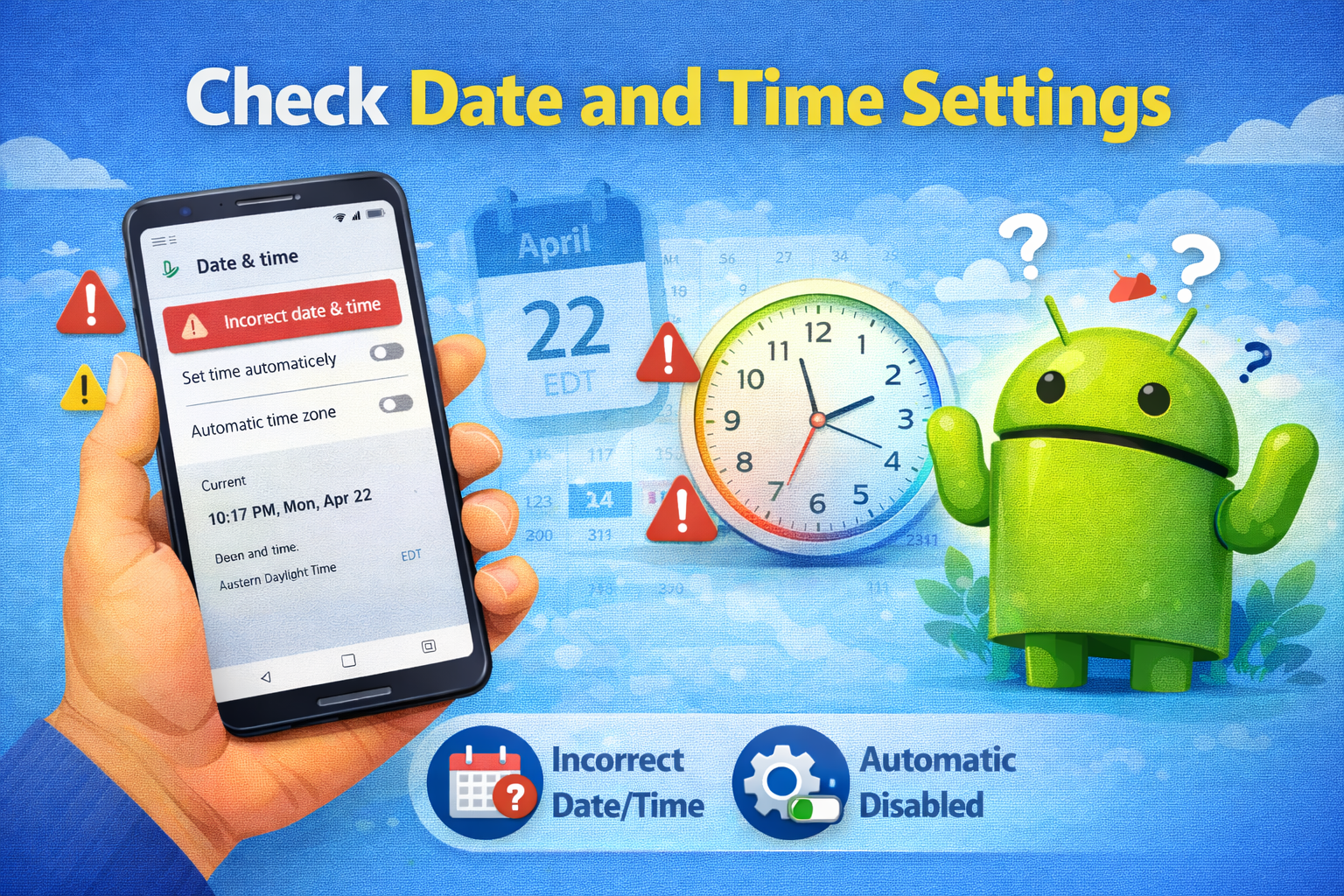
Incorrect date or time can block app updates.
Steps:
- Open Settings
- Tap Date & time
- Enable Automatic date & time
- Enable Automatic time zone
Restart your phone after changing these settings.
6. Remove and Re-Add Google Account
If your Google account is not syncing properly, updates may fail.
Steps to remove account:
- Open Settings
- Tap Accounts
- Select your Google account
- Tap Remove account
Then re-add it:
- Go back to Accounts
- Tap Add account
- Choose Google
- Sign in again
This often fixes stubborn update issues.
7. Disable and Re-Enable Play Store Updates
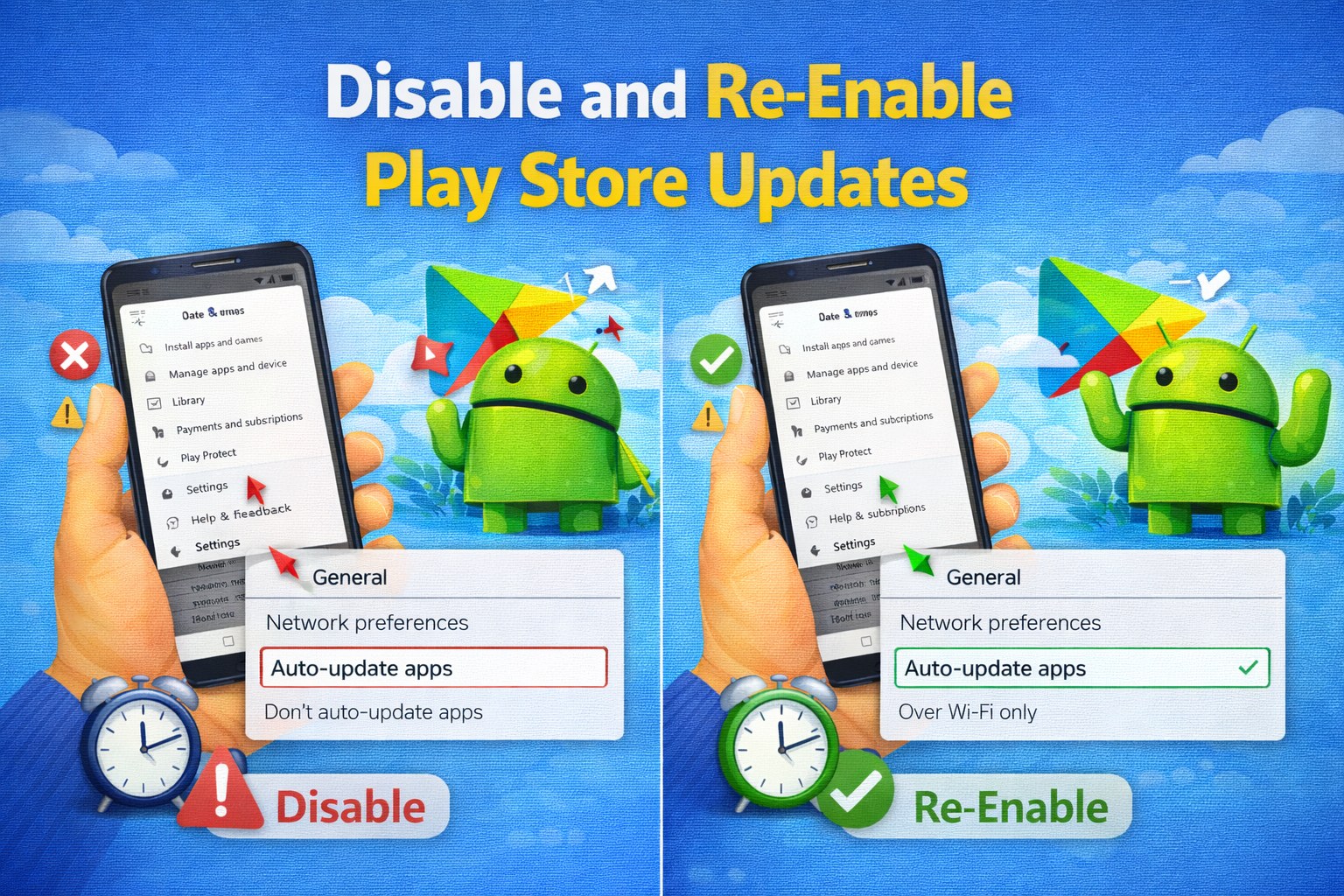
This resets the Play Store app.
Steps:
- Open Settings
- Go to Apps
- Tap Google Play Store
- Tap Disable
- Restart your phone
- Enable Play Store again
8. Check App Download Preferences
Your Play Store settings may block updates on mobile data.
Steps:
- Open Play Store
- Tap your profile icon
- Go to Settings
- Tap Network preferences
- Select App download preference
- Choose Over any network
Advanced Fixes (Try Only If Needed)
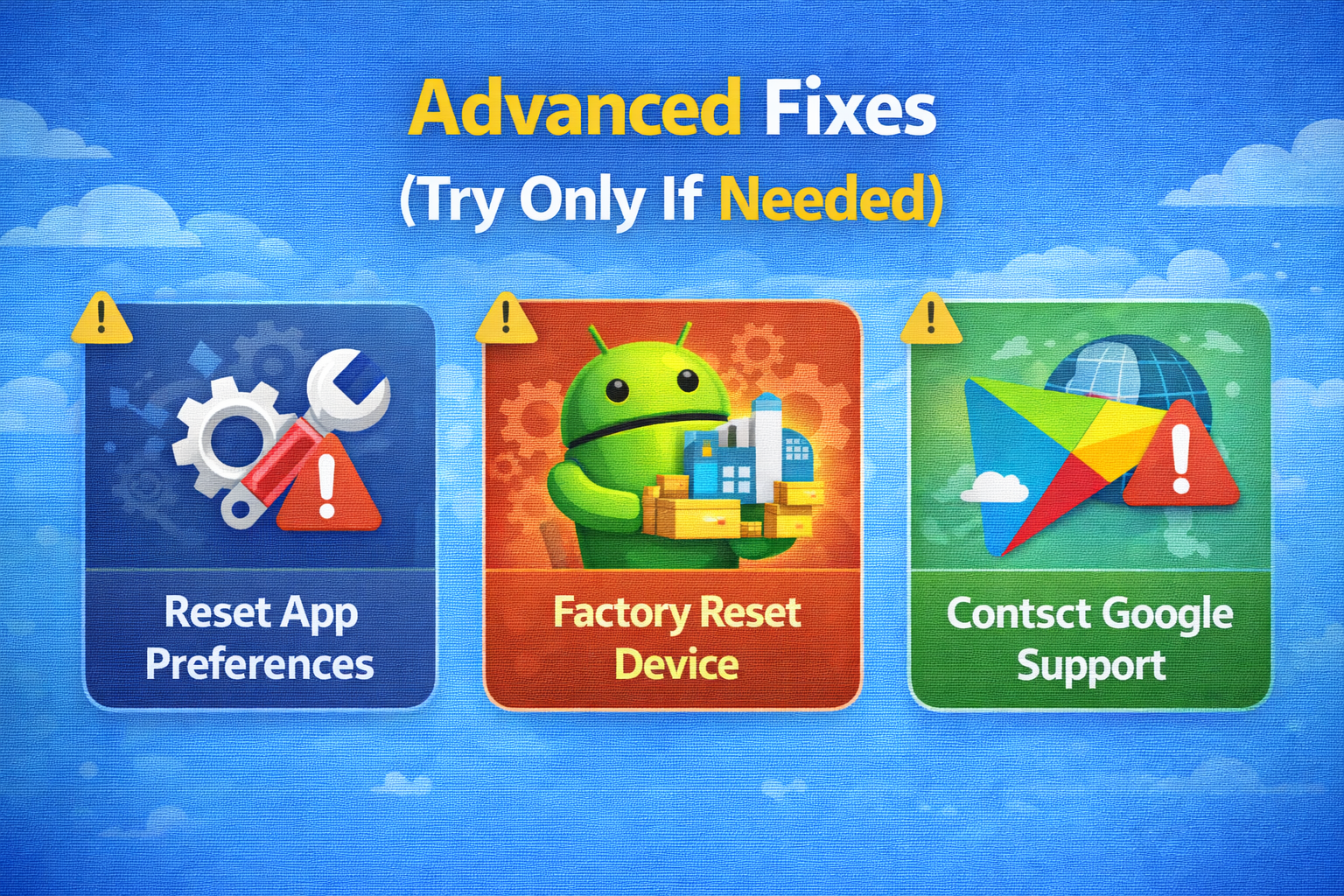
Reset App Preferences
This does not delete your data but resets app settings.
Steps:
- Open Settings
- Tap Apps
- Tap the three-dot menu
- Select Reset app preferences
Update Android OS
An outdated Android version can cause compatibility issues.
Steps:
- Open Settings
- Tap Software update
- Download and install updates if available
Common Mistakes to Avoid
- Using VPN while updating apps
- Restricting background data
- Using battery saver mode during updates
- Force stopping Play Store repeatedly
These actions can interrupt downloads.
Frequently Asked Questions (FAQ)
1. Why are my apps stuck on “Pending”?
This usually happens due to internet issues, low storage, or Play Store cache problems.
2. Can I update apps without Play Store?
Yes, but it is not recommended unless you use trusted sources. Play Store is the safest option.
3. Does clearing cache delete my apps?
No. Clearing cache does not delete apps or personal data.
4. Why only one app is not updating?
That app may have:
- A buggy update
- Storage permission issues
- Compatibility problems with your Android version
5. Should I factory reset my phone?
Only as a last resort. Most Play Store update problems can be fixed without factory reset.
Conclusion
If you are struggling with Android apps not updating on Play Store, don’t panic. In most cases, the issue is caused by cache problems, storage limits, or simple settings errors. By following the step-by-step solutions in this guide, you can fix the problem quickly—even if you are a beginner.
Start with basic fixes like clearing cache and checking internet, then move to advanced steps only if needed. Keeping your phone updated and storage clean will help prevent this issue in the future.
If this guide helped you, consider bookmarking it for future reference.