How to Fix iPhone Touch Screen Not Working Properly
If your iPhone touch screen is not working properly, it can be very frustrating. You tap, swipe, or scroll—but nothing happens or it responds slowly. This issue can stop you from using your phone normally.
The good news is that most touch screen problems can be fixed بسهولة without going to a repair shop.
In this guide, you’ll learn simple, step-by-step solutions to fix the problem quickly—even if you are a beginner.
Common Signs of Touch Screen Problems
Before fixing the issue, check if your iPhone shows these symptoms:
- Screen not responding to touch
- Delayed or slow response
- Ghost touches (screen moves by itself)
- Only part of the screen works
- Screen freezes randomly
If you notice any of these, follow the fixes below.
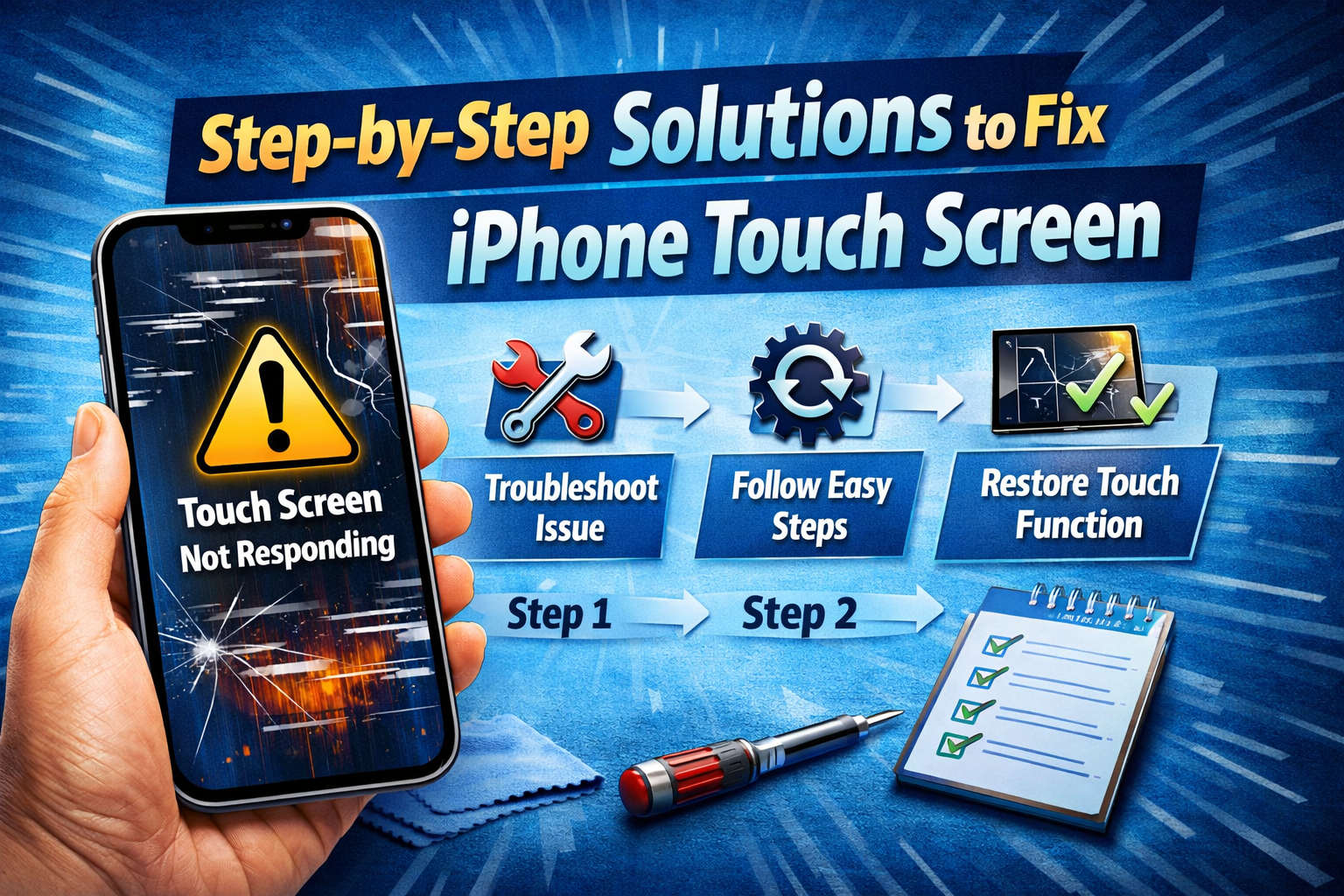
Step-by-Step Solutions to Fix iPhone Touch Screen
1. Clean Your iPhone Screen
Sometimes the problem is very simple—your screen is dirty.
Dust, oil, or water can affect touch sensitivity.
Steps:
- Turn off your iPhone
- Use a soft, dry microfiber cloth
- Gently wipe the screen
- Remove any screen protector if damaged
👉 Important: Avoid using water or harsh chemicals.
2. Restart Your iPhone
A quick restart can fix many software glitches.
Steps:
- Press and hold the Power button
- Slide to power off
- Wait 10–15 seconds
- Turn it back on
👉 This is one of the easiest ways to fix iPhone screen unresponsive issues.
3. Force Restart (If Screen Is Frozen)
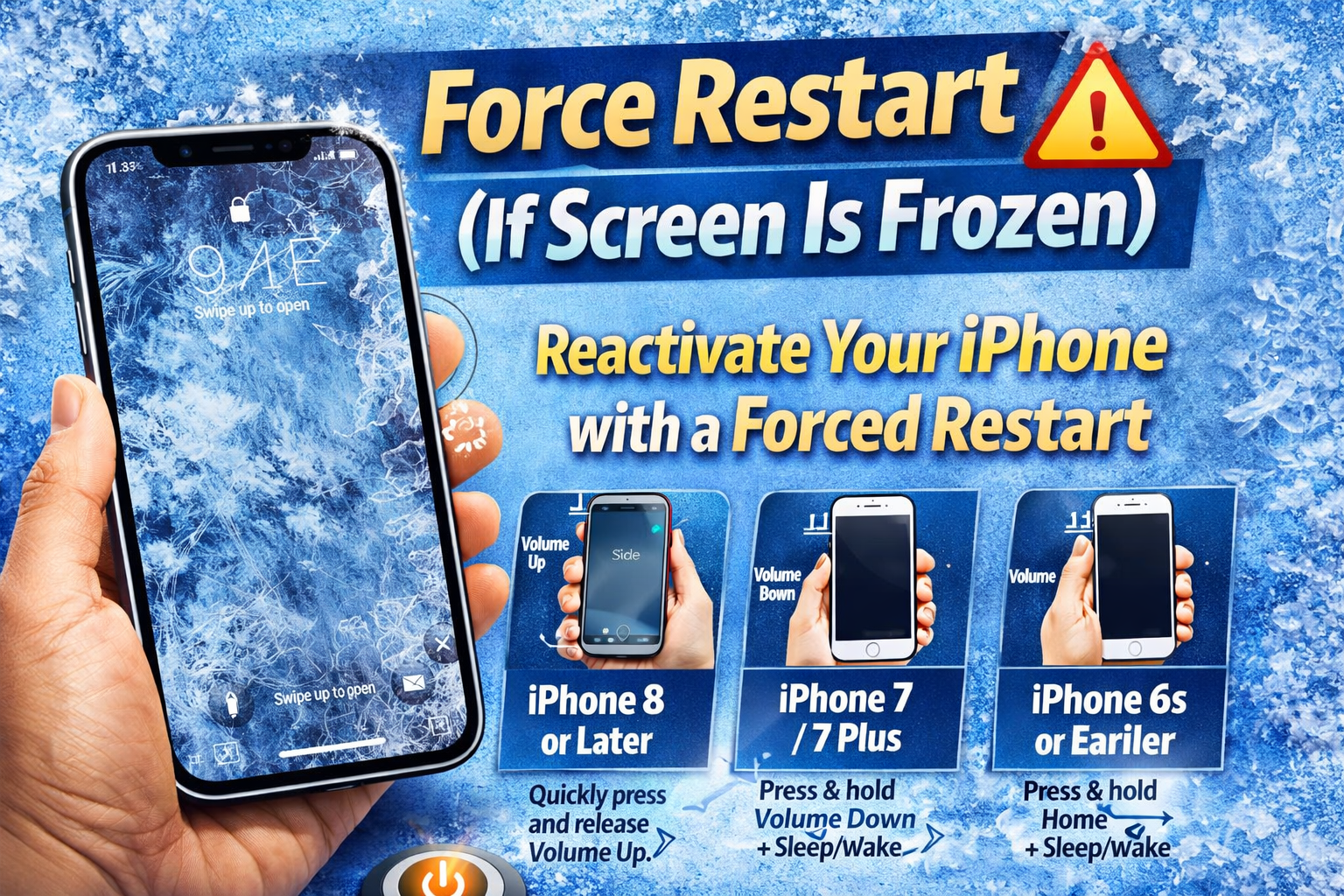
If your screen doesn’t respond at all, use force restart.
For iPhone 8 or later:
- Press and release Volume Up
- Press and release Volume Down
- Press and hold Power button until Apple logo appears
👉 This helps fix touchscreen not working due to system crashes.
4. Remove Screen Protector or Case
Sometimes accessories can interfere with touch sensitivity.
- Thick screen protectors
- Cheap or damaged protectors
- Tight phone cases
What to do:
- Remove the protector
- Test the screen
- Replace with a high-quality one
5. Check for Software Updates
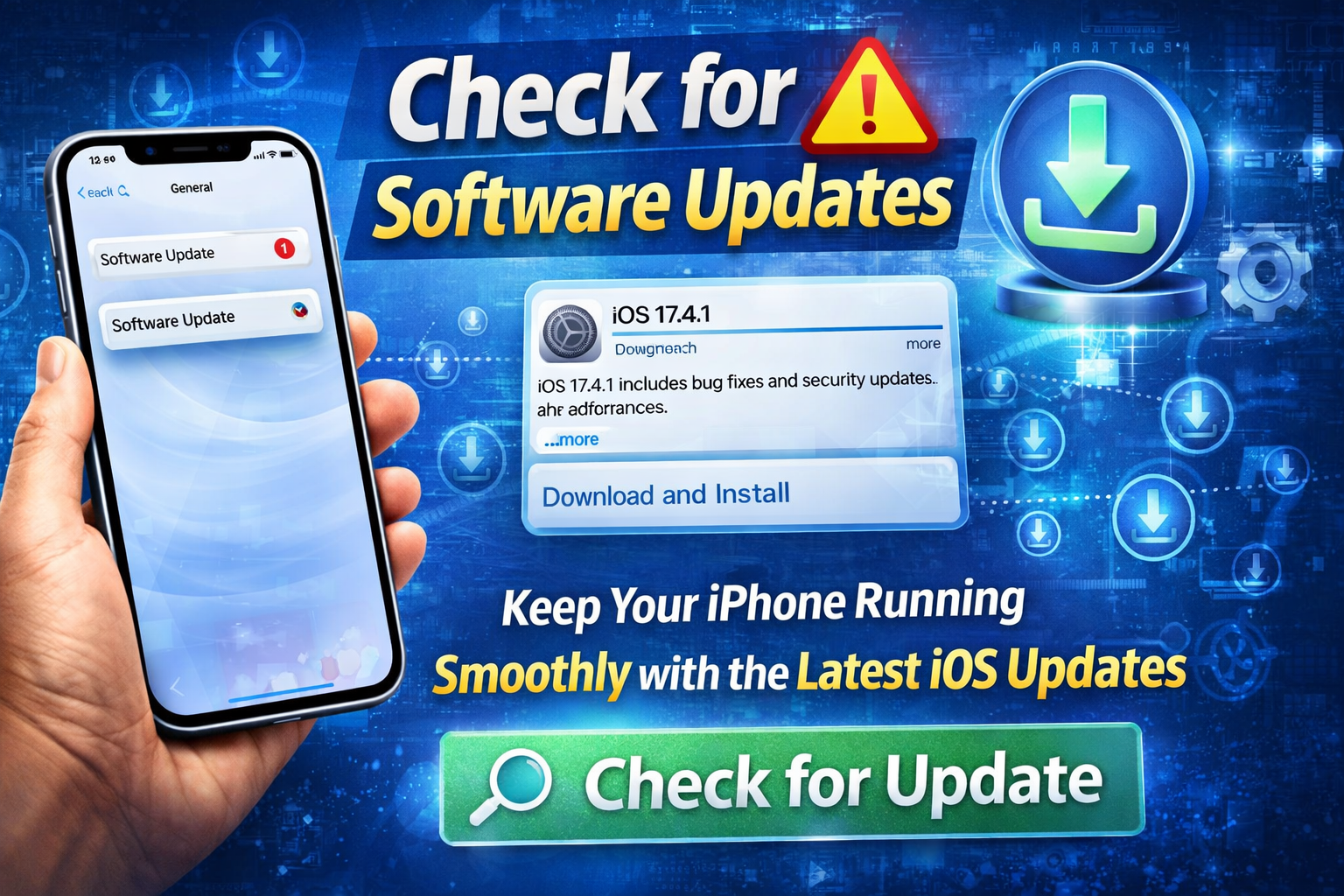
Outdated iOS can cause touch issues.
Steps:
- Go to Settings
- Tap General
- Select Software Update
- Install any available update
👉 Apple often fixes bugs that affect iPhone touch screen not working properly.
6. Free Up Storage Space
Low storage can slow down your device and affect performance.
Steps:
- Go to Settings > General > iPhone Storage
- Delete unused apps
- Remove large files or videos
👉 Keeping storage free improves overall system performance.
7. Disable Touch Accommodations
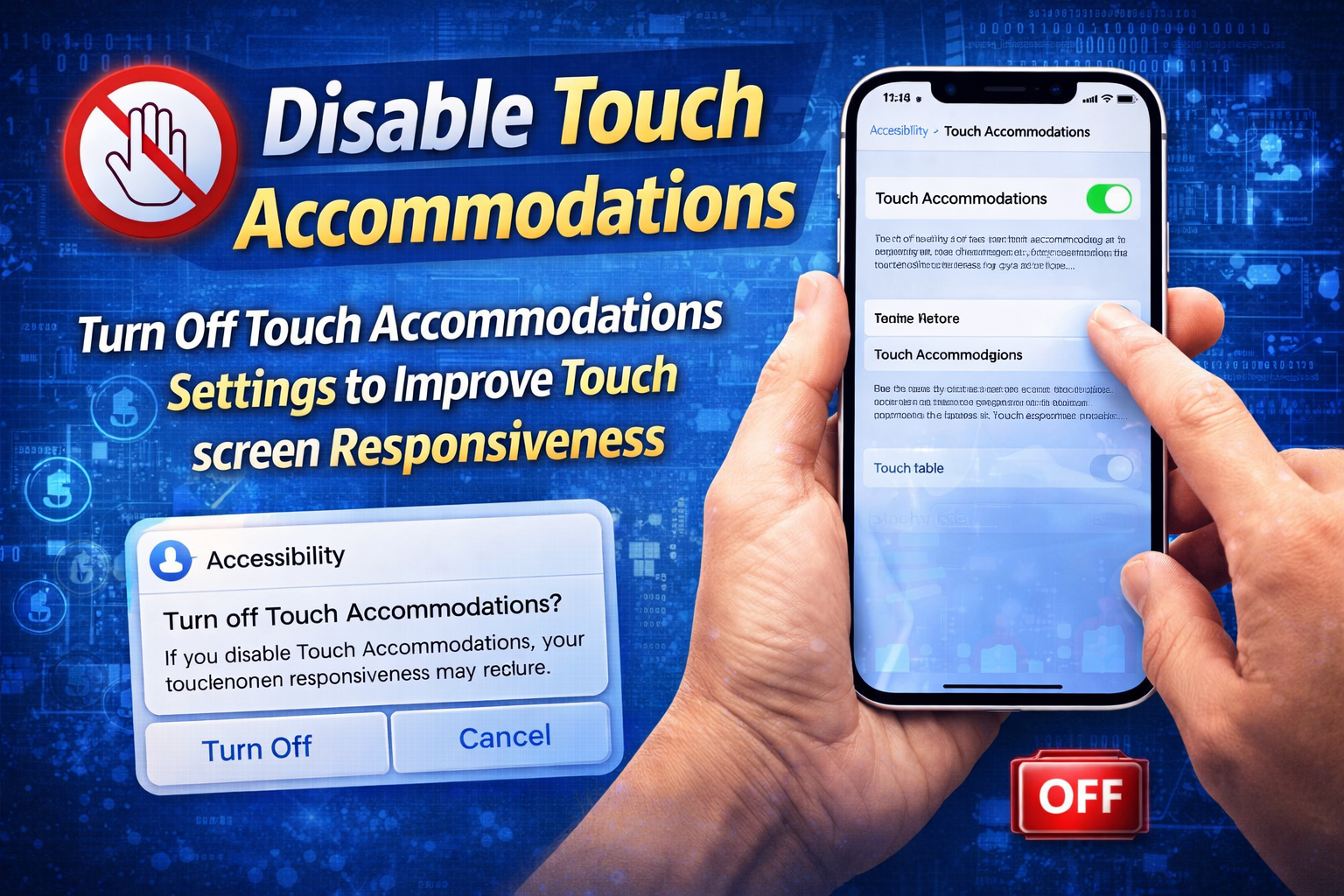
This feature can sometimes cause delayed touch response.
Steps:
- Go to Settings
- Tap Accessibility
- Select Touch
- Turn off Touch Accommodations
8. Reset All Settings
If the issue continues, reset your settings.
👉 This will NOT delete your data.
Steps:
- Go to Settings
- Tap General
- Select Transfer or Reset iPhone
- Tap Reset
- Choose Reset All Settings
9. Restore iPhone Using iTunes/Finder
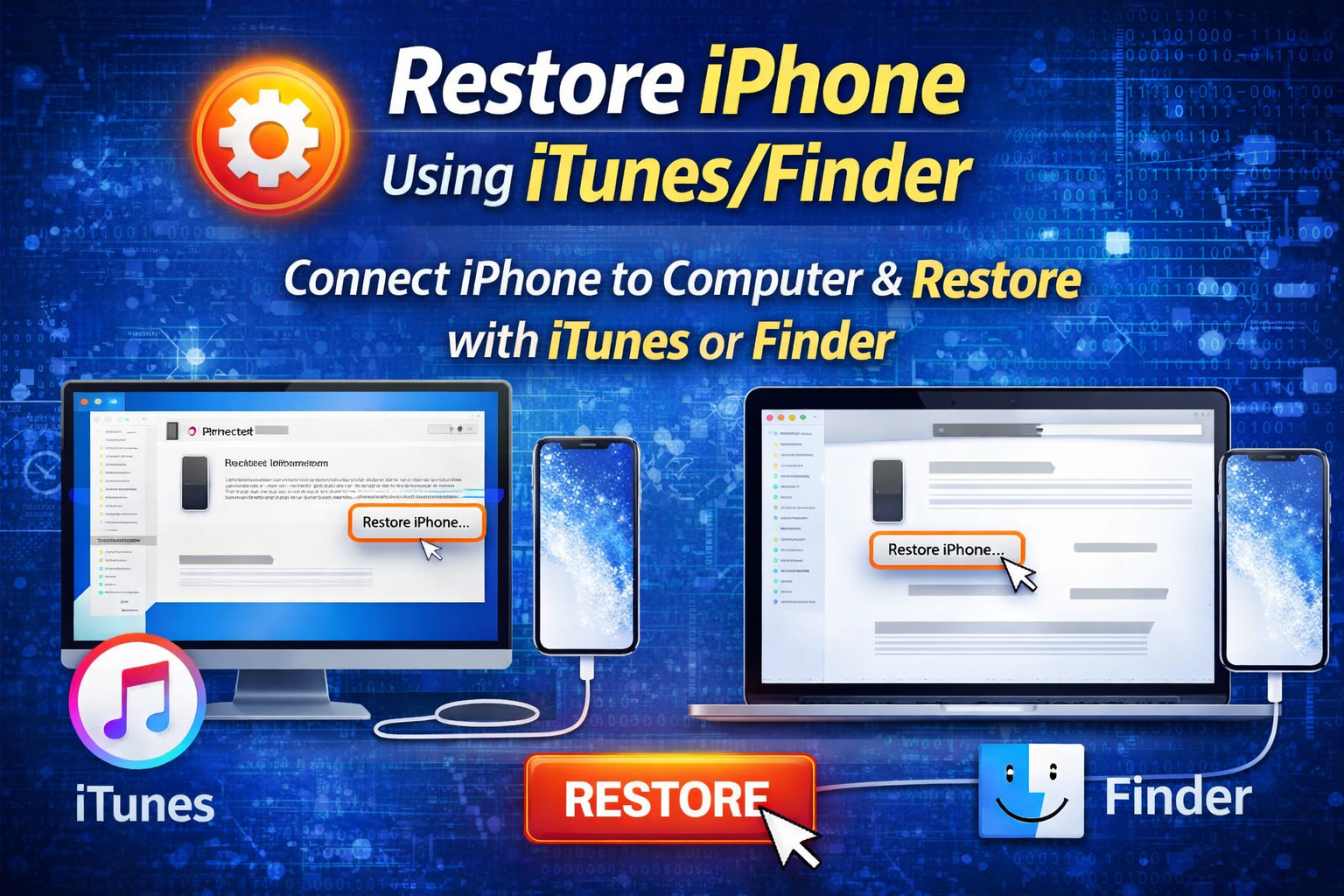
If nothing works, restore your device.
👉 Warning: This may erase your data, so backup first.
Steps:
- Connect iPhone to a computer
- Open iTunes or Finder
- Select your device
- Click Restore iPhone
10. Check for Physical Damage
If your screen is cracked or exposed to water, it may be a hardware issue.
Signs include:
- Visible cracks
- Screen flickering
- Water inside screen
👉 In this case, you may need professional repair.
Why This Problem Happens
Understanding the cause helps prevent future issues.
Here are the most common reasons:
1. Software Glitches
- System bugs
- App crashes
- iOS errors
2. Physical Damage
- Dropping the phone
- Cracked screen
- Internal component damage
3. Water or Moisture
- Rain exposure
- Liquid spills
4. Poor Quality Accessories
- Cheap screen protectors
- Faulty charging cables
5. Overheating
- Using phone while charging
- Heavy apps or gaming
👉 These factors often lead to fix iPhone screen issues users commonly face.
Quick Tips to Prevent This Problem
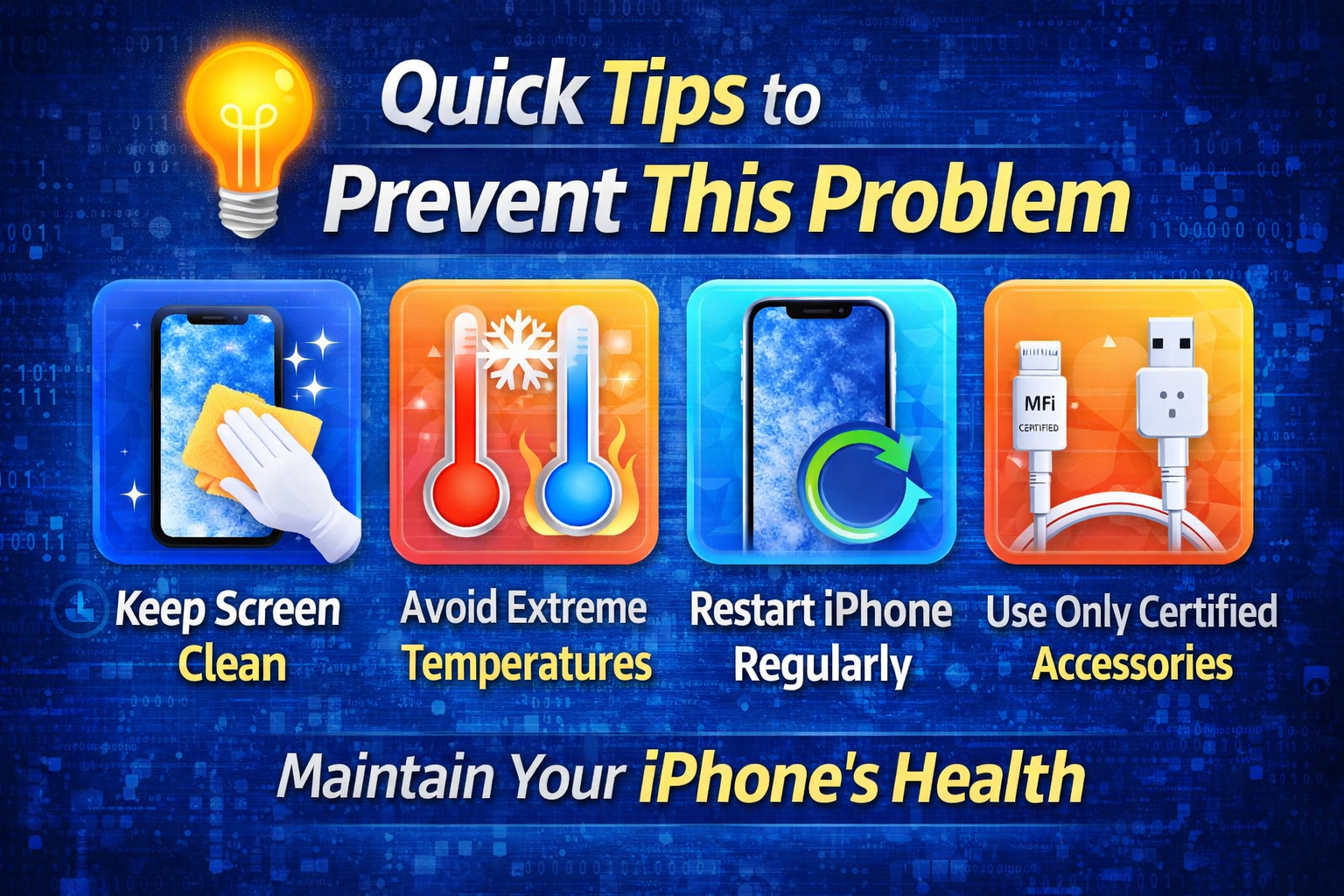
Prevention is always better than fixing.
Follow these simple tips:
- ✅ Use a high-quality screen protector
- ✅ Avoid dropping your phone
- ✅ Keep your screen clean
- ✅ Don’t use phone with wet hands
- ✅ Update iOS regularly
- ✅ Avoid overheating your device
- ✅ Use original or certified accessories
FAQ (Frequently Asked Questions)
1. Why is my iPhone touch screen not responding?
It may be due to software bugs, dirt on the screen, or hardware damage.
2. Can I fix touchscreen issues without repair?
Yes, most problems can be fixed using simple steps like restart, update, or cleaning the screen.
3. Does water damage affect touch screen?
Yes, water can damage internal components and cause touch issues.
4. When should I visit a repair center?
If your screen is cracked or none of the fixes work, you should seek professional help.
5. Can a screen protector cause touch problems?
Yes, especially if it is thick, damaged, or low quality.
Conclusion
Dealing with an iPhone touch screen not working properly can be annoying, but in most cases, it’s easy to fix.
Start with simple solutions like:
- Cleaning the screen
- Restarting your device
- Updating iOS
If the issue continues, try advanced fixes like resetting settings or restoring your iPhone.
👉 If nothing works, it may be a hardware problem that needs professional repair.
By following this guide, you can quickly fix the issue and get your iPhone working smoothly again.