
How to Fix Android Phone Not Turning On
When your phone suddenly refuses to power up, it can be stressful—especially if you rely on it for work, communication, or daily tasks. Many users search for how to fix Android phone not turning on because the problem often appears without warning. The good news is that most causes are simple and can be fixed at home without visiting a repair shop.
In this beginner-friendly guide, you’ll learn step-by-step solutions to fix an Android phone that won’t turn on. We’ll cover common causes, real-world examples, and safe troubleshooting methods that normal users can follow with confidence.
Common Reasons Why an Android Phone Won’t Turn On
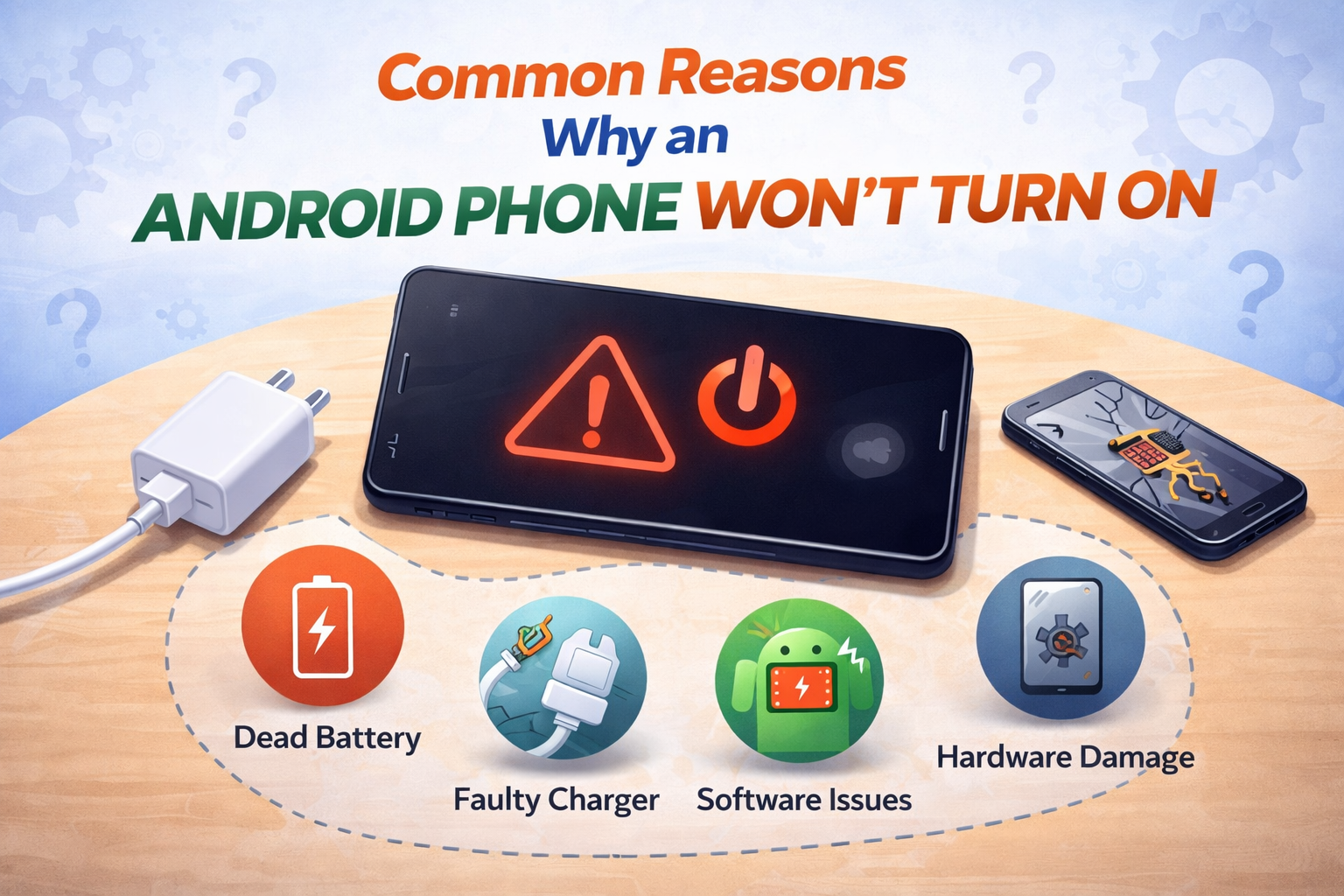
Before fixing the issue, it helps to understand what might be wrong. Here are the most common causes:
- Battery fully drained or faulty
- Charging cable or adapter not working
- Phone frozen due to software crash
- Android system update failed
- Physical damage (drop or water exposure)
- Power button not responding
Many of these issues are software-related, which means they are fixable without professional repair.
How to Fix Android Phone Not Turning On (Step-by-Step)
1. Charge Your Phone Properly (Most Important Step)
Sometimes, the problem is simply a dead battery.
Steps to follow:
- Plug your phone into a working wall charger
- Use the original charging cable if possible
- Leave it charging for 30–60 minutes
- Look for signs like:
- Battery icon
- Charging LED light
- Vibration or screen flash
Tip: Avoid charging from a laptop or power bank for testing.
Real-world example:
Lina thought her phone was broken, but after charging it for one hour with a different cable, it turned on normally.
2. Check Charger, Cable, and Charging Port
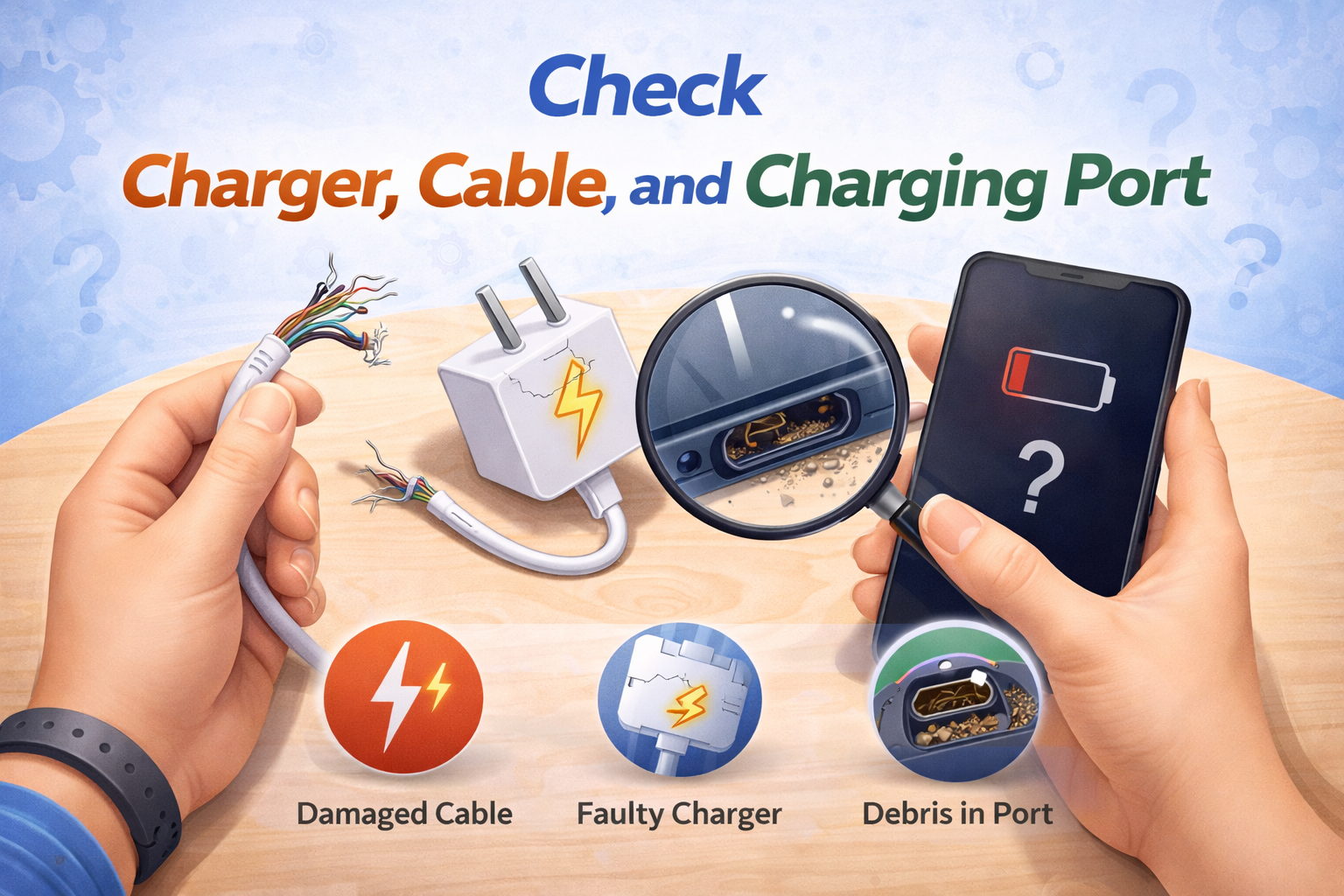
A damaged charger is a very common reason why an Android phone won’t turn on.
What to do:
- Try a different USB cable and adapter
- Inspect the charging port for dust or lint
- Gently clean the port using a toothpick or soft brush
Be gentle—do not use metal objects.
3. Force Restart Your Android Phone
If your phone is frozen or crashed, a force restart can help.
Common force restart methods:
- Power + Volume Down (hold for 10–15 seconds)
- Power + Volume Up (on some models)
If the phone vibrates or shows a logo, release the buttons and wait.
This is one of the easiest ways to fix Android phone not turning on due to a software freeze.
4. Try Booting into Safe Mode

Safe Mode starts Android without third-party apps. This helps identify if an app caused the problem.
Steps:
- Press and hold the Power button
- When the logo appears, hold Volume Down
- Release when you see Safe Mode
If your phone turns on in Safe Mode, uninstall recently installed apps and restart normally.
Advanced Fixes for Android Phone Not Turning On
5. Boot into Recovery Mode
Recovery Mode allows you to fix system-related problems.
Steps:
- Turn off the phone completely
- Press and hold:
- Power + Volume Up (most phones)
- Release buttons when Android logo appears
From the menu:
- Choose Wipe cache partition
- Reboot system
This does not delete personal data.
6. Fix Android Phone After Failed System Update
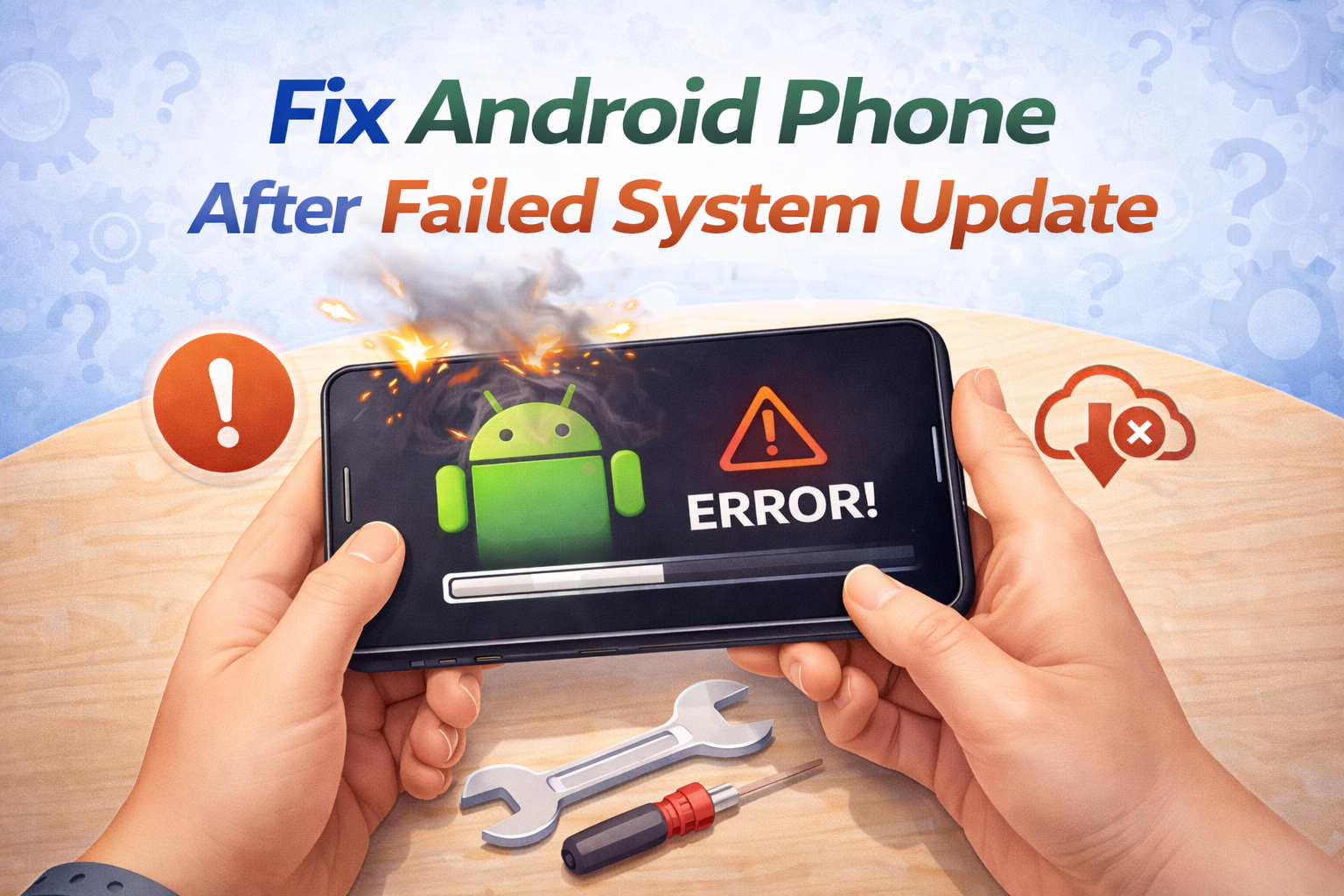
If your phone stopped working after an update, the system may be corrupted.
What you can do:
- Enter Recovery Mode
- Select Wipe cache partition
- Restart the phone
If that fails, you may need to:
- Reinstall the official firmware (advanced)
- Visit a service center
7. Check for Overheating or Battery Issues
Phones may refuse to turn on if the battery is damaged or overheated.
Signs of battery problems:
- Phone gets very hot
- Battery drains too fast
- Phone only turns on when plugged in
If you notice these signs, battery replacement may be necessary.
Fix Android Phone Not Turning On After Factory Reset
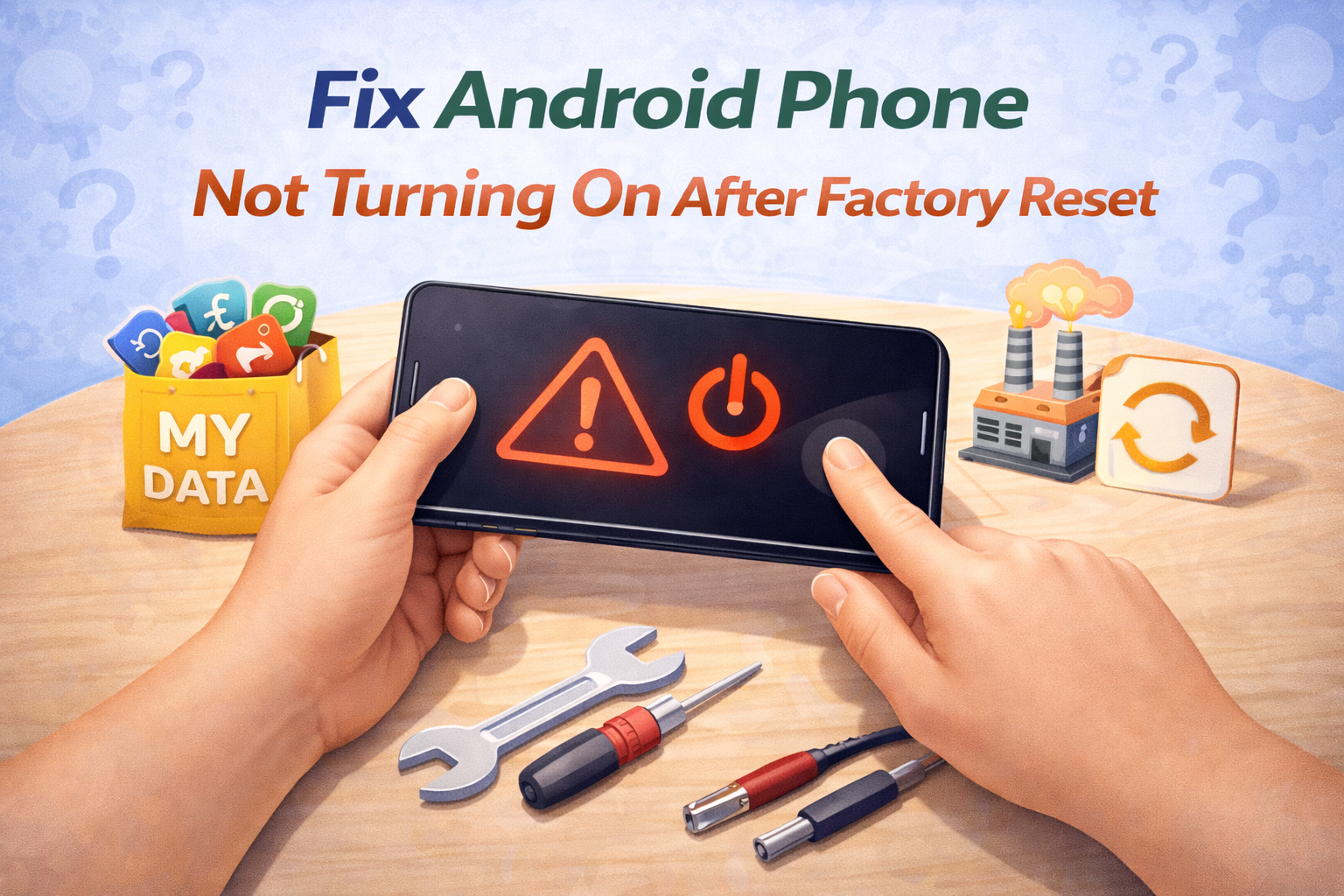
Sometimes the phone won’t turn on properly after a reset.
Possible reasons:
- Incomplete setup
- Google account verification stuck
- Software crash during reset
Solutions:
- Charge the phone fully
- Force restart
- Boot into Recovery Mode
- Ensure stable Wi-Fi during setup
This issue is common and usually fixable with patience.
What If Your Android Phone Has Physical Damage?
8. Check for Water or Drop Damage
If your phone was dropped or exposed to water:
- Do not charge it immediately
- Dry it completely
- Leave it off for 24 hours
If the phone still won’t turn on, internal components may be damaged.
When to Visit a Repair Center

You should consider professional help if:
- Phone shows no sign of life after charging
- Battery is swollen
- Phone was severely dropped or soaked
- Screen is black but phone vibrates (screen damage)
Tips to Prevent Android Phone Power Issues
- Avoid using cheap chargers
- Keep phone updated
- Don’t let battery drain to 0% often
- Avoid overheating
- Restart phone occasionally
Good habits can prevent most “phone not turning on” problems.
FAQ: How to Fix Android Phone Not Turning On
1. Why is my Android phone not turning on at all?
The most common reasons are dead battery, charger issues, or software crash.
2. How long should I charge a phone before trying to turn it on?
At least 30 minutes using a wall charger.
3. Can a phone turn on with a broken power button?
Yes, sometimes by charging or using recovery mode, but repair is recommended.
4. Will I lose data if I fix my phone?
Most methods like charging, restart, or cache wipe do not delete data.
5. Can a software update stop my phone from turning on?
Yes, a failed update can cause boot problems, but recovery mode can help.
Conclusion
Learning how to fix Android phone not turning on can save you time, money, and stress. In many cases, the issue is simple—like a drained battery or frozen system—and can be fixed at home with easy steps. Always start with basic checks, then move to advanced solutions if needed.
If none of the methods work, professional repair may be the safest option. With the right approach, your Android phone can often be brought back to life quickly and safely.