
How to Fix Android Phone After Factory Reset
Factory resetting an Android phone is often the last solution when the device becomes slow, buggy, or locked. However, many users face new problems after a factory reset, such as Google account verification issues, phone not setting up properly, apps not working, or missing data. If you are wondering how to fix Android phone after factory reset, this guide is written just for you.
In this beginner-friendly article, you will learn step-by-step solutions to fix common problems after a factory reset. The steps use simple language, real-world examples, and safe methods that normal Android users can follow without technical skills.
What Happens After a Factory Reset on Android?
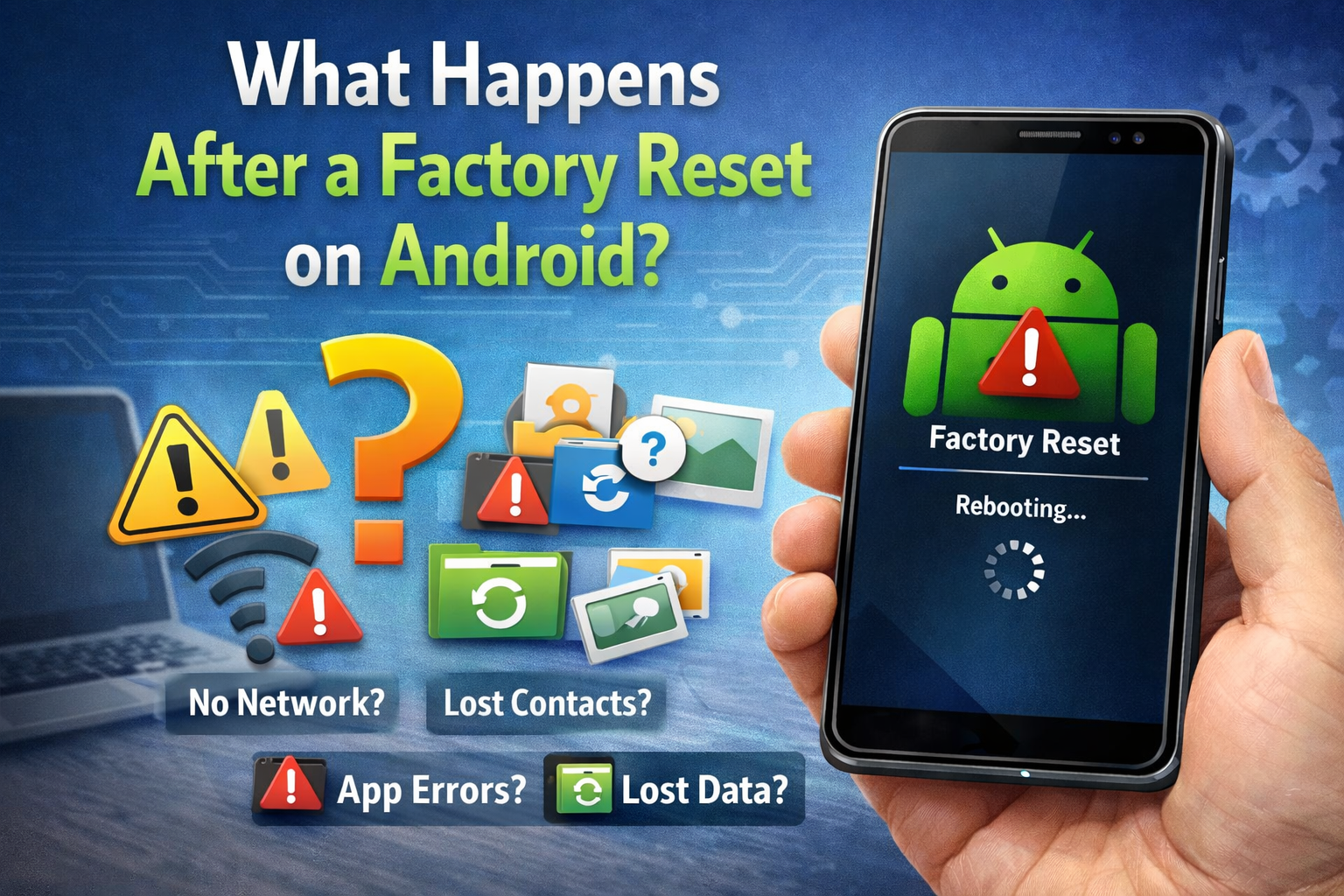
A factory reset deletes:
- All apps and app data
- Google accounts and user accounts
- System settings and preferences
- Downloaded files (if not backed up)
Your phone returns to its original software state, like a new device. This can fix many issues, but it can also create new challenges if something goes wrong during setup.
Common Problems After Factory Reset
Before learning how to fix Android phone after factory reset, let’s look at the most common issues:
- Stuck on Google account verification (FRP lock)
- Phone stuck on setup screen
- Google Play Store not working
- Apps crashing or not installing
- No internet connection
- Contacts, photos, or data missing
- Battery draining fast after reset
Don’t worry—most of these problems are easy to fix.
How to Fix Android Phone After Factory Reset (Step-by-Step)
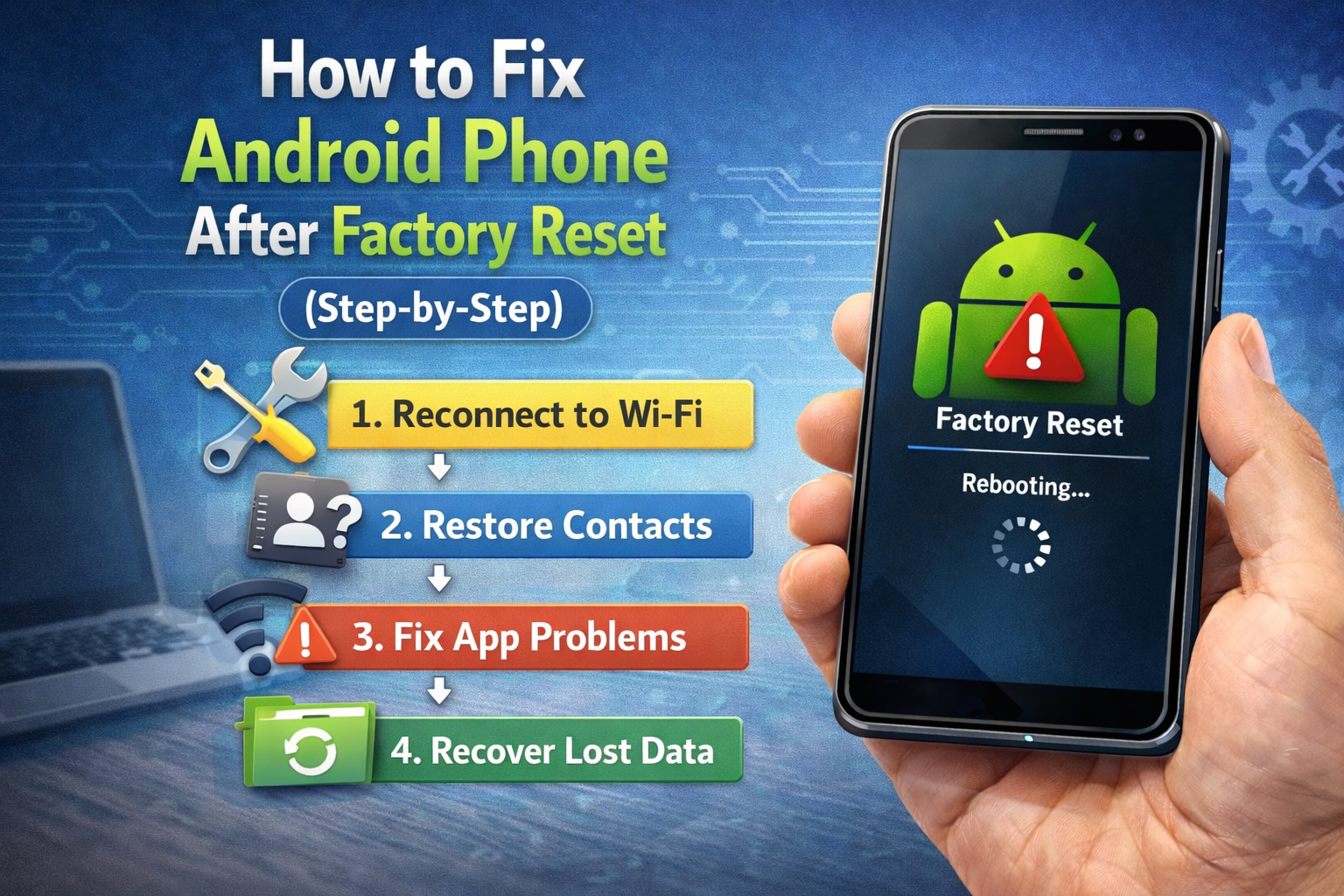
1. Fix Google Account Verification (FRP Lock)
Problem:
After reset, your phone asks for the previously synced Google account. This is called Factory Reset Protection (FRP).
Why it happens:
Google uses FRP to protect stolen phones.
Steps to fix it:
- Enter the same Google account used before the reset
- Make sure you are connected to Wi-Fi or mobile data
- If you forgot the password:
- Go to accounts.google.com on another device
- Reset your Google password
- Wait 24–72 hours, then try again on your phone
Real-world example:
Sokha reset his Samsung phone but forgot his Google password. He reset the password on a laptop, waited one day, then successfully logged in.
2. Fix Android Phone Stuck on Setup Screen
Problem:
Phone gets stuck on “Checking for updates” or “Just a sec”.
Steps to fix:
- Restart the phone
- Connect to a different Wi-Fi network
- Skip optional steps during setup
- Remove SIM card and try setup again
- If still stuck:
- Turn off the phone
- Press Power + Volume Up
- Choose Wipe cache partition
- Reboot system
This method does not delete your data again.
3. Fix Google Play Store Not Working After Reset
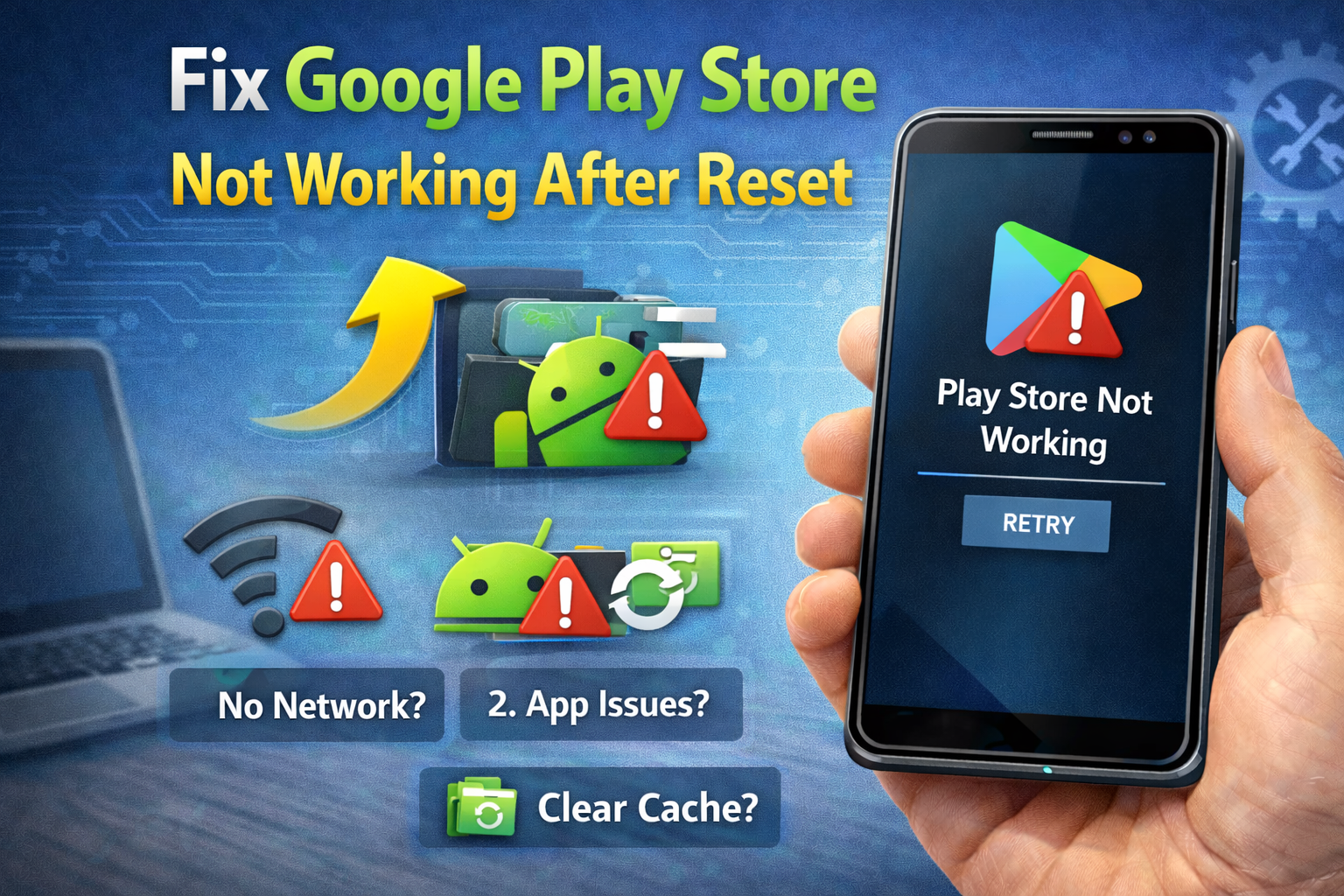
Problem:
Play Store won’t open, crashes, or won’t download apps.
Steps to fix:
- Go to Settings > Apps > Google Play Store
- Tap Storage
- Clear Cache and Data
- Do the same for:
- Google Play Services
- Google Services Framework
- Restart the phone
This is one of the most effective ways to fix Android phone after factory reset.
4. Fix Apps Not Installing or Crashing
Problem:
Apps fail to install or crash immediately.
Steps to fix:
- Update Android system:
- Settings > Software Update
- Check date & time:
- Enable Automatic date & time
- Sign out and sign back into Google account
- Free up storage space (at least 2–3 GB free)
Example:
After reset, Dara couldn’t install Facebook. Updating the system and fixing date/time solved the issue instantly.
5. Fix Internet or Wi-Fi Not Working After Reset
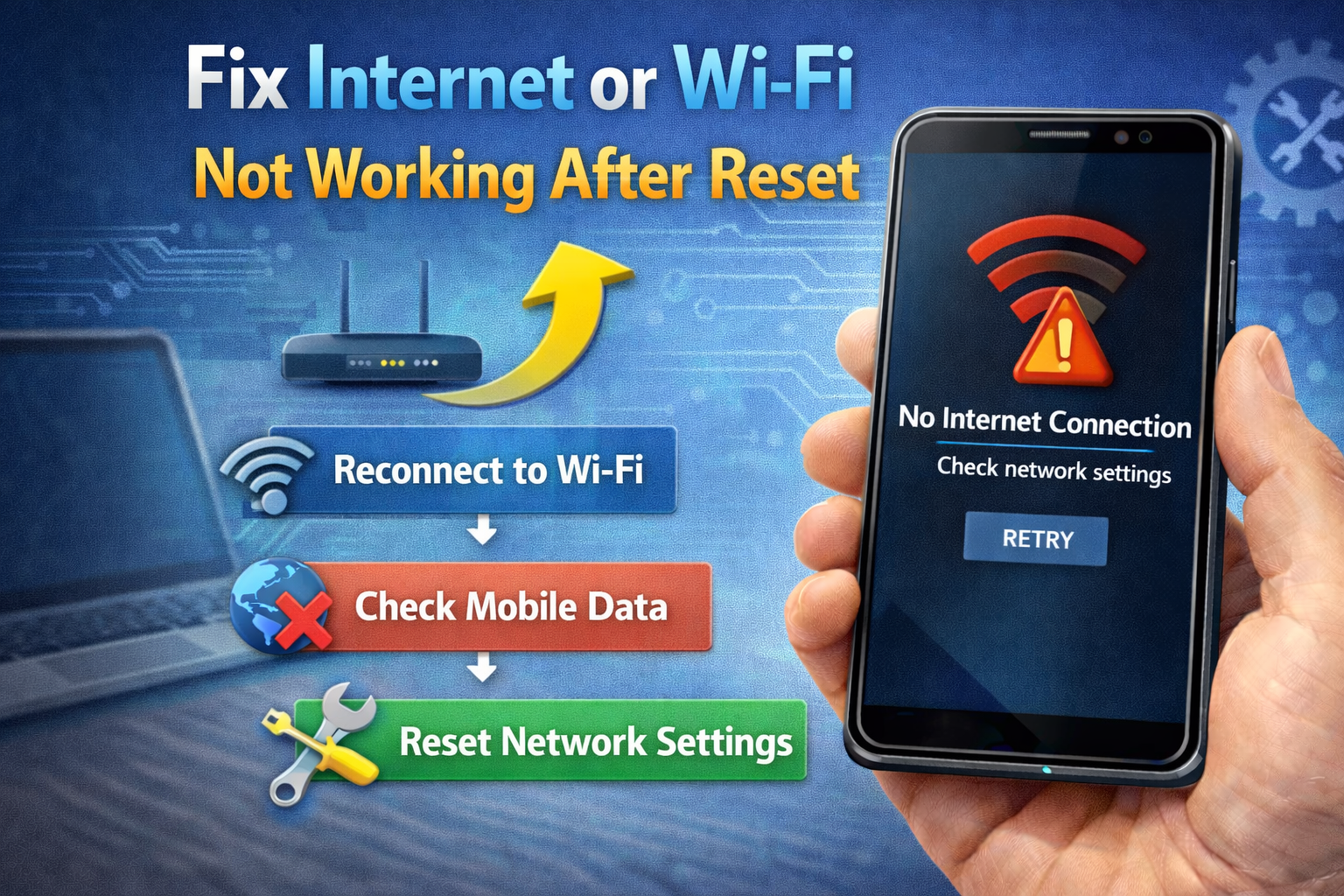
Problem:
Wi-Fi connects but internet doesn’t work.
Steps to fix:
- Restart router and phone
- Forget Wi-Fi network and reconnect
- Reset network settings:
- Settings > System > Reset options
- Reset Wi-Fi, mobile & Bluetooth
- Turn off VPN (if enabled)
How to Restore Data After Factory Reset
6. Restore Google Backup
If you used Google Backup before reset:
- During setup, sign in with your Google account
- Choose Restore from backup
- Select the latest backup
- Wait for apps and data to restore
7. Restore Photos and Files

- Photos: Open Google Photos
- Files: Check Google Drive
- Contacts: Sync automatically from Google account
If you didn’t back up before reset, data recovery is usually not possible.
Fix Battery Drain After Factory Reset
Why it happens:
Apps are syncing and updating in the background.
Tips:
- Wait 24–48 hours after reset
- Update all apps
- Reduce screen brightness
- Disable unused features (Bluetooth, GPS)
Battery life usually improves after the first few days.
Advanced Fix: Update or Reinstall System Software
If your Android phone still has problems:
8. Update System Software
- Settings > Software Update
- Install latest updates
9. Reinstall Firmware (Advanced Users)
This requires a PC and official firmware tools (Samsung Odin, Xiaomi Flash Tool). Only recommended if nothing else works.
Tips to Avoid Problems After Factory Reset
- Always backup data before resetting
- Remember your Google account and password
- Remove Google account before reset if selling phone
- Use stable Wi-Fi during setup
- Keep phone charged above 50%
FAQ: Fix Android Phone After Factory Reset
1. Why does my Android phone ask for old Google account after reset?
This is FRP security to prevent unauthorized access.
2. How long should I wait after resetting Google password?
Usually 24–72 hours before logging in again.
3. Can I skip Google account setup after factory reset?
Some phones allow skipping, but many require a Google account.
4. Why is my phone slow after factory reset?
Apps are updating and syncing in the background. It improves after 1–2 days.
5. Can factory reset permanently fix Android problems?
Yes, in many cases. But hardware issues will remain.
Conclusion
Knowing how to fix Android phone after factory reset can save you time, stress, and money. Most post-reset issues—like Google account verification, Play Store errors, or setup problems—can be fixed with simple steps. Always back up your data, use the correct Google account, and follow the setup process carefully.
With the right approach, your Android phone can feel fast, clean, and reliable again after a factory reset.