How to Fix iPhone Screen Not Responding to Touch After Update
If your iPhone screen is not responding to touch after an update, you’re not alone. Many users face this frustrating issue right after installing a new iOS version. Your screen may freeze, lag, or completely ignore your taps and swipes.
The good news? In most cases, this problem is not permanent and can be fixed easily without visiting a repair shop.
In this guide, we’ll walk you through simple, step-by-step solutions to fix the issue quickly—even if you’re a beginner.
Why This Problem Happens
Before jumping into fixes, it’s important to understand why your iPhone touch screen stops working after an update.
Here are the most common causes:
- Software bugs in the new iOS update
- Incomplete installation of the update
- System glitches or crashes
- Storage full, causing performance issues
- Conflicts with apps or settings
- Screen protector or dirt interfering with touch sensitivity
Understanding the cause helps you apply the right fix faster.
Step-by-Step Solutions to Fix iPhone Screen Not Responding
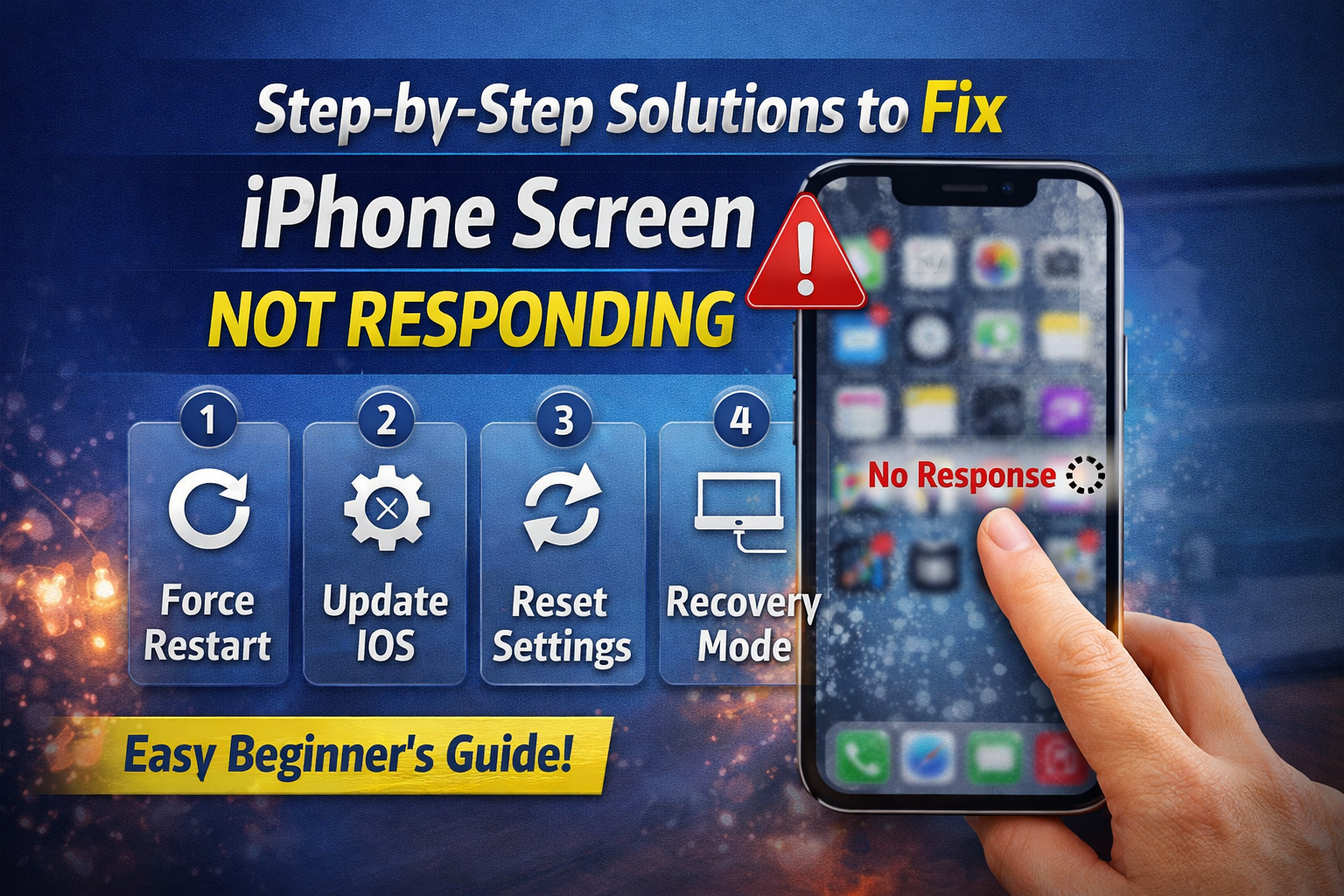
Follow these solutions one by one. Start from the simplest and move to advanced fixes if needed.
1. Clean Your Screen Properly
Sometimes the issue is not software—it’s just dirt or moisture.
Steps:
- Turn off your iPhone.
- Use a soft, dry microfiber cloth.
- Gently wipe the screen.
- Remove any screen protector temporarily.
👉 Important: Dirt, oil, or water can block touch sensitivity.
2. Force Restart Your iPhone
A force restart can fix temporary system glitches after an update.
Steps (iPhone 8 and later):
- Press and quickly release Volume Up
- Press and quickly release Volume Down
- Press and hold the Power button
- Release when the Apple logo appears
👉 This is one of the most effective fixes.
3. Remove Case or Screen Protector
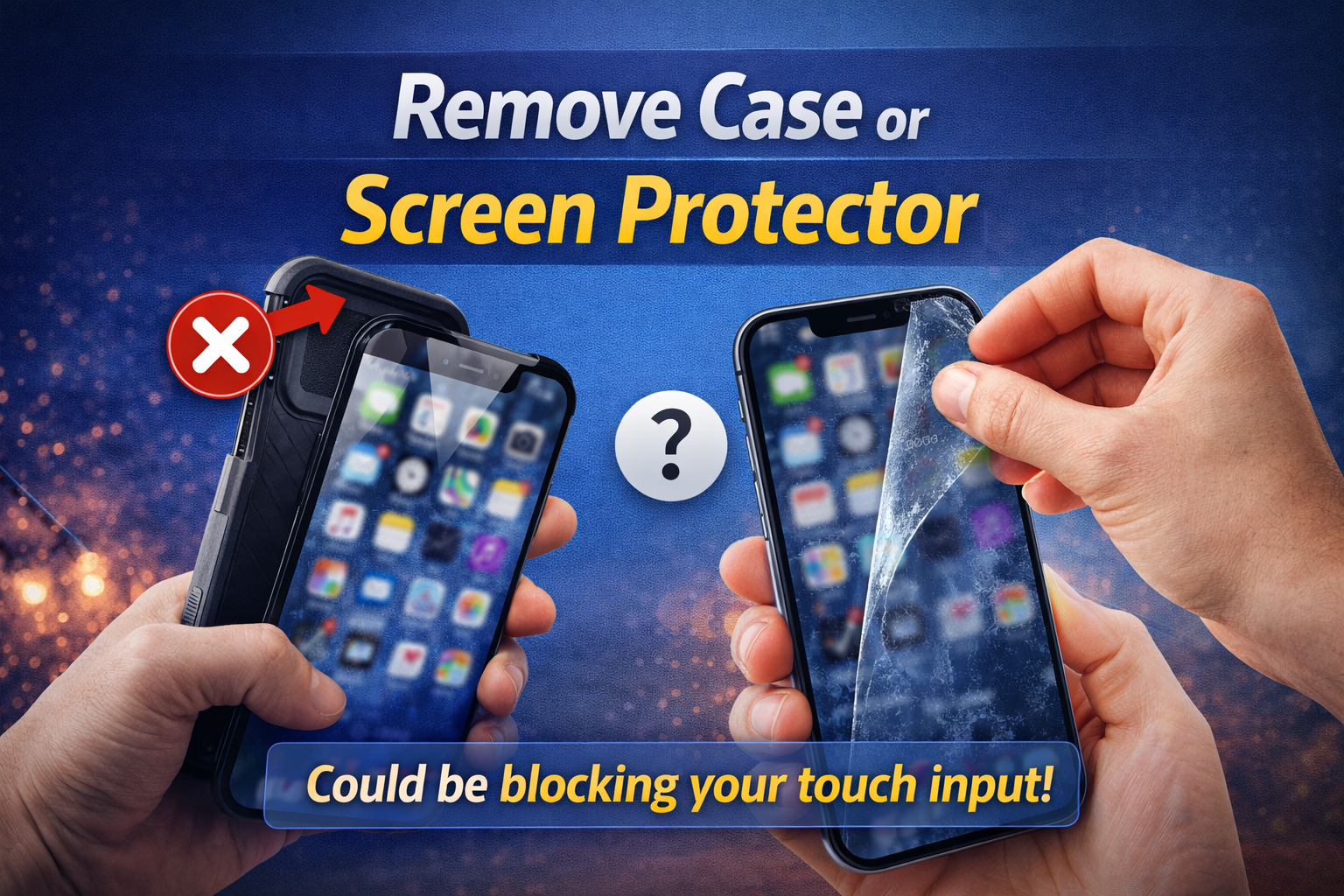
Sometimes accessories can interfere with touch input.
- Remove thick or low-quality cases
- Take off screen protectors
- Test the screen again
👉 Cheap protectors often reduce touch sensitivity.
4. Check for Another iOS Update
Apple often releases quick patches to fix bugs.
Steps:
- Go to Settings
- Tap General
- Tap Software Update
- Install any available update
👉 This can fix bugs causing touch issues.
5. Free Up Storage Space
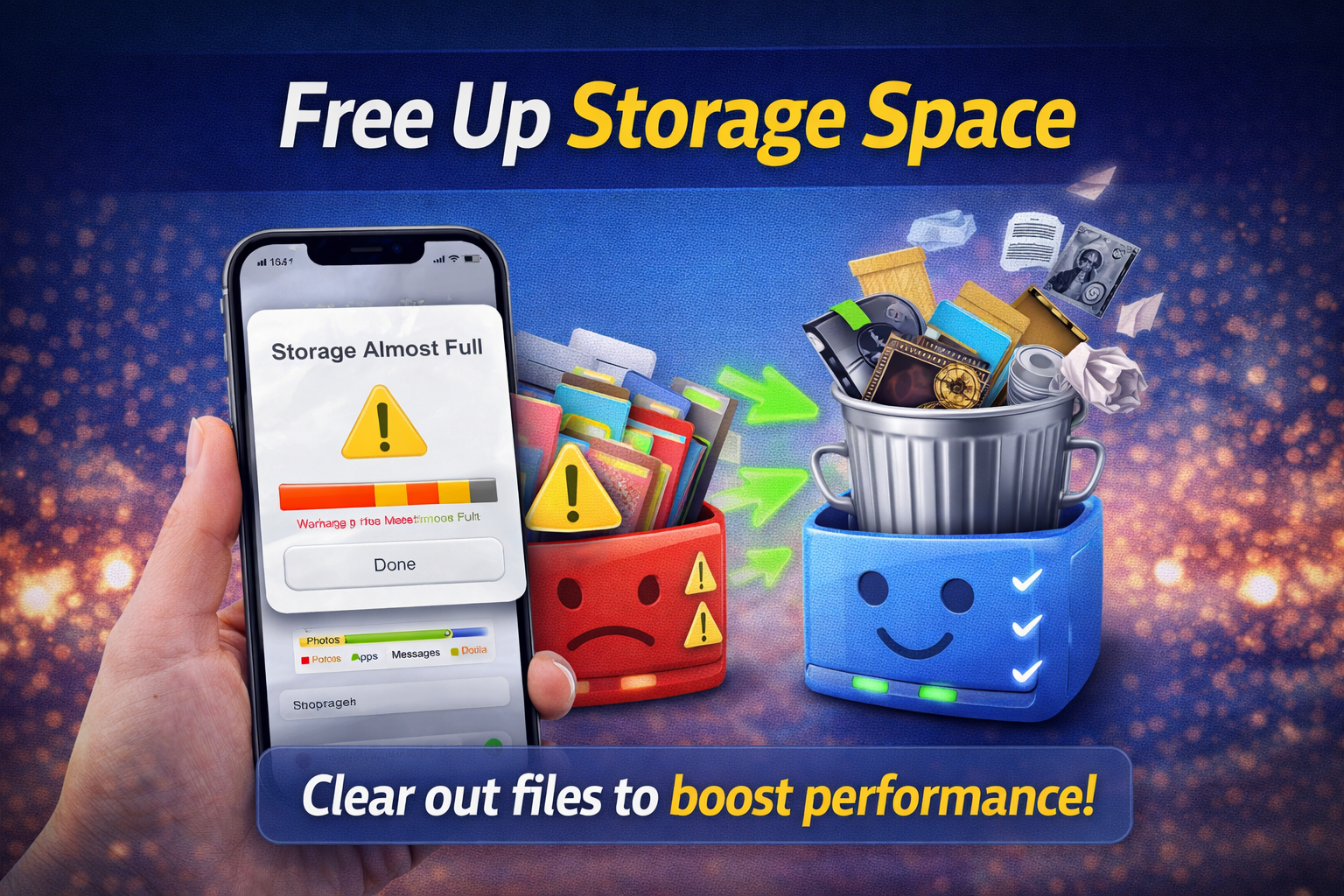
Low storage can slow down your device and affect touch response.
Steps:
- Go to Settings > General > iPhone Storage
- Delete unused apps
- Remove large videos or files
- Clear cache-heavy apps
👉 Keep at least 2–5 GB free space.
6. Reset All Settings
If settings were corrupted during the update, this can fix it.
Steps:
- Go to Settings
- Tap General
- Tap Transfer or Reset iPhone
- Tap Reset
- Select Reset All Settings
👉 Important:
- This will NOT delete your data
- It resets Wi-Fi, Bluetooth, and preferences
7. Use Recovery Mode (Advanced Fix)
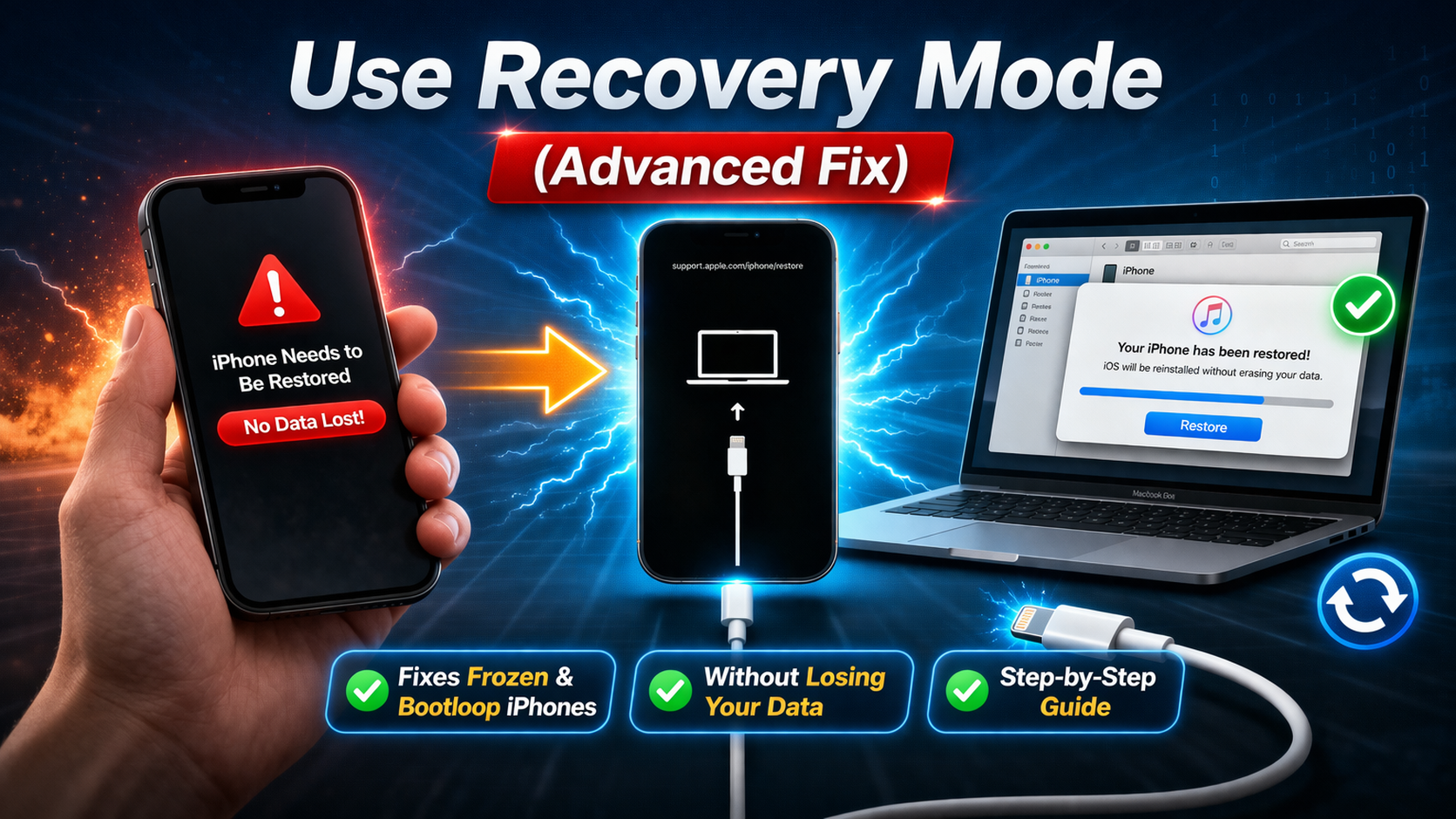
If the screen is still not responding, reinstall iOS using a computer.
Steps:
- Connect your iPhone to a computer
- Open iTunes (Windows) or Finder (Mac)
- Put iPhone into Recovery Mode
- Select Update (not Restore first)
👉 This reinstalls iOS without deleting data.
8. Restore iPhone (Last Resort)
If nothing works, a full restore may fix deep software issues.
Steps:
- Back up your data first
- Connect to computer
- Open iTunes or Finder
- Select Restore iPhone
👉 Warning: This erases all data.
9. Check for Hardware Damage
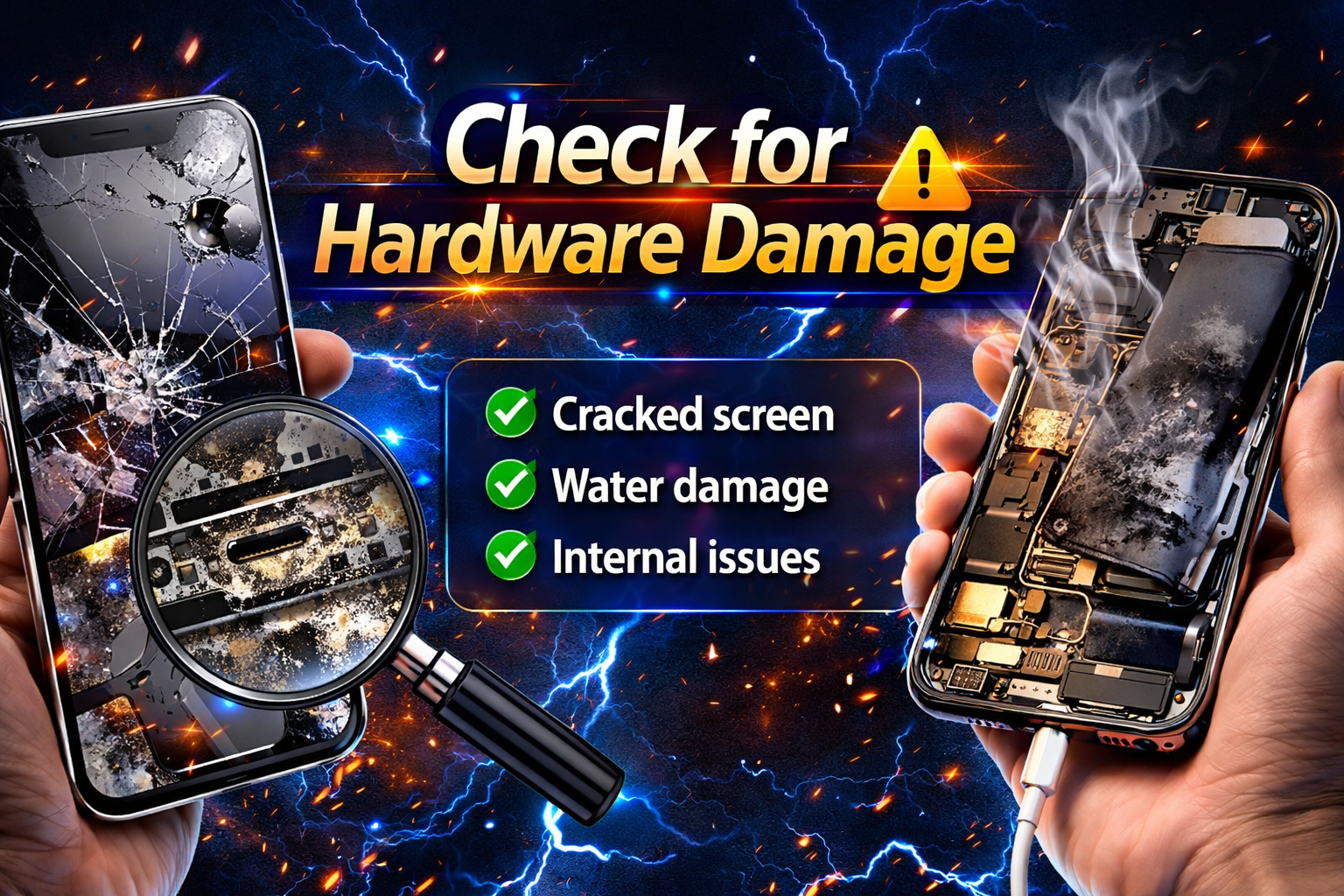
If your screen still doesn’t respond:
- The update may have triggered an existing hardware issue
- Screen digitizer could be damaged
- Internal components may be faulty
👉 Visit an Apple Store or certified technician
Related Keywords Used in This Article
- iPhone touch screen not working
- fix iPhone screen freeze after update
- iOS update touch problem
Quick Tips to Prevent This Problem
Avoid facing this issue again by following these tips:
- Always update with stable internet
- Keep enough storage before updating
- Avoid using beta iOS versions
- Remove low-quality screen protectors
- Restart your phone after updates
- Regularly clean your screen
👉 Prevention is easier than fixing.
FAQ (Frequently Asked Questions)
1. Why is my iPhone screen frozen after update?
It’s usually caused by software bugs, incomplete updates, or system glitches.
2. Can a software update damage my screen?
Not physically, but it can reveal existing hardware issues or cause temporary bugs.
3. Will resetting fix touch screen issues?
Yes, especially Reset All Settings, which fixes many software-related problems.
4. What if force restart doesn’t work?
Try recovery mode or reinstall iOS using a computer.
5. Do I need to replace my screen?
Only if the issue is hardware-related and none of the software fixes work.
Conclusion
Dealing with an iPhone screen not responding to touch after update can be frustrating, but in most cases, it’s fixable.
Start with simple steps like cleaning your screen and restarting your device. If the problem continues, move on to resetting settings or reinstalling iOS.
Only consider hardware repair as a last option.
By following this guide, you can quickly restore your iPhone and get back to normal use without stress.