Easy Ways to Fix iPhone Problems at Home
Introduction
iPhones are known for their smooth performance, but like any device, they can sometimes run into problems. You might notice your phone slowing down, apps crashing, WiFi not working, or the battery draining too fast.
The good news? You don’t always need to visit a repair shop. Many common iPhone issues can be fixed easily at home with simple steps—even if you’re a beginner.
In this guide, we’ll walk you through easy ways to fix iPhone problems at home using safe and practical methods. Whether you’re dealing with software glitches or minor bugs, these solutions can save you time and money.
Common iPhone Problems You Can Fix at Home
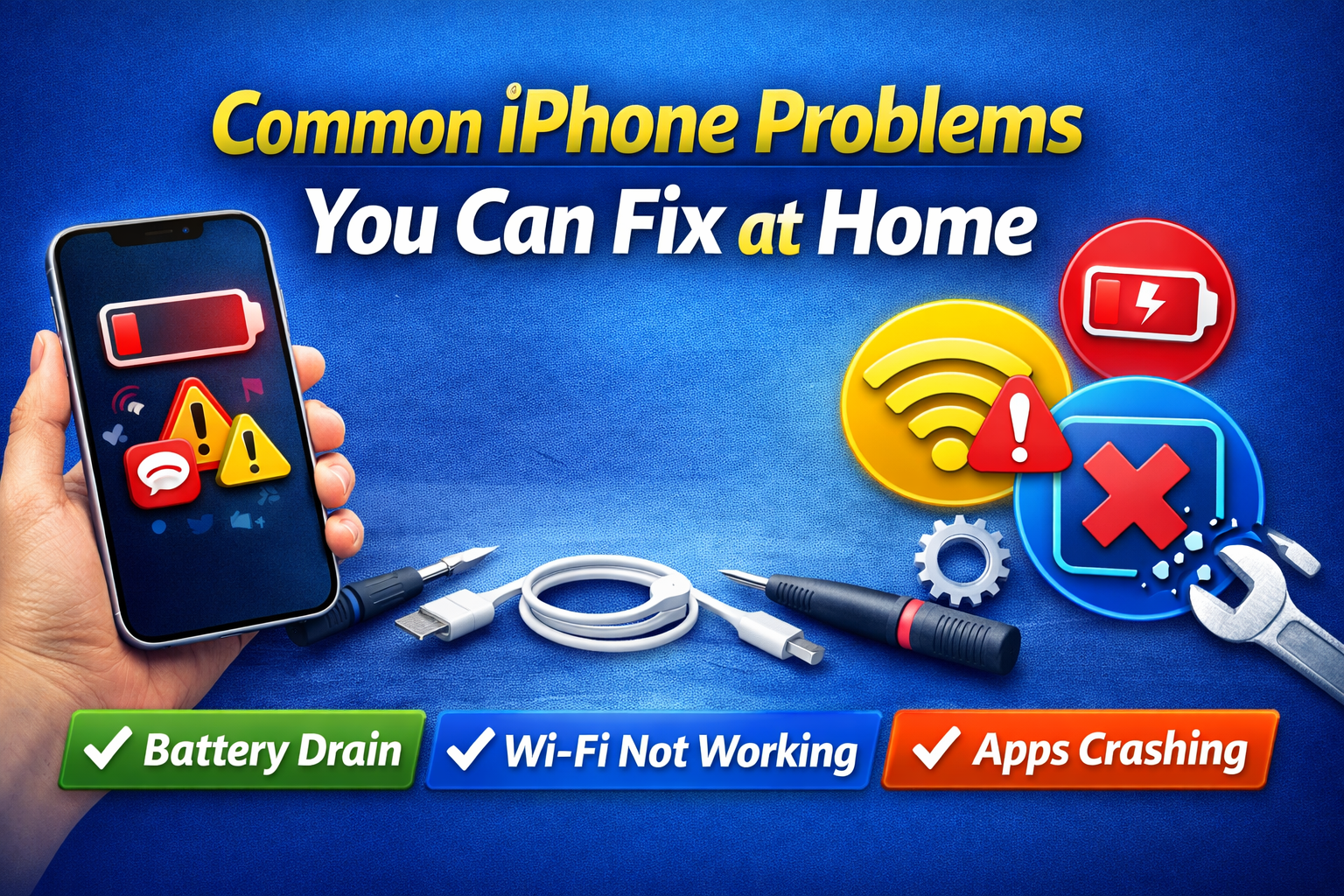
Before jumping into solutions, here are some common issues users face:
- iPhone running slow
- Battery draining quickly
- Apps crashing or freezing
- WiFi or Bluetooth not working
- iPhone not charging properly
Let’s fix them step-by-step.
1. Restart Your iPhone (Quick Fix)
Sometimes, a simple restart can fix many problems.
Steps:
- Press and hold the Power button + Volume button
- Slide to power off
- Wait 10–15 seconds
- Turn it back on
✅ This clears temporary bugs and refreshes your system.
2. Update iOS to the Latest Version

Outdated software often causes performance issues.
Steps:
- Go to Settings > General > Software Update
- Tap Download and Install
- Enter your passcode if needed
👉 Important: Always update your iPhone to fix bugs and improve performance.
3. Fix Battery Draining Fast
Battery issues are one of the most common iPhone problems.
Steps to fix:
- Go to Settings > Battery
- Check which apps use the most battery
- Turn off Background App Refresh
- Reduce screen brightness
- Enable Low Power Mode
Extra Tip:
- Replace battery if health is below 80%
4. Fix Apps Crashing or Freezing
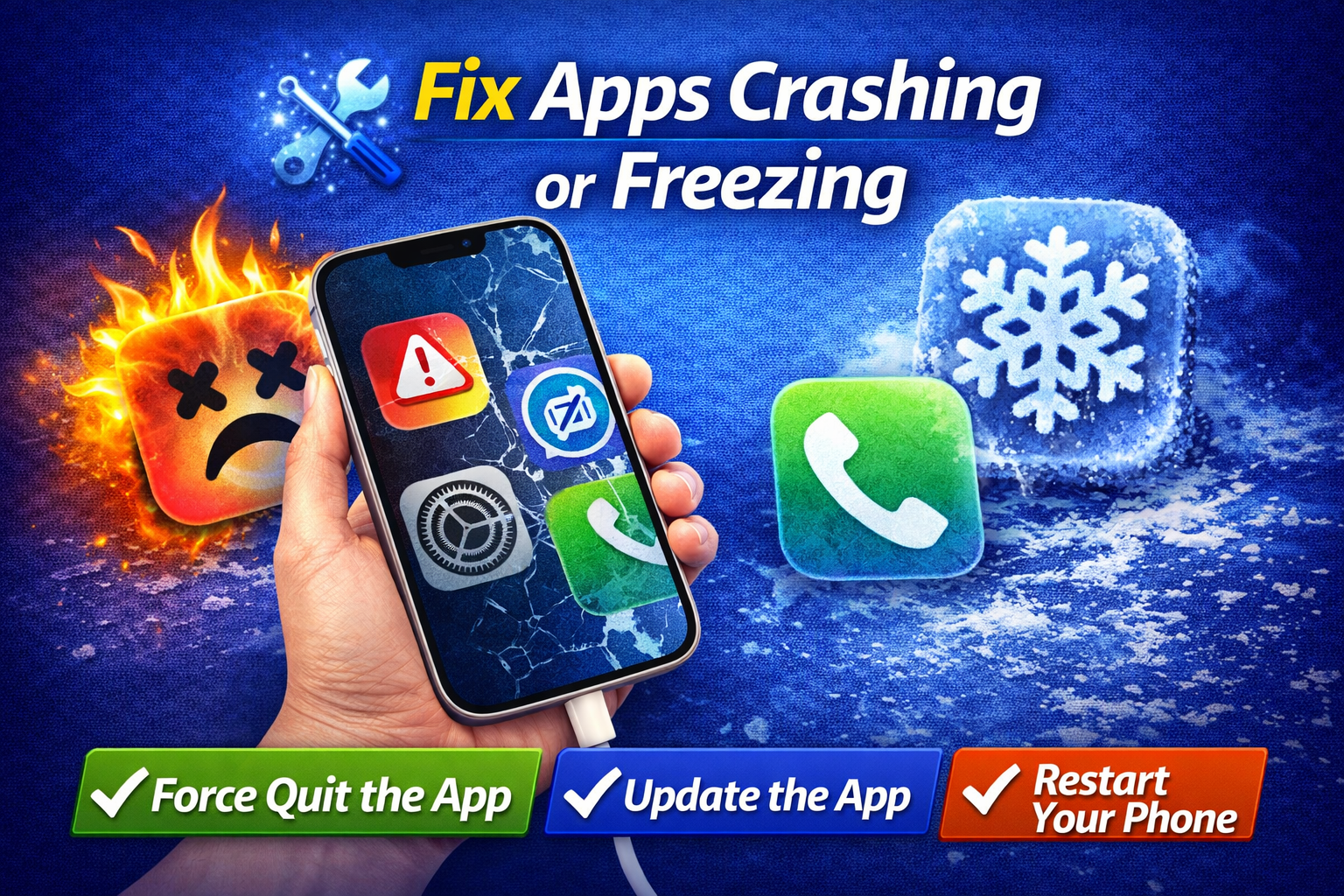
If apps keep closing or not responding, try this:
Steps:
- Close the app completely
- Reopen it
- Go to App Store > Update apps
- If still not working, delete and reinstall the app
👉 This often solves compatibility or corrupted app issues.
5. Fix WiFi Not Working
WiFi problems can be frustrating, but easy to fix.
Steps:
- Turn WiFi off and on again
- Restart your router
- Go to Settings > WiFi
- Tap your network → Forget This Network
- Reconnect with password
Advanced Fix:
- Go to Settings > General > Transfer or Reset iPhone > Reset > Reset Network Settings
⚠️ This will remove saved WiFi passwords.
6. Fix iPhone Not Charging
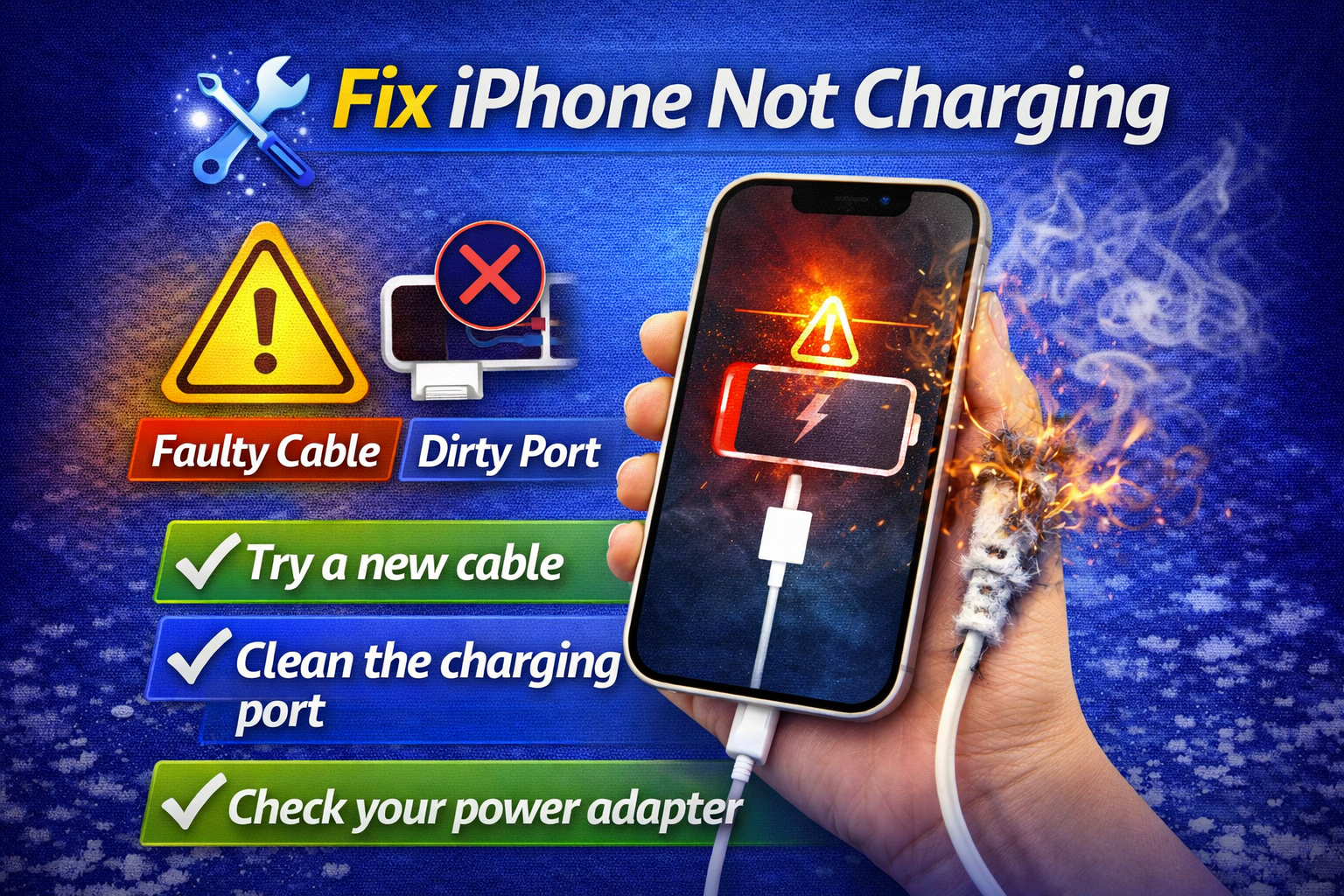
If your iPhone won’t charge, try these steps:
Steps:
- Check charging cable and adapter
- Clean the charging port carefully
- Try a different charger
- Restart your iPhone
👉 Dust or debris in the port is a common cause.
7. Free Up Storage (Improve Performance)
Low storage can slow down your iPhone.
Steps:
- Go to Settings > General > iPhone Storage
- Delete unused apps
- Remove large videos/photos
- Enable Offload Unused Apps
✅ This helps your iPhone run faster.
8. Use Recovery Mode (Advanced Fix)
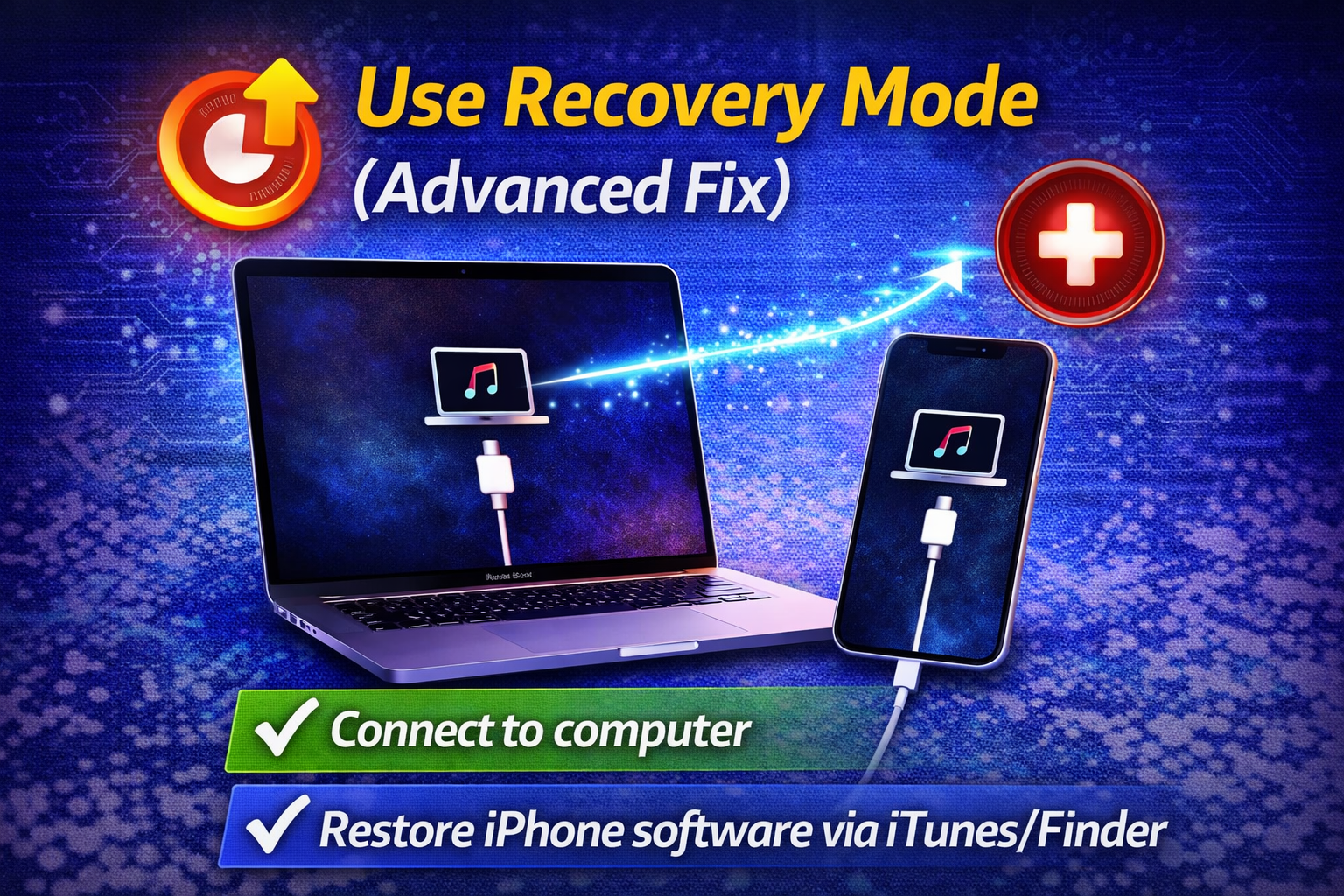
If your iPhone has serious issues, recovery mode can help.
Steps:
- Connect iPhone to a computer
- Open iTunes or Finder
- Force restart your iPhone
- Choose Update (or Restore if needed)
⚠️ Use this only if other methods fail.
Why This Problem Happens
Understanding the cause helps prevent future issues.
Common reasons include:
- Outdated iOS version
- Too many background apps
- Low storage space
- Software bugs or glitches
- Poor network settings
- Battery wear over time
👉 Most iPhone problems are software-related, not hardware.
Quick Tips to Prevent This Problem
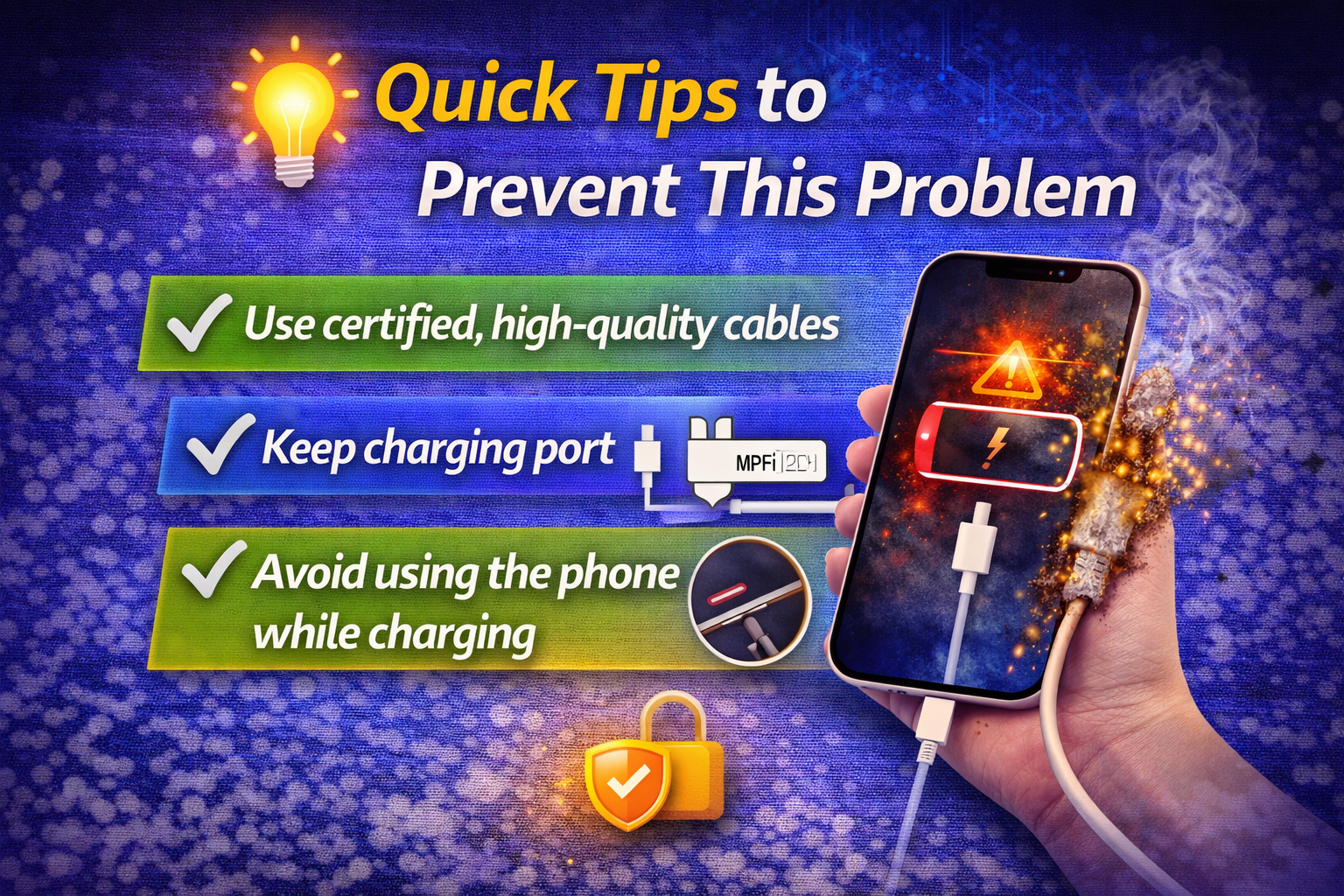
Keep your iPhone running smoothly with these tips:
- ✅ Always update iOS regularly
- ✅ Restart your iPhone once a week
- ✅ Avoid installing too many apps
- ✅ Clear unused files and photos
- ✅ Use original chargers
- ✅ Keep battery between 20%–80%
- ✅ Avoid overheating your device
FAQ (Frequently Asked Questions)
1. Why is my iPhone so slow suddenly?
It may be due to low storage, outdated iOS, or too many background apps.
2. How do I fix iPhone battery draining fast?
Enable Low Power Mode, reduce brightness, and limit background apps.
3. Is it safe to reset network settings?
Yes, but it will remove saved WiFi passwords and network settings.
4. When should I use recovery mode?
Only when your iPhone has serious issues like being stuck or not turning on.
5. Can I fix iPhone problems without a technician?
Yes! Most common issues can be fixed at home using simple steps.
Conclusion
Dealing with iPhone issues can be frustrating, but most problems are easy to fix at home. From restarting your device to updating iOS and managing storage, these simple steps can solve many common issues quickly.
By following this guide on easy ways to fix iPhone problems at home, you can save money, avoid stress, and keep your device running smoothly.
If problems still continue, it may be time to contact Apple support—but in most cases, these solutions will do the job.