How to Fix Android Developer Options Problem (Step-by-Step Guide)
Introduction
Are you having trouble with Android Developer Options not working on your device? You’re not alone. Many Android users face issues like Developer Options disappearing, not enabling, or certain settings not functioning properly.
Developer Options is a powerful hidden menu that allows you to tweak advanced settings such as USB debugging, animation speed, and background processes. However, when it stops working, it can be frustrating—especially if you’re trying to debug apps or improve performance.
In this guide, we’ll show you simple, step-by-step solutions to fix the issue quickly—even if you’re a beginner.
Why This Problem Happens
Before fixing the issue, it’s important to understand why Developer Options may not work.
Here are the most common reasons:
- Software glitches or bugs
- System updates causing conflicts
- Incorrect settings configuration
- Developer Options accidentally turned off
- Restricted access by system policies (work profile or parental control)
- Corrupted system cache
Understanding the cause helps you choose the right solution faster.
Step-by-Step Solutions to Fix Android Developer Options Problem
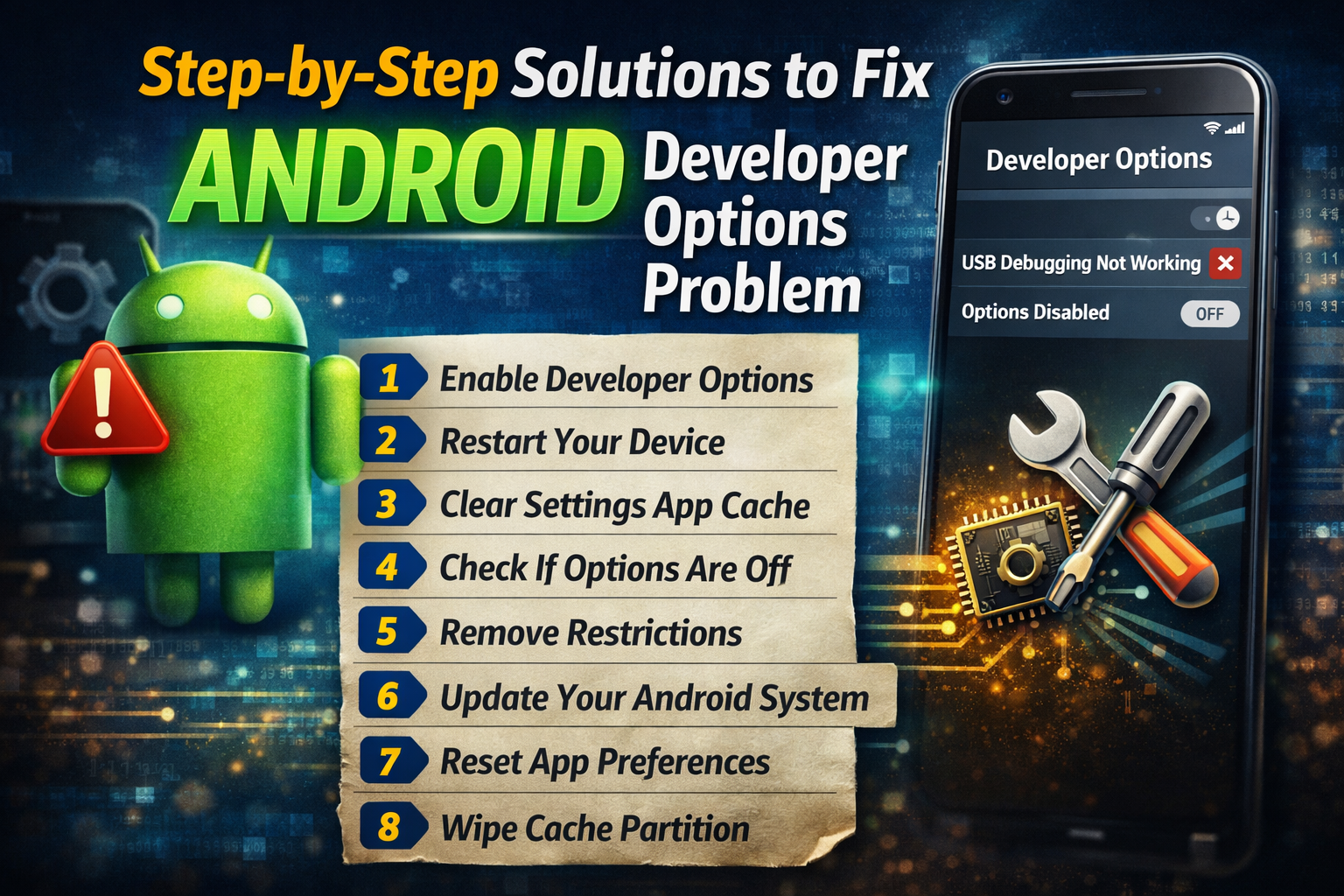
1. Enable Developer Options Again
Sometimes Developer Options gets disabled automatically.
Follow these steps:
- Go to Settings
- Tap About Phone
- Find Build Number
- Tap it 7 times quickly
- Enter your PIN/password if asked
👉 You should see: “You are now a developer!”
Then:
- Go back to Settings
- Open Developer Options
✅ This fixes most cases where Developer Options disappear.
2. Restart Your Device
A simple restart can fix temporary bugs.
Steps:
- Press and hold the Power button
- Tap Restart
- Wait for the device to reboot
✅ This clears minor system glitches affecting Developer Options.
3. Clear Settings App Cache
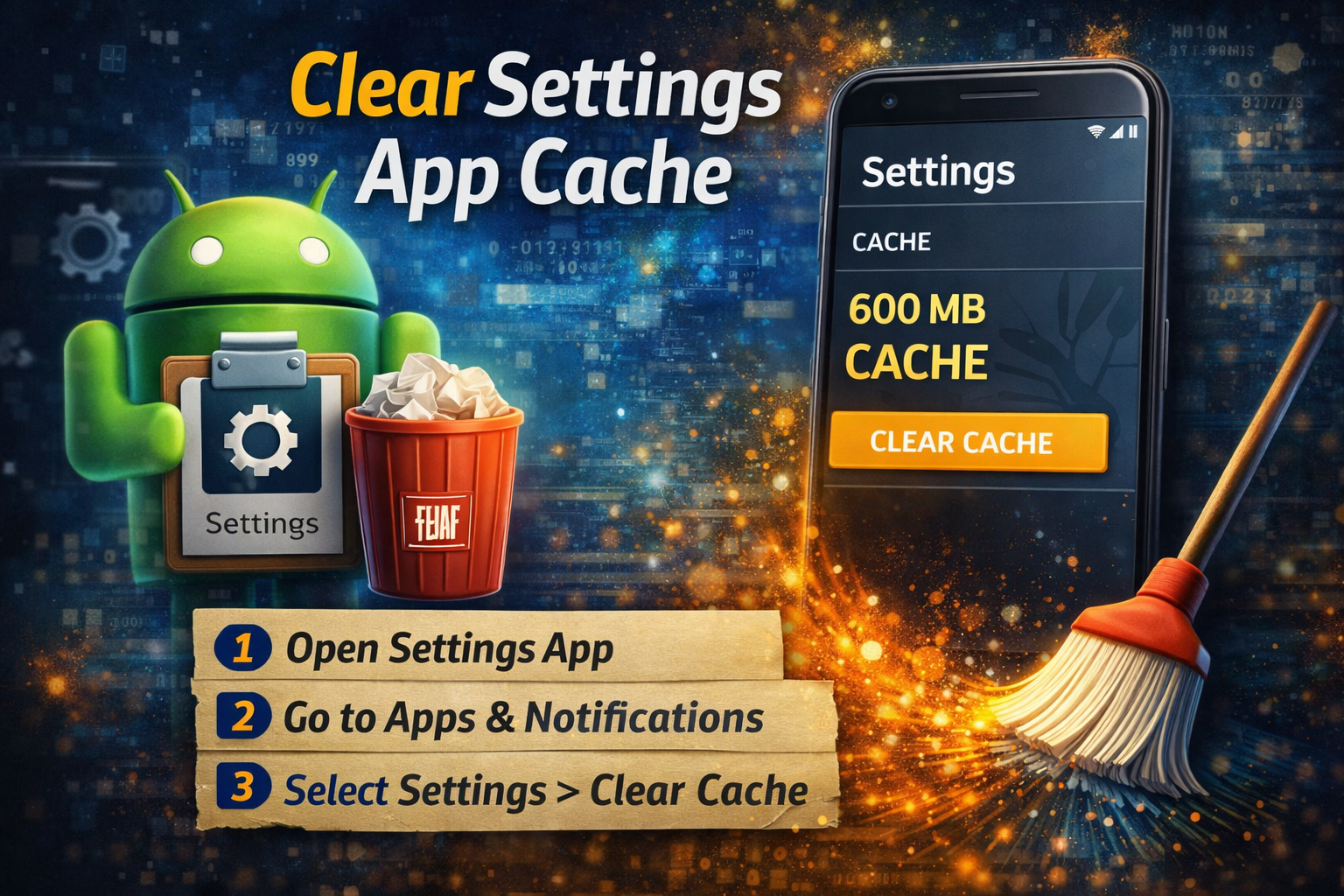
Sometimes the Settings app becomes corrupted.
Steps:
- Go to Settings > Apps
- Tap Settings (System app)
- Tap Storage
- Tap Clear Cache
👉 Do NOT tap “Clear Data” unless necessary.
✅ This helps fix issues like Developer Options not opening.
4. Check If Developer Options Is Disabled
Some devices automatically turn it off.
Steps:
- Go to Settings
- Scroll to System
- Tap Developer Options
- Make sure the toggle is ON
If it’s off, turn it back on.
5. Remove Restrictions (Work Profile / Parental Control)
Restrictions can block Developer Options.
Check:
- Work profile enabled?
- Parental control active?
- Device managed by company?
Fix:
- Disable Work Profile
- Remove Device Admin Apps
- Turn off Parental Controls
👉 Path:
Settings > Security > Device Admin Apps
✅ This restores access to advanced settings.
6. Update Your Android System
Outdated software can cause bugs.
Steps:
- Go to Settings > Software Update
- Tap Check for Updates
- Install latest update
✅ Updates often fix Developer Options issues.
7. Reset App Preferences
This resets system settings without deleting data.
Steps:
- Go to Settings > Apps
- Tap 3-dot menu
- Select Reset App Preferences
✅ This can fix hidden conflicts affecting Developer Options.
8. Wipe Cache Partition (Advanced Fix)
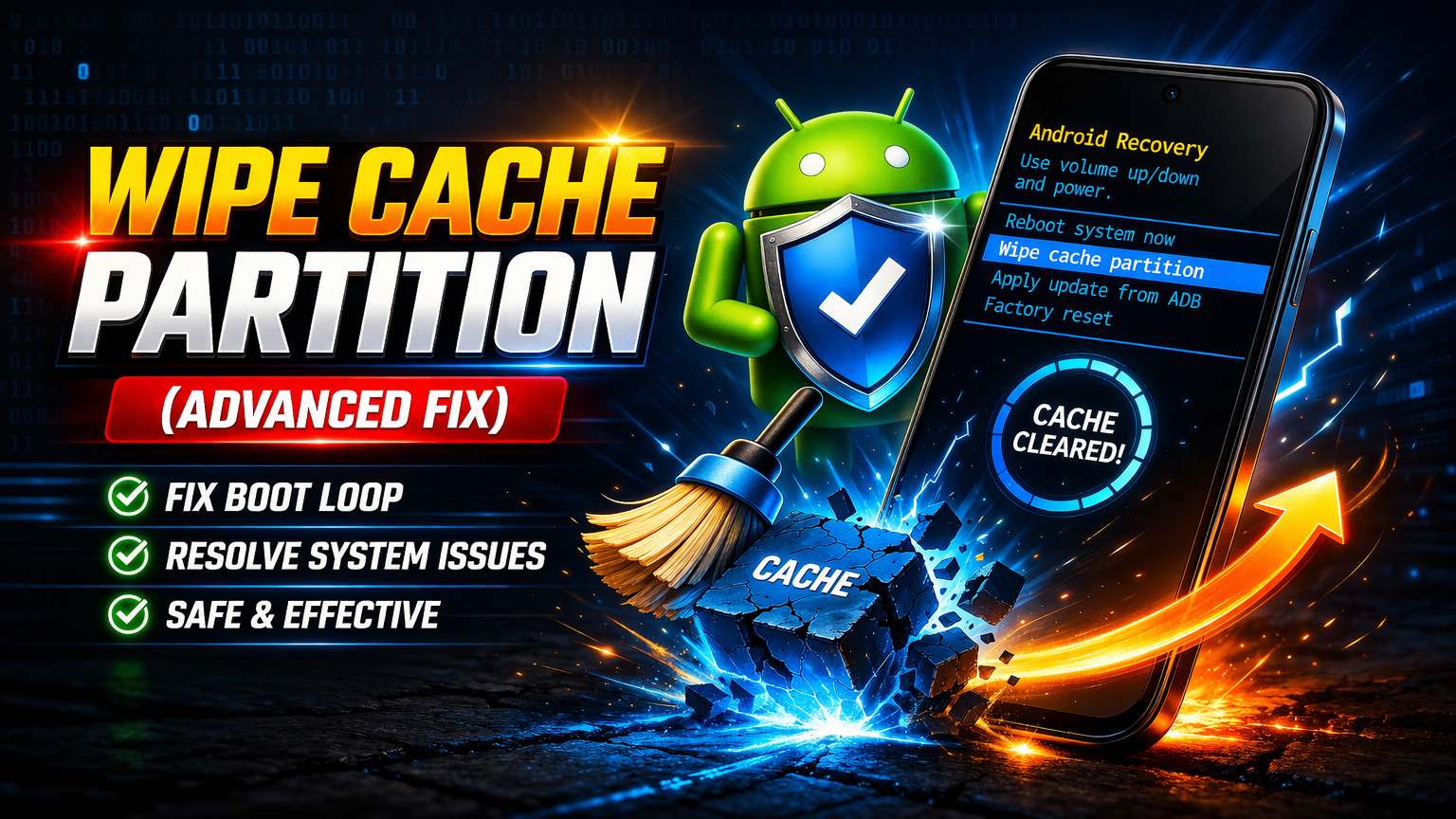
If nothing works, clear system cache.
Steps:
- Turn off your device
- Press Power + Volume Up (varies by device)
- Enter Recovery Mode
- Select Wipe Cache Partition
- Reboot device
⚠️ Do NOT select factory reset unless necessary
9. Factory Reset (Last Resort)
If all else fails, reset your phone.
Steps:
- Go to Settings > System > Reset
- Tap Factory Data Reset
- Confirm
⚠️ Backup your data first!
Quick Tips to Prevent This Problem
To avoid Developer Options issues in the future:
- ✅ Avoid changing unknown settings
- ✅ Keep your Android updated
- ✅ Don’t install unsafe apps
- ✅ Restart your phone regularly
- ✅ Enable only necessary developer features
- ✅ Avoid frequent system tweaks
These small habits can prevent major issues.
Related Keywords Used
- Android Developer Options not working
- fix developer mode Android
- Android debugging not working
- Developer Options disappeared Android
FAQ (Frequently Asked Questions)
1. Why did Developer Options disappear on my Android?
It usually disappears after a system update or if it’s disabled. You can enable it again by tapping the Build Number 7 times.
2. Why is USB debugging not working?
This can happen due to:
- Incorrect USB settings
- Driver issues
- Developer Options turned off
👉 Try re-enabling USB debugging.
3. Is Developer Options safe to use?
Yes, but only if you know what you’re doing. Changing unknown settings may cause problems.
4. Can Developer Options damage my phone?
Not directly, but incorrect settings can affect performance or stability.
5. Do I need Developer Options for normal use?
No. It is mainly for developers or advanced users.
Conclusion
Fixing the Android Developer Options problem is usually simple if you follow the right steps. In most cases, just re-enabling Developer Options or restarting your device solves the issue.
If the problem continues, clearing cache, removing restrictions, or updating your system will help. As a last resort, a factory reset can fully restore functionality.
👉 Always use Developer Options carefully and only enable what you need.