Introduction
The Android accessibility button is a powerful feature that helps users quickly access tools like TalkBack, Magnification, or other accessibility services. But sometimes, this button stops working, disappears, or becomes unresponsive.
If you’re facing this issue, you’re not alone. Many Android users experience problems with the accessibility button due to software glitches, incorrect settings, or system conflicts.
In this guide, you’ll learn how to fix Android accessibility button issue step-by-step using simple and beginner-friendly methods.
Why This Problem Happens
Before fixing the issue, it helps to understand the cause. Here are the most common reasons:
- Accessibility service is turned off
- System UI glitch or bug
- App conflict or third-party interference
- Outdated Android version
- Permissions not granted properly
- Cache issues in system apps
Understanding the cause will make it easier to apply the right solution.
Step-by-Step Solutions to Fix Android Accessibility Button Issue
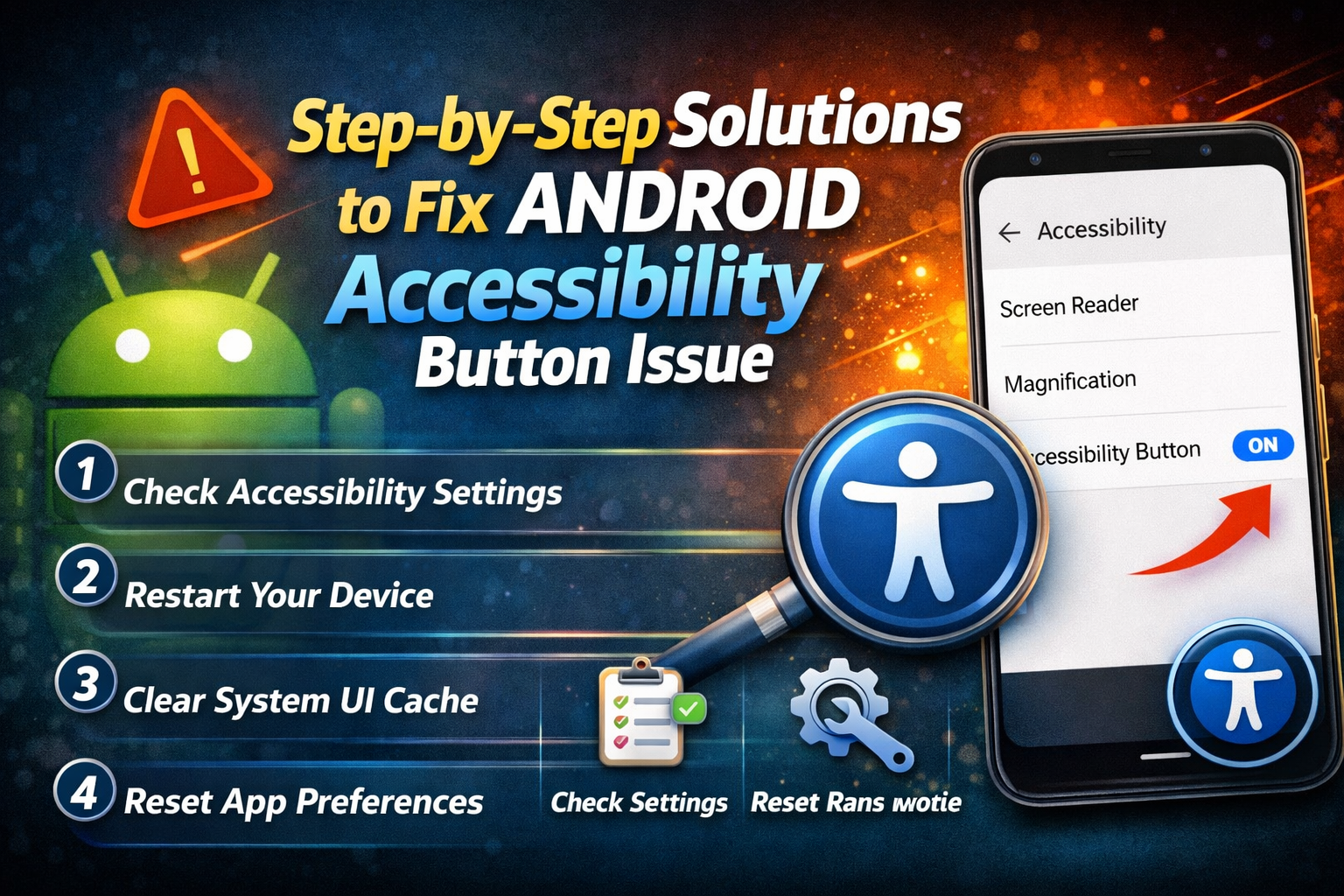
1. Check Accessibility Settings
First, make sure the accessibility feature is enabled.
Steps:
- Go to Settings
- Tap Accessibility
- Select the service (e.g., TalkBack, Magnification)
- Turn it ON
- Enable Accessibility Button Shortcut
👉 Important: If the feature is off, the button will not appear or work.
2. Restart Your Device
A simple restart can fix many system issues.
Steps:
- Press and hold the Power button
- Tap Restart
- Wait for the phone to reboot
👉 Why it works: It clears temporary system bugs affecting accessibility services.
3. Re-enable Accessibility Service
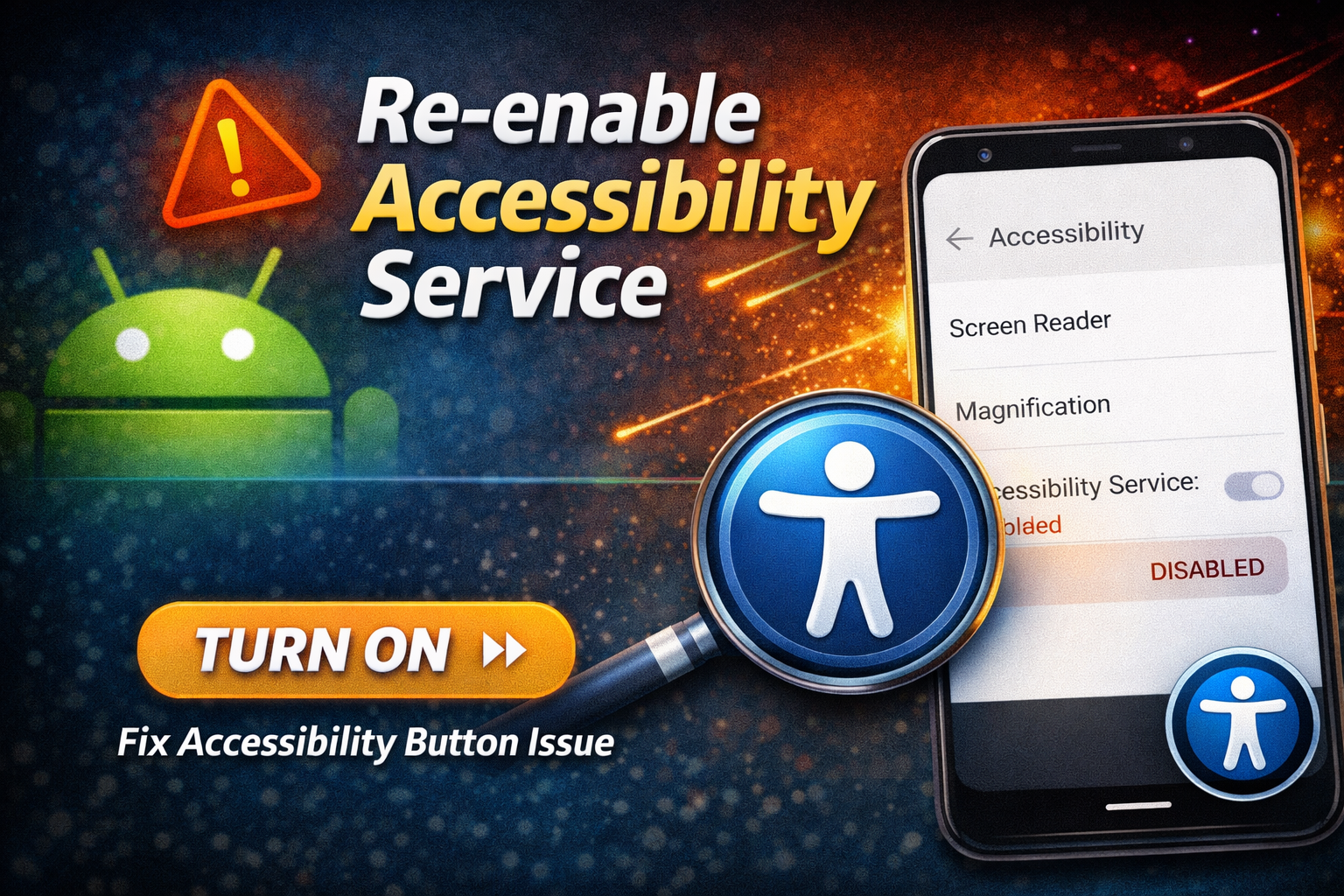
Sometimes the service gets stuck and needs resetting.
Steps:
- Go to Settings > Accessibility
- Select the active service
- Turn it OFF
- Wait 5–10 seconds
- Turn it ON again
👉 Tip: This refreshes the connection between the system and the accessibility feature.
4. Check Navigation Settings
The accessibility button depends on your navigation style.
Steps:
- Go to Settings > System > Gestures
- Tap System Navigation
- Choose:
- 3-button navigation (recommended for testing)
- Check if the accessibility button appears
👉 Note: Gesture navigation may hide the button in some devices.
5. Clear System UI Cache
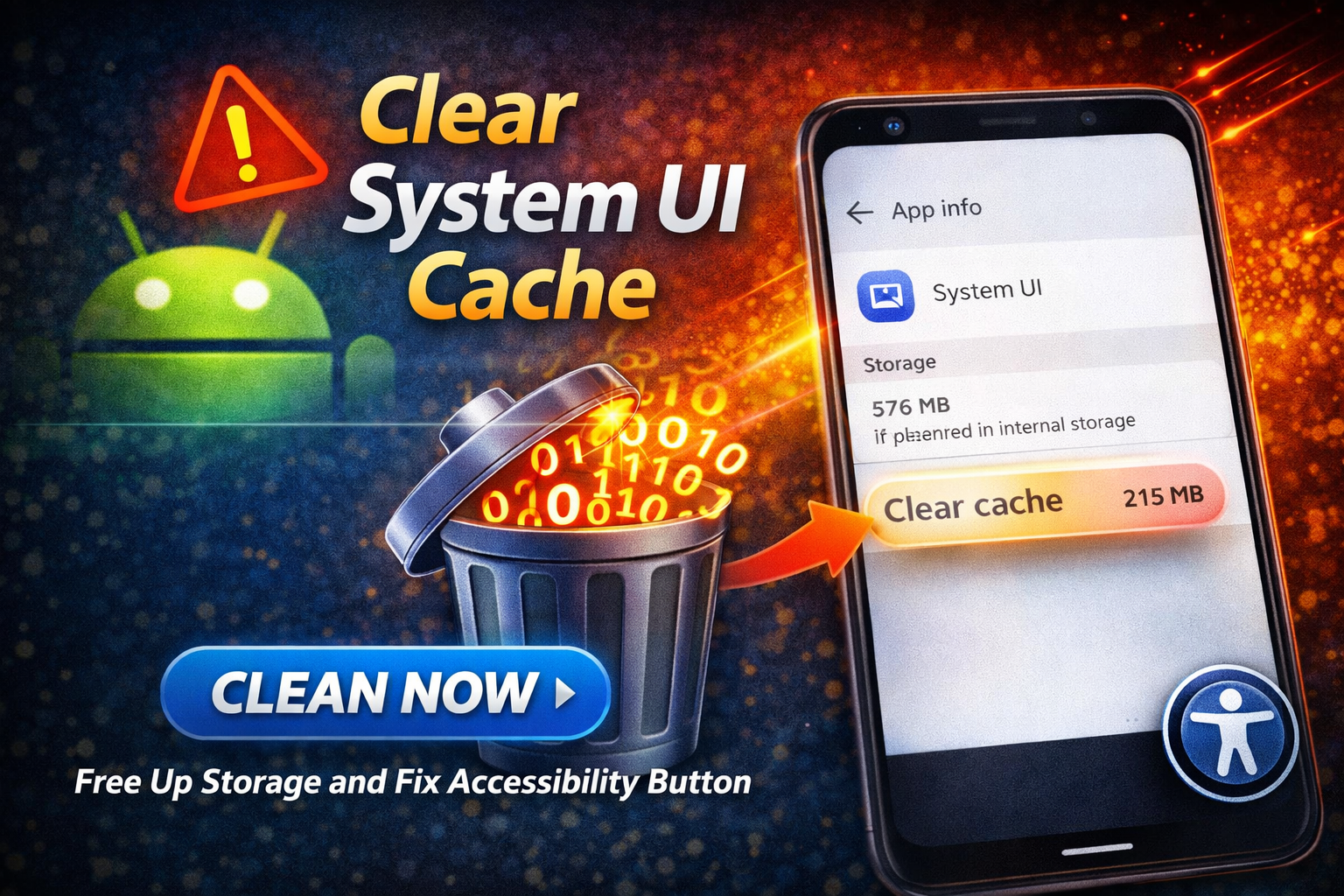
Corrupted cache can cause the button to stop working.
Steps:
- Go to Settings > Apps
- Tap Show system apps
- Find System UI
- Tap Storage
- Select Clear Cache
👉 Do NOT clear data, only clear cache.
6. Update Your Android System
Outdated software can cause bugs.
Steps:
- Go to Settings > Software Update
- Tap Download and Install
- Install any available updates
👉 Important: Updates often fix accessibility-related bugs.
7. Check App Conflicts
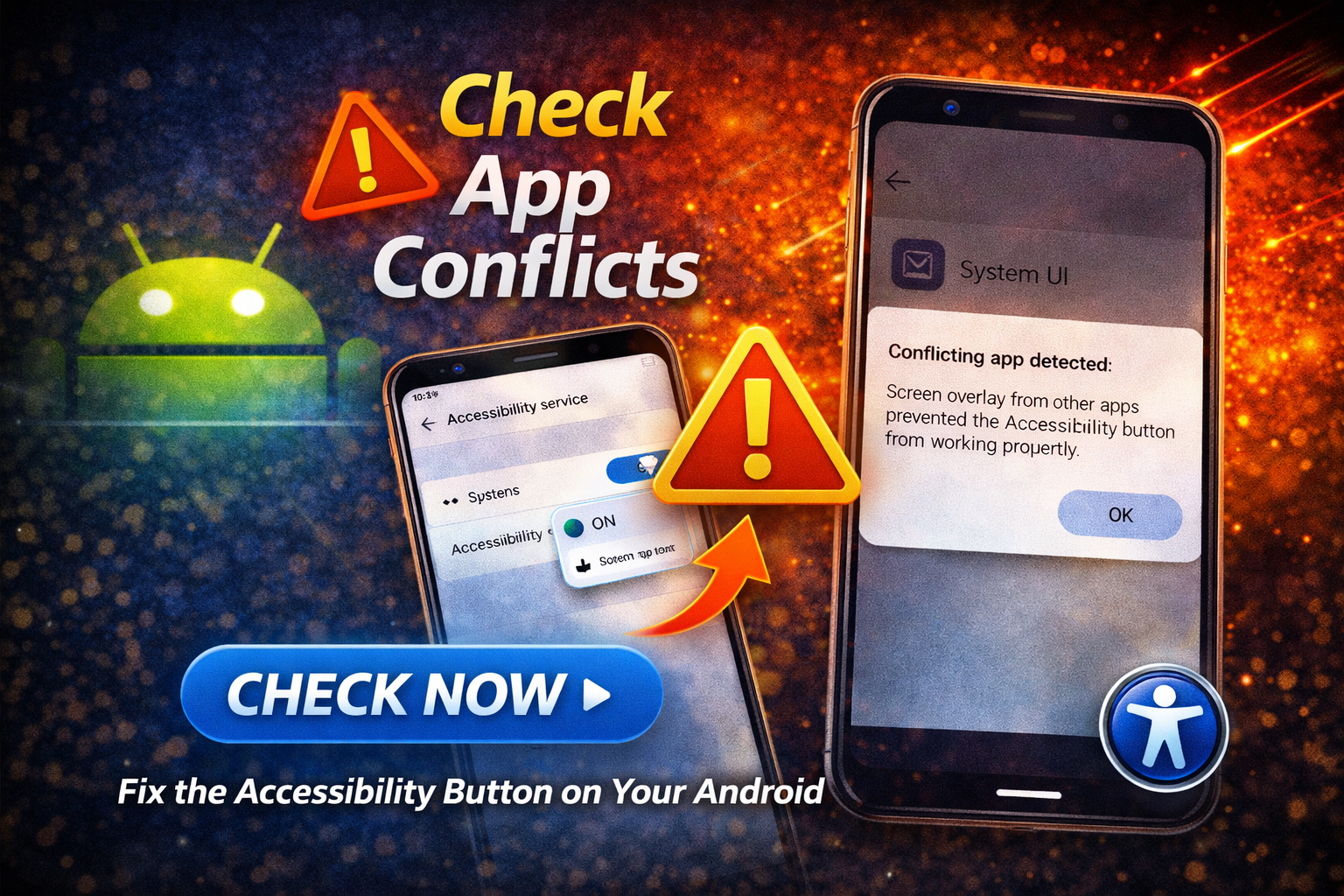
Some apps interfere with accessibility services.
Steps:
- Boot your phone into Safe Mode
- Check if the accessibility button works
- If it works:
- Uninstall recently installed apps
👉 Common culprits:
- Screen overlay apps
- Cleaner apps
- Custom launchers
8. Reset App Preferences
This restores default settings without deleting data.
Steps:
- Go to Settings > Apps
- Tap 3-dot menu
- Select Reset App Preferences
- Confirm reset
👉 This fixes permission-related issues.
9. Factory Reset (Last Resort)
If nothing works, perform a factory reset.
Steps:
- Backup your data
- Go to Settings > System > Reset
- Tap Factory Data Reset
- Confirm
👉 Warning: This will erase all data.
Quick Tips to Prevent This Problem
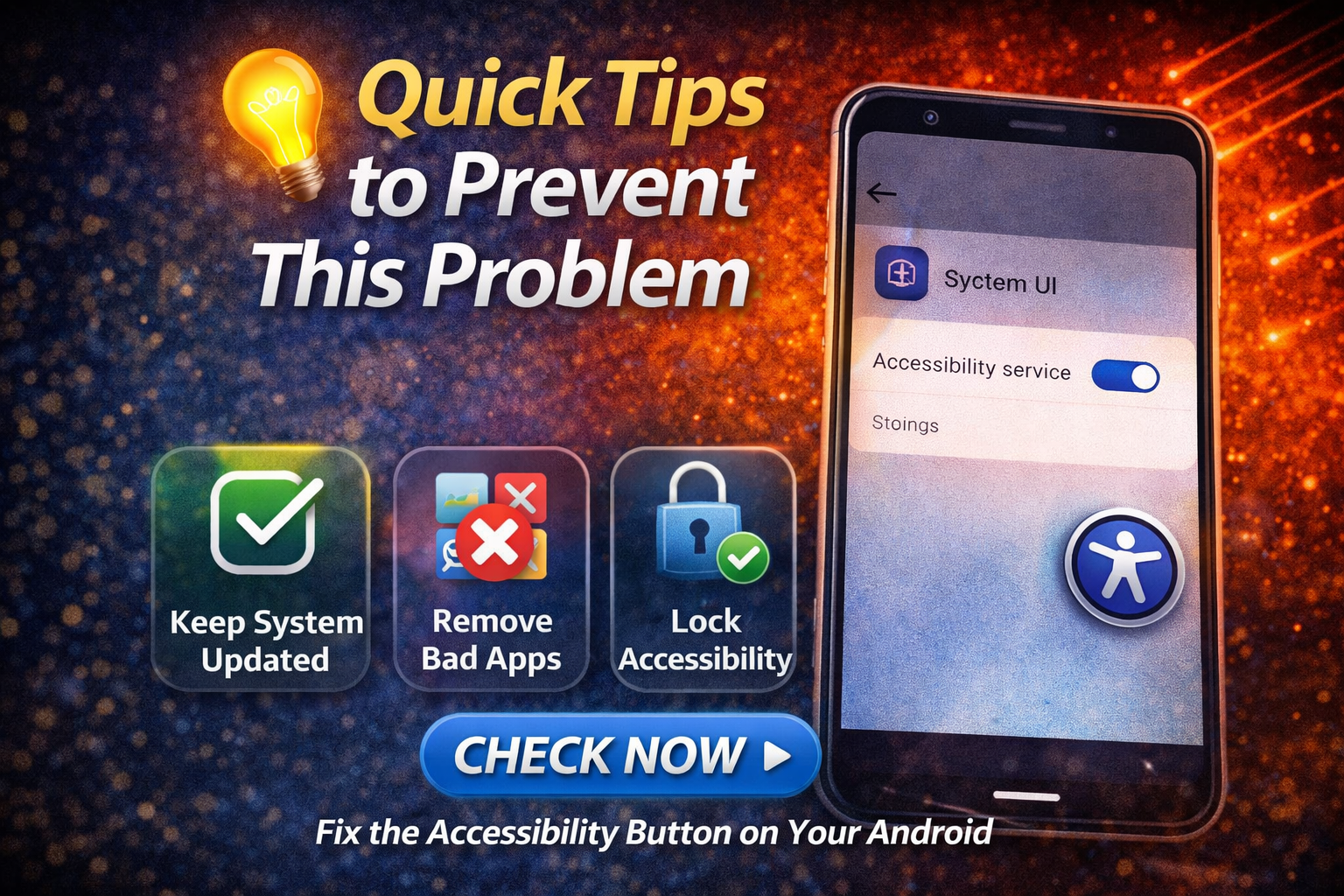
To avoid accessibility button issues in the future:
- ✅ Keep your Android updated
- ✅ Avoid installing unknown apps
- ✅ Regularly clear cache
- ✅ Do not disable system apps
- ✅ Use trusted accessibility services only
- ✅ Restart your phone occasionally
FAQ (Frequently Asked Questions)
1. Why is my accessibility button not showing?
It may be disabled in settings or hidden due to gesture navigation.
2. How do I enable the accessibility button on Android?
Go to Settings > Accessibility > Select Service > Enable Accessibility Button Shortcut.
3. Does Safe Mode fix accessibility issues?
Yes, it helps identify if a third-party app is causing the problem.
4. Can system updates fix this issue?
Yes, updates often include bug fixes for accessibility features.
5. Is it safe to clear System UI cache?
Yes, clearing cache is safe and helps fix minor glitches.
Conclusion
The Android accessibility button is essential for quick access to helpful features, but it can sometimes stop working due to system issues or incorrect settings.
By following the steps in this guide, you can easily fix the problem—even if you’re a beginner. Start with simple solutions like checking settings and restarting your device, then move to advanced fixes if needed.
With the right approach, you’ll restore your accessibility button and improve your Android experience.