How to Fix Android Storage Calculation Wrong
If your phone says storage is full when it is not, or shows the wrong amount of used space, you are not alone. Many Android users face this problem. It can be confusing and frustrating, especially when you cannot install apps, save photos, or update your phone.
The good news is that this issue is often easy to fix.
In this guide, you will learn how to fix Android storage calculation wrong using simple steps that beginners can follow. We will explain why it happens, how to fix it, and what you can do to stop it from happening again.
This article naturally covers useful search terms like Android storage wrong, Android storage showing wrong size, and fix Android storage issue to help you find the right solution faster.
Why Android Storage Calculation Can Be Wrong
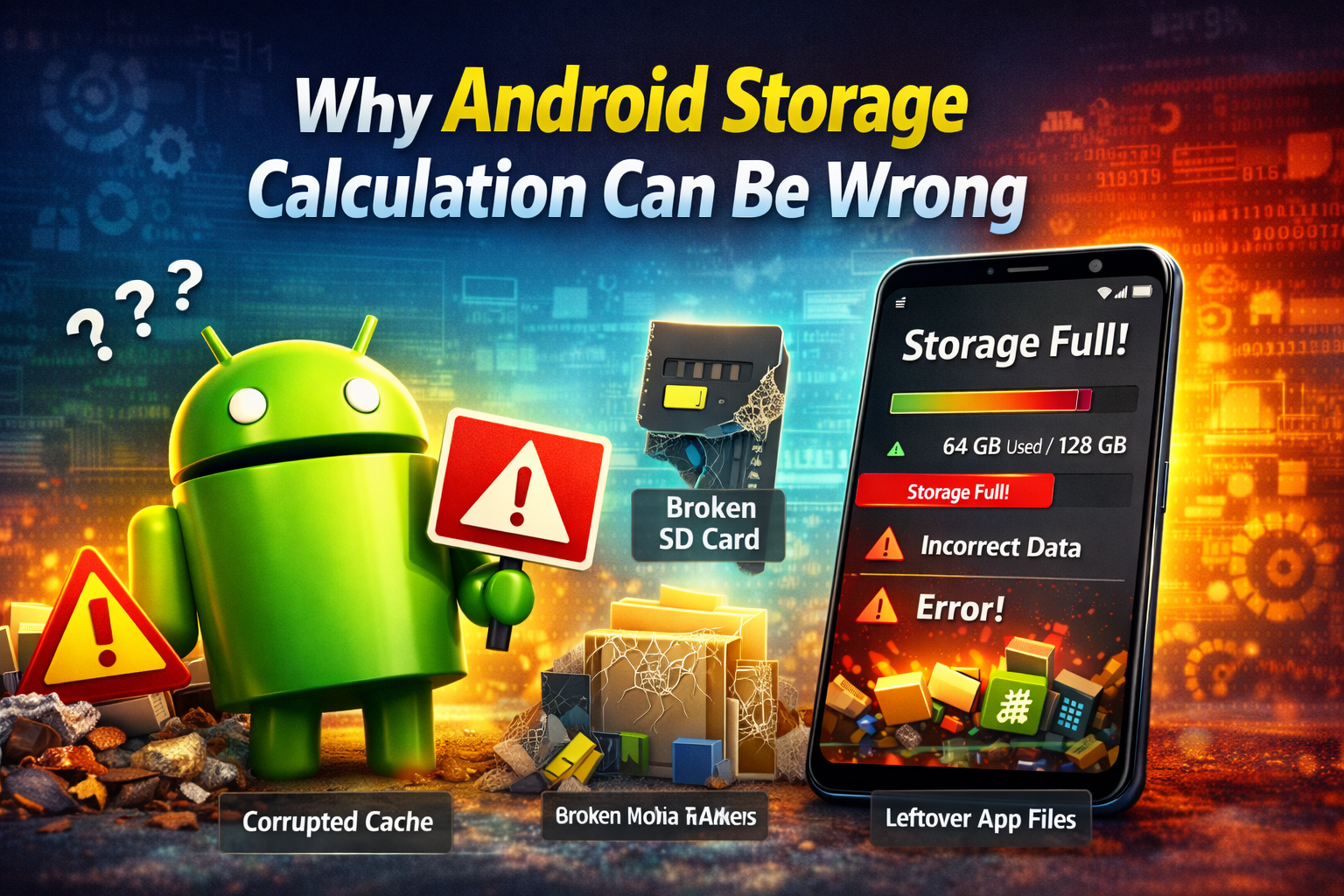
Android uses storage data from apps, system files, cached files, downloads, and media folders. Sometimes this data does not update correctly. When that happens, your phone may show:
-
More used storage than you really have
-
Less free space than expected
-
Storage categories that do not make sense
-
“Storage full” warnings even after deleting files
-
Apps using more space than they should
This usually happens because of:
-
Corrupted cache files
-
Temporary system bugs
-
Old app data that was not removed properly
-
Media scanner errors
-
Software update issues
-
SD card or file system problems
-
Incorrect storage indexing
Now let’s go through the best ways to fix it.
1. Restart Your Android Phone
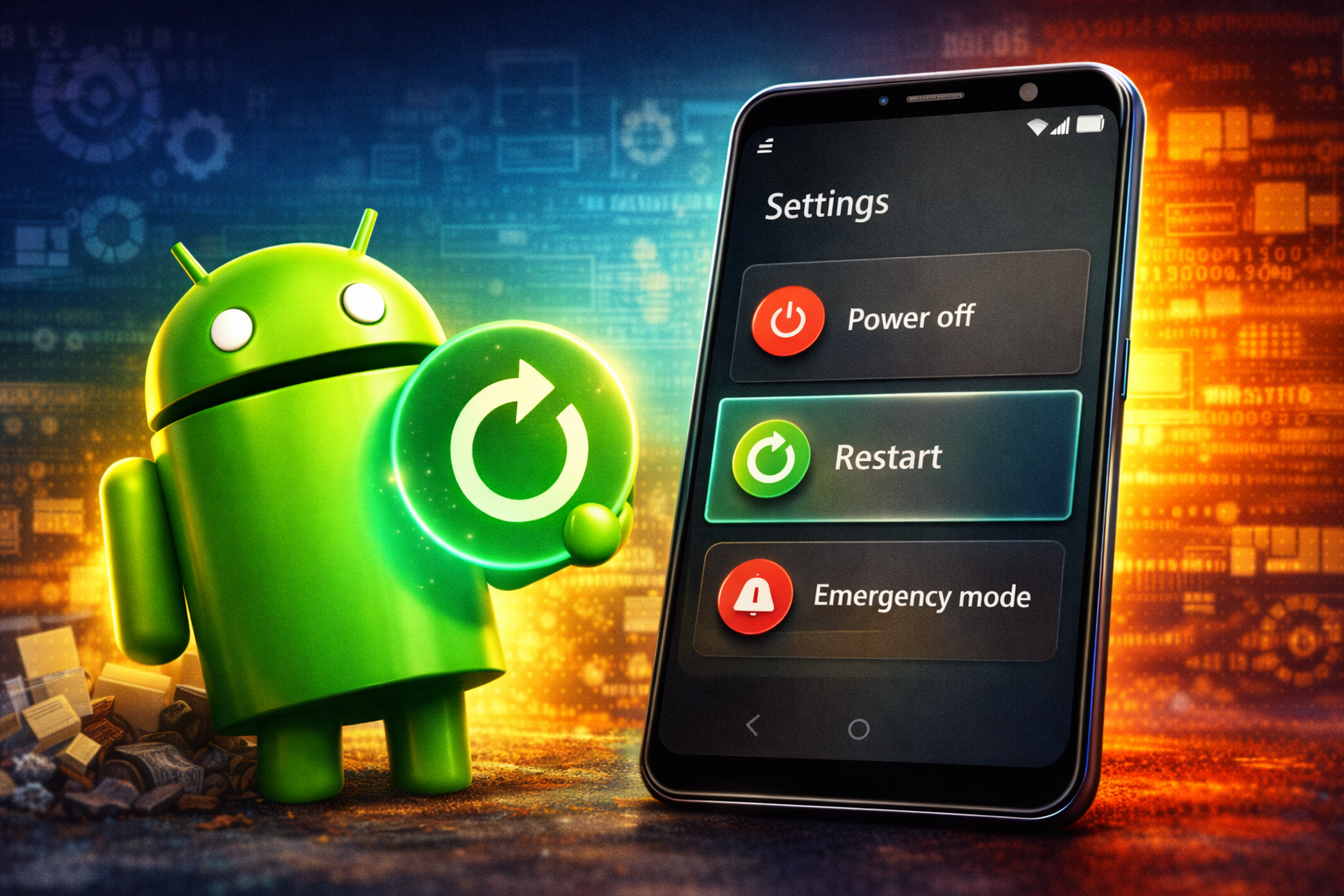
A simple restart can refresh storage data and fix temporary system glitches.
Steps to restart your phone
-
Press and hold the Power button.
-
Tap Restart.
-
Wait for the phone to turn back on.
-
Open Settings > Storage and check if the numbers look correct.
Why this helps:
Restarting forces Android to reload storage information and may fix incorrect storage reporting right away.
2. Check Storage from the Settings App
Before trying advanced fixes, confirm the problem inside your device settings.
How to check Android storage correctly
-
Open Settings.
-
Tap Storage or Battery and device care > Storage on some phones.
-
Wait a few seconds for Android to calculate the space.
-
Review categories such as:
-
Apps
-
Photos and videos
-
Audio
-
Documents
-
System
-
Cached data
-
If the storage screen keeps changing, freezes, or shows unrealistic numbers, continue with the fixes below.
3. Clear Cached Data
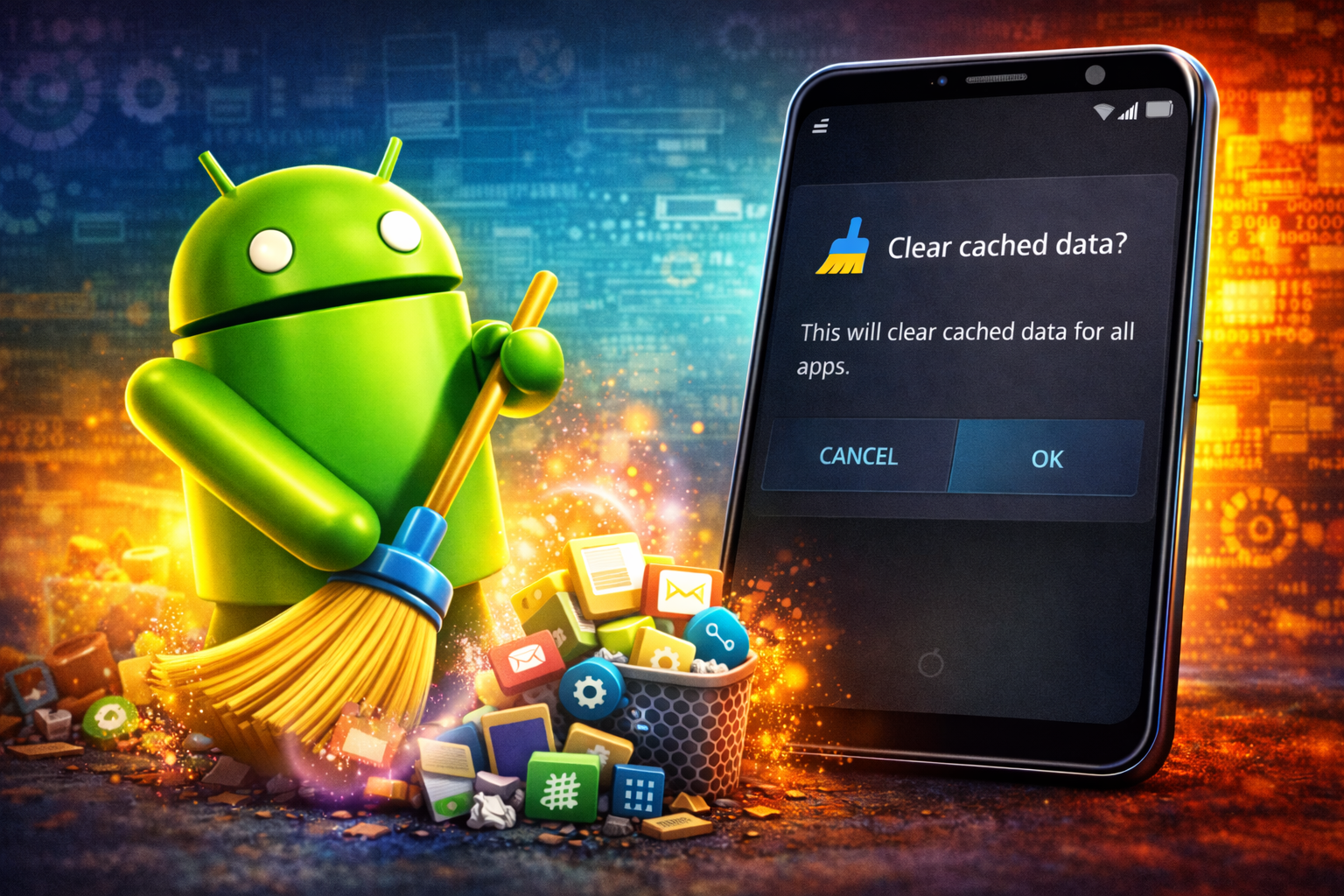
Cached files can build up over time and cause Android storage calculation wrong errors.
Clear app cache one by one
-
Open Settings > Apps.
-
Select a large app like Chrome, Facebook, TikTok, Instagram, or YouTube.
-
Tap Storage.
-
Tap Clear Cache.
-
Repeat for other large apps.
Clear system cache if available
On some phones, you may also find broader cache cleanup tools inside:
-
Settings > Storage
-
Device Care
-
Phone Manager
-
Files by Google
Important:
Use Clear Cache, not Clear Data, unless you are okay with resetting the app.
Why this helps:
Cache files can remain bloated or unreadable, causing Android to show the wrong storage size.
4. Delete Unnecessary Downloads and Large Files
Sometimes the storage system is technically correct, but hidden large files make it look wrong.
What to check
-
Downloaded videos
-
ZIP files
-
APK files
-
Screen recordings
-
Duplicate photos
-
Offline media from apps like Netflix or Spotify
-
WhatsApp and Telegram media folders
Steps
-
Open Files, My Files, or Files by Google.
-
Go to Downloads, Large files, or Internal Storage.
-
Sort files by size if possible.
-
Delete anything you no longer need.
-
Empty the Trash or Recycle Bin if your phone has one.
Important:
Many Android phones keep deleted files in Trash for up to 30 days, which means storage is not fully freed until you empty it.
5. Remove Leftover Files from Deleted Apps
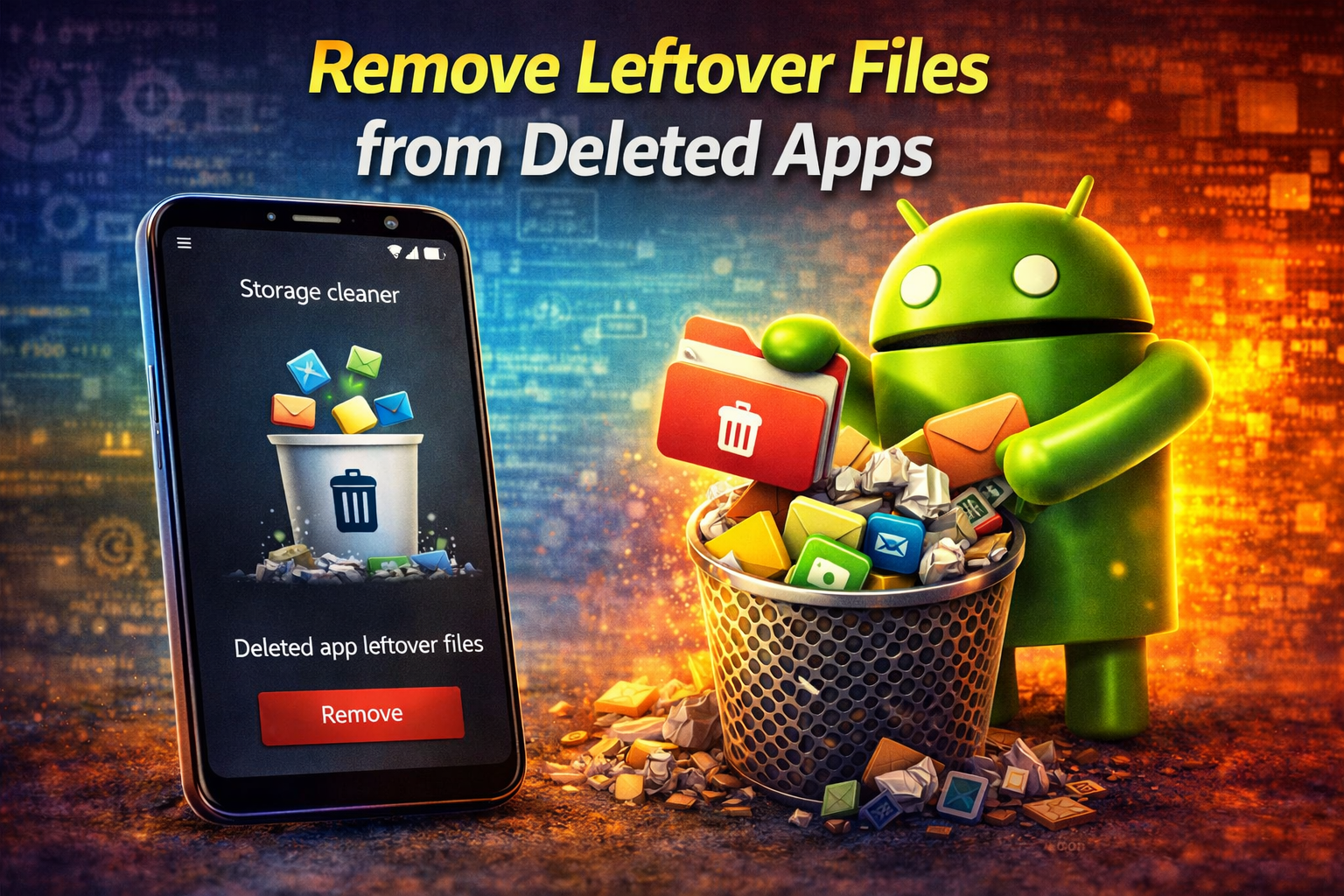
Sometimes you uninstall an app, but its folders stay on your phone. This can lead to Android storage showing wrong size.
How to find leftover folders
-
Open a file manager app.
-
Browse these common locations:
-
Internal Storage > Android
-
Internal Storage > Download
-
Internal Storage > DCIM
-
Internal Storage > Movies
-
-
Look for folders from apps you already removed.
-
Delete those folders carefully.
Only remove files if you are sure they are no longer needed.
6. Run a Storage Cleanup Tool
Many Android phones come with built-in cleaning tools. These tools can detect junk files, duplicates, and hidden files.
Common cleanup tools
-
Files by Google
-
Samsung Device Care
-
Xiaomi Security
-
OPPO Phone Manager
-
Realme Phone Manager
Steps
-
Open the cleanup app.
-
Tap Clean, Free up space, or similar.
-
Review the suggested files.
-
Delete only safe items like junk files, duplicate files, and temporary files.
Why this helps:
Cleanup tools can remove hidden data that the storage screen is still counting.
7. Rescan Media Files
Android uses a media scanner to detect photos, videos, music, and downloads. If it gets stuck, your storage total may look wrong.
Easy ways to trigger a rescan
-
Restart the phone.
-
Open your gallery and file manager apps.
-
Connect the phone to a charger for a few minutes.
-
Wait a little while for the system to finish scanning.
You can also install a trusted media rescan app, but in most cases a restart and normal device use are enough.
Why this helps:
If media files were deleted or moved but Android did not update its index, storage numbers can become inaccurate.
8. Check and Reinsert the SD Card
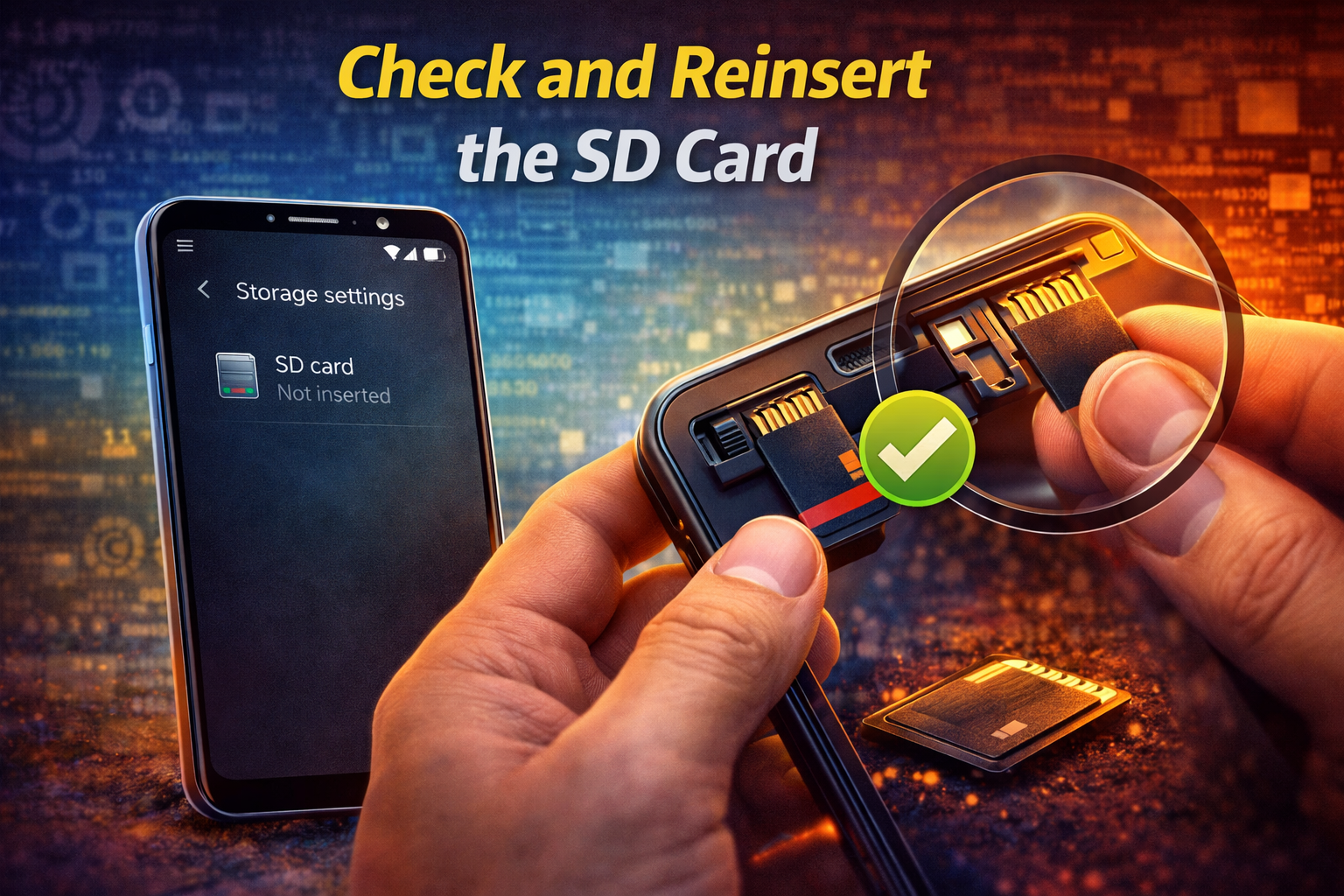
If your phone uses an SD card, it may cause incorrect storage readings.
Steps
-
Power off your phone.
-
Remove the SD card.
-
Clean it gently with a dry cloth.
-
Reinsert it properly.
-
Turn the phone back on.
-
Check storage again.
Also try this
-
Go to Settings > Storage > SD Card
-
Check for errors
-
Move some files off the SD card if it is too full
-
Back up important data and format the card if necessary
Important:
Formatting erases everything on the SD card, so back up your files first.
9. Update Android and Your Apps
Old software can cause fix Android storage issue problems because of bugs in the storage manager.
Update Android
-
Open Settings.
-
Tap Software Update or System > System Update.
-
Tap Download and Install.
Update apps
-
Open the Google Play Store.
-
Tap your profile icon.
-
Tap Manage apps & device.
-
Tap Update all.
Why this helps:
Updates often fix bugs related to storage indexing, cache behavior, and file management.
10. Clear Storage Data for the File Manager or Media Storage App
If the file manager itself is showing wrong values, clearing its data may help.
Steps
-
Open Settings > Apps.
-
Tap the three-dot menu and choose Show system apps if needed.
-
Find Files, File Manager, or Media Storage.
-
Tap Storage.
-
Tap Clear Cache first.
-
If needed, tap Clear Data.
Important:
Clearing data for Media Storage may cause the phone to rescan photos, videos, and audio files. This is normal and may take some time.
11. Boot Into Safe Mode
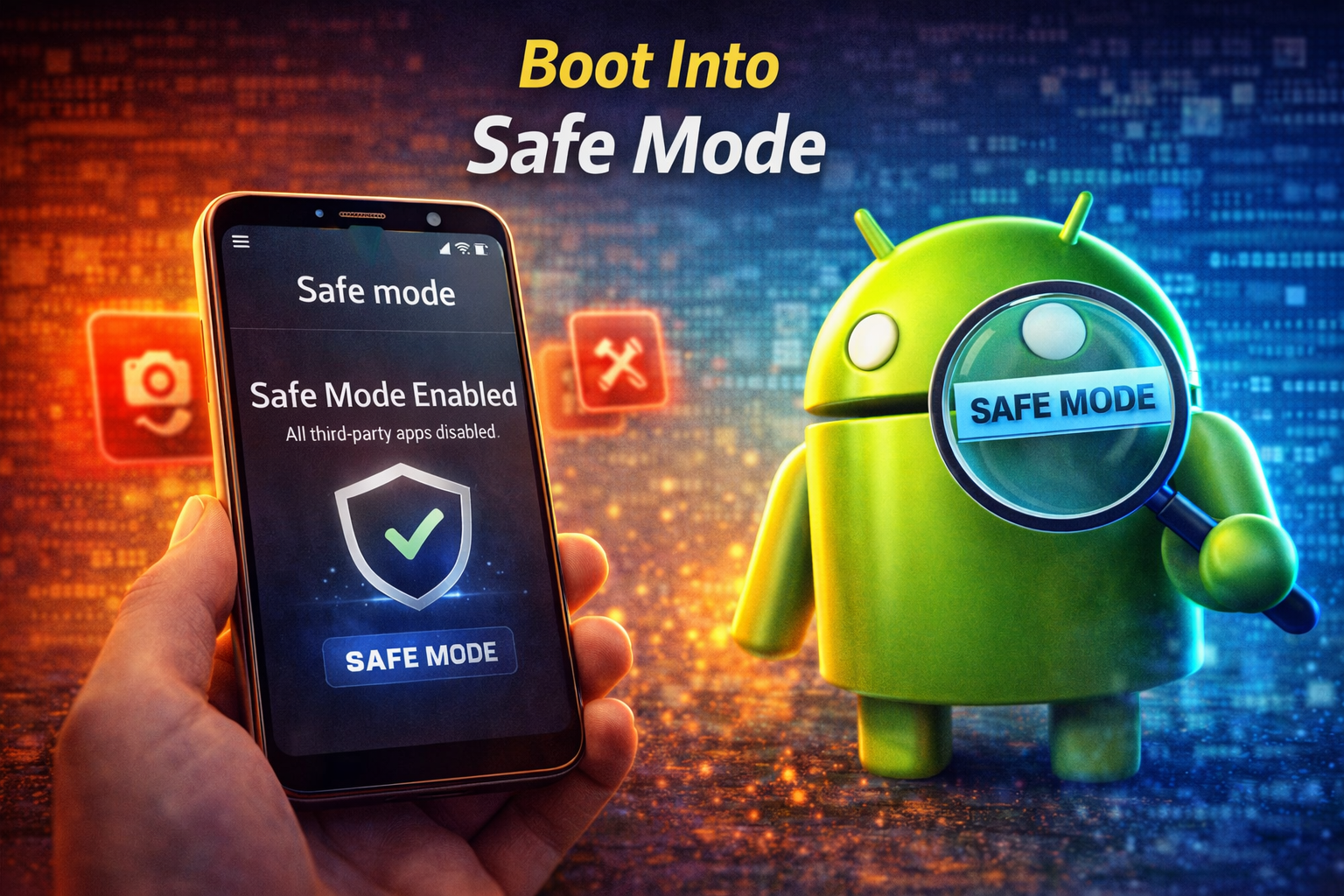
A third-party app may be causing your Android storage wrong problem.
How to use Safe Mode
-
Press and hold the Power button.
-
Touch and hold Power Off until Safe Mode appears.
-
Tap Safe Mode.
-
Once the phone restarts, check Settings > Storage.
If the storage looks normal in Safe Mode, a downloaded app may be the cause.
What to do next
-
Uninstall recently added cleaning apps
-
Remove suspicious file manager apps
-
Delete apps that manage cache aggressively
-
Restart normally after testing
12. Reset App Preferences
Sometimes Android system apps do not work properly because app settings were changed.
Steps
-
Open Settings > Apps.
-
Tap the three-dot menu.
-
Select Reset app preferences.
-
Confirm the action.
This does not delete your personal files, but it resets disabled apps, permissions, and default app settings.
13. Use Recovery Mode to Wipe Cache Partition
Some Android phones allow you to wipe the system cache partition. This can help fix deeper system storage bugs.
General steps
-
Turn off the phone.
-
Press the hardware button combination for your device to enter recovery mode.
-
Choose Wipe Cache Partition.
-
Confirm.
-
Reboot the phone.
Important:
This option is not available on every Android phone. Be careful in recovery mode and do not choose factory reset by mistake.
14. Back Up Your Phone and Perform a Factory Reset

If nothing works, the storage database may be badly corrupted. A factory reset is the last option.
Before resetting
-
Back up photos, contacts, videos, and documents
-
Sync your Google account
-
Save passwords and important files
Steps
-
Open Settings > System > Reset.
-
Tap Factory data reset.
-
Read the warning carefully.
-
Tap Reset phone.
Important:
A factory reset removes your apps and personal data from internal storage.
This step usually solves serious cases of Android storage calculation wrong when the issue comes from corrupted system files.
Why This Problem Happens
Here are the most common reasons your phone shows the wrong storage amount:
Corrupted cache files
Apps create temporary files to work faster. Over time, these files may become damaged or too large.
Broken media indexing
Android scans media files in the background. If the scan fails, deleted or moved files may still be counted.
Leftover app files
Uninstalled apps often leave folders behind, which continue taking space.
Software bugs
A recent system update or app update may have introduced a storage bug.
SD card issues
A damaged, slow, or corrupted SD card can confuse Android’s storage manager.
Trash folders not emptied
Deleted files may still be stored in a hidden recycle bin.
Quick Tips to Prevent This Problem
Use these habits to reduce the chance of incorrect storage readings in the future:
-
Restart your phone regularly
-
Clear app cache once in a while
-
Delete downloads you no longer need
-
Empty trash folders after deleting large files
-
Keep Android and apps updated
-
Use a trusted file manager
-
Avoid installing too many junk cleaner apps
-
Check your SD card health often
-
Back up important files before major updates
FAQ
Why does my Android say storage is full when it is not?
This usually happens because of cached files, hidden trash, leftover app data, or incorrect storage indexing.
Will clearing cache delete my personal files?
No. Clearing cache removes temporary app files only. It does not delete your photos, messages, or documents.
Can an SD card cause wrong storage numbers on Android?
Yes. A damaged or corrupted SD card can cause Android to display incorrect storage amounts.
Is it safe to clear Media Storage data?
In many cases, yes. Your phone will rebuild the media database. However, it may take time for photos and music to reappear in apps.
When should I factory reset my phone?
Only after trying all other fixes. It is the last option for severe storage bugs or corrupted system data.
Conclusion
If your phone is showing the wrong used space, do not panic. In most cases, you can fix Android storage calculation wrong issues by restarting the phone, clearing cached data, deleting hidden files, rescanning media, updating Android, or checking the SD card.
Start with the easy fixes first. Then move to deeper solutions like clearing Media Storage, using Safe Mode, or resetting the device only if needed.
By following the steps above, you can fix incorrect storage readings, free up space, and make your Android phone work normally again.