How to Fix Android Screen Rotation Not Working
Smartphones automatically rotate the screen when you turn the device sideways. This feature is useful when watching videos, browsing photos, or playing games.
However, many Android users face a frustrating issue where the screen rotation stops working. The phone stays stuck in portrait mode even when you rotate it.
If your Android screen rotation is not working, don’t worry. This is a common problem and usually easy to fix.
In this guide, you will learn simple step-by-step solutions to fix screen rotation problems on Android devices.
This guide works for most Android phones including Samsung, Xiaomi, Google Pixel, Oppo, Vivo, and OnePlus.
Why This Problem Happens
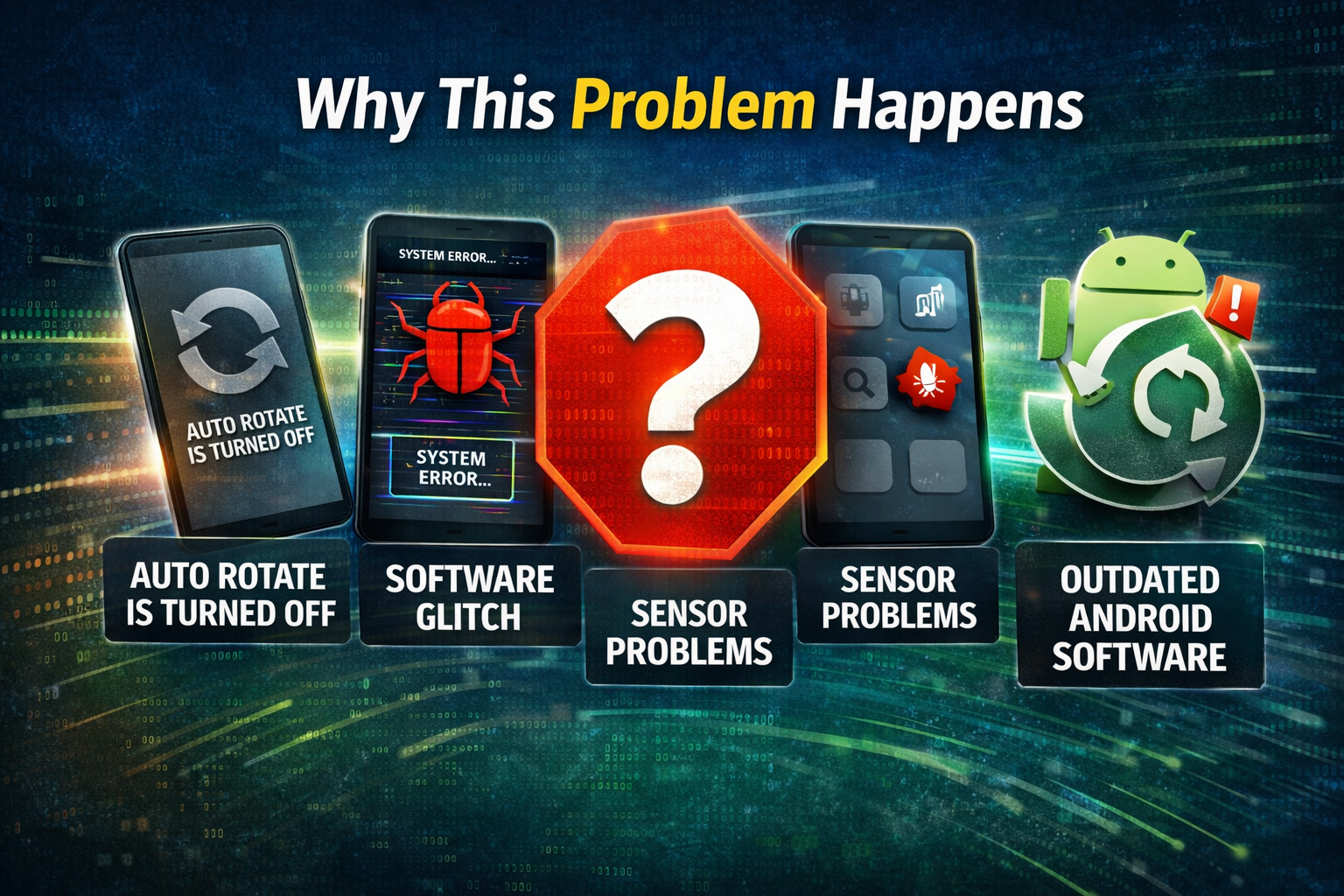
Before fixing the issue, it’s helpful to understand why Android screen rotation stops working.
Here are the most common reasons:
1. Auto Rotate is Turned Off
Sometimes the auto-rotate feature is disabled, preventing the screen from rotating.
2. A Software Glitch
Temporary system bugs may stop the phone’s accelerometer or gyroscope sensor from working.
3. Sensor Problems
Android phones use sensors to detect device orientation. If these sensors malfunction, rotation may fail.
4. A Problematic App
Some apps override rotation settings or cause system conflicts.
5. Outdated Android Software
Older Android versions may contain bugs affecting screen rotation.
1. Turn On Auto Rotate
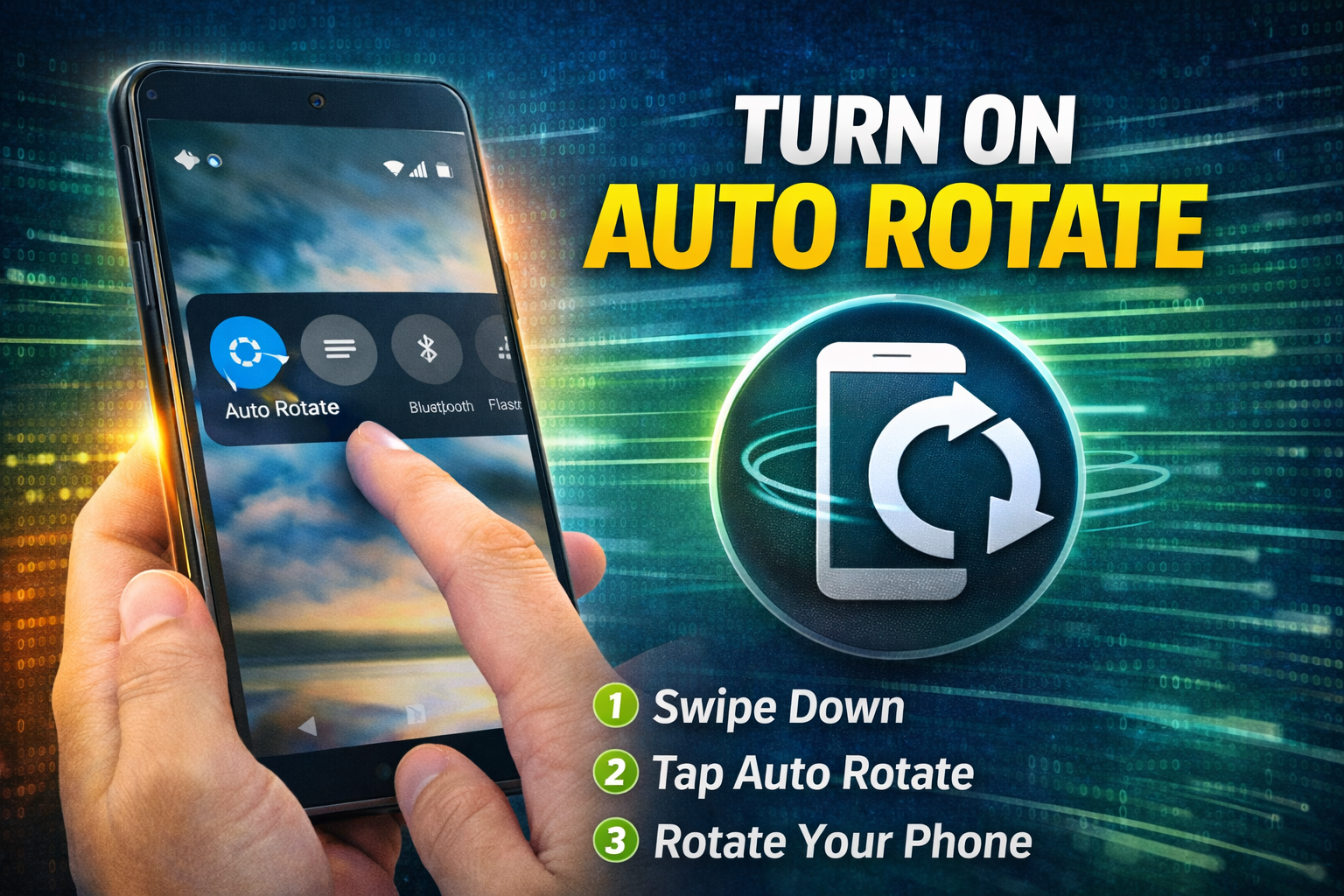
The most common reason for this issue is Auto Rotate being disabled.
Follow these steps:
- Swipe down from the top of the screen.
- Open the Quick Settings panel.
- Look for Auto Rotate.
- If it shows Portrait, tap it.
- Enable Auto Rotate.
Important:
Make sure the icon says Auto Rotate, not Portrait or Landscape.
Now rotate your phone to check if the screen rotates.
2. Restart Your Android Phone
A simple restart can fix many Android issues, including screen rotation problems.
Steps:
- Press and hold the Power button.
- Tap Restart.
- Wait for the phone to reboot.
After restarting, try rotating your phone again.
This fixes temporary system glitches affecting sensors.
3. Check App-Specific Rotation Settings
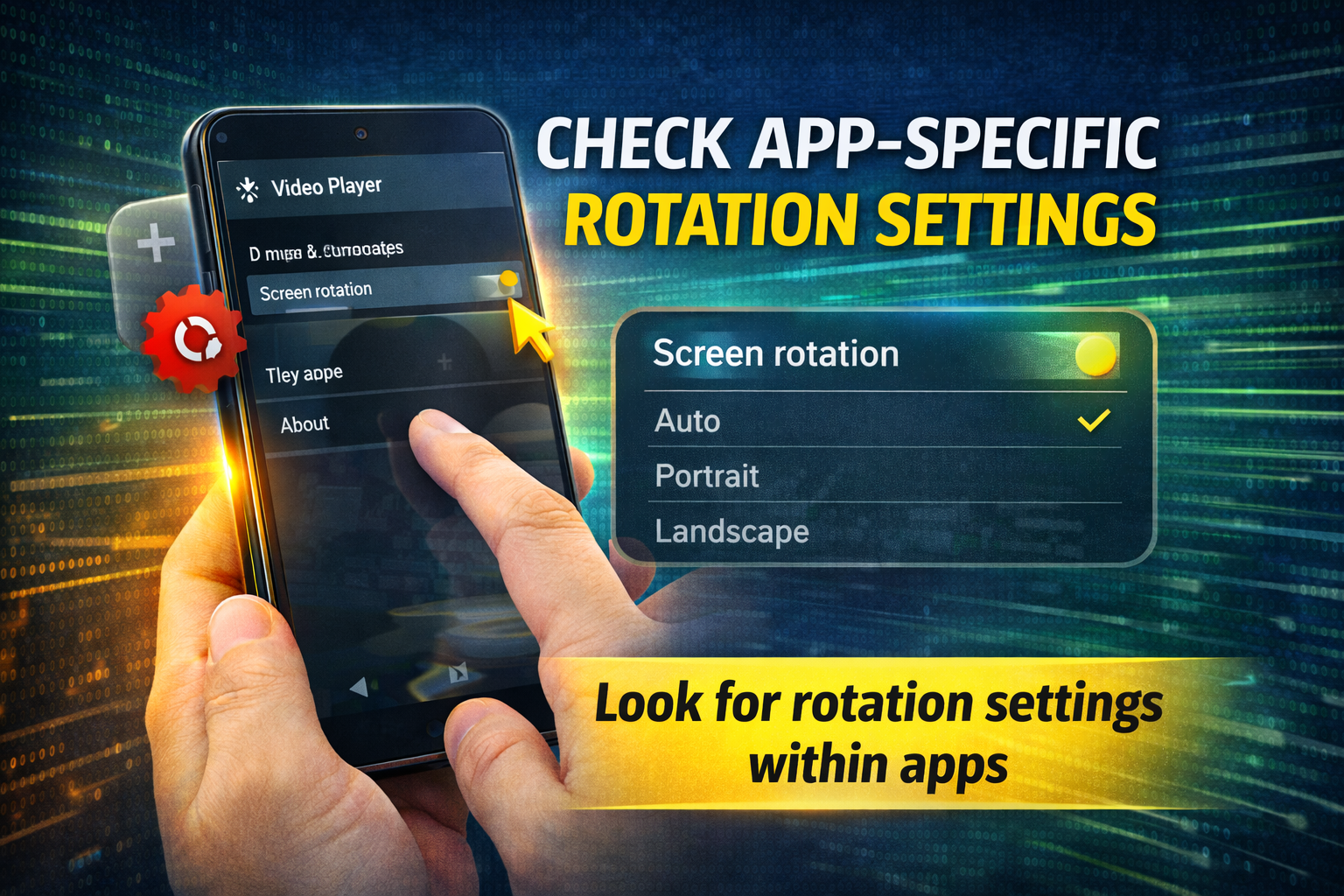
Some apps disable screen rotation by default.
Examples include:
- Banking apps
- Some games
- Video apps
- Camera apps
Try these steps:
- Open a different app like YouTube or Gallery.
- Rotate your phone.
- Check if the screen rotates.
If rotation works in other apps, the issue is app-specific, not your phone.
4. Turn Off Rotation Lock in Accessibility Settings
Some accessibility settings may lock screen orientation.
Steps:
- Open Settings.
- Tap Accessibility.
- Look for Screen Rotation Lock.
- Turn it off if enabled.
After disabling it, test screen rotation again.
5. Calibrate Your Phone Sensors
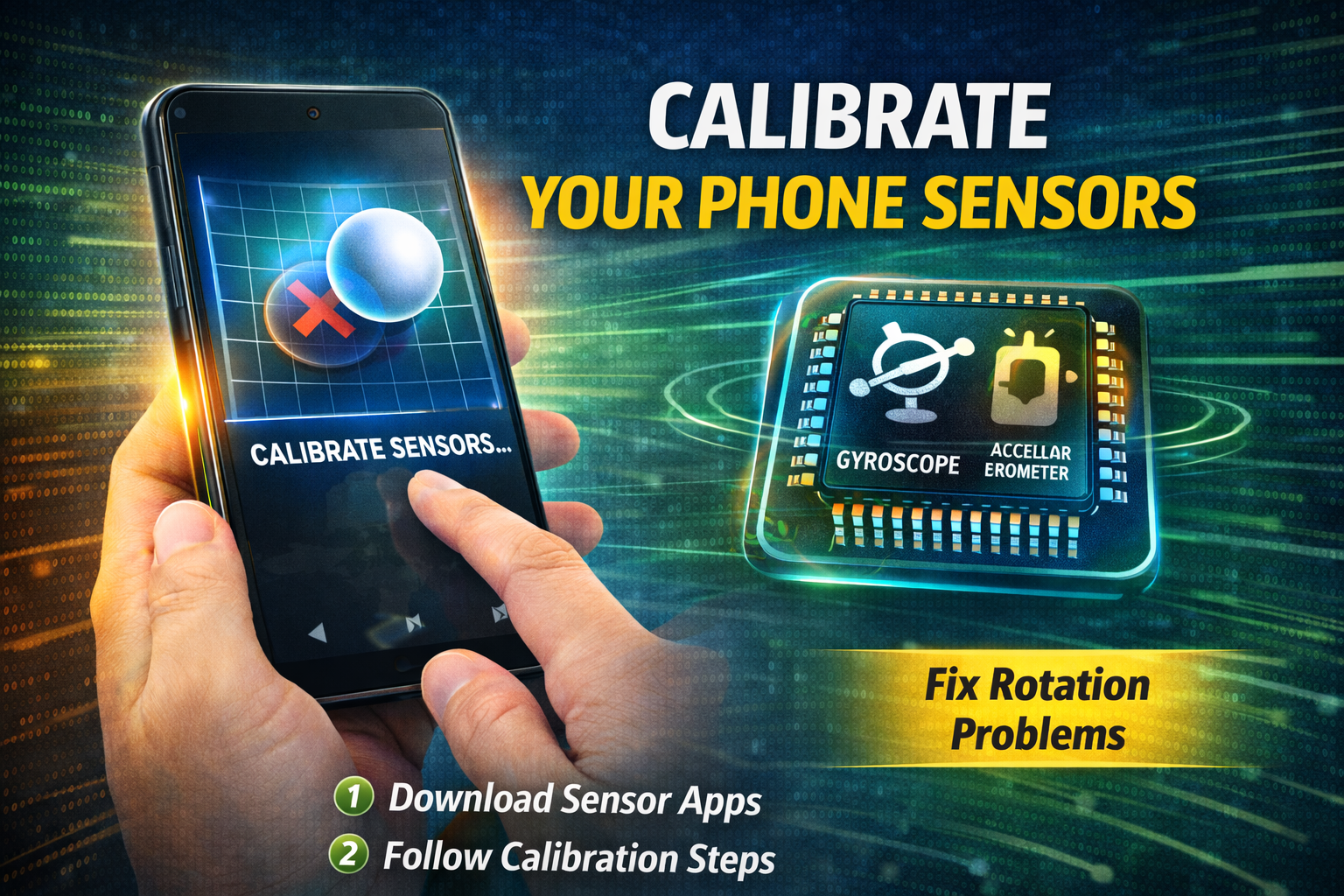
Android screen rotation depends on accelerometer and gyroscope sensors.
If these sensors are not calibrated properly, rotation may stop working.
Try this method:
- Open the Phone Dialer.
- Dial the secret code:
*#0*#
(This works on many Samsung devices.)
- Tap Sensors.
- Follow instructions to calibrate the sensors.
Alternatively, install a sensor calibration app from the Play Store.
6. Clear System Cache
Sometimes corrupted system cache can cause rotation issues.
Steps:
- Turn off your phone.
- Press and hold Power + Volume Up.
- Enter Recovery Mode.
- Select Wipe Cache Partition.
- Restart your phone.
Important:
This will not delete your personal data.
7. Update Your Android Software

Software updates often fix sensor bugs and system errors.
Steps:
- Open Settings.
- Tap System.
- Tap Software Update.
- Tap Check for Updates.
- Install any available updates.
After updating, test screen rotation again.
8. Boot Your Phone in Safe Mode
Safe Mode helps identify if a third-party app is causing the problem.
Steps:
- Press and hold the Power button.
- Tap and hold Power Off.
- Select Safe Mode.
- Tap OK.
Your phone will restart in Safe Mode.
Now test screen rotation.
If rotation works, a recently installed app is likely causing the problem.
Remove suspicious apps to fix the issue.
9. Reset App Preferences
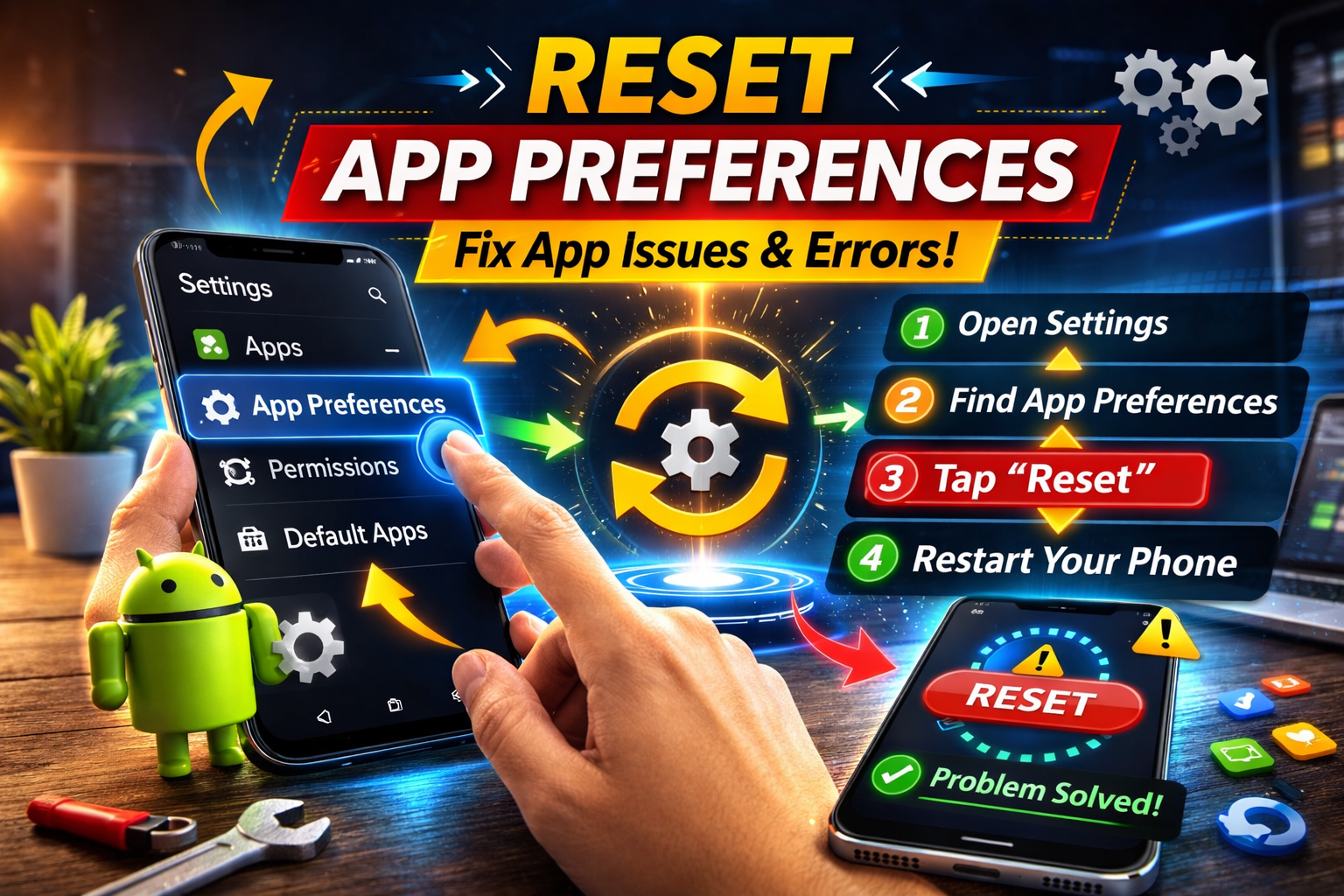
Resetting app preferences can fix system conflicts.
Steps:
- Open Settings.
- Tap Apps.
- Tap the three-dot menu.
- Select Reset App Preferences.
This will reset:
- Disabled apps
- App permissions
- Background restrictions
But it will not delete your data.
10. Perform a Factory Reset (Last Option)
If none of the above solutions work, a factory reset may fix deeper system issues.
⚠️ Important: This will erase all data.
Steps:
- Back up your data.
- Open Settings.
- Tap System.
- Tap Reset Options.
- Select Erase All Data (Factory Reset).
After resetting, check if the Android screen rotation works again.
Quick Tips to Prevent This Problem
Use these simple tips to avoid screen rotation issues in the future:
- Keep Android updated
- Avoid installing too many unknown apps
- Restart your phone regularly
- Keep sensors clean
- Avoid dropping your phone
- Remove buggy apps
These small habits can prevent many Android sensor problems.
FAQ: Android Screen Rotation Problems
1. Why is my Android screen not rotating?
Your Android screen may not rotate because:
- Auto rotate is disabled
- A system bug
- Sensor malfunction
- App restrictions
Enabling Auto Rotate usually fixes the problem.
2. How do I force my Android screen to rotate?
You can use apps like:
- Rotation Control
- Ultimate Rotation Control
These apps force screen rotation even if the system feature fails.
3. What sensor controls screen rotation?
Android phones use:
- Accelerometer
- Gyroscope
These sensors detect the phone’s position and rotate the screen accordingly.
4. Why does screen rotation work in some apps but not others?
Some apps lock orientation intentionally for better user experience.
For example:
- Banking apps
- Camera apps
- Some games
5. Can a hardware problem cause screen rotation issues?
Yes.
If the accelerometer or gyroscope sensor is damaged, screen rotation may stop working completely.
In this case, the phone may require professional repair.
Conclusion
The Android screen rotation not working problem can be annoying, especially when watching videos or using apps in landscape mode.
Fortunately, most cases are easy to fix.
Start with the simple solutions:
- Enable Auto Rotate
- Restart your phone
- Check app settings
- Update Android
If the issue continues, try sensor calibration, Safe Mode, or resetting app preferences.
These steps solve the problem for most Android users.
If none of the fixes work, the issue may be related to hardware sensors, and professional repair might be required.