How to Fix Android File Transfer Problems
Transferring files between your Android phone and a computer should be quick and simple. However, many users face Android file transfer problems where their phone is not recognized, files won’t transfer, or the computer doesn’t detect the device.
This issue can happen when connecting your Android device to a Windows PC, Mac, or laptop using a USB cable. Sometimes the phone only charges instead of transferring files. Other times, the Android File Transfer app doesn’t open, or your computer shows an error.
The good news is that most Android file transfer problems are easy to fix. In this guide, we will walk you through simple step-by-step solutions to help you transfer files smoothly again.
Why Android File Transfer Problems Happen
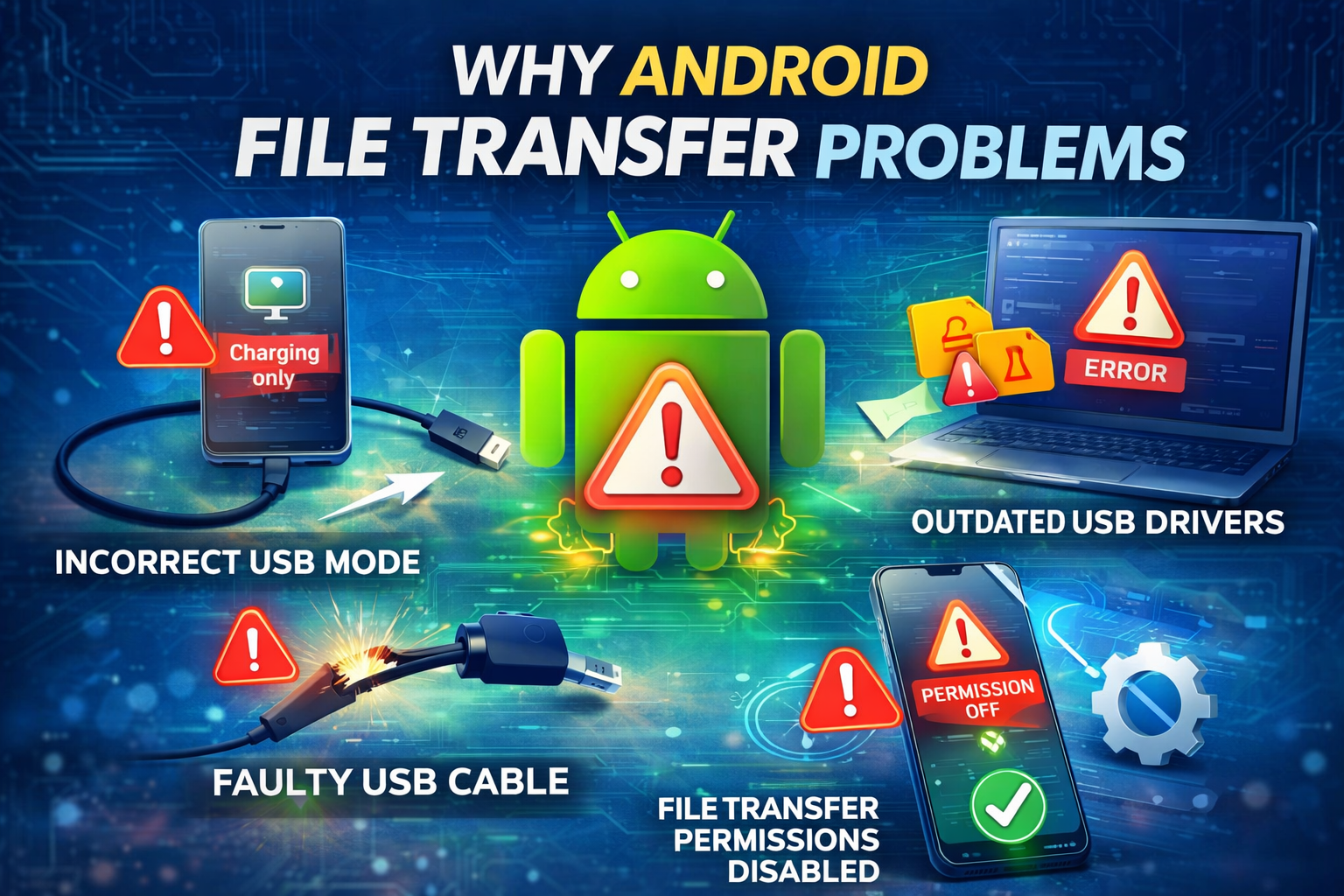
Before fixing the issue, it’s helpful to understand why Android file transfer problems occur.
Common causes include:
- Incorrect USB connection mode
- Faulty or charging-only USB cable
- Outdated USB drivers
- Disabled file transfer permissions
- Software bugs in Android
- Problems with Android File Transfer app (Mac)
- Dirty USB ports or hardware issues
Once you identify the cause, the solution becomes much easier.
10 Ways to Fix Android File Transfer Problems
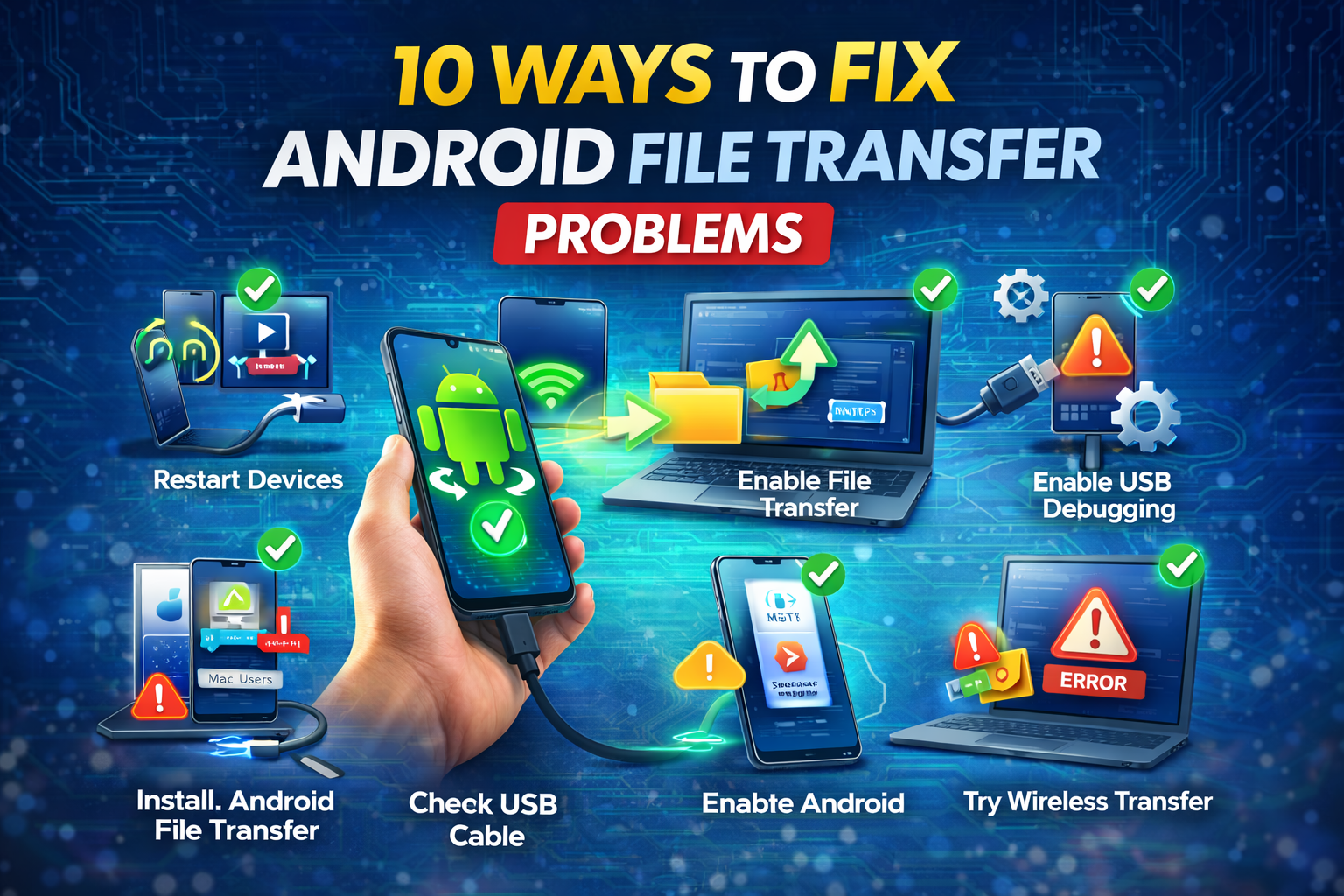
Below are the most effective methods to fix Android file transfer problems.
1. Restart Your Android Phone and Computer
A simple restart can fix many temporary system glitches.
Steps:
- Restart your Android phone
- Restart your computer or laptop
- Reconnect the USB cable
- Try transferring files again
Restarting refreshes the system and often solves Android USB connection issues.
2. Check the USB Cable
One of the most common causes of Android file transfer problems is using the wrong cable.
Some cables are designed only for charging, not for data transfer.
What to do:
- Use the original USB cable that came with your phone
- Try a different USB cable
- Avoid damaged or cheap cables
If the cable only charges your phone, file transfer will not work.
3. Enable File Transfer Mode on Android
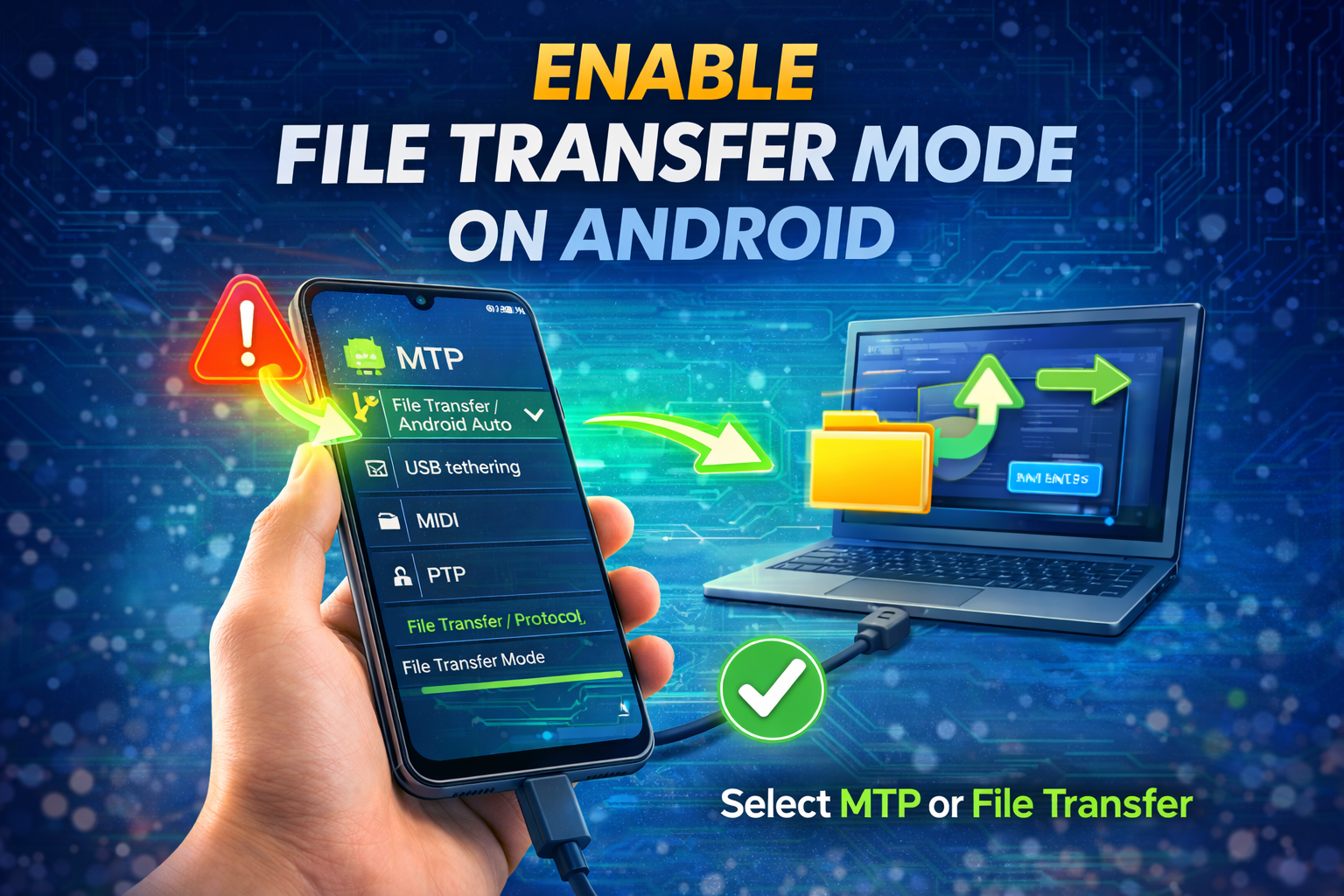
By default, Android may connect in Charging mode, which prevents file transfers.
Steps to enable File Transfer:
- Connect your phone to your computer
- Swipe down the notification panel
- Tap USB for Charging
- Select File Transfer (MTP)
Once enabled, your computer should detect the phone as a storage device.
This is one of the most important fixes for Android file transfer not working.
4. Try a Different USB Port
Sometimes the problem comes from the computer’s USB port.
Try this:
- Plug the cable into another USB port
- Avoid using USB hubs
- Connect directly to the computer motherboard port
A faulty USB port can cause Android device not detected on PC.
5. Enable USB Debugging
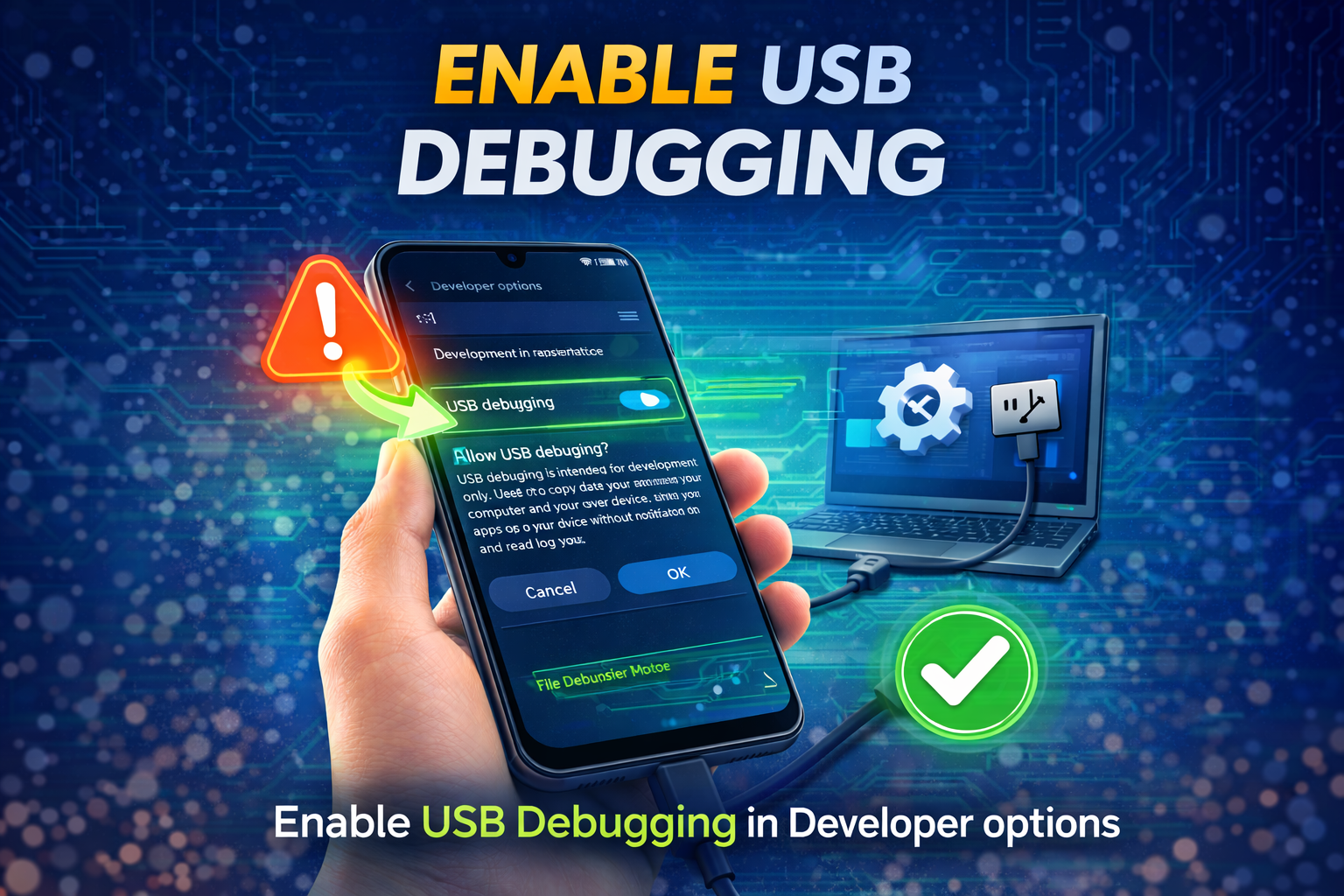
Enabling USB Debugging can sometimes fix connection issues.
Steps:
- Open Settings
- Go to About Phone
- Tap Build Number 7 times
- Enable Developer Options
- Open Developer Options
- Turn on USB Debugging
Reconnect the device and try file transfer again.
6. Update or Reinstall USB Drivers (Windows)
If you’re using Windows, outdated drivers can cause Android USB file transfer problems.
Steps:
- Connect your Android phone
- Open Device Manager
- Find Portable Devices
- Right-click your Android device
- Select Update Driver
If the device shows an error:
- Right-click the device
- Select Uninstall Device
- Disconnect the phone
- Reconnect it
Windows will reinstall the driver automatically.
7. Install Android File Transfer (Mac Users)
Mac computers require a special app called Android File Transfer.
Without it, your Mac will not detect your Android phone.
Steps:
- Download Android File Transfer
- Install the application
- Connect your Android phone
- Open the app
You can now transfer files between Android and Mac.
8. Clear Android System Cache
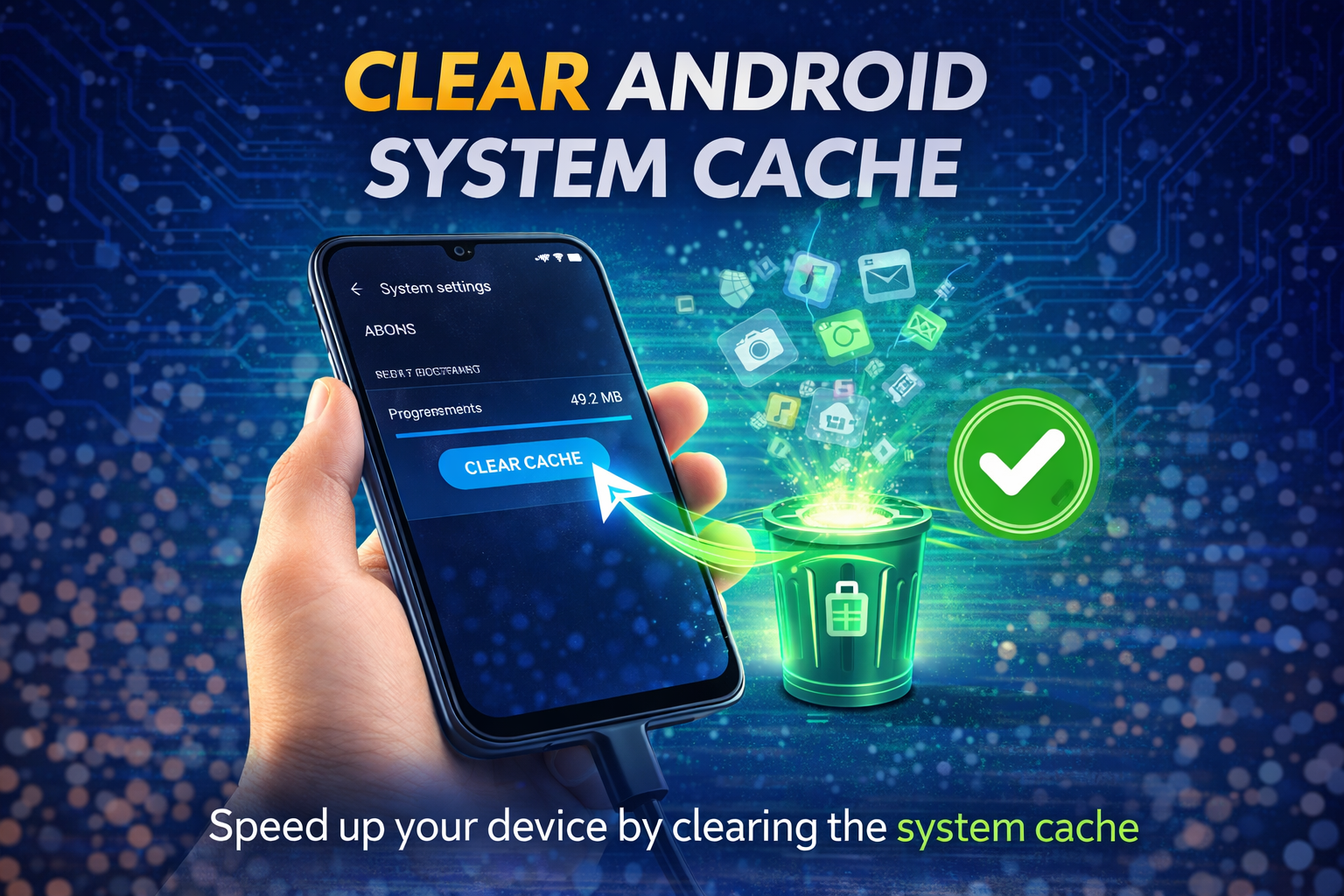
Sometimes system cache issues can affect USB connections.
Steps:
- Turn off your phone
- Press Power + Volume Up buttons
- Enter Recovery Mode
- Select Wipe Cache Partition
- Restart your phone
This can fix hidden system bugs causing Android file transfer issues.
9. Update Your Android System
Software bugs can cause connection issues.
Updating Android may solve the problem.
Steps:
- Open Settings
- Tap Software Update
- Tap Download and Install
Updating your phone fixes compatibility issues with computers.
10. Try Wireless File Transfer
If USB transfer still doesn’t work, you can use wireless file transfer methods.
Popular options include:
- Google Drive
- Nearby Share
- Bluetooth
- AirDroid
- Send Anywhere
These methods allow file transfers without using USB.
Quick Tips to Prevent Android File Transfer Problems
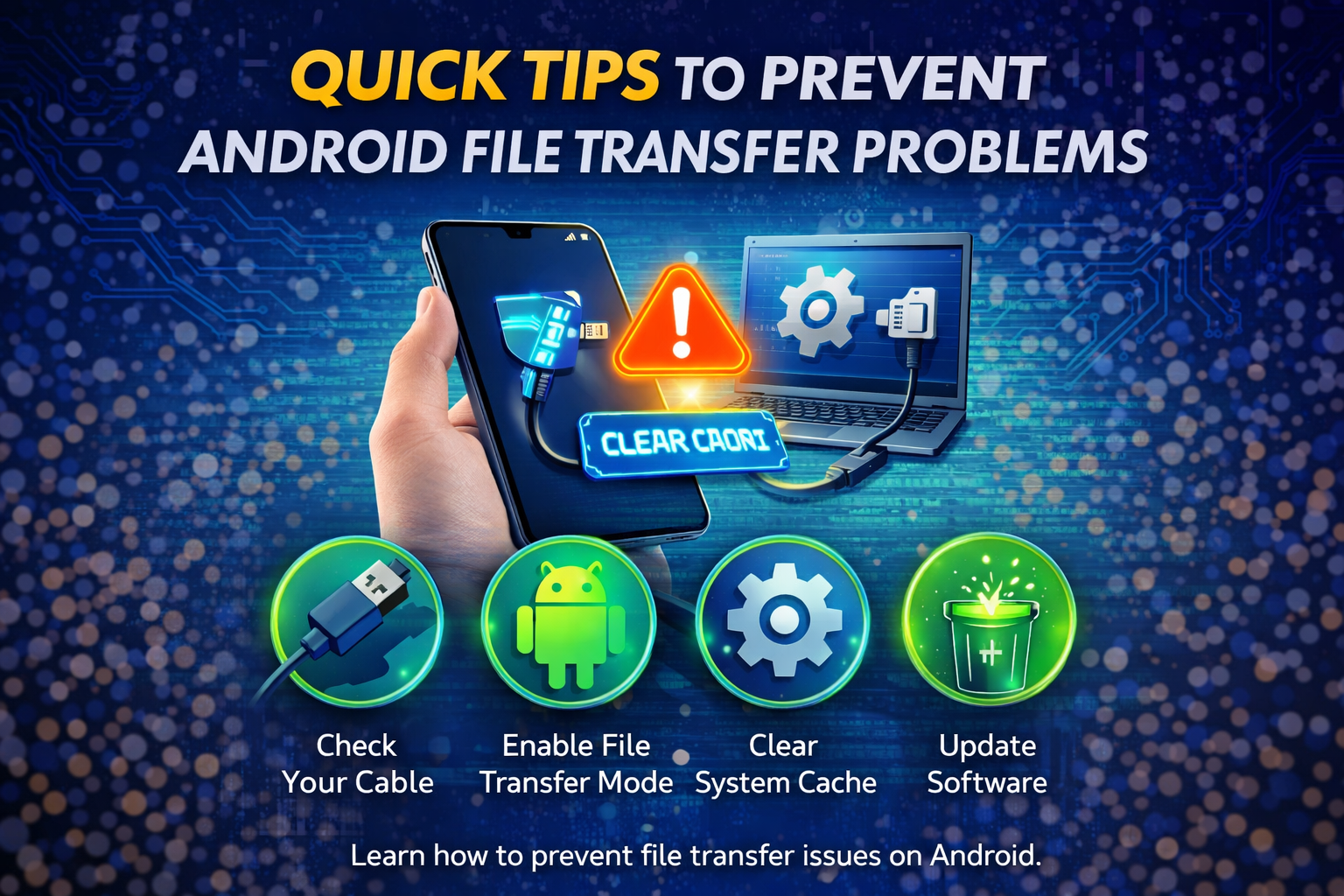
To avoid facing this issue again, follow these tips:
- Always use a high-quality USB cable
- Keep your Android system updated
- Avoid cheap charging cables
- Keep USB ports clean and dust-free
- Install the latest USB drivers
- Use trusted apps for wireless file transfers
These simple habits can prevent most Android USB transfer problems.
Frequently Asked Questions (FAQ)
Why is my Android phone only charging and not transferring files?
This happens when the USB mode is set to Charging only.
Change the setting to File Transfer (MTP) from the notification panel.
Why is my computer not recognizing my Android phone?
Possible reasons include:
- Faulty USB cable
- Missing drivers
- Incorrect USB mode
- Disabled file transfer permissions
Try switching cables or updating drivers.
Why does Android File Transfer not work on Mac?
The app may not work if:
- The USB cable is faulty
- The Android device is locked
- USB mode is not set to File Transfer
Unlock the phone and reconnect it.
Can I transfer files without USB?
Yes. You can use wireless options such as:
- Nearby Share
- Google Drive
- AirDroid
- Bluetooth
These methods are useful when USB connections fail.
How do I enable file transfer on Android?
- Connect your phone to a computer
- Open the notification panel
- Tap USB for Charging
- Select File Transfer
Your device will now appear on the computer.
Conclusion
Facing Android file transfer problems can be frustrating, especially when you need to move files quickly between your phone and computer. Fortunately, most issues are caused by simple things like incorrect USB mode, faulty cables, or outdated drivers.
By following the step-by-step solutions in this guide—such as enabling File Transfer mode, updating drivers, checking USB cables, and installing Android File Transfer for Mac—you can quickly restore file transfers.
If USB transfer still fails, you can always rely on wireless file transfer apps as a backup.
Keeping your device updated and using reliable cables will help prevent most Android file transfer issues in the future.