How to Fix Android Update Failed Error
Android updates are important because they bring new features, security improvements, and better performance. However, many users face a frustrating issue called the Android Update Failed error.
When this problem appears, your phone may show messages like:
- “Update failed”
- “Software update unsuccessful”
- “Installation failed”
- “Android system update error”
This means your device cannot complete the update process.
The good news is that this problem is usually easy to fix. In this guide, you will learn step-by-step solutions to fix the Android Update Failed error quickly and safely, even if you are a beginner.
Why Android Updates Are Important
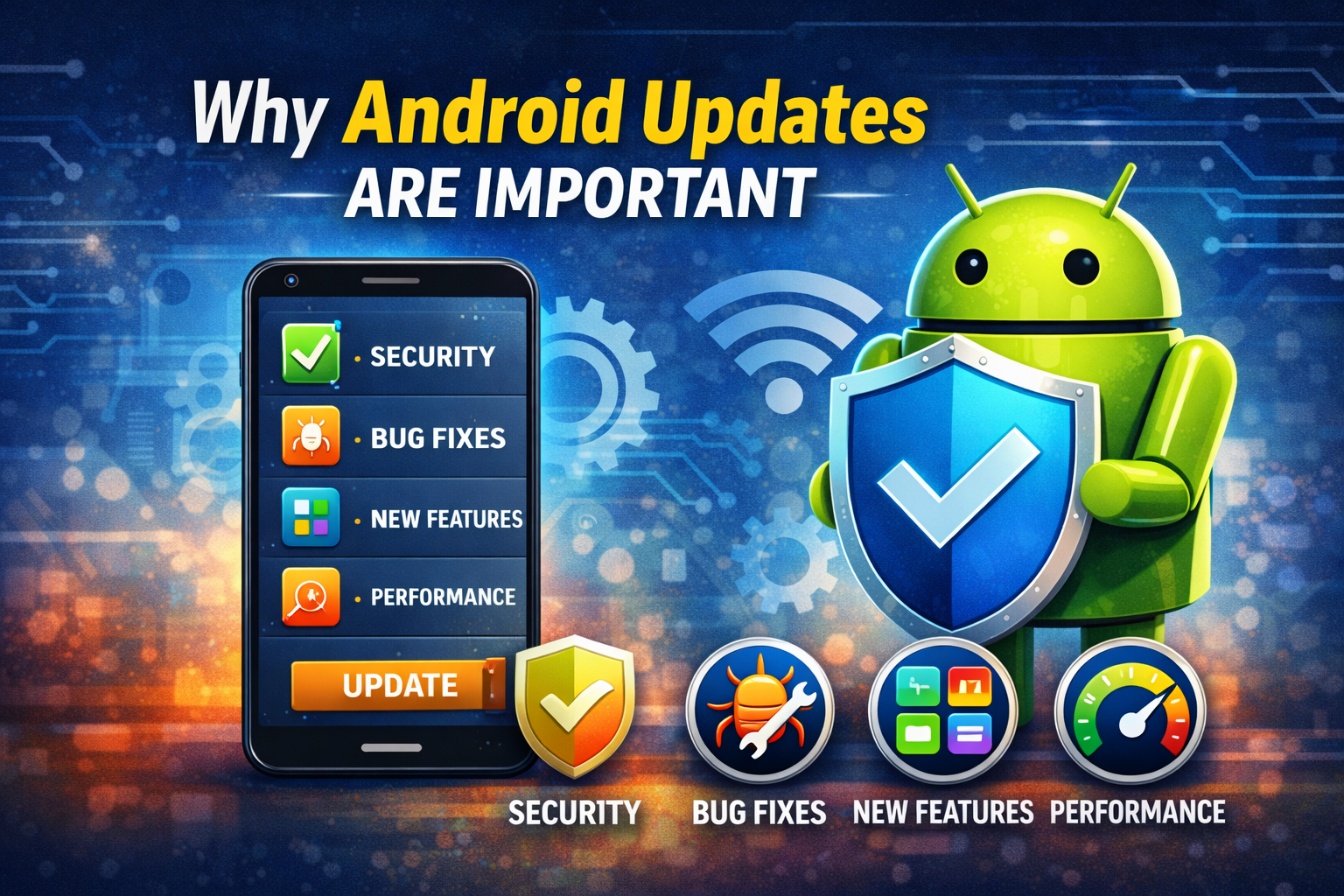
Before fixing the problem, it’s useful to understand why updates matter.
Android updates usually include:
- Security patches
- Bug fixes
- Performance improvements
- New Android features
- Compatibility improvements for apps
If updates fail, your device may miss important security fixes, so solving this issue is important.
Common Signs of the Android Update Failed Error
You might notice these symptoms:
- The update downloads but fails during installation
- The phone restarts but the update is canceled
- You see “Update failed” notifications
- The system keeps asking to download the update again
If you see these issues, try the solutions below.
How to Fix Android Update Failed Error
Follow these solutions one by one until the problem is fixed.
1. Restart Your Android Phone
A simple restart can fix many temporary system issues.
Steps
- Press and hold the Power button.
- Tap Restart.
- Wait for your phone to reboot.
- Try the update again.
Important: Temporary system glitches often cause Android update failures.
2. Check Your Internet Connection
A weak or unstable connection can interrupt the update process.
What to do
- Connect to a stable WiFi network
- Avoid using mobile data
- Restart your router if needed
Steps
- Open Settings
- Tap Network & Internet
- Connect to a strong WiFi network
- Try downloading the update again
3. Make Sure Your Phone Has Enough Storage
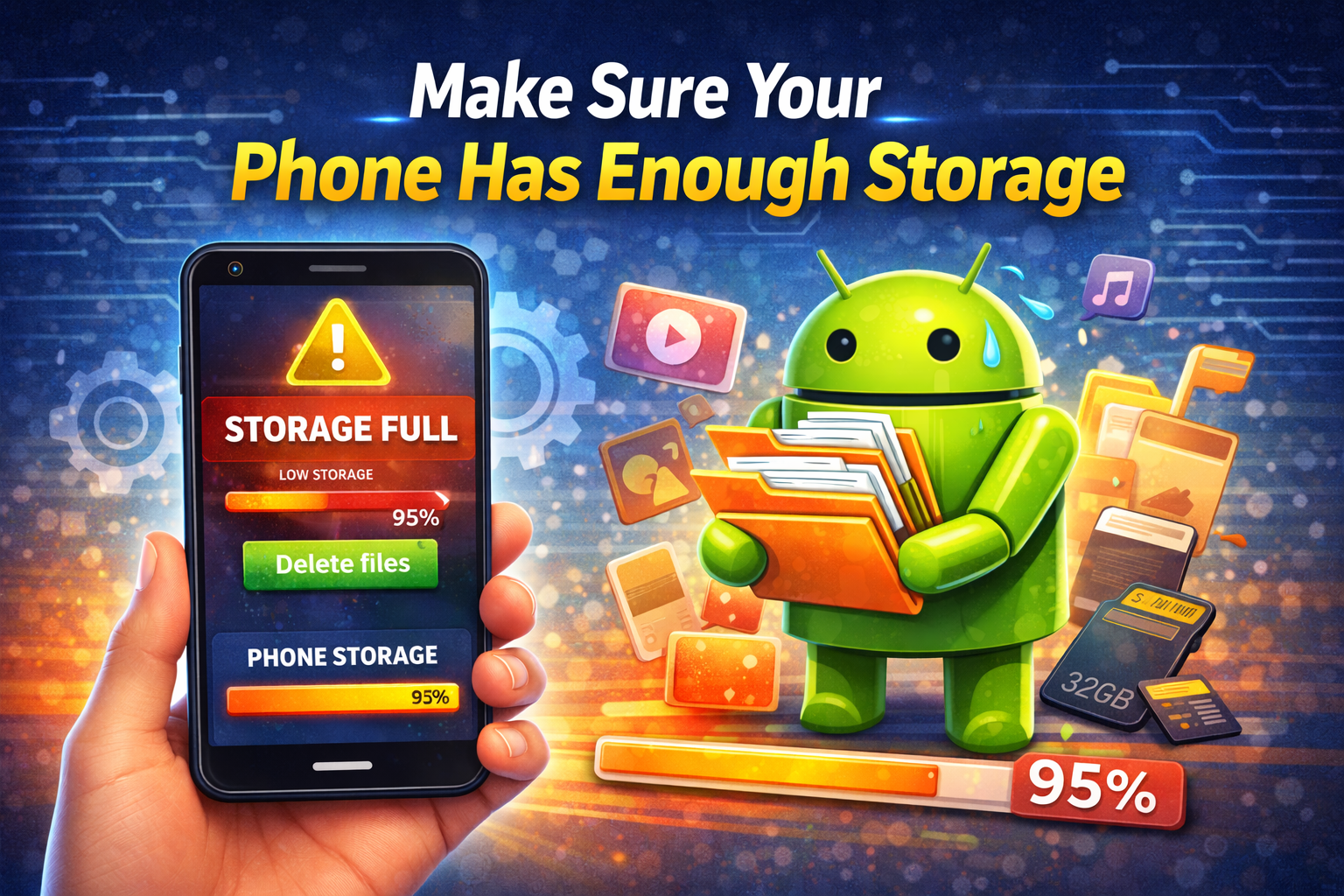
System updates require free storage space to download and install.
If storage is full, the update will fail.
How to check storage
- Open Settings
- Tap Storage
- Check available space
Most updates require at least 2–5 GB of free space.
Free up storage by deleting:
- Large videos
- Unused apps
- Downloaded files
- Duplicate photos
4. Charge Your Phone Before Updating
Android updates may fail if the battery is too low.
Most phones require at least 50% battery to install updates.
Solution
- Charge your phone to at least 60–80%
- Keep the phone connected to the charger during the update
5. Clear Cache of System Update App
Sometimes corrupted cache files cause update errors.
Clearing the cache may solve the problem.
Steps
- Open Settings
- Tap Apps
- Tap See all apps
- Tap the three-dot menu
- Select Show system apps
- Find Software Update or System Update
- Tap Storage
- Tap Clear Cache
After that, try updating again.
6. Update Your Phone in Safe Mode
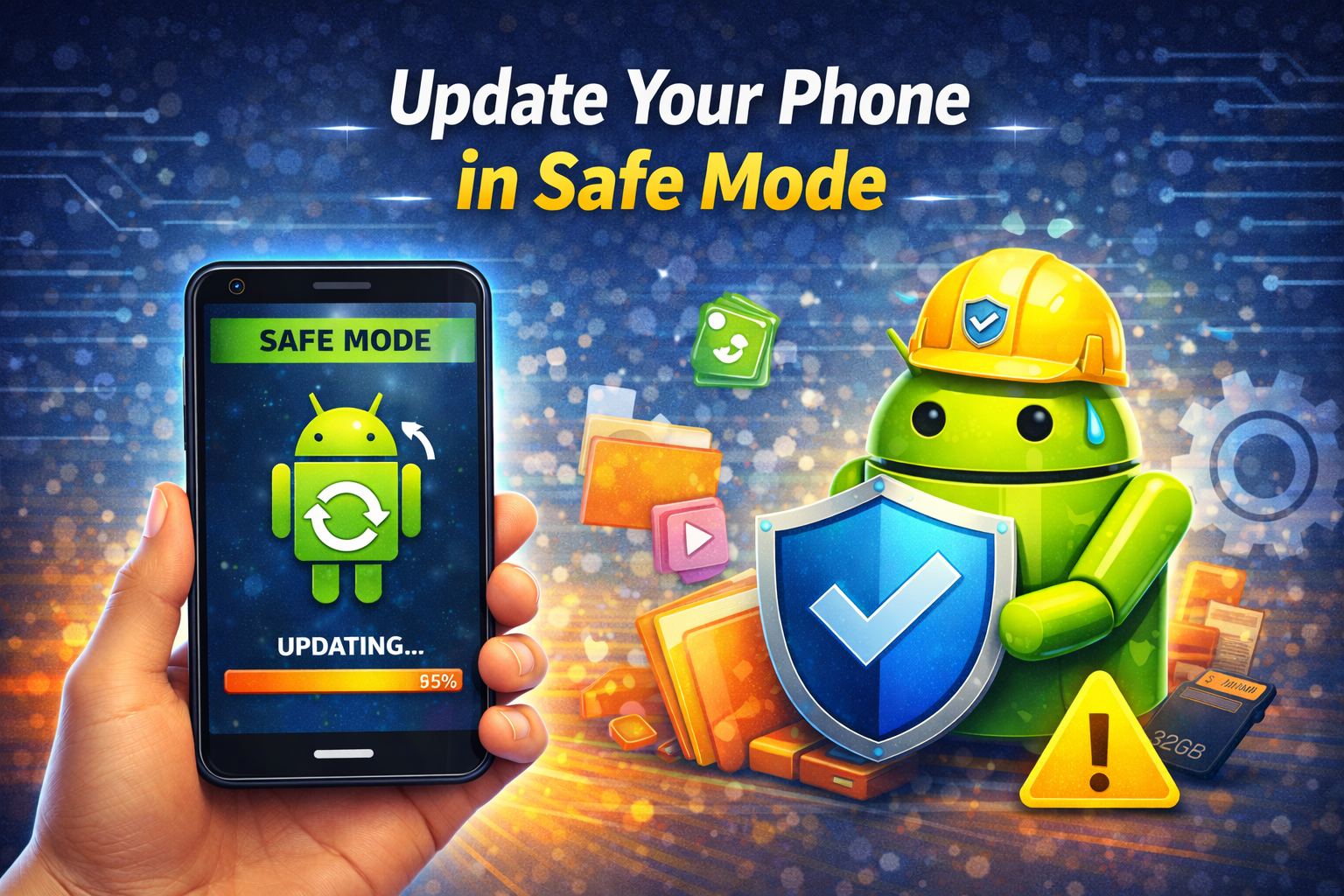
Some third-party apps may interfere with system updates.
Safe Mode disables all installed apps.
Steps to boot Safe Mode
- Press and hold the Power button
- Tap and hold Power Off
- Tap Safe Mode
- Restart the phone
Now try installing the update again.
If it works, one of your installed apps may be causing the problem.
7. Manually Check for Updates
Sometimes automatic updates fail but manual updates work.
Steps
- Open Settings
- Tap System
- Tap System Update
- Tap Check for updates
- Download and install the update
8. Reset Network Settings
Network issues may interrupt update downloads.
Resetting network settings can help.
Steps
- Open Settings
- Tap System
- Tap Reset options
- Tap Reset WiFi, mobile & Bluetooth
- Confirm the reset
Then reconnect to WiFi and try updating again.
9. Update Using a Computer
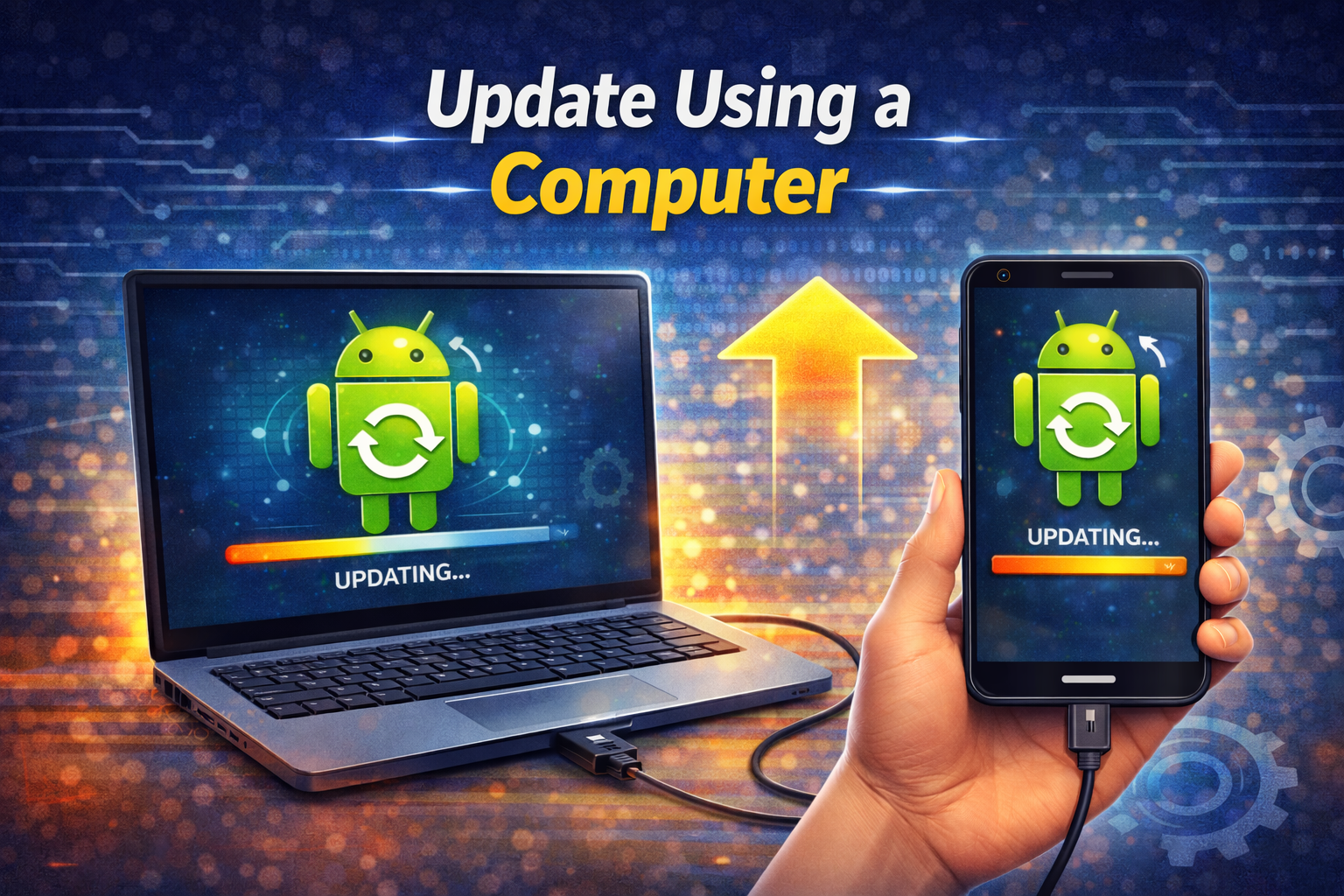
If the update still fails, you can update using official software.
Examples:
- Samsung Smart Switch
- Xiaomi Mi PC Suite
- Google Android Flash Tool
Basic steps
- Connect your phone to a computer
- Open the official update software
- Check for available updates
- Install the update
This method often fixes stubborn update errors.
10. Perform a Factory Reset (Last Option)
If nothing works, a factory reset may fix the issue.
⚠️ Warning: This will erase all data on your phone.
Steps
- Backup your data
- Open Settings
- Tap System
- Tap Reset options
- Tap Erase all data (Factory reset)
After resetting, check for updates again.
Why This Problem Happens
The Android Update Failed error can happen for many reasons.
Common causes include:
1. Poor Internet Connection
Updates require stable internet to download large files.
2. Not Enough Storage
If storage is full, Android cannot install update files.
3. Software Bugs
Sometimes system glitches prevent updates from completing.
4. App Conflicts
Third-party apps may interfere with the update process.
5. Low Battery
Android blocks updates if battery power is too low.
6. Corrupted Update Files
Incomplete downloads may cause installation failures.
Quick Tips to Prevent This Problem
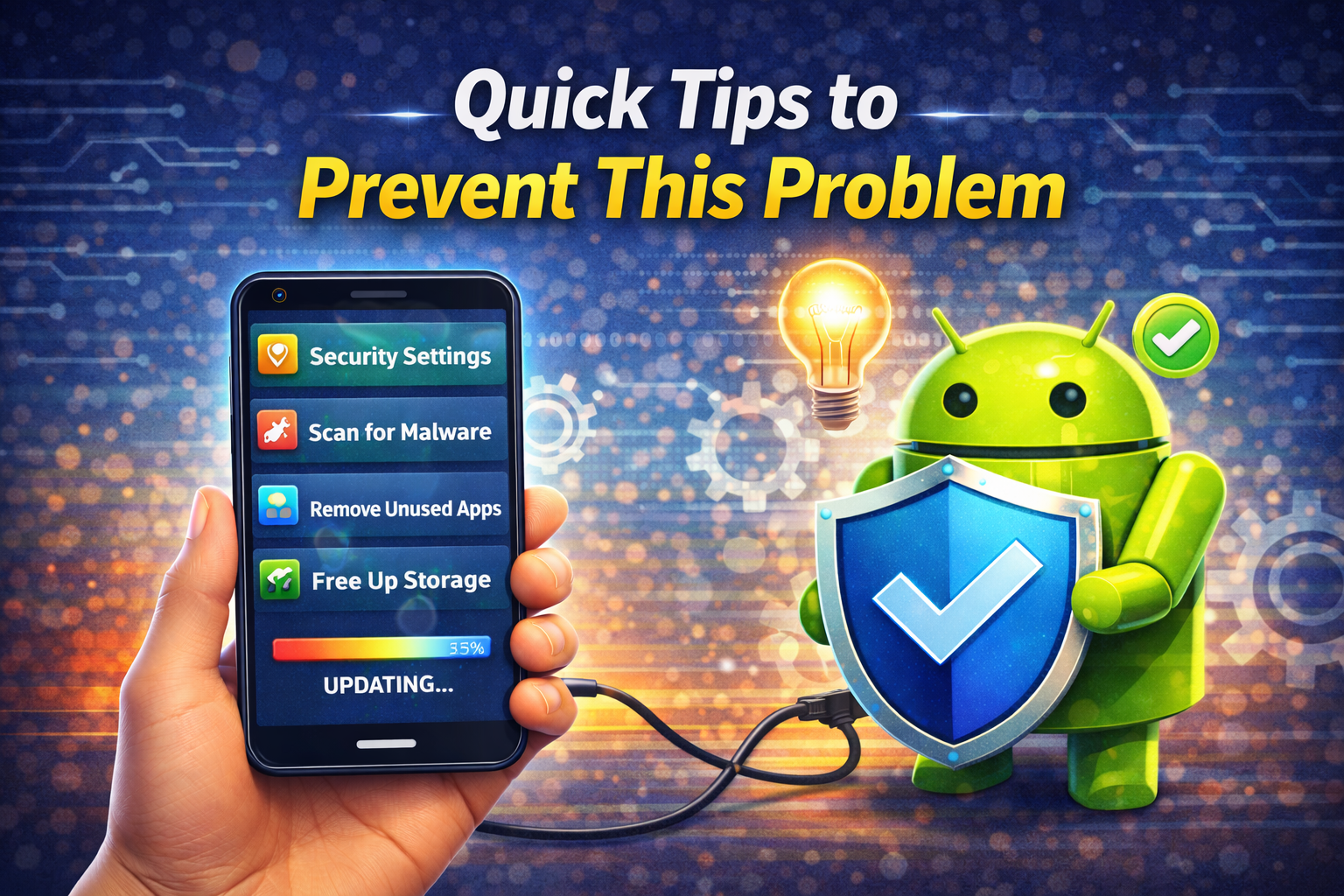
Use these tips to avoid Android update issues in the future.
- Always update using stable WiFi
- Keep at least 5 GB free storage
- Charge your phone before updating
- Restart your phone regularly
- Keep apps updated from the Play Store
- Avoid installing suspicious apps
These simple habits can prevent most update errors.
FAQ: Android Update Failed Error
1. Why does my Android update keep failing?
Updates usually fail because of low storage, poor internet connection, or system bugs.
Try restarting your phone and checking available storage.
2. How much storage do Android updates need?
Most Android updates require 2–5 GB of free space.
Major Android version upgrades may require more.
3. Can I update Android without WiFi?
Yes, but it is not recommended.
Updates are large files and WiFi is faster and more stable.
4. Will a factory reset fix update problems?
Yes. A factory reset can fix serious system issues, but it deletes all your data.
Always backup your files first.
5. Is it safe to update Android manually?
Yes, if you use official tools from the manufacturer such as Samsung Smart Switch or Google tools.
Avoid downloading update files from unknown websites.
Conclusion
The Android Update Failed error can be frustrating, but it is usually easy to fix.
In most cases, the problem happens because of:
- Poor internet connection
- Low storage space
- Software glitches
- App conflicts
By following the solutions in this guide such as restarting your phone, clearing cache, checking storage, and updating in Safe Mode you can quickly fix the problem and install updates successfully.
Keeping your phone updated is important for security, performance, and new features, so it’s worth fixing the issue as soon as possible.