How to Update iOS Safely Without Data Loss (Step-by-Step Guide)
Updating your iPhone is important, but many users worry about one thing: data loss. If you’ve ever asked, “How to update iOS safely without data loss?” you’re not alone. Photos, messages, contacts, and apps are valuable, and losing them during an iOS update can be frustrating.
The good news is that Apple provides safe update methods—and with the right preparation, you can update iOS smoothly without losing any data. This guide is written for beginners and normal users, using simple English and clear steps. By the end, you’ll know exactly how to update iOS safely and confidently.
Why You Should Update iOS Regularly
Before learning how to update iOS safely without data loss, let’s understand why updates matter.
iOS updates:
- Fix security issues
- Improve performance and battery life
- Add new features
- Fix bugs and app crashes
Real-world example:
After updating iOS, many users notice smoother performance and fewer app crashes. However, problems usually happen when users update without backup or preparation.
Common Reasons Data Loss Happens During iOS Updates
Data loss is rare, but it can happen due to:
- No recent backup
- Low storage space
- Weak or unstable internet
- Battery dying during update
- Interrupted update process
- Corrupted system files
The steps below will help you avoid all these risks.
How to Update iOS Safely Without Data Loss (Complete Preparation)
Preparation is the most important part of a safe iOS update.
Back Up Your iPhone Before Updating iOS (Most Important Step)
A backup ensures that even if something goes wrong, your data is safe.
Option 1: Back Up Using iCloud (Easiest)
Steps:
- Connect your iPhone to Wi-Fi
- Open Settings
- Tap your Apple ID (your name)
- Tap iCloud
- Tap iCloud Backup
- Turn on iCloud Backup
- Tap Back Up Now
Wait until the backup finishes.
Tip:
Make sure you see “Last backup: Today”.
Option 2: Back Up Using Computer (Finder or iTunes)
This is safer if you have a lot of data.
Steps on Mac:
- Connect iPhone with cable
- Open Finder
- Select your iPhone
- Click Back Up Now
Steps on Windows:
- Install latest iTunes
- Connect iPhone
- Click Back Up Now
Real-world example:
Users with large photo libraries prefer computer backups because they don’t depend on iCloud storage limits.
Check Available Storage Space
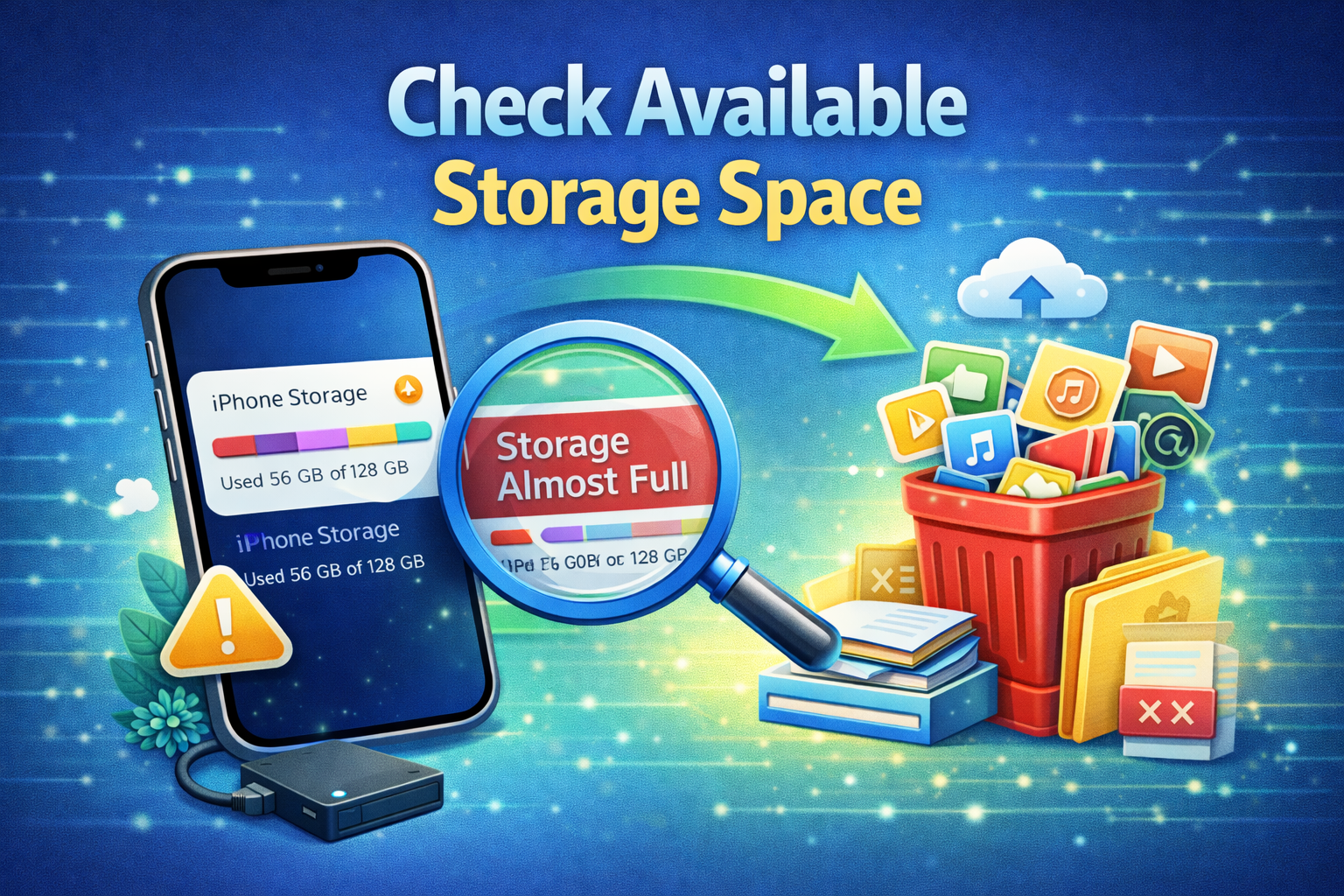
iOS updates need free storage to install properly.
Steps:
- Go to Settings
- Tap General
- Tap iPhone Storage
Recommended:
- At least 5–8 GB free space
How to Free Storage:
- Delete unused apps
- Remove old videos
- Clear large files
- Offload unused apps
Charge Your iPhone (Avoid Power Failure)
A dead battery during update can cause serious issues.
Best practice:
- Charge battery to at least 50%
- Or keep iPhone plugged in during update
Use Stable Wi-Fi Network
Never update iOS using mobile data or unstable Wi-Fi.
Tips:
- Use home or trusted Wi-Fi
- Avoid public Wi-Fi
- Stay close to router
How to Update iOS Safely Without Data Loss (Step-by-Step Methods)
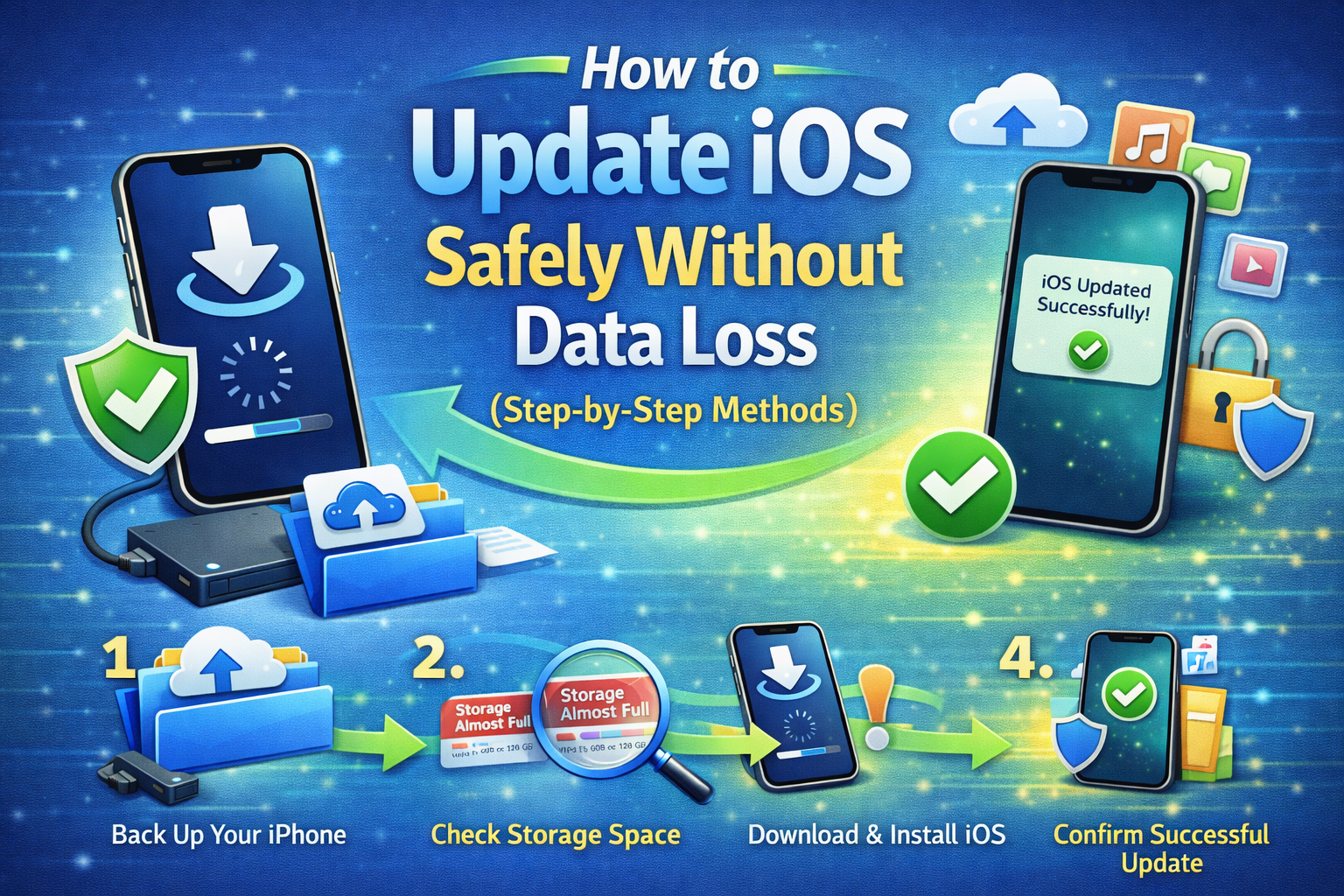
Now that you’re prepared, let’s update iOS safely.
Method 1: Update iOS Directly on iPhone (OTA Update)
This is the most common and easiest method.
Steps:
- Open Settings
- Tap General
- Tap Software Update
- Tap Download and Install
- Enter passcode
- Wait for download and installation
Your iPhone will restart automatically.
Real-world example:
Most users update overnight while charging to avoid interruptions.
Method 2: Update iOS Using Computer (Safer for Older Devices)
This method is more stable for large updates.
Steps:
- Connect iPhone to computer
- Open Finder (Mac) or iTunes (Windows)
- Select your iPhone
- Click Check for Update
- Click Update
Choose Update, NOT Restore.
What to Do If iOS Update Gets Stuck
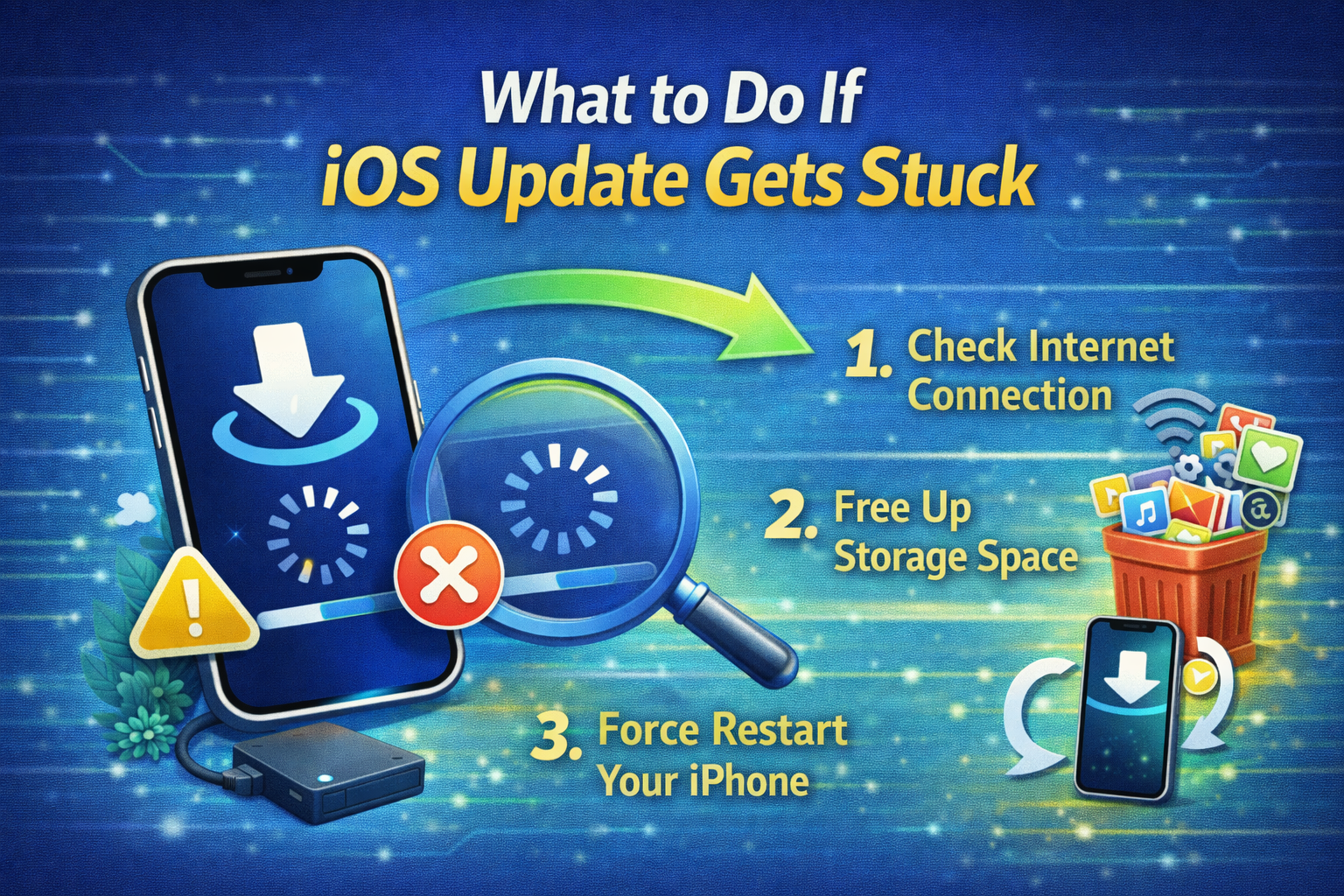
Sometimes updates pause or freeze.
Safe fixes:
- Wait 30–60 minutes
- Restart iPhone and try again
- Check Wi-Fi connection
- Free more storage
- Update using computer
Important:
Do NOT force reset during installation unless Apple logo is stuck for hours.
After Update: Check Your Data
Once update is complete:
- Check photos and videos
- Open important apps
- Verify contacts and messages
- Log back into apps if needed
This ensures everything transferred correctly.
Extra Tips to Avoid Data Loss During iOS Updates
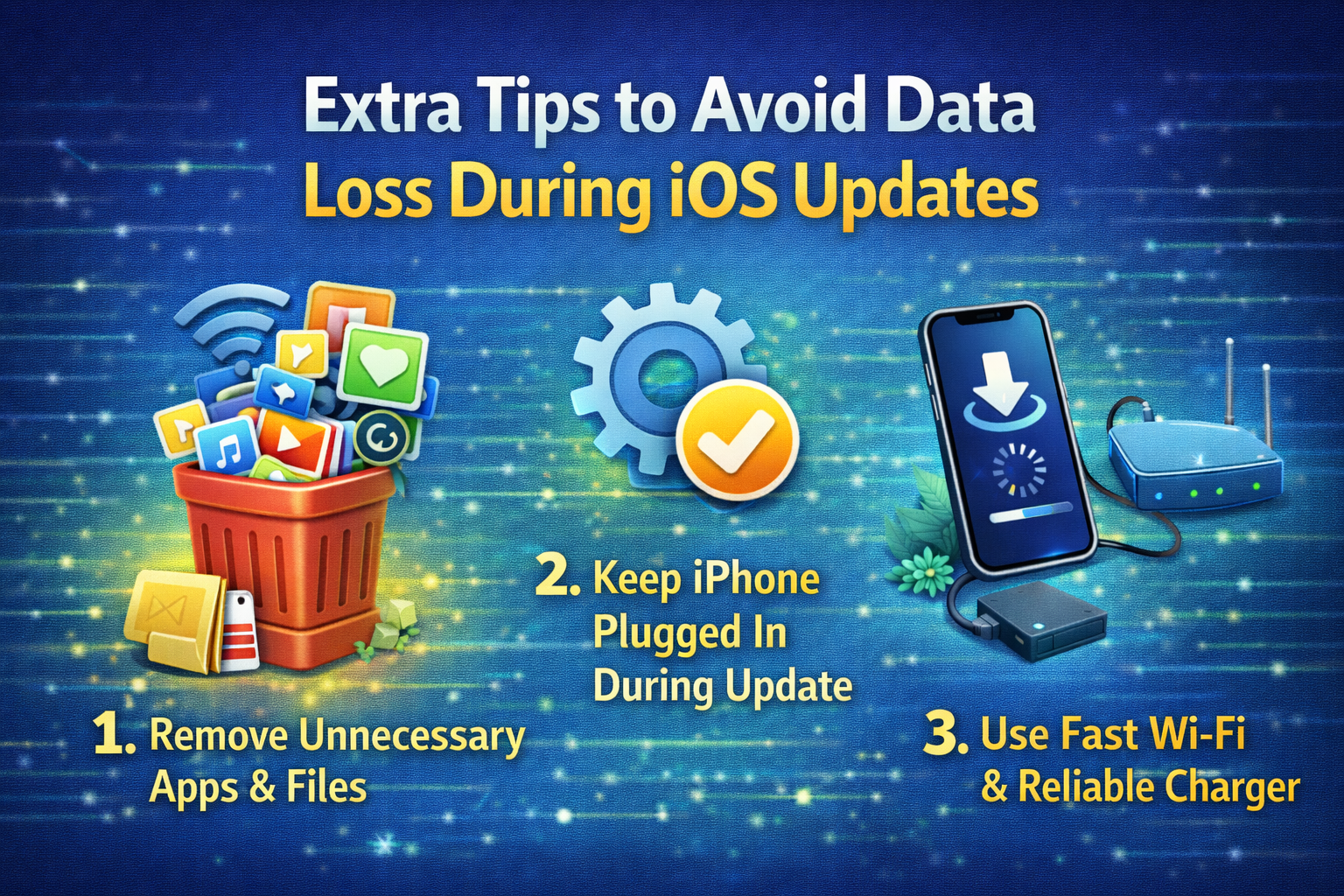
Enable Automatic Updates (Optional)
- Settings > General > Software Update > Automatic Updates
Avoid Updating During Busy Hours
- Network congestion can cause failures
Don’t Use iPhone During Update
- Let the process finish fully
Signs Your iPhone Updated Successfully
- iPhone boots normally
- Apps open correctly
- Storage data unchanged
- No missing files
If something is missing, you can restore from backup.
Frequently Asked Questions (FAQ)
1. Will updating iOS delete my photos?
No. Updating iOS does not delete data if done properly with backup.
2. Is it safe to update iOS without backup?
It’s possible but not recommended. Backup is the safest protection.
3. Why does iOS update fail sometimes?
Common reasons include low storage, weak Wi-Fi, or low battery.
4. Should I update iOS using Wi-Fi or computer?
Both are safe. Computer updates are more stable for large updates.
5. How long does an iOS update take?
Usually 30 minutes to 1 hour, depending on update size and internet speed.
Conclusion
Learning how to update iOS safely without data loss is essential for every iPhone user. Most update problems happen because users skip backups or rush the process. By backing up your data, checking storage, charging your device, and using a stable connection, you can update iOS safely and confidently.
Follow the steps in this guide, and you’ll enjoy new iOS features without worrying about losing your important data.