How to Fix Windows Errors Without Reinstalling Windows (Beginner-Friendly Guide)
Windows errors can be frustrating. Your PC may freeze, crash, show strange error messages, or stop working properly. Many users think the only solution is reinstalling Windows—but that’s not true. In most cases, you can fix problems safely without losing your files or reinstalling the operating system.
In this complete beginner guide, you’ll learn how to fix Windows errors without reinstalling Windows using simple, step-by-step methods. These solutions work for Windows 10 and Windows 11 and are designed for normal users with no technical background.
What Are Windows Errors?
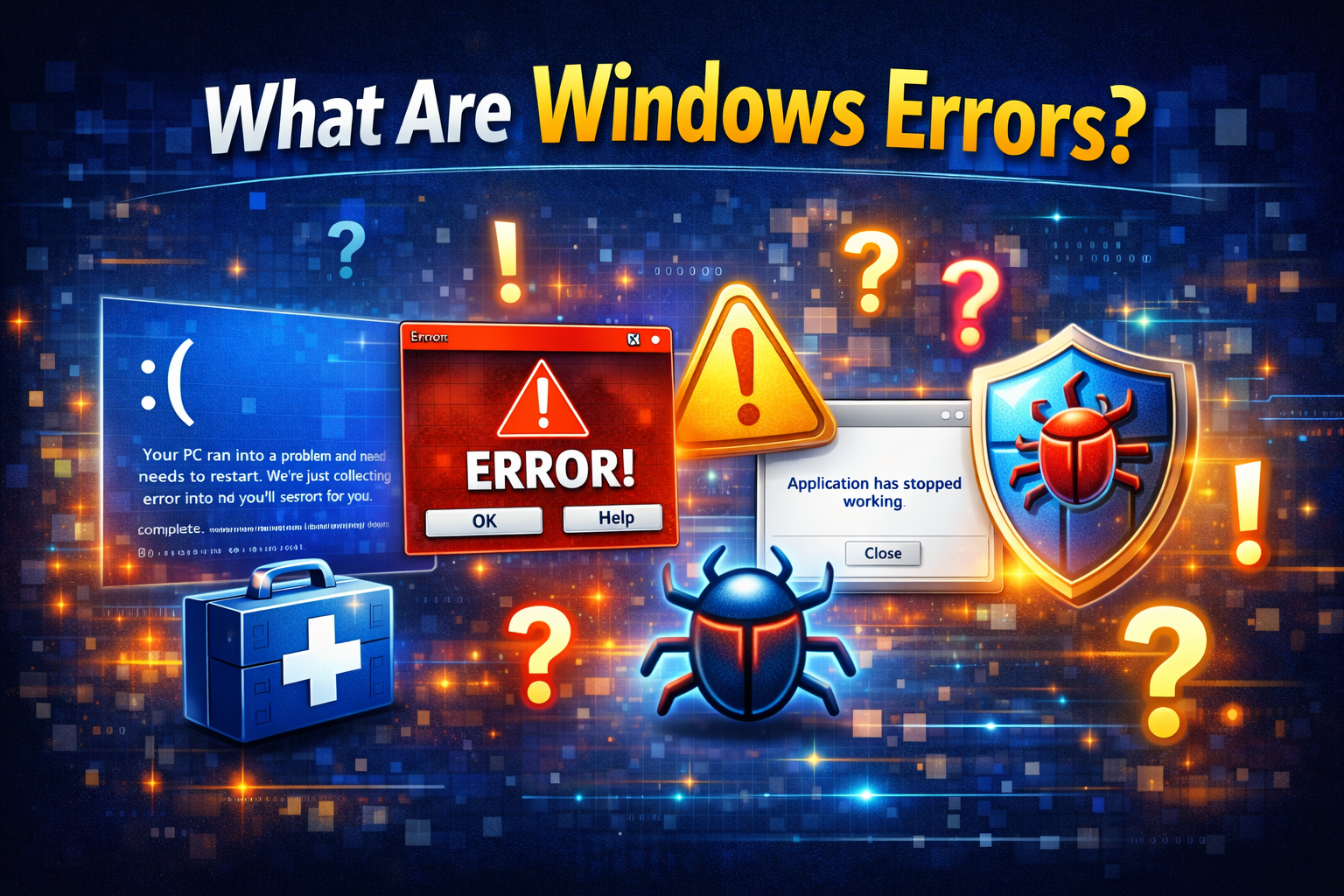
Windows errors are problems that affect how your system works. They can appear suddenly or after updates, software installation, or driver changes.
Common Windows Errors Include:
- Blue Screen of Death (BSOD)
- Windows not booting properly
- Apps crashing or freezing
- Windows Update errors
- Slow system performance
- Missing system files
- Black or blank screen
Understanding the type of error helps you choose the right fix.
Why You Should Avoid Reinstalling Windows
Reinstalling Windows should always be the last option.
Downsides of Reinstalling Windows:
- Loss of installed programs
- Time-consuming setup
- Risk of data loss
- Need to reinstall drivers and updates
The good news is that most Windows problems can be fixed using built-in tools.
How to Fix Windows Errors Without Reinstalling Windows (Best Methods)
Below are the most effective and beginner-friendly solutions. Try them in order for the best results.
1. Restart Your Computer (Don’t Skip This)
It sounds simple, but restarting fixes many temporary Windows errors.
Why This Works:
- Clears memory
- Stops stuck background processes
- Resets system services
Real-World Example:
Your PC freezes after running many apps. A restart clears the issue instantly.
2. Run Windows Troubleshooter
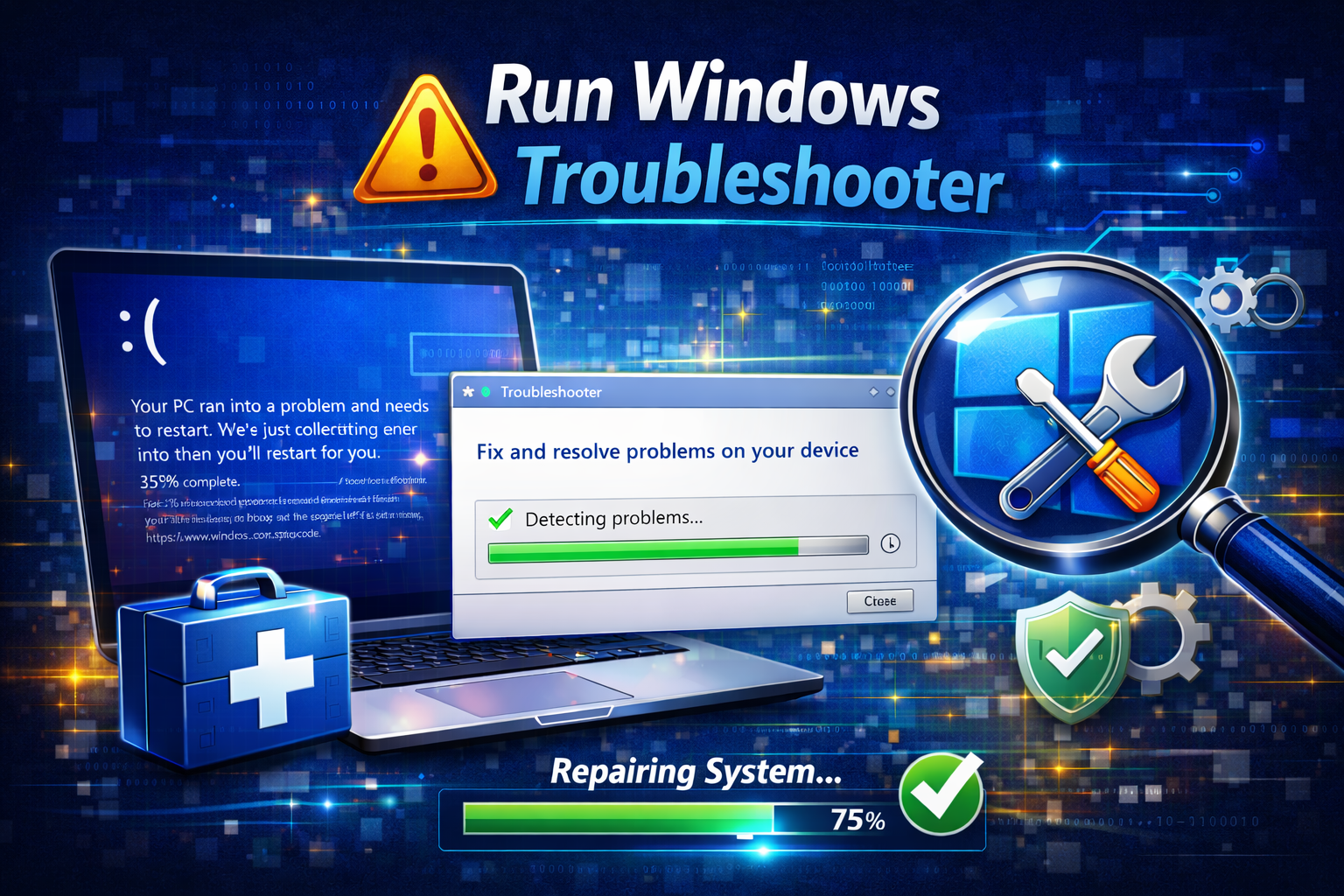
Windows includes built-in troubleshooters that automatically detect and fix problems.
Steps:
- Open Settings
- Go to System → Troubleshoot
- Click Other troubleshooters
- Run the relevant troubleshooter (Windows Update, Internet, Audio, etc.)
Best For:
- Network errors
- Sound problems
- Update failures
3. Fix Corrupted System Files Using SFC
Corrupted system files are a major cause of Windows errors.
H2: How to Fix Windows Errors Without Reinstalling Windows Using SFC
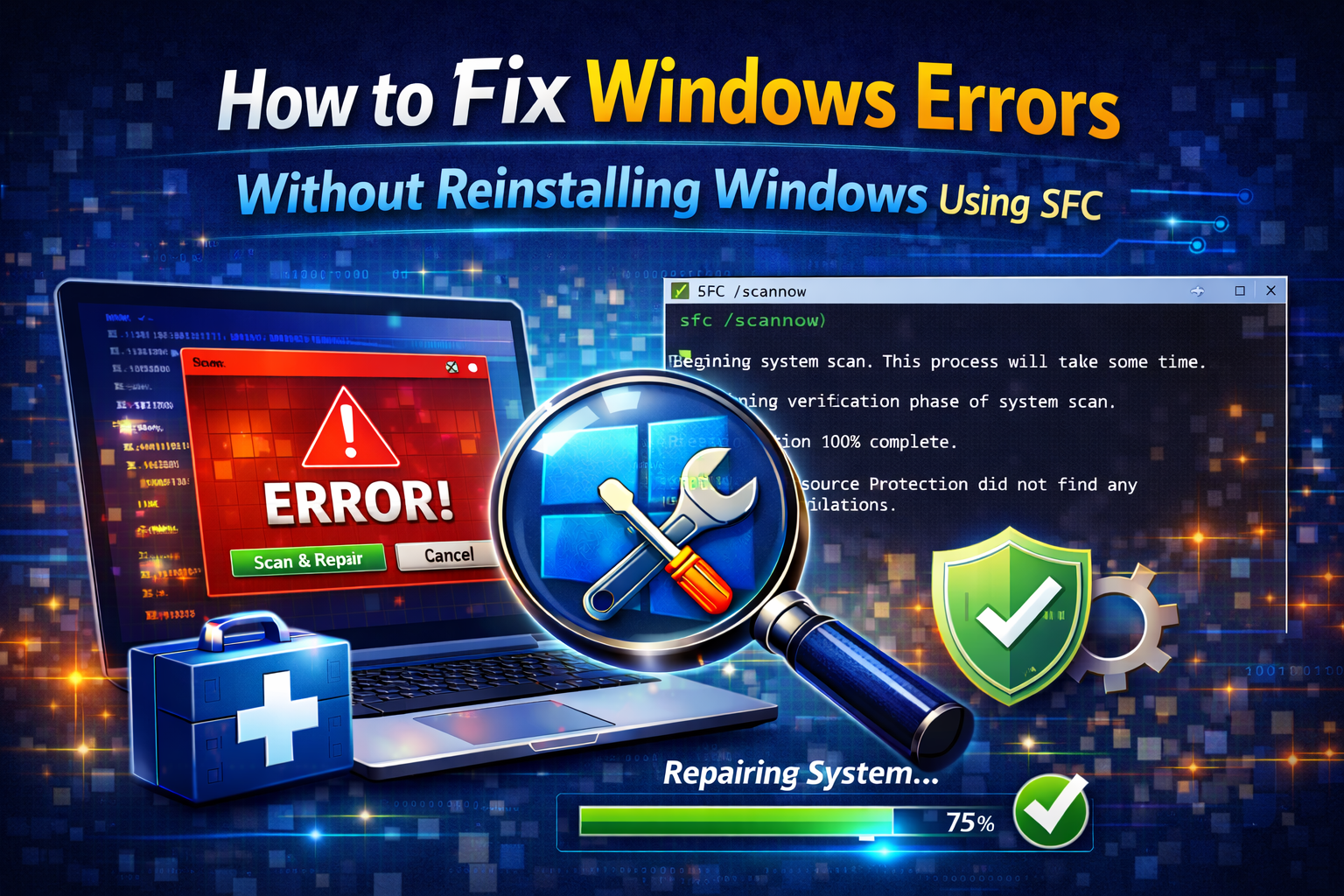
Steps:
- Press Win + S
- Type cmd
- Right-click Command Prompt
- Choose Run as administrator
- Type:
sfc /scannow
- Press Enter
What Happens:
Windows scans and repairs damaged system files automatically.
4. Use DISM to Repair Windows Image
If SFC doesn’t work, DISM is the next step.
Steps:
- Open Command Prompt as Administrator
- Type:
DISM /Online /Cleanup-Image /RestoreHealth
- Press Enter
- Wait for the process to complete
- Restart your PC
Real-World Example:
After a failed update, Windows shows random errors. DISM repairs the system image and restores stability.
5. Update Windows to Fix Errors
Outdated Windows versions often cause compatibility issues.
Steps:
- Open Settings
- Go to Windows Update
- Click Check for updates
- Install all available updates
- Restart your computer
Why This Helps:
Updates fix bugs, security issues, and system errors.
6. Roll Back or Update Device Drivers
Driver problems are a common source of Windows errors.
Option A: Update Drivers
- Right-click Start
- Open Device Manager
- Right-click the device
- Select Update driver
Option B: Roll Back Drivers
- Open Device Manager
- Right-click the device
- Select Properties
- Click Roll Back Driver
Real-World Example:
After updating a graphics driver, your screen flickers. Rolling back fixes the issue.
7. Run Windows in Safe Mode
Safe Mode starts Windows with minimal drivers and services.
Steps:
- Hold Shift and click Restart
- Select Troubleshoot → Advanced options
- Click Startup Settings
- Press 4 for Safe Mode
Best For:
- Removing problematic apps
- Fixing startup errors
- Troubleshooting crashes
8. Uninstall Problematic Software
Some programs conflict with Windows or other apps.
Steps:
- Open Settings
- Go to Apps
- Select the suspicious app
- Click Uninstall
- Restart your PC
Tip:
Remove software installed just before the error started.
9. Free Up Disk Space
Low disk space can cause system instability.
Steps:
- Open This PC
- Right-click Drive C
- Select Properties
- Click Disk Cleanup
- Remove temporary files
Recommended Free Space:
At least 10–20 GB on the system drive.
10. Fix Windows Update Errors
Windows Update errors can break system functions.
Steps:
- Open Settings
- Go to Windows Update
- Click Advanced options
- Select Recovery
- Use Fix problems using Windows Update
11. Perform a System Restore (Safe Option)
System Restore rolls Windows back to a working state without deleting files.
Steps:
- Press Win + S
- Type Create a restore point
- Click System Restore
- Choose a restore point
- Follow on-screen instructions
Real-World Example:
After installing software, Windows starts crashing. System Restore fixes it in minutes.
12. Scan for Malware and Viruses
Malware can cause serious Windows errors.
Steps:
- Open Windows Security
- Go to Virus & threat protection
- Click Quick scan or Full scan
Tip:
If antivirus blocks tools, disable it temporarily (only for trusted actions).
13. Check Hard Drive Errors
Disk errors can lead to crashes and file corruption.
Steps:
- Open Command Prompt as Administrator
- Type:
chkdsk /f /r
- Press Enter
- Restart your PC when prompted
When Should You Reinstall Windows?
Reinstalling Windows should only be considered if:
- Windows won’t boot at all
- Multiple system files are broken
- All troubleshooting methods fail
Even then, try Reset this PC (Keep files) before a full reinstall.
FAQ: How to Fix Windows Errors Without Reinstalling Windows
1. Can Windows errors be fixed without reinstalling?
Yes. Most errors can be fixed using built-in tools like SFC, DISM, and System Restore.
2. Will these methods delete my files?
No. The methods in this guide are safe and keep your personal files intact.
3. What is the best first step to fix Windows errors?
Restart your PC, then run Windows Troubleshooter and SFC scan.
4. Are these fixes safe for beginners?
Yes. All steps are beginner-friendly and use official Windows tools.
5. How long does it take to fix Windows errors?
Most fixes take 10–30 minutes, depending on the issue.
Conclusion
Windows problems don’t always mean disaster. With the right approach, you can learn how to fix Windows errors without reinstalling Windows and keep your system running smoothly.
By using built-in tools like SFC, DISM, System Restore, and Safe Mode, you can solve most issues safely and efficiently—without losing your data or reinstalling Windows.
Always try troubleshooting first. Reinstalling Windows should be your last option, not your first. If you want your PC to last longer and work better, these methods are essential knowledge for every Windows user.