
How to Fix Software Lagging and Freezing Issues
Software lagging and freezing issues are some of the most common problems faced by computer and mobile users. One moment your app works fine, and the next moment it becomes slow, unresponsive, or completely frozen. If you are struggling with software lagging and freezing issues, you are not alone. These problems can happen on Windows PCs, Macs, Android phones, iPhones, and even tablets.
The good news is that most lagging and freezing problems can be fixed without being a tech expert. In this guide, you will learn simple, step-by-step solutions to identify the causes and fix the problem permanently. Everything is explained in clear English, so beginners can follow along easily.
What Does Software Lagging and Freezing Mean?

Software lagging means the program responds very slowly. Freezing means the software stops responding completely and may force you to close it.
Common Signs of Lagging and Freezing
- Apps take a long time to open
- Mouse or touch input delays
- Screen becomes stuck
- “Not Responding” messages appear
- Software crashes after freezing
These signs usually point to system, software, or hardware issues.
Common Causes of Software Lagging and Freezing Issues
Before fixing the problem, it helps to understand why it happens.
1. Low System Resources
When your device runs out of RAM, CPU power, or storage space, software struggles to run smoothly.
2. Too Many Background Programs
Multiple apps running at the same time consume system resources and slow everything down.
3. Outdated Software or Operating System
Old versions may contain bugs that cause freezing and performance issues.
4. Corrupted Software Files
Damaged or missing files can make software unstable and unresponsive.
5. Malware or Virus Infection
Malicious programs secretly use system resources, causing lag and freezing.
6. Hardware Limitations
Older devices may not meet the requirements of modern software.
How to Fix Software Lagging and Freezing Issues (Step-by-Step)

Restart Your Device First
This may sound simple, but restarting clears temporary files and refreshes system memory.
Real-world example:
A video editor freezes repeatedly. After restarting the PC, the software works smoothly again because RAM was cleared.
How to Fix Software Lagging and Freezing Issues by Closing Background Apps
This is one of the easiest and fastest fixes.
On Windows:
- Press Ctrl + Shift + Esc
- Open Task Manager
- End tasks you are not using
On Mac:
- Press Command + Option + Esc
- Select unused apps
- Click Force Quit
On Mobile:
- Close unused apps from the recent apps screen
This frees up memory and processing power.
Update Software and Operating System
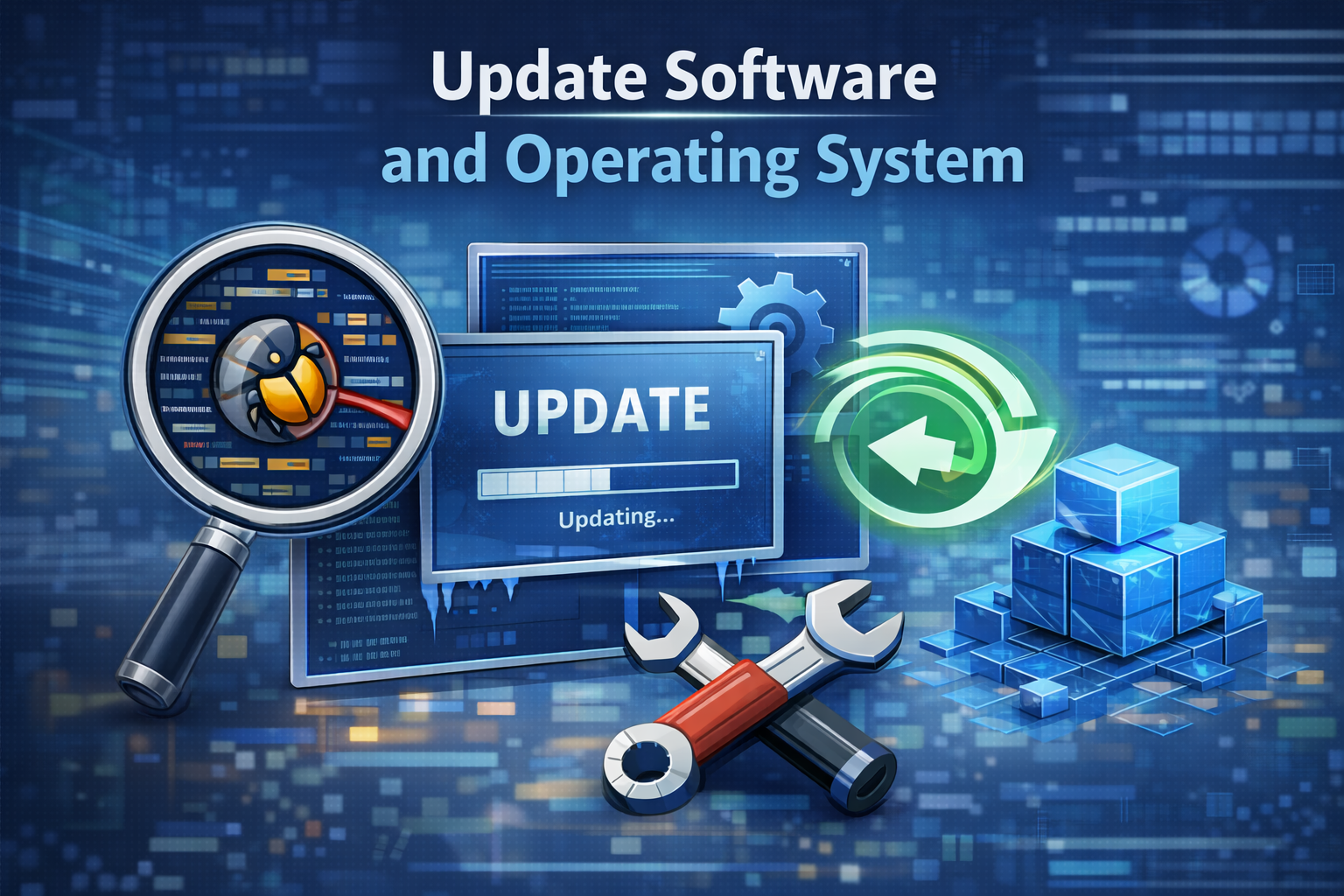
Outdated software often causes freezing.
Steps:
- Open the software you are using
- Check for updates
- Install the latest version
Also update your operating system:
- Windows Update
- macOS Software Update
- Android or iOS system updates
Real-world example:
A photo editing app freezes every time filters are applied. After updating the app, the issue disappears.
Clear Cache and Temporary Files
Temporary files can pile up and slow down your system.
On Windows:
- Use Disk Cleanup
- Delete temporary files
On Mac:
- Use Storage Management
- Clear system cache carefully
On Mobile:
- Clear app cache (Android)
- Reinstall the app if needed (iPhone)
This improves performance instantly in many cases.
Check for Malware and Viruses

Malware can seriously slow down software.
Steps:
- Install a trusted antivirus program
- Run a full system scan
- Remove detected threats
- Restart your device
Real-world example:
A browser keeps freezing. A virus scan finds adware running in the background. Removing it fixes the issue.
Reinstall the Problematic Software
If one specific program keeps freezing, reinstalling often helps.
Steps:
- Uninstall the software
- Restart your device
- Download the latest version from the official website
- Reinstall and test
This replaces corrupted files with fresh ones.
Free Up Storage Space
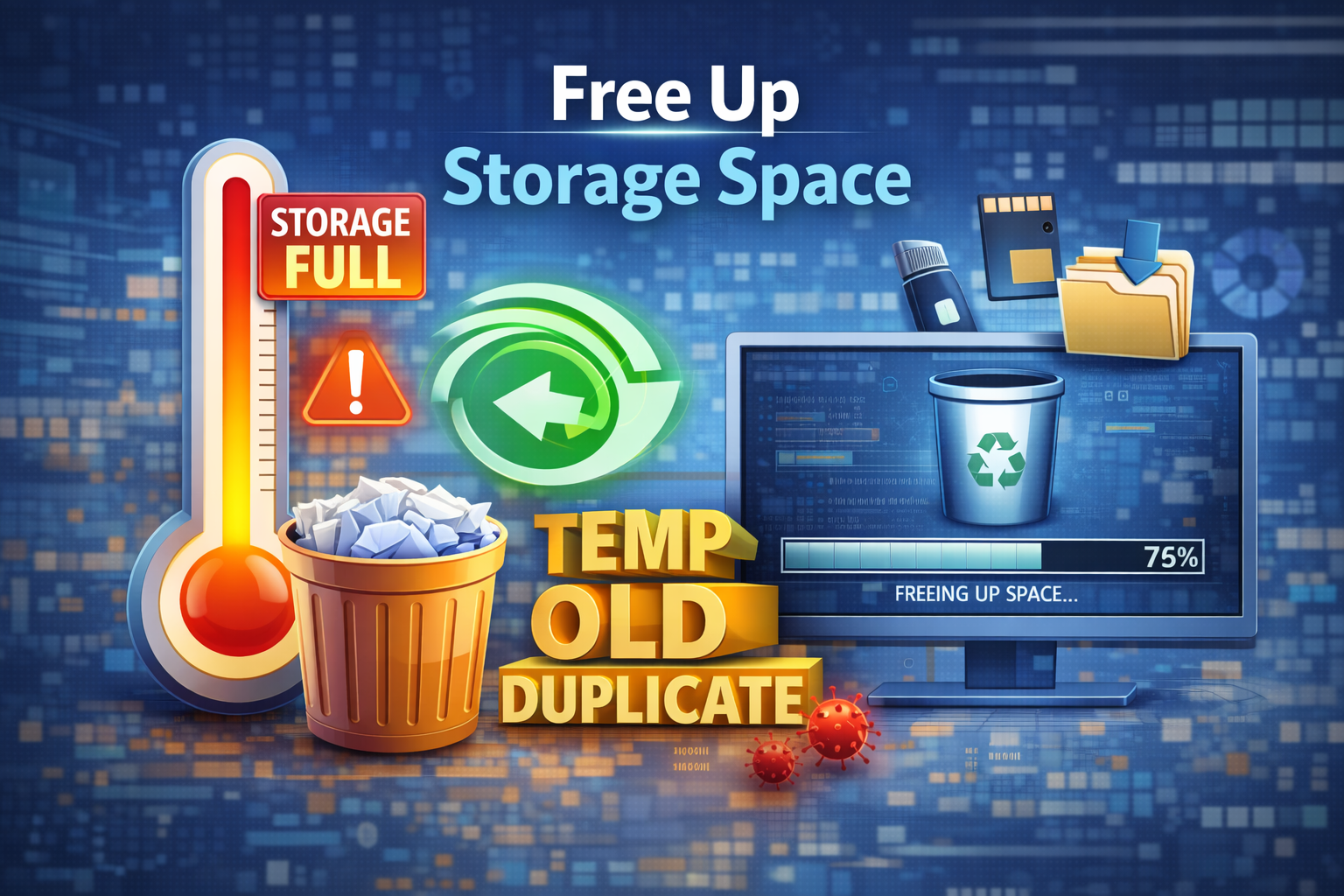
Low storage can cause serious lagging.
What to Delete:
- Old downloads
- Unused apps
- Duplicate files
- Large videos you no longer need
Try to keep at least 15–20% free storage for smooth performance.
Adjust Software Settings for Better Performance
Some software uses heavy settings by default.
Examples:
- Lower graphics quality in games
- Reduce animation effects
- Disable unnecessary plugins or add-ons
Real-world example:
A laptop struggles with a design program. Lowering preview quality stops freezing issues.
Check Hardware Limitations

Sometimes the problem is not the software.
Signs of Hardware Limits:
- Device is very old
- Software requires more RAM than available
- Hard drive is slow
Possible Solutions:
- Add more RAM
- Upgrade to SSD storage
- Use lighter software alternatives
Keep Drivers Updated
Drivers connect hardware and software.
On Windows:
- Update graphics, sound, and chipset drivers
On Mac:
- Drivers are updated with system updates
Outdated drivers often cause freezing and display lag.
Prevent Software Lagging and Freezing Issues in the Future

Best Practices:
- Restart your device regularly
- Keep software updated
- Avoid installing unnecessary apps
- Scan for malware monthly
- Monitor system performance
Preventive care saves time and frustration later.
Frequently Asked Questions (FAQ)
1. Why does my software lag even on a new device?
New devices can still lag due to background apps, outdated software, or malware.
2. Can low internet speed cause software freezing?
Yes, especially for online apps, cloud software, and browsers.
3. Is software lagging a sign of hardware failure?
Not always. Most cases are software-related, but repeated issues may point to aging hardware.
4. Should I reset my device to fix freezing?
Resetting should be the last option. Try updates, cleanup, and reinstalling software first.
5. How often should I update my software?
Check for updates at least once a month or enable automatic updates.
Conclusion
Software lagging and freezing issues can be annoying, but they are usually easy to fix. Most problems come from low system resources, outdated software, corrupted files, or malware. By following the step-by-step solutions in this guide, even beginners can restore smooth performance without professional help.
Regular maintenance, updates, and smart usage habits will keep your software running fast and stable. Fix the small issues early, and you can avoid bigger problems later.