How to Fix Software Installation Errors (Step-by-Step Guide for Beginners)
Software installation errors are one of the most common problems computer users face. You download a program, double-click the installer, and suddenly an error message appears. It can be frustrating—especially if you don’t understand what went wrong.
In this beginner-friendly guide, you’ll learn how to fix software installation errors step by step. We’ll cover the most common causes, simple solutions, and real-world examples that normal users can easily follow. No technical background needed.
What Are Software Installation Errors?
Software installation errors happen when your computer cannot properly install a program. These errors can appear on Windows, macOS, or Linux, but they are most common on Windows systems.
Common error messages include:
- “Installation failed”
- “This app can’t run on your PC”
- “Error writing to file”
- “Access denied”
- “Missing DLL file”
Understanding the cause is the first step to fixing the problem.
Common Causes of Software Installation Errors
Before fixing the issue, it’s important to know why software installation errors happen.
1. Incompatible Operating System
Some programs only work on specific OS versions (for example, Windows 10 or 11).
2. Lack of Administrator Permission
Many programs need admin access to install system files.
3. Corrupted or Incomplete Installer File
The download may have failed or been interrupted.
4. Antivirus or Firewall Blocking the Installer
Security software may mistake installers for threats.
5. Insufficient Disk Space
Your system needs enough free space to complete the installation.
6. Missing System Files or Updates
Outdated systems can cause compatibility problems.
How to Fix Software Installation Errors (Step-by-Step)
Below are proven solutions to fix software installation errors. Try them in order for best results.
1. Check System Requirements (Very Important)
Before installing any software, always check the system requirements.
Steps:
- Visit the official software website
- Look for System Requirements
- Compare them with your device specifications
Real-World Example:
If you try to install a Windows 11-only app on Windows 8, the installation will fail immediately.
2. Run the Installer as Administrator
This is one of the easiest and most effective fixes.
Steps:
- Right-click the installer file
- Select Run as administrator
- Click Yes when prompted
Why This Works:
Administrator mode allows the installer to write files to protected system folders.
3. Re-Download the Installer File
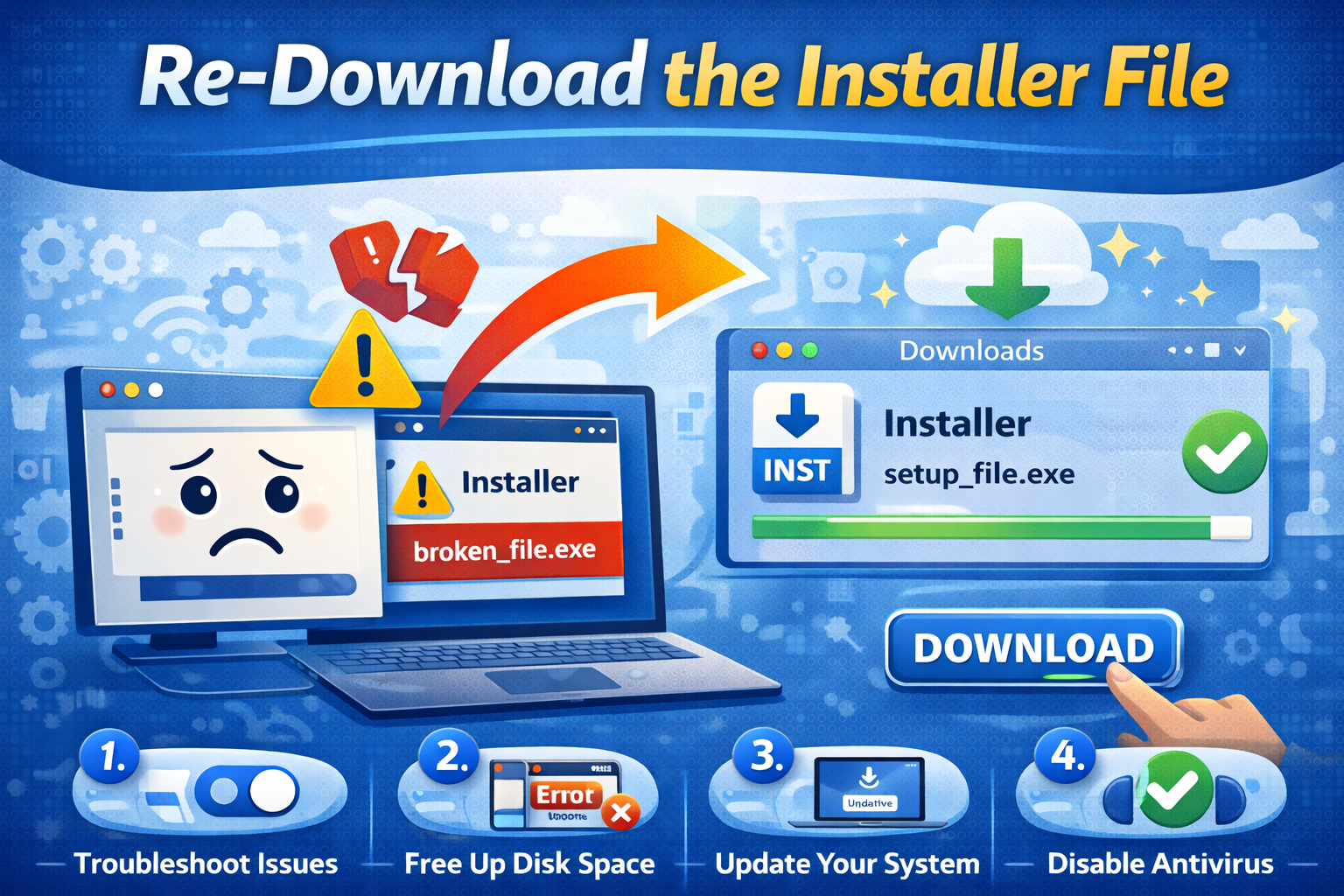
A corrupted installer is a very common cause of software installation errors.
Steps:
- Delete the existing installer file
- Download the software again from the official website
- Avoid third-party download sites
Tip:
Use a stable internet connection to prevent file corruption.
4. Temporarily Disable Antivirus or Firewall
Sometimes antivirus software blocks safe installers by mistake.
Steps:
- Open your antivirus software
- Temporarily disable real-time protection
- Install the software
- Re-enable antivirus after installation
Important:
Only do this for trusted software from official sources.
5. Check Available Disk Space
If your disk is full, installation will fail.
Steps (Windows):
- Open This PC
- Check free space on drive C:
- Delete unnecessary files if needed
Recommended Free Space:
- Small apps: 1–2 GB
- Large software (games, editors): 10–20 GB
6. Install Windows Updates or System Updates
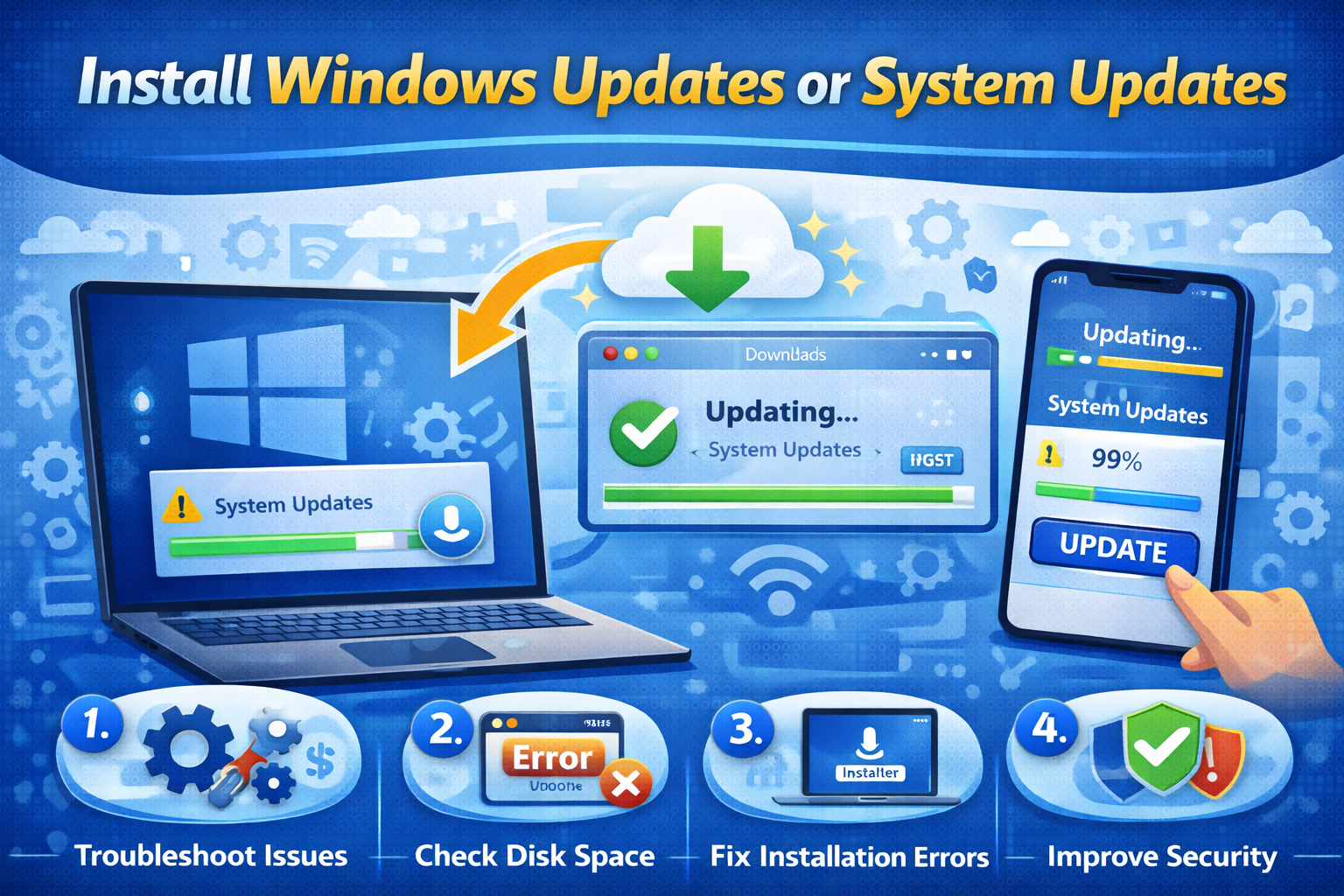
Outdated systems often cause software installation errors.
Steps (Windows):
- Open Settings
- Go to Windows Update
- Click Check for updates
- Install all available updates
Real-World Example:
Many modern apps require updated .NET Framework or system libraries.
7. Fix Missing DLL or Dependency Errors
Some software needs extra files like:
- .NET Framework
- Visual C++ Redistributable
- Java Runtime Environment
Steps:
- Read the error message carefully
- Search for the missing file name
- Download the required dependency from Microsoft or official sources
- Restart your PC
8. Use Compatibility Mode (Older Software)
Old software may not work on new systems.
Steps:
- Right-click the installer
- Select Properties
- Open the Compatibility tab
- Check Run this program in compatibility mode
- Choose an older Windows version
- Apply and run the installer
9. Clean Temporary Files
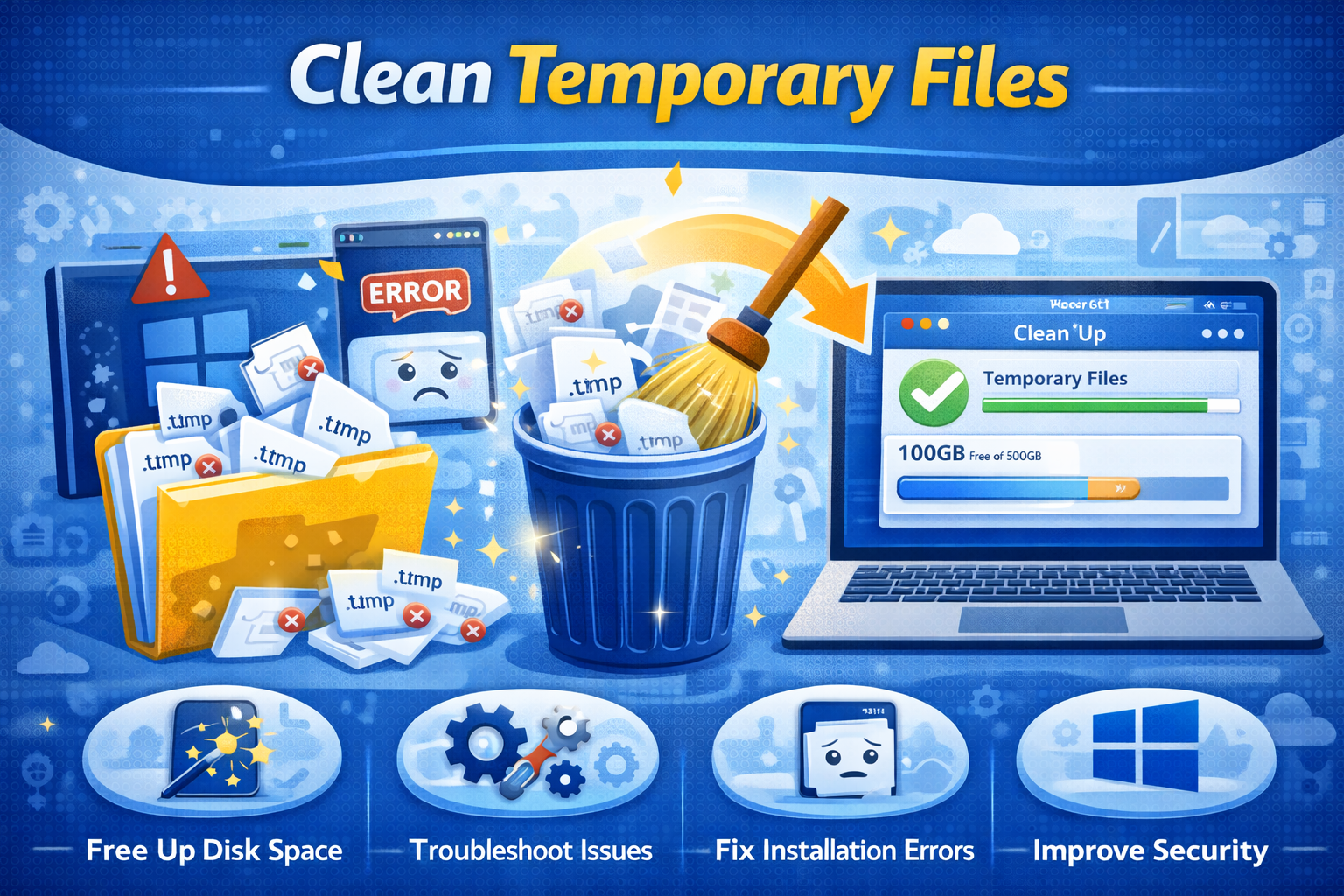
Temporary files can interfere with installations.
Steps (Windows):
- Press Win + R
- Type
tempand press Enter - Delete all files in the folder
- Repeat with
%temp%
This simple step often resolves unexplained installation failures.
10. Try Installing in Safe Mode
Safe Mode runs Windows with minimal drivers and services.
Steps:
- Restart your PC
- Hold Shift and click Restart
- Choose Troubleshoot → Advanced Options
- Select Safe Mode
- Try installing the software
This helps if background apps are causing conflicts.
Real-World Examples of Software Installation Errors
Example 1: “This App Can’t Run on Your PC”
Cause: 32-bit app on a 64-bit system or vice versa
Fix: Download the correct version
Example 2: “Access Denied”
Cause: No admin permission
Fix: Run installer as administrator
Example 3: Installer Stops at 99%
Cause: Antivirus interference
Fix: Temporarily disable antivirus
How to Prevent Software Installation Errors in the Future
Prevention is always better than fixing.
Best Practices:
- Download software only from official websites
- Keep your operating system updated
- Maintain enough free disk space
- Use trusted antivirus software
- Avoid installing too many programs at once
FAQ: Software Installation Errors
1. Why does software installation fail on Windows?
Common reasons include permission issues, corrupted installers, outdated systems, or antivirus blocking the setup.
2. Is it safe to disable antivirus during installation?
Yes, but only temporarily and only for trusted software from official sources.
3. How do I know if software is compatible with my system?
Check the system requirements on the software’s official website.
4. What should I do if the error message is unclear?
Search the exact error message online or check the software’s support page.
5. Can reinstalling Windows fix installation errors?
In extreme cases, yes—but this should be the last option after trying all other solutions.
Conclusion
Software installation errors can seem scary, but most of them are easy to fix once you understand the cause. By following this guide, you now know how to fix software installation errors using simple, beginner-friendly steps.
Always start with basic checks like compatibility, permissions, and disk space before trying advanced solutions. With the right approach, you can install almost any software without stress.
If you want more tech how-to guides and troubleshooting tips, keep learning and stay updated—technology becomes easier when you understand it.