How to Fix Mobile Data Not Working on Android and iPhone
Mobile data is something we rely on every day—for browsing, messaging, maps, and social media. So when mobile data not working on Android and iPhone, it can be frustrating, confusing, and sometimes even stressful.
If your phone shows signal bars but the internet won’t load, you’re not alone. The good news? Most mobile data problems are easy to fix, even if you’re not tech-savvy.
In this guide, you’ll learn how to fix mobile data not working on Android and iPhone using simple, step-by-step methods. These solutions are beginner-friendly and based on real-world situations that many users face every day.
Why Is Mobile Data Not Working?
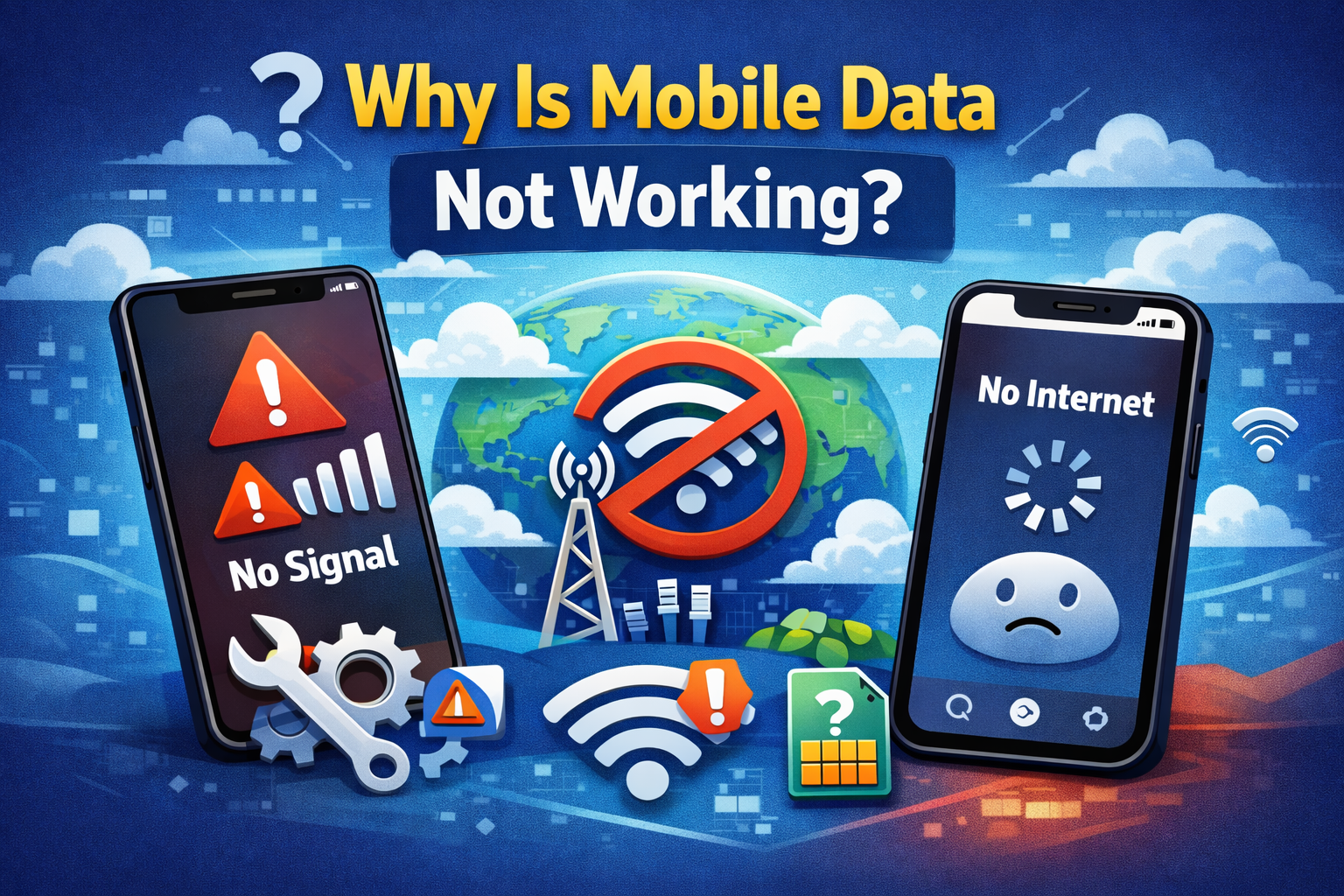
Before jumping into fixes, it helps to understand why this problem happens. Common causes include:
- Mobile data turned off by mistake
- Weak or unstable network signal
- Incorrect APN (Access Point Name) settings
- Reached your data limit
- SIM card issues
- Software bugs after updates
- Carrier outages
Now let’s fix the problem step by step.
Step 1: Check If Mobile Data Is Turned On
This sounds obvious, but it’s the most common reason mobile data stops working.
On Android
- Open Settings
- Tap Network & Internet
- Select Mobile Network
- Turn Mobile Data ON
On iPhone
- Open Settings
- Tap Cellular (or Mobile Data)
- Turn Cellular Data ON
Real-world example:
Many users accidentally turn off mobile data while trying to save battery or data usage. One tap can stop all internet access.
Step 2: Turn Airplane Mode On and Off
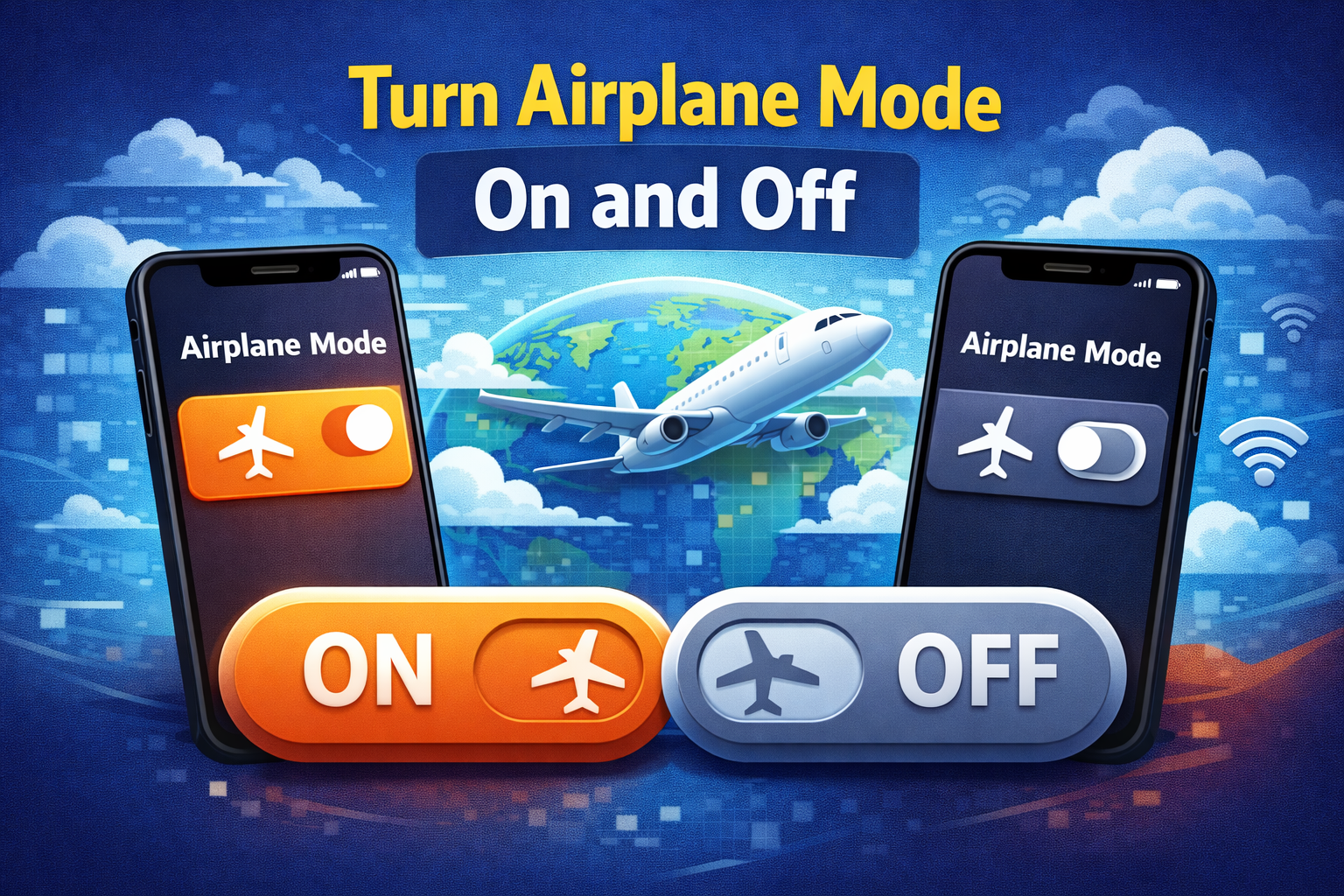
Airplane Mode refreshes your phone’s connection to the network.
How to do it (Android & iPhone)
- Swipe down from the top of the screen
- Turn Airplane Mode ON
- Wait 30 seconds
- Turn it OFF
This simple trick often fixes temporary network glitches.
Step 3: Check Your Signal Strength
If you’re in a low-signal area, mobile data may not work properly.
What to check:
- Are you inside a building or basement?
- Are you traveling or in a rural area?
- Do other people nearby have signal?
Quick fix:
Move closer to a window, go outside, or change location slightly.
Step 4: Restart Your Phone
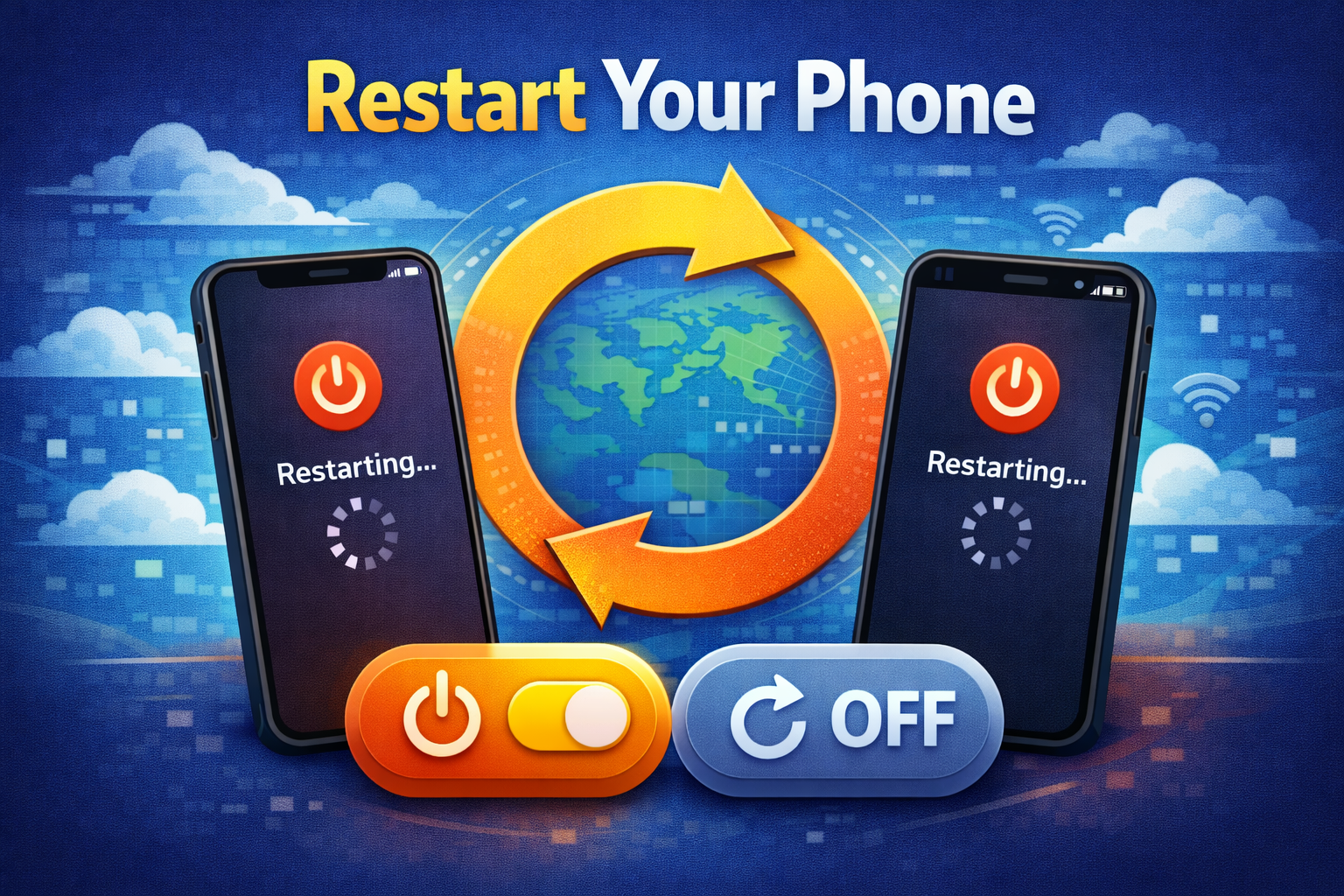
Restarting clears temporary bugs and refreshes system processes.
How to restart:
- Android: Press and hold Power → Restart
- iPhone: Hold Power + Volume → Slide to power off
Wait 30 seconds, then turn your phone back on.
Step 5: Check Data Usage and Limits
If you’ve used all your data, your carrier may slow or block your internet.
On Android
- Go to Settings
- Tap Network & Internet
- Select Data Usage
- Check if data limit is reached
On iPhone
- Go to Settings
- Tap Cellular
- Scroll down to see data usage
Tip:
Disable data limits or contact your carrier if needed.
How to Fix Mobile Data Not Working on Android and iPhone Using APN Settings
Incorrect APN settings are a major cause of mobile data problems.
What Is APN?
APN connects your phone to your carrier’s mobile internet network.
Step 6: Reset APN Settings
On Android
- Open Settings
- Tap Mobile Network
- Select Access Point Names
- Tap Reset to Default
On iPhone
- Go to Settings
- Tap Cellular
- Select Cellular Data Network
- Reset APN fields (or reset network settings)
If unsure, search your carrier’s official APN settings and enter them manually.
Step 7: Update Your Phone Software
Software bugs can cause mobile data to stop working.
On Android
- Settings → Software Update → Download and Install
On iPhone
- Settings → General → Software Update
Always install official updates—they often fix network issues.
Step 8: Check SIM Card Issues
A damaged or loose SIM card can block mobile data.
What to do:
- Turn off your phone
- Remove the SIM card
- Clean it gently
- Reinsert it properly
- Turn the phone back on
If possible, test your SIM in another phone.
Step 9: Reset Network Settings (Advanced but Safe)
This resets Wi-Fi, Bluetooth, and mobile data settings (no data loss).
On Android
- Settings → System
- Reset Options
- Reset Network Settings
On iPhone
- Settings → General
- Transfer or Reset iPhone
- Reset → Reset Network Settings
This is one of the most effective fixes.
Step 10: Check for Carrier Outages
Sometimes the problem is not your phone.
How to check:
- Visit your carrier’s website
- Check social media for outage reports
- Ask friends using the same carrier
If there’s an outage, you’ll need to wait until it’s fixed.
Extra Tips to Prevent Mobile Data Problems
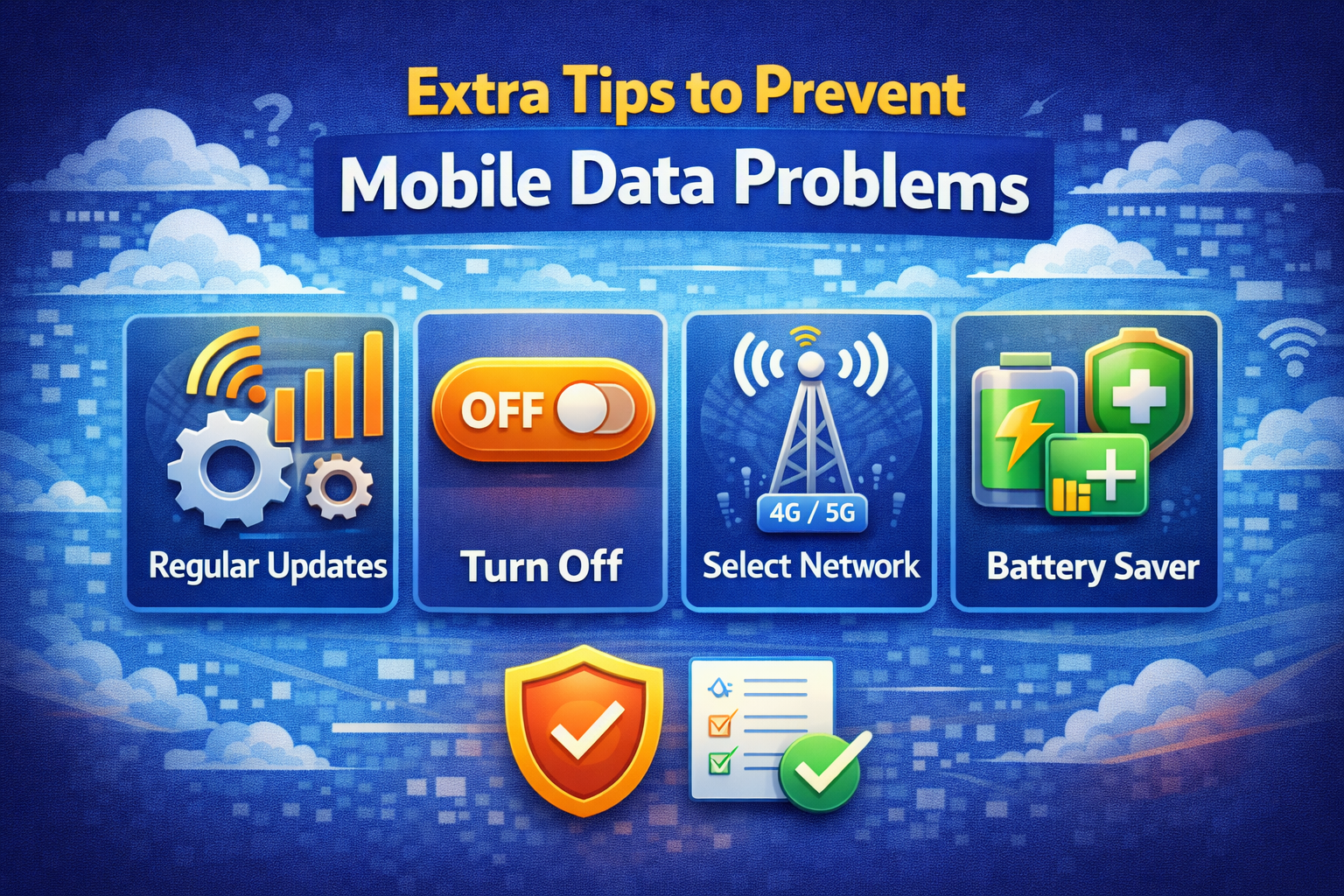
- Keep your phone updated
- Avoid unofficial system apps
- Don’t use unknown VPNs
- Restart your phone weekly
- Monitor data usage regularly
Frequently Asked Questions (FAQ)
1. Why does my phone show 4G/5G but no internet?
This usually happens due to APN issues, data limits, or temporary network errors. Reset APN or restart your phone.
2. Can a software update cause mobile data not working?
Yes. Some updates introduce bugs. Installing the next update or resetting network settings often fixes it.
3. Will resetting network settings delete my data?
No. It only removes saved Wi-Fi passwords and network configurations.
4. Why does mobile data work on Wi-Fi but not outside?
This points to a carrier, SIM card, or APN problem rather than the phone itself.
5. When should I contact my carrier?
If none of the fixes work, or if your SIM is inactive, damaged, or blocked.
Conclusion
When mobile data not working on Android and iPhone, it doesn’t always mean something is broken. In most cases, the issue is caused by simple settings, temporary glitches, or network problems.
By following the step-by-step solutions in this guide—checking settings, restarting your phone, fixing APN, and resetting network options—you can solve the problem yourself in minutes.
If all else fails, your carrier can help. But now, you know exactly what to try first.