How to Fix Google Account Sync Problems on Android (Beginner-Friendly Guide)
Google Account sync helps your Android phone keep important data updated, such as Gmail emails, contacts, calendar events, Google Drive files, and app data. When sync stops working, you may notice missing emails, contacts not updating, or error messages like “Sync is currently experiencing problems”.
In this complete guide, you will learn how to fix Google Account sync problems step by step. The article is written in simple, clear English, designed for beginners and normal Android users. You don’t need technical skills—just follow the instructions carefully.
What Is Google Account Sync and Why It Matters
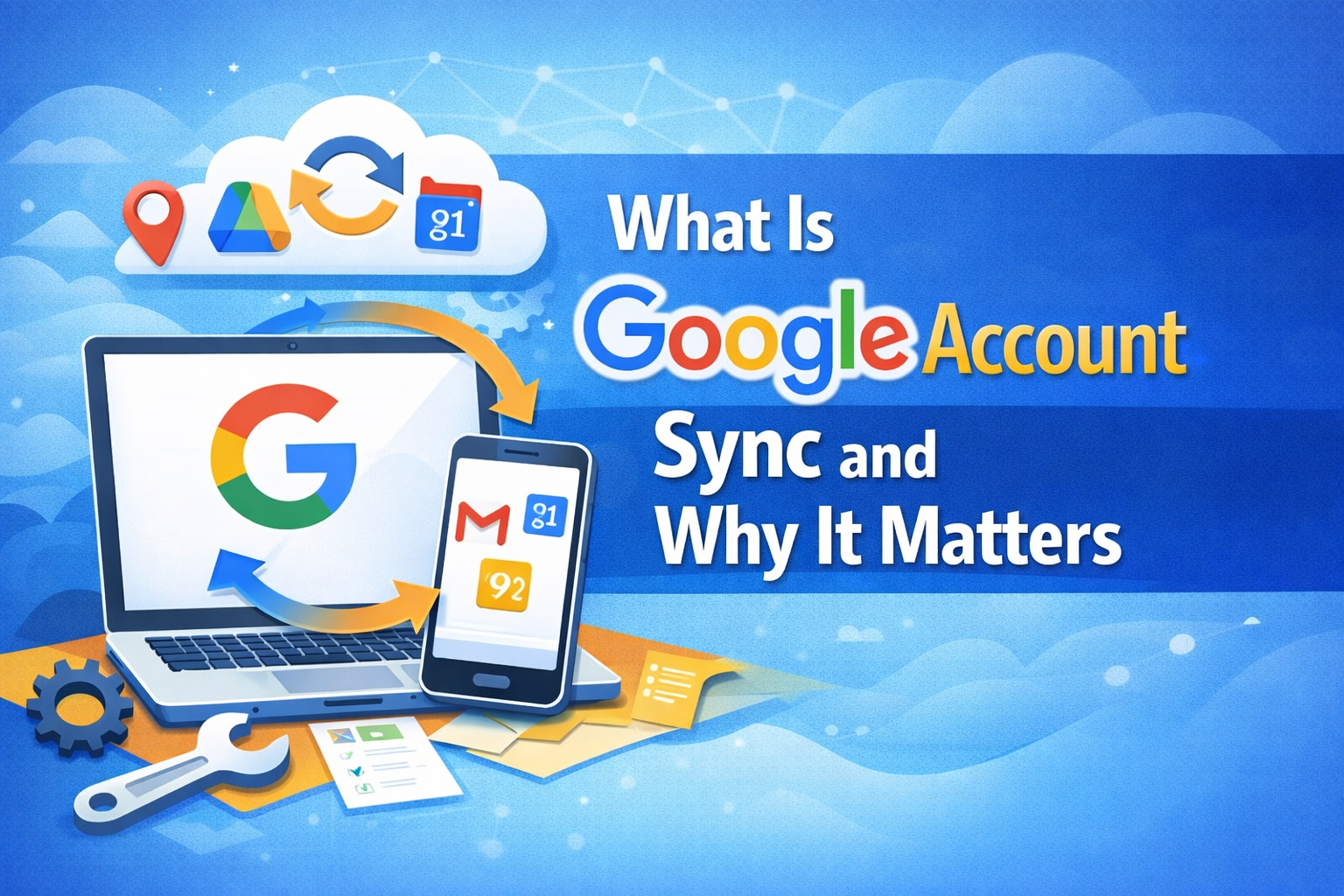
Google Account sync allows your phone to automatically share data between your device and Google’s servers. This ensures:
- Emails arrive on time
- Contacts are backed up
- Calendar events stay updated
- Apps work properly with your Google account
When sync fails, your phone may still look normal, but data stops updating in the background.
Real-world example:
A user notices new emails on their computer but not on their Android phone. The issue is usually caused by Google Account sync being turned off or stuck.
Common Google Account Sync Problems
Here are some common signs of sync issues:
- Gmail not syncing new emails
- Contacts not updating
- Calendar events missing
- “Sync error” message under Google account
- Apps asking to sign in again
- Google services not working properly
Basic Checks Before Fixing Google Account Sync Problems
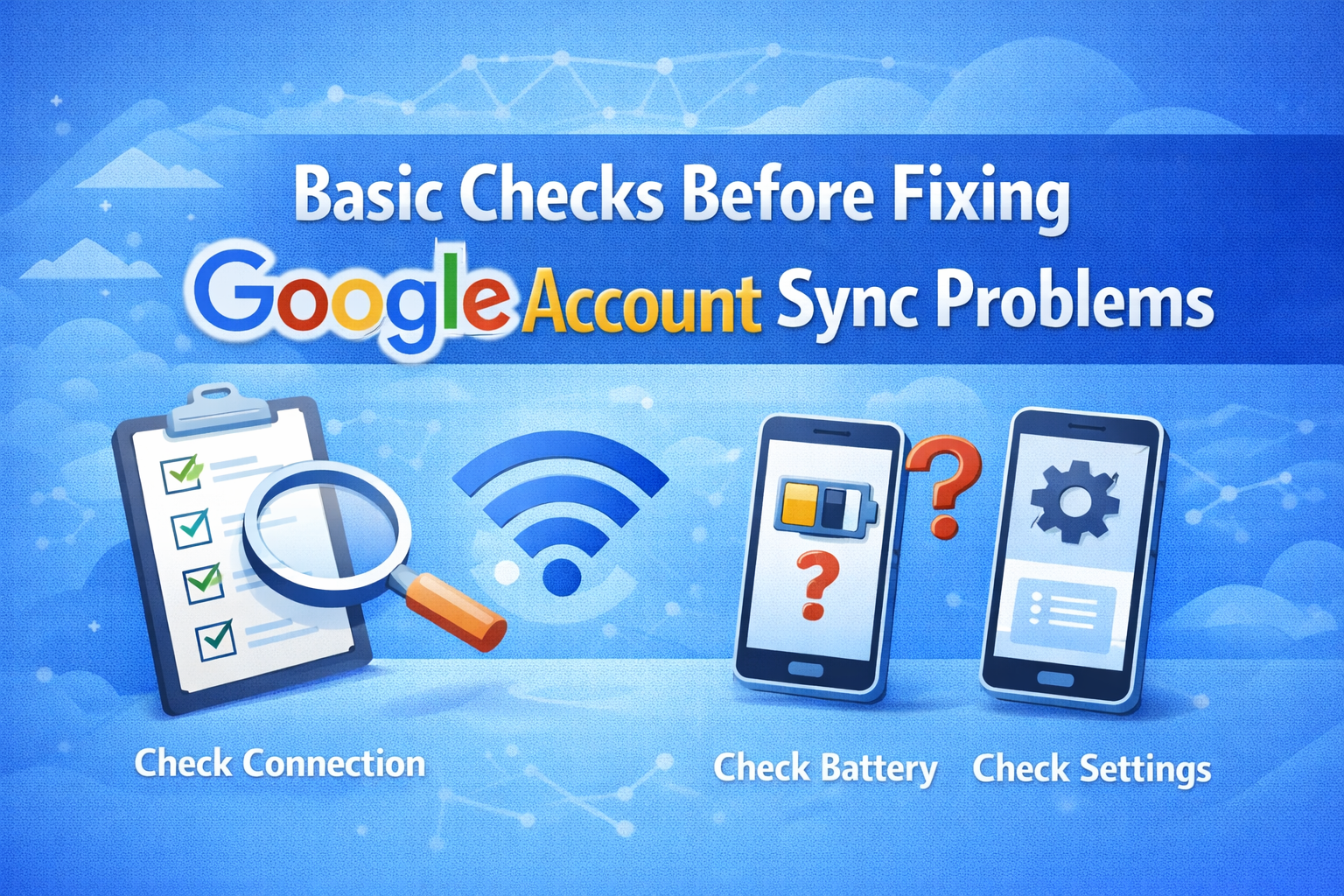
Always start with these simple checks. Many sync issues are fixed here.
1. Check Your Internet Connection
Sync needs a stable internet connection.
Steps:
- Turn Wi-Fi off and on
- Switch to mobile data
- Open a website to confirm internet works
Public Wi-Fi networks may block Google sync services.
2. Restart Your Android Phone
A simple restart clears temporary bugs.
Steps:
- Press and hold the Power button
- Tap Restart
- Wait for the phone to turn on
- Check sync again
How to Fix Google Account Sync Problems (Step-by-Step)
3. Turn Sync Off and On Again (Most Effective Fix)
This refreshes the sync process.
Steps:
- Open Settings
- Tap Accounts
- Select your Google account
- Tap Account sync
- Turn sync OFF
- Wait 10 seconds
- Turn sync ON again
Real-world example:
Many users fix Gmail and contacts sync issues just by toggling sync off and on.
4. Check If Sync Is Enabled for All Services
Sometimes only one service stops syncing.
Steps:
- Settings → Accounts → Google
- Tap your Google email
- Make sure Gmail, Contacts, Calendar, Drive are enabled
Fix Date, Time, and Battery Settings
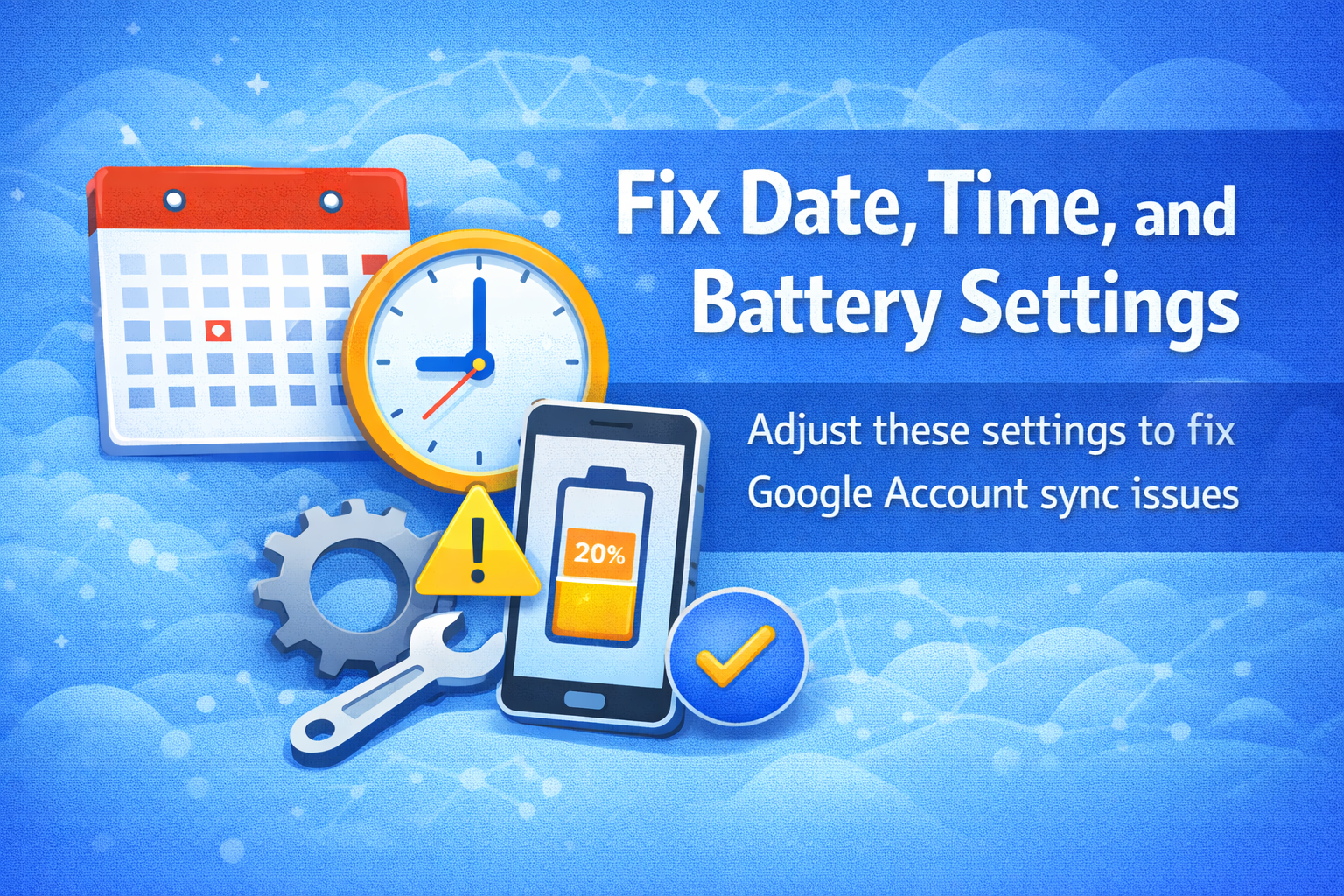
5. Set Date & Time Automatically
Wrong time causes sync authentication errors.
Steps:
- Settings → Date & Time
- Enable Automatic date & time
- Enable Automatic time zone
6. Disable Battery Saver Mode
Battery saver may stop background sync.
Steps:
- Settings → Battery
- Turn off Battery Saver
- Restart your phone
Some phones aggressively block background activity.
Fix Google Apps Causing Sync Problems
7. Clear Cache for Google Apps
Corrupted cache often causes sync errors.
Clear Gmail Cache:
- Settings → Apps → Gmail
- Tap Storage
- Tap Clear Cache
Clear Google Play Services Cache:
- Settings → Apps → Google Play Services
- Tap Storage
- Tap Clear Cache
Do NOT clear data unless needed.
8. Update Google Apps
Outdated apps can break sync.
Steps:
- Open Google Play Store
- Update:
- Gmail
- Google Play Services
- Google Contacts
- Google Calendar
Fix Google Account-Level Problems
9. Remove and Re-Add Google Account
This solves most persistent sync errors.
Steps:
- Settings → Accounts
- Tap Google
- Select your email
- Tap Remove account
- Restart your phone
- Add the Google account again
Make sure you know your Google password first.
Real-world example:
Users often fix “Sync is currently experiencing problems” by re-adding the account.
10. Check Google Account Storage
If Google storage is full, sync may fail.
Steps:
- Go to Google Drive app or website
- Check storage usage
- Delete unnecessary files or emails
Advanced Fixes for Google Account Sync Problems
11. Reset App Preferences (Safe Method)
This resets app permissions and background limits.
Steps:
- Settings → Apps
- Tap Three dots (⋮)
- Tap Reset app preferences
- Confirm
12. Disable VPN or Ad Blockers
VPNs and DNS blockers may stop sync.
Steps:
- Turn off VPN apps
- Disable private DNS or ad blockers
- Restart the phone
13. Check Android System Updates
System bugs may affect sync.
Steps:
- Settings → Software update
- Download and install updates
- Restart device
When Nothing Works
14. Factory Reset (Last Resort)
This deletes all data.
Steps:
- Backup your data
- Settings → System → Reset
- Tap Factory data reset
Use this only if sync problems affect the entire system.
Tips to Prevent Google Account Sync Problems
- Keep Android updated
- Avoid task killer apps
- Don’t block background data
- Maintain enough storage
- Use stable internet connections
Frequently Asked Questions (FAQ)
1. Why is my Google account not syncing on Android?
Usually due to internet issues, disabled sync, battery saver, or corrupted cache.
2. Why is Gmail not syncing but other apps work?
Gmail sync may be turned off individually or Gmail cache may be corrupted.
3. Is it safe to remove and re-add a Google account?
Yes, as long as you remember your password.
4. Does battery saver affect sync?
Yes. Battery saver often blocks background sync.
5. Can low storage cause sync problems?
Yes. Both phone storage and Google account storage can affect sync.
Conclusion
Google Account sync problems can interrupt emails, contacts, and app data, but most issues are easy to fix. By following the step-by-step solutions in this guide—starting with simple checks and moving to advanced fixes—you can restore sync and keep your Android phone running smoothly.
Quick reminder: Turning sync off and on, checking internet, and re-adding your Google account fix most problems.