
How to Fix Android Notification Not Showing
If you are missing important alerts on your phone, you are not alone. How to fix Android notification not showing is one of the most common problems Android users face. Many people miss calls, messages, emails, or app alerts because notifications stop appearing without warning.
The good news is that this issue is usually easy to fix. In this beginner-friendly guide, you will learn step-by-step solutions to restore Android notifications. You do not need any technical knowledge. Just follow the instructions carefully.
Why Android Notifications Are Not Showing
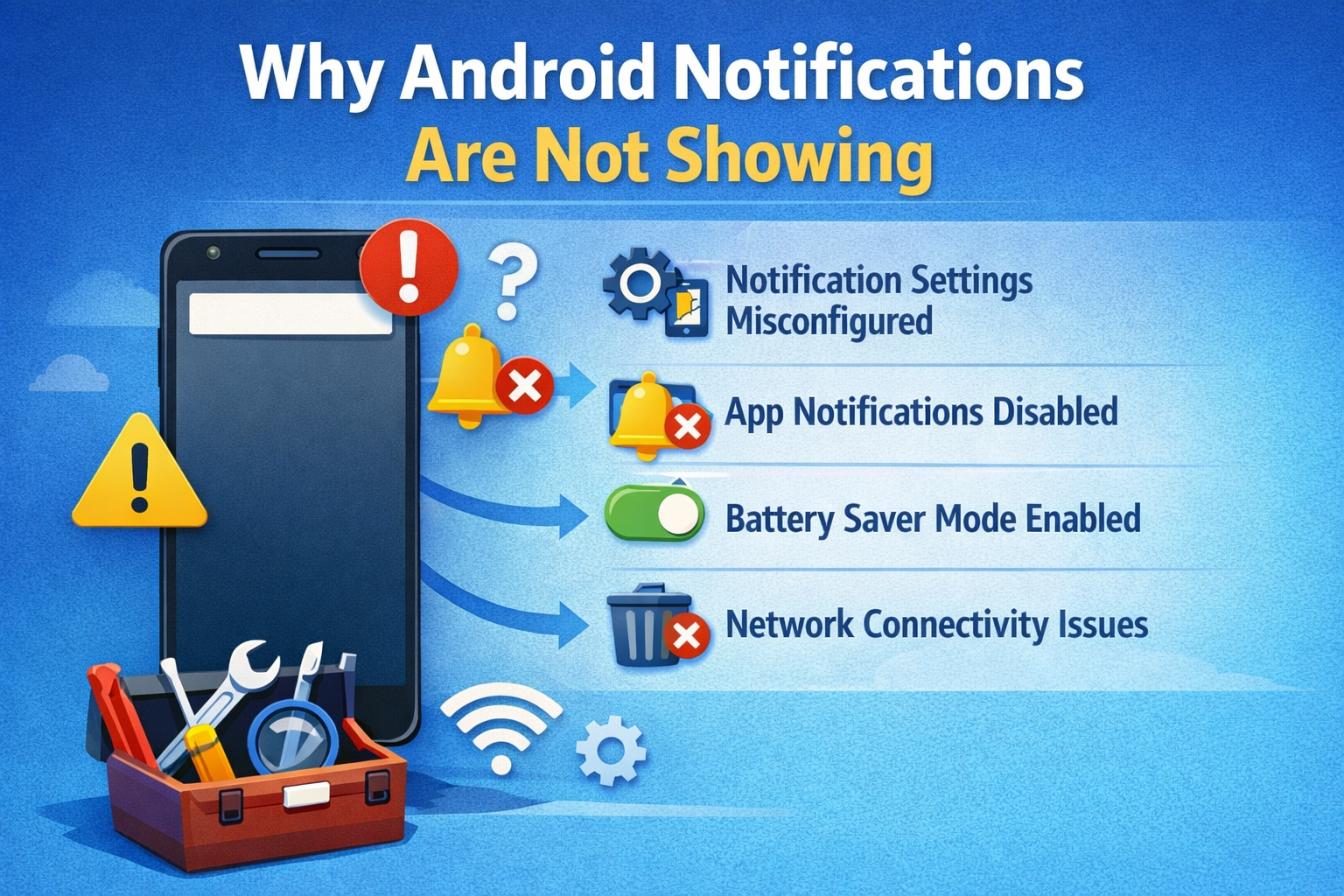
Before fixing the problem, it helps to understand why it happens. Android notifications may stop working due to:
- Notification settings turned off
- Battery saver or background restrictions
- Do Not Disturb mode enabled
- App-specific notification blocks
- System bugs or outdated software
- Corrupted app cache or data
Now let’s fix the issue step by step.
Basic Checks Before Advanced Fixes
Restart Your Android Phone
This is the simplest but most effective fix.
Steps:
- Press and hold the Power button
- Tap Restart
- Wait for the phone to reboot
Real-world example:
Many users report that notifications return immediately after a restart, especially after long uptime or recent updates.
Check Internet Connection
Notifications from apps like WhatsApp, Gmail, or Facebook require internet access.
Make sure:
- Wi-Fi or mobile data is turned on
- Airplane mode is off
- Internet is stable
How to Fix Android Notification Not Showing Using System Settings
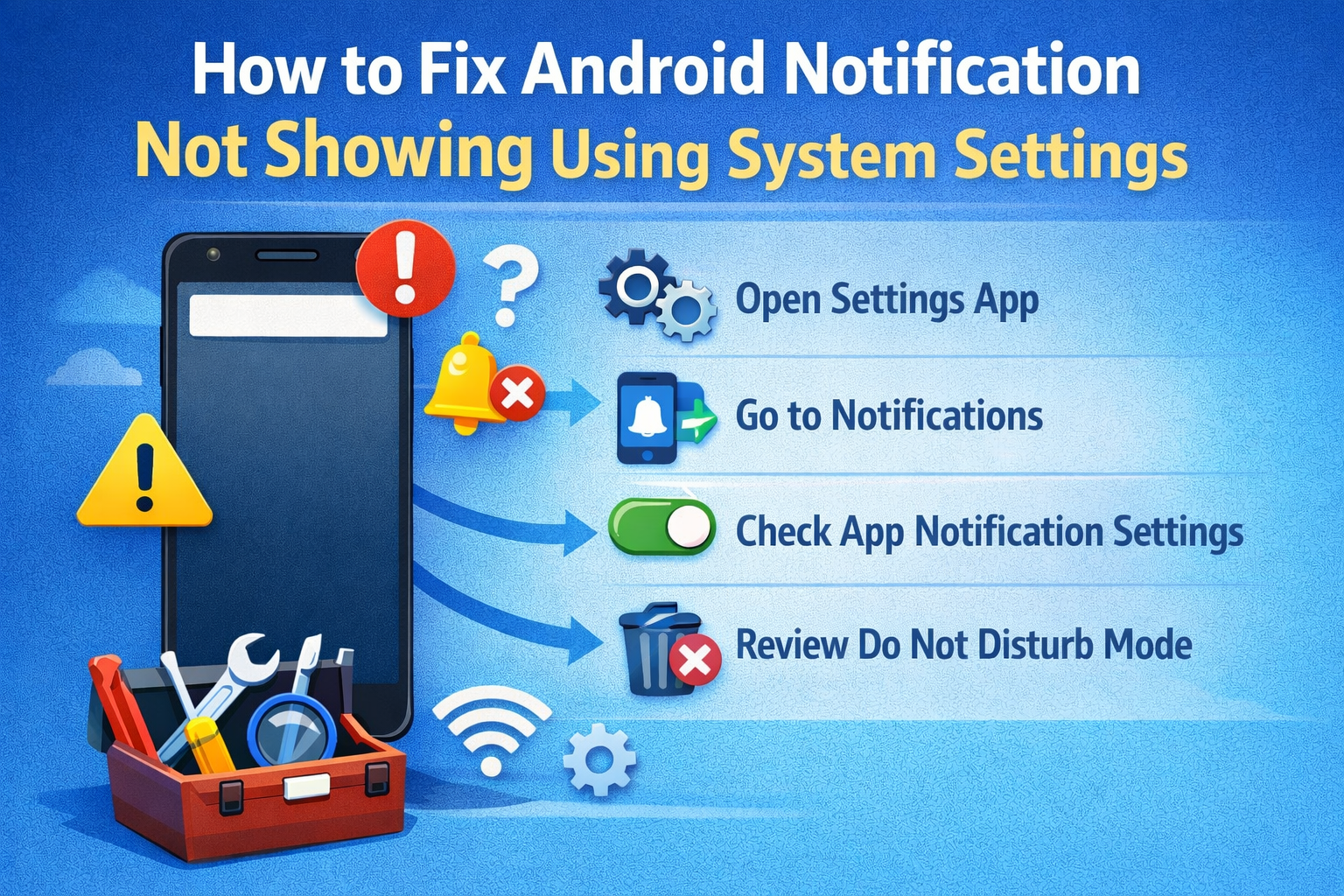
Check App Notification Settings (Most Important Fix)
Many apps have notifications disabled accidentally.
Steps:
- Open Settings
- Tap Apps or Apps & notifications
- Select the affected app (example: WhatsApp)
- Tap Notifications
- Turn on Allow notifications
Also enable:
- Lock screen notifications
- Notification sound
- Pop-up notifications
Real-world example:
A user stopped receiving Instagram alerts because “Allow notifications” was turned off during app installation.
Enable Notifications from System Level
Sometimes Android blocks notifications globally.
Steps:
- Go to Settings
- Tap Notifications
- Make sure notifications are enabled
- Enable Show notifications on lock screen
Fix Android Notification Issues Caused by Battery Settings
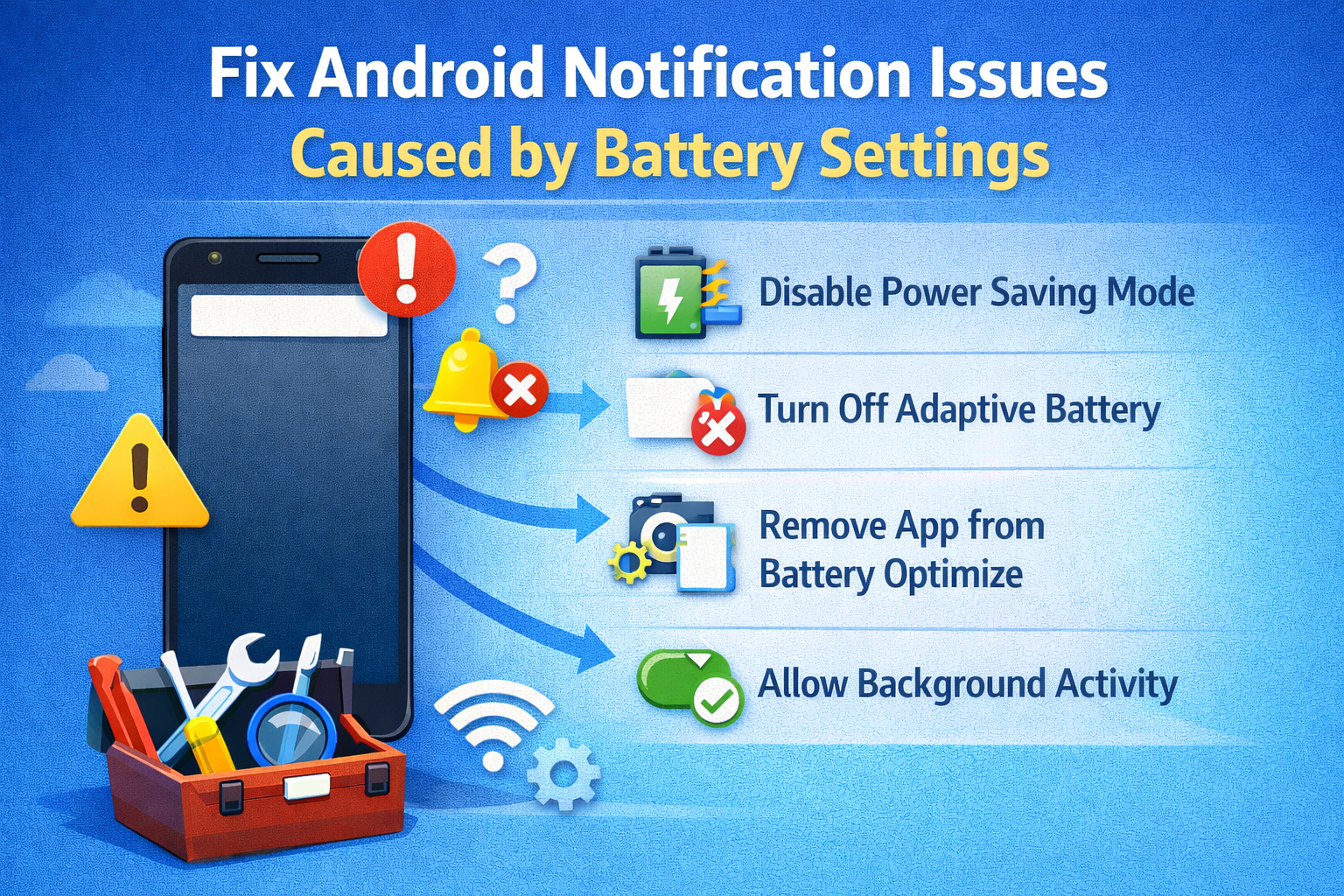
Disable Battery Optimization for Apps
Android may stop apps from running in the background.
Steps:
- Open Settings
- Tap Battery
- Select Battery optimization
- Choose the affected app
- Set it to Not optimized
Real-world example:
Messaging apps often fail to notify users when battery optimization is enabled.
Turn Off Power Saving Mode
Power-saving mode limits background activity.
Steps:
- Go to Settings
- Tap Battery
- Turn off Power Saver or Battery Saver
Check Do Not Disturb Mode
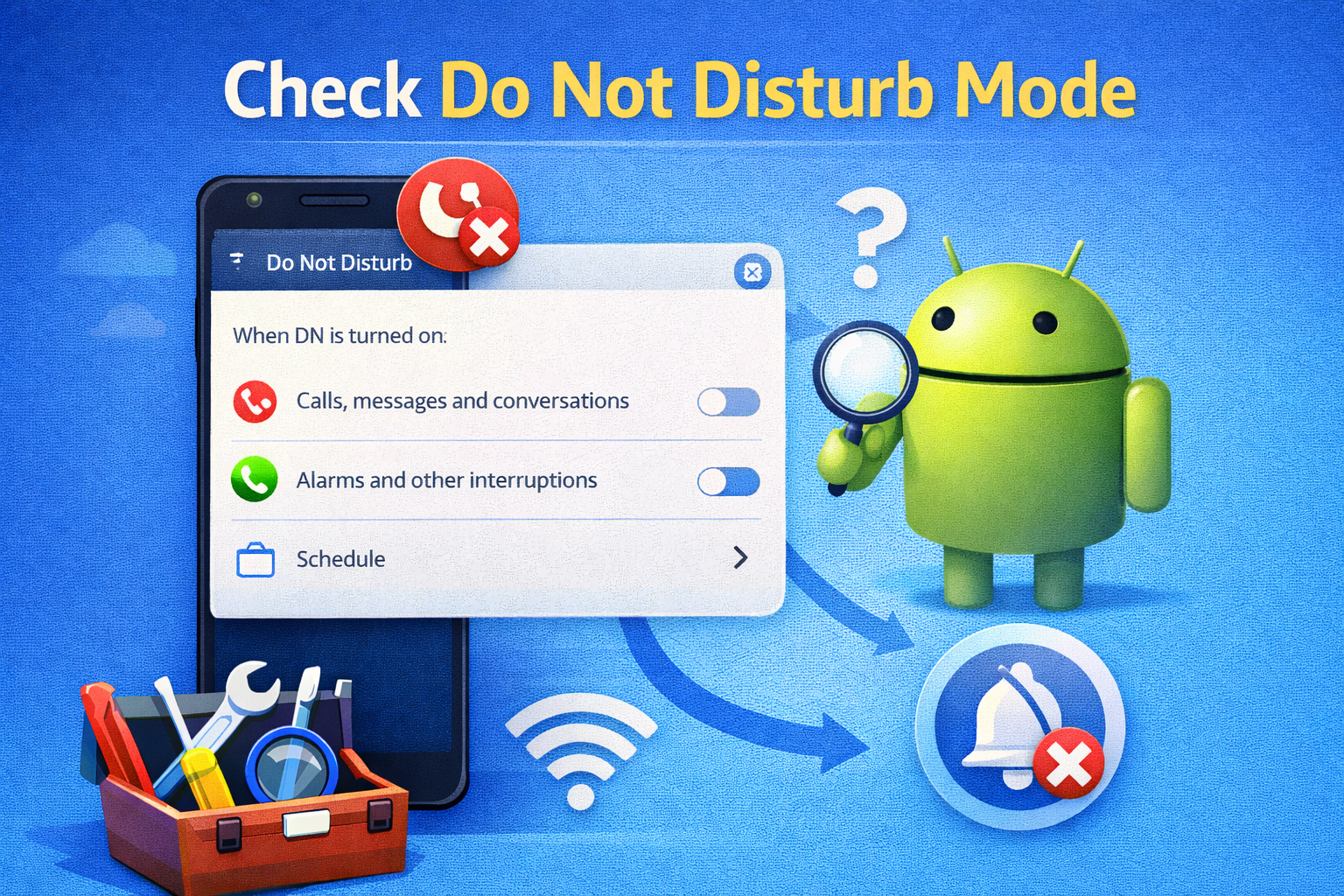
Disable Do Not Disturb (DND)
DND blocks sounds, alerts, and pop-ups.
Steps:
- Open Settings
- Tap Sound or Notifications
- Select Do Not Disturb
- Turn it Off
Also check:
- DND schedule
- Exceptions for calls and apps
Advanced Fixes for Android Notification Not Showing
Clear App Cache (Safe Method)
Cache corruption can cause notification problems.
Steps:
- Go to Settings
- Tap Apps
- Select the app
- Tap Storage
- Choose Clear Cache
Do NOT tap “Clear Data” unless necessary.
Update the App
Outdated apps may have bugs.
Steps:
- Open Google Play Store
- Search the app
- Tap Update if available
Update Android System
System bugs can break notifications.
Steps:
- Open Settings
- Tap Software update
- Download and install updates
Manufacturer-Specific Settings to Check
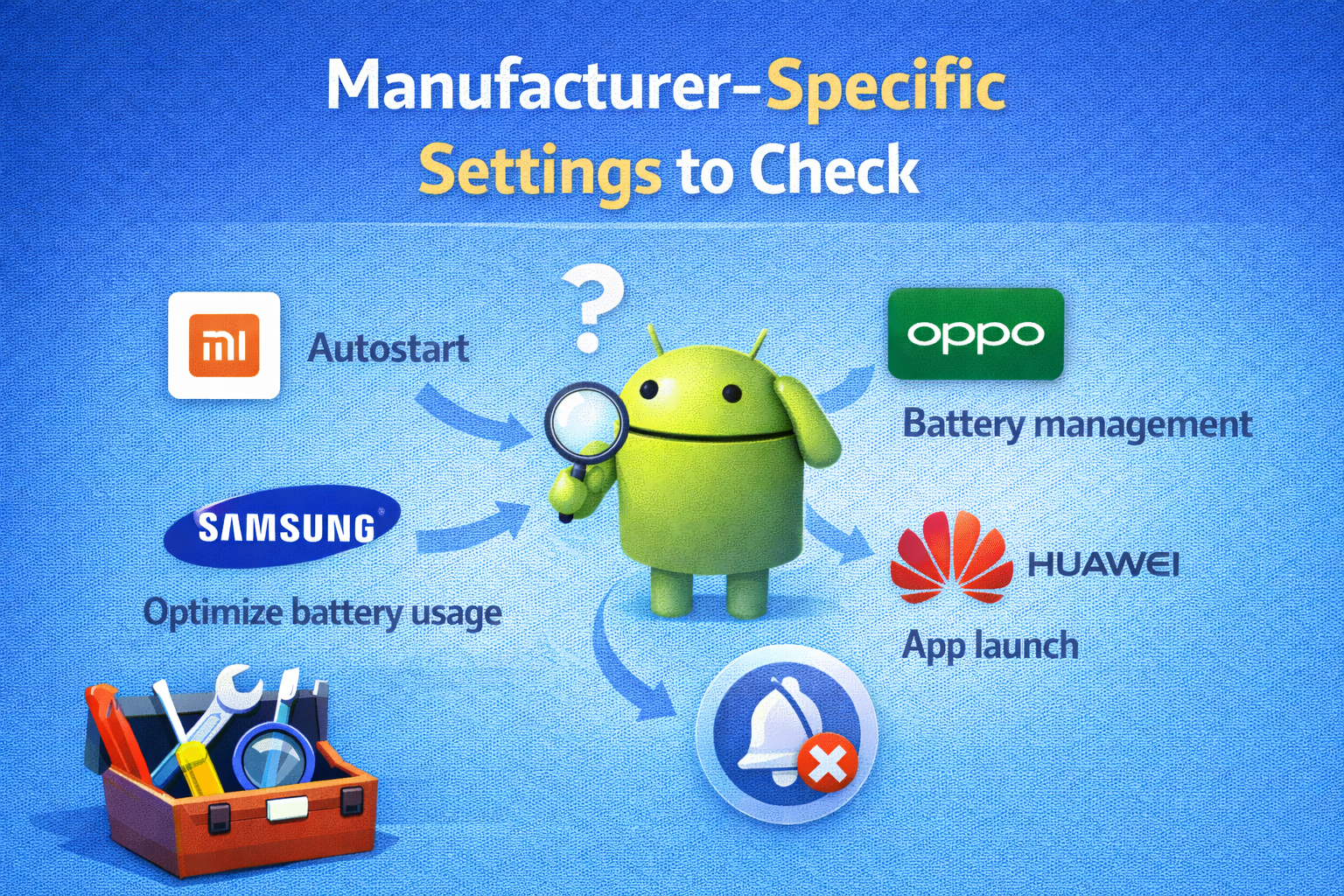
Some brands use aggressive background control.
For Samsung Phones
- Disable Sleeping apps
- Turn off Put unused apps to sleep
For Xiaomi / Redmi
- Enable Autostart
- Disable MIUI battery restrictions
For Oppo / Vivo
- Allow background activity
- Disable smart power management
Reset App Preferences (Last Resort)
This resets notification permissions without deleting data.
Steps:
- Go to Settings
- Tap Apps
- Tap Three-dot menu
- Choose Reset app preferences
Common Mistakes That Stop Android Notifications
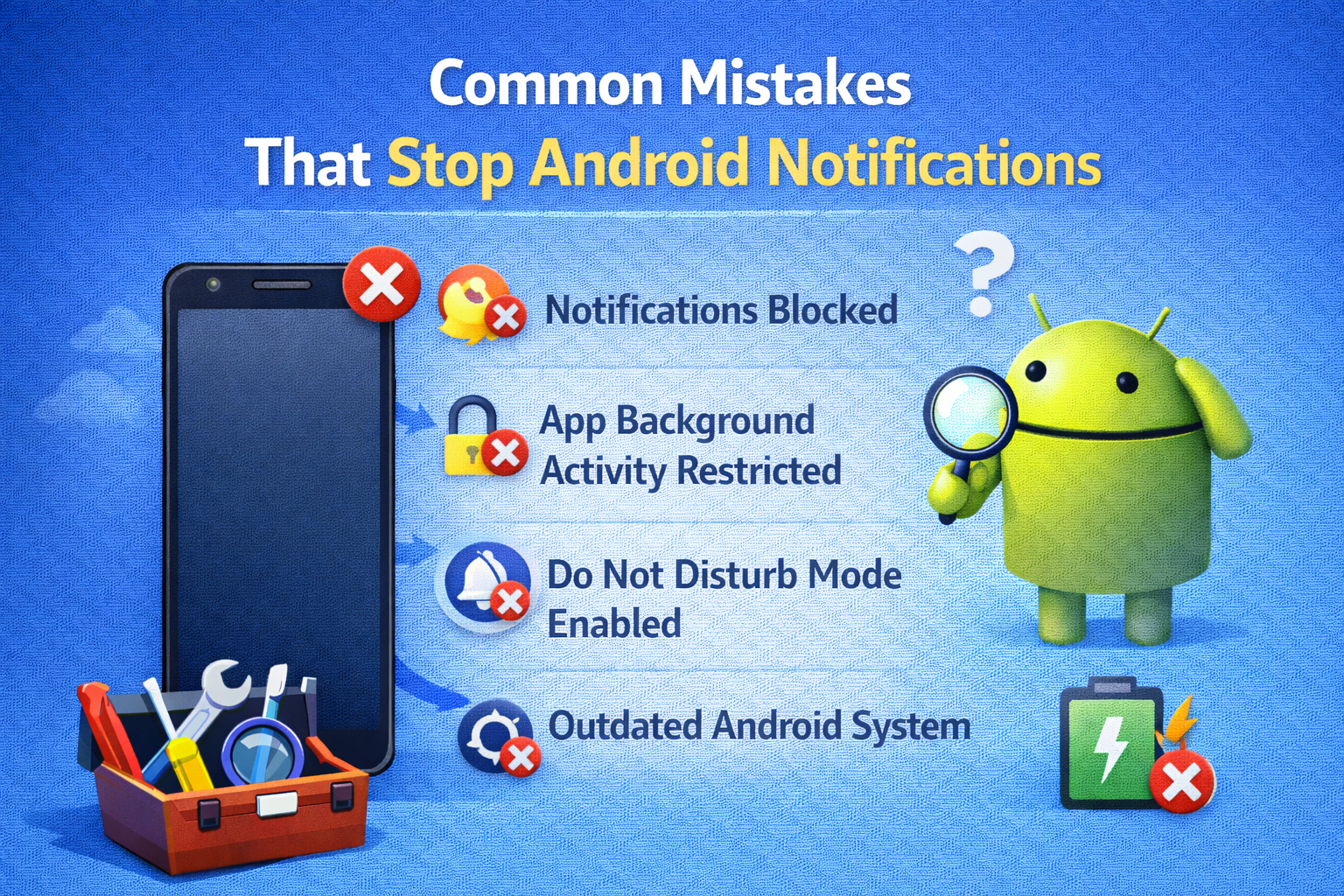
- Turning off notifications during app install
- Using task killer apps
- Restricting background data
- Enabling silent notifications
- Using old Android versions
Avoid these to prevent future issues.
Frequently Asked Questions (FAQ)
1. Why are my notifications delayed on Android?
Notifications may be delayed due to battery optimization, poor internet, or background restrictions.
2. Why do notifications not show on lock screen?
Lock screen notifications may be disabled in system notification settings.
3. Does clearing cache delete my data?
No. Clearing cache is safe and does not remove personal data.
4. Can antivirus apps block notifications?
Yes. Some security apps restrict background processes.
5. Why do notifications work only when the app is open?
This usually means background activity is restricted by battery settings.
Conclusion
Missing alerts can be frustrating, but now you know how to fix Android notification not showing using simple and effective methods. In most cases, checking notification settings, disabling battery optimization, or turning off Do Not Disturb solves the problem.
Follow these steps carefully, and your Android notifications should start working normally again. Keeping apps updated and avoiding aggressive battery settings will help prevent this issue in the future.
If the problem continues, a system update or factory reset may be needed—but that is rarely required.