
How to Fix Wi-Fi Not Connecting Issues (Step-by-Step Guide for Beginners)
Wi-Fi problems are very common. One moment your internet works fine, and the next moment your device shows “Wi-Fi not connecting”, “No internet access”, or keeps disconnecting. If you are facing Wi-Fi not connecting issues, don’t worry. In most cases, the problem is simple and can be fixed without calling a technician.
This beginner-friendly guide will show you how to fix Wi-Fi not connecting issues step by step. We will cover the most common causes, easy solutions, and real-world examples so you can get back online quickly.
Why Wi-Fi Is Not Connecting (Common Causes)
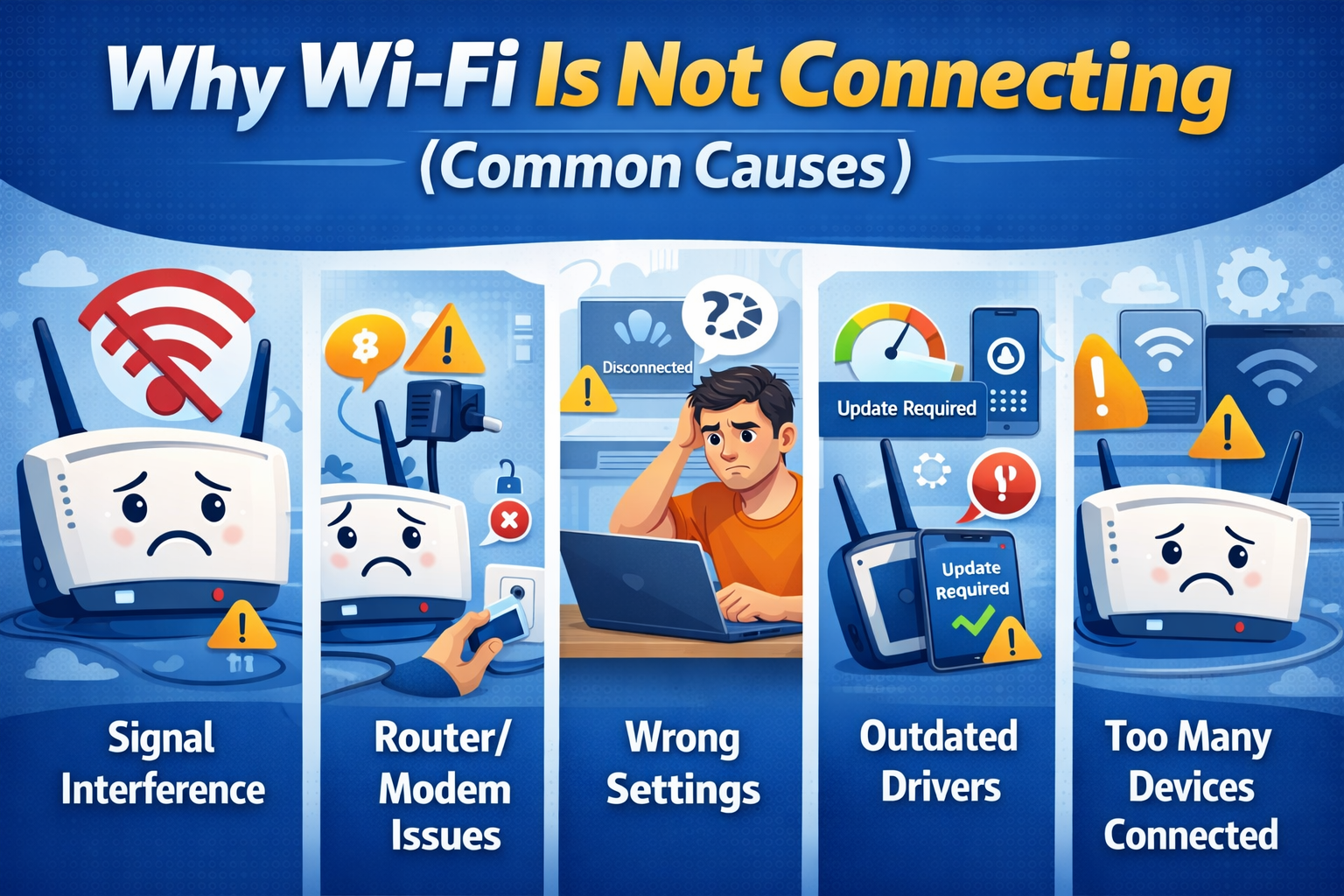
Before fixing the problem, it helps to understand why Wi-Fi is not connecting. Here are the most common reasons:
- Weak or unstable Wi-Fi signal
- Router or modem problems
- Wrong Wi-Fi password
- Software or driver issues
- Network settings errors
- ISP (Internet Service Provider) outage
The good news is that most of these issues can be fixed at home.
Basic Checks Before Advanced Fixes
1. Check If Other Devices Can Connect
Try connecting another phone, laptop, or tablet to the same Wi-Fi.
- If no devices connect, the issue is likely the router or internet line.
- If only one device fails, the problem is with that device.
Real-world example:
Your phone connects to Wi-Fi, but your laptop doesn’t. This means the router is working, and the issue is with your laptop settings or drivers.
2. Make Sure Wi-Fi Is Turned On
This sounds simple, but it’s often overlooked.
- On phones: Check Wi-Fi in Settings
- On laptops: Look for the Wi-Fi icon or hardware switch
- On airplanes mode: Make sure it’s turned off
How to Fix Wi-Fi Not Connecting Issues (Step-by-Step)
Restart Your Router and Modem (Most Important Step)
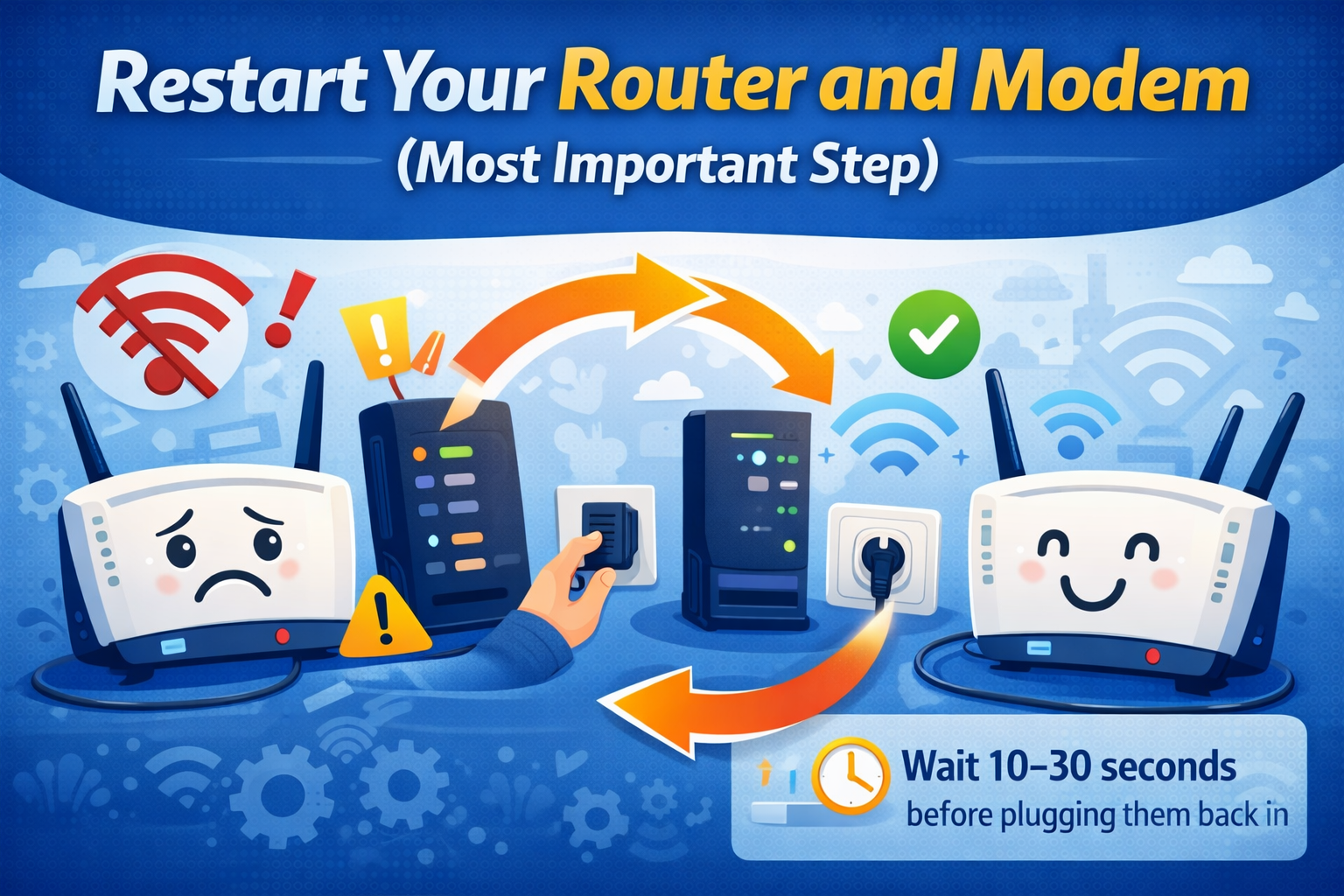
Restarting fixes many temporary network problems.
Steps:
- Turn off your router and modem
- Unplug both from power
- Wait for 30–60 seconds
- Plug them back in
- Wait until all lights are stable
- Try connecting again
Why this works:
Restarting clears memory errors, refreshes the connection, and assigns a new IP address.
Real-world example:
After a power outage, your Wi-Fi shows “connected but no internet.” Restarting the router usually fixes it.
Move Closer to the Router
A weak signal can cause Wi-Fi not connecting issues.
Try this:
- Move closer to the router
- Avoid walls, metal objects, and appliances
- Place the router in a central location
Tip:
Wi-Fi signals are weaker in bedrooms or upstairs rooms.
Check the Wi-Fi Password
An incorrect password will prevent connection.
What to do:
- Re-enter the password carefully
- Check for capital letters
- Avoid extra spaces
If unsure, reset the Wi-Fi password from the router settings.
Forget and Reconnect to the Wi-Fi Network
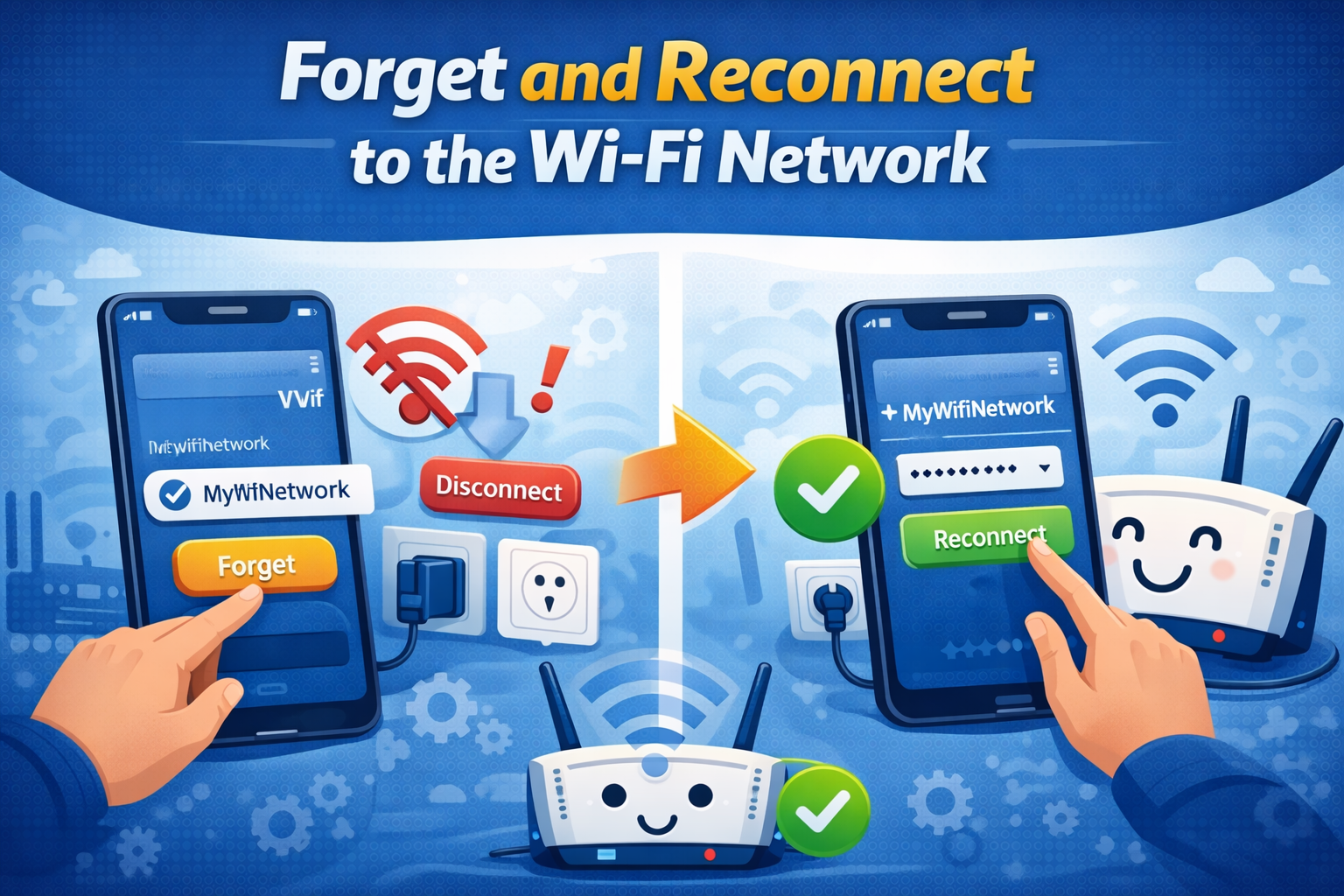
This helps fix saved network errors.
On Android / iPhone:
- Go to Settings > Wi-Fi
- Tap the Wi-Fi name
- Select Forget This Network
- Reconnect and enter the password
On Windows / Mac:
- Open Wi-Fi settings
- Remove or forget the network
- Reconnect again
Fix Wi-Fi Not Connecting Issues on Windows
Run Windows Network Troubleshooter
- Go to Settings > Network & Internet
- Select Network Troubleshooter
- Follow on-screen steps
Windows can automatically detect and fix common network problems.
Update Wi-Fi Network Drivers
Outdated drivers can cause connection problems.
- Open Device Manager
- Expand Network adapters
- Right-click Wi-Fi adapter
- Select Update driver
Real-world example:
After a Windows update, Wi-Fi stops working. Updating the network driver fixes it.
Fix Wi-Fi Not Connecting Issues on Android Phones
Turn Airplane Mode On and Off
- Enable Airplane Mode
- Wait 10 seconds
- Disable it
This refreshes network connections.
Reset Network Settings
If Wi-Fi still doesn’t connect:
- Go to Settings > System > Reset options
- Tap Reset network settings
- Restart phone
This will remove saved Wi-Fi and Bluetooth connections.
Fix Wi-Fi Not Connecting Issues on iPhone
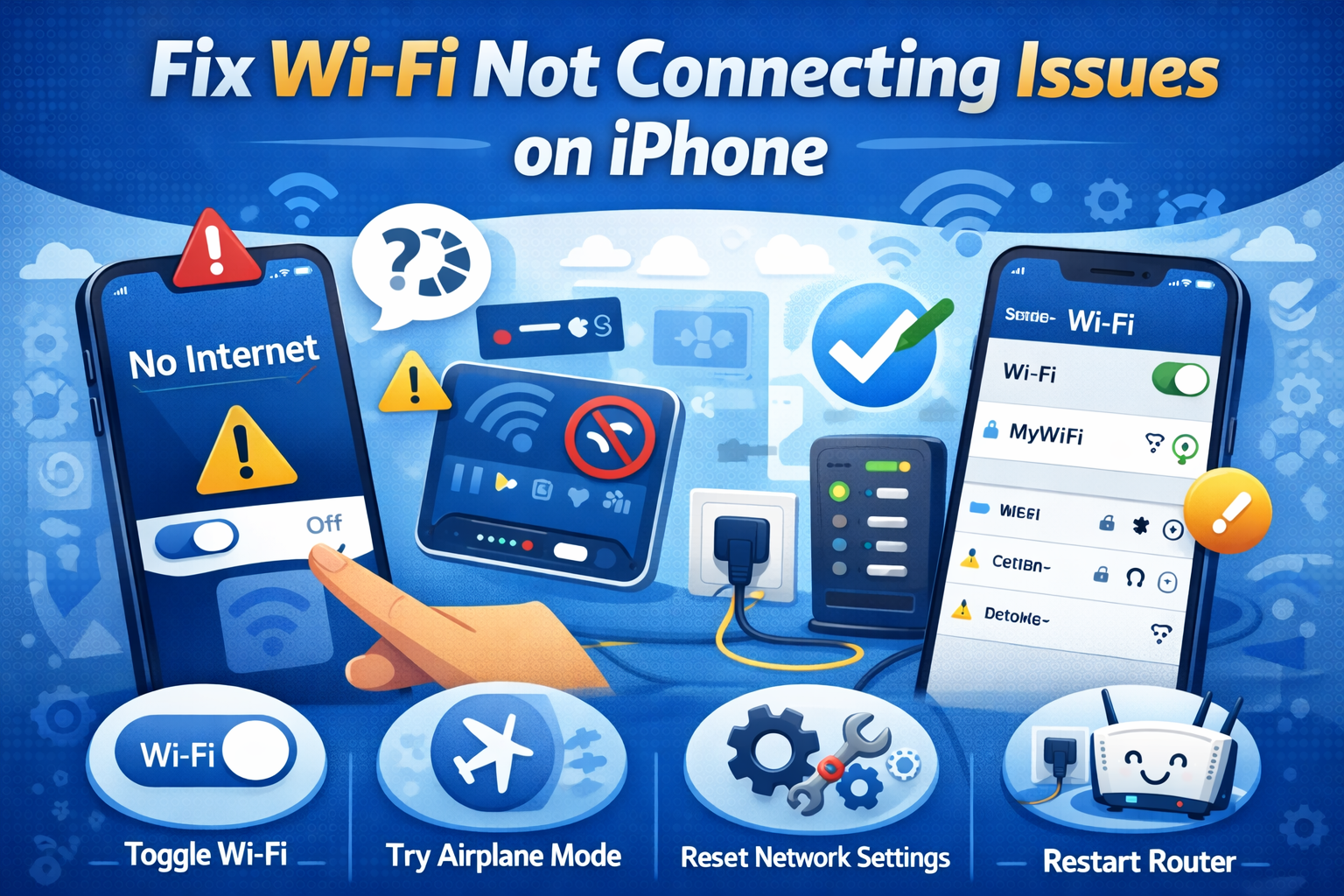
Update iOS Software
Old iOS versions may have Wi-Fi bugs.
- Go to Settings > General > Software Update
- Install the latest update
Reset Network Settings on iPhone
- Go to Settings > General > Transfer or Reset iPhone
- Tap Reset > Reset Network Settings
This often fixes stubborn Wi-Fi problems.
Check Router Settings and Firmware
Update Router Firmware
Router firmware updates improve performance and security.
- Open a browser
- Enter router IP (usually 192.168.1.1)
- Log in to router admin panel
- Check for firmware updates
Real-world example:
Old routers may fail to connect new phones until firmware is updated.
Check MAC Filtering
If MAC filtering is enabled, your device may be blocked.
- Disable MAC filtering
- Or add your device to the allowed list
Check Internet Service Provider (ISP)
Sometimes the problem is not your device or router.
Signs of ISP issues:
- All devices show “No internet”
- Router lights look abnormal
- Neighbors also have no internet
Call your ISP or check their service status page.
Advanced Fix: Reset the Router (Last Option)
If nothing works, reset the router to factory settings.
Steps:
- Find the Reset button on the router
- Hold it for 10–15 seconds
- Router will restart
This will erase all custom settings.
Tips to Prevent Future Wi-Fi Connection Problems
- Restart router once a week
- Keep router firmware updated
- Use strong Wi-Fi passwords
- Avoid overcrowded Wi-Fi channels
- Place router in an open area
FAQ: Wi-Fi Not Connecting Issues
1. Why does my Wi-Fi say “Connected but no internet”?
This usually means your device connects to the router, but the router has no internet. Restart the modem or contact your ISP.
2. Why does Wi-Fi work on one device but not others?
The problem is likely device-specific, such as outdated software, wrong settings, or driver issues.
3. Can too many devices cause Wi-Fi not connecting issues?
Yes. Too many connected devices can overload the router and cause connection failures.
4. Does resetting network settings delete my data?
No. It only removes Wi-Fi passwords, Bluetooth devices, and network preferences.
5. Should I buy a new router if Wi-Fi keeps disconnecting?
If your router is very old (5+ years), upgrading can greatly improve speed and stability.
Conclusion
Wi-Fi not connecting issues can be frustrating, but they are usually easy to fix. In most cases, restarting your router, checking passwords, or resetting network settings solves the problem. By following the step-by-step solutions in this guide, even beginners can fix Wi-Fi problems without technical skills.
If the issue continues after trying all fixes, your ISP or router hardware may be the cause. Stay patient, follow the steps carefully, and you’ll be back online in no time.