How to Fix Software Errors on Any Device
Software problems can happen to any device—phones, computers, tablets, or even smart TVs. One moment everything works fine, and the next you see error messages, apps crashing, or the system freezing. The good news is that most software issues are fixable, even if you are not a tech expert.
In this guide, you will learn how to fix software errors on any device using simple, beginner-friendly steps. We will cover common causes, practical solutions, real-world examples, and safe troubleshooting methods that work on Windows, macOS, Android, iPhone, and more.
What Are Software Errors?
Software errors happen when an operating system or app does not work as expected. This can include:
- Apps not opening or crashing
- System freezing or restarting
- Error messages during updates
- Features not working properly
- Slow or unresponsive performance
These errors are usually caused by bugs, corrupted files, outdated software, or conflicts between apps.
Common Causes of Software Errors
Before fixing anything, it helps to understand why software errors happen.
1. Outdated Software
Old versions may have bugs that are already fixed in newer updates.
2. Corrupted Files
Files can become damaged due to sudden shutdowns, failed updates, or malware.
3. App Conflicts
Two apps may interfere with each other, especially after updates.
4. Low Storage or Memory
Devices need free space to run smoothly. Low storage can cause errors.
5. Internet Connection Issues
Many apps and updates rely on stable internet access.
How to Fix Software Errors on Any Device (Step-by-Step)
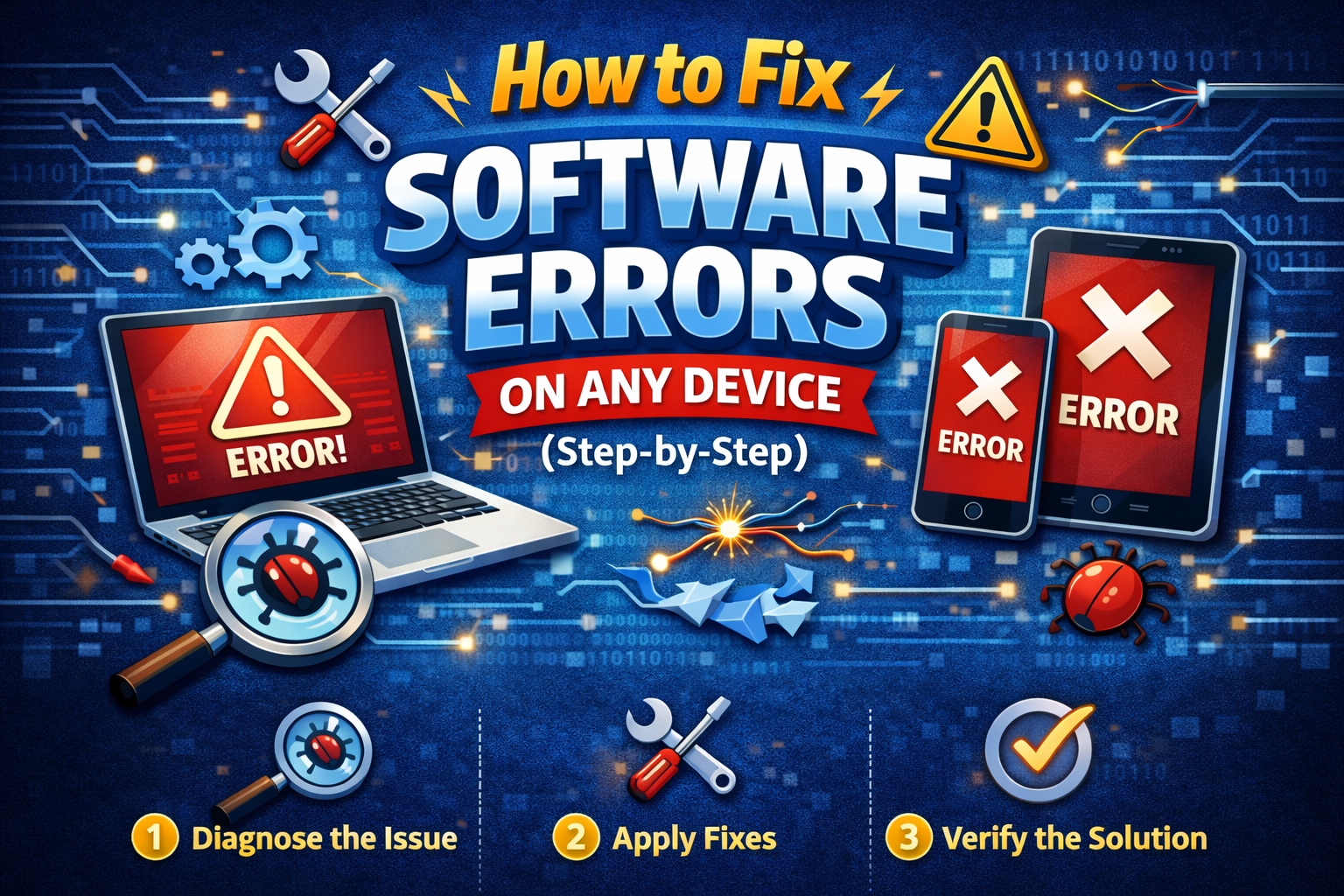
This section shows how to fix software errors on any device, starting with the easiest and safest solutions.
1. Restart Your Device (Always Start Here)
A restart clears temporary files and refreshes system processes.
Steps:
- Save your work
- Turn the device off
- Wait 30 seconds
- Turn it back on
Real-world example:
An Android phone shows “App not responding.” Restarting clears background processes and fixes the issue in seconds.
2. Update the Operating System
Updates often include bug fixes and security patches.
Steps:
- Windows/macOS:
Settings → Update → Check for updates - Android:
Settings → Software Update - iPhone/iPad:
Settings → General → Software Update
Tip: Always keep at least 20% battery before updating.
3. Update or Reinstall the Problem App
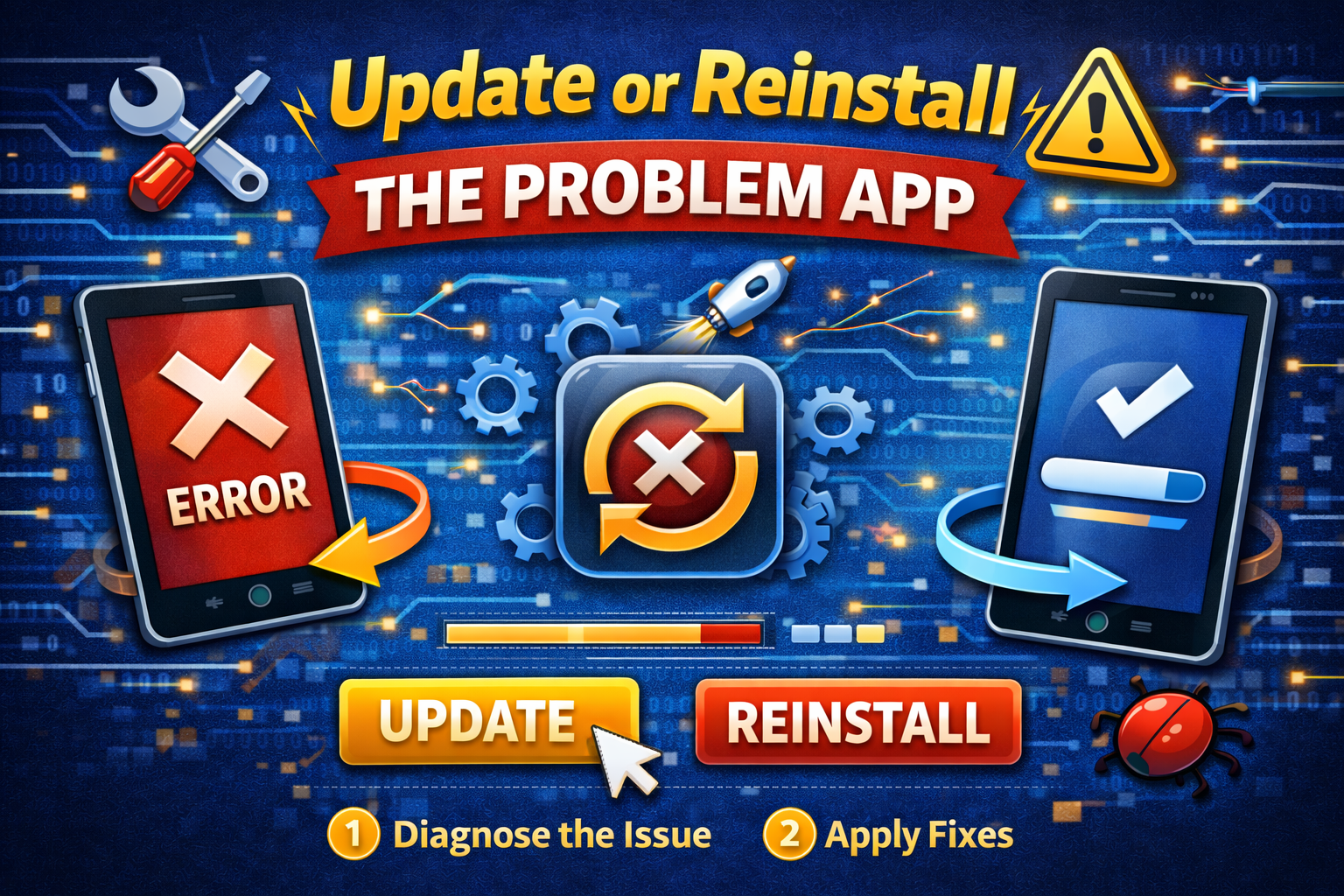
If only one app is failing, the issue is usually with that app.
Steps:
- Open the app store
- Check for updates
- If the problem continues:
- Uninstall the app
- Restart the device
- Reinstall the app
Real-world example:
A video editing app crashes on launch. Reinstalling fixes corrupted app files.
4. Clear Cache and Temporary Data
Cached data helps apps load faster, but corrupted cache causes errors.
On Android:
- Settings → Apps → Select app → Storage → Clear Cache
On Windows:
- Use Disk Cleanup
- Delete temporary files
On iPhone:
- Reinstall the app (cache is cleared automatically)
5. Check Available Storage Space

Low storage is a very common cause of software errors.
Steps:
- Open storage settings
- Delete unused apps
- Remove old photos or videos
- Clear downloads folder
Recommended free space:
- Phones: at least 5–10 GB
- Computers: at least 15–20% free disk space
6. Run Built-In Repair Tools (Computers)
Modern operating systems include repair tools.
Windows:
- Run System File Checker
- Use Troubleshooter
macOS:
- Use Disk Utility → First Aid
These tools scan and fix corrupted system files safely.
7. Check Internet Connection
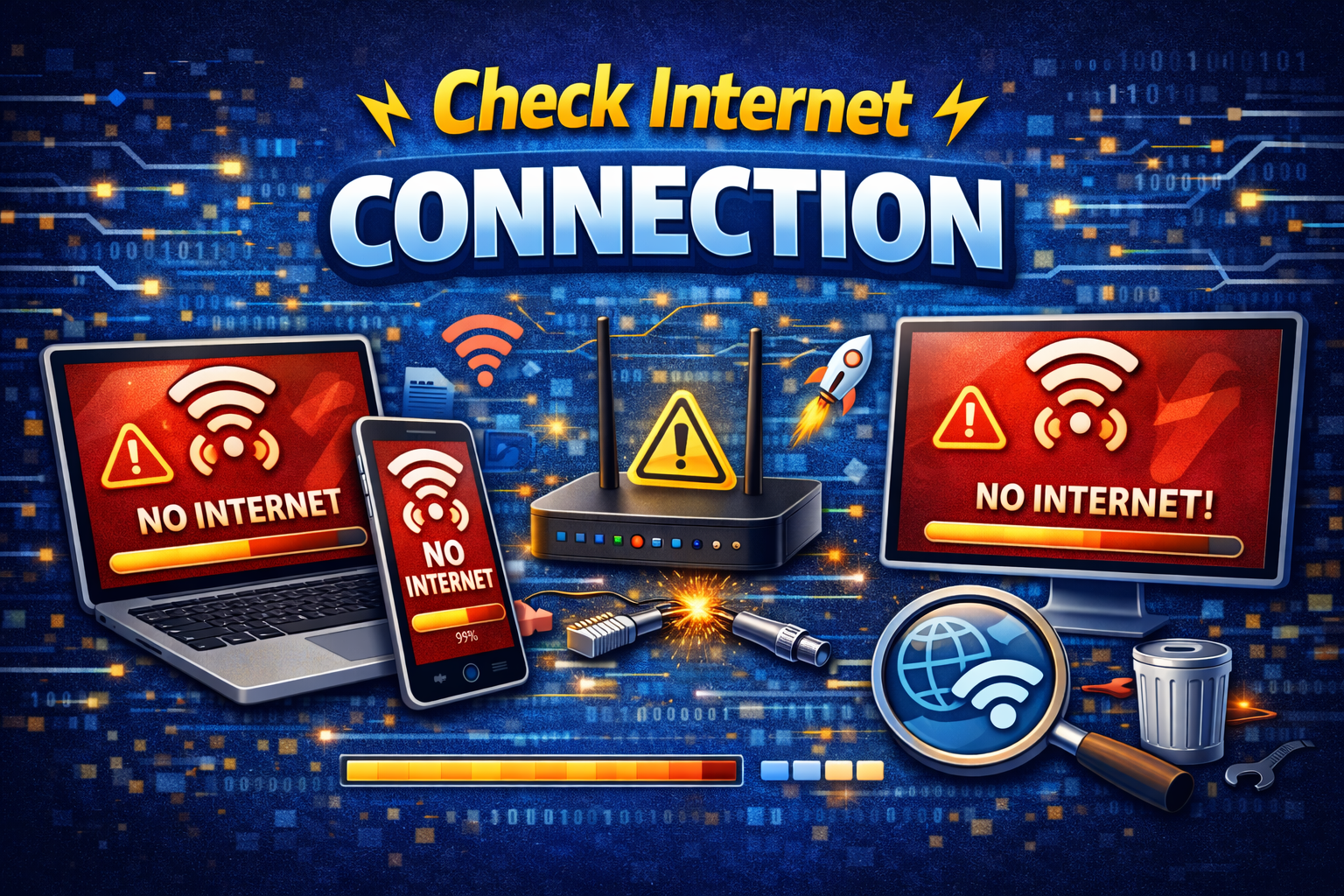
Some errors are caused by unstable networks.
Steps:
- Switch between Wi-Fi and mobile data
- Restart router
- Try another network
Real-world example:
An app shows “Server error.” Switching to a stable Wi-Fi network fixes it instantly.
8. Disable Recently Installed Apps or Extensions
New software may cause conflicts.
Steps:
- Think about what you installed recently
- Disable or uninstall it
- Restart the device
- Check if the error is gone
9. Scan for Malware or Viruses
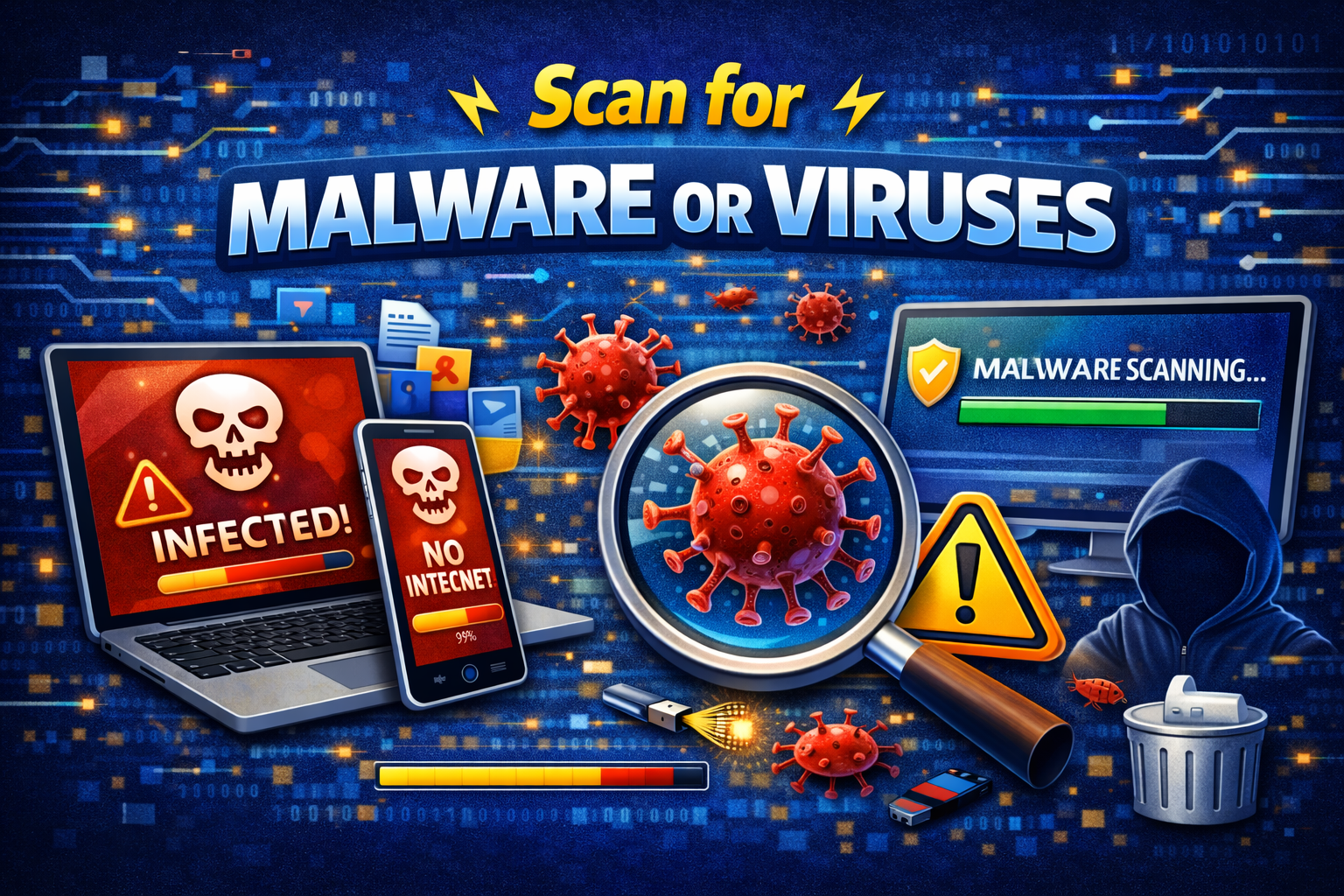
Malware can damage system files and apps.
Recommended actions:
- Use built-in security tools
- Avoid unknown downloads
- Update antivirus software
Note: Mobile devices can also get malware, especially from third-party app stores.
10. Reset Settings (Not Data)
If errors persist, reset settings only, not files.
Examples:
- Reset network settings
- Reset app preferences
- Reset system settings (no data loss)
This fixes misconfigured options without deleting personal data.
When Should You Do a Full Reset?
A full factory reset should be your last option.
Consider it only if:
- Errors happen constantly
- Device is unusable
- Other fixes failed
Important: Always back up your data before resetting.
Prevent Software Errors in the Future

Prevention saves time and stress.
Best Practices:
- Keep software updated
- Avoid unofficial apps
- Maintain enough free storage
- Restart devices weekly
- Use trusted security tools
Frequently Asked Questions (FAQ)
1. Can software errors damage my device?
No. Software errors usually affect performance, not hardware.
2. Why do errors come back after fixing them?
The root cause may not be fully resolved, such as outdated software or low storage.
3. Are software updates safe?
Yes. Official updates are designed to fix bugs and improve security.
4. Should I use third-party cleaning apps?
Be careful. Some are helpful, but many cause more problems than they solve.
5. When should I contact professional support?
If errors continue after a reset or affect hardware-related features.
Conclusion
Software problems can feel frustrating, but most are easy to fix with the right steps. By following this guide on how to fix software errors on any device, you can solve common issues safely and confidently—without being a tech expert.
Start with simple fixes like restarting, updating software, and clearing storage. Only move to advanced solutions if needed. With good habits and regular maintenance, your devices will stay fast, stable, and reliable.