How to Fix Software Won’t Open or Launch on Windows
If software won’t open or launch on Windows, it can be frustrating—especially when you need the program urgently for work or study. You double-click the app, and nothing happens. No error. No warning. Just silence.
The good news is that this is a very common Windows problem, and in most cases, you can fix it yourself without reinstalling Windows or calling a technician.
In this guide, you’ll learn step-by-step solutions to fix software that won’t open on Windows. The instructions are written in simple English, perfect for beginners and everyday users.
Why Software Won’t Open or Launch on Windows

Before fixing the issue, it helps to understand why software fails to launch in the first place. Common reasons include:
- Corrupted program files
- Missing or outdated system components
- Compatibility issues with Windows versions
- Blocked apps due to security settings
- Conflicts with antivirus software
- Lack of administrator permission
Let’s fix these one by one.
Quick Checks Before Deep Troubleshooting
Try these basic steps first. They often solve the problem in seconds.
Restart Your Computer
A simple restart clears temporary bugs and background conflicts.
Real-world example:
Many users report that apps like Chrome or Photoshop suddenly work again after a restart because Windows releases locked system files.
Check If the App Is Running in the Background
Sometimes the software is already running but stuck.
Steps:
- Press Ctrl + Shift + Esc
- Open Task Manager
- Look for the app under Processes
- Click it → End Task
- Try opening the software again
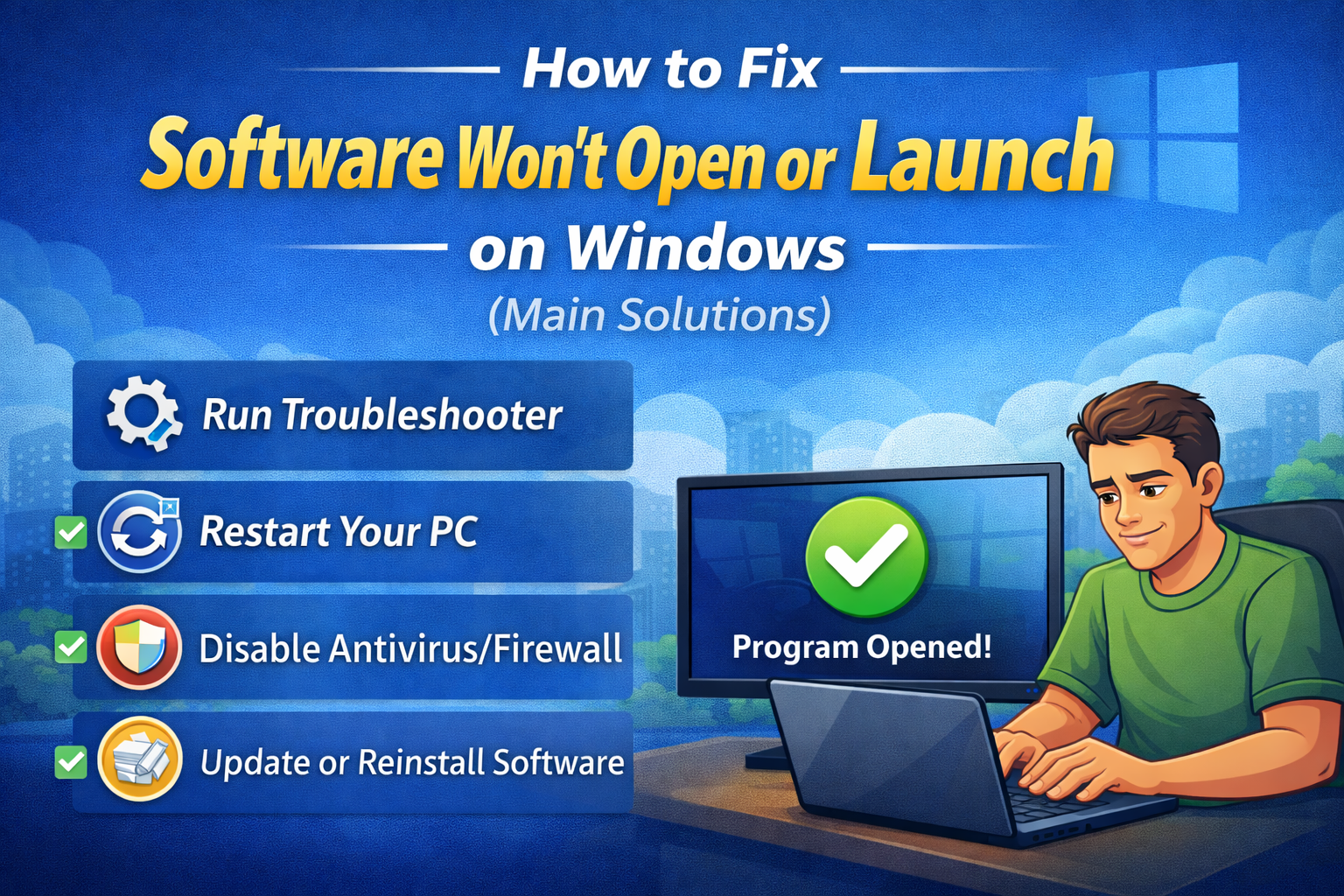
How to Fix Software Won’t Open or Launch on Windows (Main Solutions)
1. Run the Software as Administrator
Some apps need elevated permission to start.
Steps:
- Right-click the software icon
- Select Run as administrator
- Click Yes
When this helps:
Apps that access system files, drivers, or protected folders.
2. Check Software Compatibility Settings
Older software may not work properly on newer Windows versions.
Steps:
- Right-click the app → Properties
- Open the Compatibility tab
- Check Run this program in compatibility mode
- Select Windows 7 or Windows 8
- Click Apply → OK
Real-world example:
Old accounting or design software often launches correctly after enabling compatibility mode.
3. Update Windows
Outdated Windows files can prevent apps from launching.
Steps:
- Open Settings
- Go to Windows Update
- Click Check for updates
- Install all available updates
- Restart your PC
4. Reinstall the Software (Clean Install)
If the app files are corrupted, reinstalling is often the fastest fix.
Steps:
- Open Settings → Apps
- Find the software
- Click Uninstall
- Restart your computer
- Download the latest version from the official website
- Install and try again
Avoid using old setup files saved on your PC.
How to Fix Software Won’t Open on Windows Using System Tools
5. Use Windows Troubleshooter
Windows includes built-in tools to detect common issues.
Steps:
- Open Settings
- Go to System → Troubleshoot
- Click Other troubleshooters
- Run Program Compatibility Troubleshooter
6. Check for Missing Visual C++ or .NET Files
Many programs require additional system components.
What to do:
- Install Microsoft Visual C++ Redistributable
- Update .NET Framework
Signs this is the problem:
- App opens briefly, then closes
- Error messages related to DLL files
7. Scan for Corrupted System Files (SFC Tool)
Steps:
- Search Command Prompt
- Right-click → Run as administrator
- Type:
sfc /scannow - Press Enter
- Wait until the scan completes
- Restart your PC
Real-world example:
Users often fix apps like Microsoft Office or Adobe software using this method.
Security and Antivirus Fixes
8. Temporarily Disable Antivirus Software
Antivirus programs sometimes block safe apps by mistake.
Steps:
- Temporarily disable antivirus
- Try opening the software
- If it works, add the app to antivirus exclusions
- Re-enable antivirus
Only do this for trusted software.
9. Check Windows Security App Blocking
Windows may silently block unknown apps.
Steps:
- Open Windows Security
- Go to App & browser control
- Check Reputation-based protection
- Allow the blocked app
Advanced Fixes (Still Beginner-Friendly)

10. Create a New Windows User Account
A corrupted user profile can stop apps from opening.
Steps:
- Open Settings → Accounts
- Click Other users
- Add a new local account
- Log into the new account
- Try opening the software
11. Check Event Viewer for Error Details
This helps identify hidden problems.
Steps:
- Press Windows + X
- Select Event Viewer
- Go to Windows Logs → Application
- Look for red error entries related to the app
Common Software That Won’t Open on Windows (Examples)
- Browsers (Chrome, Edge, Firefox)
- Office software
- Games after updates
- Editing software (video, photo, audio tools)
- Older business programs
Most of these issues are solved using the steps above.
FAQ: Software Won’t Open or Launch on Windows
1. Why does software not open but show no error?
This usually happens due to permission issues, background crashes, or corrupted files.
2. Is reinstalling Windows necessary?
No. In most cases, reinstalling the app or fixing system files is enough.
3. Can antivirus software block safe programs?
Yes. False positives are common, especially with new or updated apps.
4. Why does software open on another PC but not mine?
Your Windows version, missing system components, or corrupted user profile may be the cause.
5. What if nothing works?
Check the software’s official support page or contact their support team with error details from Event Viewer.
Conclusion
When software won’t open or launch on Windows, it’s usually caused by permission issues, corrupted files, or compatibility problems—not a serious system failure. By following the step-by-step solutions in this guide, most users can fix the problem in minutes.
Start with simple fixes like restarting and running as administrator, then move to reinstalling or using system tools if needed. With patience and the right steps, your software will be running again smoothly.