
How to Fix Router Problems Without Calling Your ISP
Router issues are one of the most common reasons for slow or broken internet at home. One moment everything works fine, and the next your Wi-Fi drops, pages won’t load, or videos keep buffering. Before you panic or spend hours on hold with customer support, here’s the good news: many router problems can be fixed without calling your ISP.
In this beginner-friendly guide, you’ll learn how to fix router problems without calling your ISP, using simple steps anyone can follow. We’ll cover common causes, step-by-step solutions, real-world examples, and practical tips that actually work.
Why Router Problems Happen (Simple Explanation)
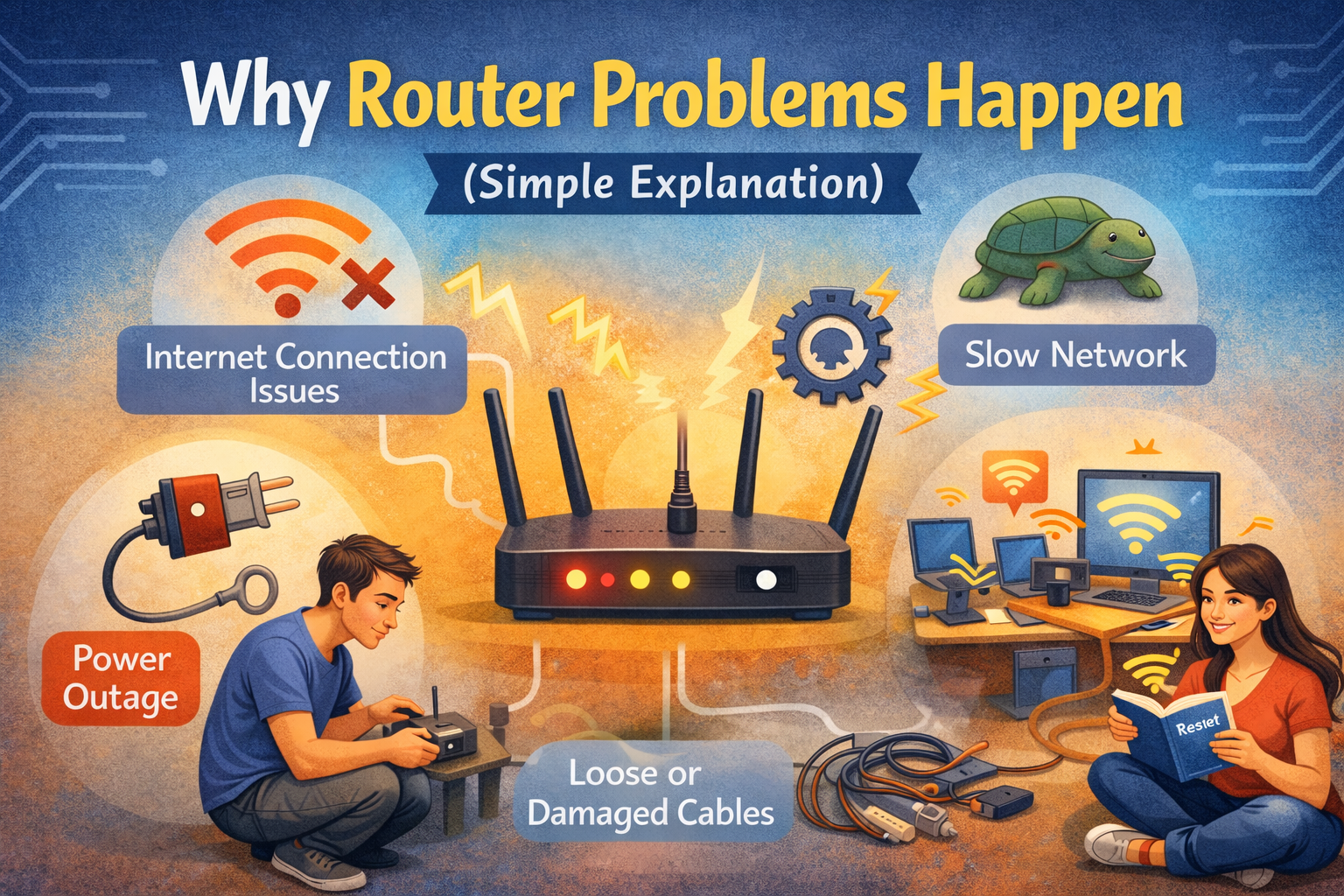
Before fixing anything, it helps to understand why router problems happen in the first place. Most issues are caused by small, fixable things—not serious network failures.
Common Reasons for Router Problems
- The router has been running too long without a restart
- Temporary software glitches
- Loose or damaged cables
- Poor router placement
- Outdated router firmware
- Too many devices connected at once
- Wi-Fi signal interference from walls or electronics
Real-world example:
A family notices Wi-Fi slows down every evening. The issue turns out to be 12 devices connected at the same time—phones, TVs, tablets, and smart cameras—all competing for bandwidth.
How to Fix Router Problems Without Calling Your ISP (Step-by-Step)
This section is the heart of the guide. Follow the steps in order. Most users fix their problem before reaching the last step.
1. Restart Your Router Properly
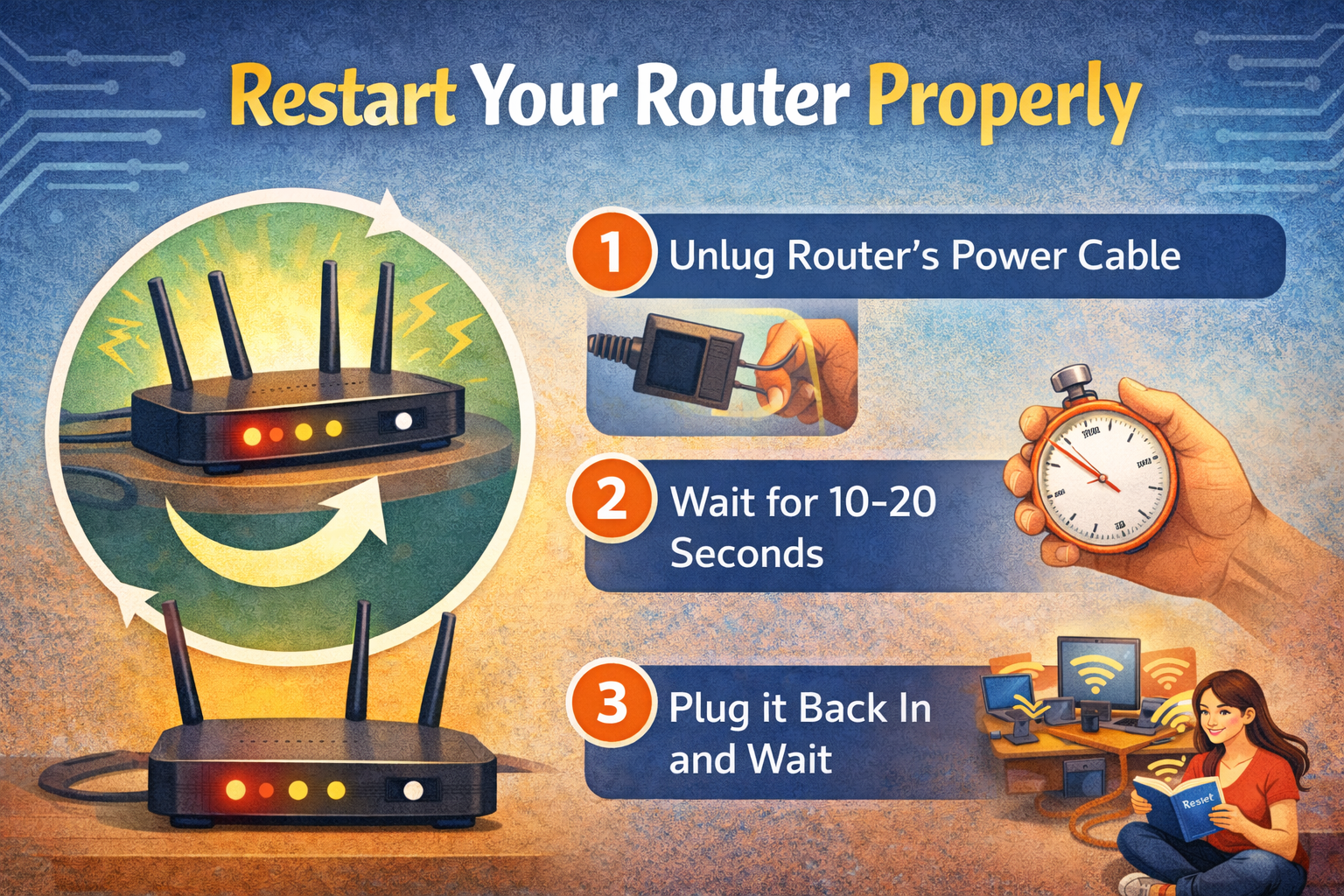
This sounds basic, but it works more often than you think.
How to Restart the Right Way
- Turn off the router using the power button (if available)
- Unplug the power cable
- Wait 30–60 seconds
- Plug it back in
- Wait 2–3 minutes for the lights to stabilize
Why This Works
Restarting clears temporary memory, refreshes the connection, and fixes small software bugs.
Real-world example:
A home office user loses internet every morning. A proper restart fixes the issue instantly—no ISP call needed.
2. Check Router Lights and What They Mean
Your router lights tell a story—if you know how to read them.
Common Router Light Meanings
- Power light off: Router isn’t getting power
- Internet light red or blinking: Connection problem
- Wi-Fi light off: Wireless signal disabled
- LAN light blinking: Device activity (normal)
What to Do
- Compare the lights with the guide on the router’s label or manual
- Restart if lights look abnormal
- Recheck cables if the internet light is off
3. Inspect All Cables and Connections
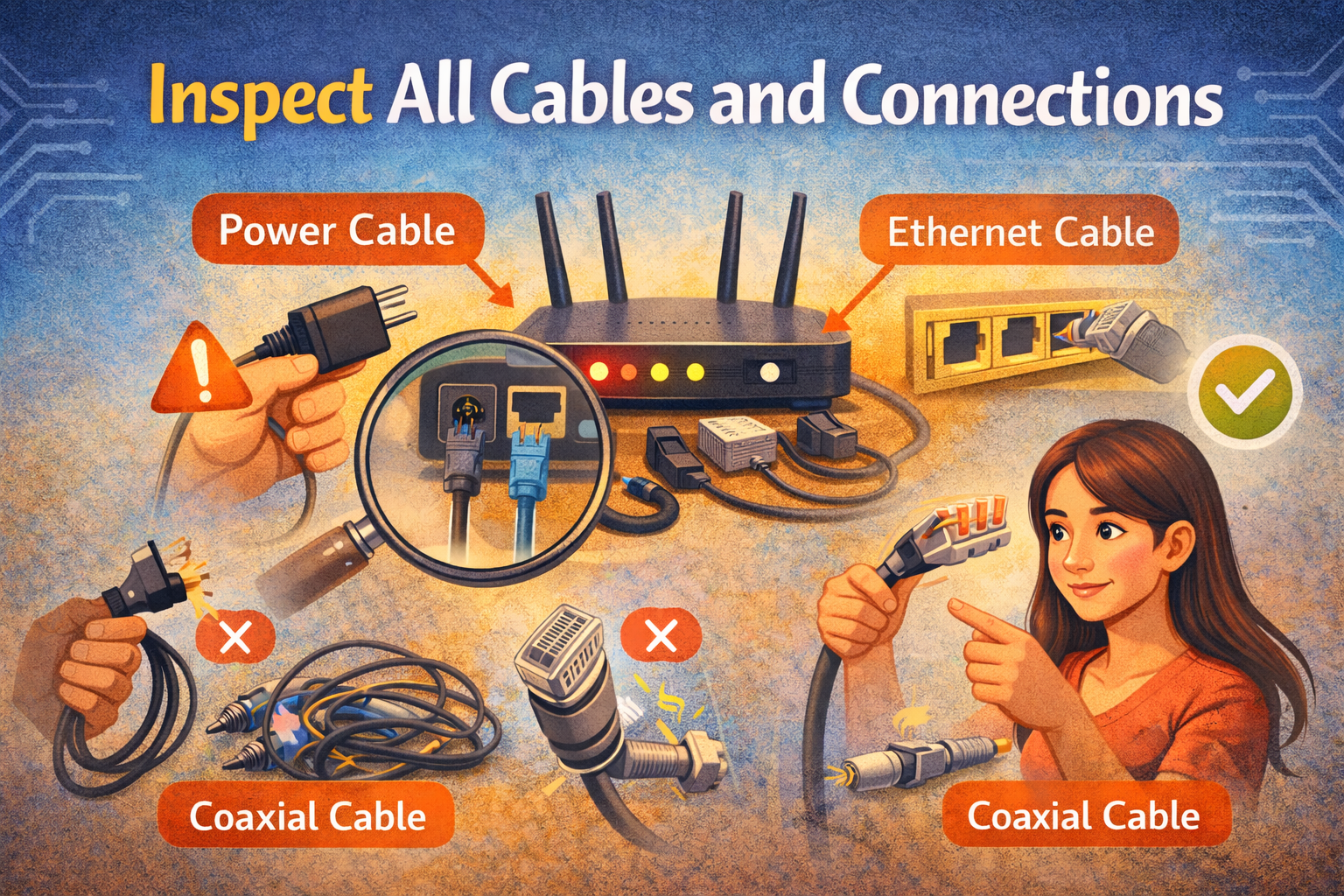
Loose or damaged cables are a silent troublemaker.
What to Check
- Power cable firmly plugged in
- Ethernet cable from modem to router secure
- No visible cable damage
- Try a different Ethernet cable if possible
Real-world example:
A pet chews an Ethernet cable slightly. The internet works randomly. Replacing the cable solves the problem completely.
4. Reposition Your Router for Better Signal
Router placement matters more than most people realize.
Best Router Placement Tips
- Place it in a central location
- Keep it elevated (table or shelf)
- Avoid thick walls and metal objects
- Keep away from microwaves and cordless phones
Bad Places for Routers
- Inside cabinets
- Behind TVs
- On the floor
- Near large mirrors or aquariums
5. Reduce Wi-Fi Interference
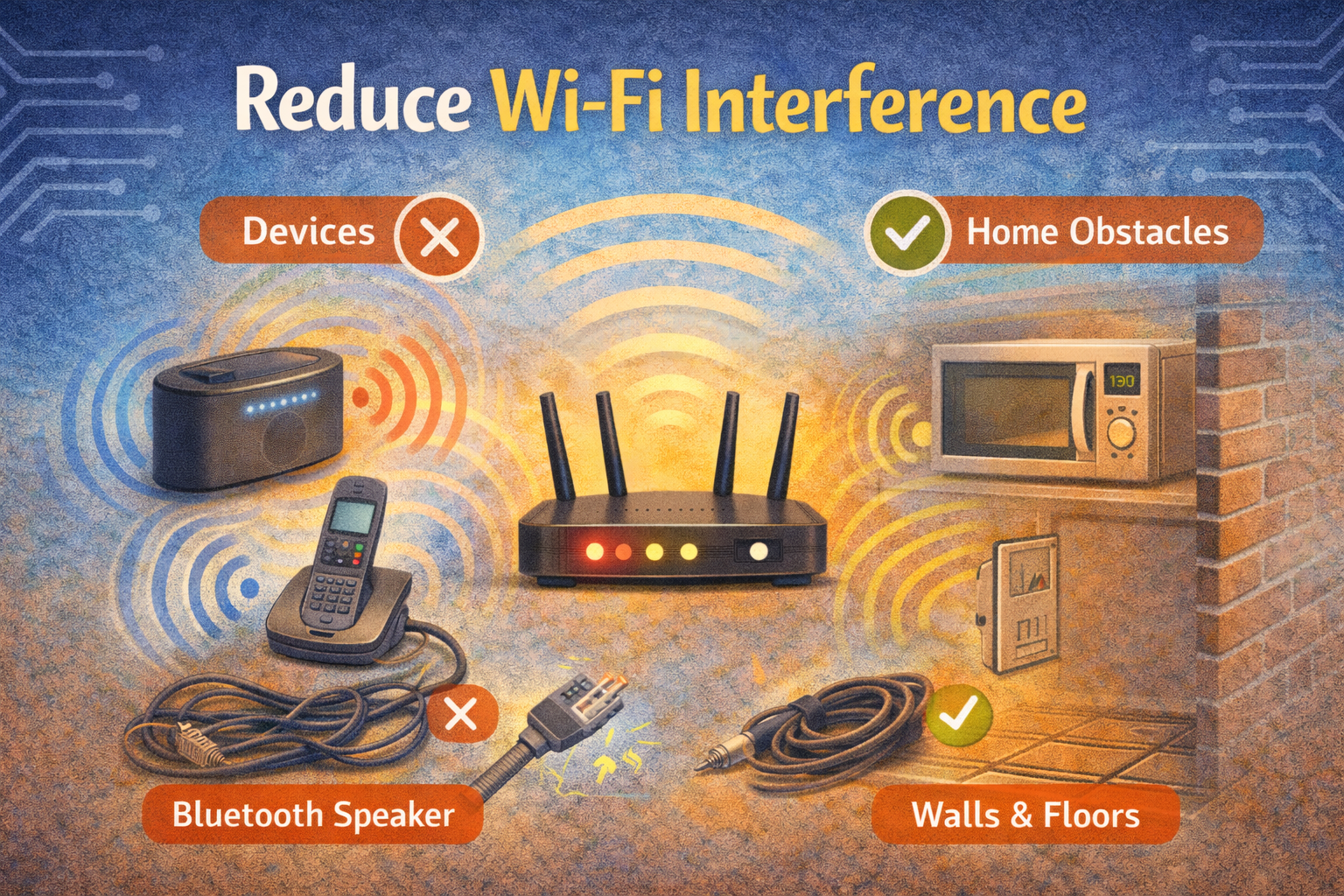
Wi-Fi interference can cause slow speeds and frequent disconnects.
Common Interference Sources
- Other nearby Wi-Fi networks
- Bluetooth devices
- Baby monitors
- Microwave ovens
Easy Fix
- Restart router to auto-select a better channel
- Switch between 2.4 GHz and 5 GHz bands if available
Real-world example:
Apartment residents experience slow Wi-Fi at night. Switching to 5 GHz reduces interference from neighbors’ routers.
6. Disconnect Unused Devices
Too many connected devices can overload your router.
What to Do
- Log into your router admin page
- Check connected devices list
- Remove unknown or unused devices
- Change Wi-Fi password if needed
Why It Helps
Routers have limits. Fewer devices = better performance.
7. Update Router Firmware (Important but Often Ignored)
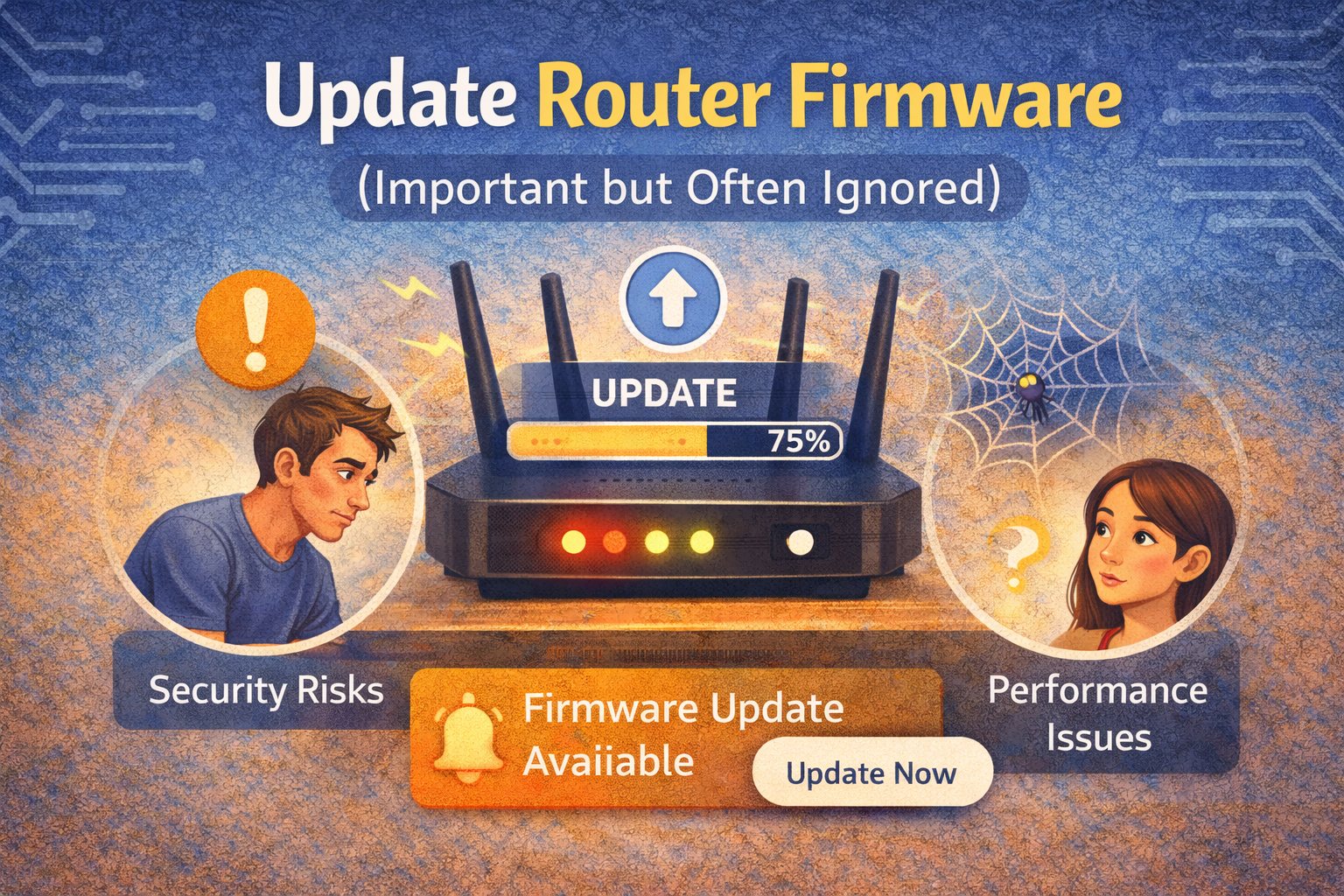
Outdated firmware causes bugs, security issues, and poor performance.
How to Update Router Firmware
- Open a browser
- Enter router IP (usually
192.168.1.1or192.168.0.1) - Log in using admin credentials
- Go to Firmware Update or Router Update
- Install updates if available
Do not unplug the router during an update.
8. Reset Router Settings (Last Resort)
If nothing works, a factory reset can help.
How to Factory Reset
- Locate the reset hole on the router
- Press and hold with a pin for 10–15 seconds
- Release and wait for reboot
- Reconfigure Wi-Fi name and password
Real-world example:
After a power surge, Wi-Fi keeps dropping. A factory reset restores stable internet.
9. Test Internet on One Device
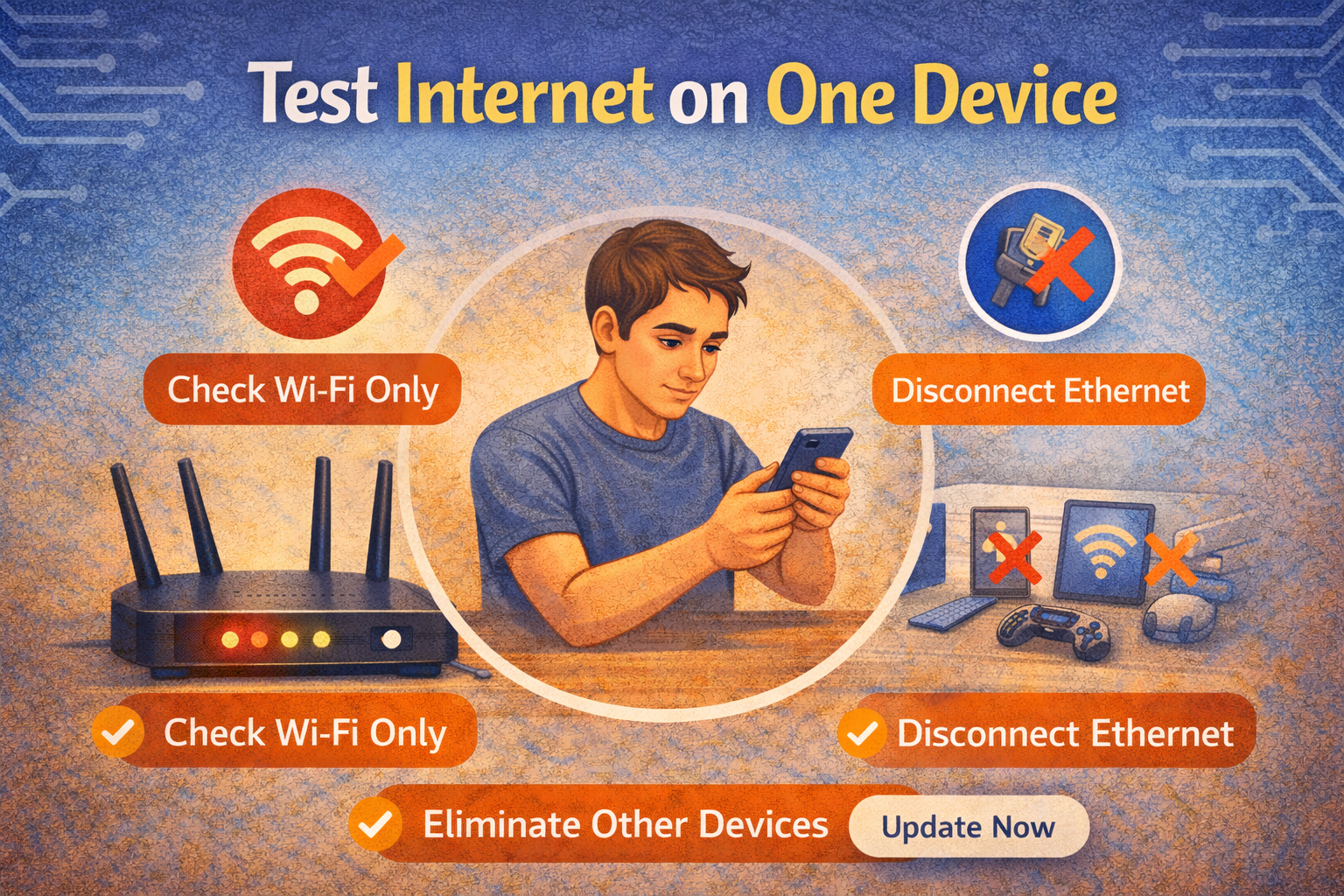
This helps you identify if the problem is the router or a specific device.
How to Test
- Turn off Wi-Fi on all devices
- Connect one phone or laptop
- Check speed and stability
If one device works fine, the issue is likely with another device—not the router.
10. Check for Overheating
Routers can overheat, especially in hot rooms.
Signs of Overheating
- Router feels very hot
- Internet drops after long use
- Performance improves after restart
Fix
- Improve ventilation
- Keep router away from heat sources
- Clean dust regularly
When You Really Don’t Need to Call Your ISP
You usually don’t need your ISP if:
- Restarting fixes the issue
- Only Wi-Fi is slow, not wired internet
- One device has problems, others work fine
- The router lights look normal after fixes
Calling your ISP should be the last step, not the first.
Frequently Asked Questions (FAQ)
1. How often should I restart my router?
Once every 1–2 weeks is a good habit for smooth performance.
2. Can a router cause slow internet even with a good plan?
Yes. Old routers, poor placement, and interference can slow things down.
3. Is factory reset safe for my router?
Yes, but you’ll need to re-enter Wi-Fi settings afterward.
4. Why does Wi-Fi work but internet doesn’t?
This often means the router is fine but not properly communicating with the modem or ISP network.
5. Should I replace my router if problems continue?
If your router is 5+ years old, upgrading can greatly improve speed and stability.
Conclusion
Learning how to fix router problems without calling your ISP can save you time, frustration, and long customer support calls. Most router issues are caused by small things like poor placement, outdated firmware, or simple connection problems.
By following the step-by-step solutions in this guide, even beginners can fix common router problems confidently. Try these fixes first—chances are, your internet will be back to normal in minutes.