How to Fix iPhone Mobile Data Not Working
If your iPhone mobile data not working issue is stopping you from browsing the web, using social media, or sending messages without Wi-Fi, you’re not alone. Many iPhone users face this problem at some point, especially after a software update, network change, or SIM card issue.
The good news? In most cases, you can fix iPhone mobile data not working problems yourself—no technical skills needed. This guide is written for beginners and everyday users. I’ll walk you through simple, step-by-step solutions, explain why the problem happens, and show real-life examples so you know exactly what to do.
Why Is iPhone Mobile Data Not Working?
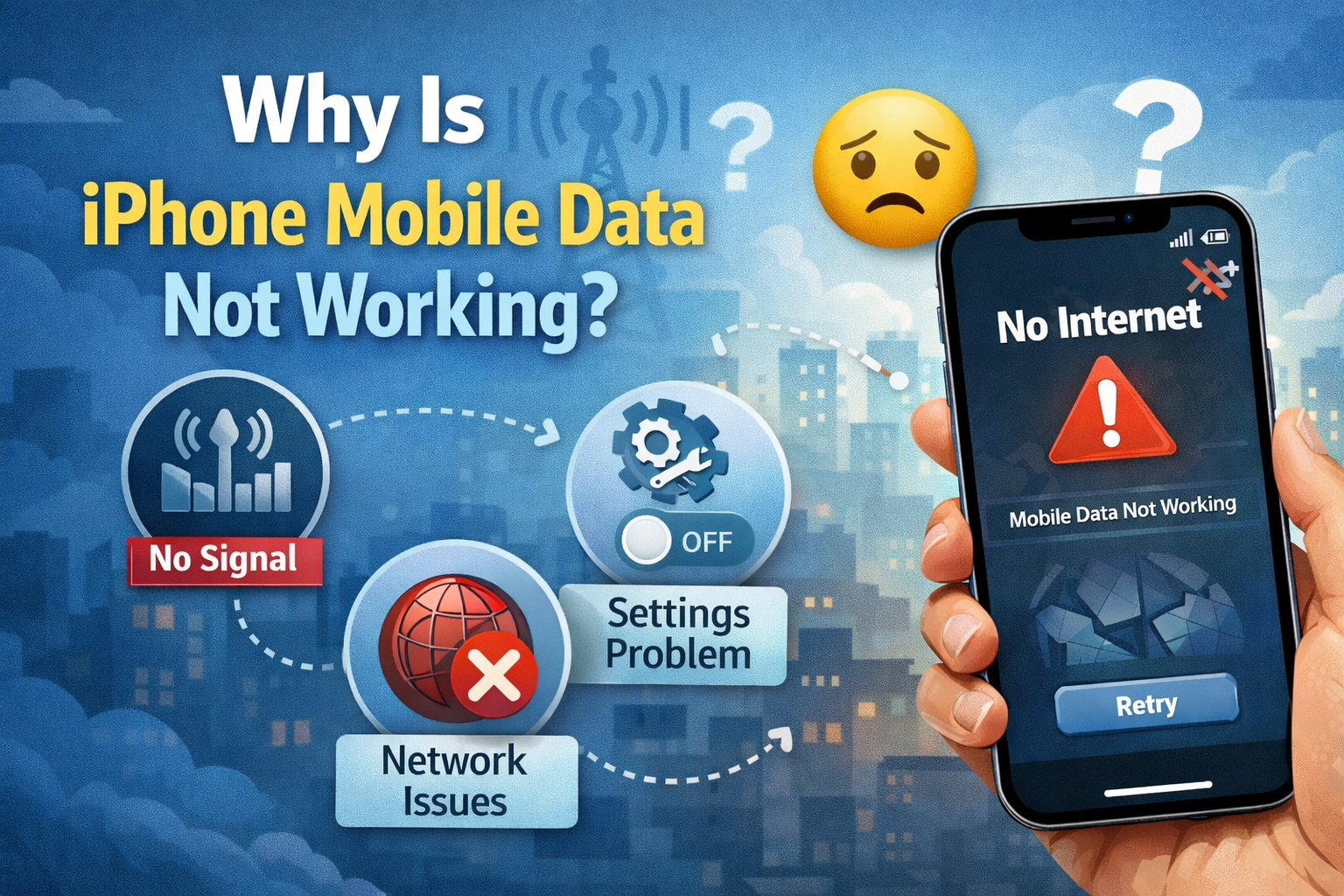
Before fixing the issue, it helps to understand why it happens. Common reasons include:
- Mobile data is turned off
- Weak or no network signal
- Wrong APN or carrier settings
- SIM card problems
- iOS software bugs
- Data limit reached or carrier restrictions
Don’t worry—you don’t need to know which one is causing the issue. Just follow the steps below in order.
Step 1: Check If Mobile Data Is Turned On
This might sound obvious, but it’s the most common cause.
How to check mobile data on iPhone:
- Open Settings
- Tap Cellular (or Mobile Data)
- Make sure Cellular Data is turned ON (green)
Also scroll down and check that mobile data is enabled for the apps you use, like Safari, WhatsApp, or Instagram.
Real-world example:
After turning on Low Power Mode, some users accidentally turn off mobile data. Turning it back on instantly fixes the issue.
Step 2: Turn Airplane Mode On and Off
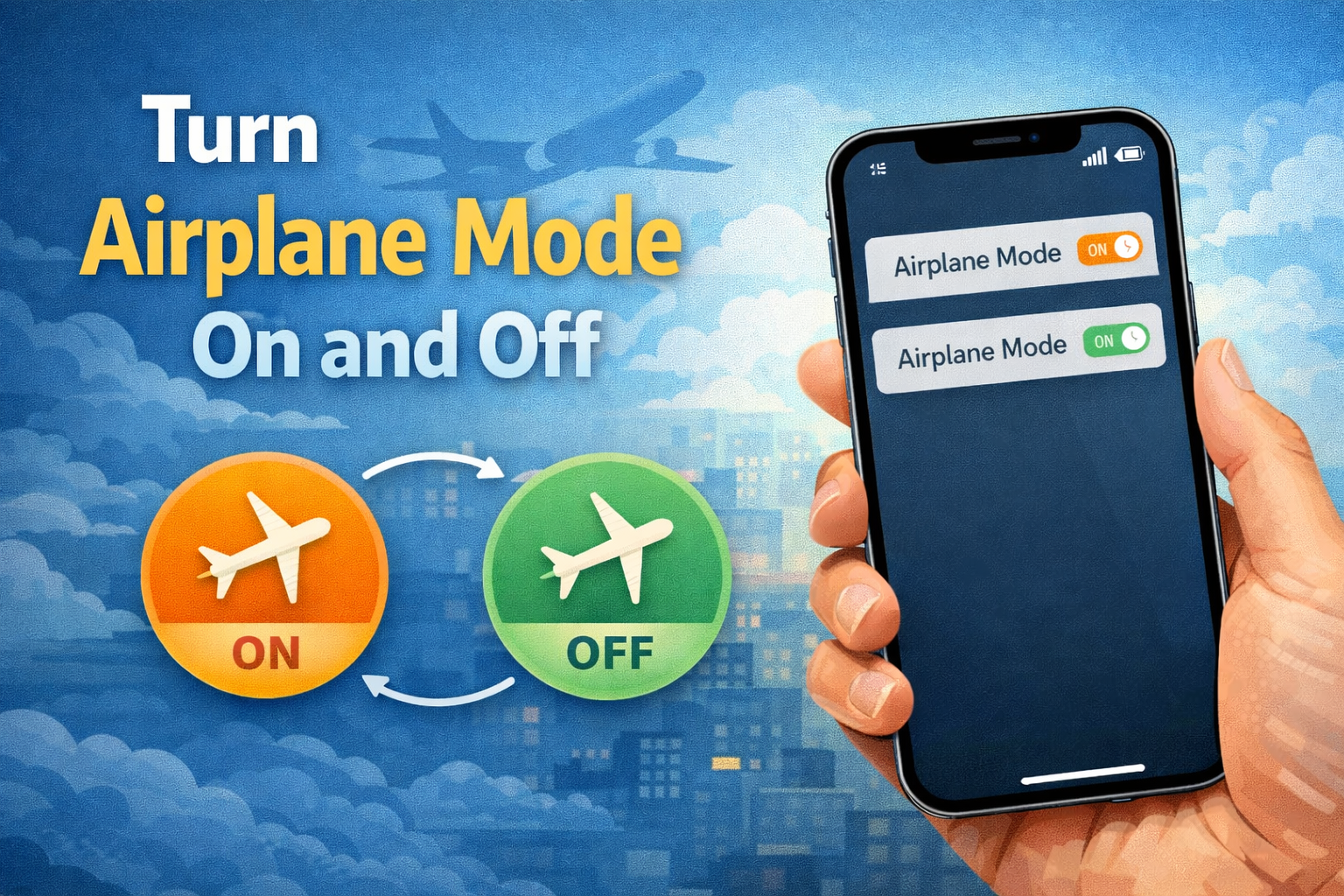
This quick trick refreshes your iPhone’s network connection.
Steps:
- Open Settings
- Turn Airplane Mode ON
- Wait 10–15 seconds
- Turn Airplane Mode OFF
Your iPhone will reconnect to the nearest mobile tower.
Why this works:
It forces your phone to re-register on the mobile network, fixing temporary signal issues.
Step 3: Check Network Signal Strength
If you see No Service or very weak signal bars, mobile data won’t work properly.
What to do:
- Move to an open area
- Avoid basements or elevators
- Try going outside or near a window
If others around you on the same carrier also have no signal, it could be a carrier outage.
Step 4: Restart Your iPhone
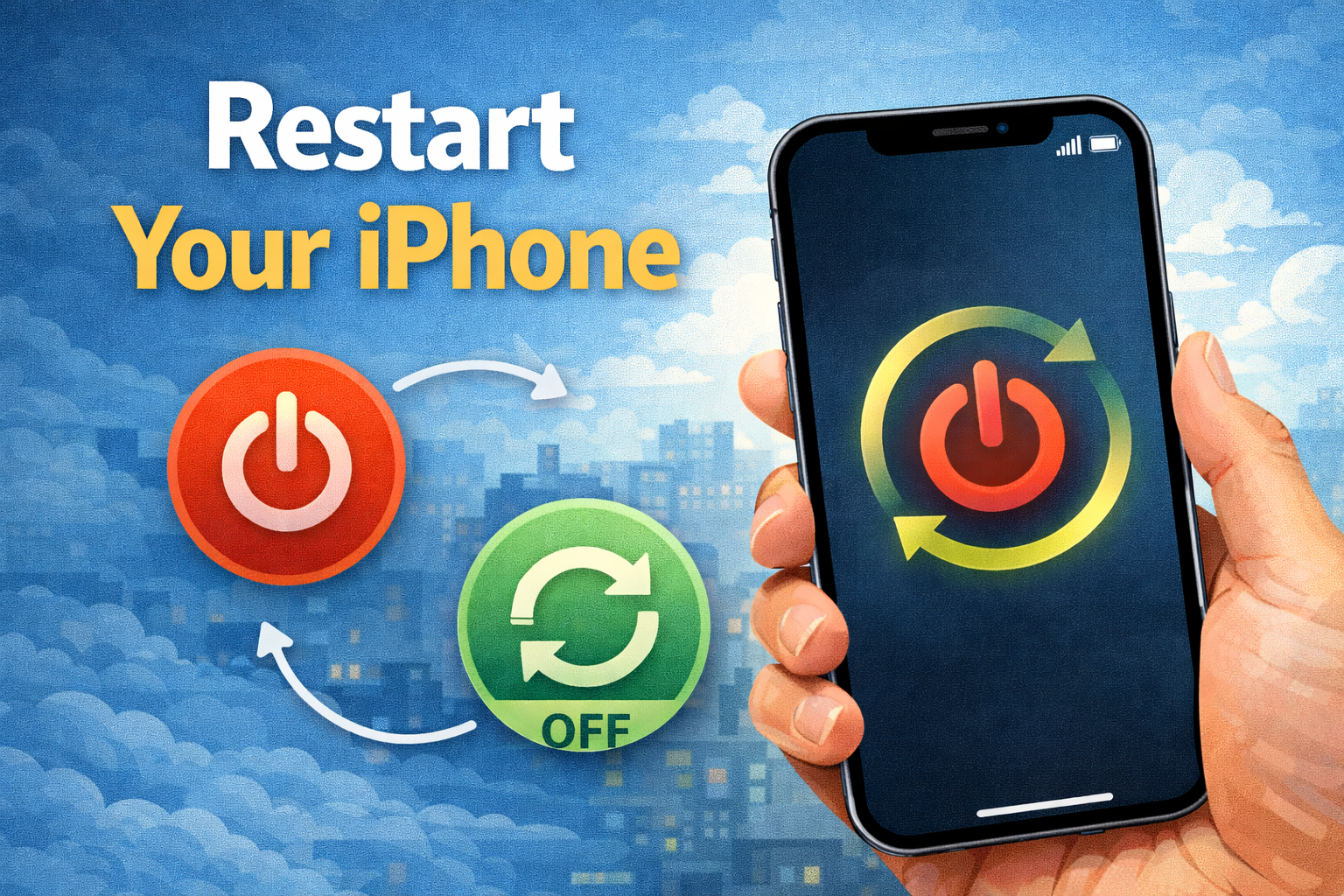
Restarting clears temporary system bugs that can block mobile data.
How to restart:
- iPhone with Face ID:
Press and hold Side button + Volume button, then slide to power off. - iPhone with Home button:
Press and hold the Power button, then slide to power off.
Wait 30 seconds, then turn your iPhone back on.
Real-world example:
Many users report that mobile data stops working after long uptime. A simple restart restores the connection.
Step 5: Check Your Data Plan and Usage
Your mobile data may stop working if you’ve used up your monthly data limit.
How to check:
- Go to Settings > Cellular
- Scroll down to see Cellular Data Usage
- Compare it with your carrier’s data plan
If you’ve reached the limit, your carrier may slow down or block data.
Tip:
Log in to your carrier app or contact customer support to confirm your data balance.
Step 6: Enable Cellular Data for LTE/5G
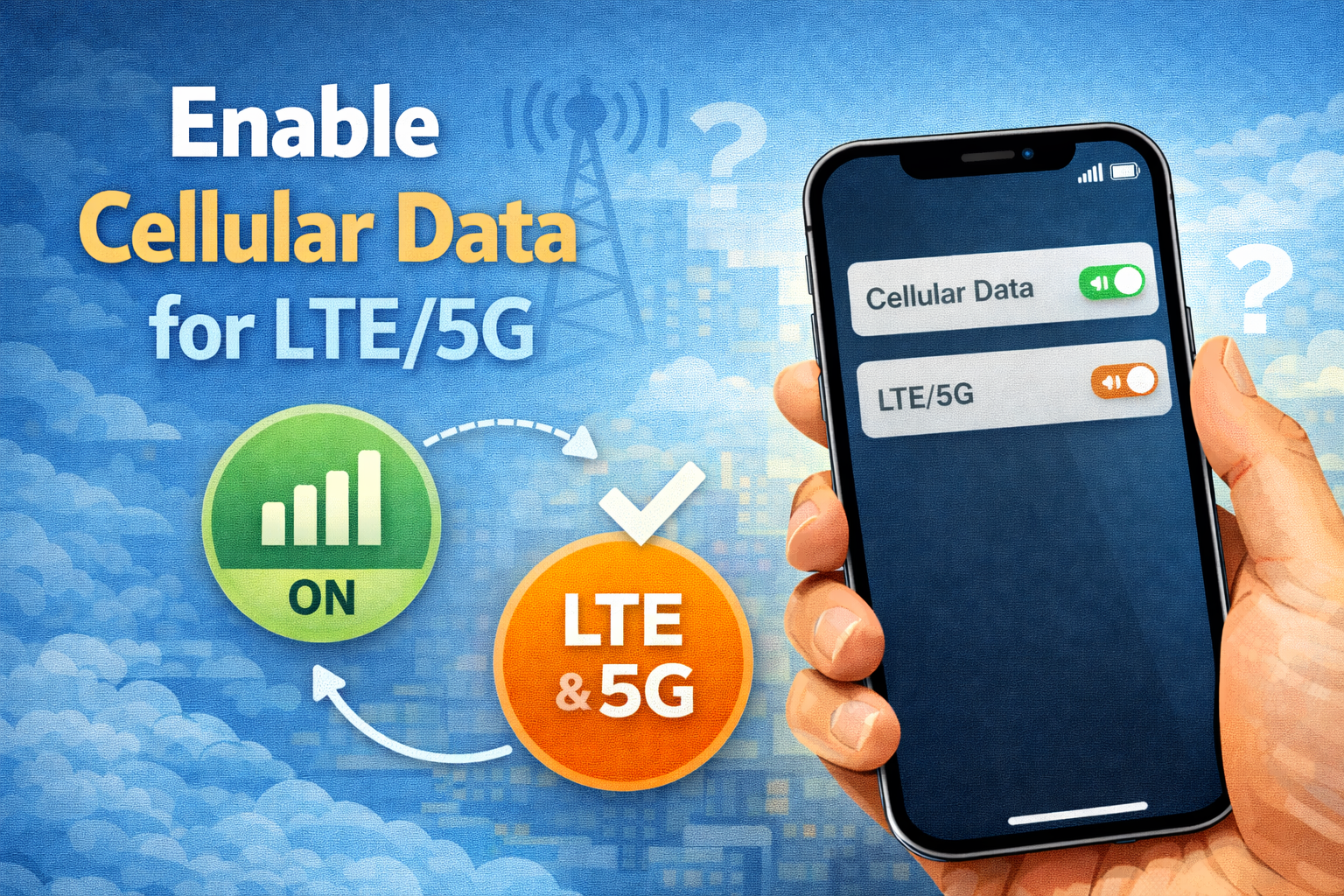
If your iPhone is not set to use LTE or 5G, data speeds may be very slow or not work.
Steps:
- Open Settings
- Tap Cellular
- Tap Cellular Data Options
- Tap Voice & Data
- Select LTE, 5G Auto, or 5G On (depending on your device)
Step 7: Reset Network Settings (Very Effective)
If iPhone mobile data not working still persists, this step often fixes it.
This will remove saved Wi-Fi passwords and Bluetooth connections, but not your data.
Steps:
- Go to Settings
- Tap General
- Tap Transfer or Reset iPhone
- Tap Reset
- Choose Reset Network Settings
- Enter your passcode and confirm
Why this works:
It removes incorrect network configurations that block mobile data.
Step 8: Check for iOS Software Updates
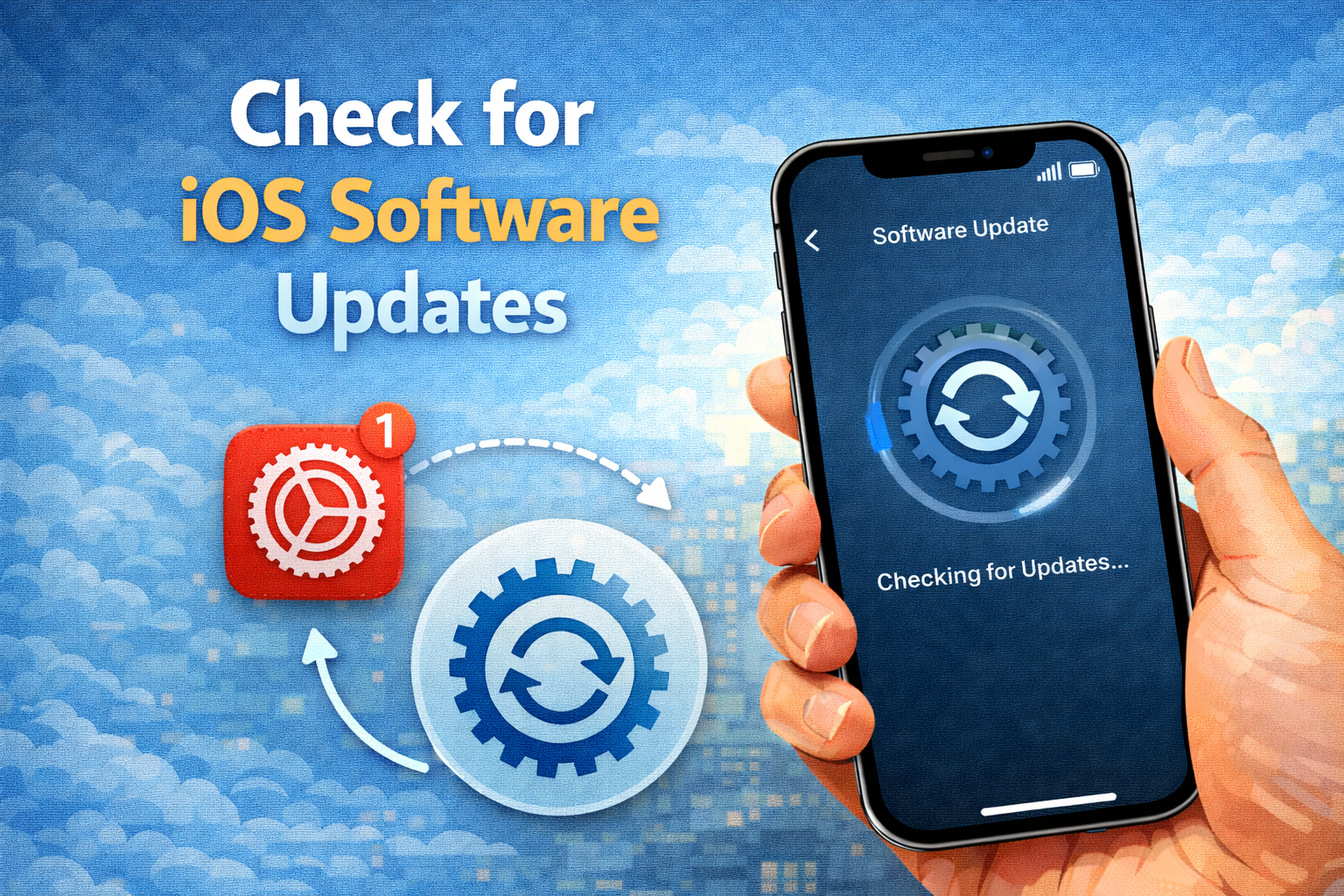
Software bugs can cause mobile data issues.
How to update iOS:
- Open Settings
- Tap General
- Tap Software Update
- Download and install any available update
Real-world example:
Some users experienced mobile data issues after an iOS update, which Apple fixed in the next patch.
Step 9: Update Carrier Settings
Carrier settings updates improve connectivity and network performance.
Steps:
- Go to Settings > General > About
- Wait for a few seconds
- If an update appears, tap Update
If no popup appears, your carrier settings are already up to date.
Step 10: Check or Reinsert the SIM Card
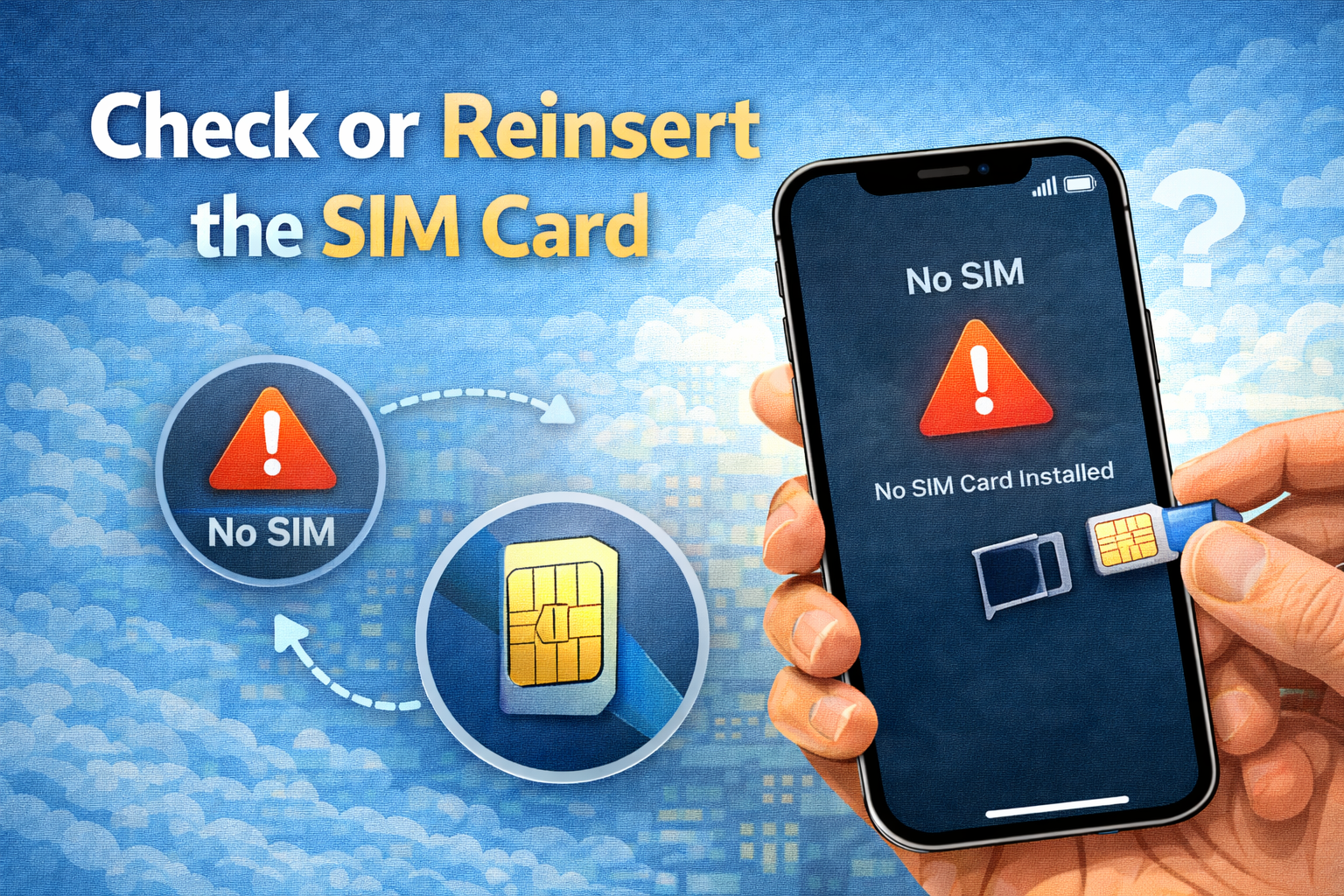
A loose or damaged SIM card can stop mobile data.
What to do:
- Turn off your iPhone
- Use a SIM eject tool to remove the SIM
- Clean it gently
- Reinsert it properly
- Turn your iPhone back on
If possible, test the SIM in another phone. If it doesn’t work there either, the SIM may be faulty.
Step 11: Disable VPN or Network Profiles
VPNs or device management profiles can interfere with mobile data.
Steps:
- Go to Settings
- Tap VPN & Device Management
- Turn off VPN or remove suspicious profiles
- Test mobile data again
When to Contact Your Carrier or Apple Support
If none of the above steps work, the issue may be beyond your control.
Contact your carrier if:
- Your SIM card is blocked
- There’s a network outage
- Your plan has restrictions
Contact Apple Support if:
- Mobile data never works on any network
- Your iPhone shows “No Service” constantly
- Hardware damage is suspected
FAQ: iPhone Mobile Data Not Working
1. Why is my iPhone mobile data not working but Wi-Fi works?
Wi-Fi working means your phone is fine, but the issue is with your mobile network, SIM card, or data settings.
2. Does resetting network settings delete my data?
No. It only removes Wi-Fi passwords, VPNs, and Bluetooth connections.
3. Can iOS updates cause mobile data issues?
Yes, sometimes. Updating to the latest iOS version usually fixes these bugs.
4. Why is mobile data slow even with full signal?
Your data limit may be reached, or your carrier may be throttling speeds.
5. Should I replace my SIM card?
If your SIM doesn’t work in another phone, replacing it is a good idea.
Conclusion
Dealing with iPhone mobile data not working can be frustrating, but most problems are easy to fix. By checking your settings, restarting your phone, resetting network settings, and keeping iOS updated, you can solve the issue in minutes.
Start with the simple steps and move to advanced ones only if needed. In most cases, you won’t need a repair shop or technical help—just a few smart checks and fixes.