How to Fix iPhone Black Screen of Death (Step-by-Step Guide for Beginners)
If your iPhone suddenly shows a black screen and refuses to turn on, don’t panic. This problem is commonly known as the iPhone Black Screen of Death, and it happens to thousands of users every day. The good news? In most cases, you can fix it yourself at home—no tech skills required.
The How to Fix iPhone Black Screen of Death issue usually looks scary, but it’s often caused by software glitches, drained batteries, or simple system crashes. In this beginner-friendly guide, you’ll learn why it happens, how to fix it step by step, and when it’s time to visit a repair shop.
Let’s get your iPhone back to life
What Is the iPhone Black Screen of Death?
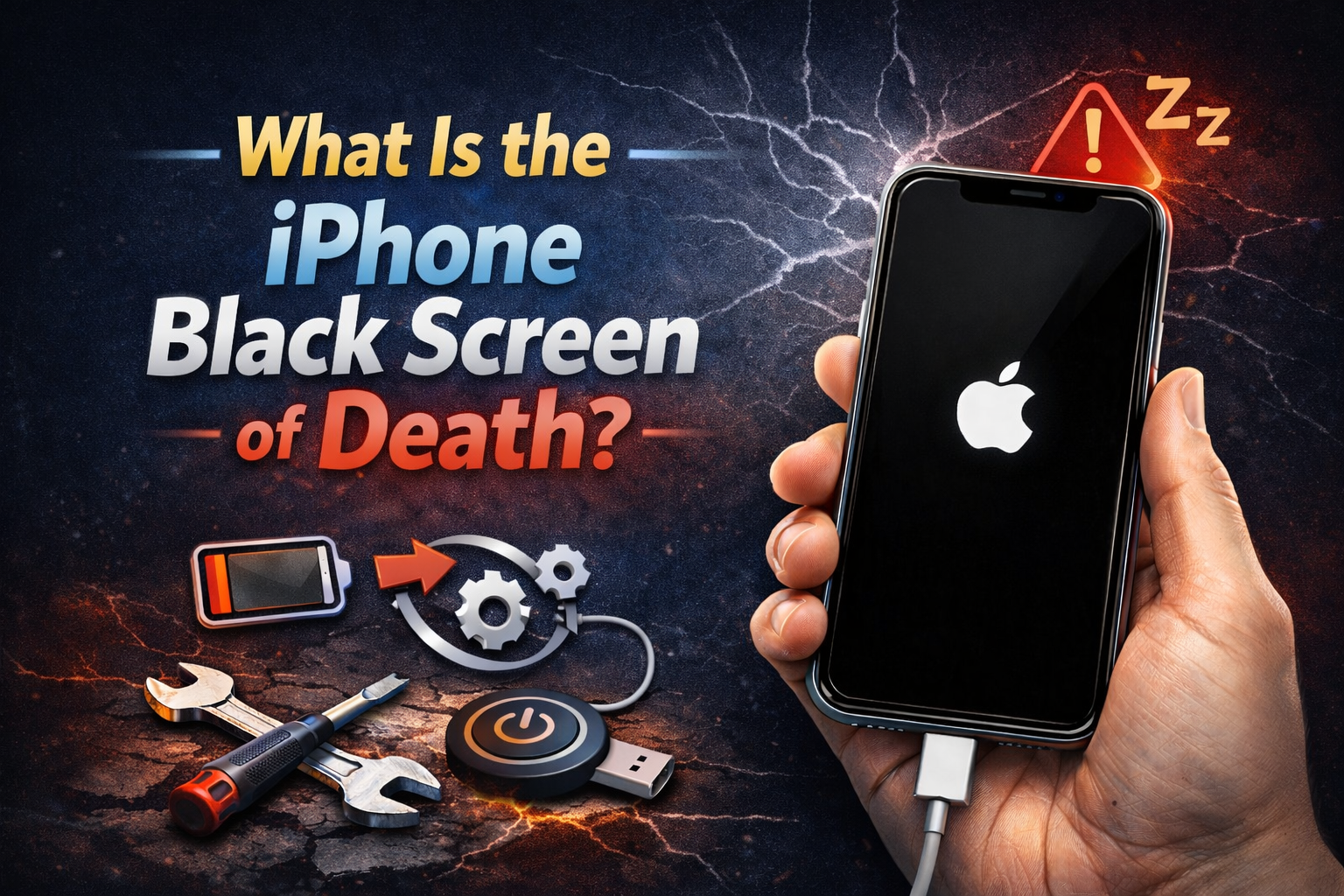
The iPhone Black Screen of Death happens when your iPhone appears completely dead:
- The screen stays black
- Touch doesn’t work
- Buttons seem unresponsive
- The phone won’t turn on or restart
In many cases, the iPhone is still powered on, but the display or system is frozen.
Common Causes of iPhone Black Screen of Death
Understanding the cause helps you choose the right fix.
Battery Issues
- Battery fully drained
- Faulty charging cable or adapter
- Dirty charging port
Software Problems
- iOS update failed
- App crash or system freeze
- Jailbreaking issues
Hardware Damage
- Dropped phone
- Water or moisture exposure
- Loose display connection
Overheating
- Using heavy apps for too long
- Charging in hot environments
Quick Things to Check Before Troubleshooting
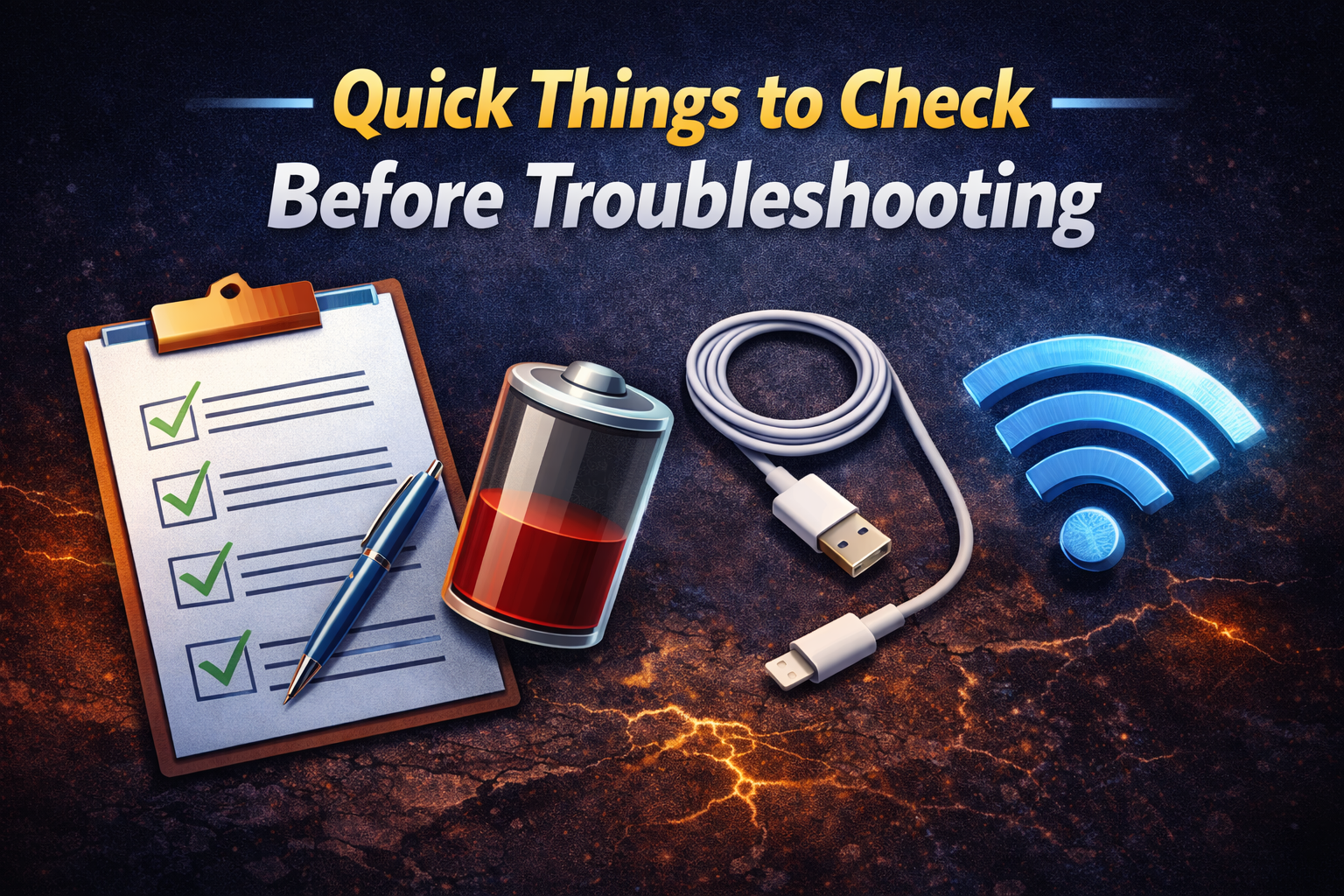
Before trying advanced fixes, do these simple checks:
- Plug your iPhone into a charger for at least 30 minutes
- Try a different charging cable and adapter
- Check if the phone vibrates or makes sounds
- Look closely to see if the screen is just very dim
If nothing changes, move on to the step-by-step solutions below.
How to Fix iPhone Black Screen of Death (Step-by-Step)
1. Force Restart Your iPhone (Most Effective Fix)
A force restart clears system crashes without deleting data.
For iPhone 8 and newer (including iPhone X, 11, 12, 13, 14, 15):
- Quickly press Volume Up and release
- Quickly press Volume Down and release
- Press and hold the Side button
- Release when you see the Apple logo
For iPhone 7 / 7 Plus:
- Press and hold Volume Down + Power button
- Release when the Apple logo appears
For iPhone 6s and older:
- Press and hold Home + Power button
- Wait for the Apple logo
Real-world example:
Many users report their iPhone screen coming back instantly after a force restart—especially after an app crash or update freeze.
2. Charge Your iPhone Properly
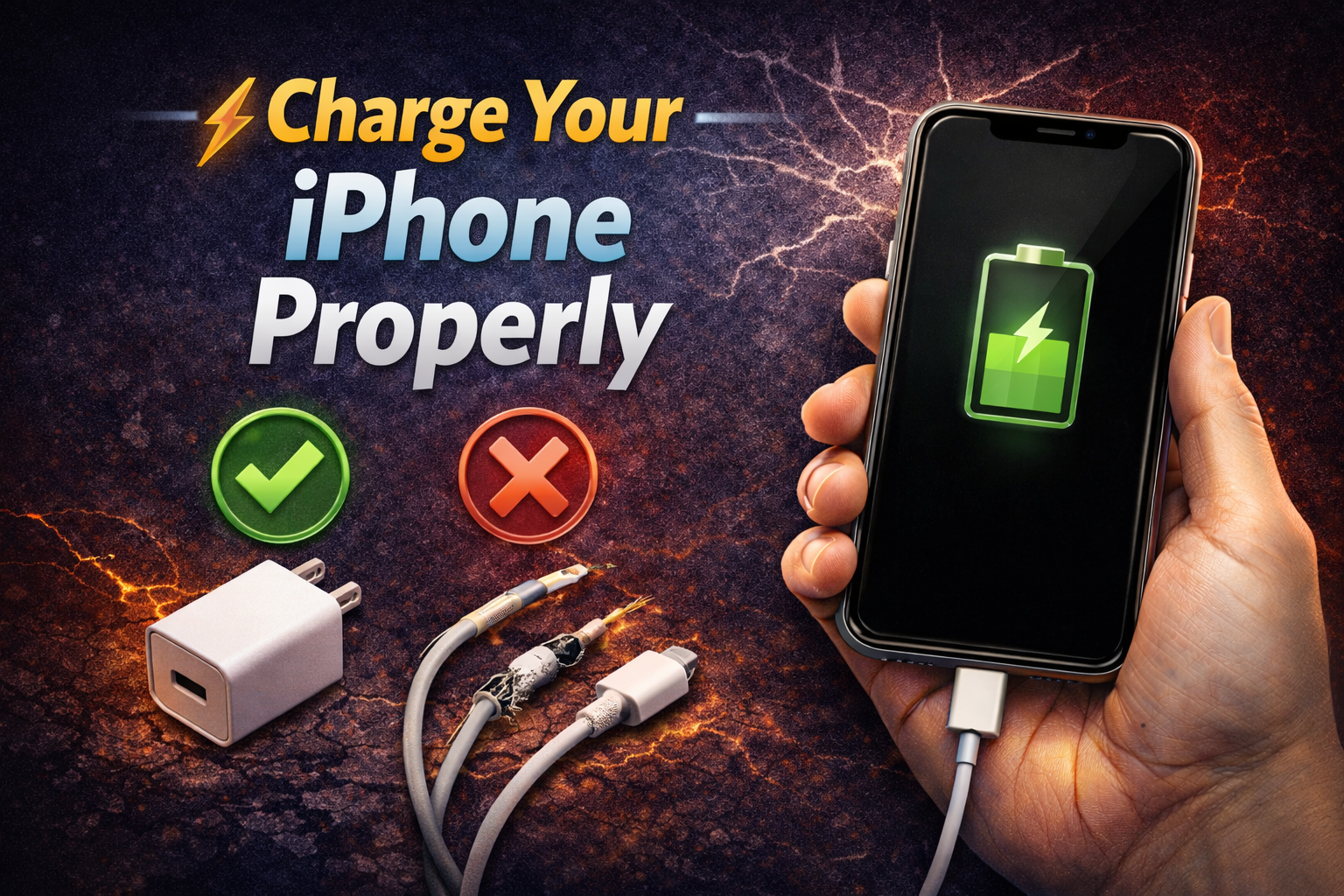
Sometimes the phone is simply out of power.
Steps:
- Use an original or certified charger
- Plug into a wall outlet (not a laptop)
- Charge for 30–60 minutes
- Look for a battery icon or Apple logo
If the charging port is dirty, gently clean it with a wooden toothpick.
3. Check If the Screen Is Actually On
Your iPhone may be on, but the screen brightness is too low.
Try this:
- Call your iPhone from another phone
- Turn on Silent mode (listen for vibration)
- Shine a flashlight at the screen and look closely
If you see faint images, the display may be damaged and need repair.
How to Fix iPhone Black Screen of Death Using a Computer
4. Update iPhone Using Recovery Mode (No Data Loss)
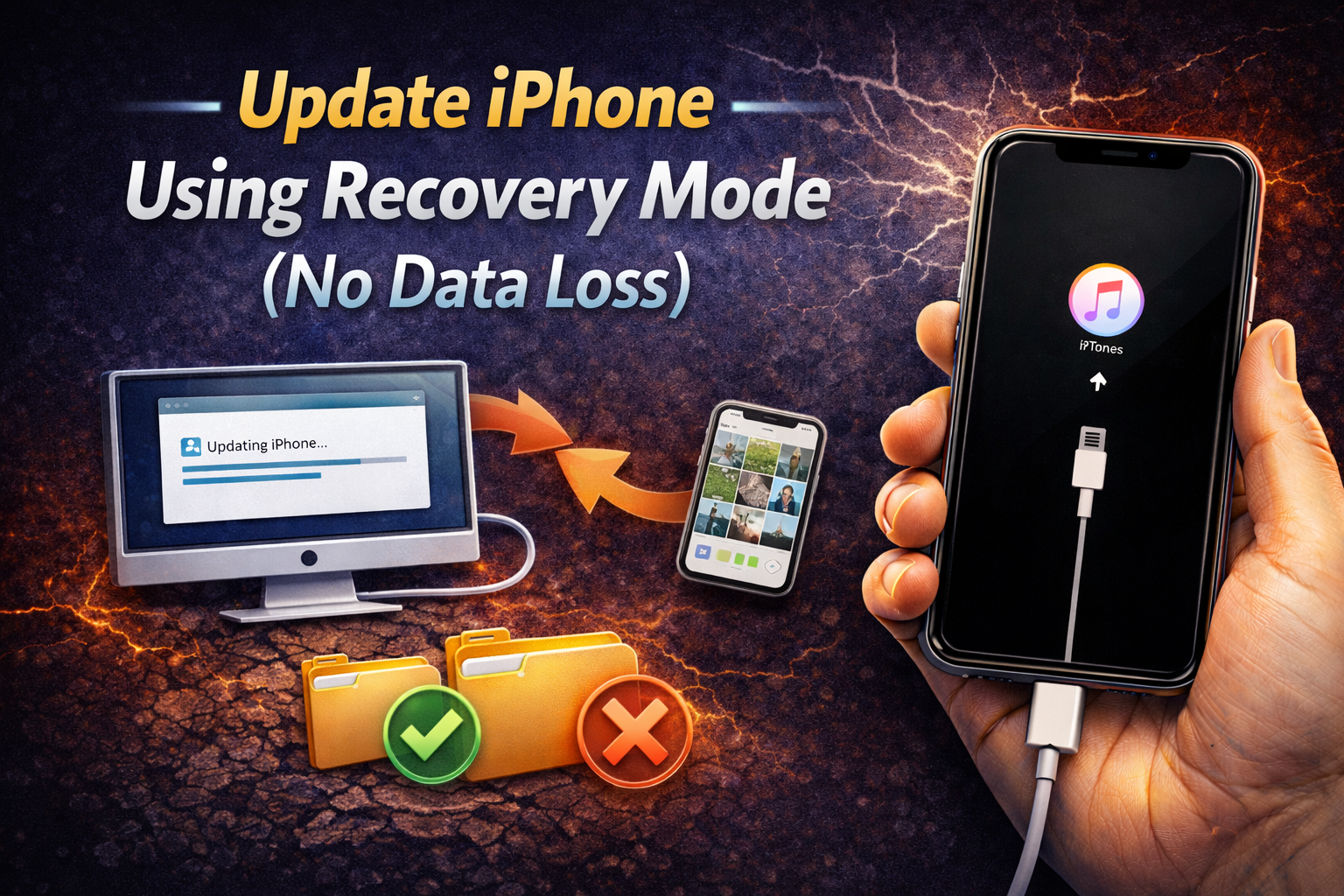
This is useful if the issue is caused by a failed iOS update.
Steps:
- Connect iPhone to a computer
- Open Finder (Mac) or iTunes (Windows)
- Force restart and keep holding until Recovery Mode appears
- Choose Update (not Restore)
This reinstalls iOS without deleting your data.
5. Restore iPhone (Last Software Option)
If updating doesn’t work, restoring may help—but it erases data.
Steps:
- Connect iPhone to computer
- Enter Recovery Mode
- Select Restore iPhone
Only use this if you have a backup.
When iPhone Black Screen of Death Is a Hardware Problem
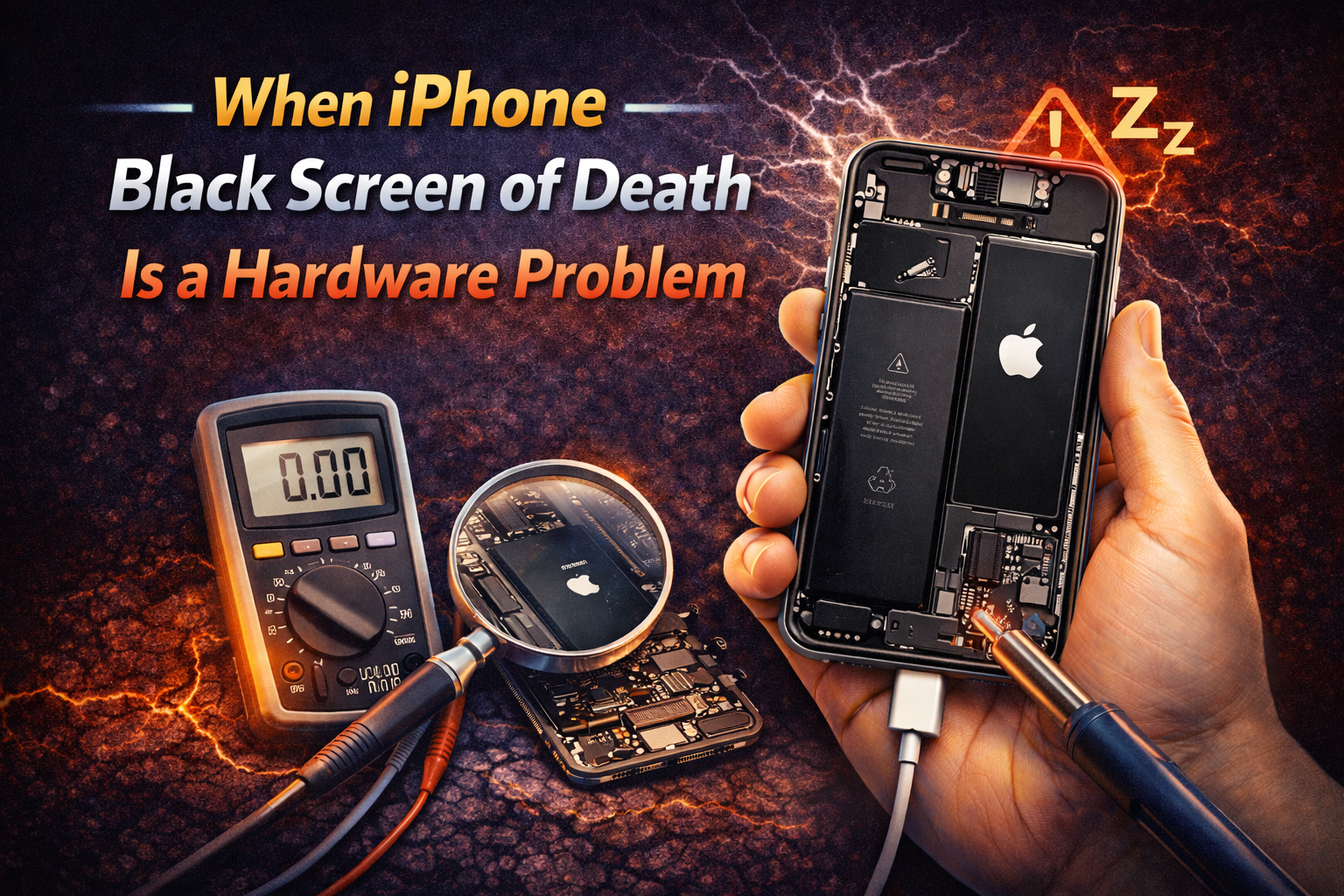
If none of the software fixes work, the issue may be physical.
Signs of Hardware Damage
- Phone dropped recently
- Water exposure
- Screen cracked
- Phone overheats often
In these cases, DIY fixes won’t help much.
When to Visit an Apple Store or Repair Shop
You should seek professional help if:
- Screen stays black after all fixes
- iPhone doesn’t charge at all
- Phone was exposed to water
- You see lines or flickering before the black screen
A technician can test:
- Battery health
- Display connection
- Logic board issues
How to Prevent iPhone Black Screen of Death in the Future
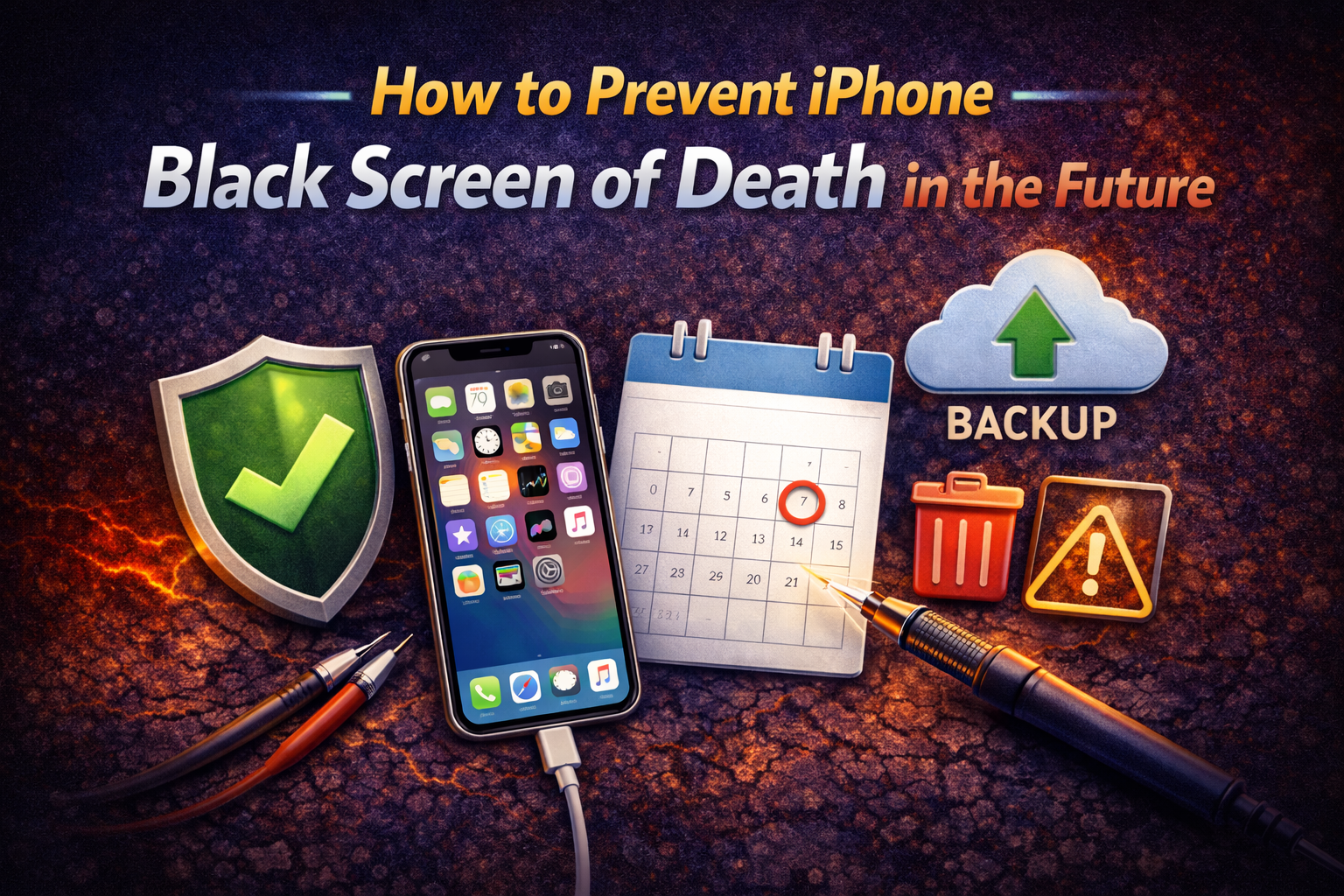
Keep iOS Updated
Always install stable iOS updates.
Avoid Overheating
Remove phone case while charging if it gets hot.
Use Trusted Apps Only
Avoid apps that crash or overload your phone.
Charge Smartly
Don’t let your battery drain to 0% often.
Back Up Regularly
Use iCloud or a computer to avoid data loss.
Frequently Asked Questions (FAQ)
1. Can the iPhone Black Screen of Death fix itself?
Yes. Sometimes the iPhone restarts automatically after cooling down or charging.
2. Will I lose data if my iPhone screen is black?
Not always. Force restart and Update mode do not erase data.
3. Is the Black Screen of Death caused by iOS updates?
It can be, especially if the update is interrupted or fails.
4. Can water cause iPhone Black Screen of Death?
Yes. Even small moisture can damage the display or internal parts.
5. How much does it cost to fix a black screen iPhone?
Costs vary. Software fixes are free, while screen or battery repairs depend on the model.
Conclusion
The iPhone Black Screen of Death may look serious, but in most cases, it’s caused by simple software or battery issues. By following this step-by-step guide, beginners can safely fix the problem at home—often within minutes.
If the screen stays black after trying all solutions, professional repair is the safest option. Most importantly, keep your iPhone updated, charged properly, and backed up to avoid this issue in the future.