
How to Fix Common Software Errors on Windows and Mac
How to fix common software errors on Windows and Mac is one of the most searched topics by everyday computer users. Whether you are using your laptop for work, study, or entertainment, software errors can suddenly appear and interrupt everything you are doing.
The good news is that most software errors on Windows and Mac are easy to fix, even if you are a beginner. You don’t need advanced technical skills or expensive repair services. In this guide, I will walk you through simple, step-by-step solutions that actually work, using clear language and real-world examples.
Understanding Common Software Errors
Before learning how to fix them, it helps to understand why software errors happen.
What Is a Software Error?
A software error is when an application or operating system does not work as expected. This can include:
- Apps crashing or freezing
- Error messages popping up
- Programs refusing to open
- Slow system performance
Why Software Errors Happen
Common reasons include:
- Outdated software or operating systems
- Corrupted system files
- Incompatible applications
- Low storage space
- Malware or viruses
Understanding these causes makes it much easier to fix common software errors on Windows and Mac.
How to Fix Common Software Errors on Windows
Windows users often face software issues because of frequent updates, driver conflicts, or corrupted files. Below are beginner-friendly solutions.
Restart Your Computer (Simple but Powerful)
This sounds basic, but it works more often than you think.
Steps:
- Save your work
- Restart your computer
- Open the program again
Real-world example:
If Microsoft Word freezes or shows “Not Responding,” a restart often clears temporary memory issues instantly.
Update Windows and Installed Software
Outdated systems are a major cause of software errors.
Steps:
- Open Settings
- Click Windows Update
- Select Check for updates
- Install all available updates
Also update apps from the Microsoft Store or official websites.
Why this works:
Updates fix bugs, security issues, and compatibility problems.
Run Windows Troubleshooter
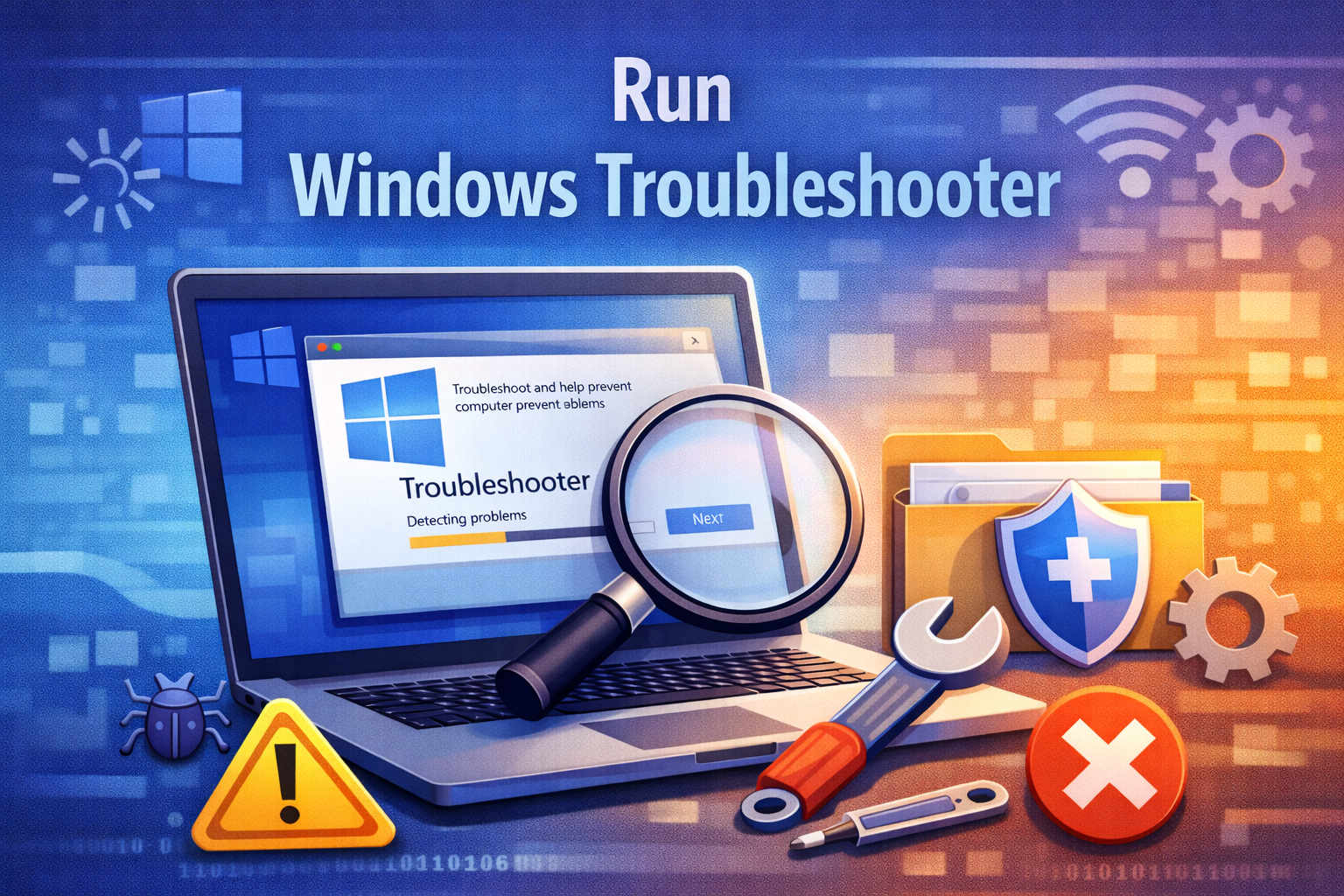
Windows includes built-in tools to fix common problems automatically.
Steps:
- Open Settings
- Go to System → Troubleshoot
- Click Other troubleshooters
- Run the recommended tool
This is very helpful for network, audio, and printer-related errors.
Check and Repair System Files
Corrupted system files can cause repeated errors.
Steps:
- Press Windows + S
- Type Command Prompt
- Right-click and choose Run as administrator
- Enter this command:
sfc /scannow - Wait for the scan to finish
Real-world example:
If Windows Explorer crashes frequently, this scan often repairs the issue.
Uninstall and Reinstall the Problematic App
If one specific app keeps failing, reinstalling it can help.
Steps:
- Open Settings → Apps
- Find the app
- Click Uninstall
- Restart your PC
- Install the latest version
This removes corrupted files and settings.
How to Fix Common Software Errors on Mac
Mac systems are known for stability, but they can still experience software problems.
Force Quit Frozen Applications
When an app freezes, force quitting is often the fastest fix.
Steps:
- Press Command + Option + Escape
- Select the frozen app
- Click Force Quit
Real-world example:
If Safari becomes unresponsive after opening many tabs, force quitting usually fixes it instantly.
Restart Your Mac
Just like Windows, restarting macOS clears temporary system glitches.
Steps:
- Click the Apple menu
- Choose Restart
- Reopen the app
This helps resolve memory and background process issues.
Update macOS and Applications
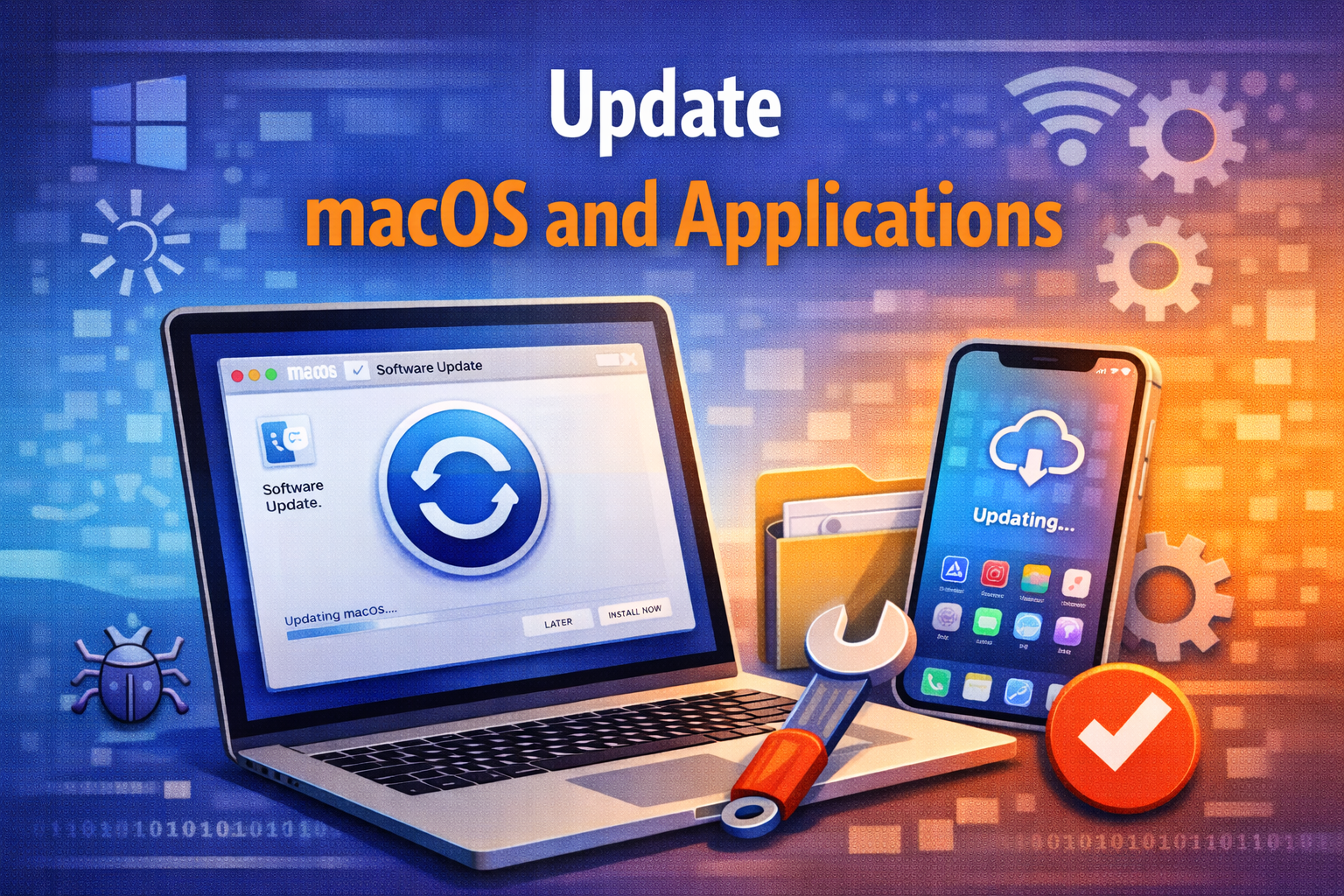
Apple regularly releases bug fixes and security updates.
Steps:
- Open System Settings
- Click General → Software Update
- Install available updates
Also update apps from the App Store.
Check Disk Errors Using Disk Utility
Disk issues can cause apps to crash or fail to open.
Steps:
- Open Disk Utility
- Select your main disk
- Click First Aid
- Run the scan
This repairs minor disk errors automatically.
Reinstall the Problem App
If an app keeps crashing, reinstalling it often solves the problem.
Steps:
- Drag the app to Trash
- Empty Trash
- Restart your Mac
- Download and reinstall the app
This ensures a clean installation.
General Tips to Prevent Software Errors
Preventing errors is easier than fixing them.
Keep Your System Clean
- Avoid installing unnecessary software
- Remove unused apps
- Clear temporary files regularly
Use Reliable Antivirus Software
Malware can corrupt files and cause frequent errors.
Avoid Force Shutdowns
Always shut down properly to prevent file corruption.
Keep Enough Free Storage
Low disk space can cause apps to crash or slow down.
FAQ: Fixing Common Software Errors on Windows and Mac
1. Why do my apps keep crashing?
Apps usually crash due to outdated software, corrupted files, or low system resources.
2. Is restarting really effective?
Yes. Restarting clears temporary system memory and fixes many common errors instantly.
3. Do I need third-party repair tools?
In most cases, no. Built-in Windows and Mac tools are enough for common software errors.
4. Can software errors damage my computer?
Most software errors are harmless but ignoring them can cause performance issues over time.
5. When should I contact professional support?
If system errors continue after reinstalling apps and updating the OS, professional help may be needed.
Conclusion
Learning how to fix common software errors on Windows and Mac does not require advanced technical knowledge. Simple actions like restarting your system, updating software, and using built-in troubleshooting tools can solve most problems quickly.
By following the step-by-step solutions in this guide, you can save time, avoid frustration, and keep your computer running smoothly. With regular maintenance and smart usage habits, software errors will become far less frequent.