How to Fix iCloud Storage Full Problem (Step-by-Step Guide for Beginners)
If you use an iPhone, iPad, or Mac, you may have seen the message “iCloud Storage Full” at some point. This warning usually appears when you try to back up your device, save photos, or download important files. For many users, this problem is confusing and frustrating—especially if you don’t understand what is taking up all your space.
In this complete beginner-friendly guide, you’ll learn how to fix iCloud storage full problem using simple, safe, and effective methods. We’ll explain what causes the issue, show step-by-step solutions, share real-world examples, and help you prevent it from happening again.
What Is iCloud Storage and Why Does It Get Full?
iCloud is Apple’s cloud storage service that automatically stores your data online. It backs up important items such as:
- Photos and videos
- iPhone or iPad backups
- Messages and attachments
- App data
- iCloud Drive files
- Email (iCloud Mail)
Apple gives every user 5 GB of free iCloud storage, which is often not enough for regular use. Once this space fills up, iCloud can no longer back up your device or sync new data.
How to Check What Is Using Your iCloud Storage
Before fixing the problem, you should see what is taking up your iCloud space.
Step-by-Step: Check iCloud Storage Usage
- Open Settings on your iPhone or iPad
- Tap your Apple ID name at the top
- Tap iCloud
- Tap Manage Storage
Here, you’ll see a color bar showing what uses your storage, such as Photos, Backups, Messages, and Apps.
Real-world example:
Many users discover that iCloud Photos or old device backups are using more than 70% of their storage without them realizing it.
How to Fix iCloud Storage Full Problem (Best Solutions)
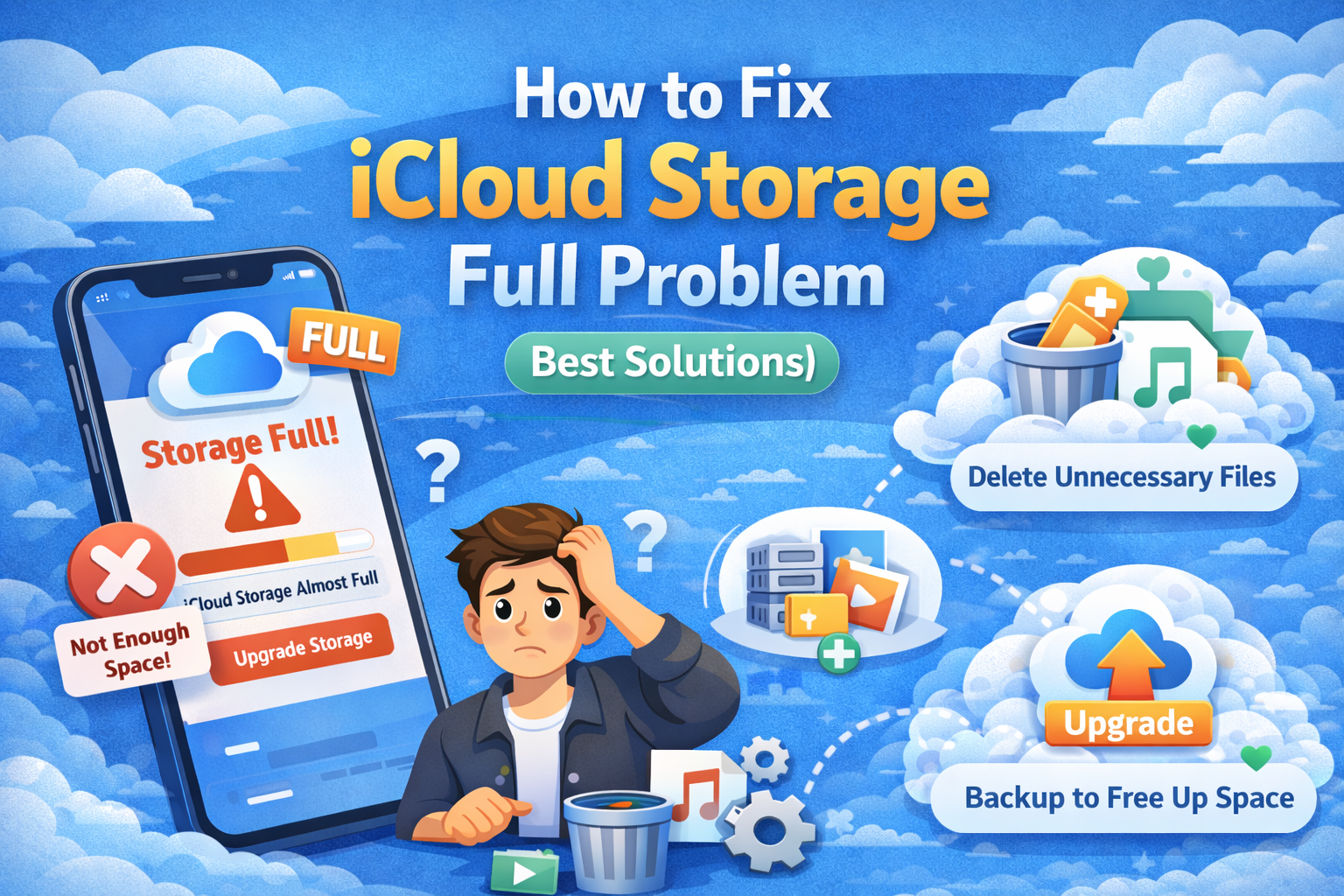
Below are the most effective ways to fix the iCloud storage full problem. You don’t need to use all of them—choose what fits your situation.
1. Delete Old iCloud Backups (Most Effective)
Old device backups are one of the biggest reasons iCloud storage becomes full.
Step-by-Step: Remove Old Backups
- Go to Settings → Apple ID → iCloud → Manage Storage
- Tap Backups
- Select an old or unused device
- Tap Delete Backup
- Confirm deletion
Make sure the device is no longer in use before deleting its backup.
Example:
If you upgraded from iPhone 11 to iPhone 15, the old backup may still be using several gigabytes.
2. Manage and Reduce iCloud Photos Storage
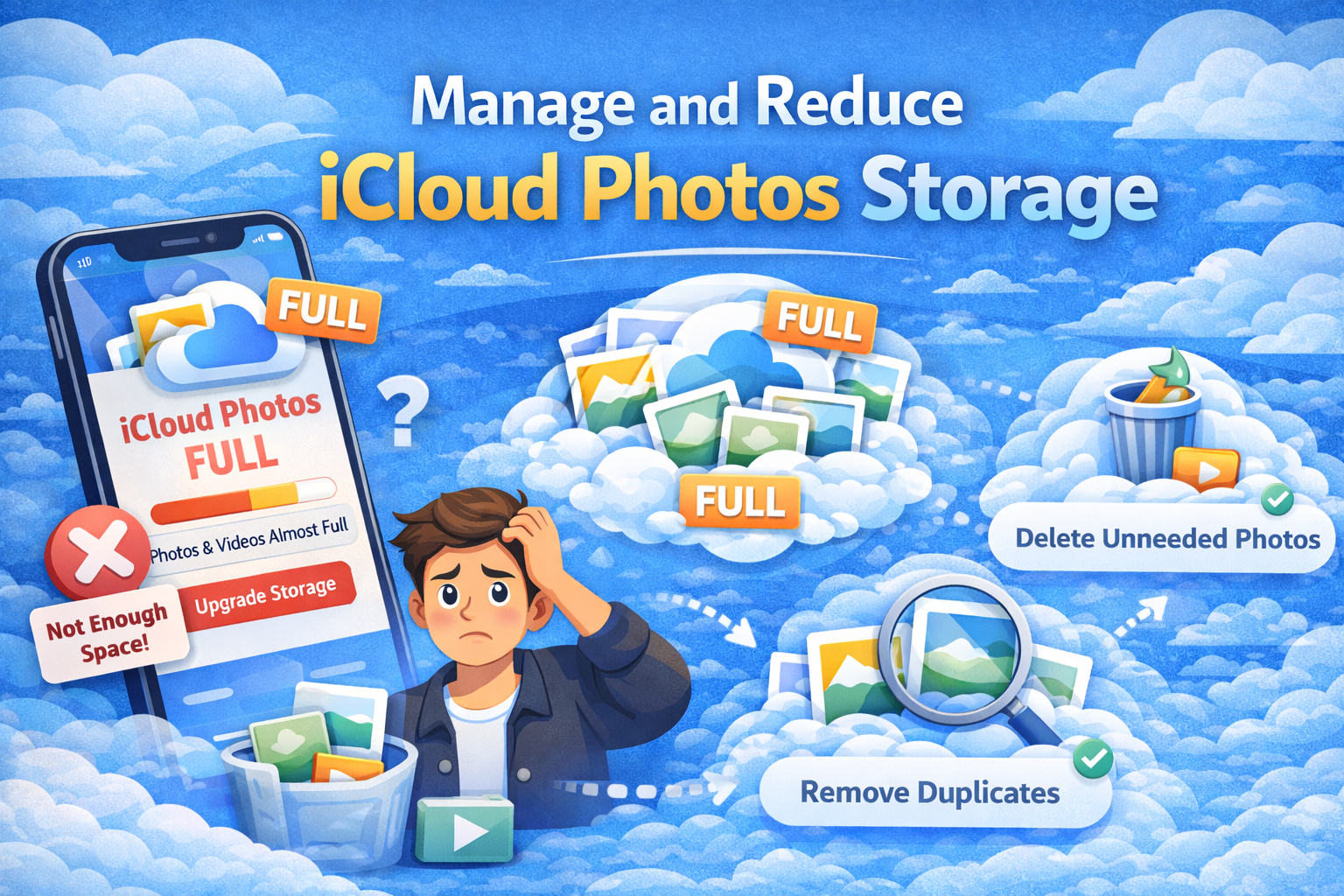
Photos and videos take up a huge amount of space, especially if you use iCloud Photos.
Option A: Delete Unnecessary Photos and Videos
- Open the Photos app
- Remove unwanted screenshots, duplicates, and videos
- Go to Recently Deleted and clear them
Option B: Turn On “Optimize iPhone Storage”
- Go to Settings → Photos
- Enable Optimize iPhone Storage
This keeps smaller photo versions on your device while storing full-size versions in iCloud.
3. Delete Large Files from iCloud Drive
iCloud Drive stores documents, PDFs, videos, and other files.
Step-by-Step: Clean iCloud Drive
- Go to Settings → Apple ID → iCloud → Manage Storage
- Tap iCloud Drive
- Review and delete large or unused files
Real-world example:
Many users unknowingly upload large videos or ZIP files to iCloud Drive that stay there for years.
4. Disable iCloud Backup for Unnecessary Apps
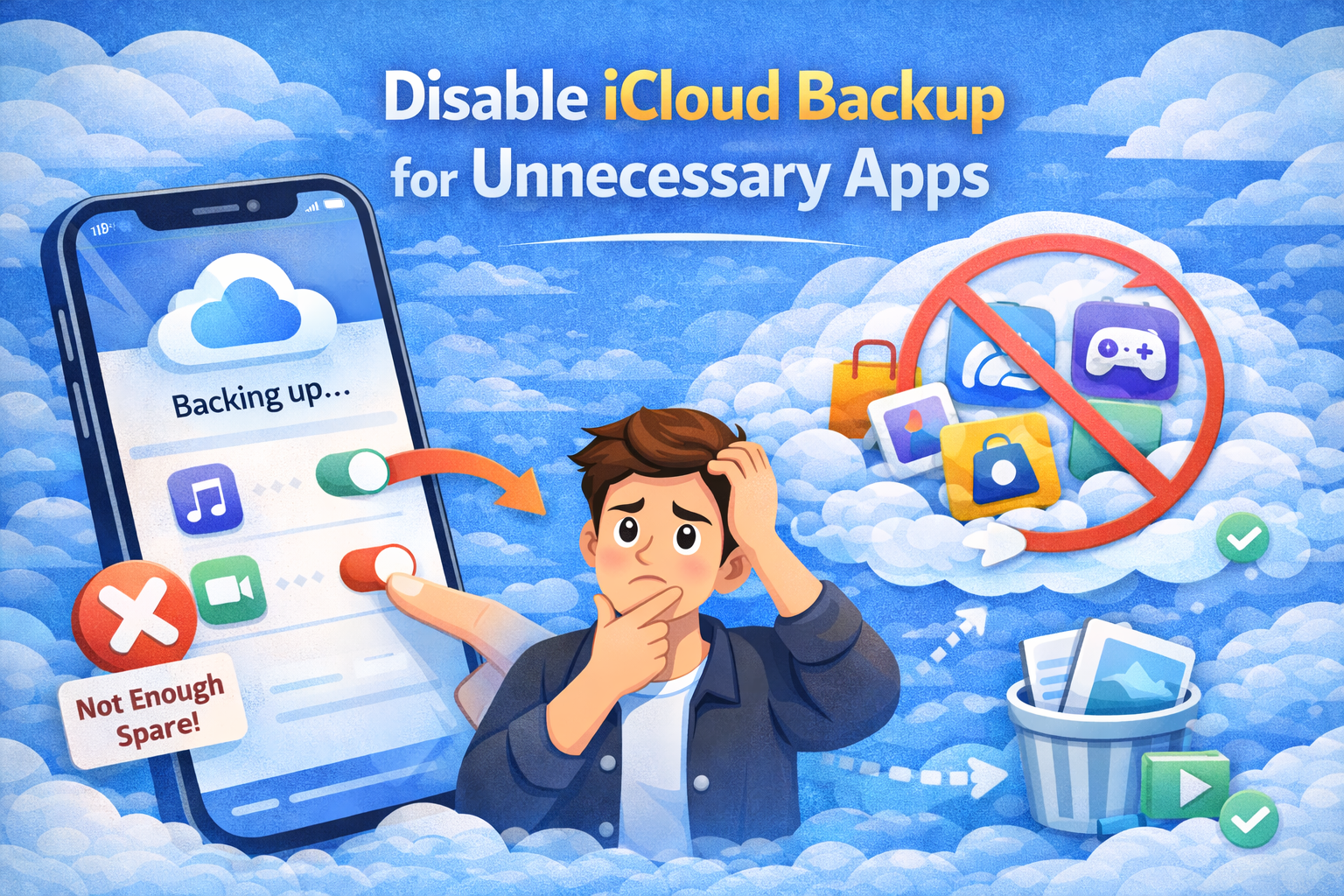
Some apps back up data to iCloud even when it’s not needed.
Step-by-Step: Turn Off App Backups
- Go to Settings → Apple ID → iCloud → Manage Storage
- Tap Backups → This iPhone
- Turn off apps you don’t need backed up
- Tap Turn Off & Delete
Good candidates include:
- Games
- Video streaming apps
- Shopping apps
5. Clear iCloud Messages and Attachments
Messages with photos and videos can silently fill your iCloud storage.
Step-by-Step: Reduce Messages Storage
- Go to Settings → Apple ID → iCloud → Manage Storage
- Tap Messages
- Delete large attachments
- Set Message History to auto-delete after 30 days or 1 year
- Settings → Messages → Keep Messages
6. Delete Unused Apps Storing Data in iCloud
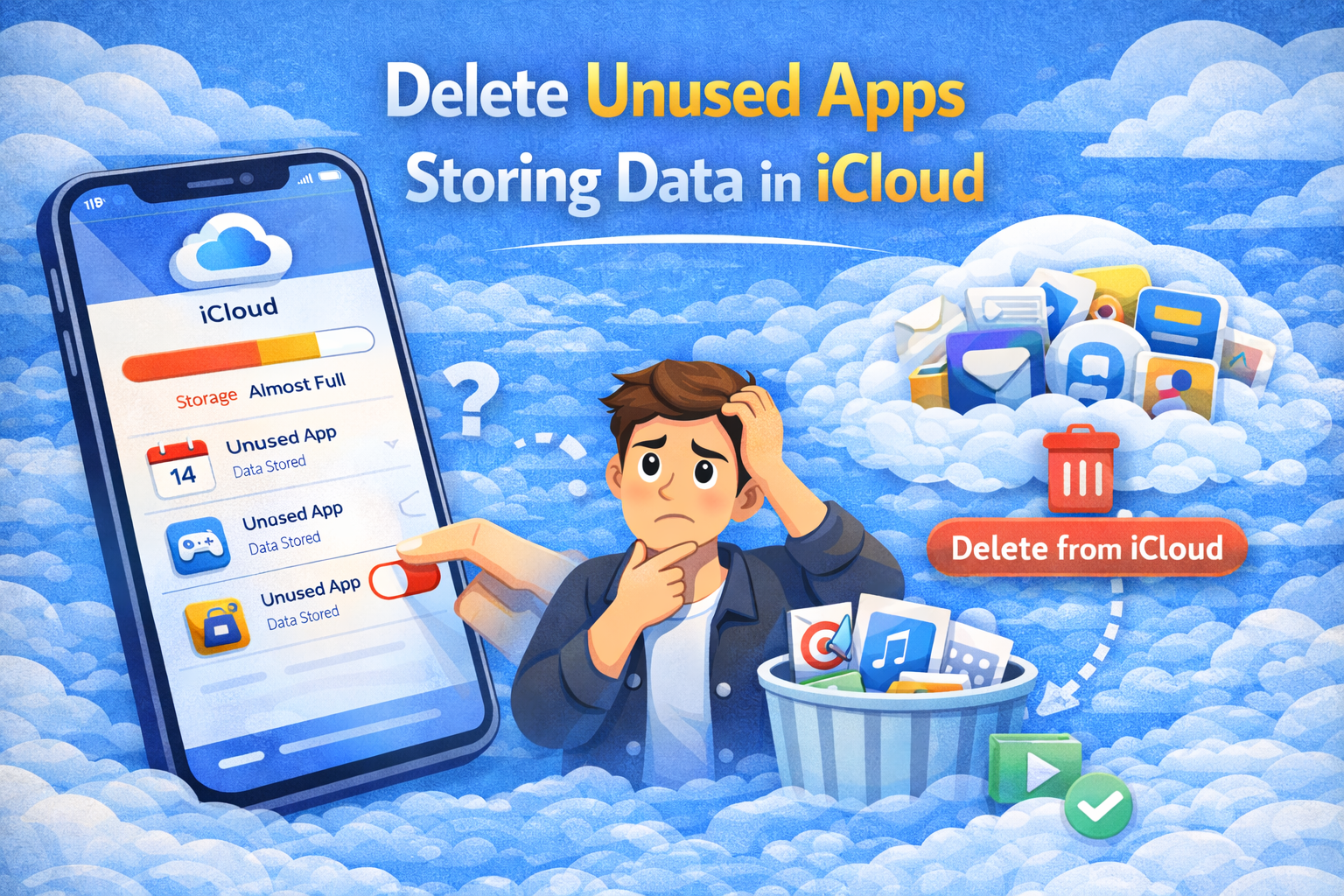
Some apps store documents and data in iCloud even if you don’t use them anymore.
How to Remove App Data
- Open Manage Storage
- Tap the app name
- Choose Delete Data from iCloud (if available)
This won’t always delete the app from your phone—only its cloud data.
7. Upgrade Your iCloud Storage Plan (Optional but Easy)
If you don’t want to delete anything, upgrading your storage is the fastest solution.
iCloud Storage Plans (Affordable)
- 50 GB
- 200 GB
- 2 TB
How to Upgrade
- Go to Settings → Apple ID → iCloud
- Tap Manage Storage → Change Storage Plan
- Choose a plan and confirm
💡 For families or users with many photos, 200 GB or 2 TB is often worth it.
How to Prevent iCloud Storage Full Problem in the Future
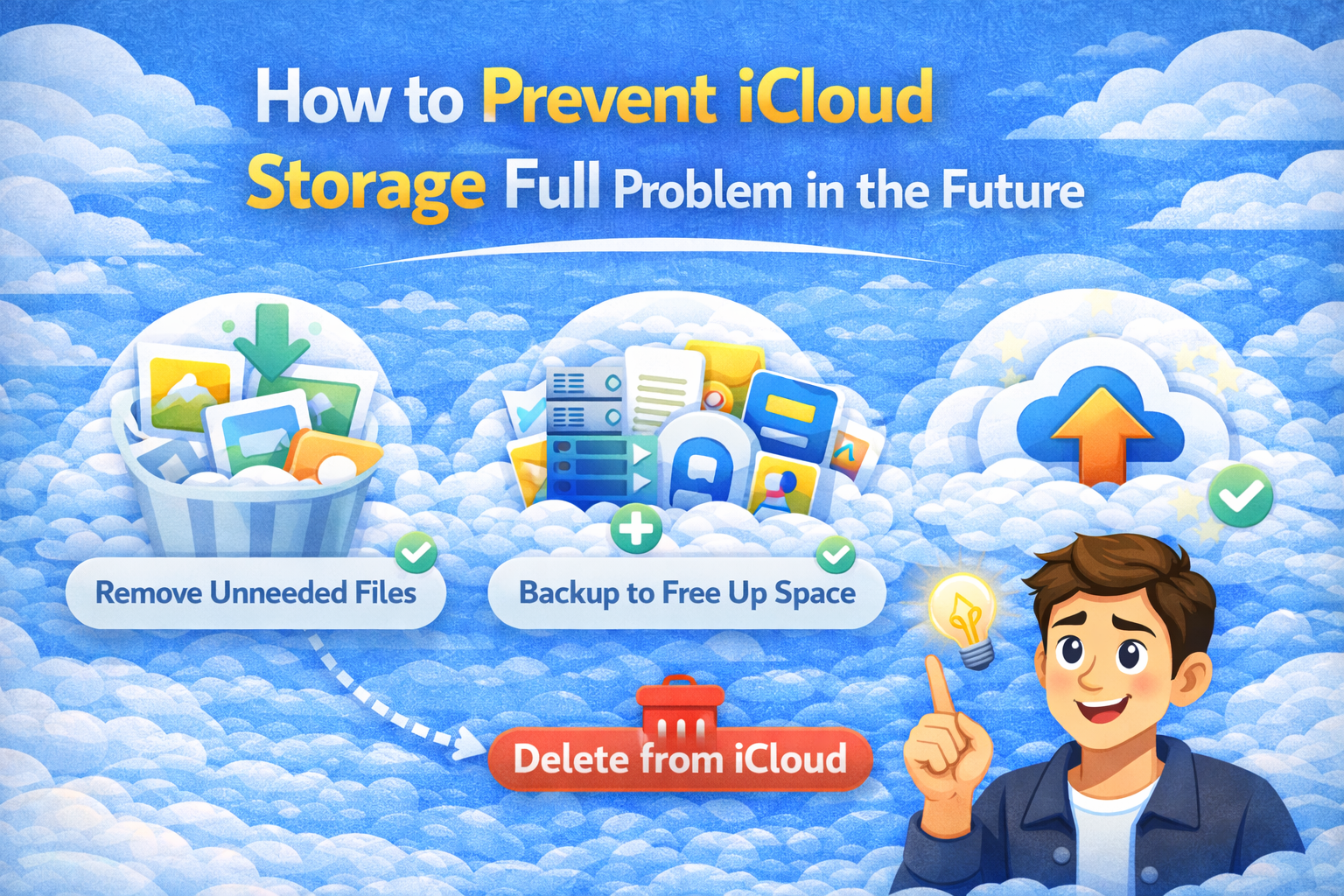
- Review storage every month
- Delete old backups after upgrading devices
- Manage photos regularly
- Avoid backing up unnecessary apps
- Use alternative cloud services for large files
Frequently Asked Questions (FAQ)
1. Why does iCloud say storage is full when I deleted files?
Deleted files often stay in Recently Deleted folders. You must clear them manually for space to free up.
2. Can I use iCloud without paying?
Yes, but the free 5 GB is very limited. It’s enough only for basic use.
3. Will deleting iCloud data delete it from my iPhone?
Not always. Some deletions only remove cloud copies, but photos and synced data may be affected—check before deleting.
4. What happens if iCloud storage is full?
- Backups stop
- Photos won’t sync
- iCloud Drive stops uploading files
- Some apps may not sync properly
5. Is upgrading iCloud storage safe?
Yes. Apple’s iCloud plans are secure, and you can downgrade anytime.
Conclusion
The iCloud storage full problem is very common, but it’s easy to fix once you understand what’s using your space. By deleting old backups, managing photos, cleaning iCloud Drive, and controlling app backups, you can free up storage quickly and safely. If you prefer convenience, upgrading your iCloud plan is also a simple and affordable option.
With regular maintenance, you can avoid iCloud storage issues and keep your Apple devices running smoothly.