How to Fix iPhone WiFi Disconnecting Automatically
Is your iPhone constantly dropping WiFi connection for no clear reason? You’re not alone. Many users face this frustrating issue where WiFi disconnects randomly, slows down, or refuses to stay connected.
In this guide, you’ll learn how to fix iPhone WiFi disconnecting automatically using simple, proven methods. Whether it’s a software glitch or network issue, we’ll walk you through everything step-by-step.
Why This Problem Happens
Before fixing the issue, it’s important to understand what’s causing it. Here are the most common reasons:
- Weak or unstable WiFi signal
- iOS software bugs or outdated system
- Incorrect network settings
- Router issues or interference
- Low Power Mode affecting connectivity
- VPN or third-party apps interfering
- Hardware-related problems
Now let’s fix it.
Step-by-Step Solutions to Fix iPhone WiFi Disconnecting
1. Toggle WiFi Off and On
This is the simplest fix and often works immediately.
Steps:
- Go to Settings > WiFi
- Turn WiFi OFF
- Wait 10–15 seconds
- Turn WiFi ON again
👉 This refreshes your connection and clears temporary glitches.
2. Restart Your iPhone
A quick restart can fix many system issues.
Steps:
- Press and hold the Power button
- Slide to power off
- Wait a few seconds
- Turn your iPhone back on
Important: Restarting clears background bugs that may cause WiFi problems.
3. Forget and Reconnect to WiFi Network
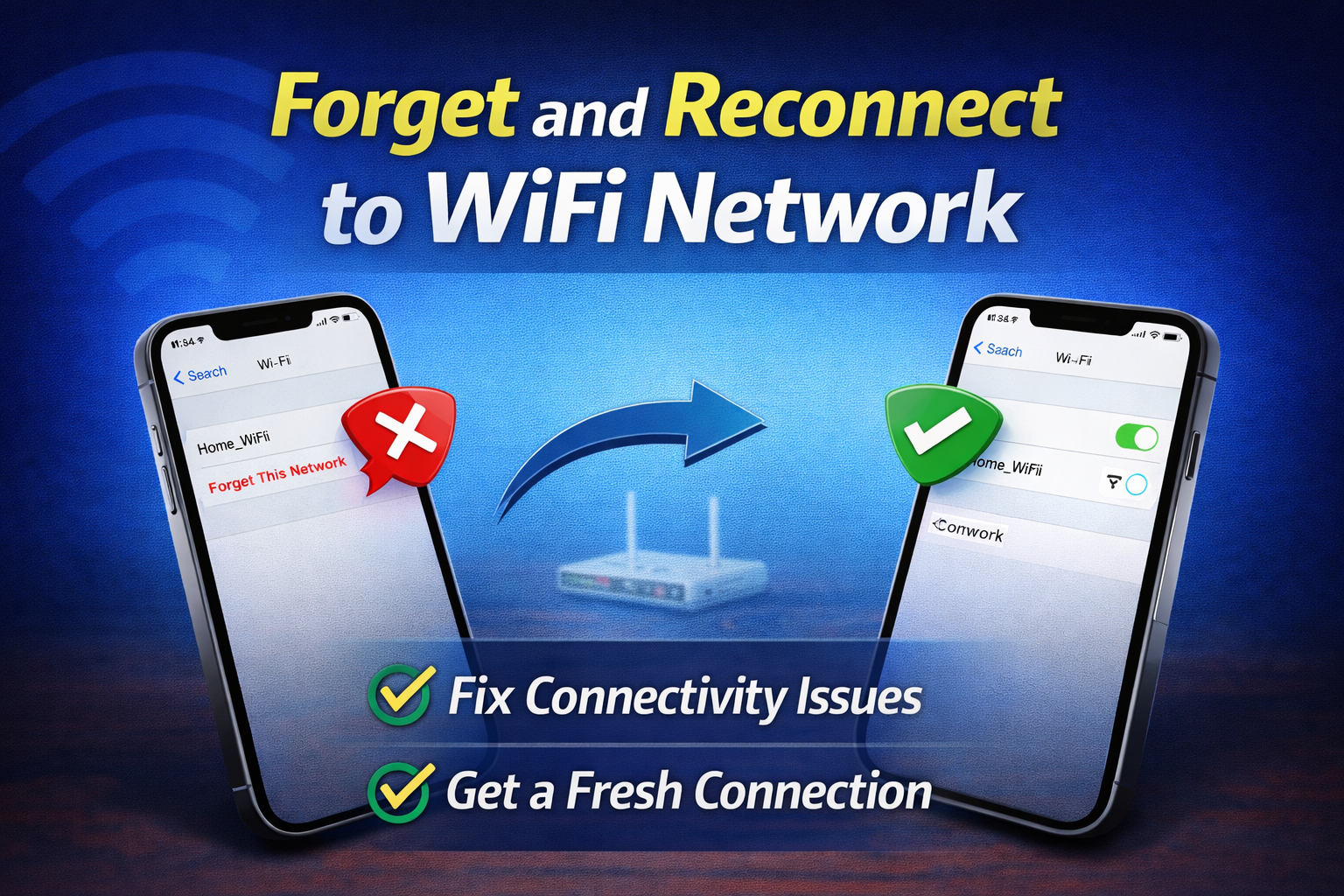
Sometimes your saved network settings can become corrupted.
Steps:
- Go to Settings > WiFi
- Tap the (i) icon next to your network
- Tap Forget This Network
- Reconnect by entering your password
👉 This resets the connection and can fix persistent issues.
4. Reset Network Settings
If the problem continues, resetting network settings is a powerful fix.
Steps:
- Go to Settings > General
- Tap Transfer or Reset iPhone
- Select Reset
- Tap Reset Network Settings
⚠️ This will remove:
- Saved WiFi networks
- Bluetooth connections
- VPN settings
But it often fixes iPhone WiFi keeps disconnecting issues completely.
5. Turn Off WiFi Assist
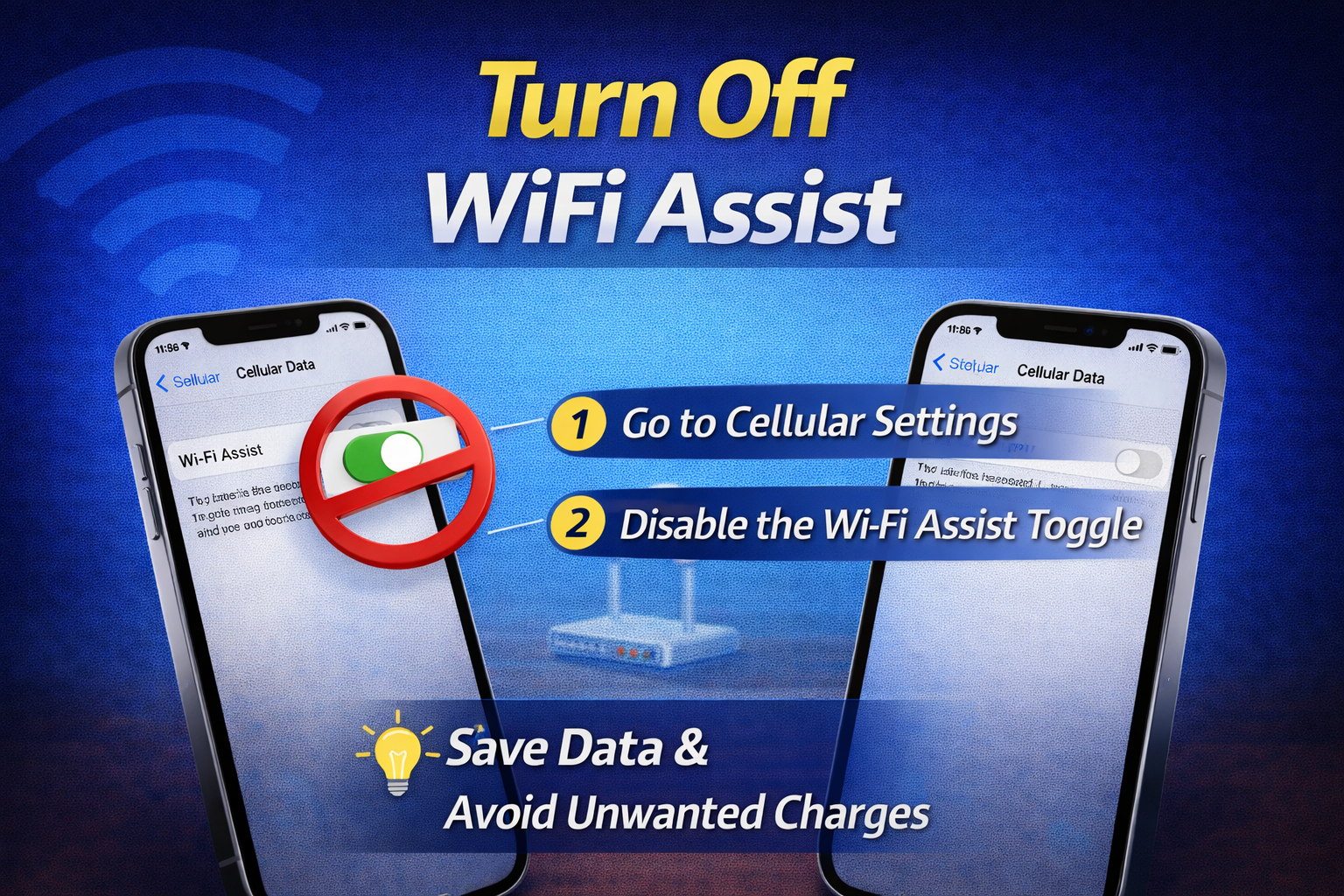
WiFi Assist automatically switches to mobile data when WiFi is weak, which can cause disconnections.
Steps:
- Go to Settings > Cellular
- Scroll down to WiFi Assist
- Turn it OFF
6. Disable Low Power Mode
Low Power Mode can limit background activity, including WiFi stability.
Steps:
- Go to Settings > Battery
- Turn off Low Power Mode
7. Update iOS to the Latest Version
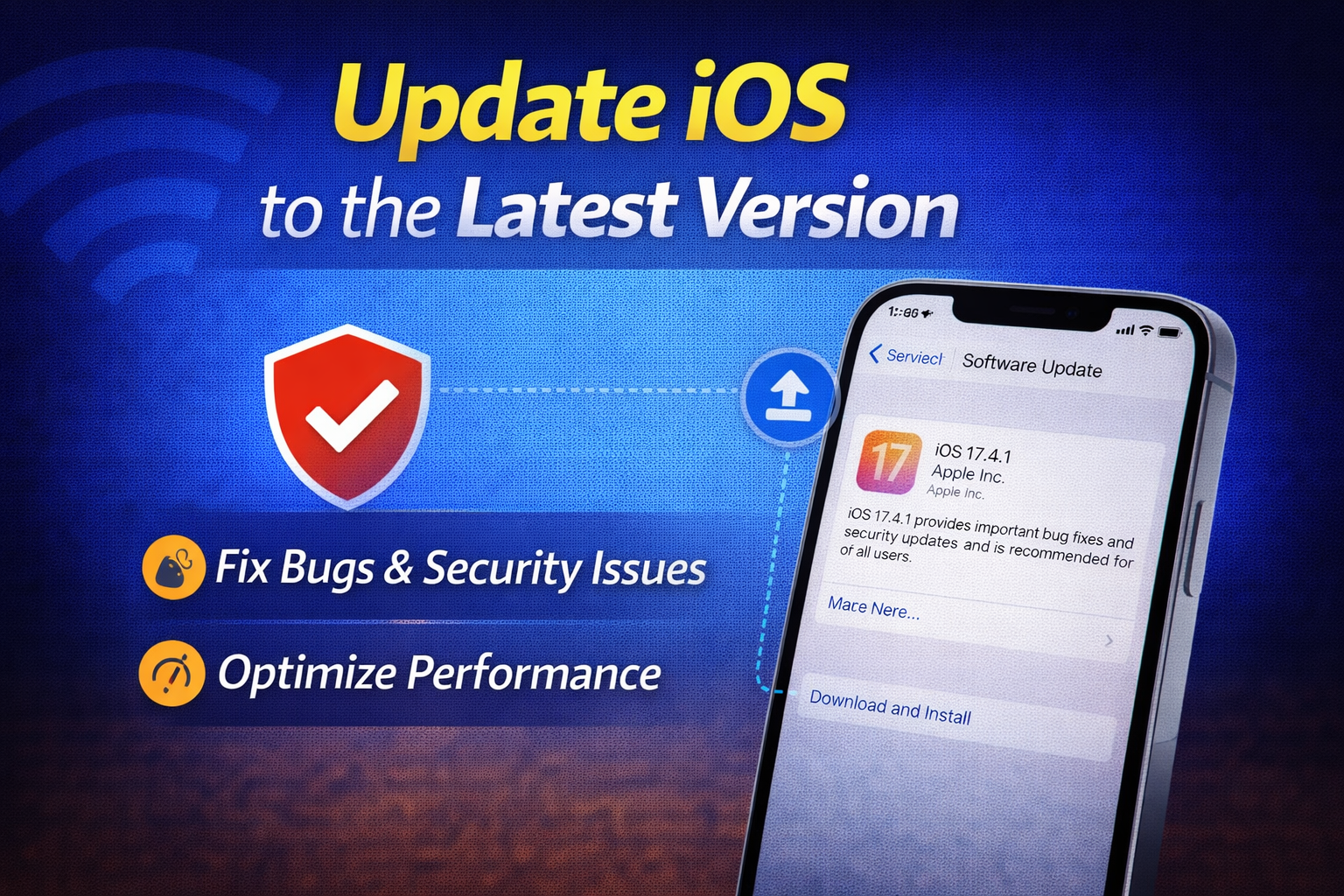
Software bugs are a common cause of WiFi issues.
Steps:
- Go to Settings > General
- Tap Software Update
- Download and install the latest update
👉 Apple often fixes connectivity bugs in updates.
8. Check Your Router
Sometimes the problem isn’t your iPhone—it’s your router.
Try these:
- Restart your router
- Move closer to the router
- Avoid walls and interference
- Update router firmware
👉 A weak signal is one of the main causes of iPhone internet problems.
9. Turn Off VPN or Security Apps
VPNs and security apps can interfere with your WiFi connection.
Steps:
- Go to Settings > VPN
- Turn off VPN
- Disable any security apps temporarily
10. Reset All Settings
If nothing works, try resetting all settings (without deleting data).
Steps:
- Go to Settings > General
- Tap Transfer or Reset iPhone
- Select Reset
- Tap Reset All Settings
👉 This resets:
- Display settings
- Network settings
- System preferences
But your data remains safe.
11. Check for Hardware Issues
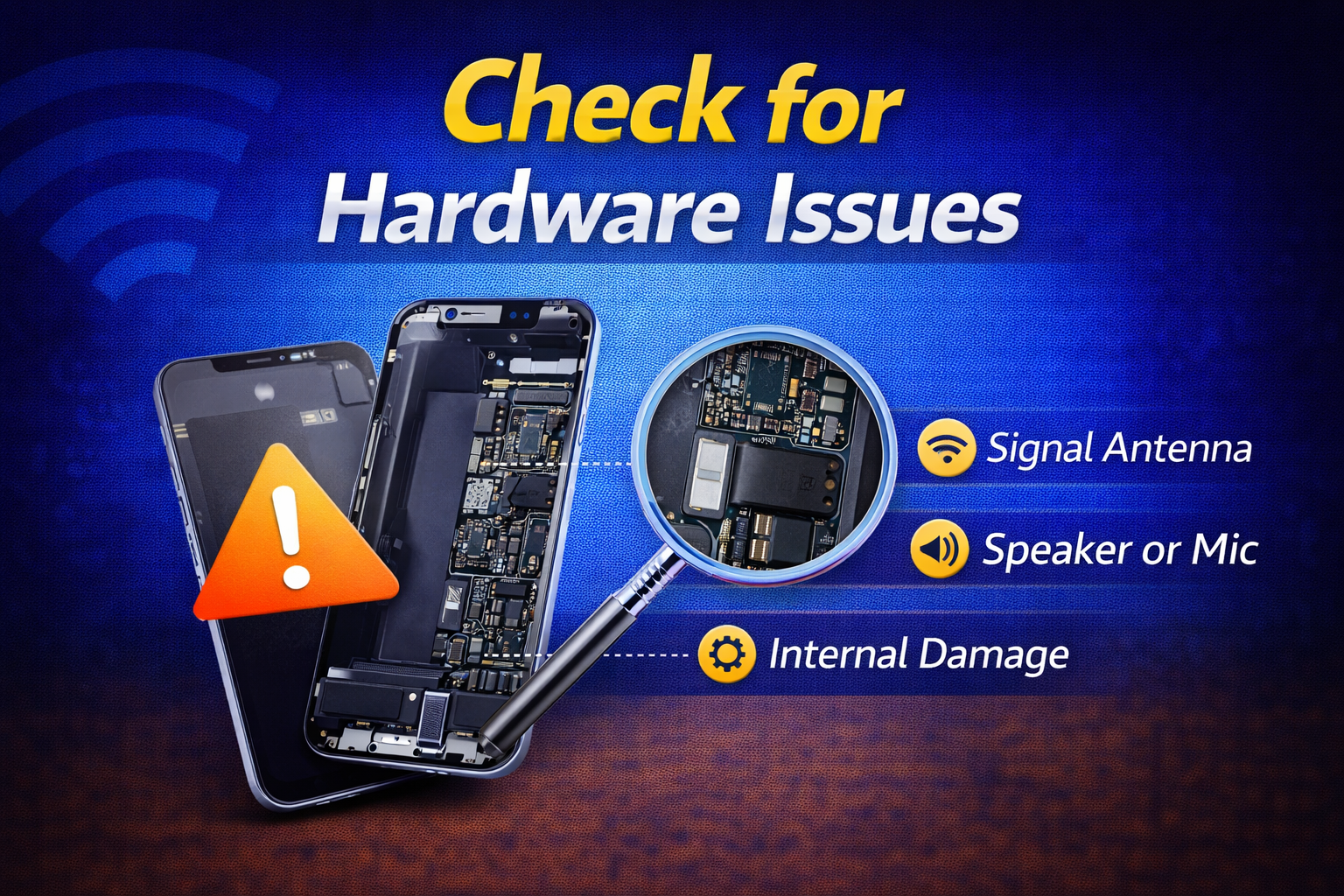
If your iPhone still disconnects from WiFi:
- The antenna may be damaged
- Internal components may be faulty
👉 Visit an Apple Store or technician if:
- WiFi is greyed out
- Signal is extremely weak everywhere
Quick Tips to Prevent This Problem
To avoid future issues, follow these simple tips:
- Keep your iPhone updated
- Avoid connecting to unstable public WiFi
- Restart your router regularly
- Don’t overload your network with too many devices
- Use a strong WiFi password
- Keep your phone within range of the router
FAQ: iPhone WiFi Disconnecting Issues
1. Why does my iPhone keep disconnecting from WiFi?
This usually happens due to:
- Weak signal
- Software bugs
- Incorrect network settings
- Router issues
2. How do I make my iPhone WiFi more stable?
You can:
- Reset network settings
- Update iOS
- Move closer to the router
- Disable WiFi Assist
3. Does Low Power Mode affect WiFi?
Yes. It can limit background activity and sometimes cause unstable connections.
4. Will resetting network settings delete my data?
No. It only removes:
- Saved WiFi networks
- Bluetooth connections
Your personal data remains safe.
5. When should I contact Apple support?
Contact support if:
- WiFi won’t turn on
- Signal is always weak
- None of the fixes work
Conclusion
Dealing with iPhone WiFi disconnecting automatically can be frustrating, especially when you rely on a stable internet connection daily. The good news is that most issues can be fixed with simple steps like restarting your device, resetting network settings, or updating iOS.
Start with the easy fixes first, then move to advanced solutions if needed. In most cases, one of these methods will solve your problem quickly.
If the issue still persists, it might be time to check for hardware problems or contact Apple support.