How to Fix iPhone Not Receiving Calls or Messages
If your iPhone is not receiving calls or messages, it can be frustrating—especially when you’re expecting something important. You might miss calls, texts, or even verification codes, which can affect both personal and work life.
This issue can happen for many reasons, such as network problems, incorrect settings, software bugs, or even SIM card issues. The good news? Most of these problems are easy to fix.
In this guide, we’ll walk you through simple, step-by-step solutions to fix iPhone not receiving calls or messages quickly and effectively.
Why Is My iPhone Not Receiving Calls or Messages?
Before jumping into fixes, it’s helpful to understand what might be causing the problem.
Common causes include:
- Poor network signal
- Airplane mode turned on
- Do Not Disturb or Focus mode enabled
- SIM card issues
- Incorrect carrier settings
- Software glitches
- Blocked contacts
Now, let’s fix it step by step.
10 Ways to Fix iPhone Not Receiving Calls or Messages
1. Check Airplane Mode
Airplane mode disables all wireless connections.
Steps:
- Open Control Center
- Look for the airplane icon
- If it’s on, turn it OFF
👉 Important: Wait a few seconds after turning it off to reconnect to the network.
2. Check Network Signal
A weak or no signal means your iPhone can’t receive calls or texts.
What to do:
- Look at the signal bars on your screen
- Move to a location with better coverage
- Restart your phone to refresh the connection
👉 If you see “No Service” or “Searching,” this is likely the issue.
3. Restart Your iPhone
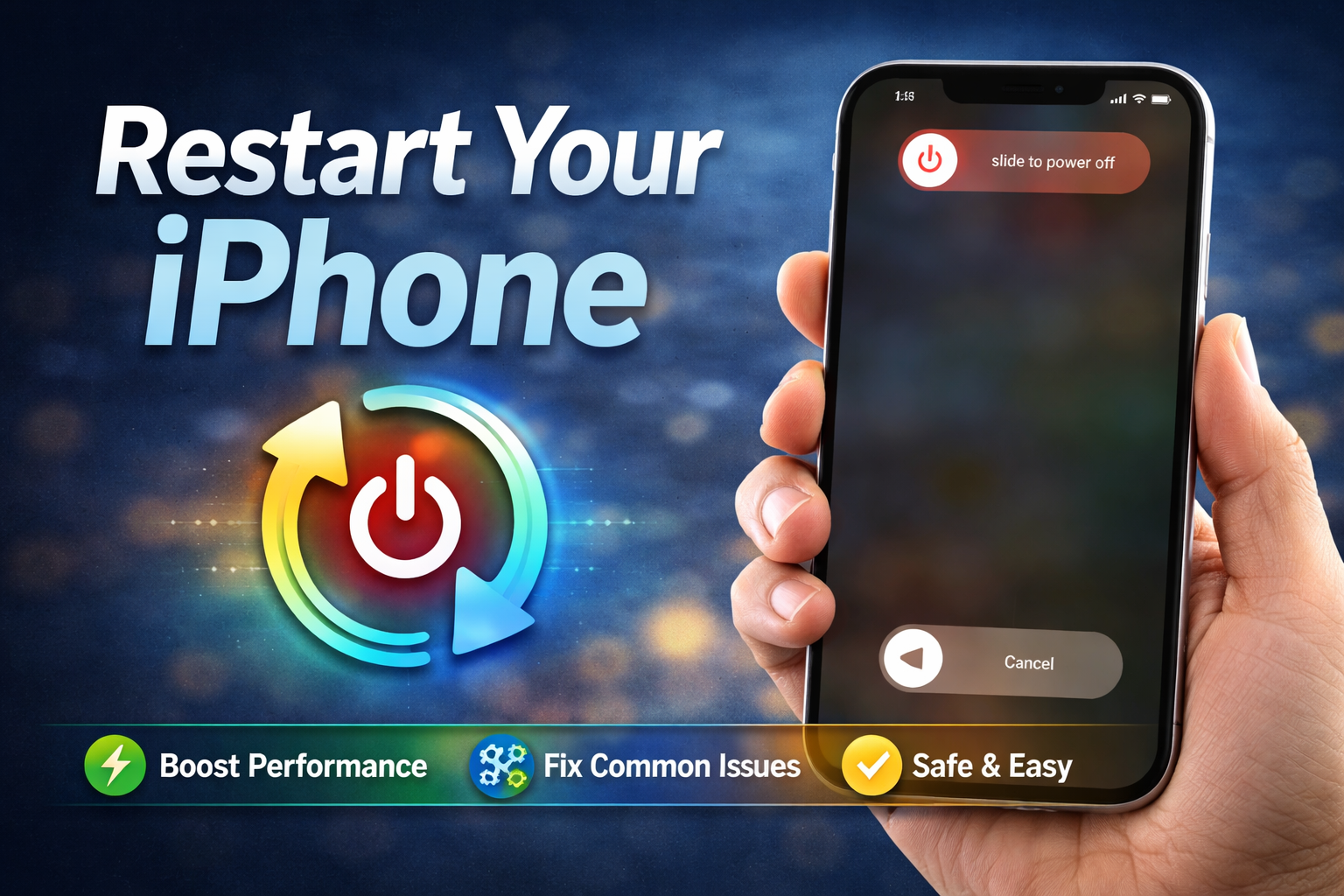
A simple restart can fix many temporary glitches.
Steps:
- Press and hold the power button + volume button
- Slide to power off
- Wait 30 seconds
- Turn it back on
👉 This is one of the quickest fixes for many iPhone issues.
4. Turn Off Do Not Disturb / Focus Mode
If Do Not Disturb is enabled, calls and notifications may be silenced.
Steps:
- Go to Settings
- Tap Focus
- Select Do Not Disturb
- Turn it OFF
Also check:
- Scheduled Focus modes
- Allowed contacts
5. Check Blocked Contacts
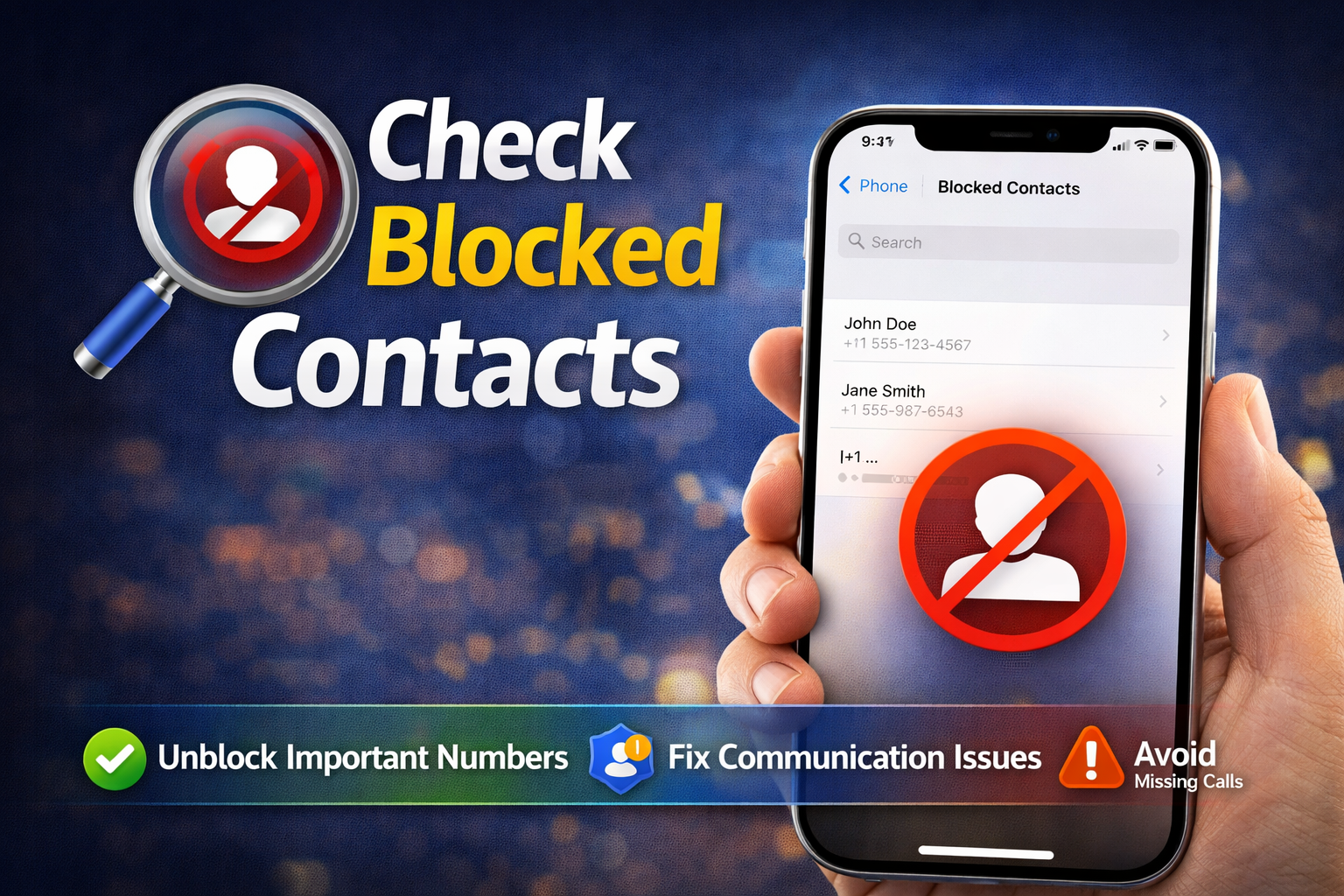
You may have accidentally blocked someone.
Steps:
- Go to Settings
- Tap Phone
- Select Blocked Contacts
👉 If the number is listed, unblock it.
6. Check SIM Card
A damaged or loose SIM card can cause issues.
Steps:
- Turn off your iPhone
- Remove the SIM card
- Clean it gently
- Reinsert it properly
- Turn your phone back on
👉 If possible, test with another SIM card.
7. Update Carrier Settings
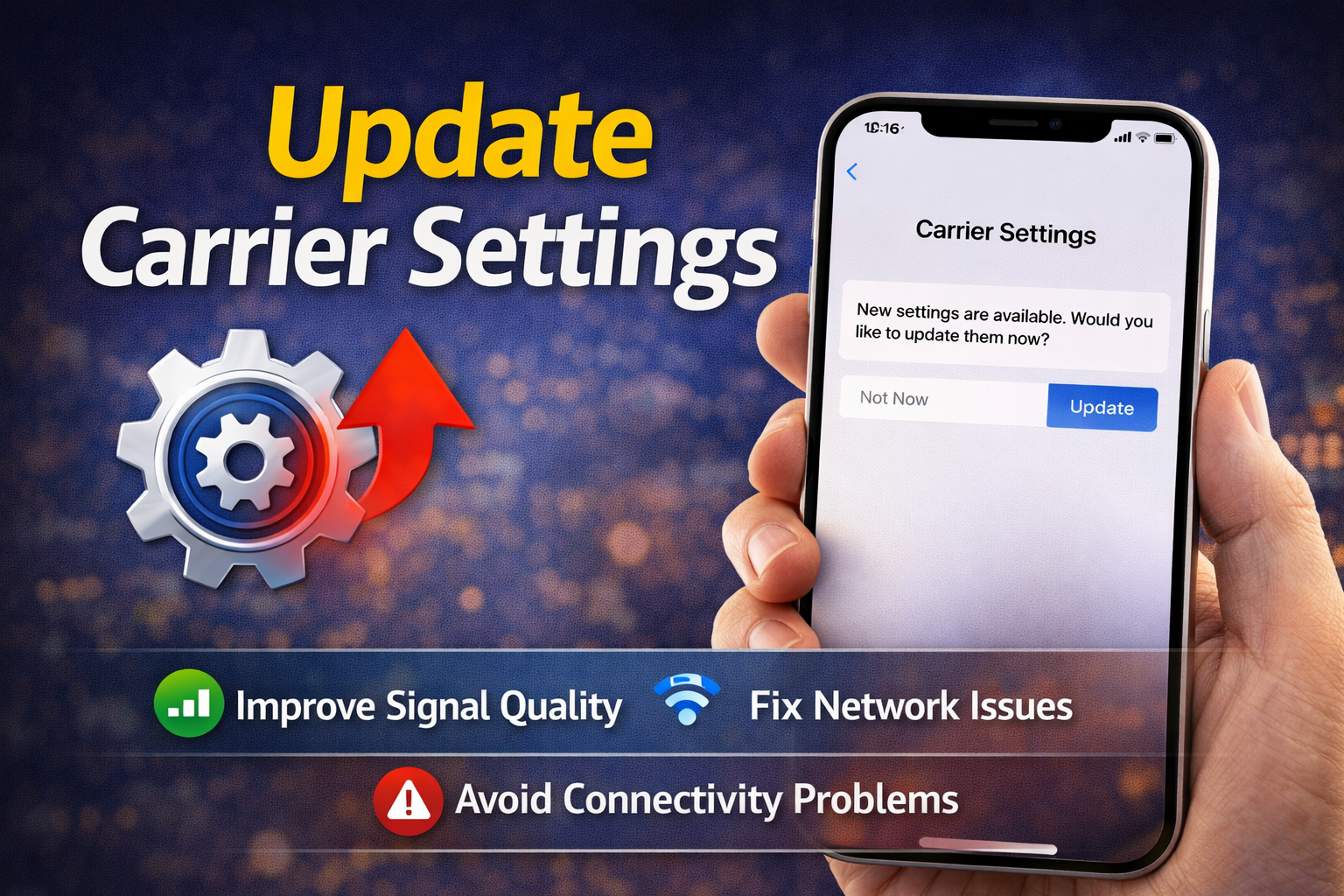
Carrier updates improve network connectivity.
Steps:
- Go to Settings
- Tap General
- Select About
👉 If an update is available, you’ll see a prompt.
👉 Install it immediately.
8. Reset Network Settings
This fixes network-related problems like calls and SMS issues.
Steps:
- Go to Settings
- Tap General
- Select Transfer or Reset iPhone
- Tap Reset
- Choose Reset Network Settings
👉 Note: This will remove saved Wi-Fi passwords.
9. Check iMessage and SMS Settings
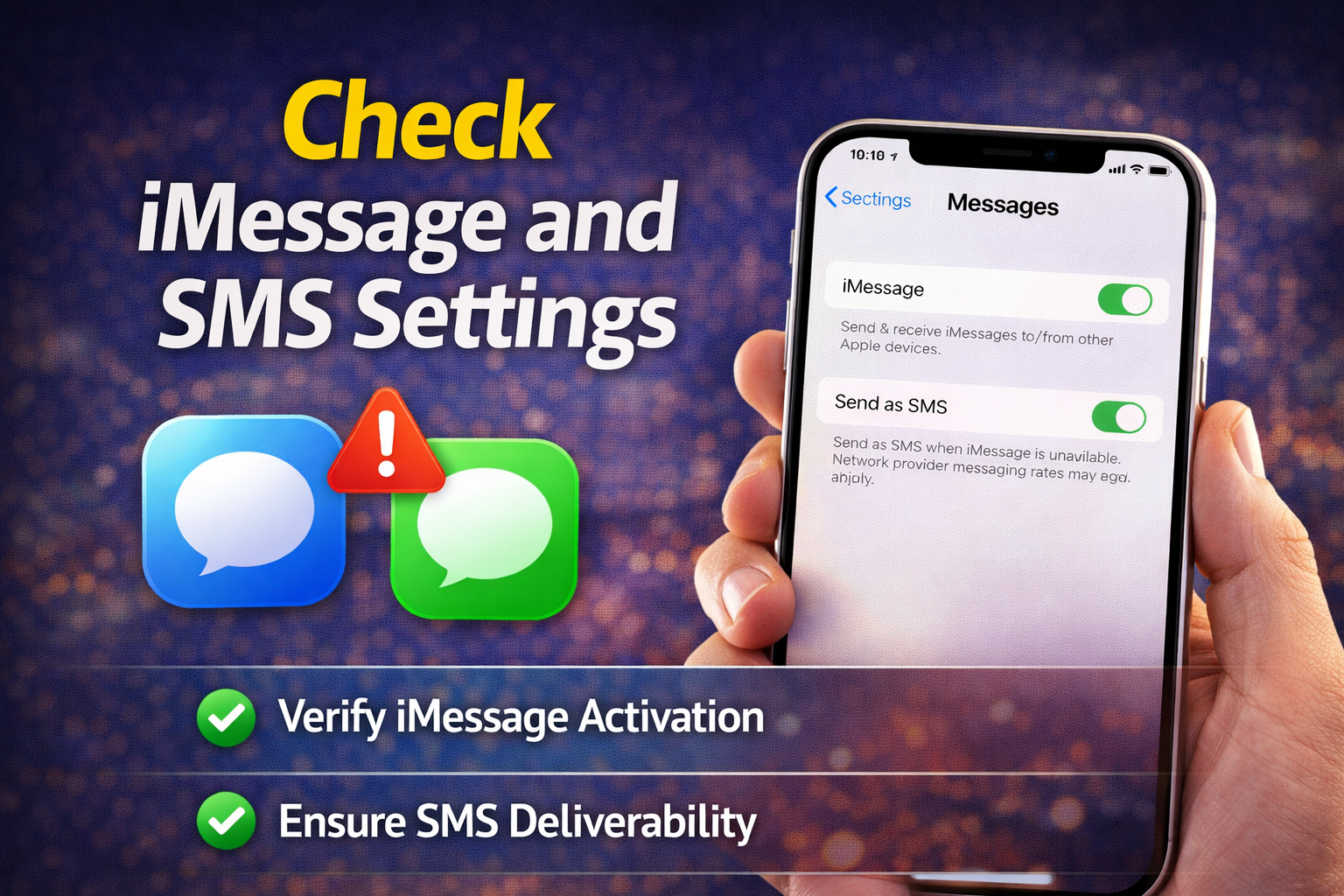
Sometimes messages fail because of incorrect settings.
Steps:
- Go to Settings
- Tap Messages
Make sure:
- iMessage is ON
- Send as SMS is ON
- Your phone number is selected under “Send & Receive”
👉 This helps fix both iMessage and regular SMS issues.
10. Update iOS Software
Outdated software can cause bugs.
Steps:
- Go to Settings
- Tap General
- Select Software Update
- Tap Download and Install
👉 Always keep your iPhone updated.
Why This Problem Happens
Understanding the root cause can help prevent it in the future.
Common reasons:
- Network issues: Poor signal or carrier outages
- Settings errors: Airplane mode, Focus mode, or blocked contacts
- SIM card problems: Damaged or not inserted properly
- Software bugs: Outdated or glitchy iOS
- Carrier restrictions: Billing issues or plan limitations
👉 Most of the time, it’s not a hardware problem—just settings or network issues.
Quick Tips to Prevent This Problem
Here are simple ways to avoid this issue in the future:
- Keep your iPhone updated
- Avoid using Airplane mode accidentally
- Check signal strength regularly
- Restart your phone weekly
- Keep SIM card clean and secure
- Review Focus/Do Not Disturb settings
- Update carrier settings when prompted
👉 These small habits can prevent big problems later.
FAQ: iPhone Not Receiving Calls or Messages
1. Why is my iPhone not receiving calls but can make them?
This usually happens due to:
- Network issues
- Do Not Disturb mode
- Call forwarding settings
👉 Try resetting network settings or turning off Focus mode.
2. Why am I not getting text messages on my iPhone?
Possible reasons:
- iMessage settings are incorrect
- Network problems
- Blocked sender
👉 Make sure Send as SMS is enabled.
3. Can SIM card cause this issue?
Yes. A faulty or loose SIM card can prevent calls and messages.
👉 Try removing and reinserting it.
4. Will resetting network settings delete my data?
No. It only removes:
- Wi-Fi passwords
- Network settings
👉 Your photos, apps, and files remain safe.
5. What if nothing works?
If all fixes fail:
- Contact your carrier
- Visit an Apple service center
👉 It could be a hardware issue.
Conclusion
Dealing with an iPhone not receiving calls or messages can be stressful, but in most cases, the fix is simple. From checking Airplane mode to resetting network settings, these steps can quickly restore your phone’s functionality.
Start with the basic solutions, then move to advanced ones if needed. Most users solve the problem within minutes.
👉 If this guide helped you, save it for future reference—you never know when you might need it again!