How to Fix iPhone Bluetooth Pairing Problems
Bluetooth is one of the most useful features on your iPhone. It helps you connect wireless headphones, speakers, smartwatches, and even your car. But sometimes, things don’t go as expected. You may face issues where your iPhone won’t connect, keeps disconnecting, or doesn’t detect devices at all.
If you’re dealing with fix iPhone Bluetooth pairing problems, don’t worry—you’re not alone. This is a common issue, and in most cases, it can be solved easily with a few simple steps.
In this guide, you’ll learn why Bluetooth problems happen and how to fix them step-by-step—even if you’re a beginner.
Why This Problem Happens
Before jumping into the fixes, it’s important to understand what causes Bluetooth issues on iPhones.
Here are the most common reasons:
- Software bugs or glitches
- Outdated iOS version
- Bluetooth settings conflicts
- Interference from other devices
- Device compatibility issues
- Previously paired devices causing conflicts
- Hardware problems (rare)
Knowing the cause helps you choose the right solution faster.
Step-by-Step Solutions to Fix iPhone Bluetooth Pairing Problems
Follow these methods one by one until your Bluetooth works properly again.
1. Turn Bluetooth Off and On Again
This is the simplest fix and often works instantly.
Steps:
- Open Settings
- Tap Bluetooth
- Turn Bluetooth OFF
- Wait 10 seconds
- Turn it ON again
👉 This resets the Bluetooth connection and clears temporary glitches.
2. Restart Your iPhone
A quick restart can fix many system issues, including Bluetooth problems.
Steps:
- Press and hold the Power button + Volume button
- Slide to power off
- Wait 20–30 seconds
- Turn your iPhone back on
👉 This refreshes your system and removes minor bugs.
3. Forget and Reconnect the Device
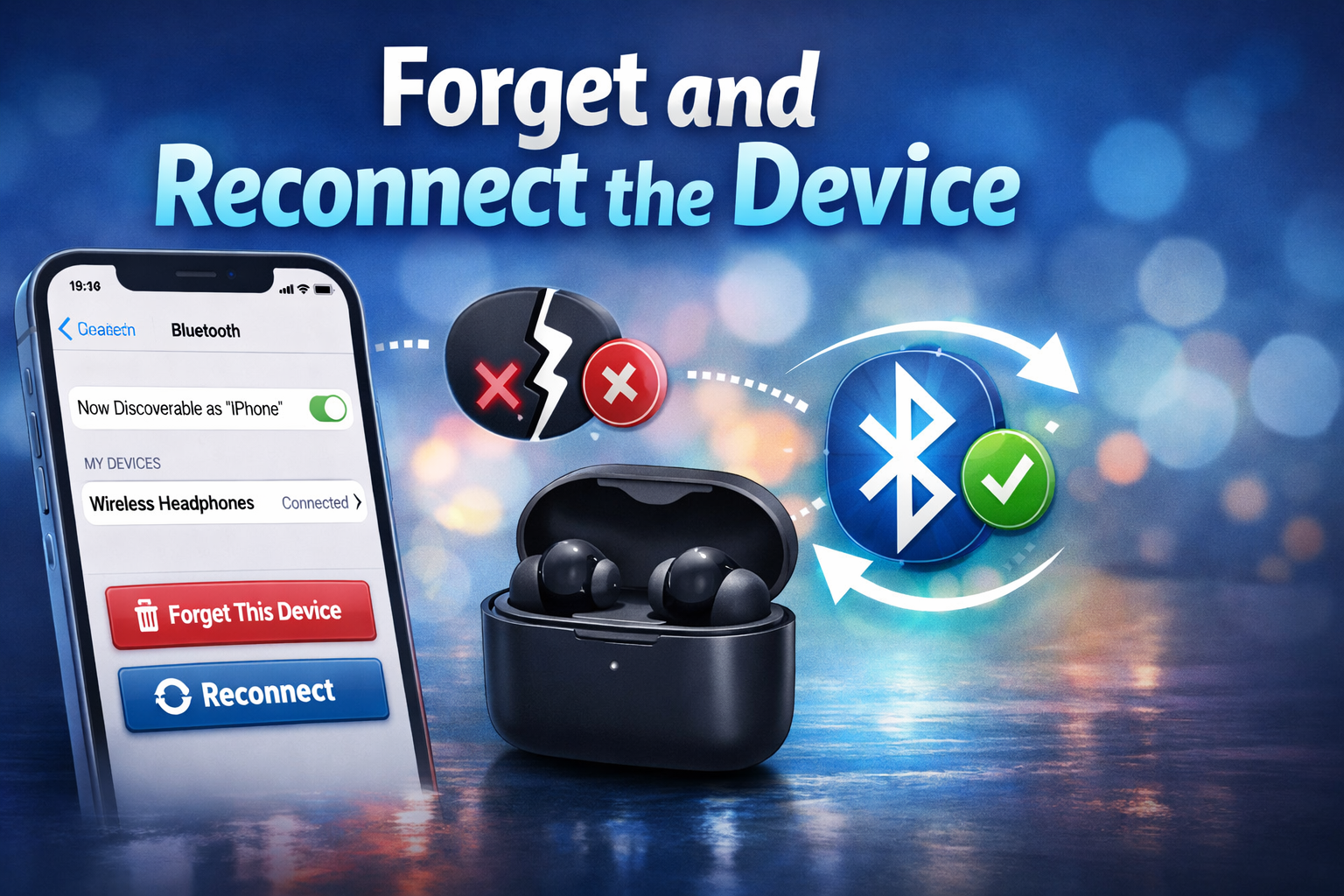
If your iPhone won’t connect to a specific device, try removing it and pairing again.
Steps:
- Go to Settings > Bluetooth
- Find the device name
- Tap the (i) icon
- Tap Forget This Device
- Confirm the action
Now reconnect:
- Turn Bluetooth ON
- Put your device in pairing mode
- Select it from the list
👉 This fixes issues caused by corrupted pairing data.
4. Make Sure the Device is in Pairing Mode
Sometimes the problem is not your iPhone—it’s the other device.
- Ensure the device is powered ON
- Activate pairing mode (check the manual if unsure)
- Keep the device close to your iPhone
👉 Without pairing mode, your iPhone won’t detect the device.
5. Check for iOS Updates
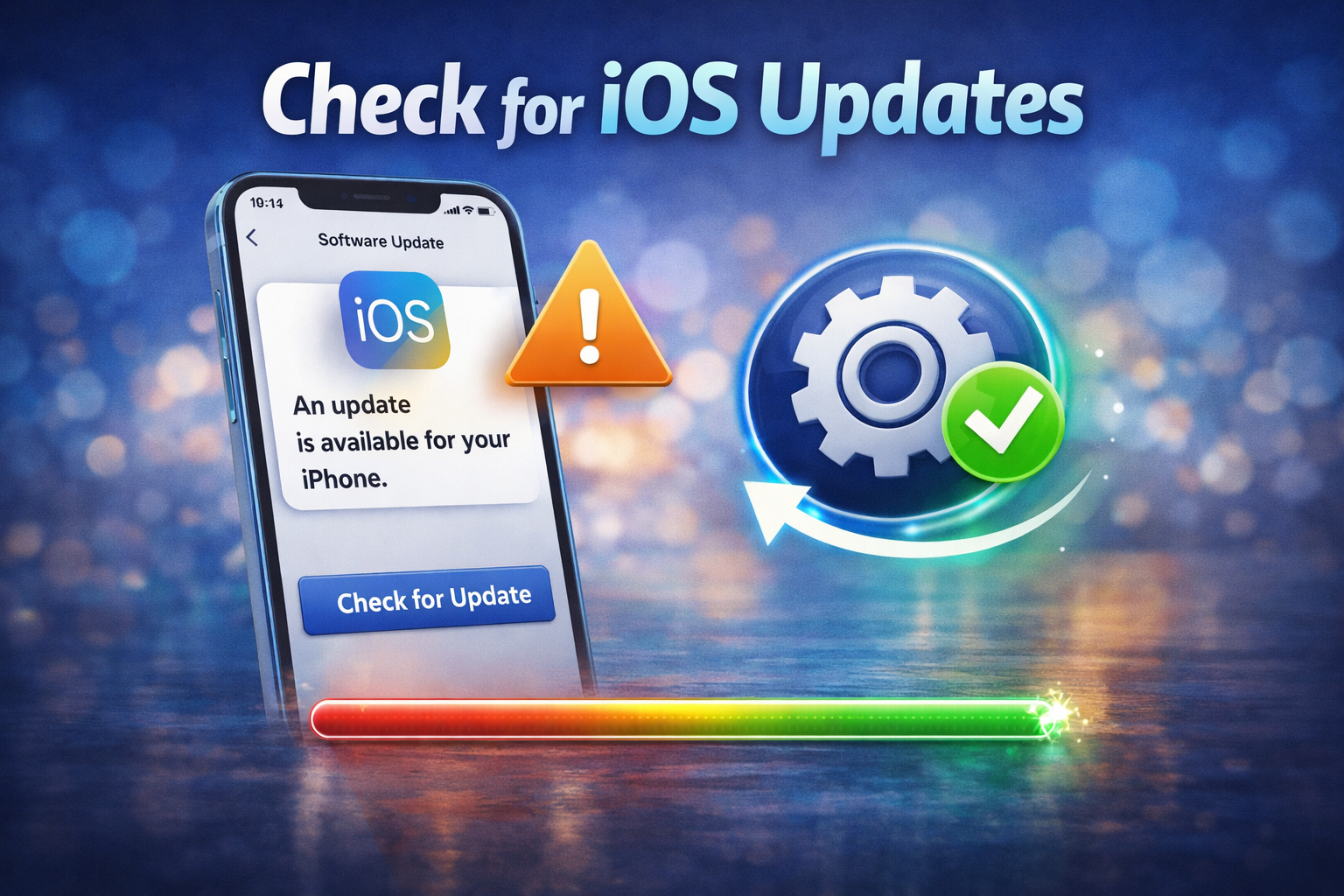
An outdated system can cause iPhone Bluetooth not working issues.
Steps:
- Go to Settings > General
- Tap Software Update
- Install any available updates
👉 Apple often fixes Bluetooth bugs in updates.
6. Reset Network Settings
This is one of the most effective solutions.
⚠️ Note: This will remove Wi-Fi passwords and Bluetooth connections.
Steps:
- Go to Settings > General
- Tap Transfer or Reset iPhone
- Tap Reset
- Select Reset Network Settings
- Enter your passcode
👉 This clears all network-related issues affecting Bluetooth.
7. Turn Off Airplane Mode
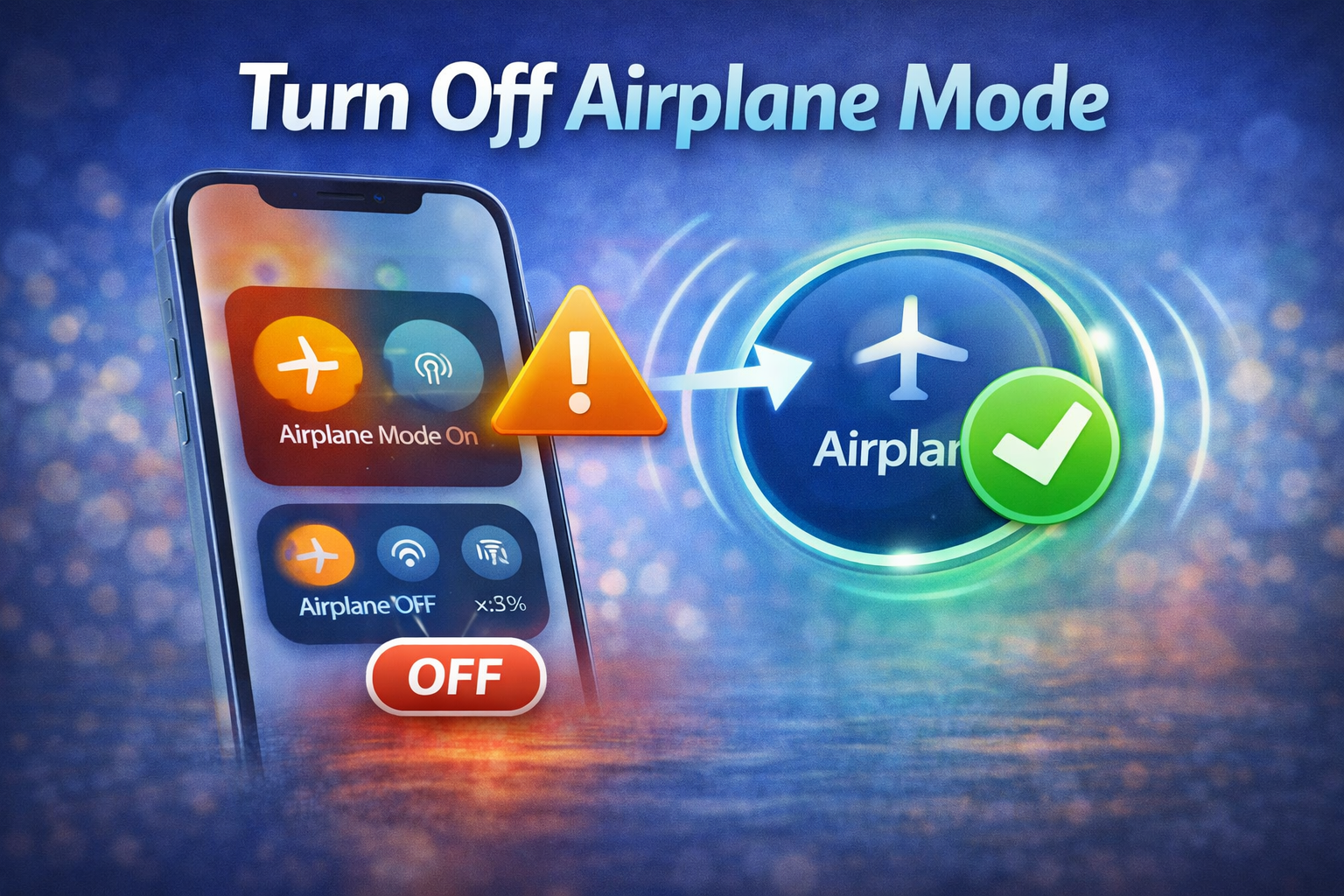
If Airplane Mode is enabled, Bluetooth may not work correctly.
Steps:
- Open Control Center
- Check if Airplane Mode is ON
- Turn it OFF
👉 This restores wireless connectivity.
8. Move Away from Interference
Bluetooth signals can be affected by other electronics.
Avoid:
- Wi-Fi routers
- Microwaves
- Other Bluetooth devices
👉 Try pairing in a different location.
9. Check Device Compatibility
Not all devices work perfectly with iPhones.
- Ensure your accessory supports iOS
- Check manufacturer compatibility info
👉 This is common when facing Bluetooth not connecting iPhone issues.
10. Reset All Settings
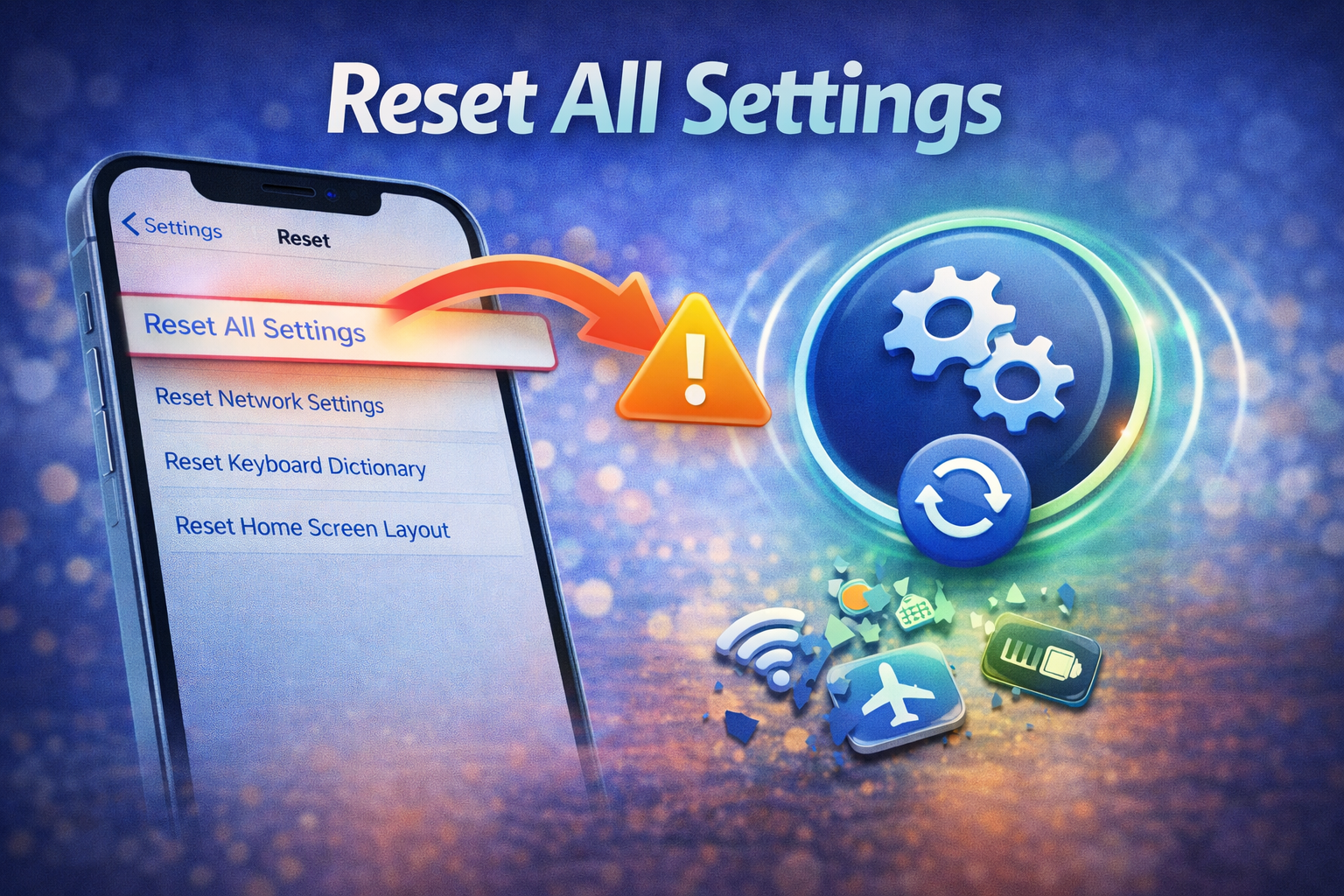
If nothing works, try resetting all settings (without deleting data).
Steps:
- Go to Settings > General
- Tap Transfer or Reset iPhone
- Select Reset
- Tap Reset All Settings
👉 This restores system settings to default without deleting your files.
11. Test with Another Device
Try connecting your iPhone to a different Bluetooth device.
- If it works → problem is with your accessory
- If it doesn’t → problem is with your iPhone
👉 This helps identify the real issue.
12. Contact Apple Support
If you still can’t fix the issue, it might be a hardware problem.
- Visit an Apple Store
- Contact Apple Support online
👉 Hardware issues are rare but possible.
Quick Tips to Prevent This Problem
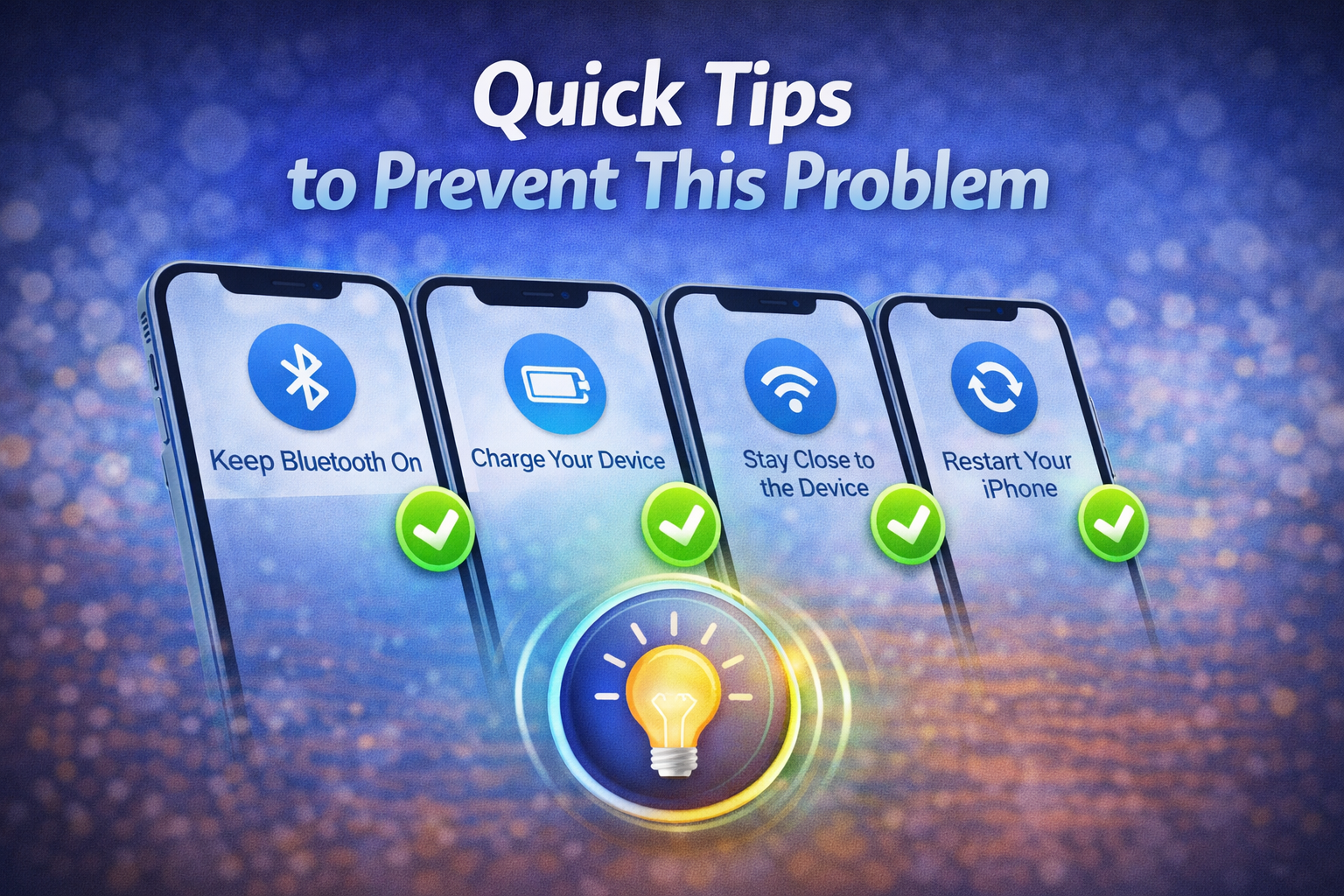
Here are some simple habits to avoid Bluetooth problems in the future:
- Keep your iPhone updated
- Avoid connecting too many devices at once
- Turn off Bluetooth when not in use
- Restart your phone regularly
- Keep devices within close range
- Remove unused paired devices
👉 These tips help prevent iPhone won’t pair Bluetooth issues.
FAQ (Frequently Asked Questions)
1. Why is my iPhone Bluetooth not finding devices?
This usually happens because:
- The device is not in pairing mode
- Bluetooth is turned off
- There is interference nearby
👉 Try restarting both devices and enabling pairing mode.
2. Why does my Bluetooth keep disconnecting?
Possible reasons include:
- Low battery on the device
- Software bugs
- Distance between devices
👉 Keep devices close and update your iPhone.
3. Can resetting network settings fix Bluetooth issues?
Yes. It’s one of the best fixes for:
- Connection failures
- Pairing errors
👉 Just remember it will remove saved Wi-Fi networks.
4. Why won’t my iPhone connect to my car Bluetooth?
Common causes:
- Old car system software
- Compatibility issues
- Stored pairing conflicts
👉 Try forgetting the device and reconnecting.
5. Is Bluetooth hardware failure common?
No, it’s rare. Most issues are software-related and can be fixed easily.
Conclusion
Dealing with fix iPhone Bluetooth pairing problems can be frustrating, especially when you rely on wireless devices daily. The good news is that most Bluetooth issues are easy to fix with simple steps like restarting your phone, resetting settings, or reconnecting devices.
Start with the basic solutions and move to advanced fixes only if needed. In most cases, your Bluetooth will be working again within minutes.
If you follow this guide carefully, you’ll be able to fix issues like:
- iPhone Bluetooth not working
- Bluetooth not connecting iPhone
- iPhone won’t pair Bluetooth
👉 Keep your device updated and maintain good usage habits to avoid future problems.