
How to Transfer Data from Old iPhone to New iPhone (Complete Beginner Guide)
Buying a new iPhone is exciting—but many users feel nervous about one thing: moving their data safely. If you’re wondering how to transfer data from old iPhone to new iPhone, you’re not alone. Photos, contacts, messages, apps, and settings are important, and no one wants to lose them during the transfer.
The good news is that Apple offers several safe and beginner-friendly ways to transfer data from one iPhone to another. In this guide, you’ll learn step-by-step methods that work for normal users, with real-world examples and clear explanations. By the end, you’ll know exactly which method is best for you.
What Data Can Be Transferred to a New iPhone?
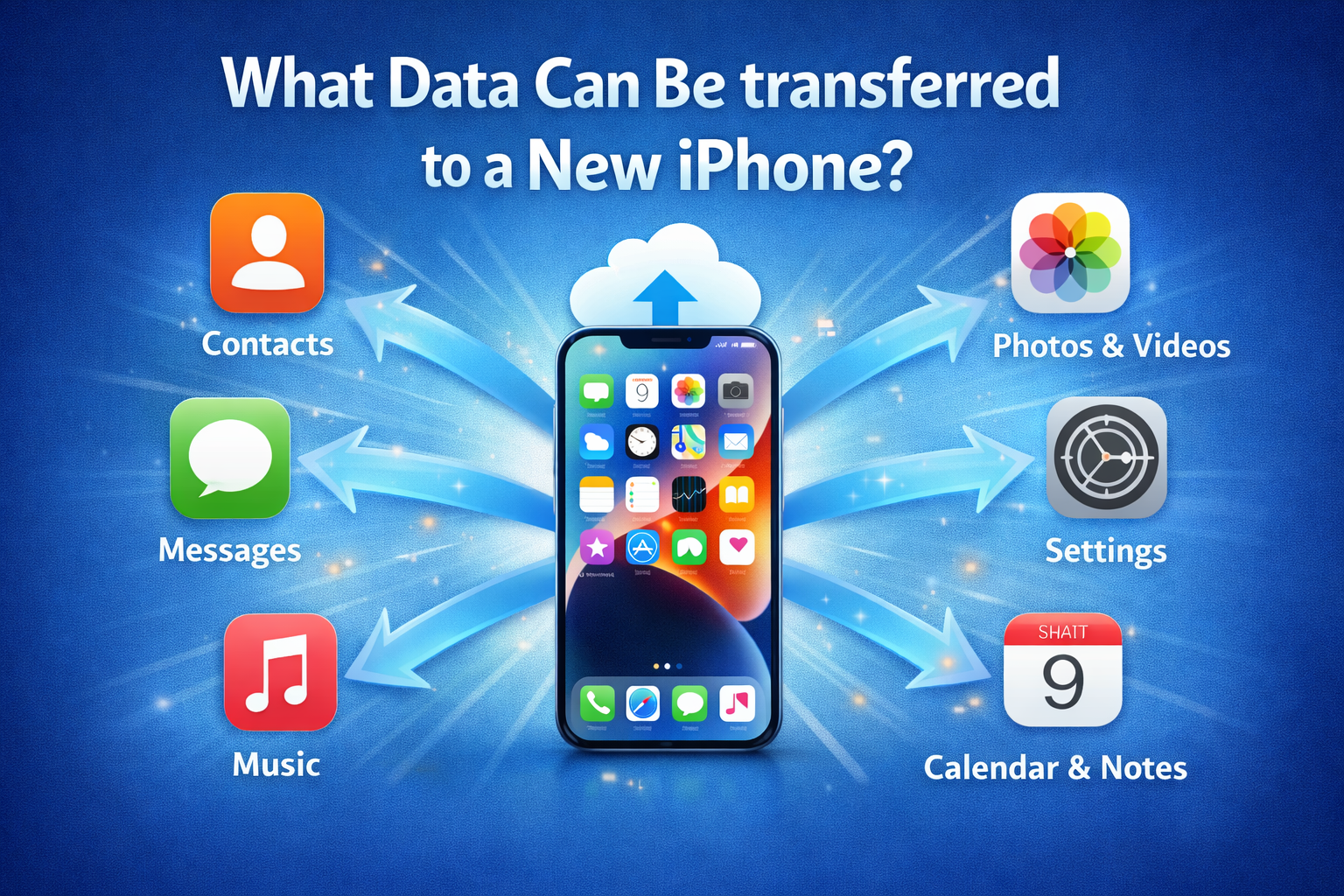
Before we start, it’s helpful to know what data can move to your new device.
You can transfer:
- Photos and videos
- Contacts and call history
- Messages (SMS, iMessage, WhatsApp data if backed up)
- Apps and app data
- Settings and preferences
- Apple ID and iCloud data
Real-world example:
When upgrading from an iPhone 11 to an iPhone 15, most users find their new phone looks almost exactly like the old one after transfer—including app layout and wallpapers.
Things to Do Before Transferring Data (Important Preparation)
Proper preparation helps avoid errors or missing data.
Checklist Before You Start:
- Charge both iPhones to at least 50%
- Connect both phones to Wi-Fi
- Update old iPhone to the latest iOS
- Make sure you know your Apple ID password
- Have enough iCloud storage (if using iCloud)
Taking a few minutes to prepare can save hours of troubleshooting later.
How to Transfer Data from Old iPhone to New iPhone (All Methods Explained)
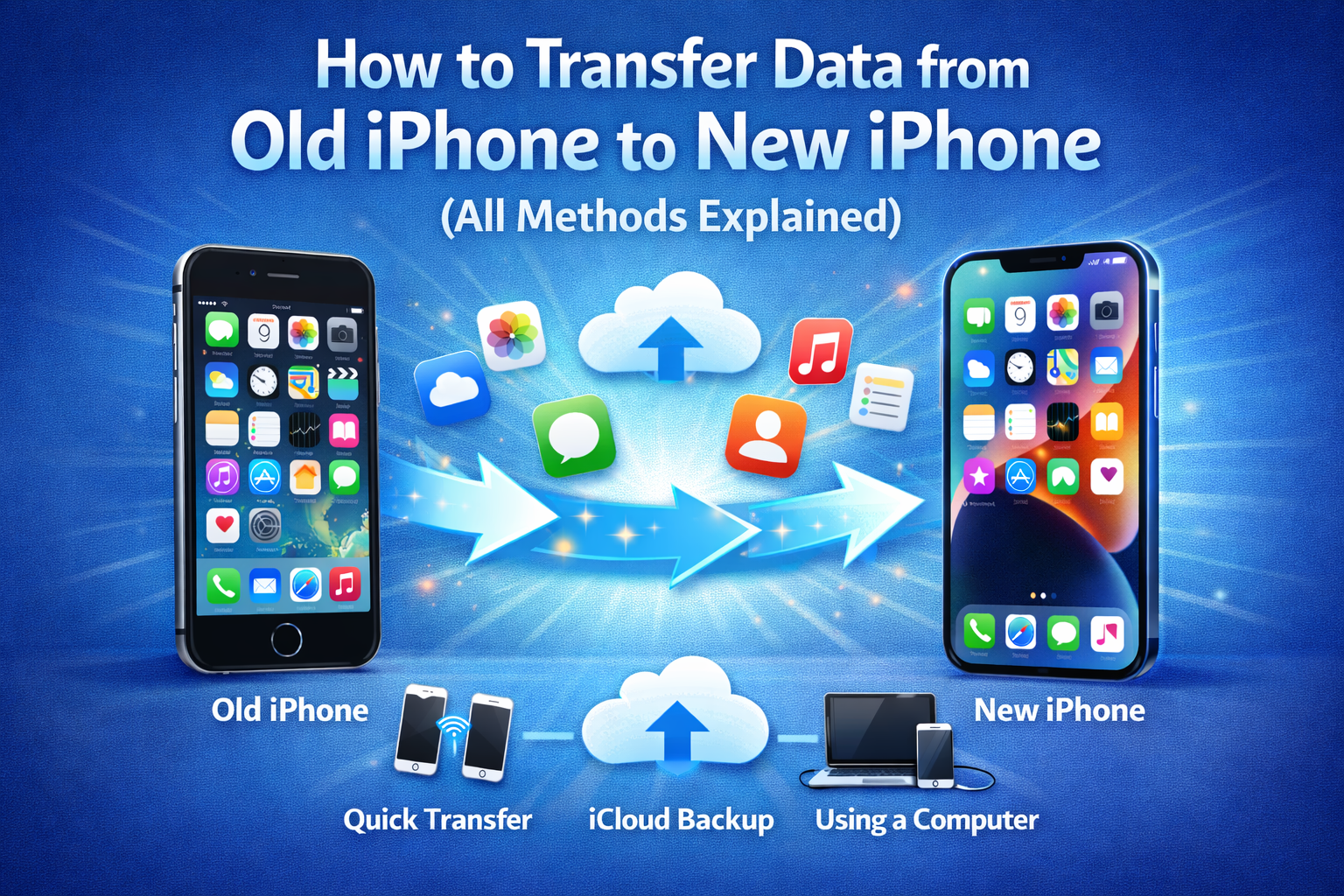
There are three main methods to transfer data. Choose the one that suits your situation.
Method 1: Transfer Data Using Quick Start (Best & Easiest)
Quick Start is Apple’s easiest and most popular method.
What You Need:
- Both iPhones running iOS 12.4 or later
- Bluetooth enabled
- Wi-Fi connection
Step-by-Step Guide:
- Turn on your new iPhone
- Place it near your old iPhone
- A Quick Start screen appears on the old iPhone
- Tap Continue
- Scan the animation using the old iPhone
- Enter your passcode on the new iPhone
- Choose Transfer Directly from iPhone
- Keep both phones close and plugged in
Transfer Time:
- Small data: 15–30 minutes
- Large data: 1–2 hours
Real-world example:
Most users transferring data wirelessly overnight wake up to a fully ready new iPhone.
Method 2: Transfer Data from iCloud Backup (Most Flexible)
This method is perfect if your old iPhone is unavailable or damaged.
How to Transfer Data from Old iPhone to New iPhone Using iCloud
Step 1: Back Up Old iPhone to iCloud
- Open Settings
- Tap your Apple ID
- Tap iCloud > iCloud Backup
- Tap Back Up Now
- Wait until backup finishes
Step 2: Restore Backup on New iPhone
- Turn on the new iPhone
- Follow setup steps until Apps & Data screen
- Tap Restore from iCloud Backup
- Sign in with Apple ID
- Select the latest backup
- Wait for restore to complete
Note:
Apps and photos may continue downloading in the background.
Method 3: Transfer Data Using Computer (Fastest for Large Data)
This method is ideal if you have a lot of photos and videos.
What You Need:
- Mac (Finder) or Windows PC (iTunes)
- USB cable
Steps:
- Connect old iPhone to computer
- Open Finder (Mac) or iTunes (Windows)
- Click Back Up Now
- Connect new iPhone
- Choose Restore from Backup
- Select the latest backup
Real-world example:
Users with 200GB+ data often prefer computer backup because it’s faster and more stable.
Which Method Should You Choose?
| Situation | Best Method |
|---|---|
| Both iPhones available | Quick Start |
| Old iPhone lost or broken | iCloud |
| Very large data | Computer |
| Slow internet | Computer |
Common Problems When Transferring Data (And Fixes)
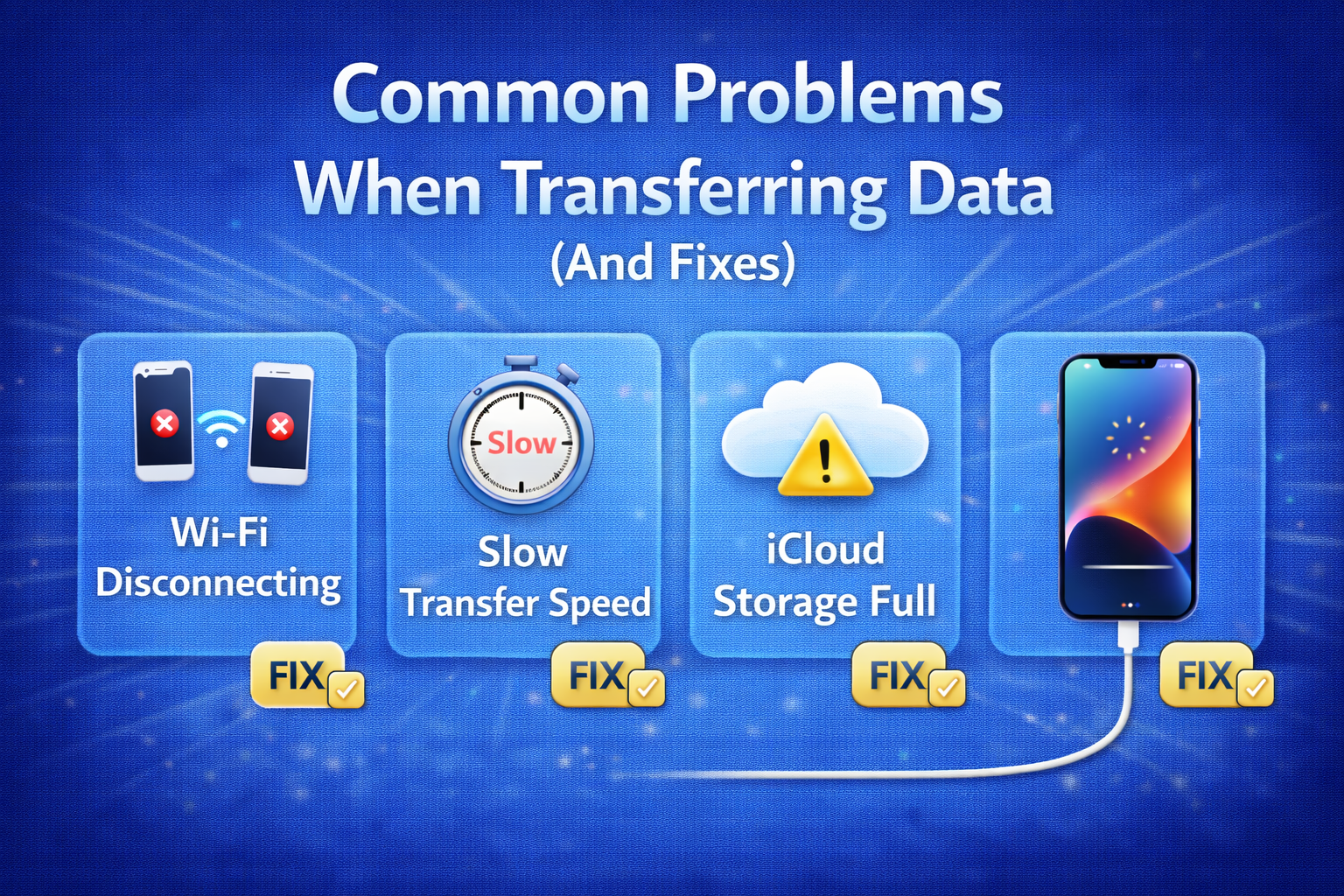
Transfer Stuck or Slow
- Keep phones close
- Use fast Wi-Fi
- Plug in chargers
Some Data Missing
- Check Apple ID
- Enable iCloud sync
- Wait for background downloads
iCloud Storage Full
- Delete old backups
- Upgrade iCloud temporarily
What Data Does NOT Transfer Automatically?
Some items need manual setup:
- Apple Pay cards
- Face ID / Touch ID
- Downloaded music (non-iTunes)
- Login credentials for some apps
This is normal and done for security reasons.
Tips for a Smooth Data Transfer Experience
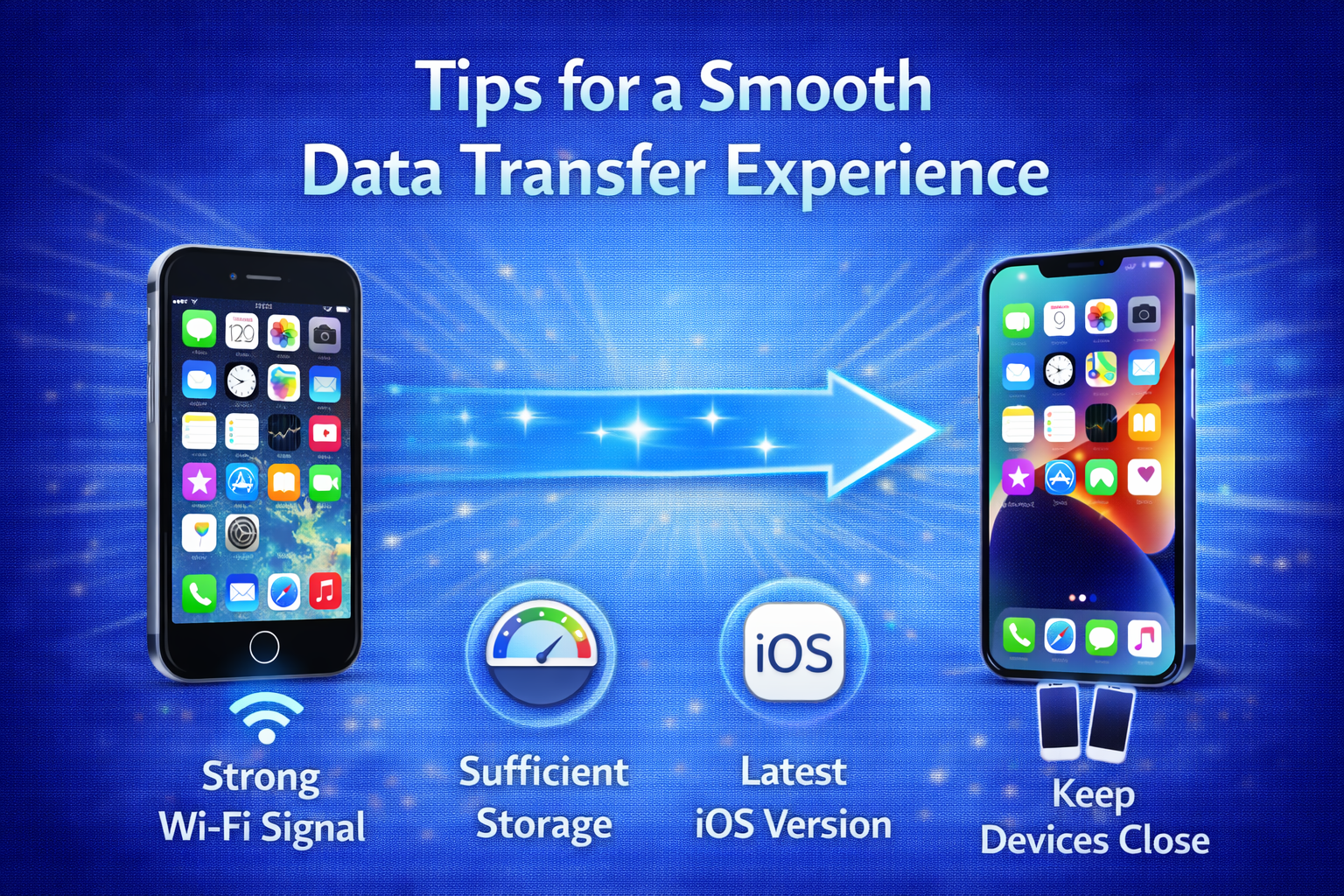
- Transfer overnight if data is large
- Avoid using phones during transfer
- Don’t interrupt Wi-Fi connection
- Keep both devices charging
- Be patient—background sync can take hours
Frequently Asked Questions (FAQ)
1. Can I transfer data after setting up a new iPhone?
Yes, but you must erase the new iPhone to use Quick Start or restore from backup.
2. Will transferring data delete anything on my old iPhone?
No. Your old iPhone remains unchanged.
3. Does transferring data include WhatsApp messages?
Yes, if WhatsApp data is included in the backup.
4. How long does it take to transfer data?
Anywhere from 15 minutes to several hours, depending on data size.
5. Can I use my new iPhone during transfer?
It’s best to wait until transfer finishes to avoid issues.
Conclusion
Knowing how to transfer data from old iPhone to new iPhone makes upgrading stress-free. Whether you use Quick Start, iCloud, or a computer, Apple provides safe and reliable tools to protect your data. The key is choosing the right method and following each step carefully.
With proper preparation and patience, your new iPhone will feel just like your old one—only faster, better, and ready for the future.