How to Fix iPhone Safari Not Loading Pages
If your iPhone Safari is not loading pages, you’re not alone. This is a common issue that many users face, especially after updates or network changes. You open Safari, type a website, and… nothing happens. Pages won’t load, or they load very slowly.
This problem can be frustrating, especially when you need quick access to websites for work, school, or daily tasks.
The good news? You can fix this issue easily by following a few simple steps.
In this guide, we’ll walk you through step-by-step solutions to fix the issue quickly and effectively.
Common Symptoms of This Problem
Before fixing it, here’s what you might notice:
- Safari won’t open any website
- Pages keep loading forever
- “Cannot Open Page” error
- Safari works on WiFi but not mobile data (or vice versa)
- Other apps work fine, but Safari doesn’t
Step-by-Step Solutions to Fix iPhone Safari Not Loading Pages
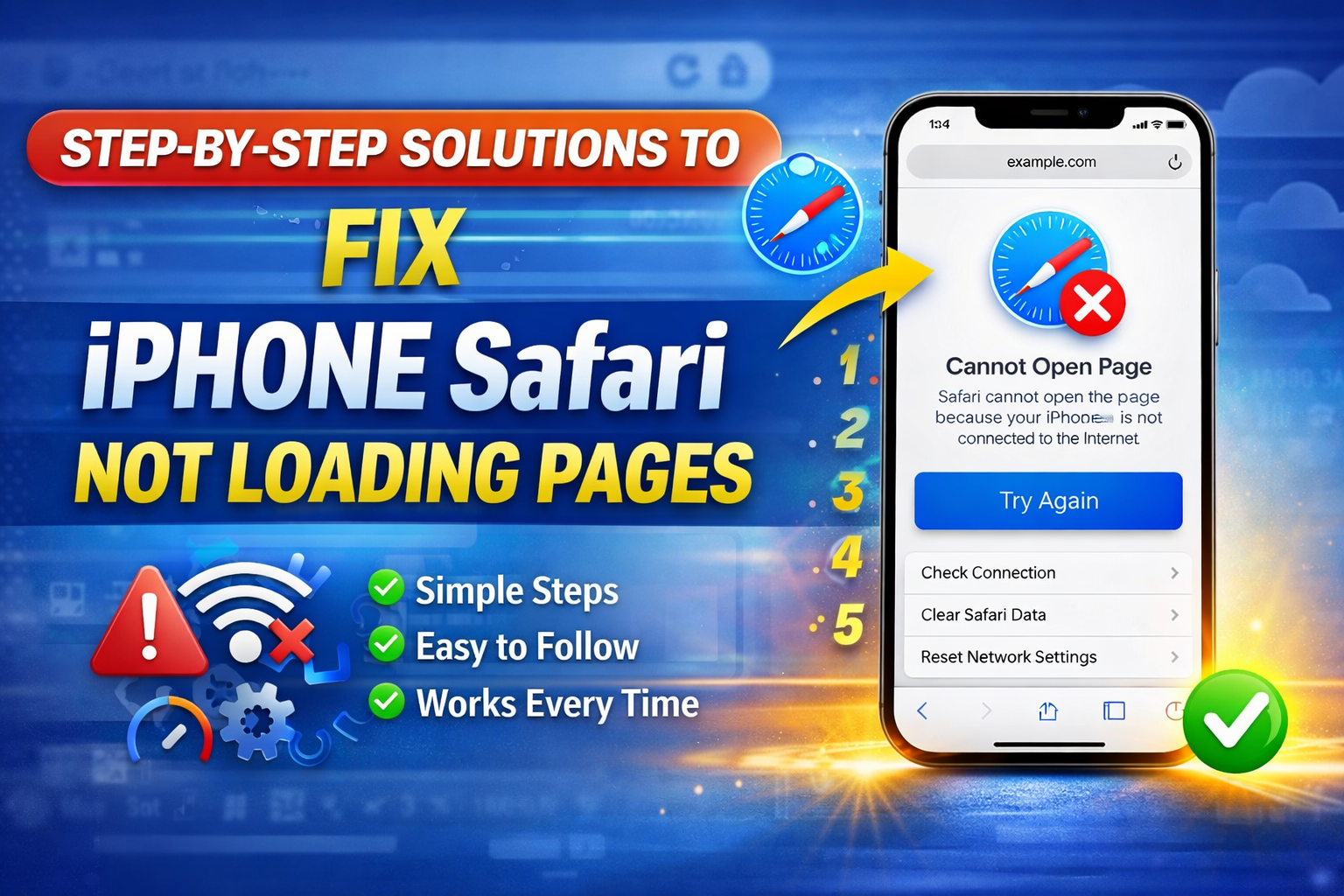
Follow these solutions in order. Start with the easiest fixes first.
1. Check Your Internet Connection
This is the most common cause.
Steps:
- Open another app (like YouTube or Facebook)
- Check if it loads properly
- Switch between WiFi and Mobile Data
👉 If nothing loads, your internet is the problem.
Fix:
- Turn Airplane Mode ON, wait 10 seconds, then turn it OFF
- Restart your WiFi router
- Move closer to your WiFi signal
2. Turn Off and On Safari
Sometimes Safari just needs a quick refresh.
Steps:
- Swipe up (or double press Home button)
- Find Safari
- Swipe it away to close
- Reopen Safari
3. Clear Safari Cache and Data
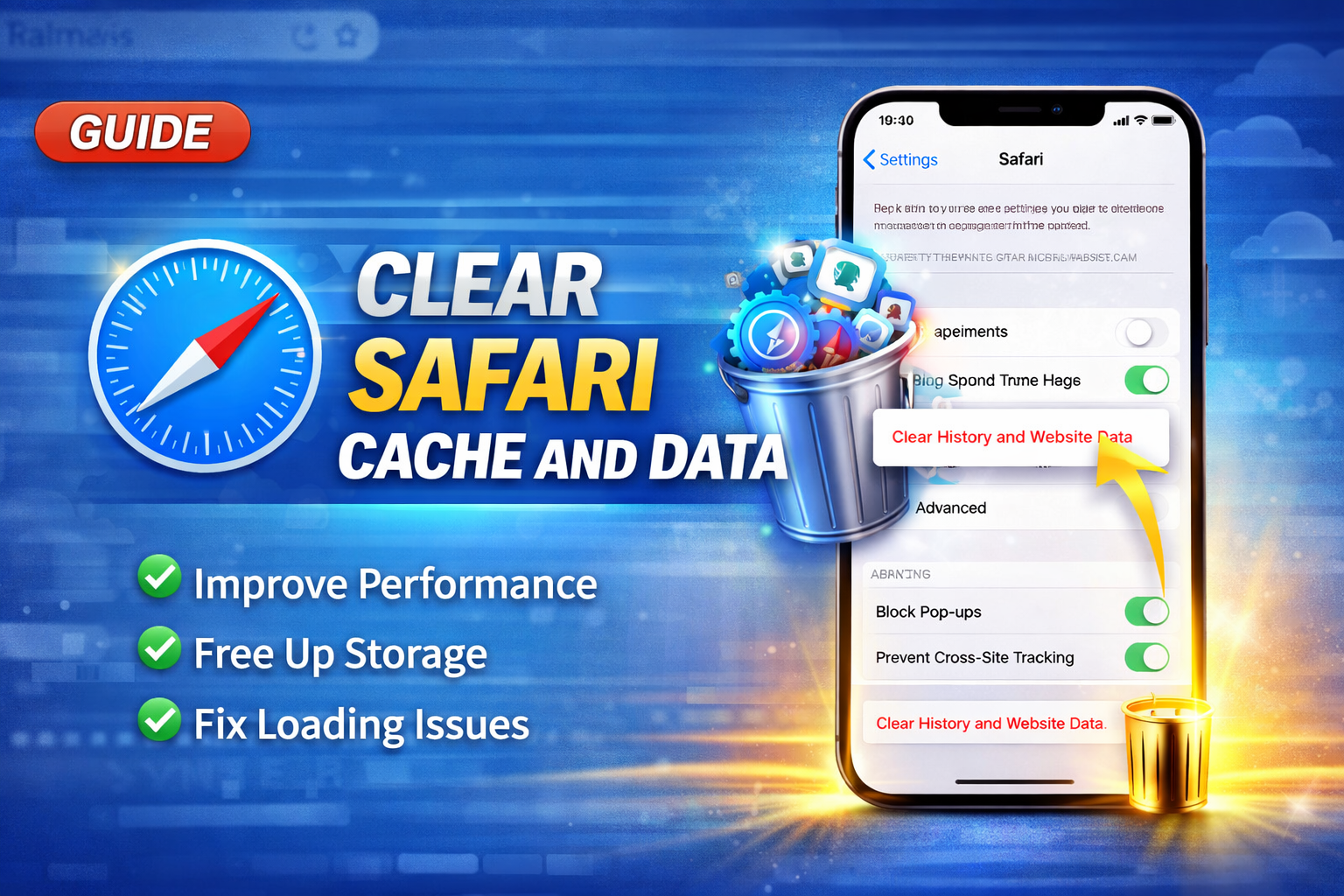
Cached data can cause loading problems.
Steps:
- Go to Settings
- Tap Safari
- Tap Clear History and Website Data
- Confirm
👉 This removes saved data that may be causing issues.
4. Disable Content Blockers
Ad blockers or extensions can break websites.
Steps:
- Go to Settings > Safari
- Tap Content Blockers
- Turn them OFF
👉 Try loading the page again.
5. Check Safari Settings
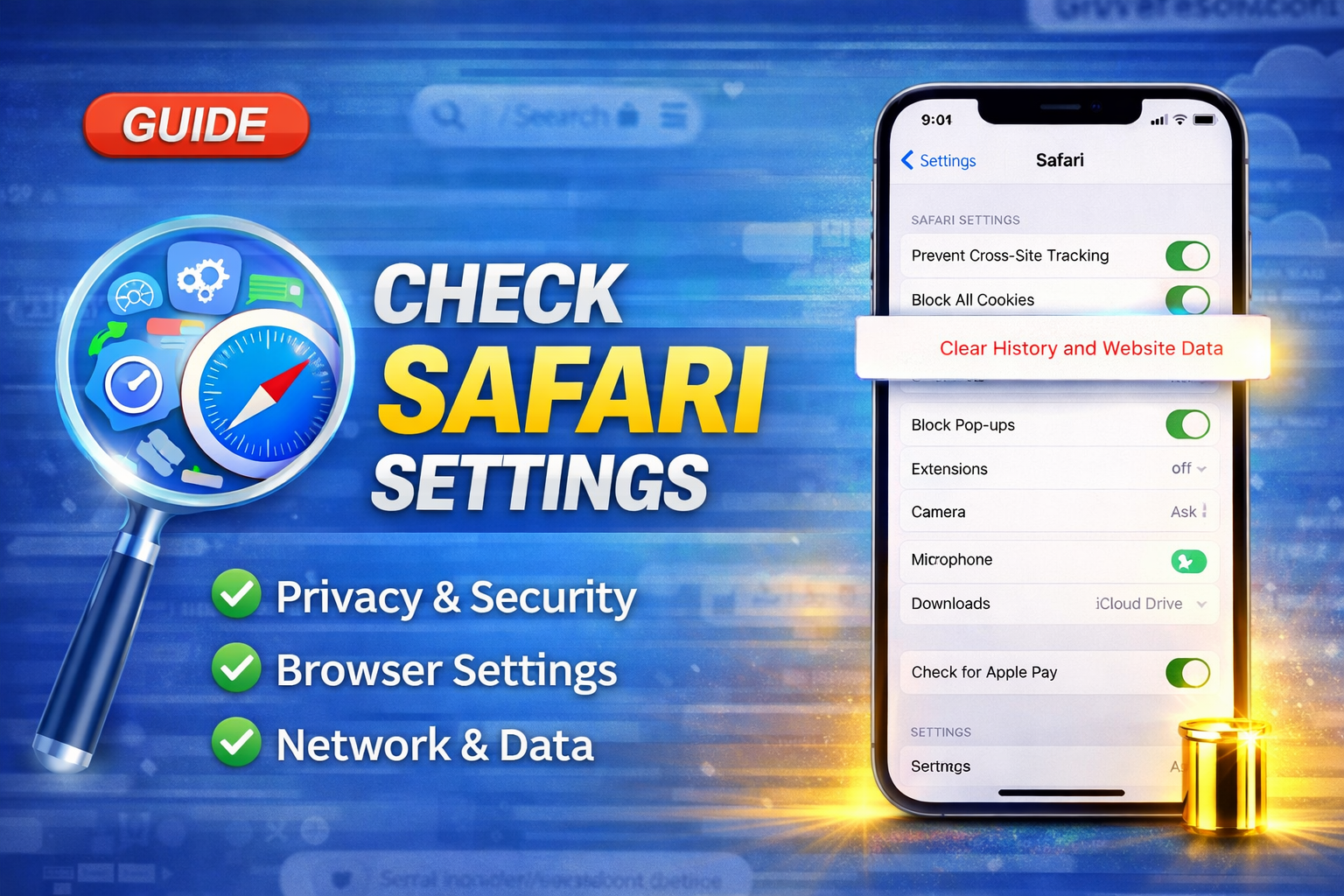
Incorrect settings can block websites.
Steps:
- Go to Settings > Safari
- Make sure:
- Block All Cookies = OFF
- JavaScript = ON
6. Reset Network Settings
This fixes many network-related issues.
Steps:
- Go to Settings
- Tap General
- Tap Transfer or Reset iPhone
- Tap Reset
- Select Reset Network Settings
⚠️ This will remove saved WiFi passwords.
7. Check Screen Time Restrictions
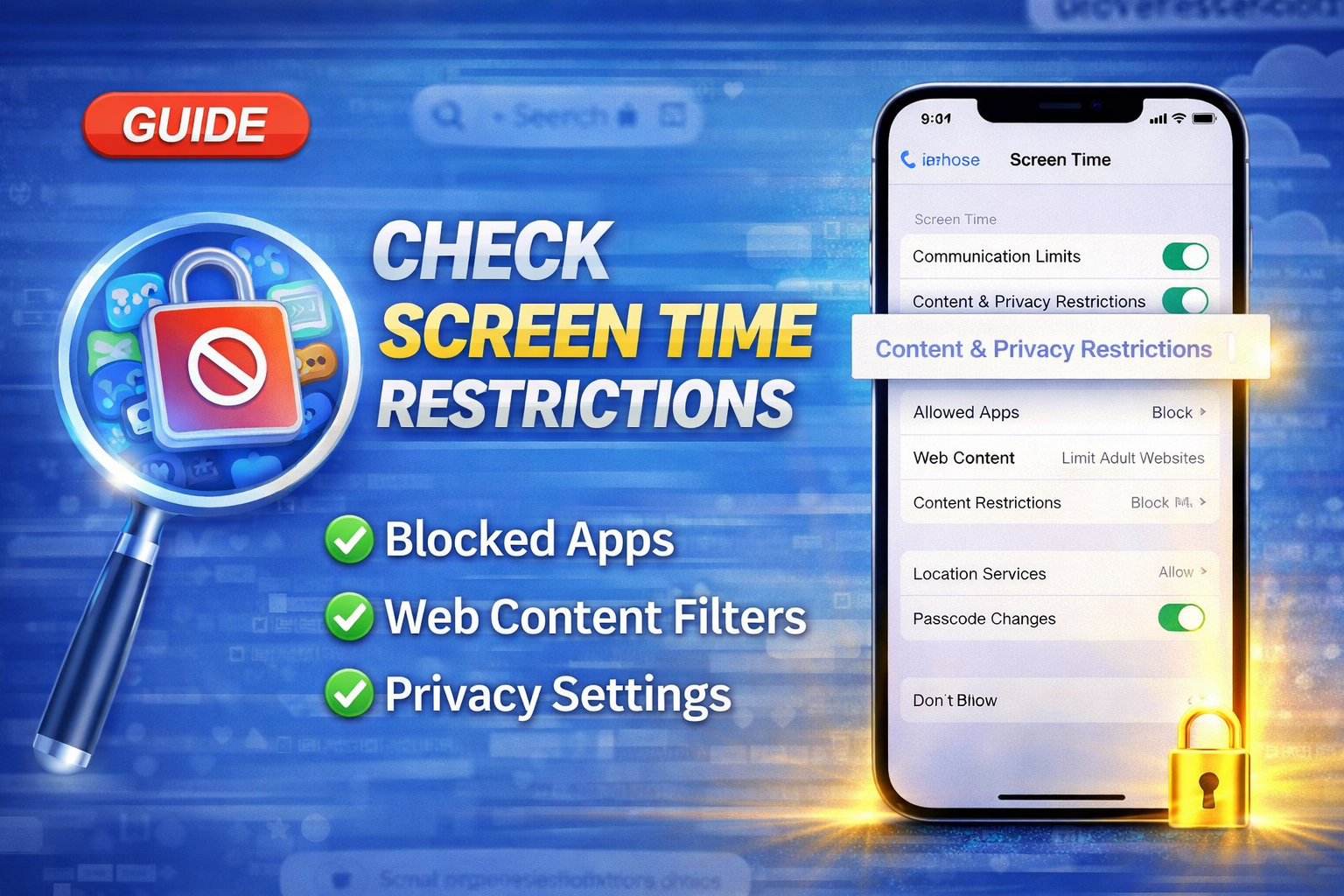
Safari may be restricted.
Steps:
- Go to Settings
- Tap Screen Time
- Tap Content & Privacy Restrictions
- Tap Allowed Apps
- Make sure Safari is ON
8. Update iOS
Outdated software can cause bugs.
Steps:
- Go to Settings
- Tap General
- Tap Software Update
- Install any available updates
👉 Updates often fix Safari issues.
9. Turn Off Experimental Features
Safari has hidden features that may cause problems.
Steps:
- Go to Settings > Safari
- Tap Advanced
- Tap Experimental Features
- Reset to default or turn OFF suspicious options
10. Restart Your iPhone
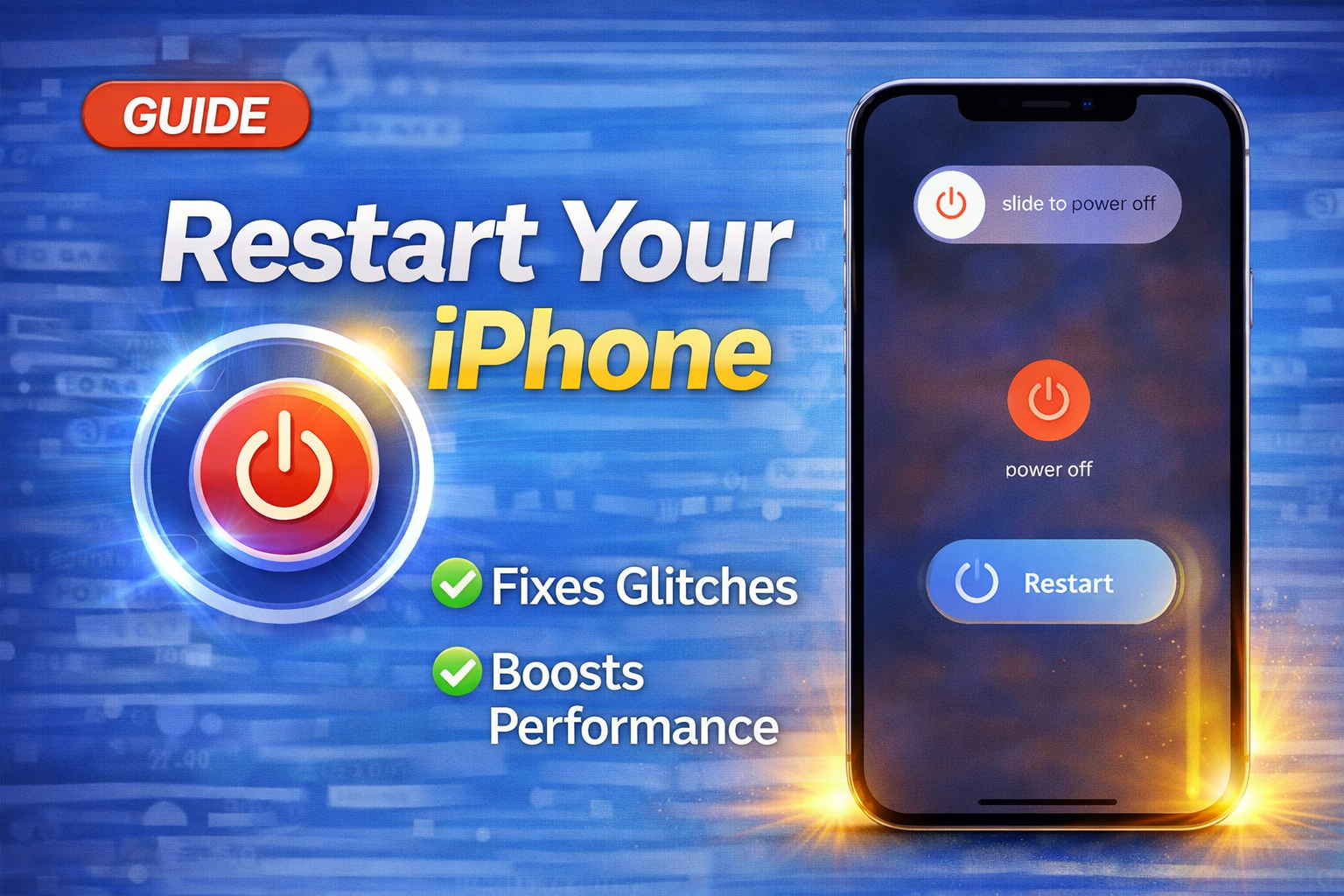
Simple but effective.
Steps:
- Press and hold the power button
- Slide to power off
- Turn it back on
👉 This clears temporary system glitches.
11. Try Another Browser
To confirm the issue is Safari-only:
- Install Chrome or Firefox
- Try opening the same website
👉 If it works there, Safari is the issue.
Why This Problem Happens
There are several reasons why occurs:
- Poor or unstable internet connection
- Corrupted Safari cache or data
- Incorrect browser settings
- iOS bugs after updates
- Content blockers interfering with websites
- Network configuration errors
Understanding the cause helps you fix it faster.
Quick Tips to Prevent This Problem
Avoid this issue in the future with these tips:
- Keep iOS updated regularly
- Clear Safari data once in a while
- Avoid installing too many browser extensions
- Use a stable internet connection
- Restart your iPhone weekly
- Don’t enable unknown experimental features
FAQ (Frequently Asked Questions)
1. Why is Safari not loading pages but internet works?
This usually happens بسبب Safari cache issues or incorrect settings. Clearing data or resetting network settings often fixes it.
2. How do I reset Safari on iPhone?
Go to Settings > Safari > Clear History and Website Data.
3. Can VPN cause Safari not to load pages?
Yes. A VPN can block or slow down connections. Try turning it OFF and test again.
4. Why do some websites load and others don’t?
This may be caused by:
- Content blockers
- DNS issues
- Website server problems
5. Will resetting network settings fix Safari issues?
Yes, in many cases. It clears network errors that affect Safari.
Conclusion
The iPhone Safari not loading pages issue can be annoying, but it’s usually easy to fix.
Start with simple solutions like:
- Checking your internet
- Clearing Safari data
- Restarting your device
If that doesn’t work, move on to advanced fixes like resetting network settings or updating iOS.
By following this guide, you should be able to fix the problem quickly and get back to browsing without frustration.