Fix iPhone Problems Without Resetting Device
iPhone problems can be frustrating—especially when your device starts lagging, apps crash, or features stop working. Many users think the only solution is to reset their device, but that’s not always necessary.
The good news? You can fix most issues without losing your data.
In this guide, you’ll learn how to fix iPhone problems without resetting your device using simple, beginner-friendly methods. These steps are safe, quick, and effective.
Why You Should Avoid Resetting Your iPhone
Resetting your iPhone can:
- Delete important data
- Remove apps and settings
- Take time to restore everything
That’s why it’s better to try other fixes first. Most issues can be solved without a full reset.
Common iPhone Problems You Can Fix Without Resetting
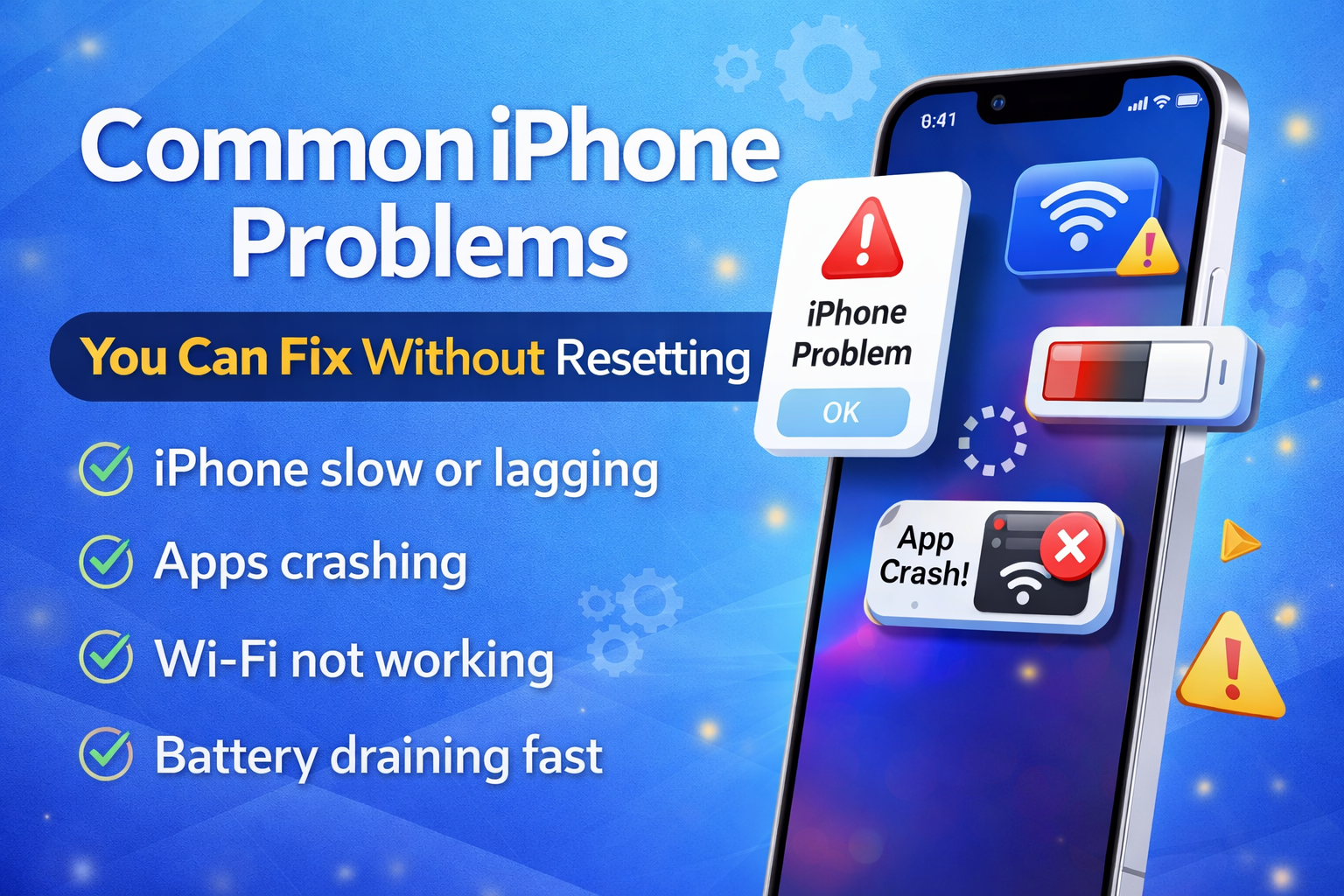
- iPhone running slow
- Apps crashing or freezing
- Wi-Fi not working
- Battery draining fast
- Screen not responding properly
All of these can often be fixed using the methods below.
Step-by-Step: Fix iPhone Problems Without Resetting
1. Restart Your iPhone
A simple restart can solve many issues.
Steps:
- Press and hold the Power button + Volume button
- Slide to power off
- Wait 10–15 seconds
- Turn your iPhone back on
👉 Why it works: It clears temporary glitches and refreshes the system.
2. Close Background Apps
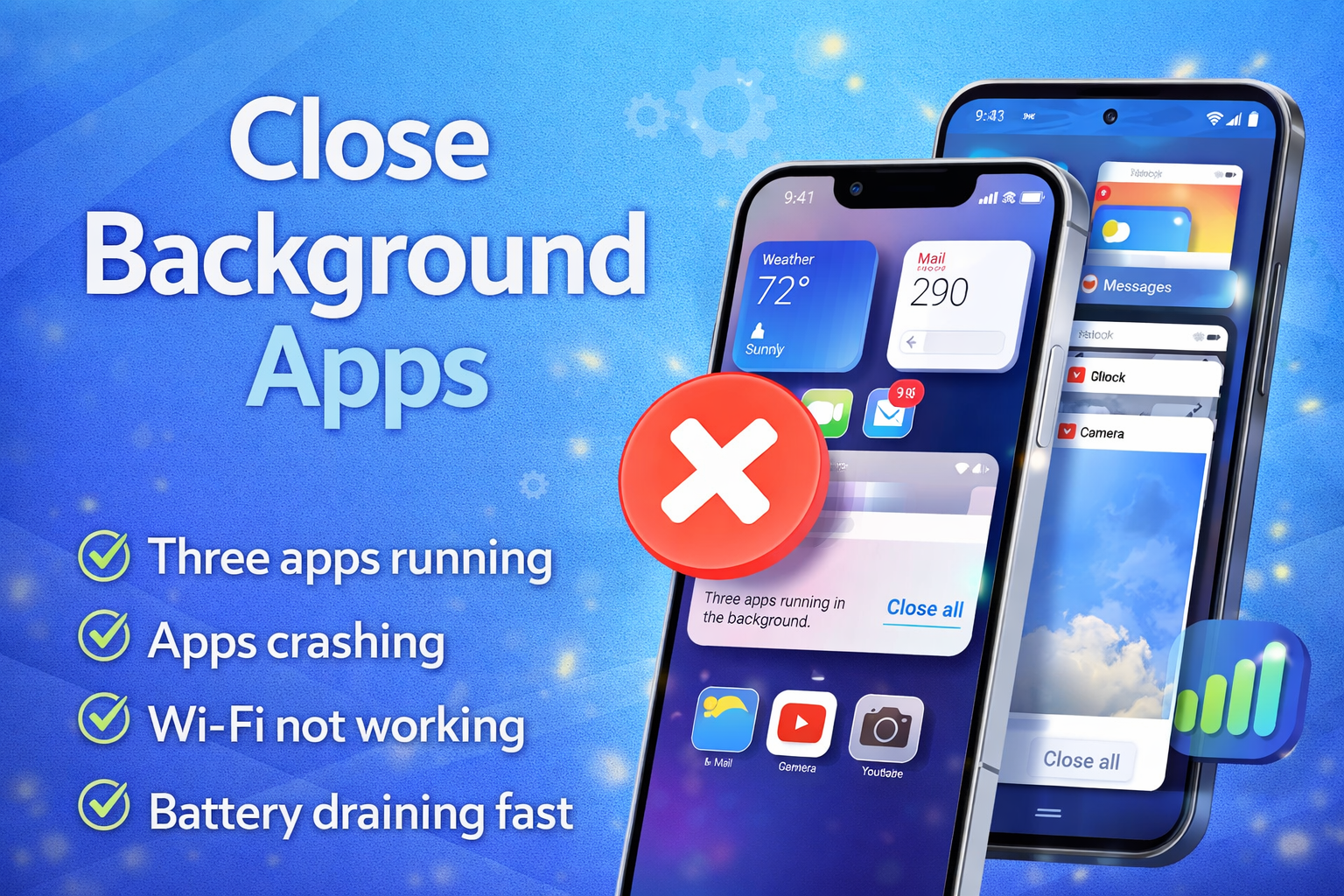
Too many apps running can slow down your iPhone.
Steps:
- Swipe up from the bottom (or double-press Home button)
- Swipe up on apps to close them
👉 Important: Focus on apps that are not in use.
3. Update iOS to the Latest Version
Outdated software can cause bugs and performance issues.
Steps:
- Go to Settings > General > Software Update
- Tap Download and Install
👉 Tip: Always use Wi-Fi and ensure your battery is above 50%.
4. Free Up Storage Space
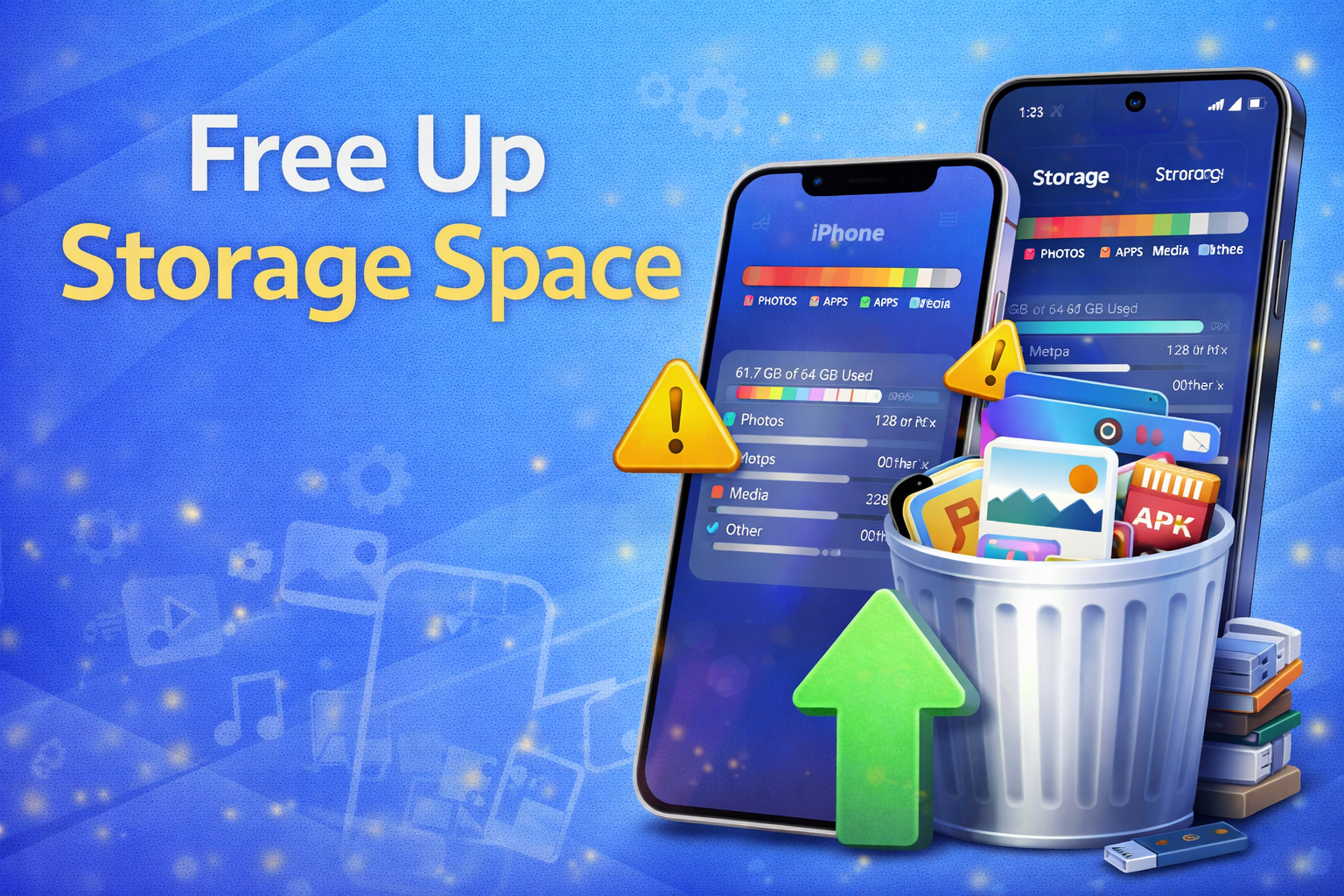
Low storage can make your iPhone slow and unstable.
Steps:
- Go to Settings > General > iPhone Storage
- Delete unused apps, photos, or videos
Quick ways to free space:
- Remove duplicate photos
- Clear large videos
- Offload unused apps
👉 Goal: Keep at least 5–10GB free space.
5. Clear Safari Cache and Data
Browser data can slow down your device.
Steps:
- Go to Settings > Safari
- Tap Clear History and Website Data
👉 Result: Faster browsing and fewer glitches.
6. Reset Network Settings (Without Full Reset)
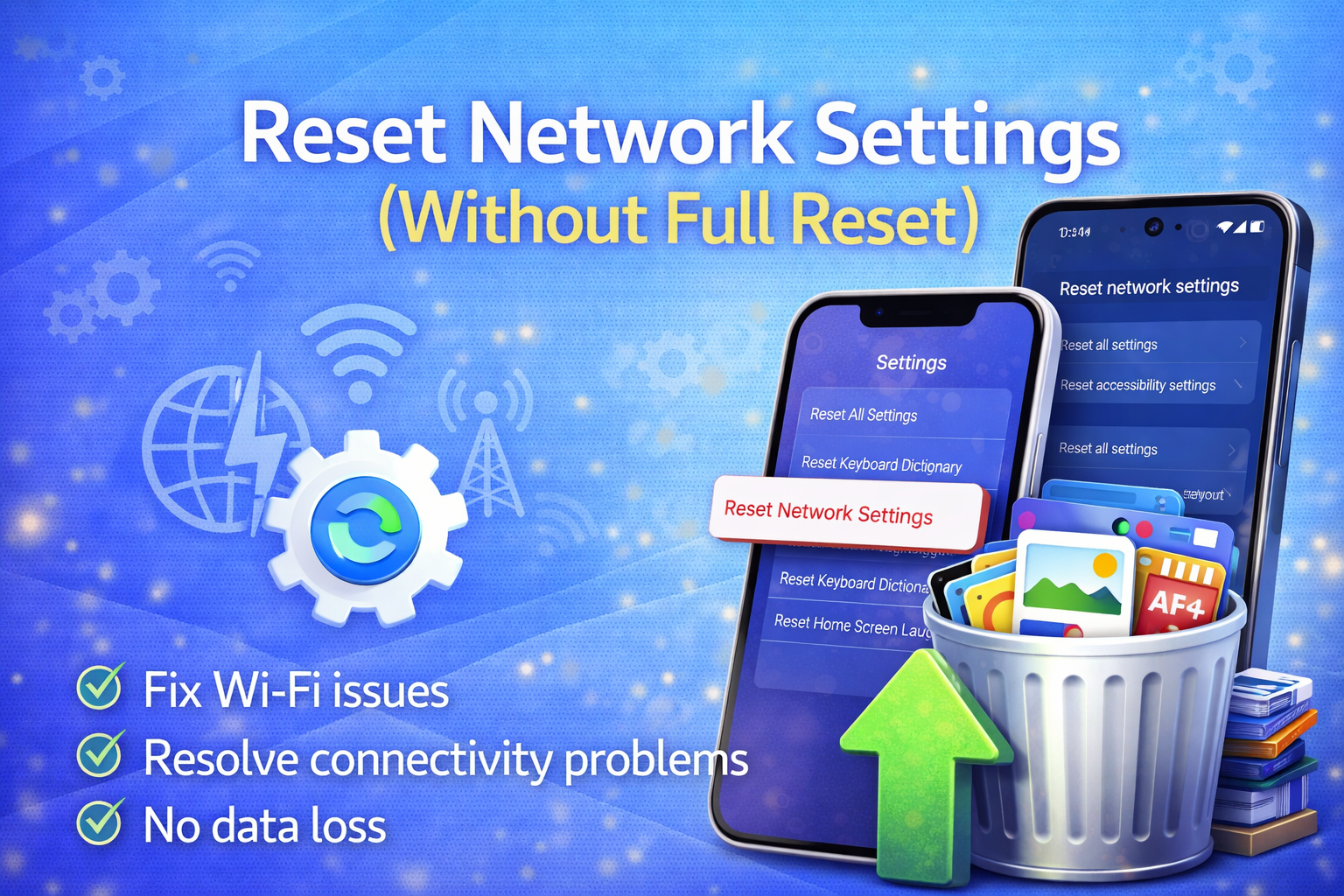
If Wi-Fi or mobile data isn’t working, this helps.
Steps:
- Go to Settings > General > Transfer or Reset iPhone
- Tap Reset > Reset Network Settings
👉 Note: This won’t delete your data, only Wi-Fi passwords.
7. Check App Updates
Outdated apps may crash or stop working.
Steps:
- Open App Store
- Tap your profile icon
- Tap Update All
👉 Tip: Enable auto-updates to avoid future issues.
8. Disable Background App Refresh
This can improve performance and battery life.
Steps:
- Go to Settings > General > Background App Refresh
- Turn it off or limit to Wi-Fi only
👉 Benefit: Reduces system load and saves battery.
9. Check Battery Health
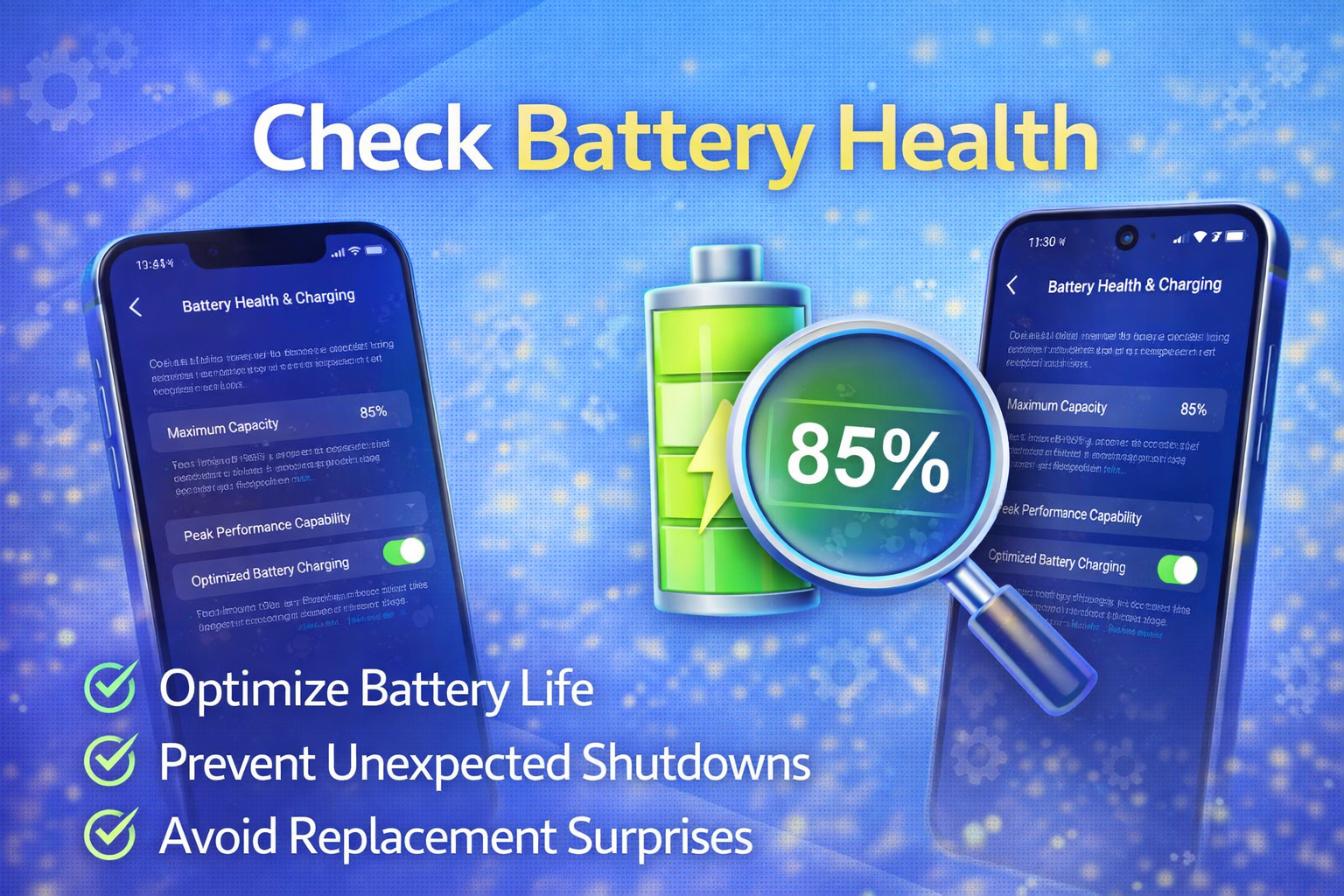
Poor battery condition can cause performance issues.
Steps:
- Go to Settings > Battery > Battery Health & Charging
- Check Maximum Capacity
👉 If below 80%: Consider replacing the battery.
10. Turn Off Unnecessary Features
Some features consume system resources.
You can disable:
- Location Services (for some apps)
- Push Notifications (non-essential apps)
- Motion Effects
👉 This helps your iPhone run smoother.
Why This Problem Happens
Understanding the cause helps prevent future issues.
Common reasons:
- Too many background apps
- Low storage space
- Outdated iOS version
- Buggy or outdated apps
- Poor network settings
- Battery degradation
These factors can slow down your device or cause unexpected problems.
Quick Tips to Prevent This Problem
Follow these tips to keep your iPhone running smoothly:
- Restart your iPhone weekly
- Keep iOS updated
- Avoid installing too many apps
- Clean storage regularly
- Update apps frequently
- Use original chargers and accessories
- Avoid overheating your device
👉 Prevention is always easier than fixing problems later.
FAQ: Fix iPhone Problems Without Resetting Device
1. Can I fix iPhone issues without losing data?
Yes. Most problems can be fixed without resetting your device or losing data by using simple troubleshooting steps.
2. When should I reset my iPhone?
Only reset your iPhone if:
- All other methods fail
- System errors are severe
- You’re preparing to sell your device
3. Why is my iPhone still slow after trying these fixes?
It could be due to:
- Old hardware
- Battery issues
- Heavy apps
Try checking battery health or removing large apps.
4. Does updating iOS fix problems?
Yes. Updates often include bug fixes, performance improvements, and security patches.
5. Is resetting network settings safe?
Yes. It only removes Wi-Fi passwords and network settings—not your personal data.
Conclusion
Fixing iPhone problems doesn’t always require a full reset. In fact, most issues can be solved using simple steps like restarting your device, updating iOS, clearing storage, or adjusting settings.
By following this guide on [MAIN KEYWORD], you can save time, protect your data, and keep your iPhone running smoothly.
Start with the easiest fixes first, and only consider resetting as a last option.
👉 A smarter approach means fewer headaches—and a faster iPhone.