iPhone Troubleshooting Guide for Beginners 2026
If your iPhone is not working properly, you are not alone. Many users face common issues like slow performance, WiFi problems, battery drain, or apps crashing.
The good news? Most of these problems are easy to fix—even if you are a beginner.
In this iPhone Troubleshooting Guide for Beginners 2026, you will learn simple step-by-step solutions to fix common issues quickly and safely.
Common iPhone Problems You May Face
Before fixing anything, it’s helpful to know the most common issues:
- iPhone running slow
- Battery draining fast
- WiFi not connecting
- Screen not responding
- Apps crashing or freezing
These issues usually happen due to software bugs, outdated iOS, or incorrect settings.
Step-by-Step iPhone Troubleshooting Guide
Follow these steps one by one. Most problems will be solved without needing advanced tools.
1. Restart Your iPhone (Quick Fix)
This is the simplest and most effective solution.
Steps:
- Press and hold the Power button + Volume button
- Slide to power off
- Wait 10–20 seconds
- Turn it back on
👉 This clears temporary bugs and refreshes the system.
2. Check for iOS Updates
Outdated software can cause many issues.
Steps:
- Go to Settings > General > Software Update
- Tap Download and Install
Important: Always keep your iPhone updated for better performance and security.
3. Fix iPhone Running Slow
If your iPhone feels laggy:
Try these steps:
- Close unused apps
- Go to Settings > General > iPhone Storage
- Delete unused apps or files
- Turn off background app refresh:
- Settings > General > Background App Refresh
4. Fix Battery Draining Fast
Battery issues are very common.
Steps to fix:
- Go to Settings > Battery
- Check which apps use the most power
- Enable Low Power Mode
- Reduce screen brightness
- Turn off location services for unused apps
5. Fix WiFi Not Working
If your iPhone won’t connect to WiFi:
Steps:
- Turn WiFi OFF and ON
- Restart your router
- Forget and reconnect network:
- Settings > WiFi
- Tap your network → Forget This Network
- Reset network settings:
- Settings > General > Transfer or Reset iPhone > Reset > Network Settings
6. Fix iPhone Screen Not Responding
If touch is not working properly:
Steps:
- Clean your screen
- Remove screen protector
- Restart your iPhone
- Update iOS
- If still not working → possible hardware issue
7. Fix Apps Crashing or Freezing
Apps may crash due to bugs.
Steps:
- Close and reopen the app
- Update the app from App Store
- Restart your iPhone
- Delete and reinstall the app
8. Reset All Settings (Advanced Fix)
If nothing works, try this:
Steps:
- Go to Settings > General > Transfer or Reset iPhone
- Tap Reset > Reset All Settings
⚠️ This will not delete your data but will reset WiFi, settings, and preferences.
Why This Problem Happens
Understanding the cause helps you avoid future issues.
Common reasons include:
- Outdated iOS version
- Too many background apps
- Low storage space
- Software bugs or glitches
- Poor network connection
- Old battery health
👉 Most problems are software-related, not hardware.
Quick Tips to Prevent This Problem
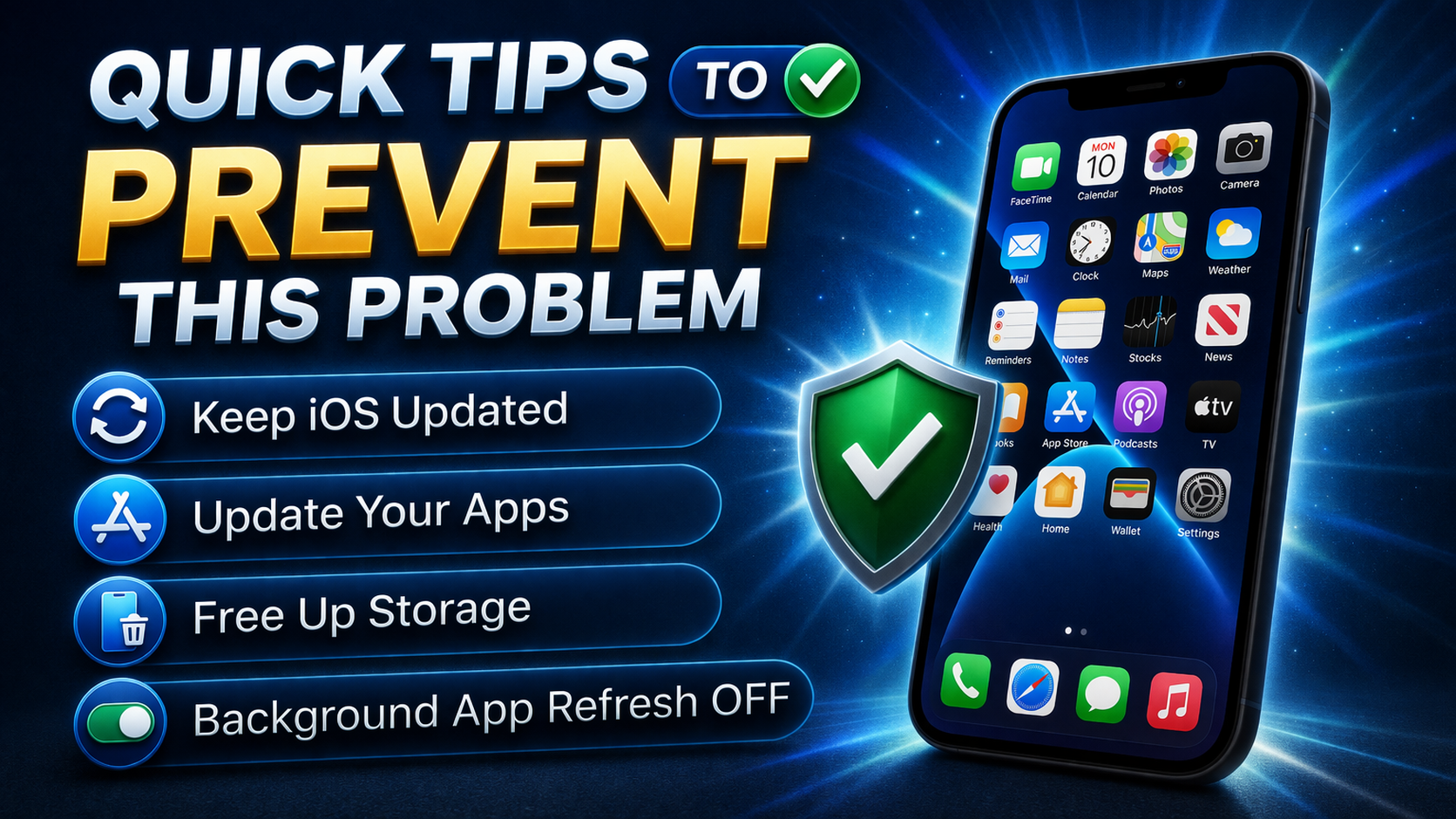
Follow these simple tips to keep your iPhone running smoothly:
- ✅ Always update iOS regularly
- ✅ Keep at least 20% free storage
- ✅ Restart your iPhone once a week
- ✅ Avoid installing too many apps
- ✅ Use original charger and accessories
- ✅ Clear cache and unused files
FAQ (Frequently Asked Questions)
1. Why is my iPhone so slow suddenly?
It may be due to low storage, outdated iOS, or too many background apps.
2. How often should I restart my iPhone?
At least once a week to keep it running smoothly.
3. Will resetting settings delete my data?
No, Reset All Settings does not delete photos or apps.
4. Why does my battery drain quickly?
Apps running in the background, high brightness, or old battery health.
5. When should I visit a technician?
If your iPhone has physical damage or problems continue after all fixes.
Conclusion
This iPhone Troubleshooting Guide for Beginners 2026 shows that most iPhone problems are easy to fix with simple steps.
Start with basic solutions like restarting your device and updating iOS. If needed, move to advanced fixes like resetting settings.
👉 You don’t need to be a tech expert—just follow each step carefully.