Complete Guide to Fix iPhone Errors Fast
iPhone errors can be frustrating—apps crash, the screen freezes, WiFi stops working, or your device gets stuck on the Apple logo. These problems often happen unexpectedly and can interrupt your daily tasks.
The good news? Most iPhone issues can be fixed quickly without resetting your device or losing your data.
In this complete guide, you’ll learn how to fix iPhone errors fast using simple, step-by-step solutions. Whether you’re a beginner or just need a quick fix, this guide will help you troubleshoot common iOS problems easily.
Common iPhone Errors You Can Fix
Before we jump into solutions, here are some common issues users face:
- iPhone frozen or unresponsive
- Apps crashing or not opening
- WiFi or Bluetooth not working
- iPhone stuck on Apple logo
- Battery draining fast
- iPhone overheating
- Unable to update iOS
Let’s fix these problems step by step.
Step-by-Step Solutions to Fix iPhone Errors Fast
1. Restart Your iPhone (Quick Fix)
Restarting your iPhone can fix many temporary glitches.
Steps:
- Press and hold the Power button + Volume button
- Slide to power off
- Wait 10–15 seconds
- Turn your iPhone back on
👉 Important: This clears temporary system bugs without deleting data.
2. Force Restart (If iPhone is Frozen)
If your screen is completely stuck, use a force restart.
Steps:
- Press Volume Up quickly
- Press Volume Down quickly
- Press and hold the Power button until Apple logo appears
👉 This is one of the fastest ways to fix iPhone errors fast when the device is unresponsive.
3. Update iOS to Latest Version
Outdated software can cause many errors.
Steps:
- Go to Settings > General > Software Update
- Tap Download and Install
- Wait for the update to complete
👉 Why it matters: Updates fix bugs, improve performance, and enhance security.
4. Clear App Cache and Reinstall Apps
Apps may crash due to corrupted data.
Steps:
- Go to Settings > General > iPhone Storage
- Select the problematic app
- Tap Delete App
- Reinstall it from the App Store
👉 This helps fix app-related iOS issues quickly.
5. Reset Network Settings
If WiFi or Bluetooth is not working, reset network settings.
Steps:
- Go to Settings > General > Transfer or Reset iPhone
- Tap Reset > Reset Network Settings
- Enter passcode and confirm
👉 Note: This will remove saved WiFi passwords.
6. Free Up Storage Space
Low storage can slow down your iPhone and cause errors.
Steps:
- Go to Settings > General > iPhone Storage
- Delete unused apps, photos, and videos
- Enable Offload Unused Apps
👉 Keeping storage clean helps improve performance and prevents errors.
7. Check Battery Health
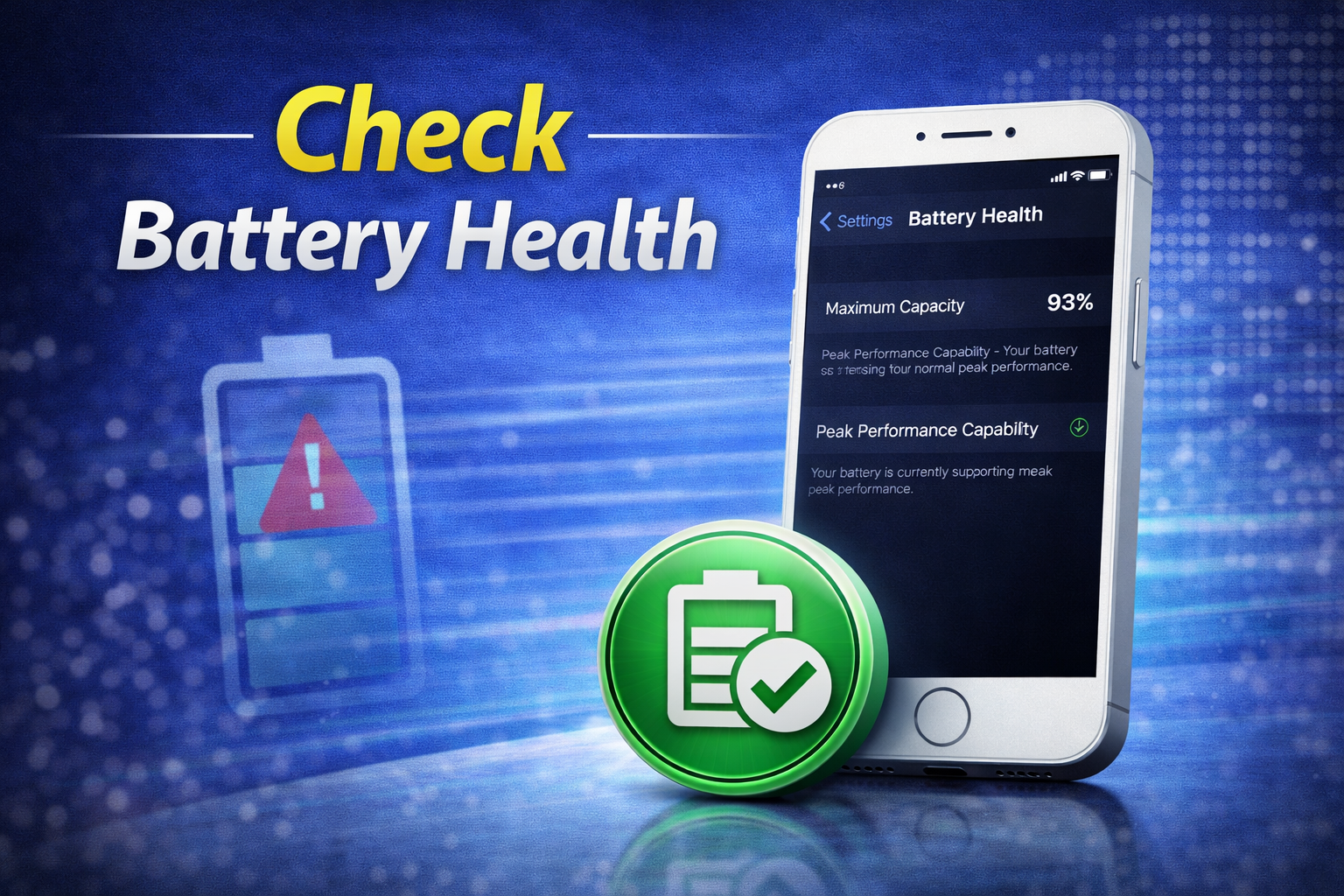
Battery issues can cause overheating and performance problems.
Steps:
- Go to Settings > Battery > Battery Health
- Check Maximum Capacity
- Enable Optimized Battery Charging
👉 Replace the battery if health is below 80%.
8. Reset All Settings (Safe Reset)
This resets system settings without deleting your data.
Steps:
- Go to Settings > General > Transfer or Reset iPhone
- Tap Reset > Reset All Settings
- Confirm with passcode
👉 This is useful when you can’t find the exact issue.
9. Use Recovery Mode (Advanced Fix)
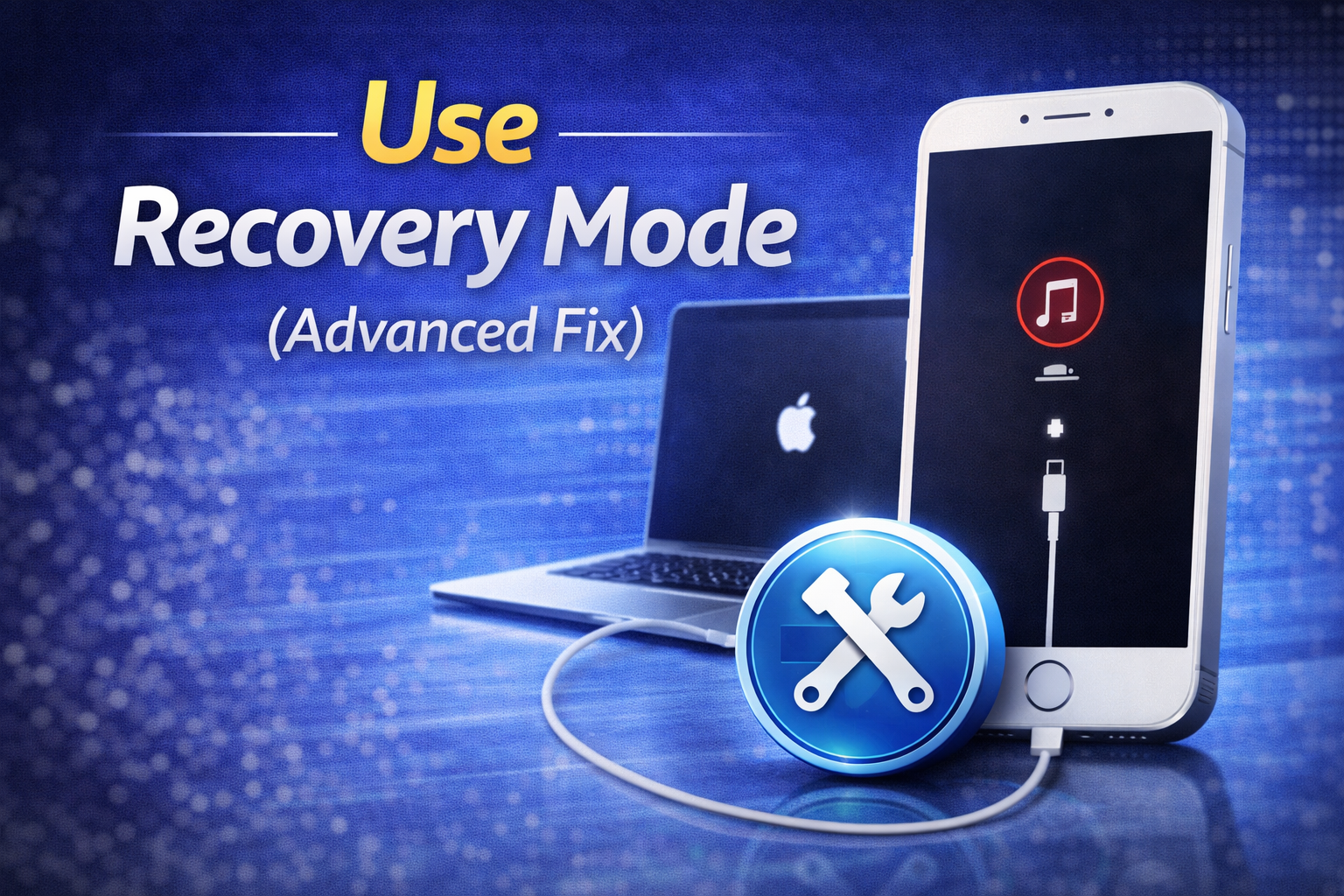
If your iPhone is stuck or not booting:
Steps:
- Connect iPhone to a computer
- Open iTunes or Finder
- Force restart your device
- Choose Update (not Restore)
👉 This reinstalls iOS without deleting data.
10. Check for Hardware Problems
If nothing works, the issue might be hardware-related.
Signs:
- Screen not responding
- No sound
- Charging issues
👉 Visit an Apple Service Center if needed.
Why This Problem Happens
Understanding the cause helps you prevent future issues.
Common reasons for iPhone errors:
- Outdated iOS version
- App bugs or incompatibility
- Low storage space
- Poor network connection
- Battery degradation
- Software glitches
- Hardware damage
👉 Most problems are software-related and can be fixed easily.
Quick Tips to Prevent This Problem
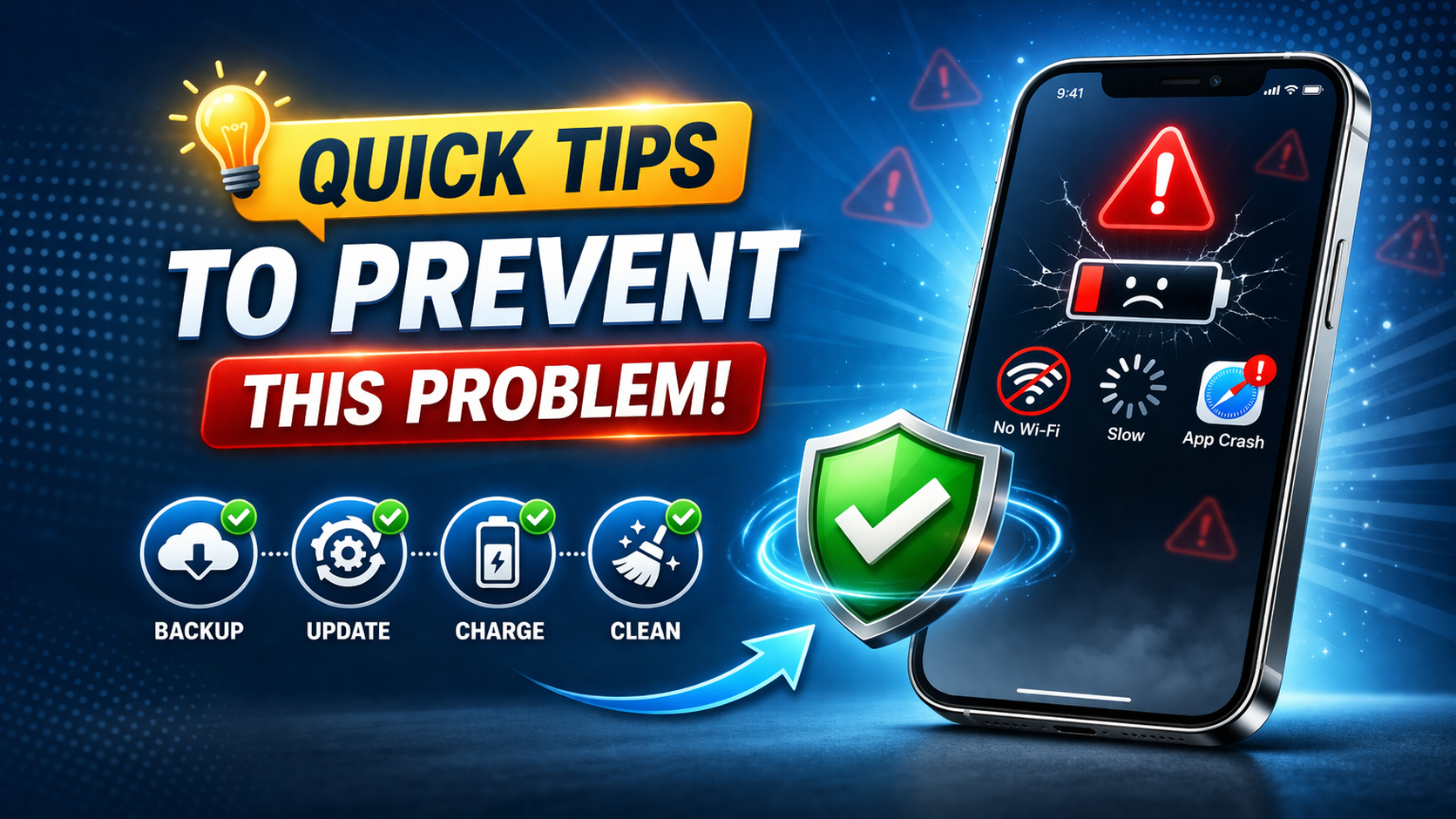
Follow these simple tips to avoid iPhone errors:
- Keep your iOS updated regularly
- Avoid installing unknown apps
- Restart your iPhone once a week
- Keep at least 20% storage free
- Use original charging accessories
- Avoid overheating your device
- Update apps frequently
👉 Prevention is the best way to avoid repeated issues.
FAQ: Fix iPhone Errors Fast
1. Why does my iPhone keep freezing?
This usually happens low storage, outdated iOS, or app issues. Try restarting or updating your device.
2. Will resetting my iPhone delete data?
- Reset All Settings → No data loss
- Factory Reset → Deletes everything
3. How often should I update iOS?
You should update whenever a new version is available to fix bugs and improve performance.
4. What should I do if my iPhone won’t turn on?
Try a force restart first. If it fails, use Recovery Mode.
5. Can I fix iPhone errors without a computer?
Yes! Most issues can be fixed directly from your iPhone using settings.
Conclusion
Fixing iPhone problems doesn’t have to be complicated. With the right steps, you can fix iPhone errors fast without resetting your device or losing data.
Start with simple solutions like restarting your iPhone or updating iOS. If the problem continues, move to advanced fixes like resetting settings or using recovery mode.
By following this guide, you’ll be able to troubleshoot iPhone issues confidently and keep your device running smoothly.