
How to Fix VPN Internet Connection Problems (Beginner-Friendly Step-by-Step Guide)
VPNs (Virtual Private Networks) are widely used to protect privacy, secure data, and access restricted content. However, many users often face VPN internet connection problems such as slow speeds, no internet access, or websites not loading while the VPN is turned on. These issues can be frustrating, especially if you rely on a VPN for work or daily browsing.
If your VPN connects but the internet doesn’t work, or your connection drops frequently, don’t worry. This guide will show you how to fix VPN internet connection problems using simple, easy-to-follow steps. It is written for beginners and normal users, with real-world examples to help you understand and solve the problem quickly.
What Are VPN Internet Connection Problems?
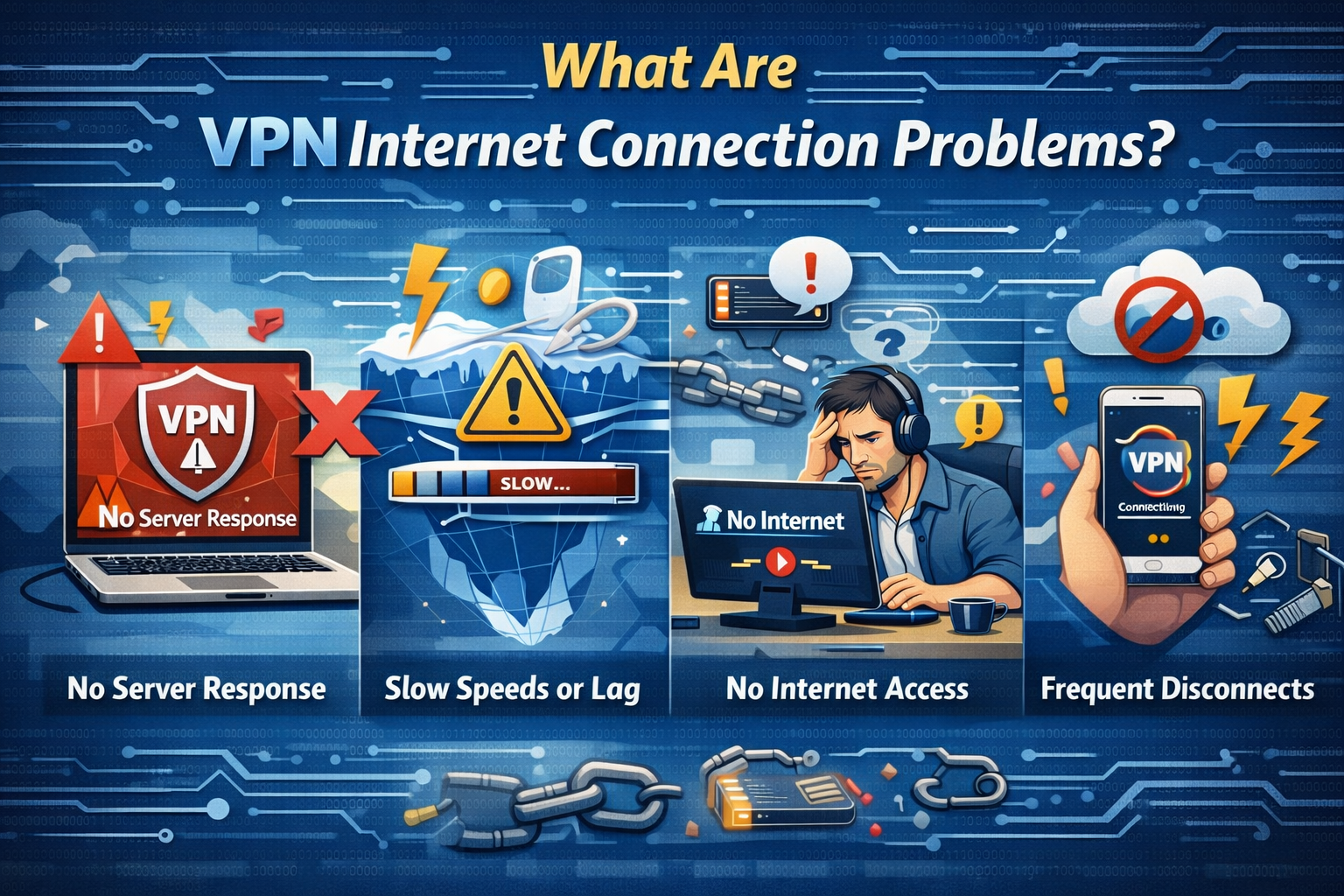
VPN internet connection problems happen when your device connects to the VPN server, but internet access becomes slow, unstable, or completely unavailable. Sometimes the VPN fails to connect at all, or it connects but blocks websites and apps.
Common signs include:
- VPN connected but no internet
- Very slow browsing when VPN is on
- Websites not loading with VPN enabled
- VPN keeps disconnecting
- Apps not working while VPN is active
Understanding the cause is the first step toward fixing it.
Common Causes of VPN Internet Connection Problems
Before jumping into fixes, it’s helpful to know why these problems happen:
- Weak or unstable internet connection
- Overloaded or far-away VPN servers
- Incorrect VPN settings
- DNS conflicts
- VPN protocol issues
- Antivirus or firewall interference
- Outdated VPN app
- ISP blocking VPN traffic
Most of these issues can be solved without advanced technical skills.
Basic Checks Before Advanced Fixes
Check Your Internet Without VPN
Turn off the VPN and test your internet.
- Open a website
- Stream a video
- Use another app
Real-world example:
If the internet works perfectly without VPN but fails when VPN is on, the issue is clearly VPN-related.
Restart Your Device and Router
Temporary network glitches often cause VPN problems.
Steps:
- Restart your phone, tablet, or computer
- Turn off your router
- Wait 30 seconds
- Turn it back on
This simple step fixes many VPN internet connection problems.
How to Fix VPN Internet Connection Problems (Step-by-Step)
Change the VPN Server Location
One of the most effective fixes is switching servers.
Why this works:
- Some servers are overloaded
- Some servers are blocked by websites
- Distance affects speed and stability
What to do:
- Open your VPN app
- Disconnect from the current server
- Choose a different server (prefer closer locations)
- Reconnect and test internet
Real-world example:
A user connected to a US server from Asia experiences slow internet. Switching to a nearby server fixes the problem instantly.
Fix VPN Internet Connection Problems by Changing VPN Protocol
VPNs use different protocols like OpenVPN, IKEv2, WireGuard, or L2TP.
Steps:
- Open VPN app settings
- Find Protocol or Connection type
- Switch to another protocol
- Reconnect VPN
Tip:
- WireGuard is usually faster
- OpenVPN TCP is more stable on restricted networks
Disable Split Tunneling (If Enabled)
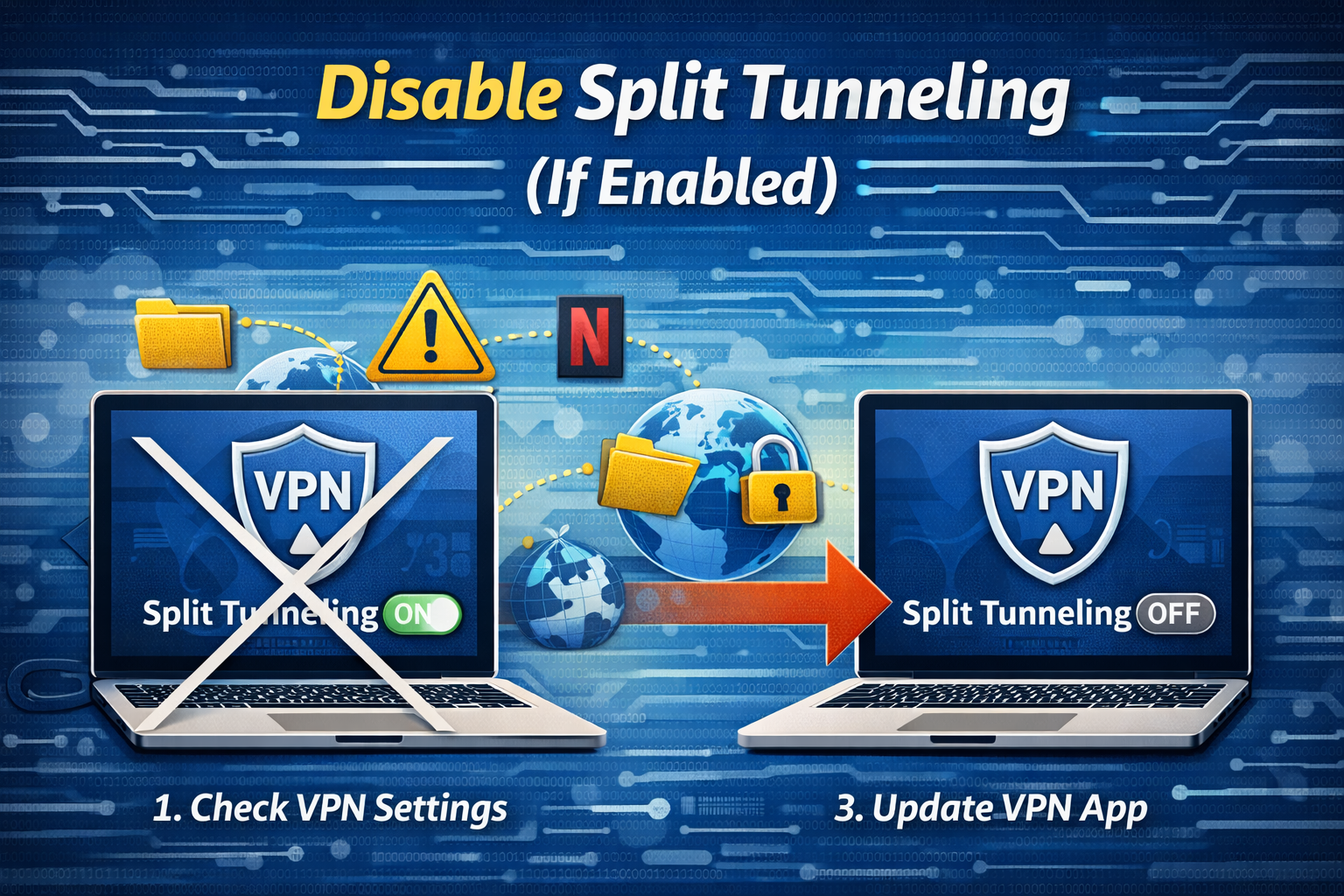
Split tunneling allows some apps to bypass the VPN, but it can cause conflicts.
What to do:
- Go to VPN settings
- Turn off split tunneling
- Restart VPN connection
This ensures all traffic goes through the VPN properly.
Change DNS Settings to Fix VPN Internet Connection Problems
DNS issues are a very common cause.
Use Public DNS
- Google DNS:
8.8.8.8/8.8.4.4 - Cloudflare DNS:
1.1.1.1/1.0.0.1
Change DNS on your device or enable “Use VPN DNS” inside the VPN app.
Real-world example:
VPN connects but websites don’t open. Switching to Google DNS fixes browsing immediately.
Disable Antivirus or Firewall Temporarily
Security software may block VPN connections.
Steps:
- Temporarily disable antivirus/firewall
- Connect to VPN
- Test internet
If it works, add the VPN app to the allowed list.
Do not keep security software disabled permanently.
Fix VPN Internet Connection Problems on Windows

Reset Network Settings (Advanced)
- Open Command Prompt as Administrator
- Run:
ipconfig /flushdns
netsh winsock reset
- Restart your PC
This clears network conflicts caused by VPNs.
Update Network Drivers
Outdated drivers can cause VPN failures.
- Open Device Manager
- Update Network adapters
Fix VPN Internet Connection Problems on Android
Turn Airplane Mode On and Off
This refreshes mobile and Wi-Fi connections.
Disable Battery Optimization for VPN App
- Go to Settings > Apps > VPN app
- Open Battery
- Disable optimization
This prevents Android from closing VPN in the background.
Fix VPN Internet Connection Problems on iPhone
Reset Network Settings
- Go to Settings > General
- Tap Transfer or Reset iPhone
- Select Reset Network Settings
This fixes stubborn VPN and Wi-Fi conflicts.
Update or Reinstall the VPN App
An outdated or corrupted VPN app can cause connection issues.
What to do:
- Update the VPN app
- If issues continue, uninstall and reinstall
Real-world example:
After an OS update, VPN stops working. Reinstalling the app solves the problem.
Check If Your ISP Is Blocking VPN
Some ISPs restrict VPN traffic.
Try this:
- Switch VPN protocol
- Use port 443 (if available)
- Connect using mobile data
If VPN works on mobile data but not Wi-Fi, ISP blocking may be the cause.
When VPN Internet Connection Problems Are Not Fixable
Sometimes the issue is with:
- VPN provider servers
- Regional restrictions
- Temporary outages
In this case:
- Contact VPN support
- Try a different VPN provider
Tips to Prevent VPN Internet Connection Problems
- Use nearby VPN servers
- Keep VPN app updated
- Avoid free VPNs with overloaded servers
- Restart VPN occasionally
- Use trusted DNS providers
FAQ: How to Fix VPN Internet Connection Problems
1. Why does my VPN connect but internet doesn’t work?
This is usually caused by DNS issues, blocked servers, or incorrect VPN settings.
2. Does VPN slow down internet speed?
Yes, slightly. Encryption and distance can reduce speed, but good servers minimize the impact.
3. Is it safe to change VPN protocols?
Yes. Switching protocols is safe and often recommended for troubleshooting.
4. Can antivirus block VPN internet access?
Yes. Firewalls and antivirus programs sometimes block VPN traffic by mistake.
5. Should I reset network settings if VPN keeps failing?
Yes. Resetting network settings can fix deep connection conflicts.
Conclusion
VPN internet connection problems are common, but they are usually easy to fix. In most cases, switching servers, changing protocols, fixing DNS settings, or updating the VPN app will restore internet access. By following the step-by-step solutions in this guide, beginners can troubleshoot VPN issues without professional help.
If problems continue after trying all fixes, the issue may be with the VPN provider or ISP restrictions. Stay patient, test each solution carefully, and you’ll enjoy secure and stable internet with your VPN again.