How to Fix Android Camera Not Working
Smartphone cameras are one of the most used features on Android devices. From taking photos to scanning documents and video calls, the camera plays a big role in everyday phone usage.
But sometimes users face a frustrating problem: Android camera not working. The camera may show a black screen, crash suddenly, display a “Camera Failed” error, or simply refuse to open.
The good news is that most Android camera problems are caused by simple issues such as software bugs, app conflicts, storage problems, or outdated software. In most cases, you can fix the issue yourself without visiting a repair shop.
In this guide, you will learn step-by-step solutions to fix Android camera not working, even if you’re a beginner.
Restart Your Android Phone
One of the simplest solutions is often the most effective.
Temporary software glitches can cause the Android camera not working issue. Restarting your phone clears temporary processes and refreshes the system.
Steps to restart your Android phone
- Press and hold the Power button.
- Tap Restart or Reboot.
- Wait for the phone to restart completely.
- Open the Camera app again.
If the problem was caused by a temporary system bug, the camera should start working normally.
Check If Another App Is Using the Camera
Sometimes another application may already be using the camera in the background. This can prevent the camera app from opening.
Apps that commonly access the camera include:
- Video calling apps
- Social media apps
- QR code scanners
- Security apps
Fix this issue
- Close all running apps.
- Open the Recent Apps menu.
- Swipe away all apps.
- Open the Camera app again.
If the camera now works, the problem was caused by an app conflict.
Force Stop the Camera App
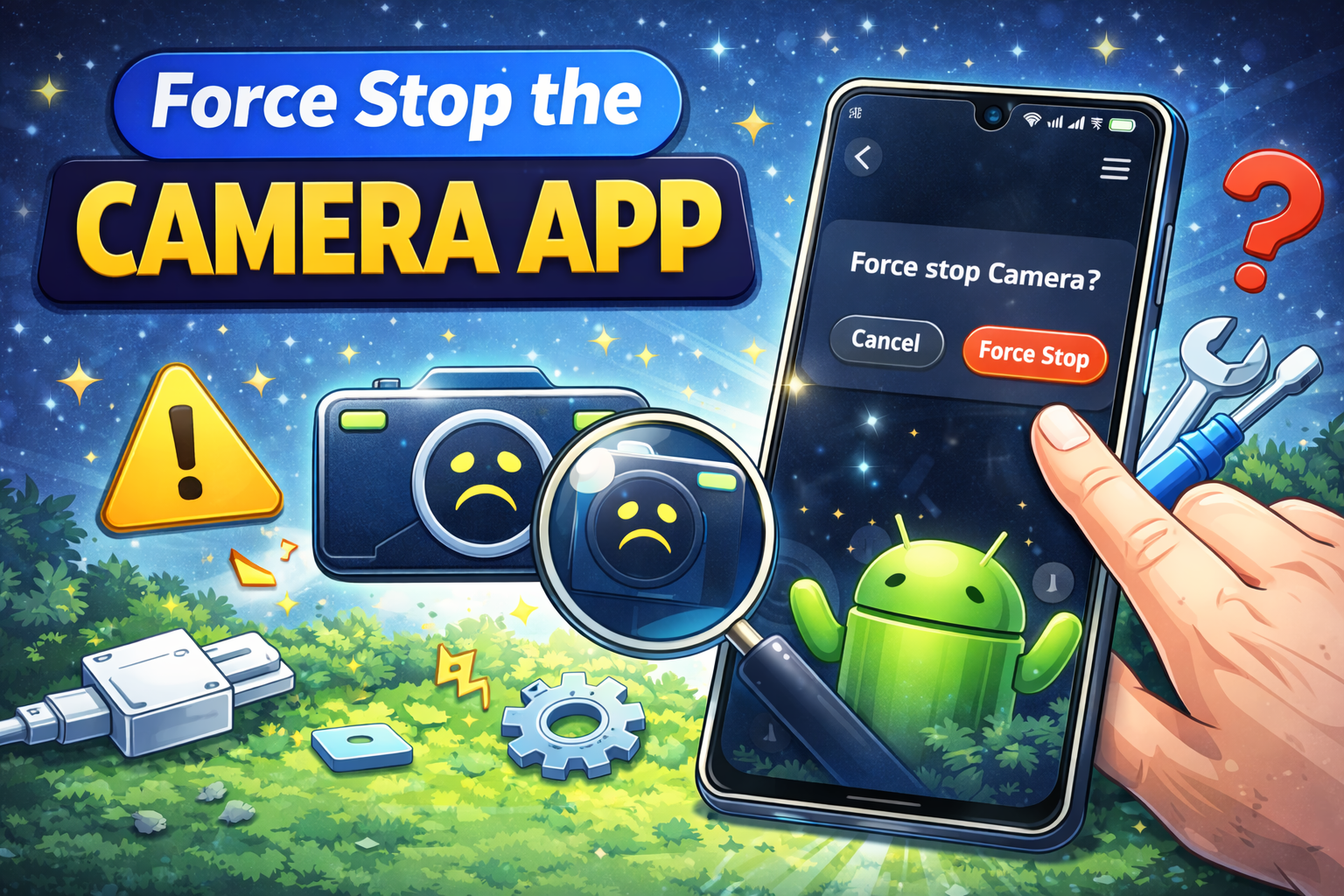
If the camera app is frozen or stuck, forcing it to stop can reset the application.
Steps
- Open Settings.
- Tap Apps.
- Find and select Camera.
- Tap Force Stop.
- Open the camera again.
Important: Force stopping the app will not delete photos or videos.
Clear Camera App Cache and Data
Cached files sometimes become corrupted, which can cause the Android camera not working problem.
Clearing the cache removes temporary files and often fixes camera crashes.
Steps to clear camera cache
- Open Settings.
- Go to Apps.
- Select Camera.
- Tap Storage.
- Tap Clear Cache.
If the issue continues:
- Tap Clear Data.
Note: Clearing data will reset camera settings but will not delete photos.
Check Camera Permissions
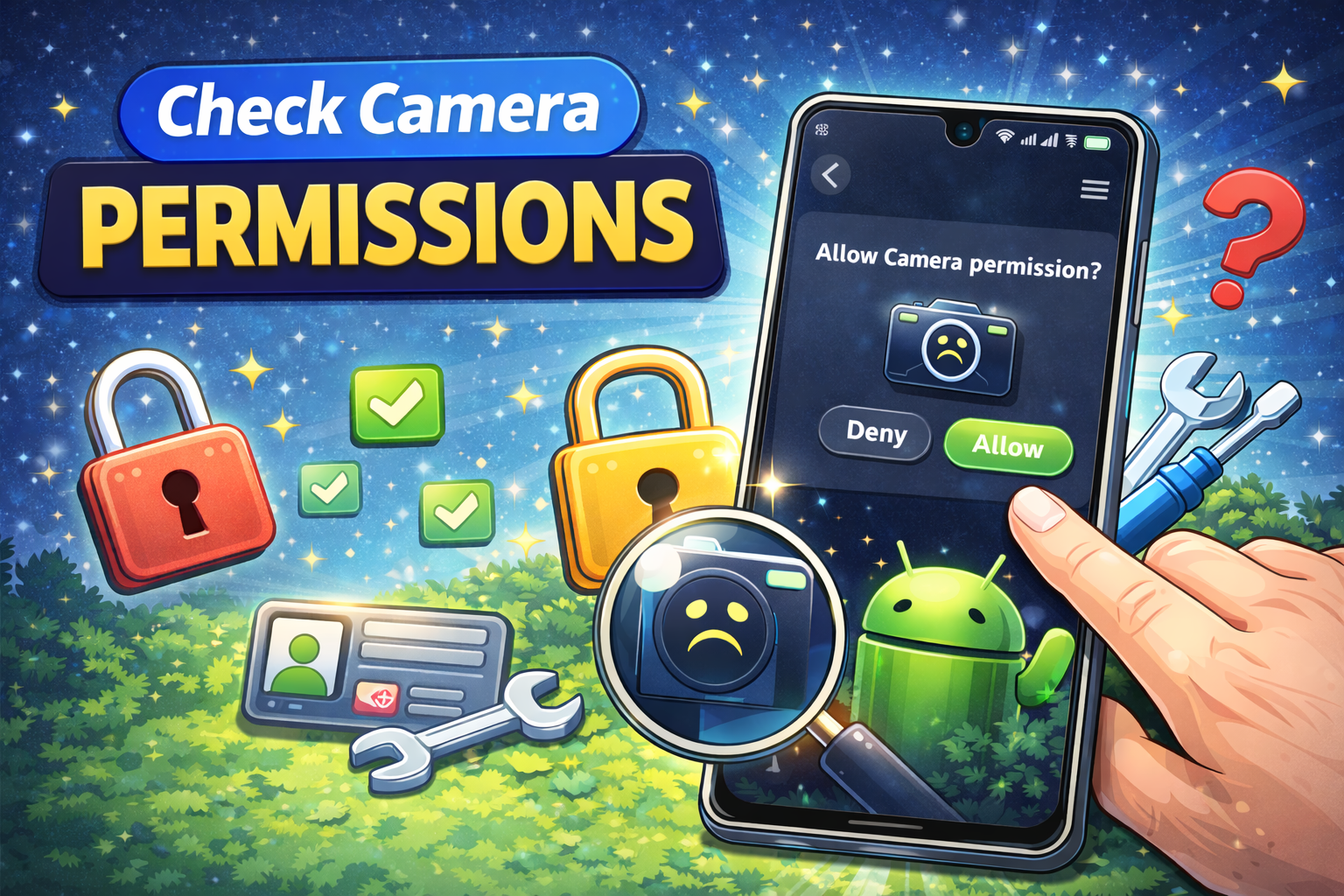
If the camera app does not have proper permission, it may not function correctly.
Steps to check permissions
- Open Settings.
- Tap Apps.
- Select Camera.
- Tap Permissions.
- Make sure Camera permission is enabled.
Also check permissions for apps like:
- Snapchat
If permissions are disabled, the camera may not work inside those apps.
Update Your Android System
Software bugs can also cause Android camera problems. Manufacturers often release updates to fix these issues.
Steps to update Android
- Open Settings.
- Tap Software Update.
- Tap Download and Install.
- Install the latest update.
After updating your phone, restart it and check the camera again.
Free Up Storage Space
Your camera may stop working if your phone storage is full.
Photos and videos require available storage space.
Check storage
- Open Settings.
- Tap Storage.
- Check available space.
If storage is low:
- Delete unused apps
- Remove old videos
- Clear downloads
- Move files to cloud storage
Once space is available, the Android camera not working issue may disappear.
Boot Your Phone in Safe Mode
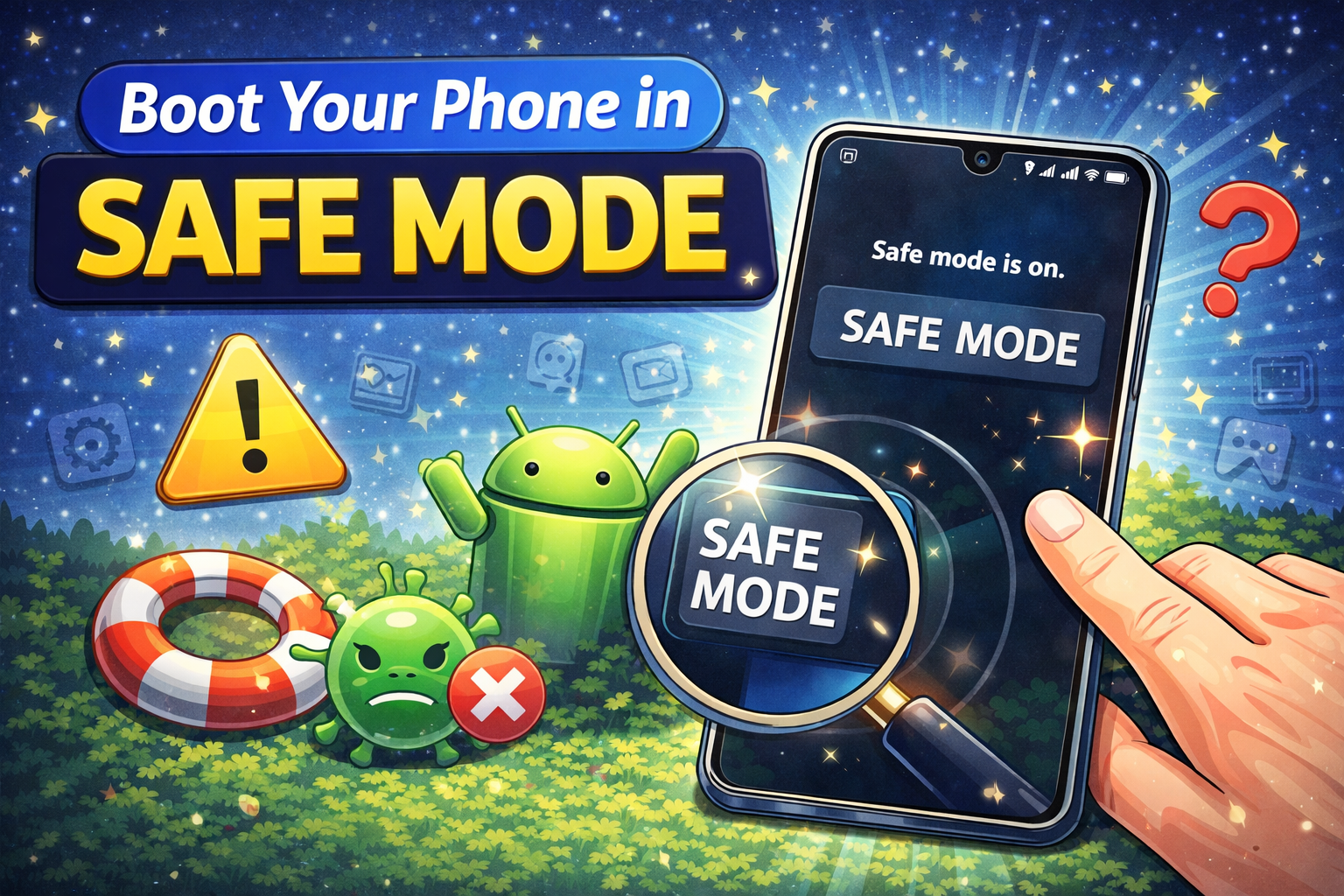
Some third-party apps can interfere with the camera.
Booting your device in Safe Mode disables all third-party apps temporarily.
Steps to enter Safe Mode
- Press and hold the Power button.
- Tap and hold Power Off.
- Tap Safe Mode.
Once in Safe Mode:
- Open the Camera app.
If the camera works normally, a third-party app is causing the problem.
Uninstall recently installed apps to fix it.
Reset App Preferences
Resetting app preferences restores default settings for all apps.
This can fix permission conflicts causing the Android camera not working issue.
Steps
- Open Settings.
- Tap Apps.
- Tap the three-dot menu.
- Select Reset App Preferences.
- Confirm the reset.
Your apps will remain installed, but permissions and settings will reset.
Perform a Factory Reset (Last Resort)
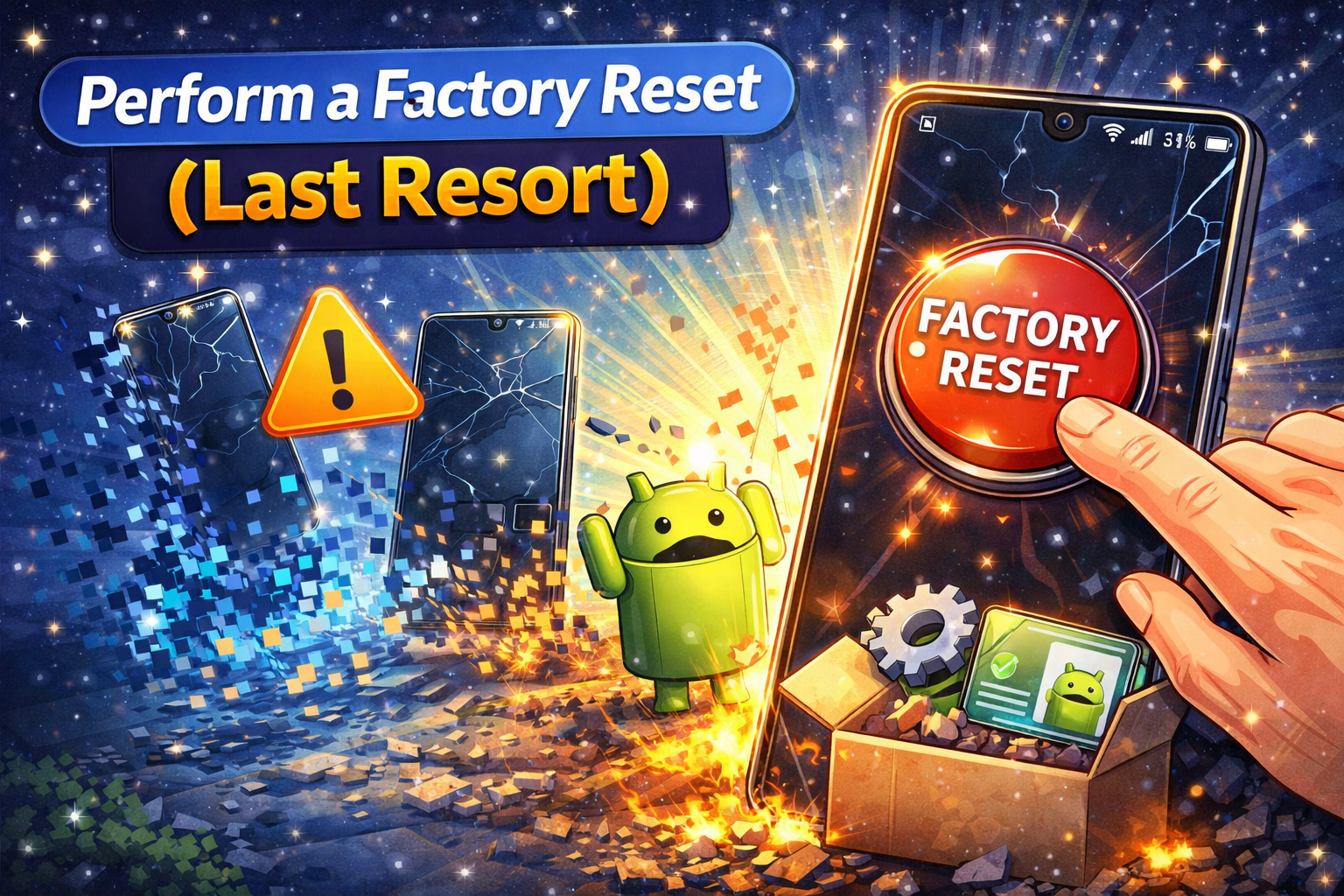
If nothing works, the issue may be caused by deep system corruption.
A factory reset restores the phone to its original state.
⚠️ Important: This will erase all data.
Steps
- Backup your data.
- Open Settings.
- Tap System.
- Tap Reset Options.
- Select Erase All Data (Factory Reset).
- Confirm the reset.
After the reset, test the camera before reinstalling apps.
Why This Problem Happens
Understanding the cause helps prevent the problem in the future.
Common reasons for Android camera not working include:
Software bugs
Temporary system glitches can stop the camera from opening.
Corrupted cache
Damaged cache files may cause camera crashes.
App conflicts
Third-party apps sometimes interfere with the camera system.
Storage problems
Full storage prevents the camera from saving photos.
Outdated Android version
Older software versions may contain camera bugs.
Hardware damage
Physical damage to the camera module can also cause issues.
If hardware damage is suspected, professional repair may be required.
Quick Tips to Prevent This Problem
Preventing the issue is easier than fixing it later.
Follow these tips to keep your Android camera working smoothly:
- Restart your phone regularly
- Keep Android updated
- Avoid installing suspicious apps
- Clear cache periodically
- Maintain enough storage space
- Use trusted camera apps
- Avoid overheating your phone
These habits can significantly reduce Android camera problems.
FAQ
Why is my Android camera showing a black screen?
A black screen usually happens because of a software glitch, camera app crash, or another app using the camera in the background.
Restarting the phone or clearing the camera cache often fixes this issue.
What does “Camera Failed” mean on Android?
The Camera Failed error usually appears when the camera hardware cannot start properly due to software bugs, cache problems, or app conflicts.
Clearing the camera cache or restarting the device often resolves it.
Can a virus cause the Android camera not working problem?
Yes, malicious or poorly designed apps can interfere with camera functionality.
Uninstall suspicious apps and scan your phone using trusted security apps.
How do I know if my camera hardware is broken?
If the camera does not work even after a factory reset, the issue may be hardware related.
In that case, visit an authorized repair center.
Why does my camera keep crashing?
Frequent camera crashes are usually caused by:
- Corrupted cache
- Low storage
- Outdated Android software
- App conflicts
Clearing cache and updating your device often fixes the issue.
Conclusion
The Android camera not working problem can be frustrating, especially when you need to capture important moments.
Fortunately, most camera issues are caused by simple software problems that can be fixed in minutes.
By following the solutions in this guide — such as restarting your phone, clearing camera cache, checking permissions, updating Android, and booting into Safe Mode — you can usually restore your camera without professional help.
If none of these solutions work, a factory reset or hardware inspection may be required.
Keeping your device updated, managing storage, and avoiding problematic apps can help ensure your Android camera continues working smoothly.