How to Fix Android Boot Loop Problem
Android smartphones are powerful devices, but sometimes they experience serious issues. One of the most frustrating problems is the Android boot loop problem.
A boot loop happens when your phone keeps restarting over and over without reaching the home screen. The device gets stuck on the Android logo or manufacturer logo and never fully boots.
This issue can happen on many Android devices, including Samsung, Xiaomi, Oppo, OnePlus, and Google Pixel phones.
The good news is that you can often fix the Android boot loop problem yourself without visiting a repair shop.
In this guide, you will learn simple step-by-step solutions to fix the issue quickly and safely.
What Is the Android Boot Loop Problem?
An Android boot loop occurs when the device fails to complete the startup process.
Instead of turning on normally, the phone will:
- Restart repeatedly
- Stay stuck on the boot logo
- Show the Android loading screen forever
- Turn on and off continuously
This can make the phone completely unusable until the issue is fixed.
Why This Problem Happens
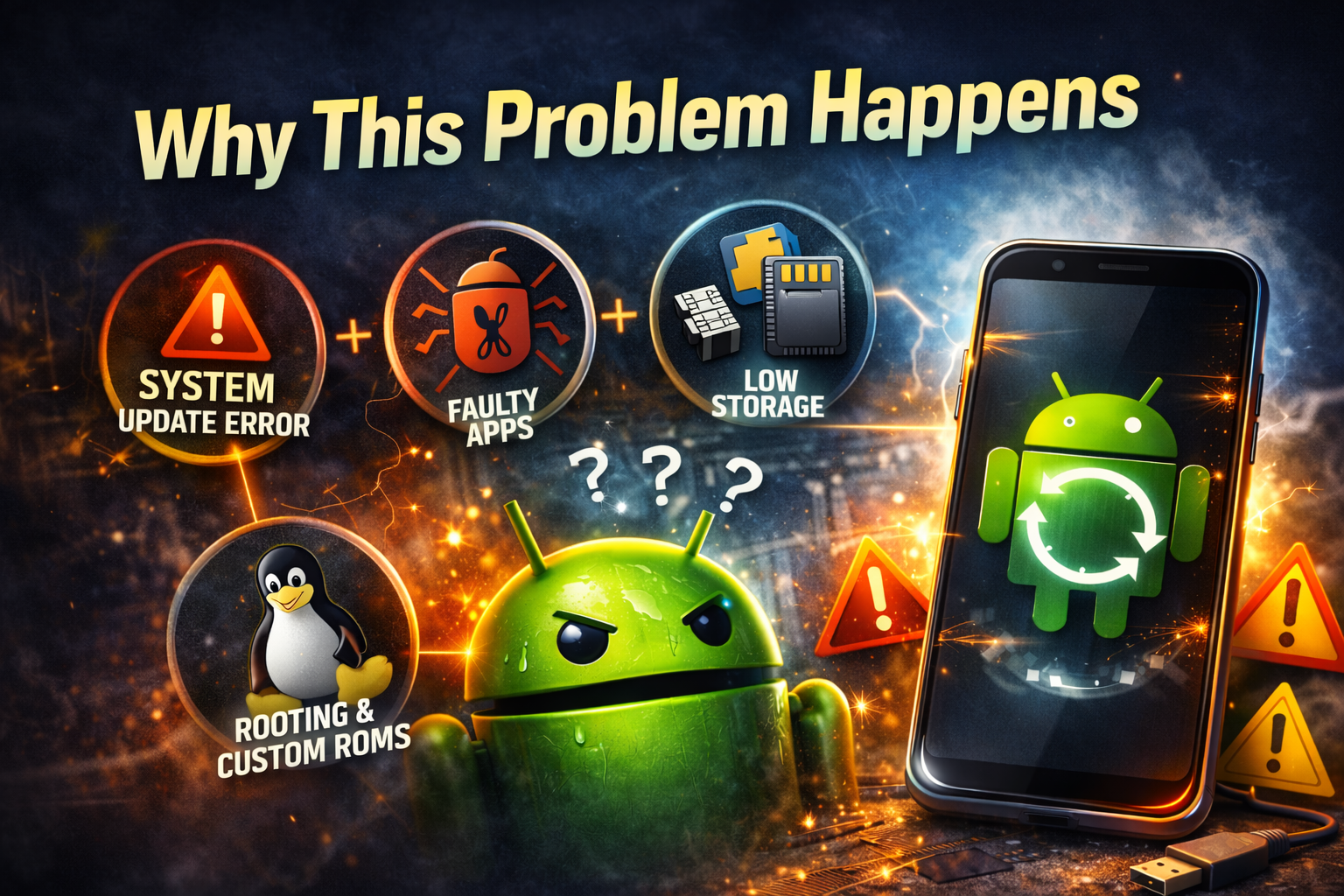
Before fixing the issue, it’s helpful to understand why the Android boot loop problem occurs.
Common causes include:
1. Failed Android System Update
If an update installs incorrectly, the system files may become corrupted.
2. Faulty Apps
Some apps may conflict with the Android system and cause the phone to crash during startup.
3. Corrupted Cache Files
Temporary system files can sometimes become corrupted and prevent the device from booting.
4. Rooting or Custom ROM Installation
If you modified your device or installed custom firmware, it may cause boot errors.
5. Low Storage Space
If your phone storage is full, Android may struggle to start properly.
6. Hardware Problems
In rare cases, damaged hardware such as memory chips can cause a boot loop.
How to Fix Android Boot Loop Problem
Try the following solutions one by one until your phone starts normally.
1. Force Restart Your Android Phone
The first and easiest solution is performing a force restart.
Sometimes the device simply freezes during startup.
Steps to Force Restart
- Press and hold the Power button for 10–20 seconds.
- Wait for the phone to shut down.
- Turn the phone back on.
Many minor system glitches can be fixed with this simple step.
2. Remove the Phone Case and Accessories

Sometimes accessories can cause power or hardware issues.
What to Do
- Remove the phone case
- Disconnect charging cables
- Remove headphones
- Take out the SD card
After removing accessories:
- Restart the phone
- Check if the device boots normally.
3. Boot Your Phone in Safe Mode
Safe Mode starts Android without third-party apps.
If a faulty app is causing the boot loop, Safe Mode can help identify it.
Steps to Enter Safe Mode
- Press and hold the Power button.
- Tap and hold Power Off.
- Select Reboot to Safe Mode.
- Tap OK.
If the phone works normally in Safe Mode:
- A third-party app is causing the issue.
Fix
- Go to Settings
- Open Apps
- Uninstall recently installed apps.
Restart the phone afterward.
4. Clear Cache Partition (Very Effective Fix)
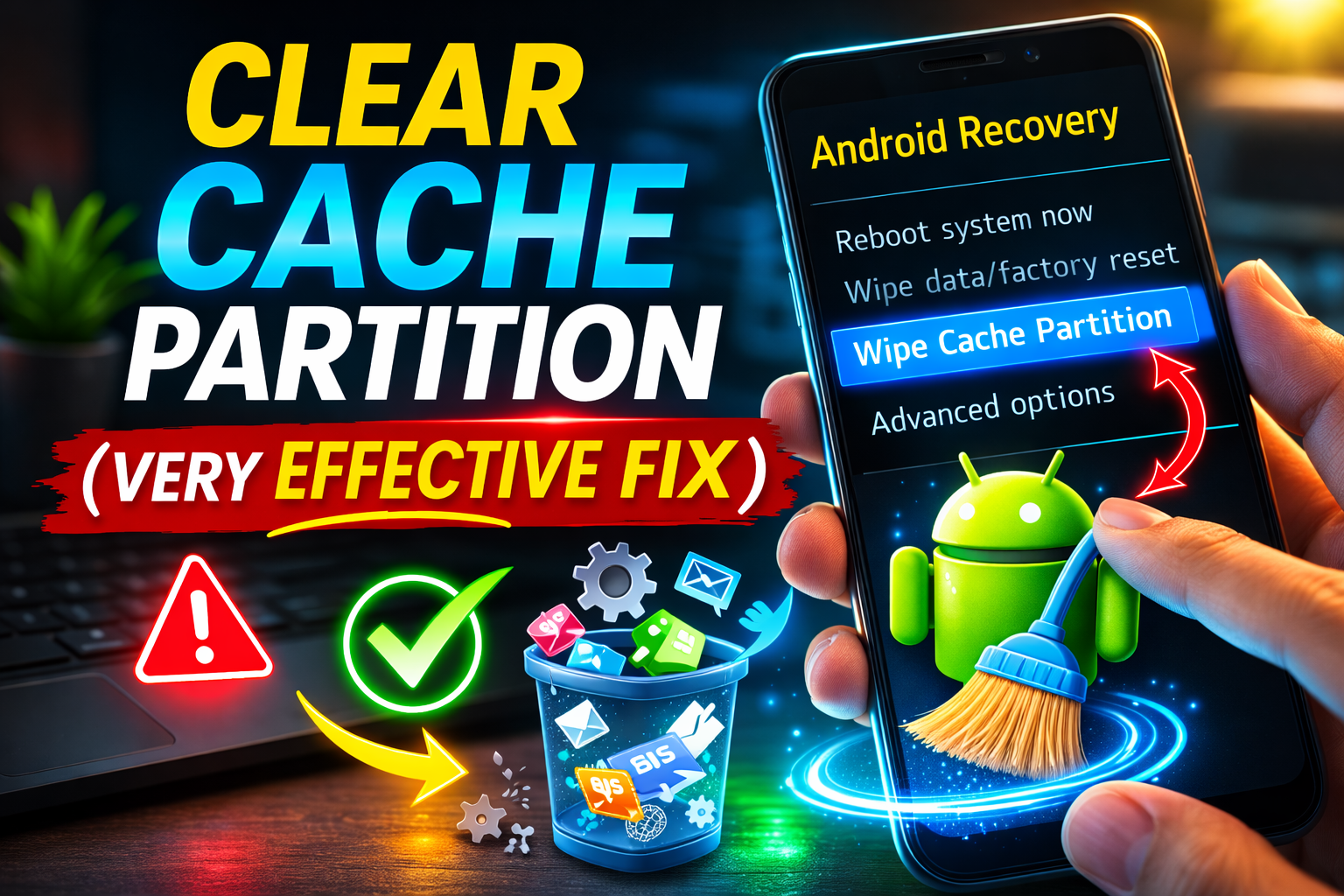
The cache partition stores temporary system files.
If these files become corrupted, they may cause a boot loop issue.
Clearing the cache does not delete personal data.
Steps to Clear Cache Partition
- Turn off your phone completely.
- Press and hold:
- Power + Volume Up
OR - Power + Volume Down
(depending on your device)
- Enter Recovery Mode.
- Use the volume buttons to select Wipe Cache Partition.
- Press the Power button to confirm.
- Select Reboot System Now.
This method fixes many Android system problems.
5. Remove the SD Card
A corrupted SD card can cause startup errors.
Steps
- Turn off the phone
- Remove the SD card
- Turn the phone back on
If the phone starts normally, the SD card may be damaged.
6. Update Android in Recovery Mode
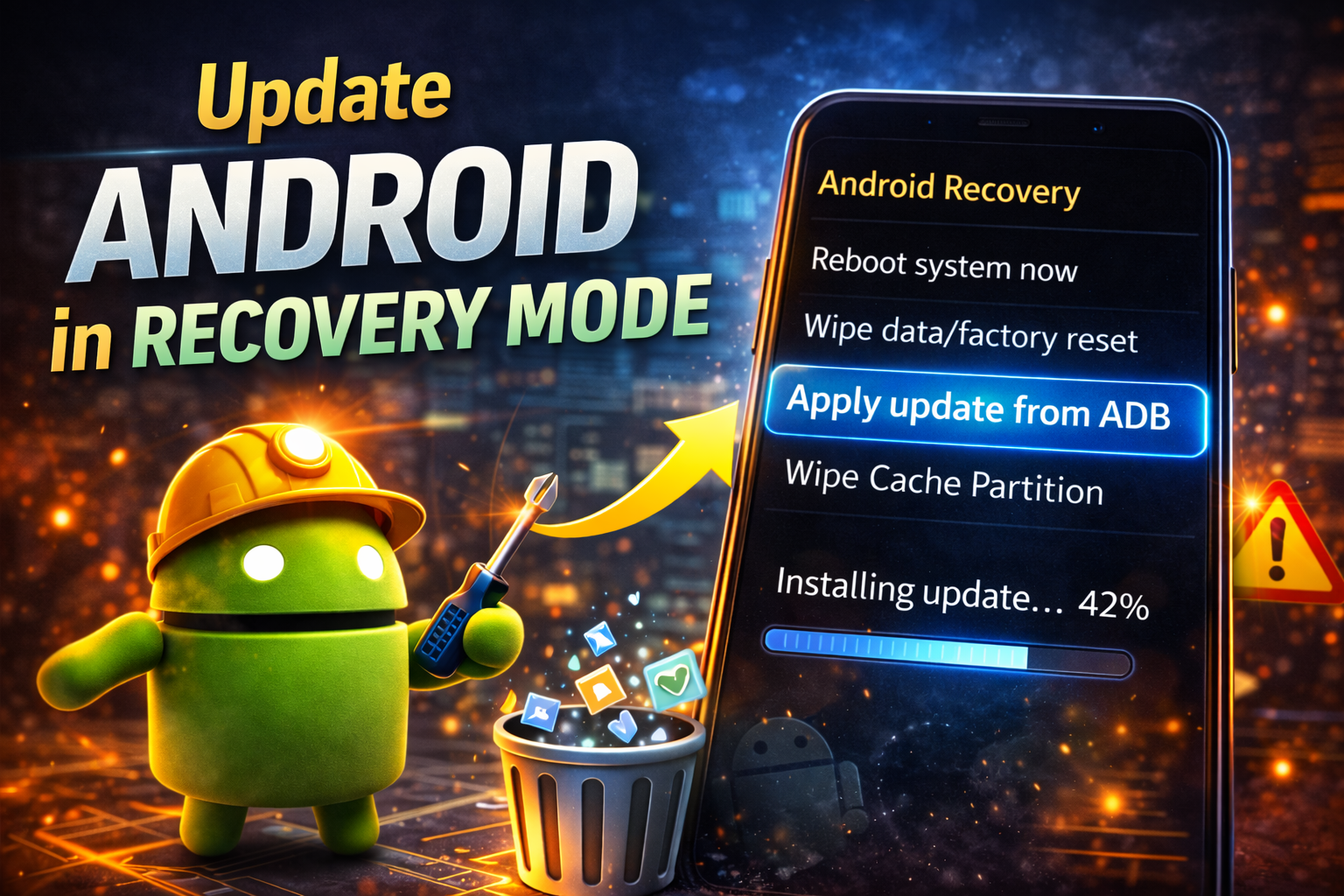
If the boot loop started after a system error, updating Android can fix it.
Steps
- Enter Recovery Mode
- Choose Apply Update
- Install the latest system update.
Make sure your phone has enough battery before updating.
7. Factory Reset Your Android Phone
If none of the previous methods work, you may need to factory reset the device.
⚠️ Important: This will erase all data from your phone.
Steps to Factory Reset
- Turn off the phone
- Enter Recovery Mode
- Select Wipe Data / Factory Reset
- Confirm the action
- Select Reboot System Now
After the reset, your phone should start normally.
8. Flash the Android Firmware
If the system files are severely corrupted, reinstalling the firmware may fix the problem.
This method requires a computer.
What You Need
- A computer
- USB cable
- Official firmware
- Flashing software (Odin, Fastboot, etc.)
Because this method is advanced, beginners should follow official guides for their device model.
Quick Tips to Prevent This Problem
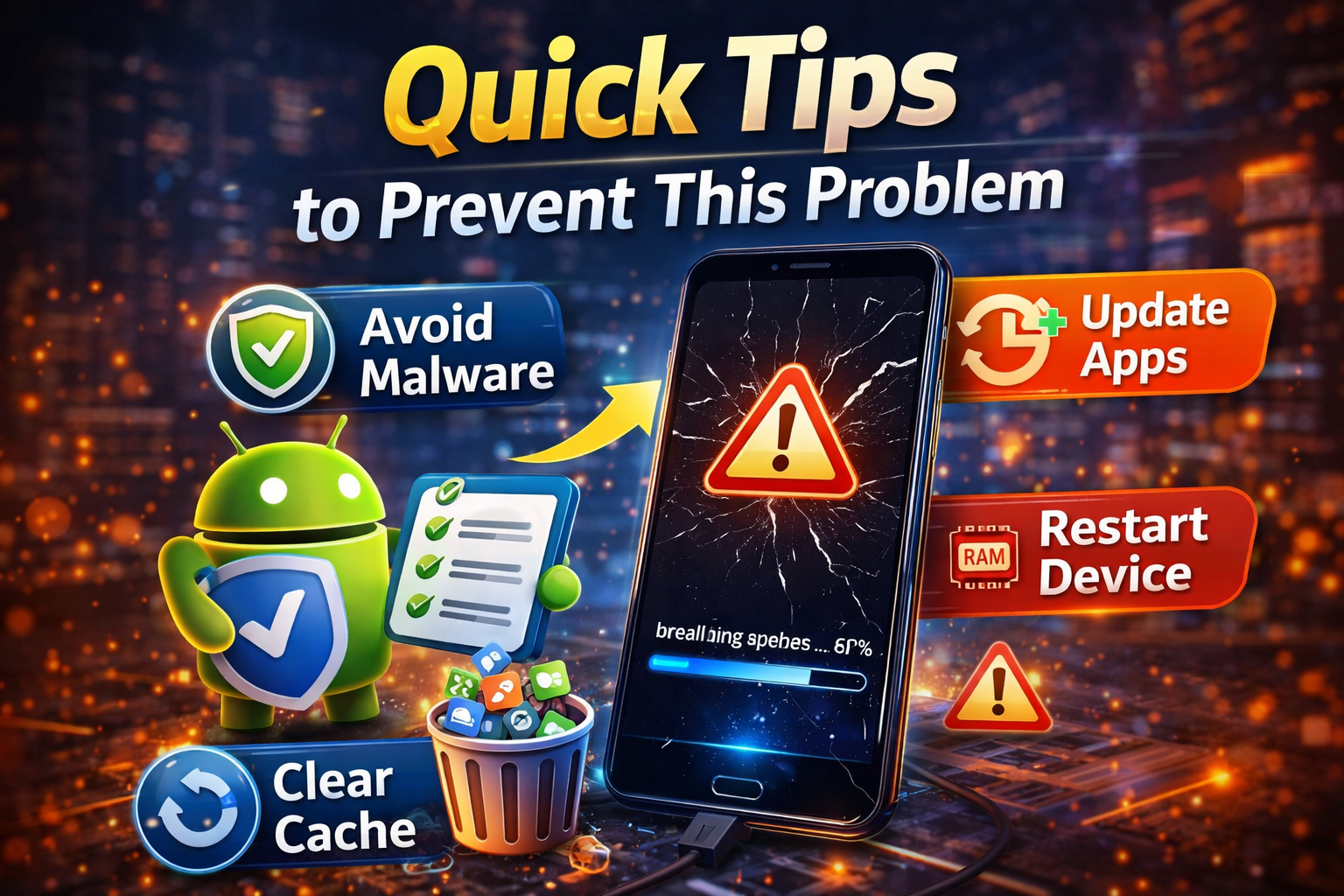
You can reduce the risk of the Android boot loop problem by following these tips:
- Always install official Android updates
- Avoid installing apps from unknown sources
- Keep at least 3–5 GB of free storage
- Restart your phone regularly
- Avoid risky rooting or custom ROM installations
- Keep your phone battery healthy
- Remove unused apps
Good maintenance can prevent many Android system issues.
FAQ About Android Boot Loop Problem
1. What is the Android boot loop problem?
The Android boot loop problem occurs when a phone restarts repeatedly and cannot finish booting into the system.
2. Can a boot loop fix itself?
Sometimes yes. A simple restart or clearing cache can fix minor system glitches.
3. Will a factory reset fix a boot loop?
Yes. In many cases, a factory reset resolves the Android boot loop problem, but it deletes all data.
4. Can apps cause a boot loop?
Yes. Some apps may conflict with system files, causing Android to crash during startup.
5. Is a boot loop a hardware problem?
Usually it is a software issue, but in rare cases it may be caused by hardware failure.
Conclusion
The Android boot loop problem can be stressful because it prevents your phone from starting normally. However, in most cases, the issue can be fixed using simple troubleshooting methods.
Start with basic solutions like force restart or Safe Mode, then move on to clearing cache or factory resetting the device if needed.
Most users can solve the problem without professional repair.
If the issue continues after trying all the steps, it may indicate a hardware problem, and visiting a repair center could be the best option.
With the solutions in this guide, you should now be able to fix the Android boot loop problem and get your phone working again.