
How to Restore iPhone from iCloud Backup (Complete Beginner Guide)
If you’ve lost data, bought a new iPhone, or reset your device, learning how to restore iPhone from iCloud backup is extremely important. Many users worry they might lose photos, messages, or apps forever—but the truth is, Apple makes restoring from iCloud simple if you follow the right steps.
In this guide, you’ll learn how to restore iPhone from iCloud backup safely, using clear, beginner-friendly instructions. I’ll explain when you should restore, what you need before starting, and how to avoid common mistakes. This article is written for normal users, using simple English and real-world examples.
What Is an iCloud Backup and Why It Matters
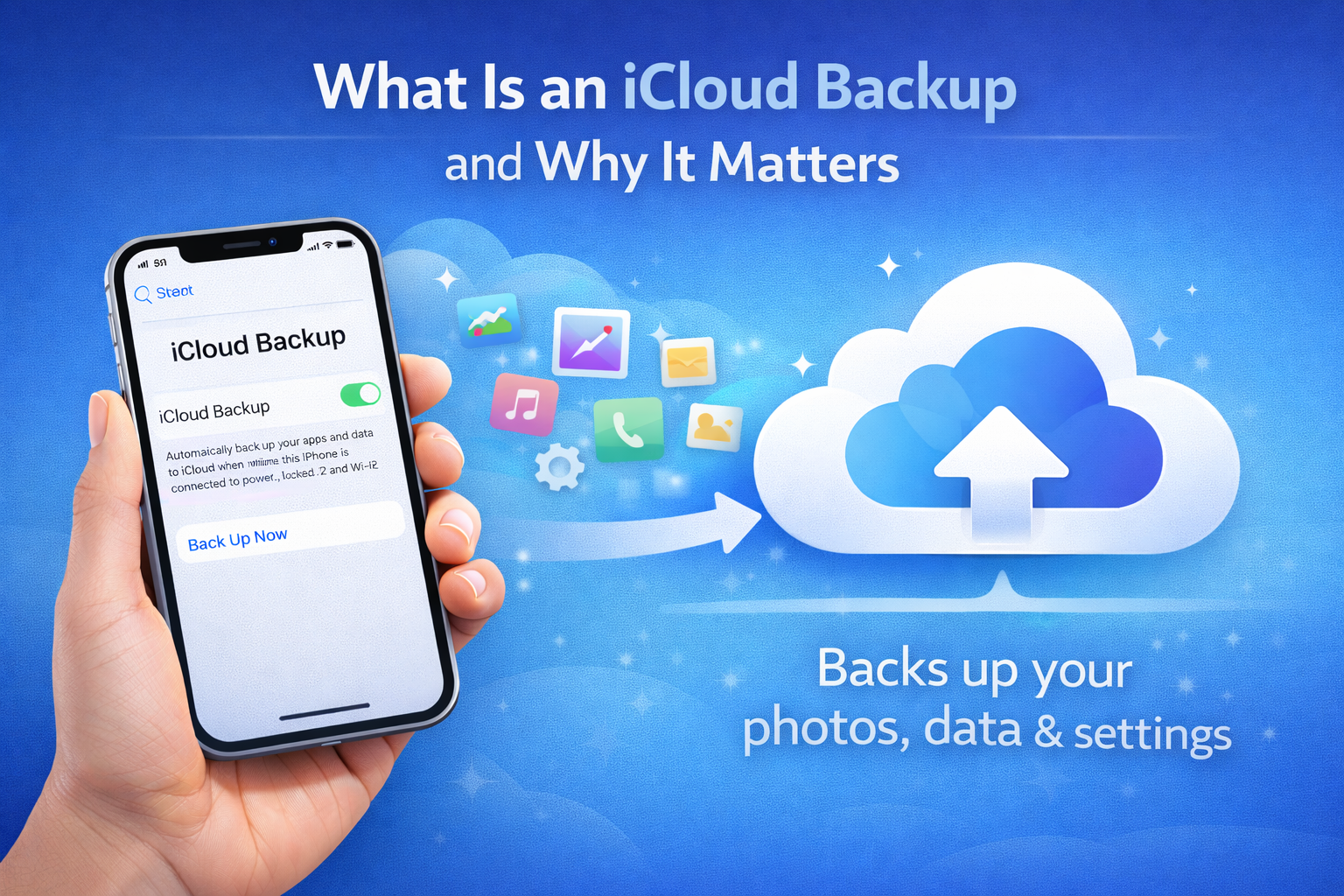
An iCloud backup is a copy of your iPhone data stored securely on Apple’s servers. It can include:
- Photos and videos
- Contacts and messages
- App data
- Device settings
- Home screen layout
Real-world example:
If your iPhone is lost or damaged, you can sign in on a new iPhone and restore everything from your iCloud backup in minutes.
When Should You Restore iPhone from iCloud Backup?
You usually need to restore from iCloud in these situations:
- You bought a new iPhone
- You reset your iPhone to factory settings
- Your iPhone had software issues
- You lost data after an iOS update
- Your old iPhone was damaged or stolen
Restoring from iCloud helps you get your data back quickly without using a computer.
What You Need Before Restoring iPhone from iCloud Backup
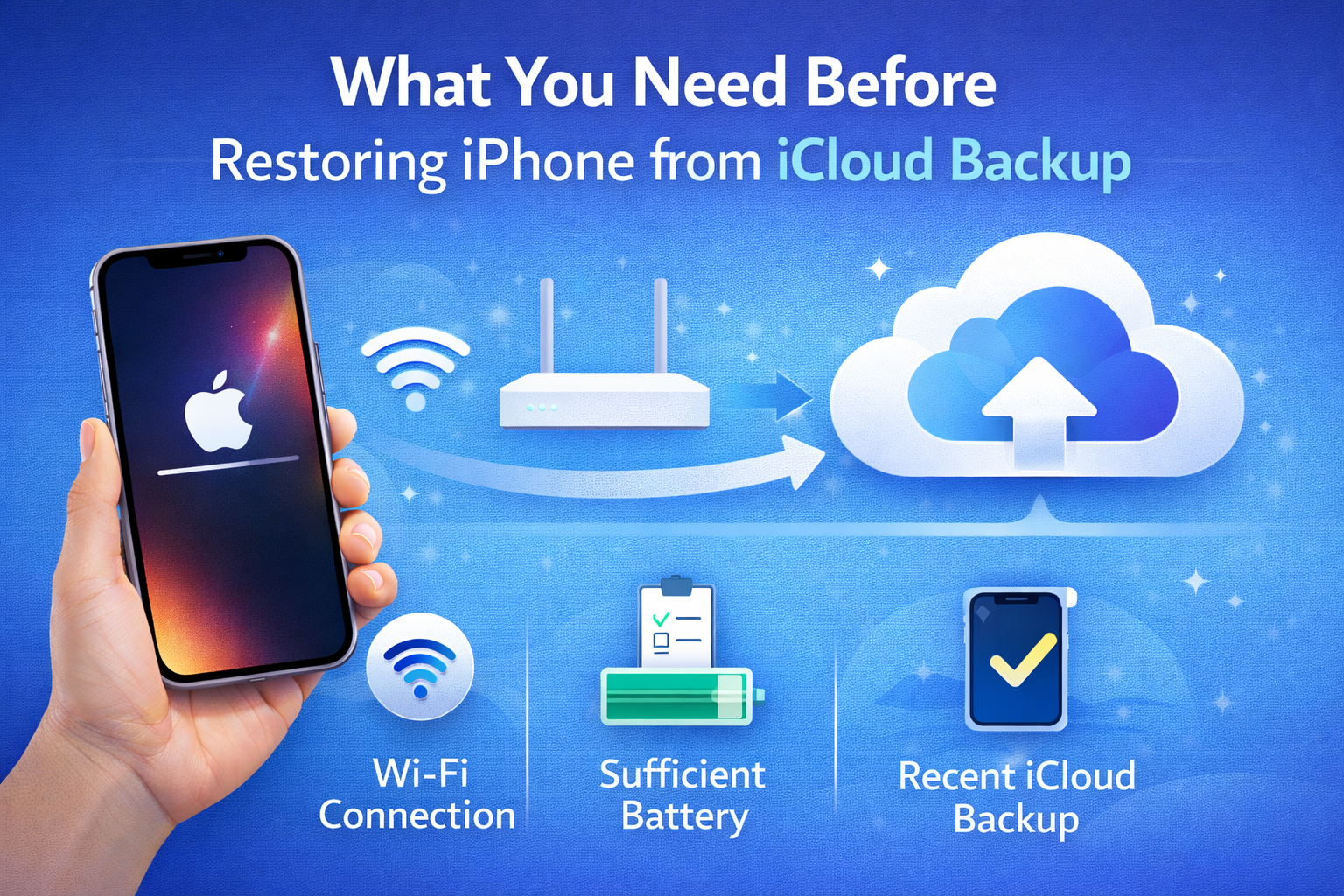
Before starting, make sure you have the following:
- A stable Wi-Fi connection
- Your Apple ID and password
- An existing iCloud backup
- Enough battery (or keep iPhone charging)
Important:
You can only restore from iCloud during the iPhone setup process.
How to Check If You Have an iCloud Backup
If your iPhone still works, check first.
Steps:
- Open Settings
- Tap your Apple ID name
- Tap iCloud
- Tap iCloud Backup
- Check the Last Backup date and size
If the backup is recent, you’re ready to restore.
How to Restore iPhone from iCloud Backup (Step-by-Step)
This is the most important part of the guide.
Erase iPhone Before Restoring (Required Step)
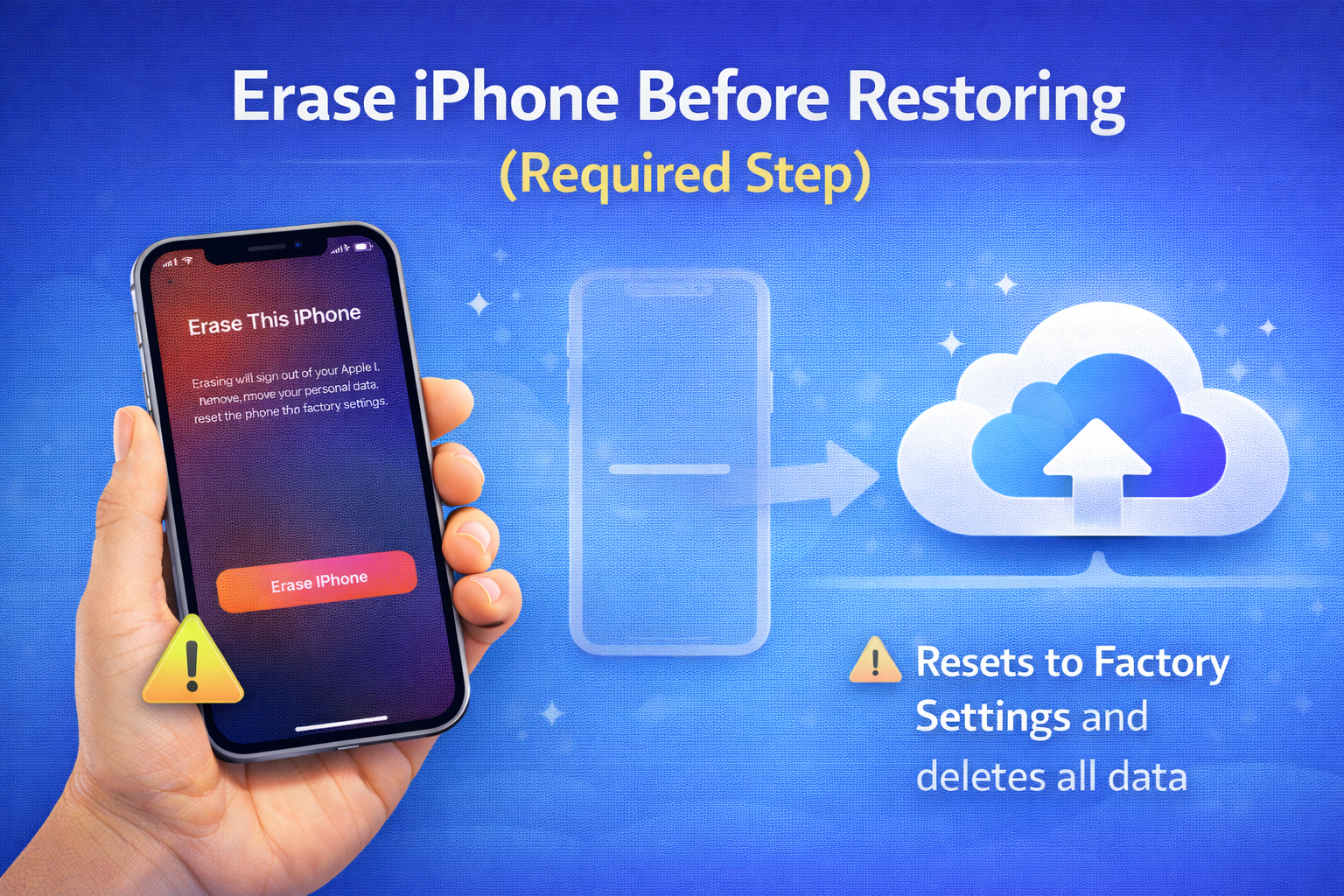
You must erase your iPhone to access the restore option.
Steps:
- Go to Settings
- Tap General
- Tap Transfer or Reset iPhone
- Tap Erase All Content and Settings
- Confirm and wait
This deletes current data, so be sure you want to restore.
How to Restore iPhone from iCloud Backup During Setup
After erasing, your iPhone will restart.
Follow these steps carefully:
- Turn on your iPhone
- Choose language and region
- Connect to Wi-Fi
- On Apps & Data screen, tap Restore from iCloud Backup
- Sign in with your Apple ID
- Choose the correct backup
- Wait for the restore to begin
Your iPhone will restart again.
Real-world example:
If you switch from iPhone 11 to iPhone 14, restoring from iCloud brings back apps, photos, and settings automatically.
How Long Does iCloud Restore Take?
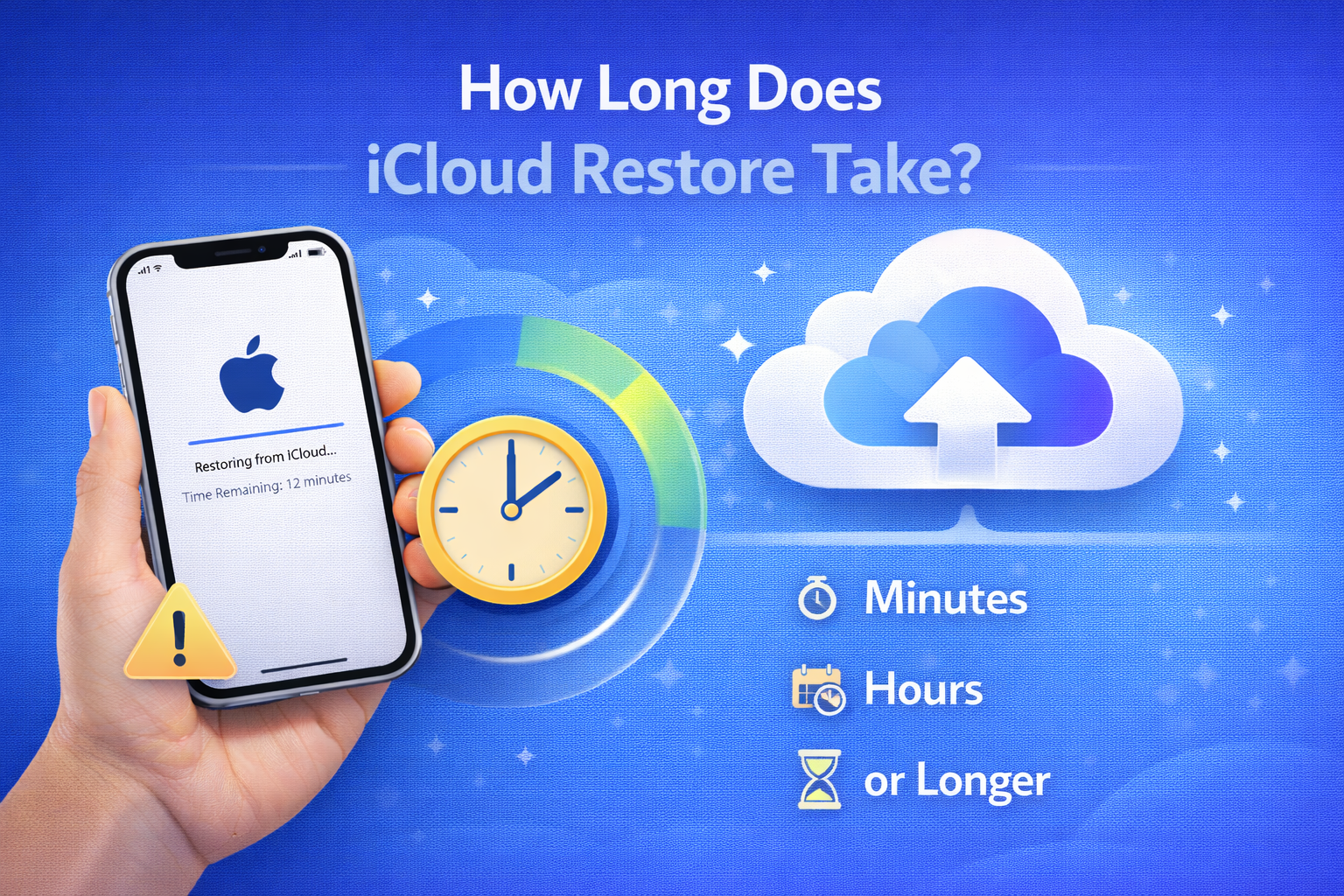
Restore time depends on:
- Backup size
- Internet speed
- Number of apps
Typical time:
- Small backup: 15–30 minutes
- Large backup: 1–3 hours
Apps and photos may continue downloading in the background.
What Data Is Restored from iCloud Backup?
Restored data includes:
- Photos and videos (if not using iCloud Photos)
- App data
- Messages
- Contacts
- Settings
Not restored immediately:
- Apps themselves (they re-download)
- Music not purchased from iTunes
- Face ID or Touch ID
Common Problems When Restoring from iCloud (And Fixes)
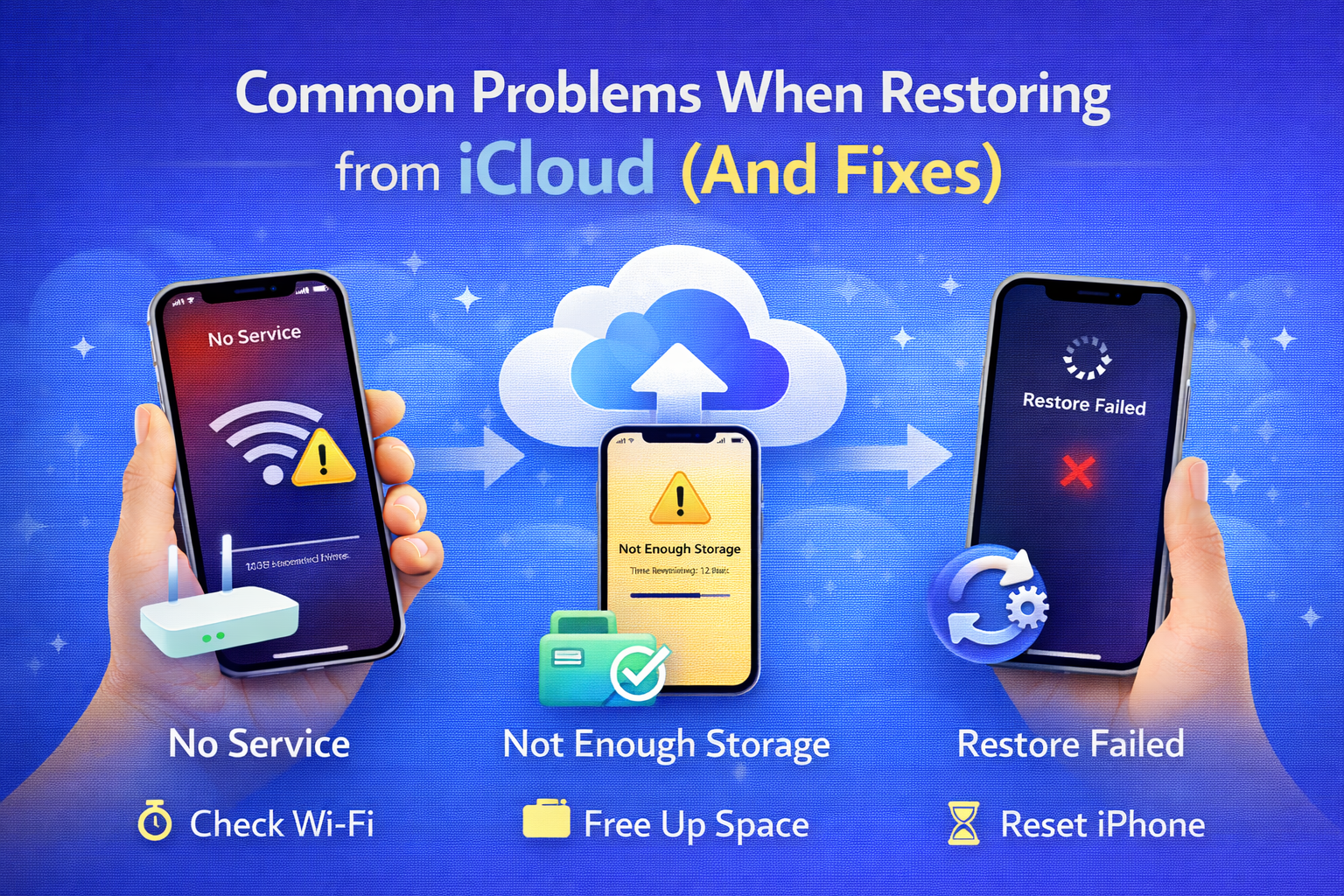
Restore Stuck or Slow
- Keep iPhone connected to Wi-Fi
- Plug in charger
- Restart router if needed
iCloud Backup Not Showing
- Make sure you’re using the correct Apple ID
- Check iCloud storage
Not Enough iCloud Storage
- Delete old backups
- Upgrade iCloud storage temporarily
Restore iPhone from iCloud Backup Without Erasing (Is It Possible?)
No. Apple requires a factory reset to restore from iCloud.
Alternative:
If you only want photos or contacts, sign in to iCloud and sync data instead of restoring.
Tips to Restore iPhone from iCloud Backup Successfully
- Use fast Wi-Fi
- Restore overnight if backup is large
- Keep phone charging
- Don’t interrupt setup process
- Be patient—background downloads take time
Restore from iCloud vs Restore from Computer
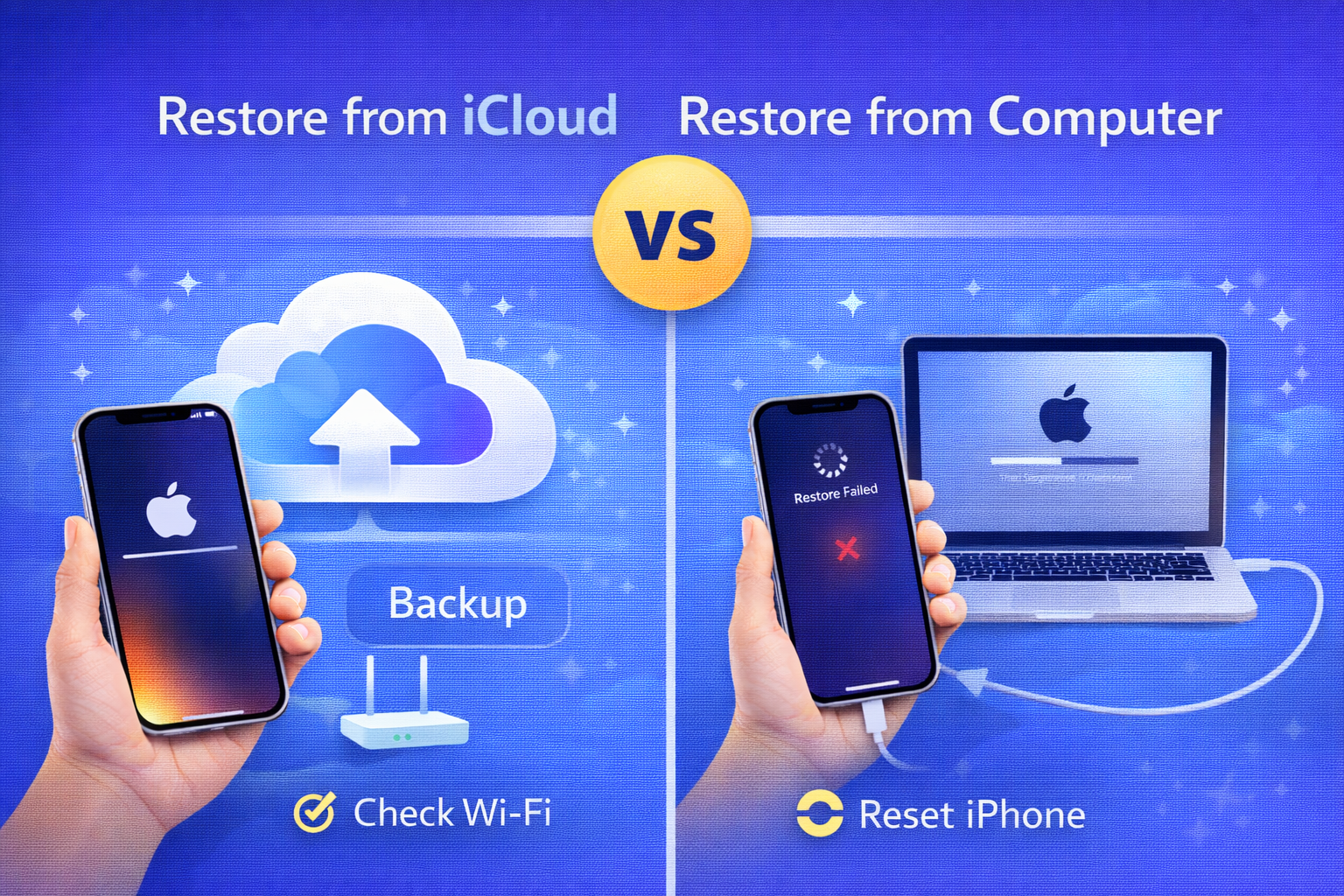
iCloud Restore
- No computer needed
- Wireless
- Slower for large backups
Computer Restore (iTunes/Finder)
- Faster
- Requires computer
- Good for big backups
Choose what works best for you.
Frequently Asked Questions (FAQ)
1. Will restoring from iCloud delete my current data?
Yes. Restoring requires erasing current data first.
2. Can I stop iCloud restore once it starts?
You can, but it may cause incomplete data restoration.
3. Why is my iCloud restore taking so long?
Large backups, slow Wi-Fi, or many apps can slow it down.
4. Does iCloud restore include WhatsApp messages?
Yes, if WhatsApp data was included in the backup.
5. Can I restore iCloud backup to an older iPhone?
Yes, as long as iOS version is compatible.
Conclusion
Knowing how to restore iPhone from iCloud backup can save you from panic when data is lost or when switching to a new device. The process is simple if you prepare correctly—check your backup, use stable Wi-Fi, and follow the steps carefully.
By restoring from iCloud, you can get back your photos, messages, apps, and settings with minimal effort. For every iPhone user, this is an essential skill that brings peace of mind and protects your valuable data.