
How to Reduce Internet Lag and Packet Loss
If your internet feels slow, unstable, or keeps disconnecting during video calls or online games, you are not alone. How to reduce internet lag and packet loss is one of the most common questions from home users today. Lag and packet loss can turn simple tasks like browsing, streaming, or gaming into a frustrating experience.
The good news is that you don’t need to be a tech expert to fix most of these problems. In this guide, you’ll learn what lag and packet loss mean, why they happen, and step-by-step solutions to improve your internet connection. Everything is explained in simple English, making it easy for beginners and normal users to follow.
What Is Internet Lag and Packet Loss?
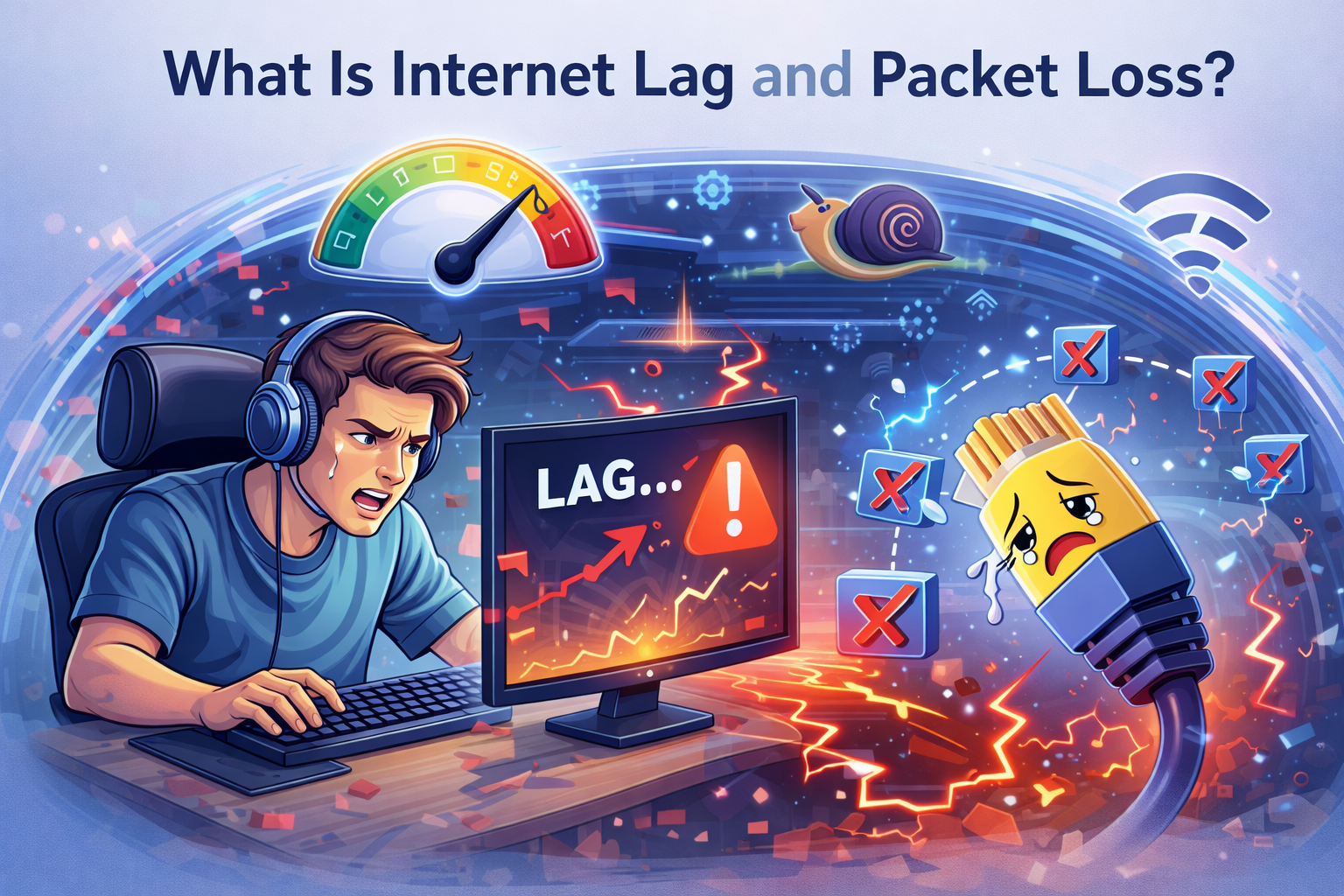
Before learning how to reduce internet lag and packet loss, it helps to understand what they are.
What Is Internet Lag?
Internet lag (also called latency) is the delay between your action and the response from the internet.
For example:
- You click a link, but the page loads slowly
- You speak on a video call, but the other person hears you late
- You move in an online game, but your character reacts after a delay
Lag is usually measured in milliseconds (ms). Lower numbers mean faster response.
What Is Packet Loss?
Packet loss happens when small pieces of data (called packets) fail to reach their destination.
This can cause:
- Choppy audio or video
- Frozen screens
- Sudden disconnections
- Rubber-banding in online games
Packet loss is often caused by weak Wi-Fi signals, network congestion, or faulty hardware.
Common Causes of Internet Lag and Packet Loss
Understanding the causes makes it easier to fix the problem.
Weak Wi-Fi Signal
Distance from the router, walls, and interference from other devices can weaken your Wi-Fi signal.
Network Congestion
Too many devices using the internet at the same time can slow everything down.
Old or Faulty Hardware
Outdated routers, modems, or damaged cables can cause unstable connections.
Background Apps and Downloads
Apps updating or downloading files in the background can eat up bandwidth.
ISP or Line Issues
Sometimes the problem comes from your internet service provider (ISP), especially during peak hours.
How to Reduce Internet Lag and Packet Loss (Step-by-Step)
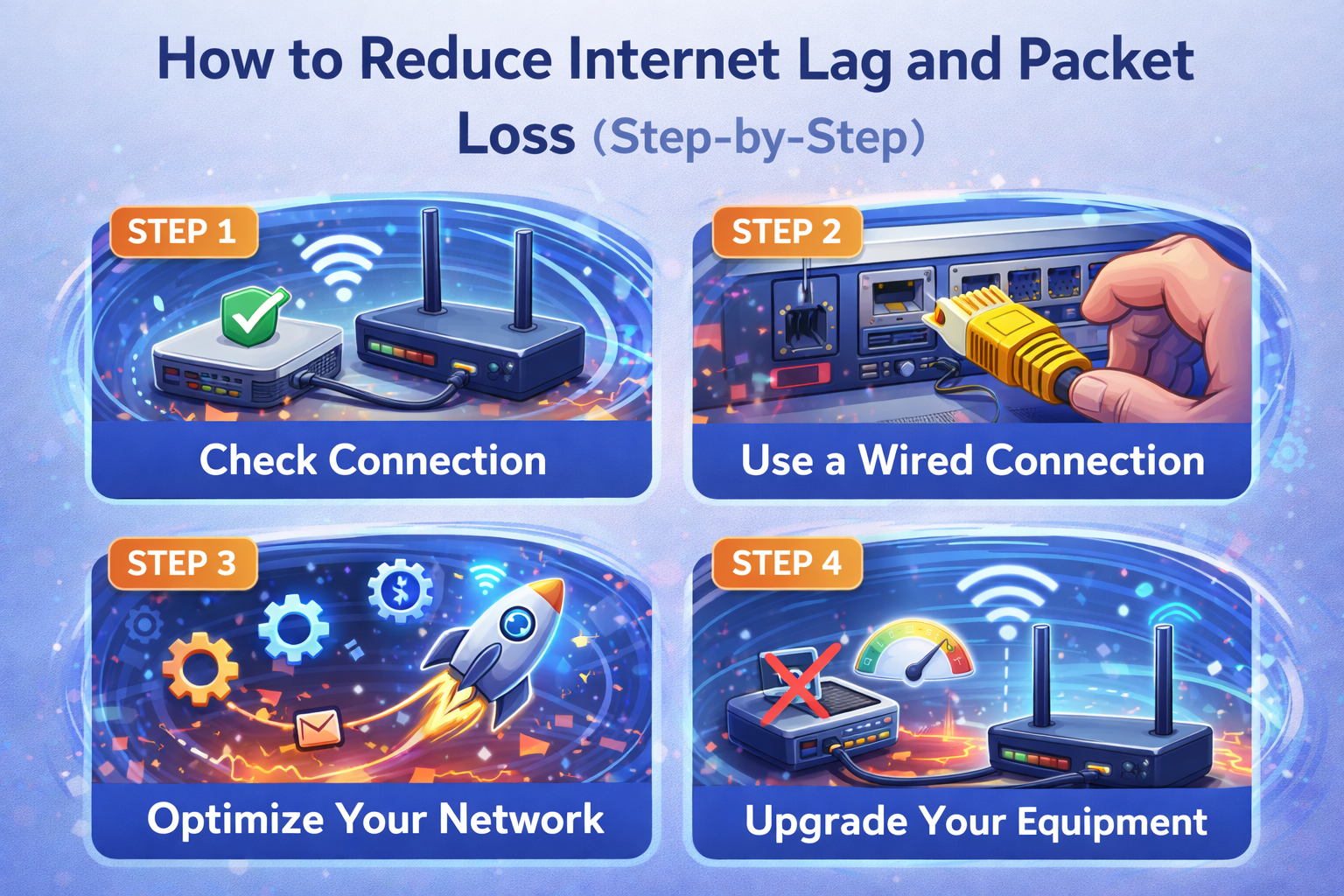
This section focuses on how to reduce internet lag and packet loss using simple, practical steps.
Step 1: Restart Your Modem and Router
This is the easiest and most effective first step.
How to do it:
- Turn off your modem and router
- Unplug them from power
- Wait 30–60 seconds
- Plug them back in and turn them on
Real-world example:
Many users notice smoother video calls immediately after restarting their router, especially if it hasn’t been rebooted in weeks.
Step 2: Use a Wired Ethernet Connection
Wi-Fi is convenient, but wired connections are more stable.
Why it helps:
- Reduces interference
- Lowers latency
- Minimizes packet loss
Best for:
- Online gaming
- Video conferencing
- Work-from-home setups
If possible, connect your PC, console, or smart TV directly to the router using an Ethernet cable.
Step 3: Improve Your Wi-Fi Signal

If you must use Wi-Fi, optimize it.
Place Your Router Correctly
- Put it in a central location
- Keep it elevated (on a shelf or table)
- Avoid placing it near microwaves or thick walls
Switch Wi-Fi Bands
- Use 5 GHz for speed (short range)
- Use 2.4 GHz for longer range but lower speed
Real-world example:
A user streaming Netflix in another room often stops buffering after switching from 2.4 GHz to 5 GHz.
Step 4: Limit Background Internet Usage
Too many devices can overload your network.
What to check:
- Cloud backups running silently
- App updates on phones and PCs
- Streaming on unused TVs
What to do:
- Pause downloads while gaming or working
- Schedule updates for late night
- Disconnect unused devices from Wi-Fi
Step 5: Update Router Firmware and Network Drivers
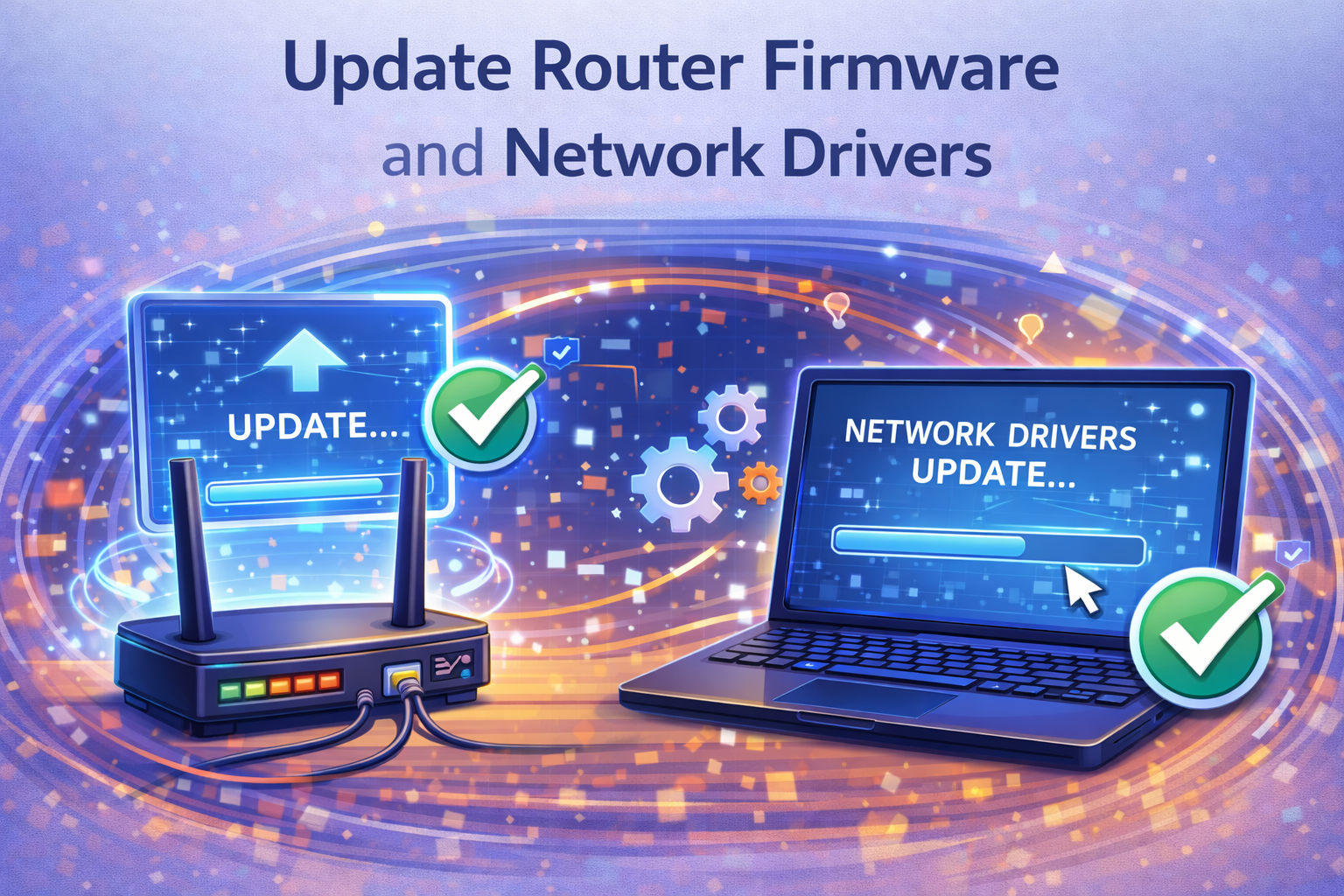
Outdated software can cause performance issues.
Update Router Firmware
- Open your router’s settings page
- Look for “Firmware Update”
- Install the latest version
Update Network Drivers (PC)
- Go to Device Manager
- Update the network adapter
These updates often fix bugs that cause lag and packet loss.
Step 6: Change DNS Settings
DNS servers translate website names into IP addresses. Slow DNS can add lag.
Try faster public DNS:
- Google DNS: 8.8.8.8 / 8.8.4.4
- Cloudflare DNS: 1.1.1.1 / 1.0.0.1
Result:
Faster website loading and more stable connections for many users.
Step 7: Reduce Interference from Other Networks
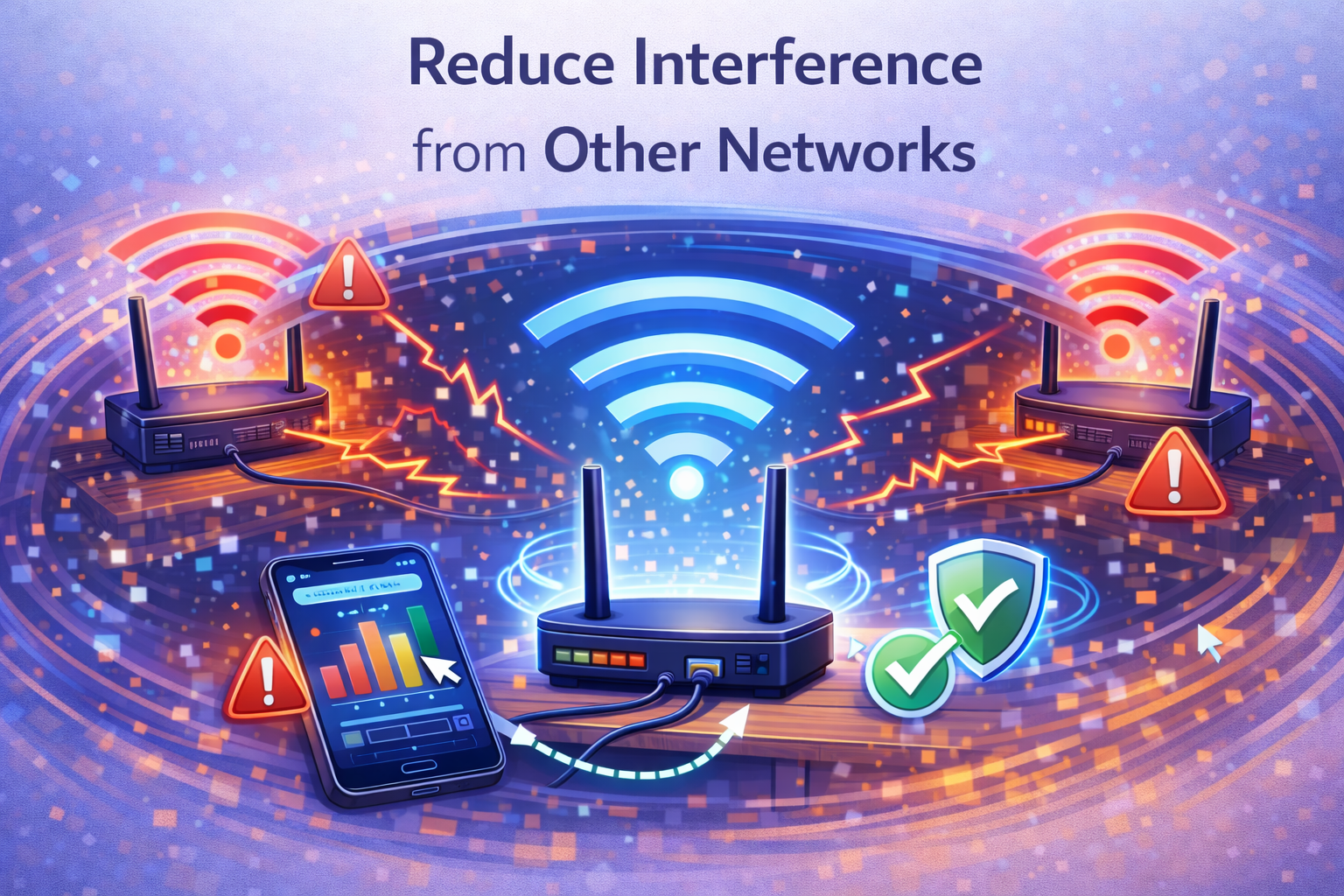
If you live in an apartment or crowded area, nearby Wi-Fi networks may interfere.
What to do:
- Change your Wi-Fi channel in router settings
- Use a Wi-Fi analyzer app to find less crowded channels
This small change can significantly reduce packet loss.
Step 8: Check and Replace Cables
Damaged or old cables can silently cause problems.
Check:
- Ethernet cables
- Coaxial or fiber cables
Replace any cable that looks bent, frayed, or loose.
Step 9: Enable Quality of Service (QoS)
QoS prioritizes important traffic like gaming or video calls.
How it helps:
- Reduces lag during busy times
- Keeps critical apps smooth
Enable QoS in your router and prioritize:
- Gaming devices
- Work computers
- Video call apps
Step 10: Contact Your ISP (If Needed)
If you still experience issues after trying everything:
- Test speed and packet loss at different times
- Note when lag is worst (evening, weekends)
- Contact your ISP with clear details
Sometimes line issues or local outages are the root cause.
How to Test for Lag and Packet Loss
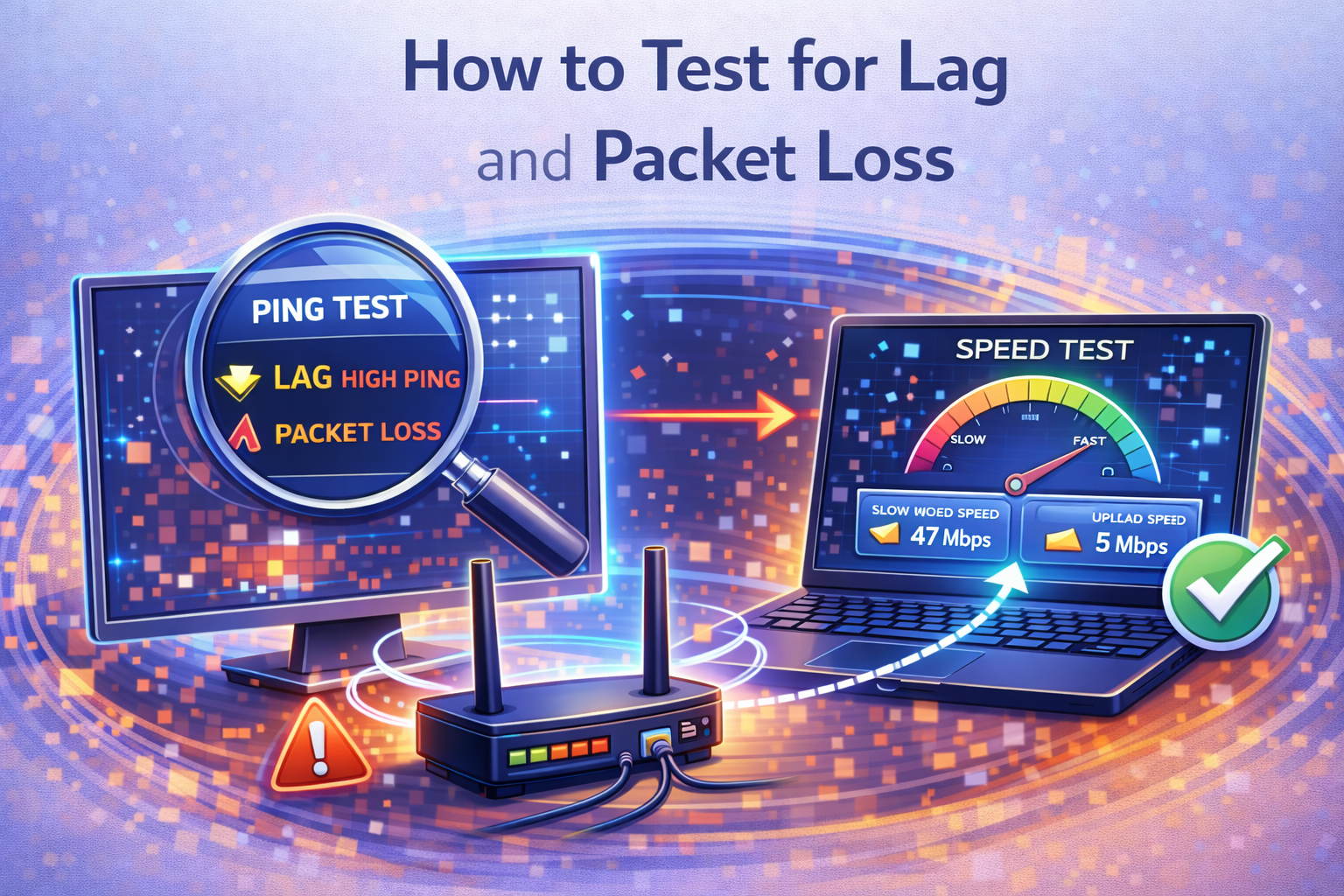
Knowing your current status helps track improvement.
Simple tests:
- Speed test websites
- Online ping tests
- Packet loss test tools
Look for:
- Ping under 50 ms (good)
- Packet loss close to 0%
FAQ: How to Reduce Internet Lag and Packet Loss
1. Is lag the same as slow internet speed?
No. Lag is delay, while speed is how much data you can download. You can have fast speed but high lag.
2. Can packet loss damage my device?
No. Packet loss affects data delivery, not hardware.
3. Does upgrading my internet plan reduce lag?
Sometimes. Higher plans help if bandwidth is the issue, but latency depends more on network quality.
4. Why is lag worse at night?
More users are online during peak hours, causing network congestion.
5. Is Wi-Fi always worse than Ethernet?
For stability and low latency, Ethernet is almost always better than Wi-Fi.
Conclusion
Learning how to reduce internet lag and packet loss doesn’t require advanced technical skills. In most cases, simple steps like restarting your router, improving Wi-Fi placement, limiting background usage, and using wired connections can make a huge difference.
By following the step-by-step solutions in this guide, you can enjoy smoother video calls, faster browsing, and more reliable online gaming. Start with the easy fixes, test your connection, and only contact your ISP if needed. A stable internet connection is absolutely achievable with the right approach.