
How to Fix Software Not Responding Error in Minutes
If you’ve ever seen a message saying “Software Not Responding”, you know how frustrating it can be—especially when you’re in the middle of important work. The good news is that you can often fix this problem in just a few minutes, even if you are a beginner.
In this guide, you’ll learn how to fix software not responding error in minutes using simple, step-by-step methods. These solutions work for most apps on both Windows and Mac and do not require advanced technical skills.
What Does “Software Not Responding” Mean?
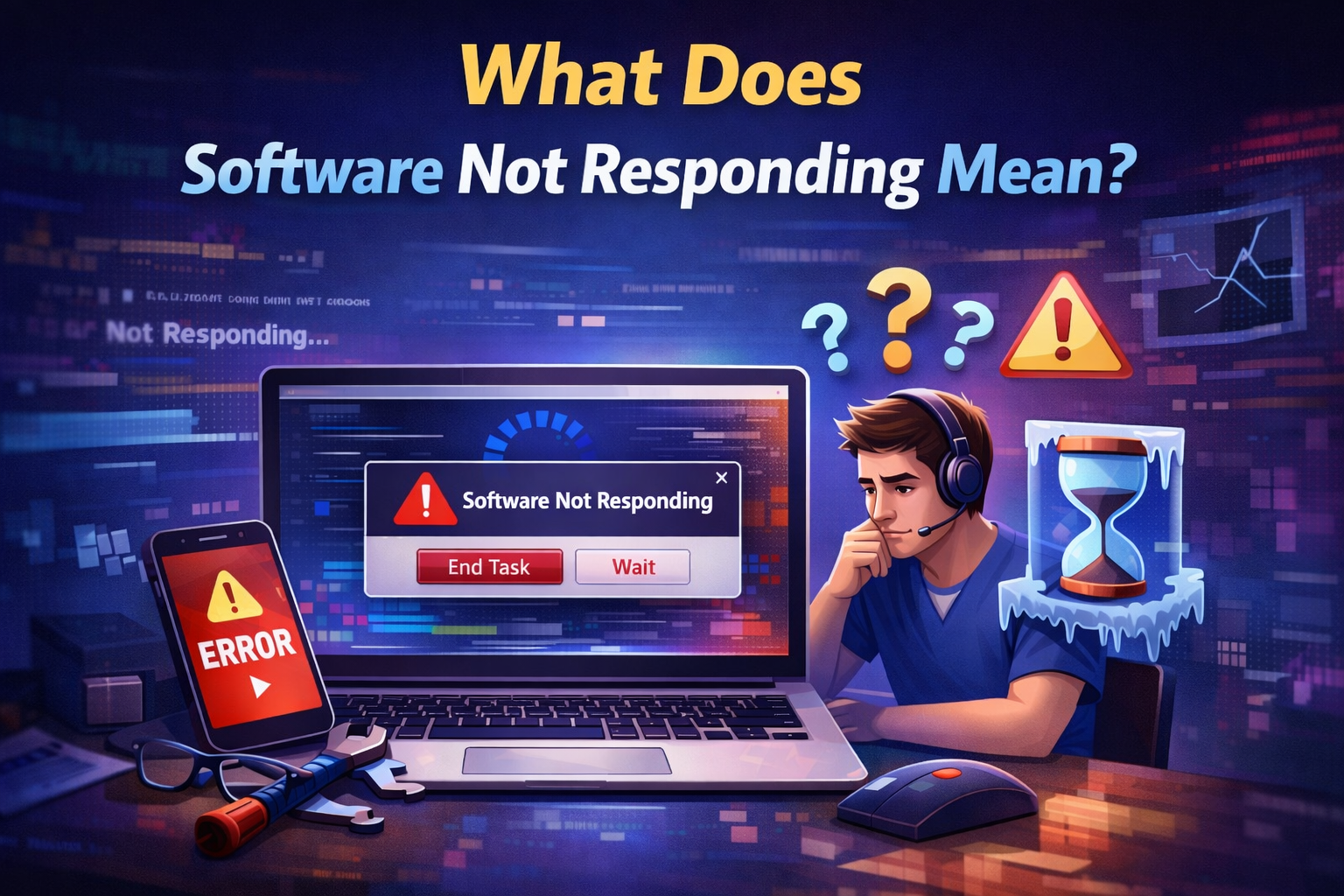
A “not responding” error happens when a program stops reacting to your mouse clicks or keyboard input. The software may freeze, turn white or gray, or show a spinning cursor.
Common reasons include:
- The software is overloaded
- Your computer is low on memory (RAM)
- A background process is stuck
- The app has a bug or conflict
- Your system or drivers are outdated
Understanding the cause helps you fix the issue faster.
How to Fix Software Not Responding Error in Minutes (Quick Overview)
Before diving into details, here’s a quick list of fixes that usually work:
- Wait a few seconds
- Force close the software
- Restart your computer
- Check system resources
- Update the software
- Scan for malware
- Reinstall the app
Now let’s go step by step.
Method 1: Wait for the Software to Recover (1–2 Minutes)
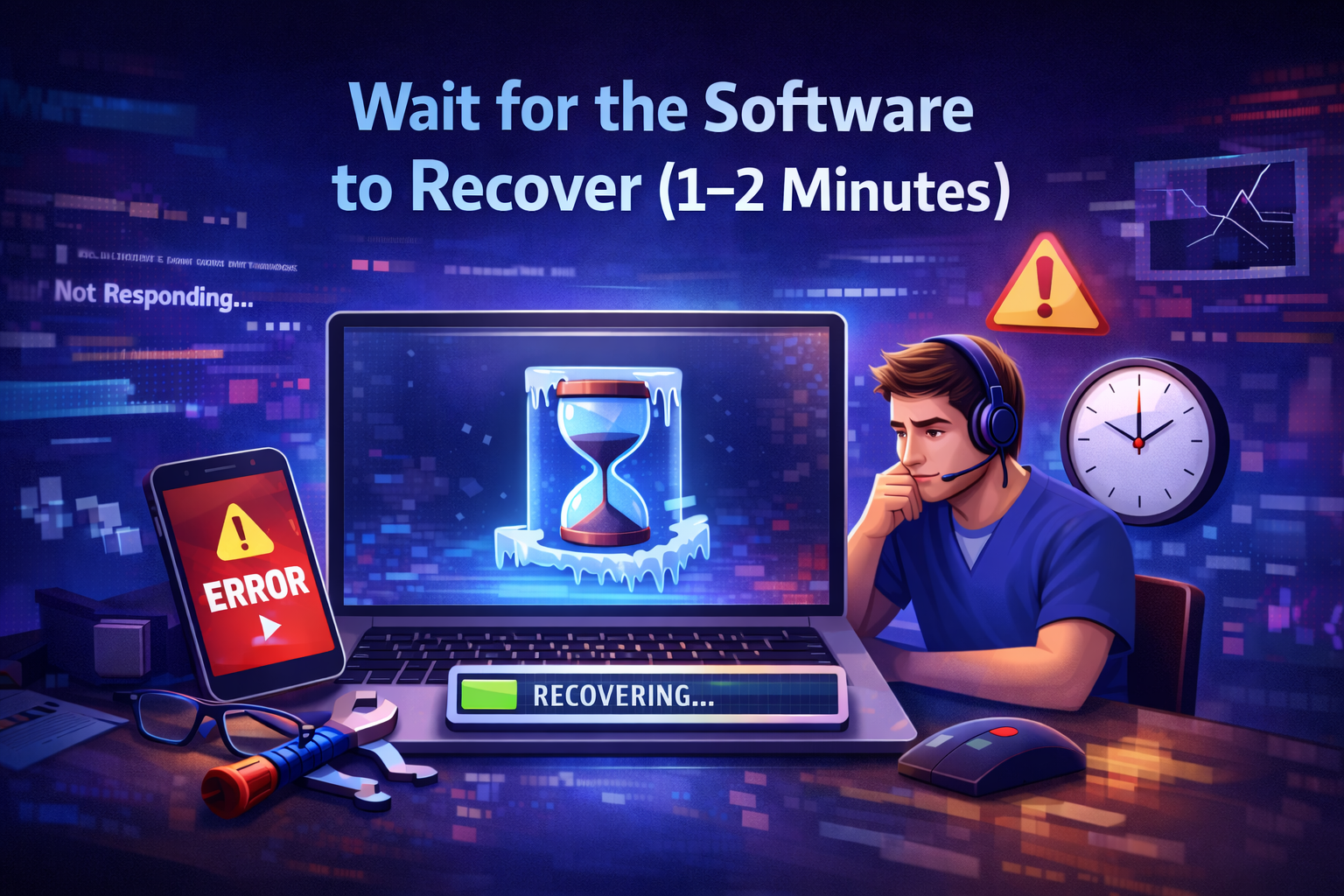
Sometimes the software is not frozen, just busy.
What to do:
- Stop clicking or pressing keys
- Wait for 30–120 seconds
- Watch if the app starts responding again
Real-world example:
If you open a large video file in a video editor, the app may look frozen while loading. Waiting a minute can save your work.
Best for: Large files, slow computers
Skip if: App stays frozen longer than 2 minutes
Method 2: Force Close the App (Fastest Fix)
If waiting doesn’t work, closing the app is often the quickest solution.
On Windows:
- Press Ctrl + Shift + Esc
- Open Task Manager
- Find the frozen software
- Click End Task
On Mac:
- Press Command + Option + Esc
- Select the frozen app
- Click Force Quit
Warning: Unsaved work may be lost.
Real-world example:
A web browser freezes after opening too many tabs. Force closing it instantly fixes the problem.
Method 3: Restart Your Computer (Simple but Powerful)
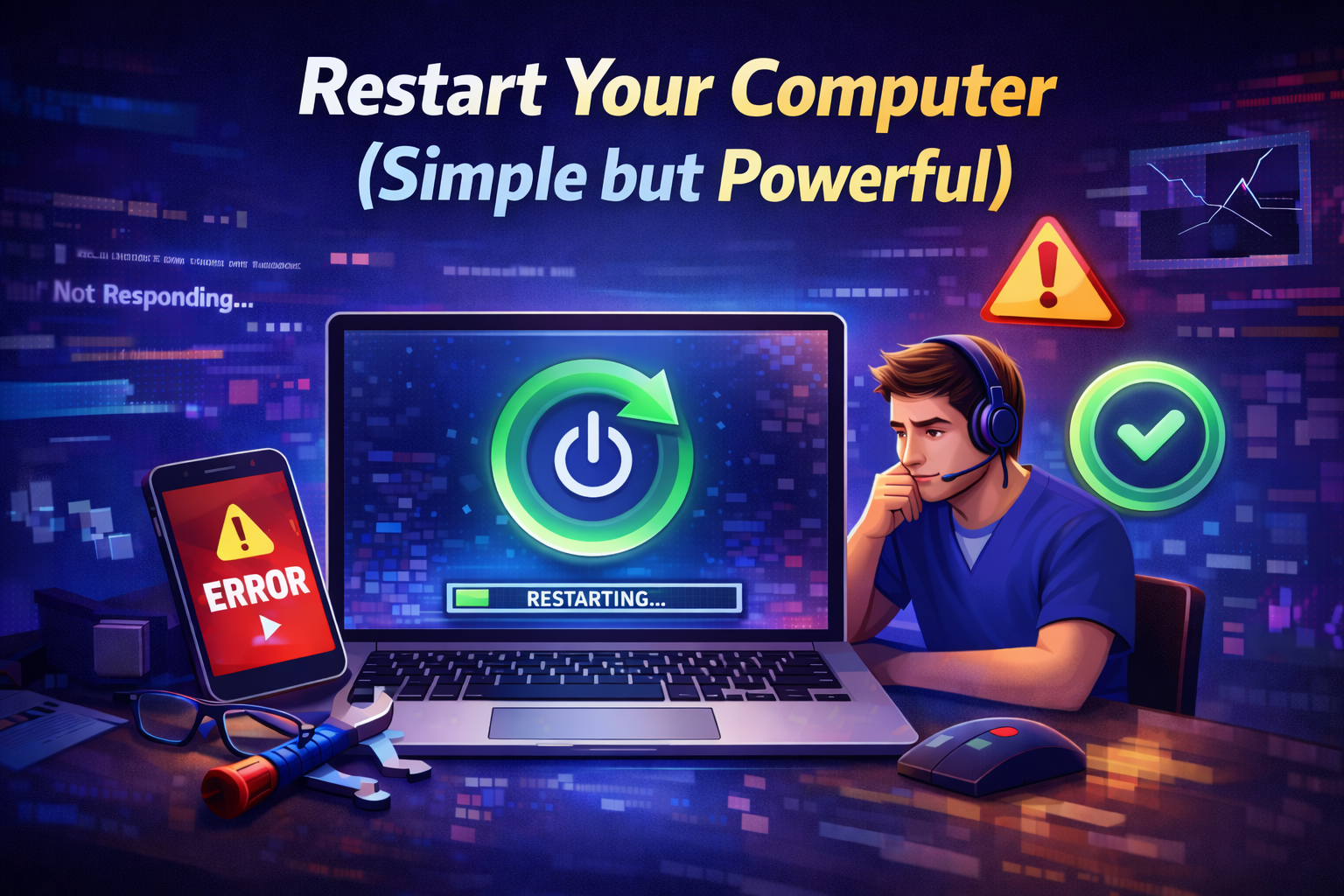
Restarting clears stuck processes and frees memory.
Steps:
- Save any open files (if possible)
- Restart your computer
- Open the software again
This method fixes temporary system glitches.
Best for: Random freezes, slow systems
Time needed: 2–5 minutes
Method 4: Check CPU and RAM Usage
High CPU or RAM usage can cause software not responding errors.
How to check:
- Windows: Task Manager → Performance tab
- Mac: Activity Monitor → CPU / Memory
What to do:
- Close unused programs
- Stop heavy background apps
- Avoid running too many apps at once
Real-world example:
Running a game, browser, and video editor together can overload your system, causing apps to freeze.
Method 5: Update the Software (Very Important)
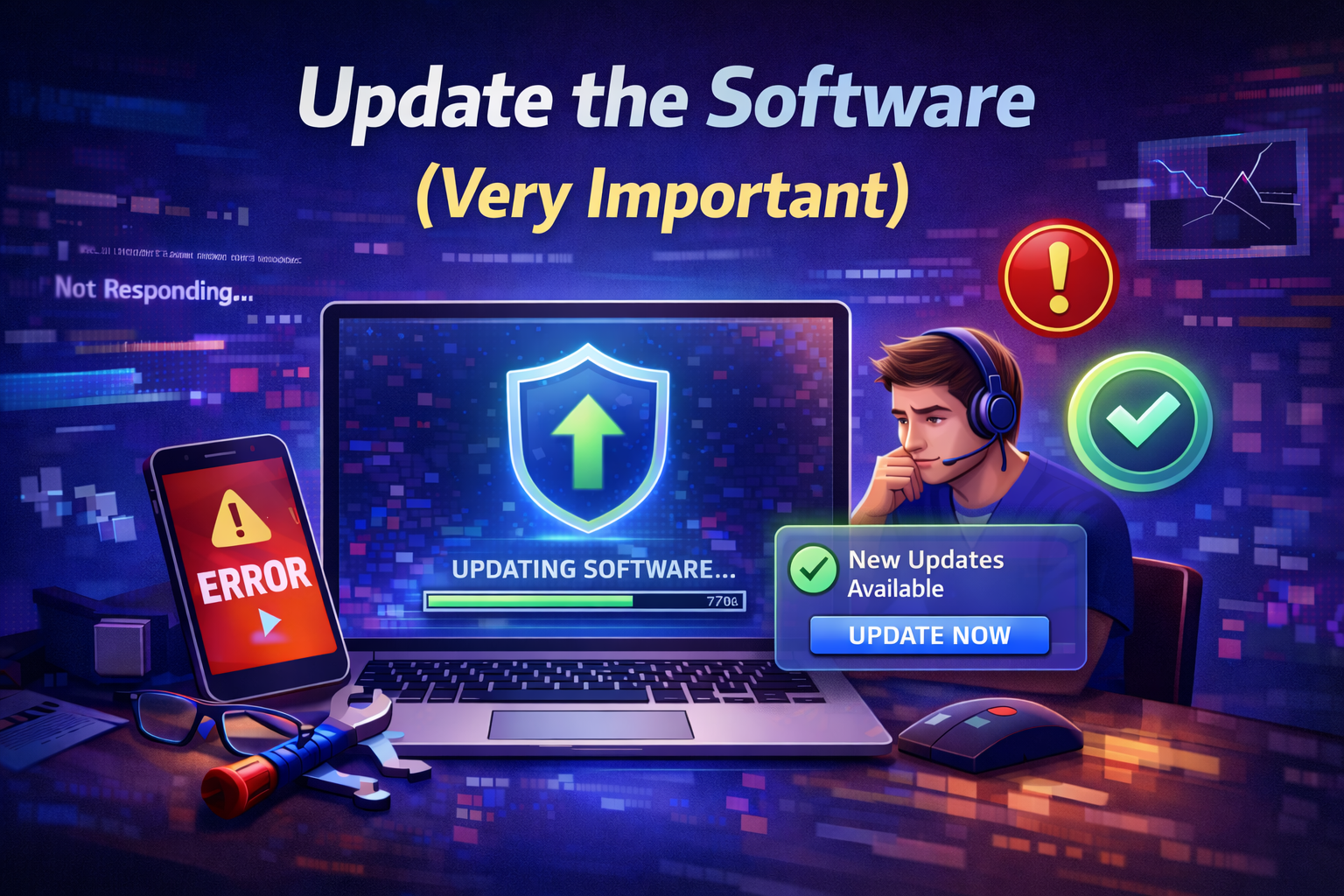
Outdated software often contains bugs that cause freezing.
Steps:
- Open the software settings
- Check for updates
- Install the latest version
- Restart the app
Why this works:
Developers fix performance issues and bugs in updates.
Related keywords: software freezing fix, app not responding solution
Method 6: Update Your Operating System
An outdated system can conflict with modern software.
What to do:
- Check for system updates
- Install recommended updates
- Restart your device
This improves stability and compatibility.
Method 7: Run the Software as Administrator (Windows)
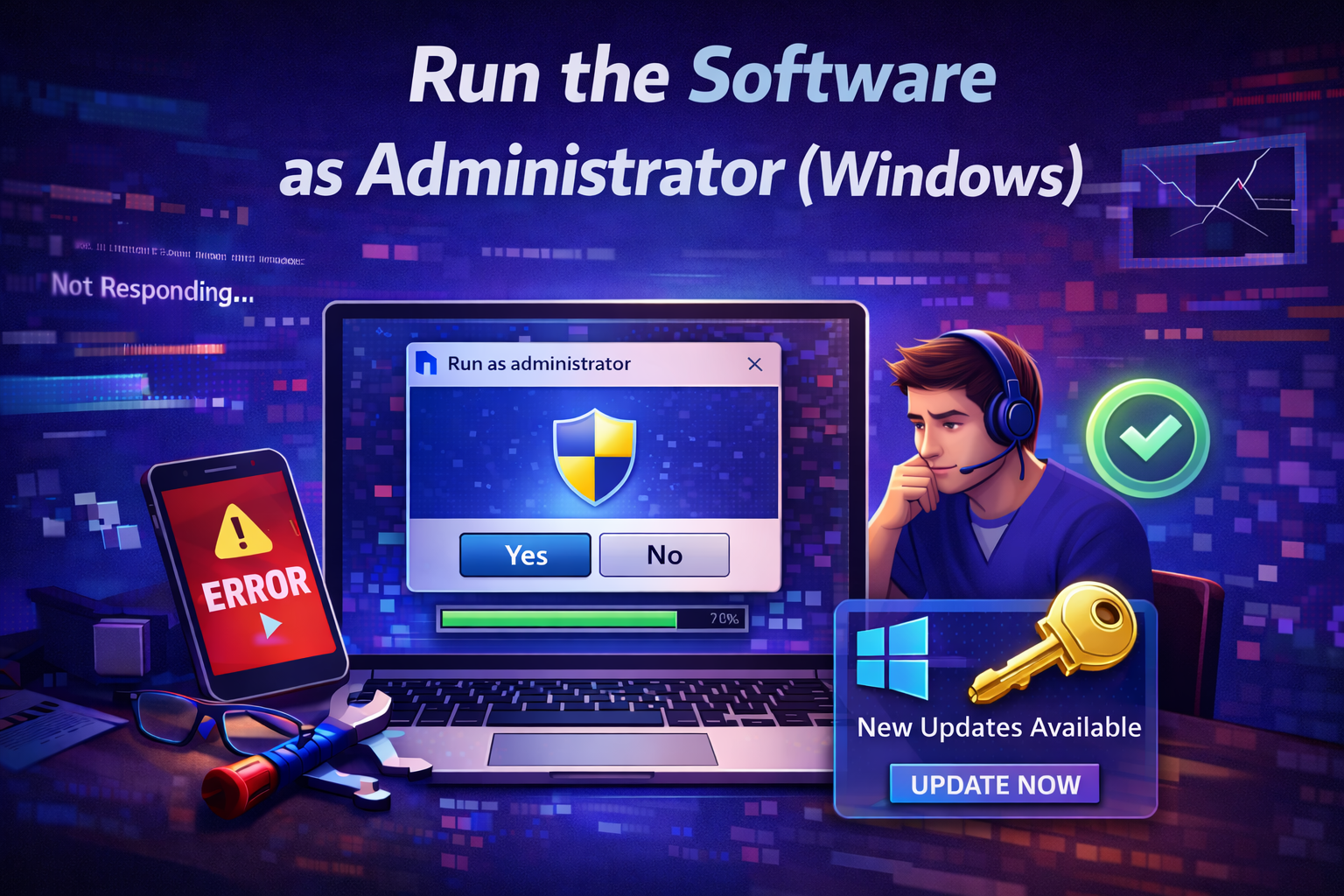
Some apps need extra permissions.
Steps:
- Right-click the software icon
- Click Run as administrator
This can fix crashes caused by access restrictions.
Method 8: Check for Corrupted Files
Corrupted system files can make apps freeze.
On Windows:
- Open Command Prompt as administrator
- Type:
sfc /scannow - Press Enter
The system will scan and fix damaged files automatically.
Method 9: Scan for Malware or Viruses
Malware can slow down your system and freeze software.
Steps:
- Run a full system scan
- Remove any detected threats
- Restart your computer
Real-world example:
A background virus uses CPU power, making apps unresponsive.
Method 10: Reinstall the Software (Last Resort)
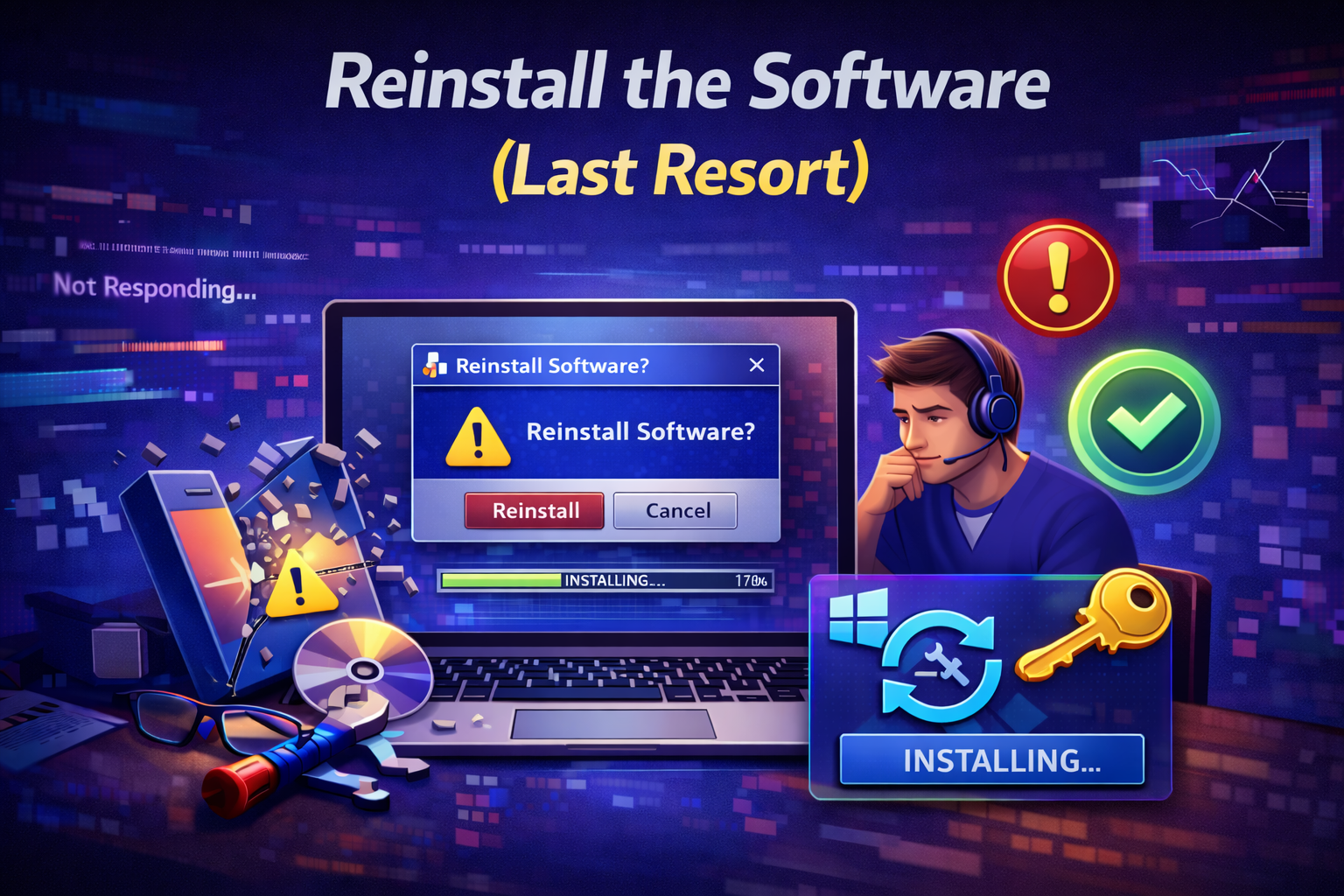
If nothing else works, reinstalling is often the final fix.
Steps:
- Uninstall the software
- Restart your computer
- Download the latest version
- Install again
This removes corrupted files and settings.
How to Prevent Software Not Responding Errors
Prevention saves time and stress.
Best practices:
- Keep software updated
- Avoid running too many apps
- Use enough storage space
- Restart your computer regularly
- Use reliable software only
FAQ: Software Not Responding Error
1. Why does software keep not responding?
Usually due to high memory usage, bugs, outdated software, or system conflicts.
2. Can I fix software not responding without closing it?
Yes. Waiting, reducing system load, or updating the app may help.
3. Does force closing damage my computer?
No. It may cause unsaved data loss, but it won’t harm your system.
4. Is software not responding a virus?
Not always. But malware can cause freezing, so scanning is recommended.
5. How long should I wait before force closing?
About 1–2 minutes. If nothing changes, force close it.
Conclusion
A software not responding error can be annoying, but it’s usually easy to fix. In most cases, you can solve the problem in minutes by force closing the app, restarting your computer, or updating the software.
By following the steps in this guide, even beginners can confidently fix software freezing issues and prevent them from happening again. Keep your system updated, avoid overload, and your software will run smoothly.