
How to Fix Software High CPU or RAM Usage Errors
Software high CPU or RAM usage errors are some of the most common problems users face on Windows, macOS, and even Linux systems. When a program suddenly consumes too much CPU or memory, your computer may become slow, freeze, overheat, or crash unexpectedly.
In this guide, you will learn how to fix software high CPU or RAM usage errors using simple, beginner-friendly methods. We will explain why these problems happen, show step-by-step solutions, and share real-world examples so you can fix the issue without advanced technical skills.
What Is High CPU or RAM Usage?

Before fixing the issue, it helps to understand what it means.
- CPU (Central Processing Unit) usage shows how much processing power software is using.
- RAM (Random Access Memory) usage shows how much temporary memory software needs to run.
When one program uses too much CPU or RAM:
- The system becomes slow
- Fans run loudly
- Applications stop responding
- Battery drains faster (on laptops)
Common Causes of Software High CPU or RAM Usage Errors
High resource usage does not happen randomly. Below are the most common causes.
1. Software Bugs or Memory Leaks
Some programs are poorly optimized. They may continue using more memory over time instead of releasing it.
2. Too Many Background Processes
Many apps run in the background even when you are not using them.
3. Outdated Software or Operating System
Old versions may have performance bugs that cause high CPU or RAM usage.
4. Malware or Unwanted Programs
Viruses and adware often run hidden processes that consume system resources.
5. Insufficient System Resources
If your computer has low RAM or an older CPU, modern software may overload it.
How to Check CPU and RAM Usage (First Step)
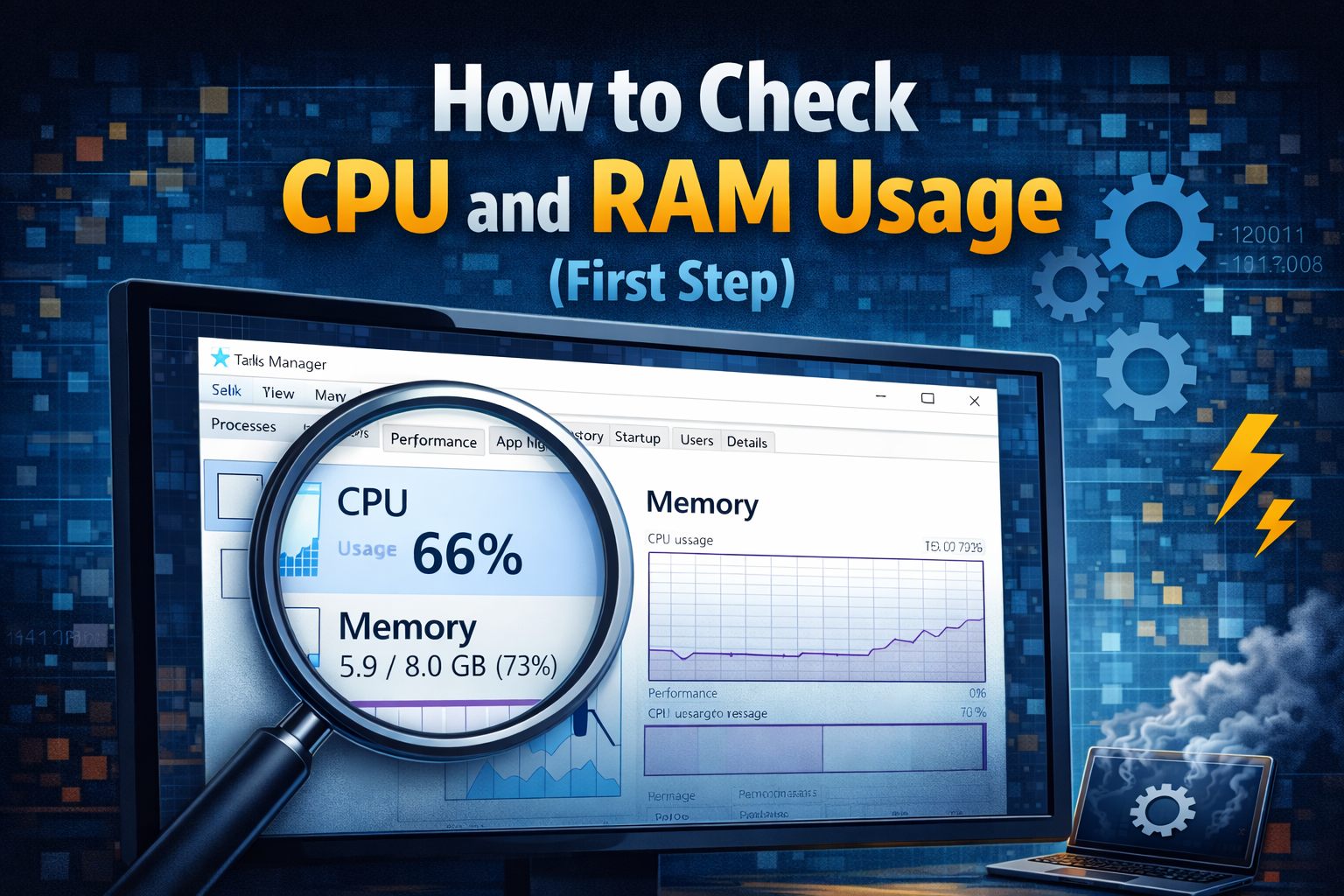
Before fixing anything, you need to identify the problem software.
On Windows
- Press Ctrl + Shift + Esc
- Open Task Manager
- Click the Processes tab
- Check CPU and Memory columns
On macOS
- Open Activity Monitor
- Go to CPU or Memory
- Sort by highest usage
Real-world example:
If your browser shows 70–90% RAM usage with many tabs open, it is likely the cause of the slowdown.
How to Fix Software High CPU or RAM Usage Errors
Restart the Software (Quick Fix)
Sometimes the problem is temporary.
Steps:
- Close the problematic software
- Wait 10 seconds
- Open it again
This clears stuck processes and releases RAM.
Example:
Restarting a photo editor after long usage often reduces memory usage instantly.
Restart Your Computer
A full system restart clears background tasks and memory leaks.
Best for:
- Slow systems after long uptime
- Random CPU spikes
Tip:
Restart your PC at least once every few days if you keep it on all the time.
How to Fix Software High CPU or RAM Usage Errors by Updating Software
Outdated software is a major cause of performance issues.
Update the Problem Software
- Open the software
- Go to Settings > Update
- Install the latest version
Update Your Operating System
- Windows: Settings > Windows Update
- macOS: System Settings > Software Update
Updates often fix known CPU and RAM usage bugs.
Disable Unnecessary Background Apps
Many programs start automatically and consume resources.
On Windows
- Open Task Manager
- Go to Startup
- Disable apps you don’t need
On macOS
- Open System Settings
- Go to Login Items
- Remove unnecessary apps
Real-world example:
Disabling auto-launch chat apps can reduce RAM usage by 20–30%.
How to Fix Software High CPU or RAM Usage Errors by Changing Settings

Some software settings are too heavy for normal users.
Reduce Graphics or Performance Settings
- Lower visual effects
- Disable animations
- Turn off hardware acceleration (test both on/off)
Limit Background Sync
Apps like browsers, cloud storage, and messaging tools constantly sync data.
Scan for Malware and Unwanted Programs
Malware often causes unexplained high CPU or RAM usage.
Steps:
- Use built-in security software
- Run a full system scan
- Remove detected threats
Signs of malware-related usage:
- High CPU even when idle
- Unknown process names
- Sudden system overheating
Clear Cache and Temporary Files

Corrupted cache files can cause software to behave abnormally.
For Software Apps
- Look for Clear Cache in settings
For System Cleanup
- Use built-in cleanup tools
- Delete temporary files safely
Example:
Clearing browser cache often reduces RAM usage when pages fail to load correctly.
Reinstall the Problem Software (Effective Fix)
If nothing else works, reinstalling can fix corrupted files.
Steps:
- Uninstall the software
- Restart your computer
- Download the latest version
- Install again
This resets settings and removes broken components.
How to Fix Software High CPU or RAM Usage Errors by Upgrading Hardware

If the problem happens frequently, your system may need better hardware.
When to Upgrade RAM
- You have 4 GB or less
- System slows when multitasking
When to Upgrade CPU (or PC)
- High CPU usage even with simple tasks
- Software requirements exceed hardware limits
Real-world example:
Upgrading from 4 GB to 8 GB RAM can dramatically improve performance for everyday software.
Prevent High CPU or RAM Usage in the Future
Best Practices:
- Keep software updated
- Avoid installing unnecessary apps
- Close unused programs
- Restart regularly
- Monitor resource usage weekly
Prevention saves time and avoids system damage.
FAQ: Software High CPU or RAM Usage Errors
1. Is high CPU or RAM usage always a problem?
Not always. Heavy tasks like video editing or gaming naturally use more resources.
2. Why does software use more RAM over time?
This is often caused by memory leaks or long-running background tasks.
3. Can high CPU usage damage my computer?
Yes. Prolonged high CPU usage can cause overheating and reduce hardware lifespan.
4. Should I force close high-usage software?
You can, but save your work first to avoid data loss.
5. Does reinstalling Windows fix high CPU or RAM usage?
It can, but it should be a last resort after trying other fixes.
Conclusion
Software high CPU or RAM usage errors can make even a powerful computer feel slow and frustrating. The good news is that most problems can be fixed with simple steps like restarting software, updating apps, disabling background processes, or adjusting settings.
By following the methods in this guide, beginners and normal users can safely improve system performance, reduce crashes, and keep their computers running smoothly. Regular maintenance and smart usage habits are the key to preventing these errors in the future.