
How to Fix Software “File Not Found Error
The Software “File Not Found” error is one of the most common problems users face on Windows, macOS, and even mobile apps. You may see it when opening a program, running a command, installing software, or clicking a file shortcut.
This error usually means the system or application cannot locate the file it expects to use—even though you believe it should be there.
The good news? You don’t need to be a tech expert to fix it. This guide explains how to fix Software “File Not Found” error step by step, using simple language and real-world examples. Whether you’re a beginner or a normal everyday user, you’ll find a solution that works.
What Is a File Not Found Error?
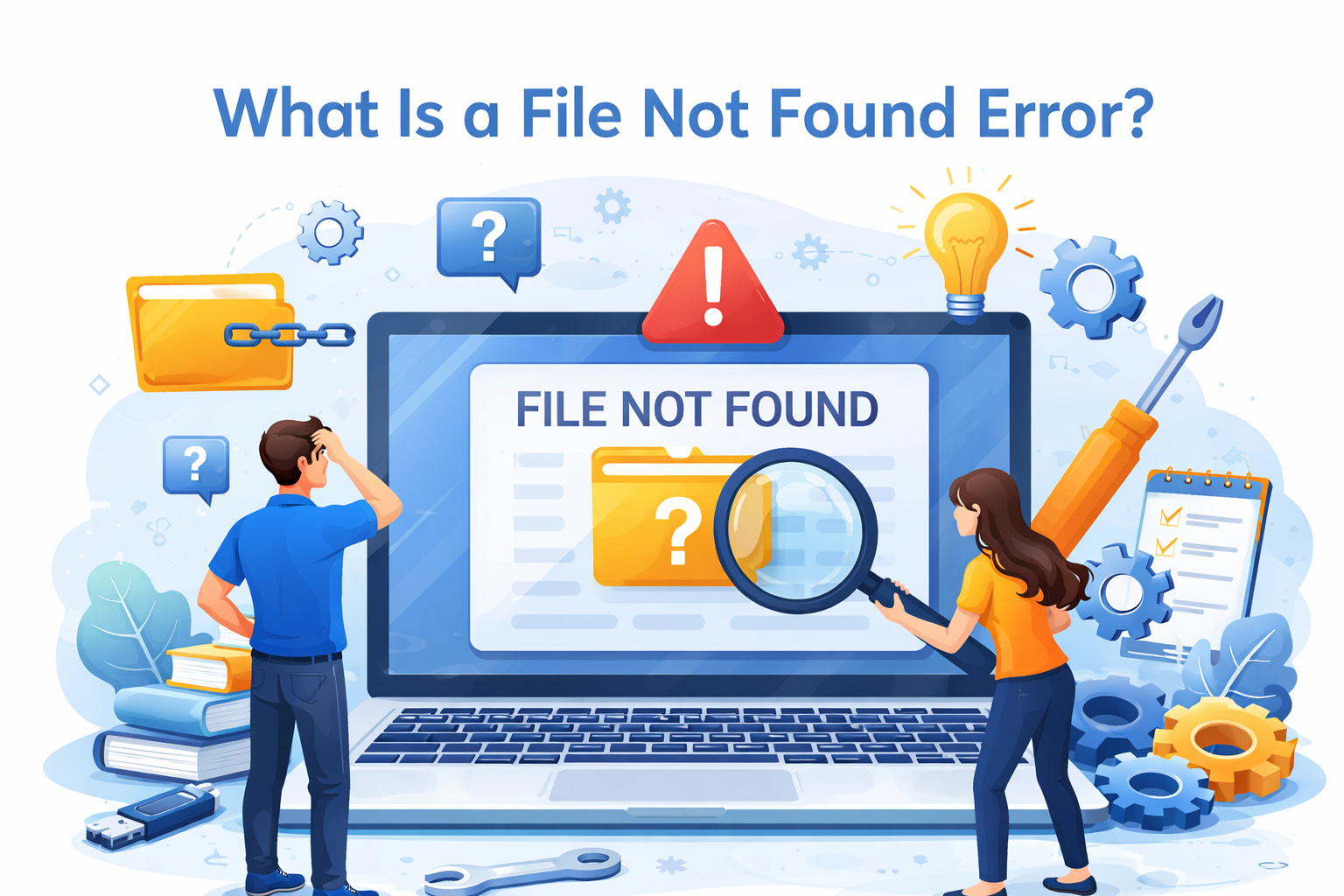
A File Not Found error happens when software tries to open a file that:
- Was deleted
- Was moved to another location
- Was renamed
- Is blocked by permissions
- Is missing due to a failed install or update
The system looks for the file at a specific path (location). If the file isn’t there, the error appears.
Common Error Messages You Might See
- File not found
- The system cannot find the file specified
- Error 404: File Not Found (web-based software)
- Cannot open file because it does not exist
Why Software File Not Found Errors Happen
Understanding the cause makes fixing the problem much easier.
1. The File Was Deleted Accidentally

You or another app may have deleted the file without realizing it.
2. The File Was Moved or Renamed
If a file’s name or folder changes, software shortcuts can break.
3. Broken Shortcuts
Desktop or Start Menu shortcuts often point to files that no longer exist.
4. Incomplete Software Installation
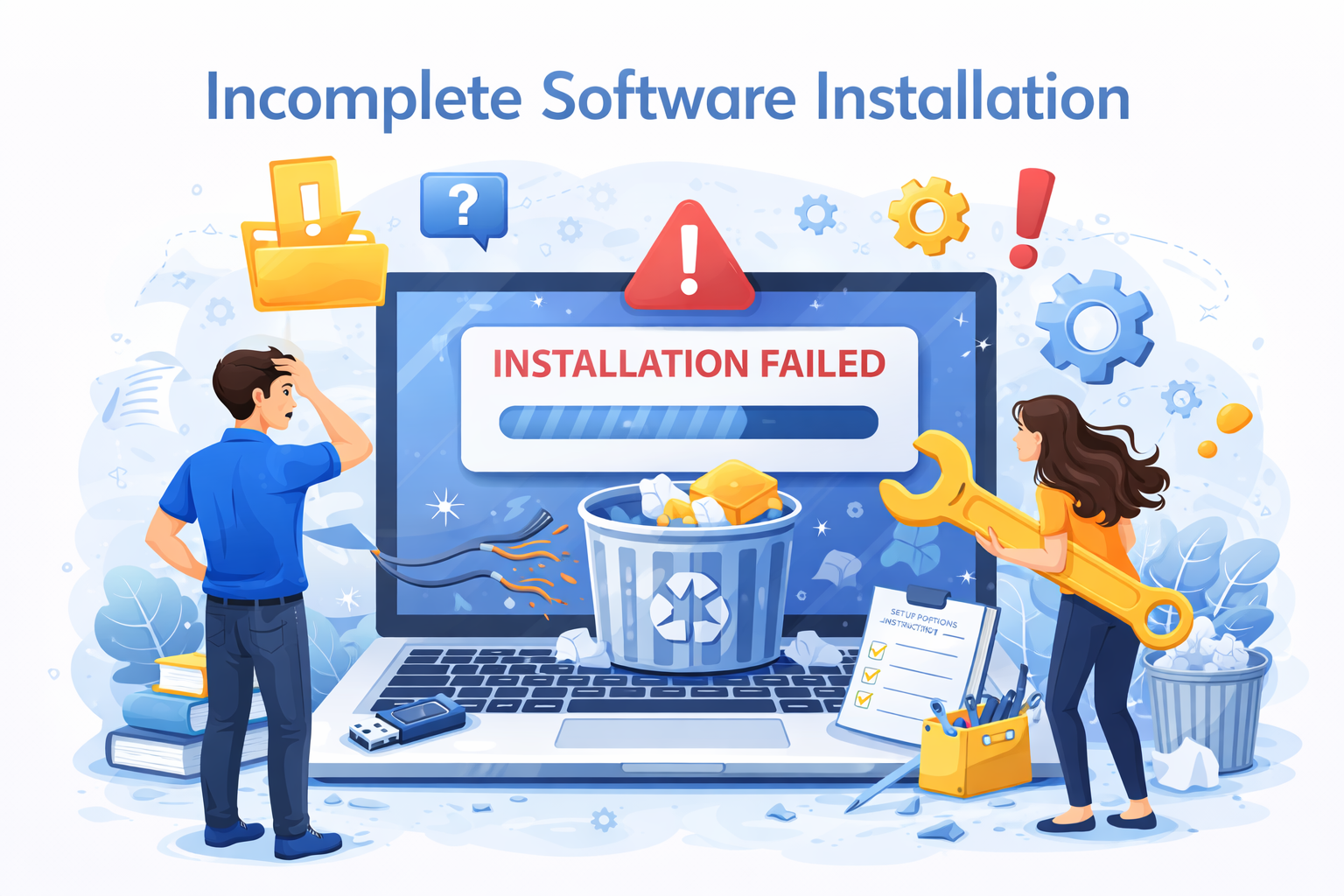
If installation failed or was interrupted, some files may be missing.
5. Antivirus or Security Software Removed the File
Sometimes security tools delete files they think are unsafe.
6. Corrupted System Files
System errors can damage essential files that programs rely on.
How to Fix Software File Not Found Error (Step-by-Step)
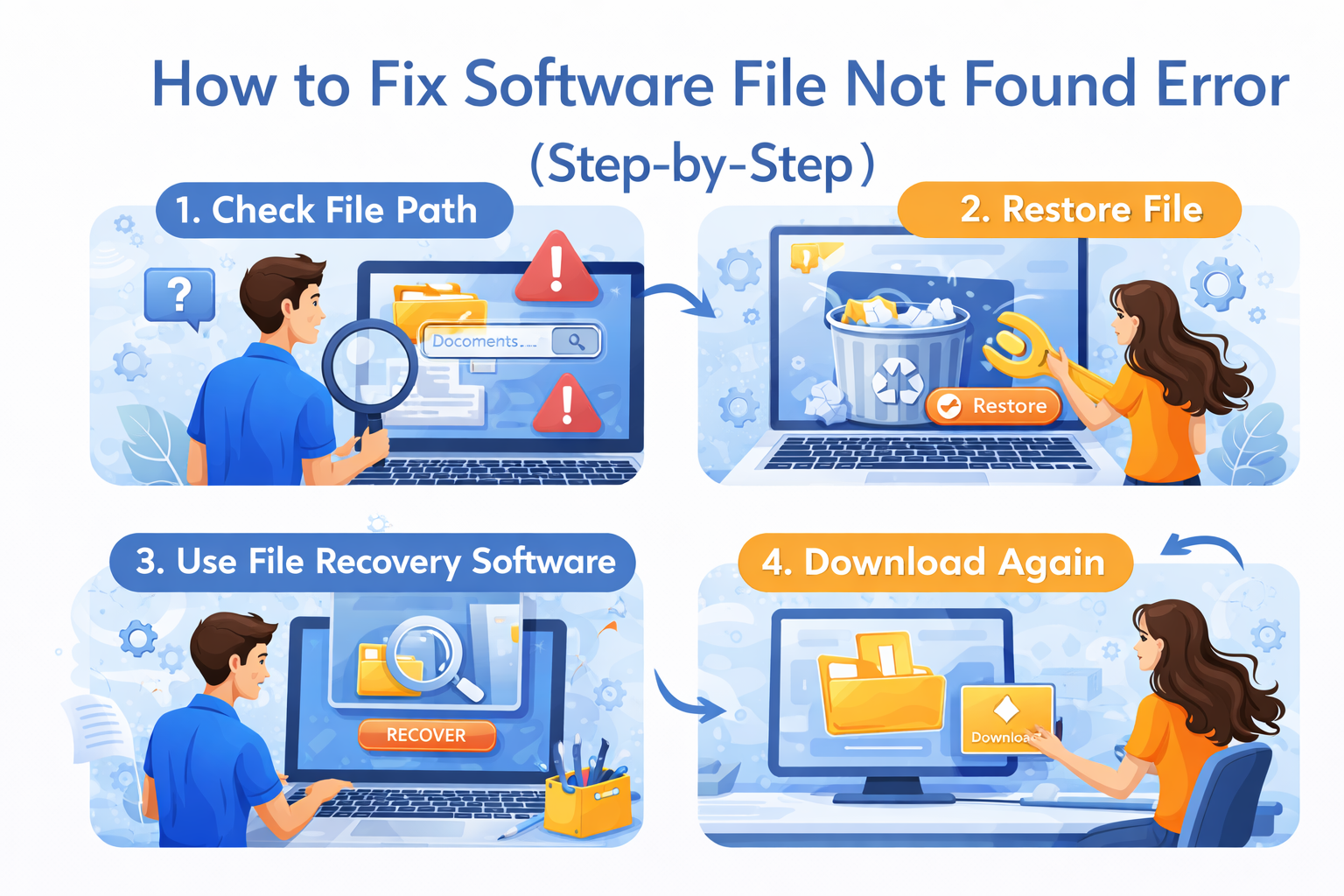
Step 1: Restart Your Computer (Yes, Really!)
This sounds simple, but restarting can:
- Reload system paths
- Clear temporary errors
- Fix locked or unavailable files
Real-world example:
A user gets a “File Not Found” error after installing a PDF reader. After restarting, the app opens normally.
Step 2: Check If the File Actually Exists
Before doing anything advanced, confirm the file is really missing.
How to Check on Windows:
- Open File Explorer
- Go to the folder mentioned in the error message
- Look for the file name exactly as shown
If You Don’t Know the Location:
- Use Search in File Explorer
- Type the file name (example:
app.exe)
If the file is found in a different location, the software may still be looking at the old path.
Step 3: Fix or Recreate the Shortcut
Broken shortcuts are a very common cause of the Software “File Not Found” error.
How to Fix a Shortcut:
- Right-click the shortcut
- Choose Properties
- Check the Target path
- If the file doesn’t exist there, delete the shortcut
Create a New Shortcut:
- Go to the program’s main folder
- Right-click the
.exefile - Select Send to → Desktop (Create shortcut)
Step 4: Restore the File from Recycle Bin
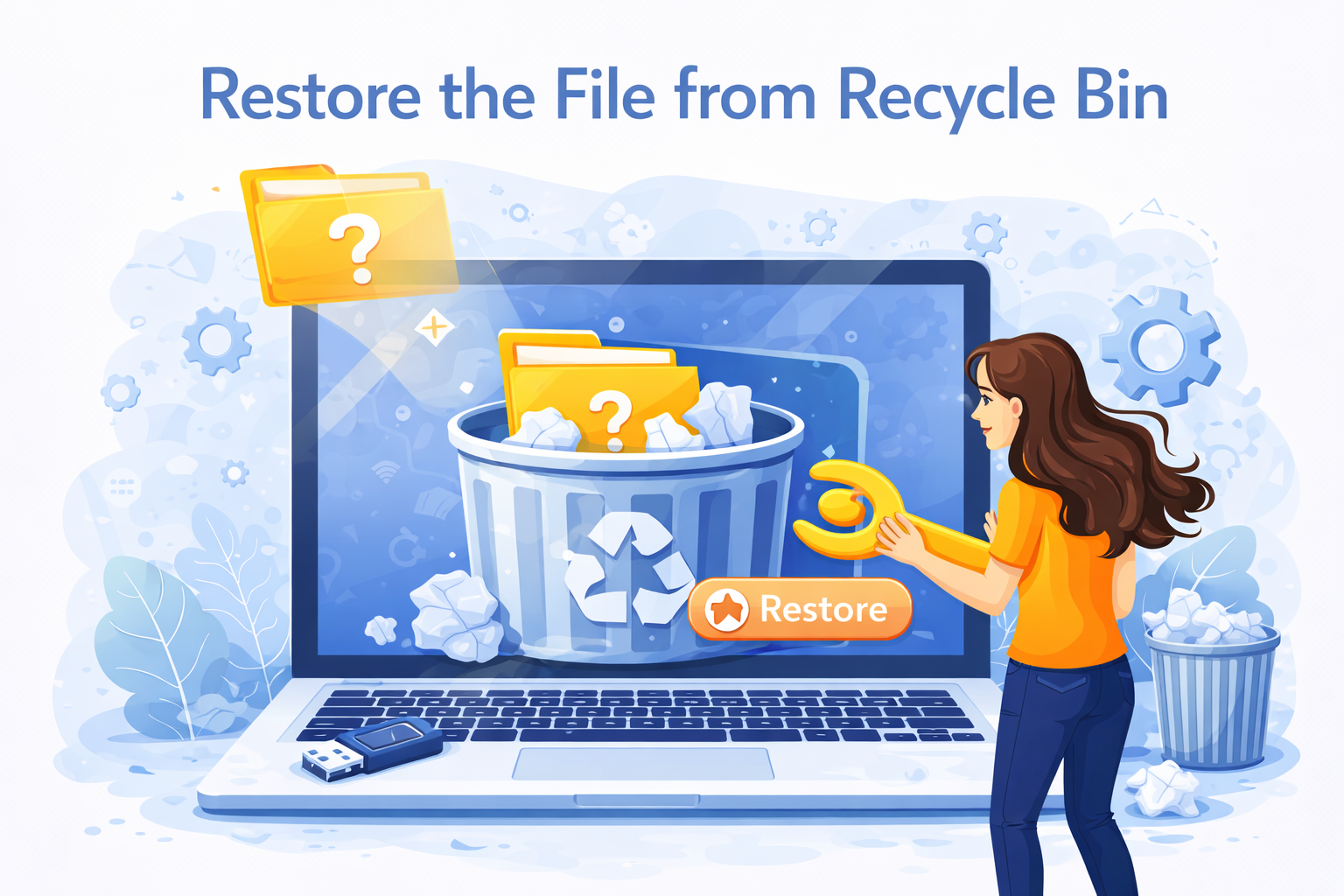
If the file was deleted recently:
- Open Recycle Bin
- Search for the missing file
- Right-click → Restore
The file will return to its original location.
Step 5: Reinstall the Software (Most Reliable Fix)
If a required file is missing, reinstalling is often the fastest solution.
Safe Reinstall Steps:
- Open Control Panel → Programs
- Uninstall the software
- Restart your computer
- Download the latest version from the official source
- Install again
Real-world example:
A video editor shows “File Not Found” when exporting videos. Reinstalling restores missing plugin files and fixes the issue.
How to Fix Software File Not Found Error Using System Tools
Step 6: Run the Software as Administrator
Permission problems can prevent access to files.
- Right-click the program
- Choose Run as administrator
If this works, update shortcut settings to always run as admin.
Step 7: Check Antivirus or Security Software

Your antivirus may have quarantined the file.
What to Do:
- Open your antivirus dashboard
- Check Quarantine or History
- Restore the file if it’s safe
- Add the software folder to Exclusions
Step 8: Repair Corrupted System Files (Windows)
Corrupted system files can cause repeated file errors.
Use Built-in Repair Tool:
- Open Command Prompt as administrator
- Type:
sfc /scannow - Press Enter
- Wait for the scan to complete
- Restart your PC
This repairs missing or damaged system files automatically.
Step 9: Update the Software and Your Operating System
Outdated software may look for files that no longer exist.
- Update the application
- Install system updates
- Restart after updates
This ensures file paths and dependencies are correct.
Special Cases: File Not Found Errors in Different Situations
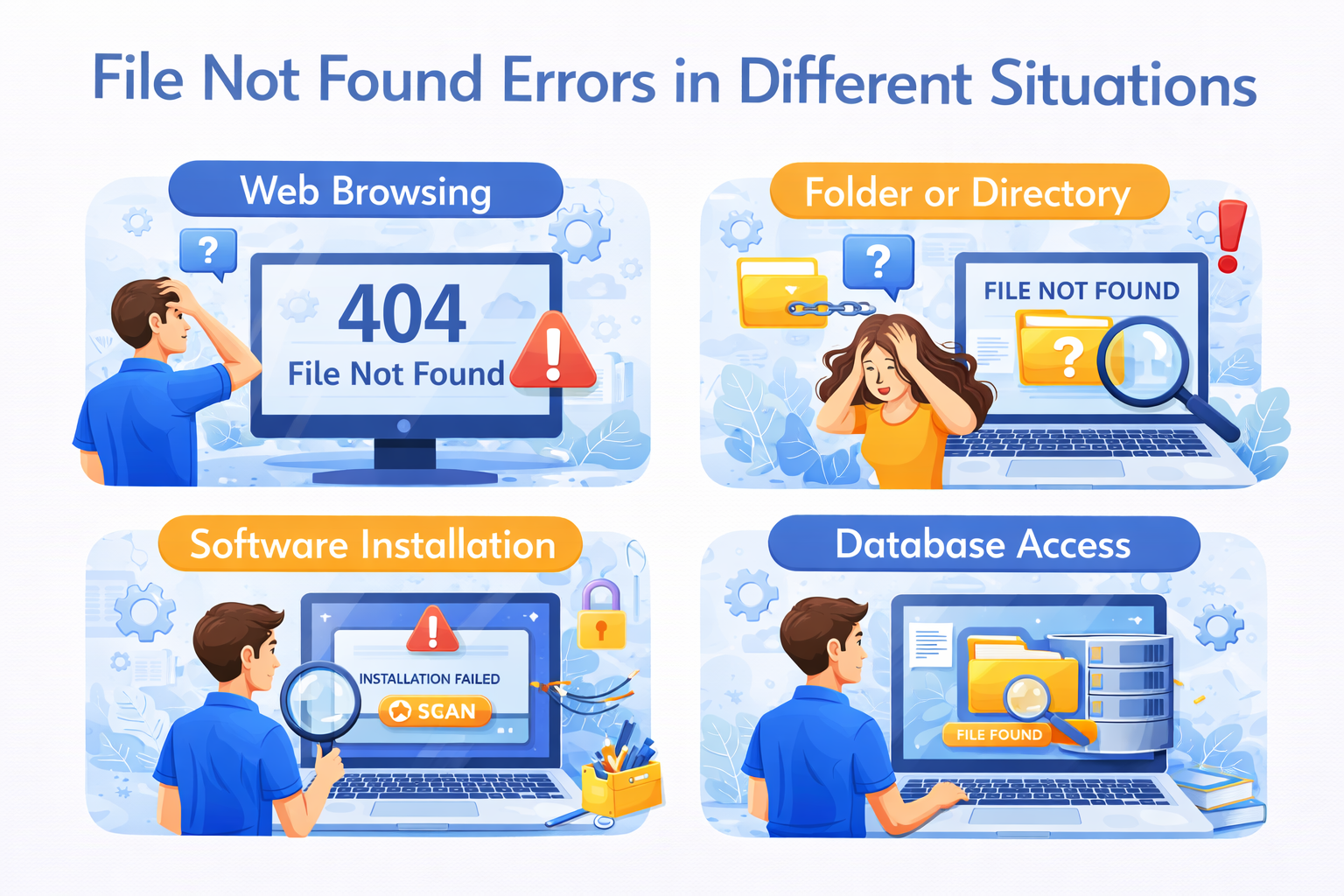
File Not Found Error in Command Prompt or Scripts
This usually means:
- The file path is incorrect
- The file name is misspelled
- The working directory is wrong
Tip: Always use full file paths and double-check spelling.
File Not Found Error in Web-Based Software
This often shows as 404 File Not Found.
Possible causes:
- Deleted server file
- Wrong URL
- Broken link
Fix by:
- Correcting the link
- Re-uploading the file
- Clearing browser cache
How to Prevent File Not Found Errors in the Future
- Avoid deleting unknown files
- Don’t rename program folders manually
- Use official uninstallers
- Keep backups of important files
- Install software updates regularly
Prevention saves time and frustration.
Frequently Asked Questions (FAQ)
1. What does “File Not Found” mean in simple terms?
It means the software is looking for a file, but it can’t find it where it expects it to be.
2. Can a File Not Found error be caused by a virus?
Yes. Malware or antivirus software can delete or block files, causing this error.
3. Is reinstalling software safe?
Yes, as long as you download it from the official website. It’s one of the safest fixes.
4. Why does the error come back after I fix it?
The file may be deleted again by antivirus software, system cleanup tools, or a failed update.
5. Can I fix File Not Found errors without technical skills?
Absolutely. Most fixes—like restarting, reinstalling, or fixing shortcuts—are beginner-friendly.
Conclusion
The Software “File Not Found” error can look scary, but it’s usually easy to fix. In most cases, the problem comes from missing files, broken shortcuts, or incomplete installations. By following the step-by-step solutions in this guide, you can quickly restore normal software operation—without reinstalling your entire system or calling a technician.
Start with simple fixes, move to reinstalling if needed, and keep your system updated to prevent future errors. A calm, methodical approach will solve this problem almost every time.