How to Fix Software Crashing at Launch Every Time
Software crashing at launch is one of the most frustrating problems for beginners and normal users. You click the app icon, it opens for a second, and then—boom—it closes without warning. If software crashing at launch every time is happening on your computer, you’re not alone. This issue affects Windows, macOS, and even some Linux users, and it can happen to games, office apps, design tools, or everyday utilities.
The good news? In most cases, you don’t need to reinstall your operating system or replace your device. With a few simple, step-by-step checks, you can usually find the cause and fix the problem yourself.
In this guide, you’ll learn why software crashes at launch and exactly how to fix it, even if you’re not a tech expert.
Why Software Crashes at Launch
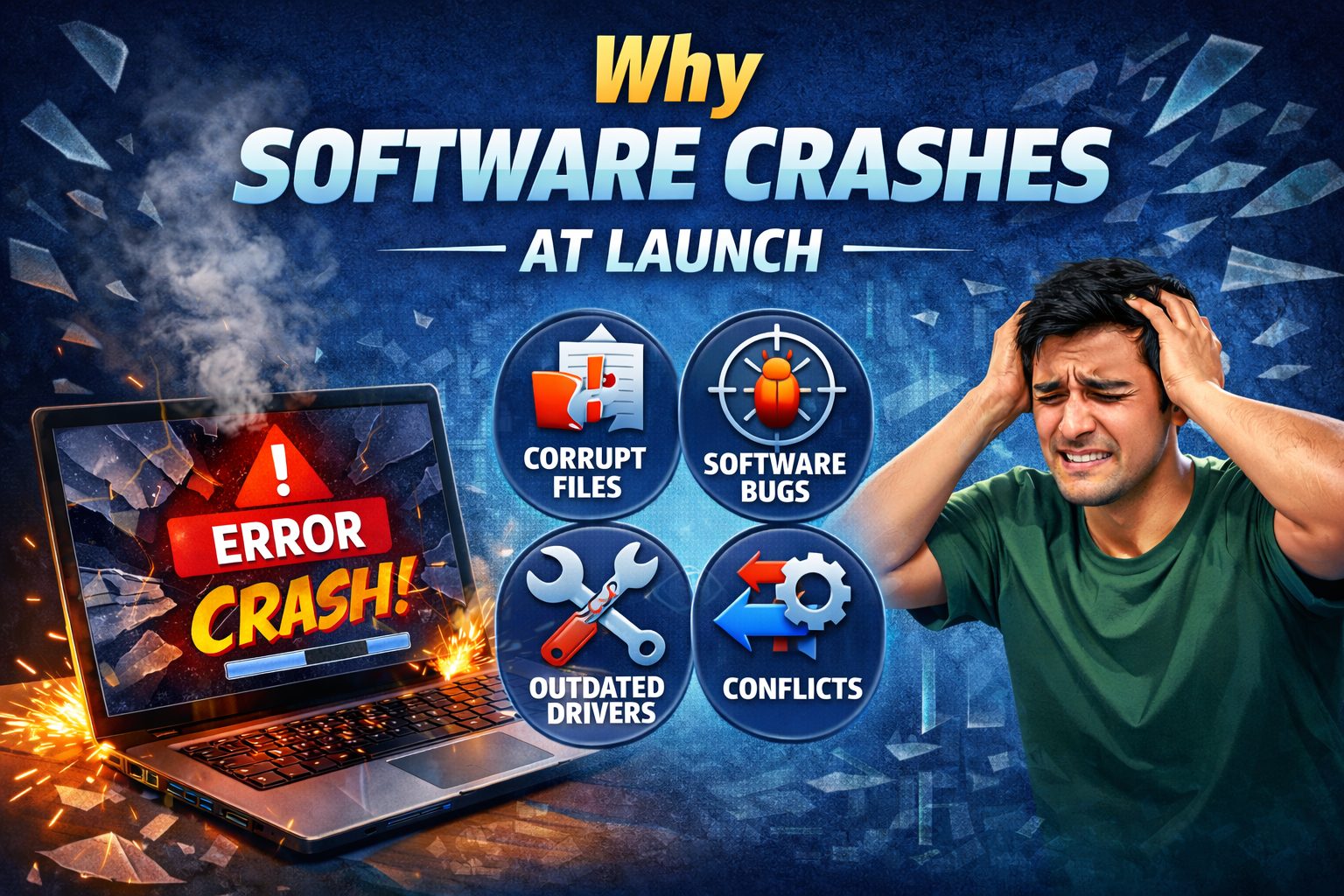
Before jumping into fixes, it helps to understand what’s going wrong. When a program launches, it loads files, checks system resources, and connects to required services. If something fails during this process, the app crashes instantly.
Common causes include:
- Corrupted program files
- Missing system updates or drivers
- Incompatible software versions
- Lack of permissions
- Conflicts with antivirus or background apps
Let’s go through the fixes from easiest to more advanced, so you can stop as soon as the problem is solved.
How to Fix Software Crashing at Launch Every Time
1. Restart Your Computer (Don’t Skip This)
It sounds too simple, but restarting fixes many launch crash issues.
Why this works:
- Clears temporary memory errors
- Stops stuck background processes
- Resets system services
Real-world example:
A photo editor keeps crashing at startup after your PC was on for days. A restart clears the memory conflict, and the app opens normally.
Steps:
- Save your work
- Restart your computer
- Try opening the software again
If it still crashes, move on.
2. Run the Software as Administrator
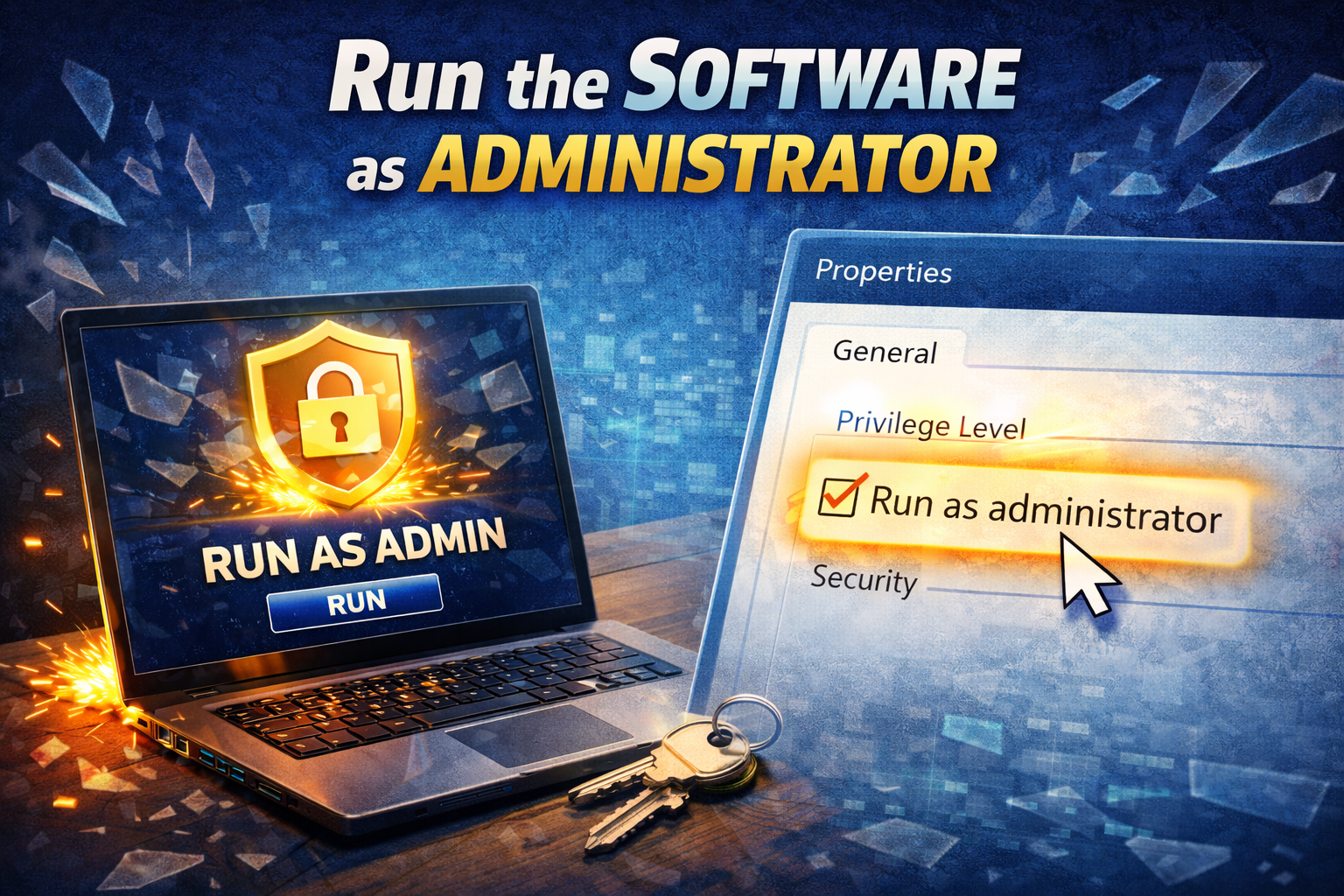
Some software needs extra permissions to access system files.
Steps on Windows:
- Right-click the software icon
- Click Run as administrator
- Confirm the prompt
Steps on macOS:
- Make sure you’re logged into an admin account
- Check permissions in System Settings → Privacy & Security
Why this helps:
If the app crashes because it can’t access required files or folders, running as administrator often fixes it.
3. Check System Requirements and Compatibility
If your system doesn’t meet the minimum requirements, the software may crash instantly.
Check for:
- Operating system version
- RAM and storage space
- CPU or GPU requirements
Real-world example:
Installing a newer version of a video editing app on an older laptop with low RAM can cause immediate crashes.
Tip:
If the software recently updated, it may no longer support your OS version.
4. Update Your Operating System
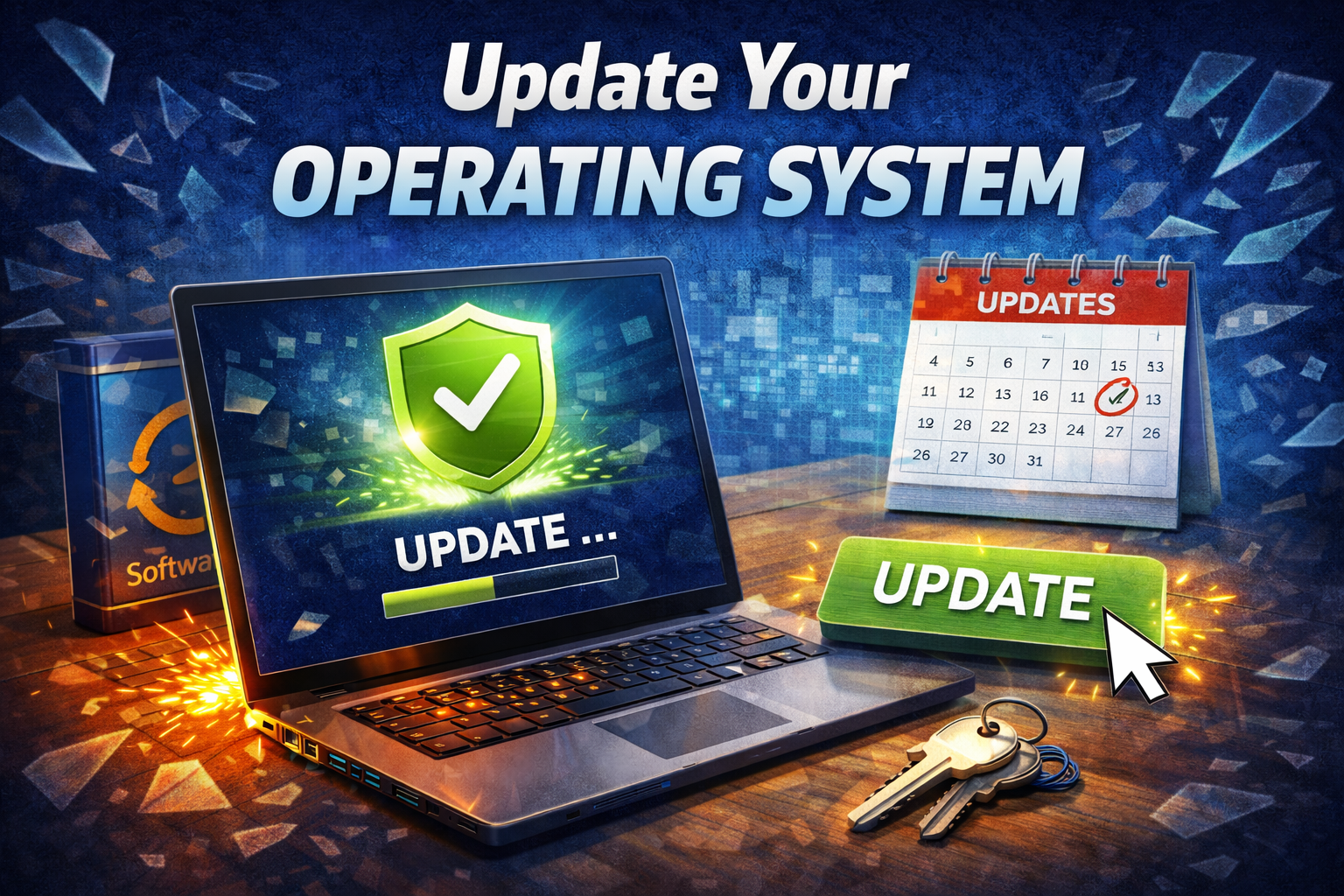
Outdated systems are a major cause of software crashing at launch every time.
Steps:
- Windows: Settings → Windows Update → Check for updates
- macOS: System Settings → General → Software Update
Updates fix:
- Missing system files
- Security issues
- Compatibility bugs
After updating, restart your device and try again.
5. Update Graphics and System Drivers
Many apps—especially games and design tools—depend on graphics drivers.
Why this matters:
Outdated or broken drivers can cause instant crashes when the software tries to use hardware features.
Steps on Windows:
- Open Device Manager
- Expand Display adapters
- Right-click your GPU → Update driver
Real-world example:
A game crashes immediately after launch because the graphics driver doesn’t support a new rendering feature.
6. Disable Antivirus or Security Software Temporarily
Sometimes antivirus software mistakenly blocks apps.
What to try:
- Temporarily disable real-time protection
- Launch the software
- If it works, add the app to the antivirus “exceptions” list
Important:
Only do this with trusted software. Re-enable antivirus afterward.
7. Reinstall the Software Properly
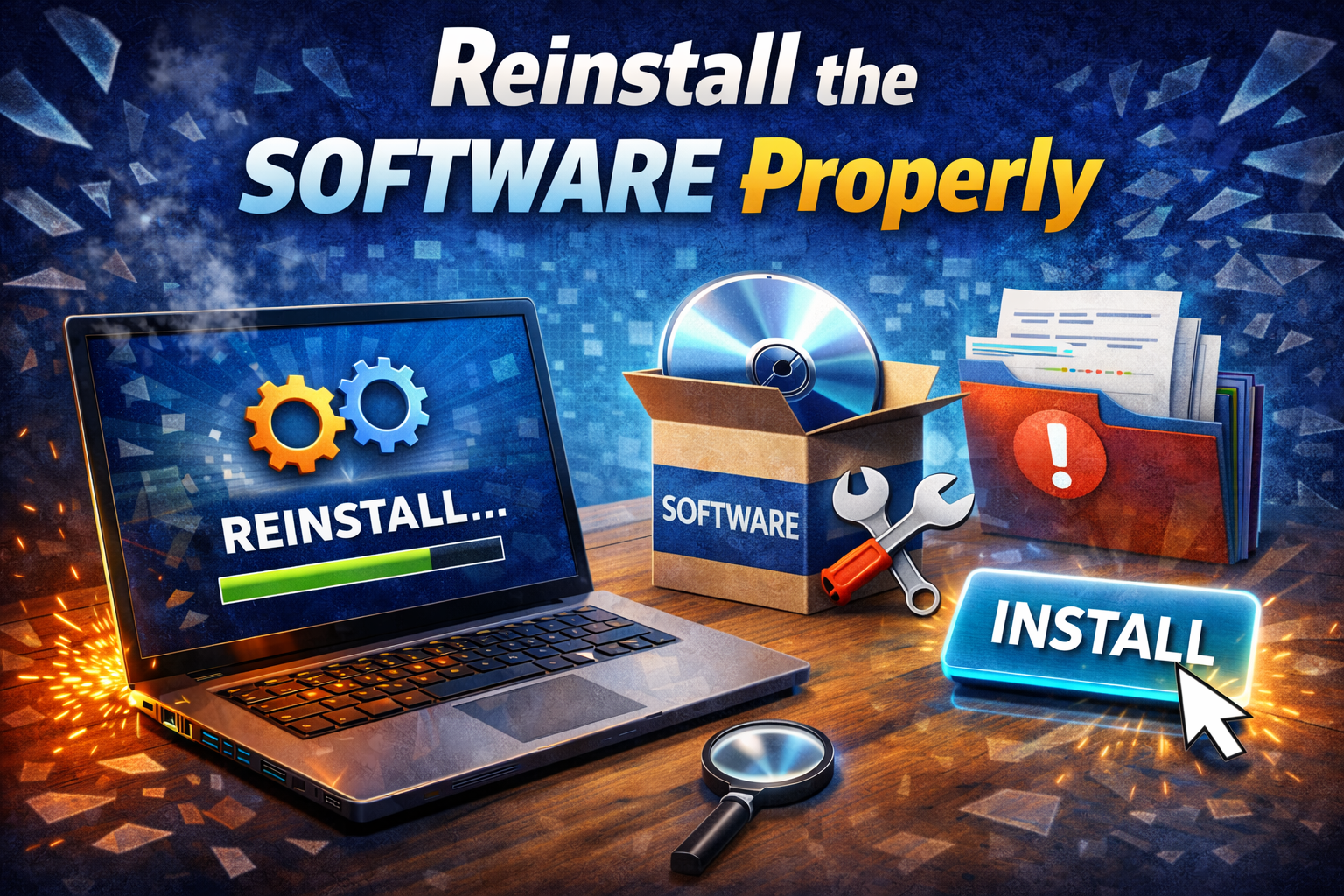
Corrupted installation files are one of the top reasons apps crash at startup.
Correct reinstall steps:
- Uninstall the software
- Restart your computer
- Download the latest version from the official site
- Install again
Pro tip:
Avoid using old installers saved on your computer.
8. Delete or Reset Configuration Files
Some software stores settings files that can become corrupted.
Examples of config files:
- Preferences
- Cache files
- User profiles
General steps:
- Close the software
- Find the app’s settings folder
- Rename or delete it
- Relaunch the software
Real-world example:
A browser crashes at launch due to a broken settings file. Resetting the profile fixes it instantly.
9. Check for Conflicting Background Programs
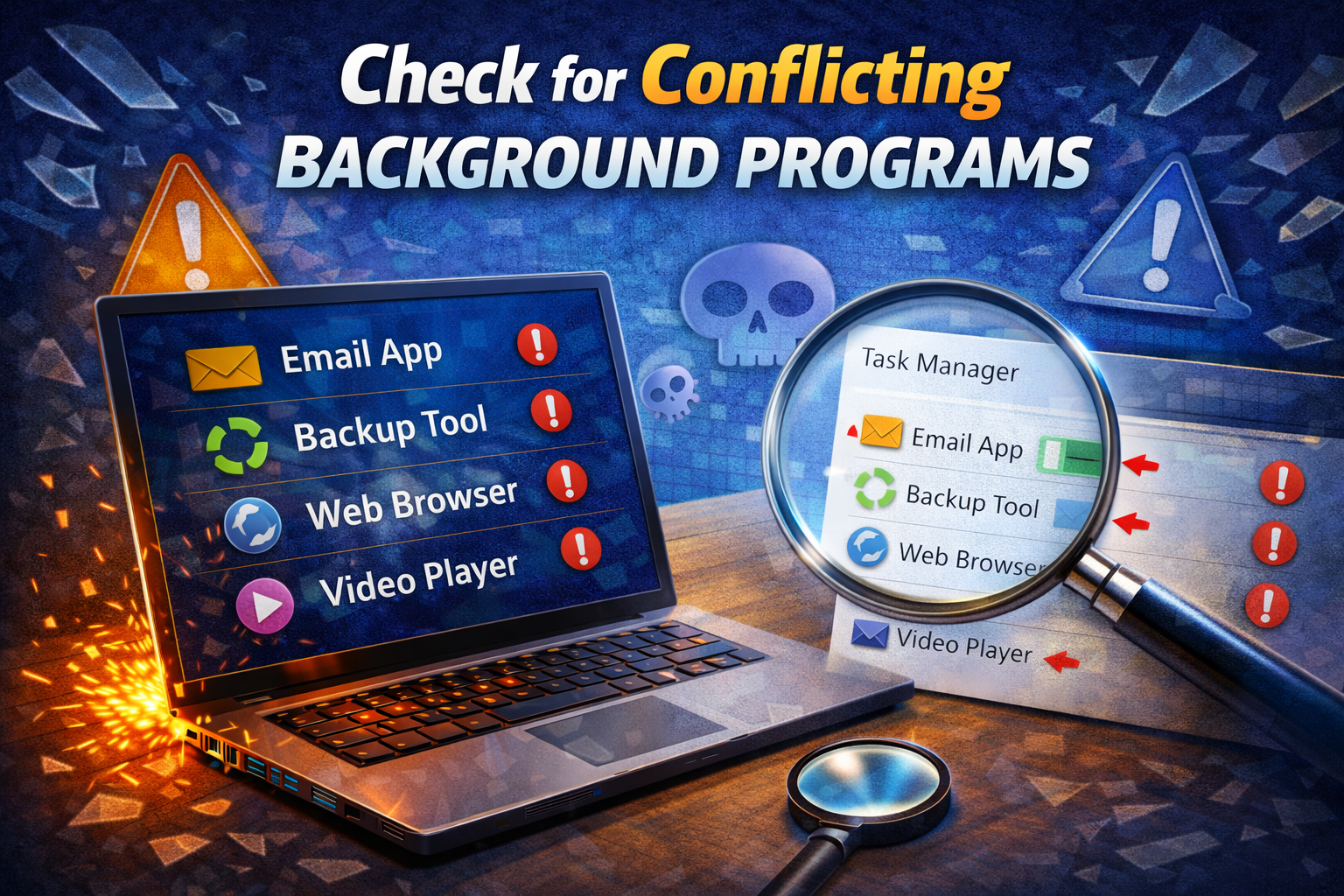
Other software can interfere with app launches.
Common conflict sources:
- Screen recorders
- Overlay tools
- Old plugins
- System tweak utilities
How to test:
- Close all background apps
- Launch the software
- If it works, reopen apps one by one
10. Check System Logs for Error Clues (Optional)
For advanced beginners, logs can point to the exact issue.
- Windows: Event Viewer
- macOS: Console
Look for errors at the time of the crash. You don’t need to understand everything—just knowing what failed can help you search for the fix.
Prevent Software Crashing at Launch in the Future
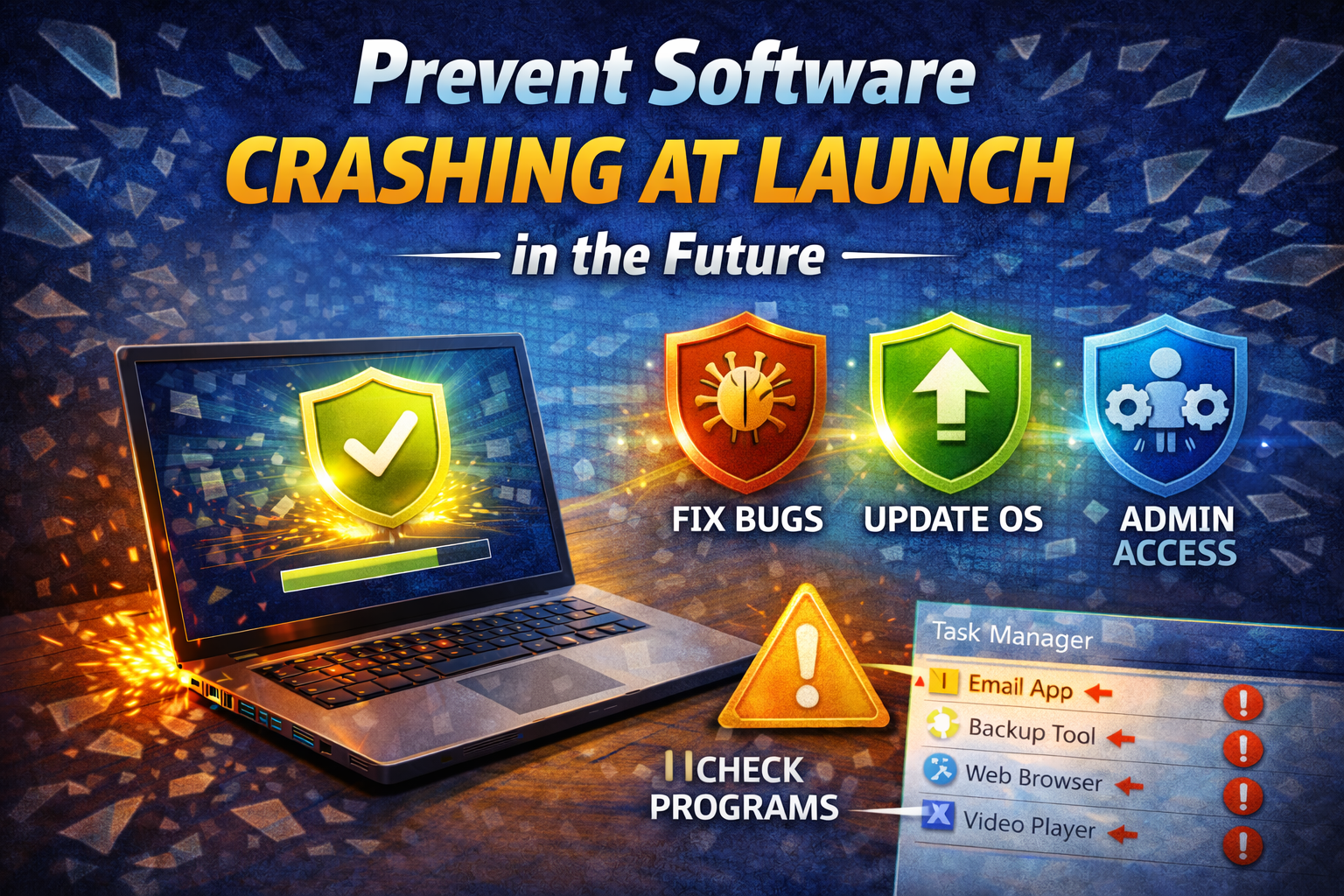
To reduce future problems:
- Keep your system updated
- Avoid installing unknown plugins
- Don’t run too many startup apps
- Always install software from official sources
A healthy system crashes less—simple as that.
FAQ: Software Crashing at Launch
1. Why does software crash immediately after opening?
Usually due to corrupted files, missing updates, incompatible systems, or permission issues.
2. Is reinstalling always necessary?
No. Many crashes are fixed by updates, restarts, or permission changes.
3. Can low RAM cause software to crash at launch?
Yes. If your system doesn’t have enough memory, the app may fail instantly.
4. Does antivirus software really cause crashes?
Yes, sometimes. Security tools can block files the software needs to run.
5. Should I reset my computer if software keeps crashing?
Only as a last resort. Most launch crashes can be fixed without resetting your system.
Conclusion
When software crashing at launch every time happens, it feels serious—but it usually isn’t. Most problems come from simple causes like outdated updates, corrupted files, or permission issues. By following the step-by-step solutions in this guide, even beginners can diagnose and fix launch crashes without stress.
Start with the easy fixes, move step by step, and you’ll likely have your software running smoothly again in minutes—not hours.