
How to Fix Network Adapter Missing in Windows
If your internet suddenly stops working and you notice the network adapter missing in Windows, you’re not alone. This is a common problem that can happen after a Windows update, driver issue, system crash, or even a simple settings change. When the network adapter is missing, your computer cannot connect to Wi-Fi or Ethernet, making it feel completely offline.
The good news? In most cases, this problem is fixable without reinstalling Windows or taking your PC to a repair shop. In this guide, you’ll learn step-by-step how to fix network adapter missing in Windows, using simple methods that beginners can follow safely.
What Does “Network Adapter Missing in Windows” Mean?
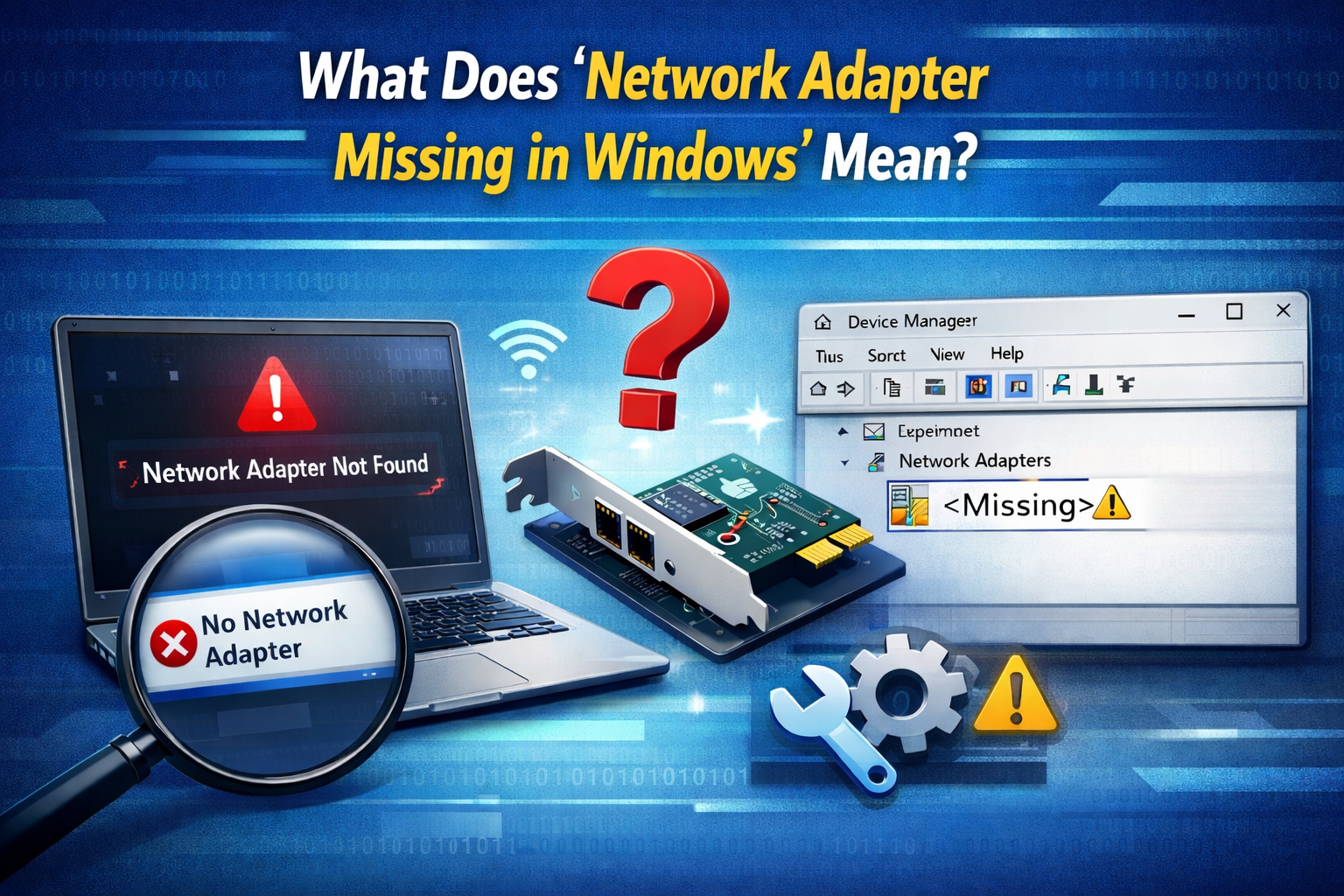
A network adapter is the hardware (or virtual device) that allows your computer to connect to the internet. It can be:
- Wi-Fi adapter (wireless)
- Ethernet adapter (wired)
- Virtual adapter (used by VPNs)
When Windows cannot detect this adapter, you may see:
- No Wi-Fi option at all
- Only “Airplane mode” available
- “No network adapters found” in Device Manager
- Ethernet and Wi-Fi both missing
Real-world example:
After a Windows update, many users report that their laptop suddenly has no Wi-Fi option. Opening Device Manager shows no network adapters listed. This usually points to a driver or system configuration issue—not broken hardware.
Common Reasons Why Network Adapter Is Missing
Understanding the cause helps you fix the problem faster.
1. Corrupted or Missing Drivers
Drivers tell Windows how to use your network hardware. If they are deleted or corrupted, the adapter disappears.
2. Windows Update Issues
Some updates accidentally remove or replace working drivers.
3. Network Adapter Disabled
The adapter may be disabled in Device Manager or BIOS.
4. Power or System Errors
Unexpected shutdowns or battery drain can cause Windows to lose hardware detection.
5. Hardware Problems (Less Common)
Physical damage or loose internal connections can also cause this issue.
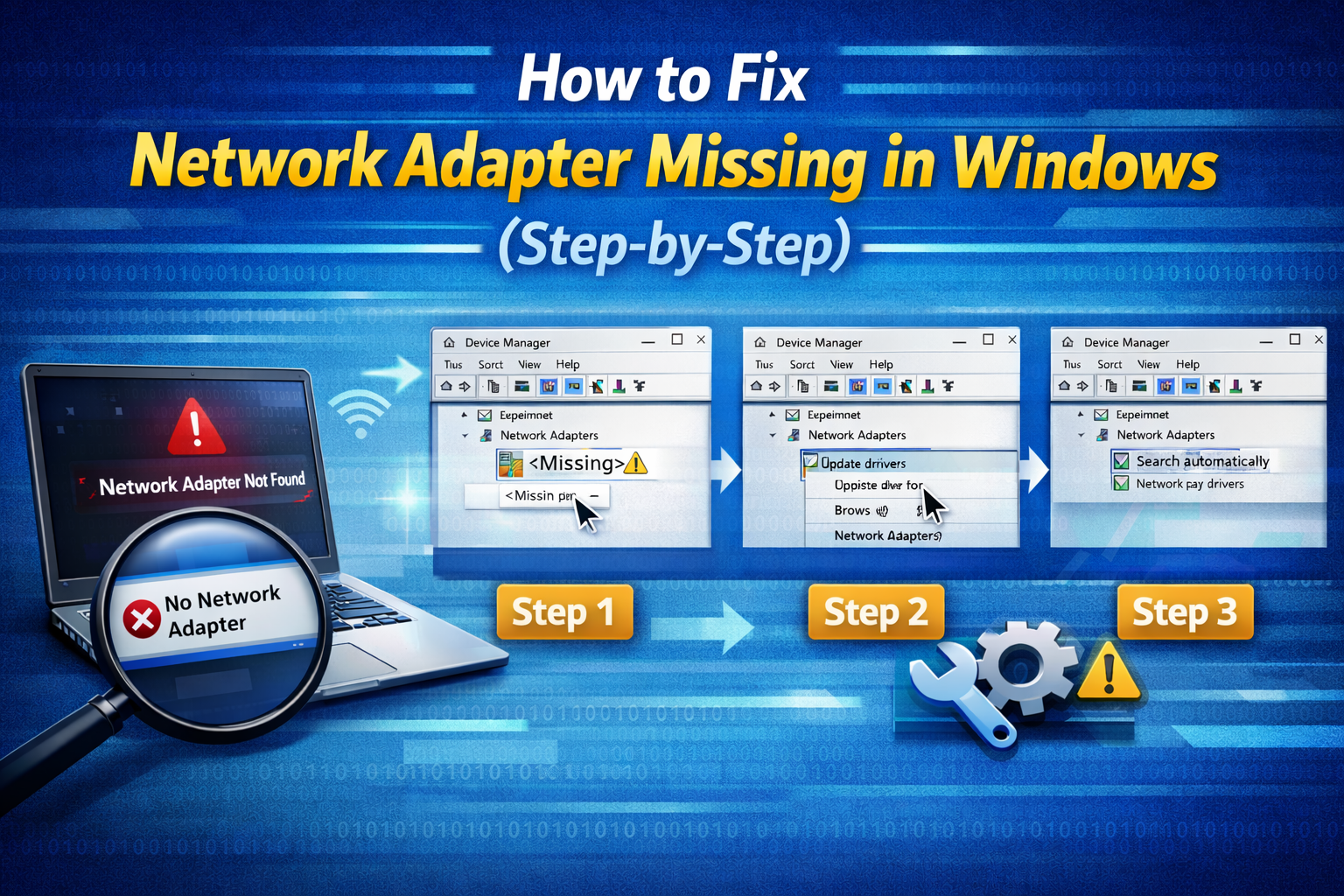
How to Fix Network Adapter Missing in Windows (Step-by-Step)
1. Restart Your Computer (Don’t Skip This)
It sounds simple, but a restart refreshes system services.
Steps:
- Save your work
- Restart your PC
- Check if Wi-Fi or Ethernet appears
Many users fix the issue with just this step.
2. Check Device Manager for Hidden Network Adapters
Steps:
- Press Windows + X
- Click Device Manager
- Click View → Show hidden devices
- Expand Network adapters
If you see a faded or disabled adapter:
- Right-click it
- Click Enable device
If it appears with a yellow warning icon, it needs a driver fix.
3. Scan for Hardware Changes
This forces Windows to re-detect missing devices.
Steps:
- Open Device Manager
- Click Action
- Select Scan for hardware changes
Wait a few seconds and check if the network adapter reappears.
Reinstall Network Adapter Drivers (Most Effective Fix)
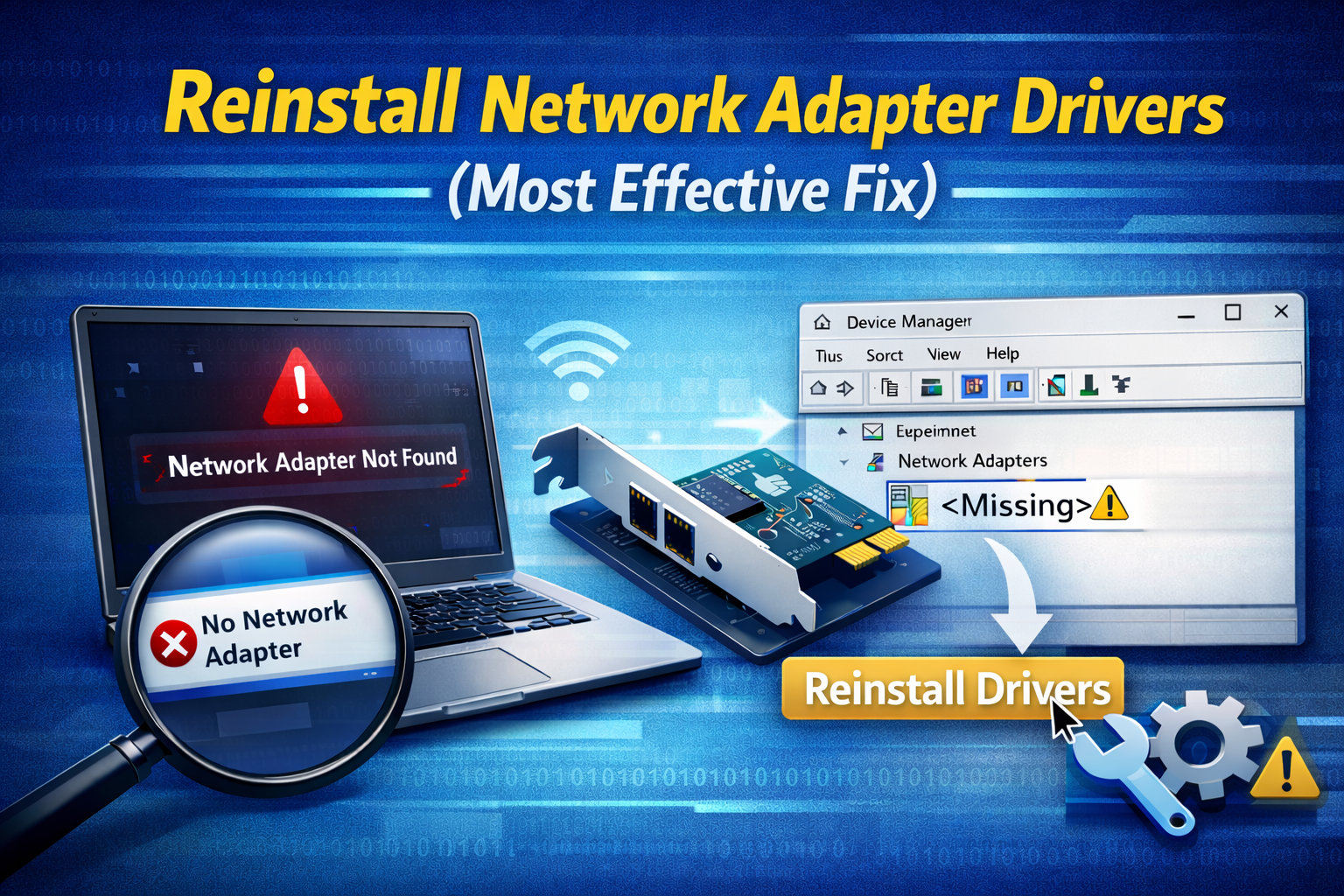
4. Uninstall and Reinstall the Network Driver
This works especially well after Windows updates.
Steps:
- Open Device Manager
- Expand Network adapters
- Right-click your network adapter
- Select Uninstall device
- Restart your computer
Windows will automatically reinstall the correct driver on startup.
Real-world example:
A Windows 11 user lost Wi-Fi after an update. Uninstalling the adapter and restarting brought the Wi-Fi back instantly.
5. Install Drivers Manually (If Adapter Is Still Missing)
If Windows doesn’t reinstall the driver automatically:
Steps:
- Use another device (phone or PC)
- Visit your laptop or motherboard manufacturer’s website
(Dell, HP, Lenovo, ASUS, etc.) - Download the latest network driver
- Copy it to your PC using USB
- Install and restart
Windows relies on official drivers provided by hardware vendors and supported by Microsoft for full compatibility.
Use Windows Network Reset (Safe but Powerful)
6. Reset Network Settings
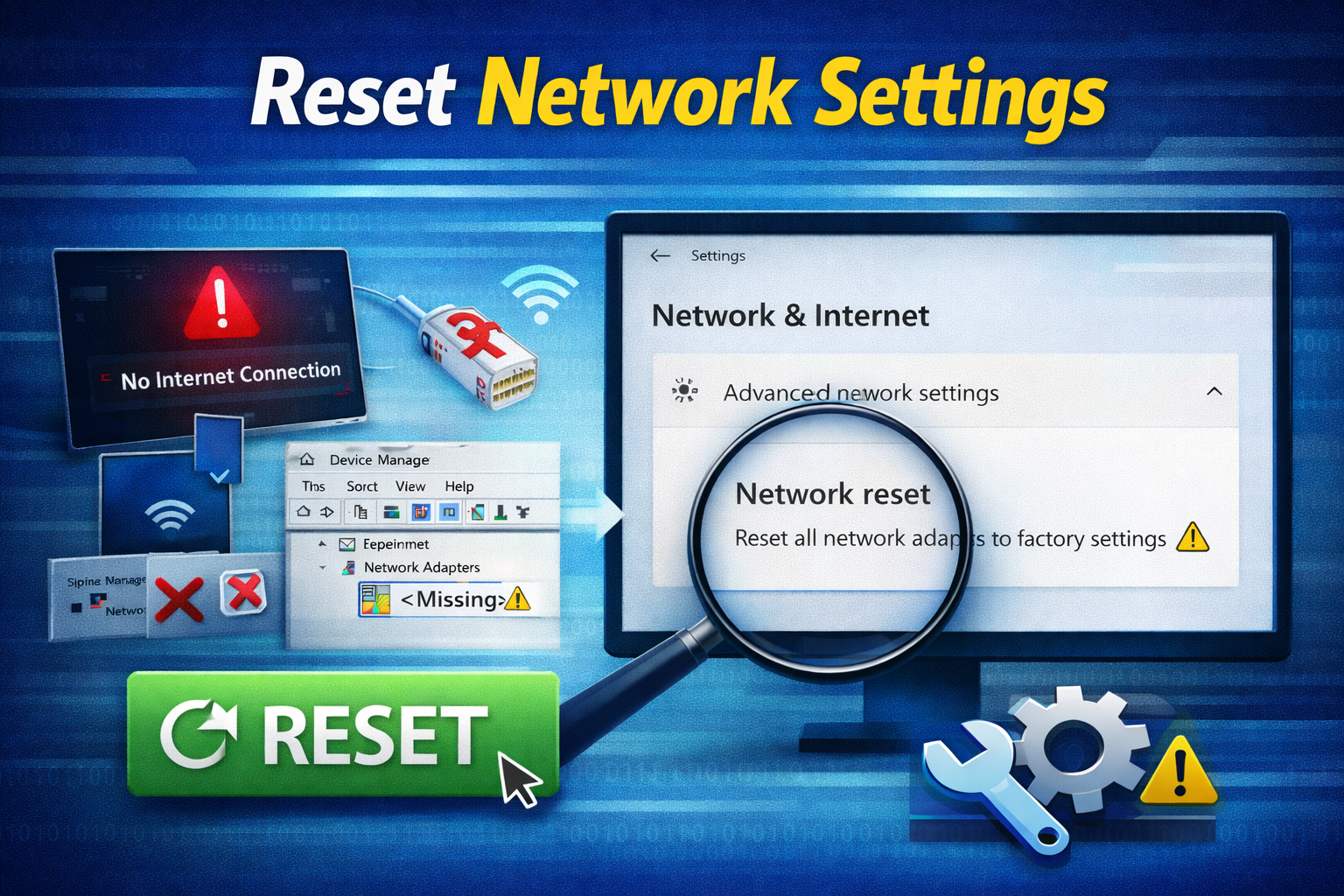
This removes all network configurations and rebuilds them.
Steps:
- Open Settings
- Go to Network & Internet
- Click Advanced network settings
- Select Network reset
- Click Reset now
- Restart your PC
This will remove saved Wi-Fi passwords, so keep them handy.
Fix Network Adapter Missing in Windows Using Services
7. Restart Network-Related Services
Steps:
- Press Windows + R
- Type
services.msc - Press Enter
- Restart these services:
- Network Connections
- WLAN AutoConfig
- Network List Service
Set each to Automatic startup.
Advanced Fixes (Still Beginner-Friendly)
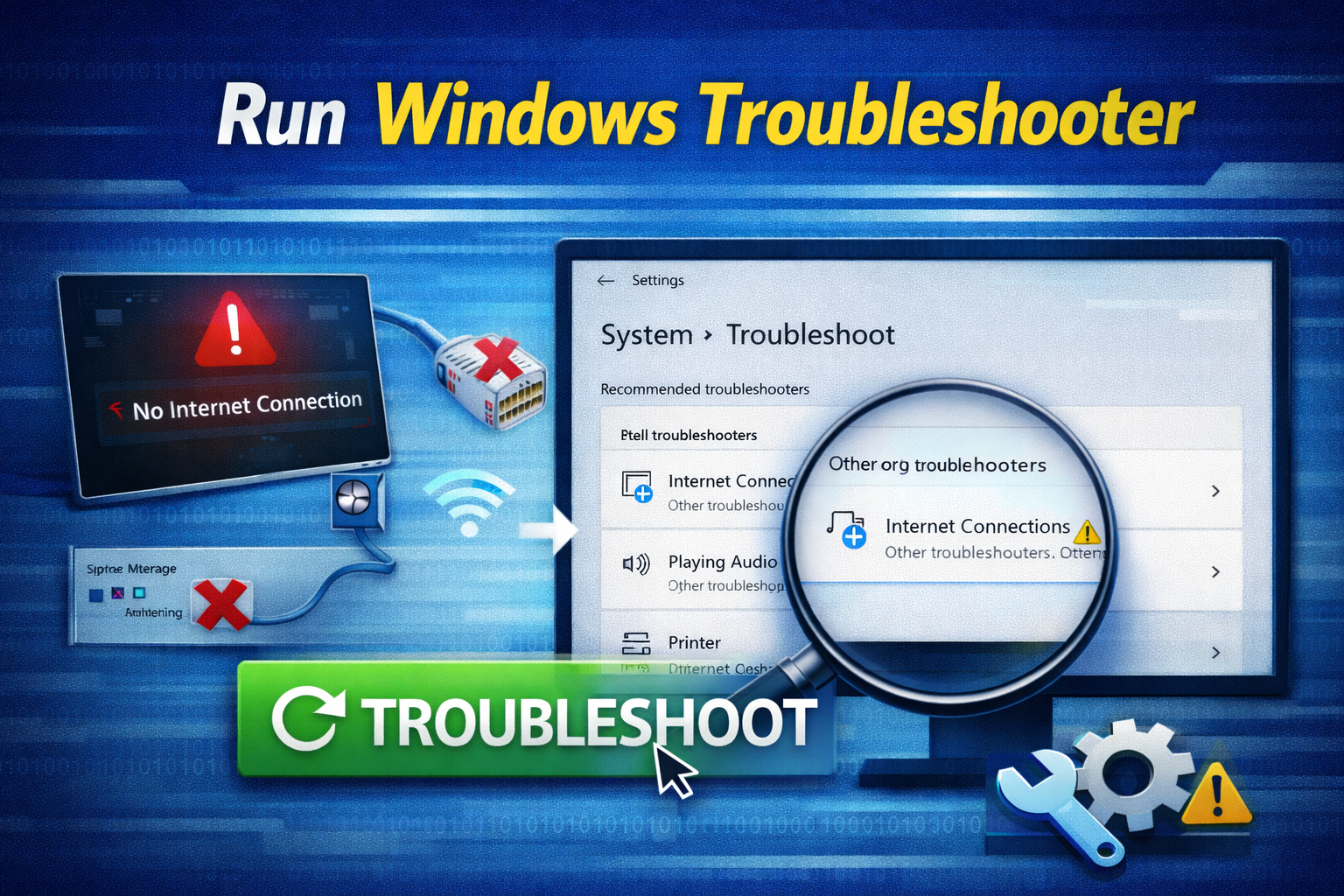
8. Run Windows Troubleshooter
Steps:
- Open Settings
- Go to System → Troubleshoot
- Click Other troubleshooters
- Run Network Adapter
Windows will automatically detect and fix common problems.
9. Check BIOS / UEFI Settings
Sometimes the network adapter is disabled at a hardware level.
Steps:
- Restart your PC
- Enter BIOS (usually F2, DEL, or F10)
- Look for Network / Onboard Devices
- Ensure Wi-Fi and LAN are Enabled
- Save and exit
When It Might Be a Hardware Problem
If:
- The adapter never appears
- Drivers won’t install
- BIOS doesn’t detect it
Then the network card may be faulty. USB Wi-Fi adapters are an inexpensive and quick workaround.
FAQ: Network Adapter Missing in Windows
1. Why is my network adapter missing after a Windows update?
Windows updates can replace or remove drivers. Reinstalling the driver usually fixes it.
2. Can a virus cause network adapter missing?
Yes, malware can damage system files. Running a full antivirus scan is recommended.
3. Why does Device Manager show no network adapters?
They may be hidden, disabled, or missing drivers. Enable “Show hidden devices” and scan for changes.
4. Is network reset safe?
Yes. It only resets network settings and does not delete personal files.
5. Do I need to reinstall Windows to fix this?
In most cases, no. Driver reinstallation or network reset solves the issue.
Conclusion
A network adapter missing in Windows can feel scary, especially when your internet disappears without warning. Fortunately, this problem is usually caused by drivers, settings, or updates—not broken hardware. By following the step-by-step solutions in this guide, most users can restore their Wi-Fi or Ethernet connection in minutes.
Start with simple fixes like restarting and checking Device Manager, then move on to driver reinstall and network reset if needed. With patience and the right steps, your internet connection will be back up and running smoothly.