How to Fix iPhone Stuck on Apple Logo in Minutes
If your iPhone is stuck on the Apple logo and won’t turn on properly, don’t panic. This is a common problem, and in most cases, you can fix it in just a few minutes—without going to a repair shop.
An iPhone stuck on Apple logo usually happens during startup, after an update, restore, or sudden crash. The phone looks frozen, shows the Apple logo endlessly, and never reaches the home screen.
In this guide, you’ll learn simple, step-by-step ways to fix iPhone stuck on Apple logo, even if you’re a beginner. We’ll start with the easiest solutions and move to advanced but safe methods. Real-world examples are included so you know exactly what to expect.
Why Is My iPhone Stuck on the Apple Logo?
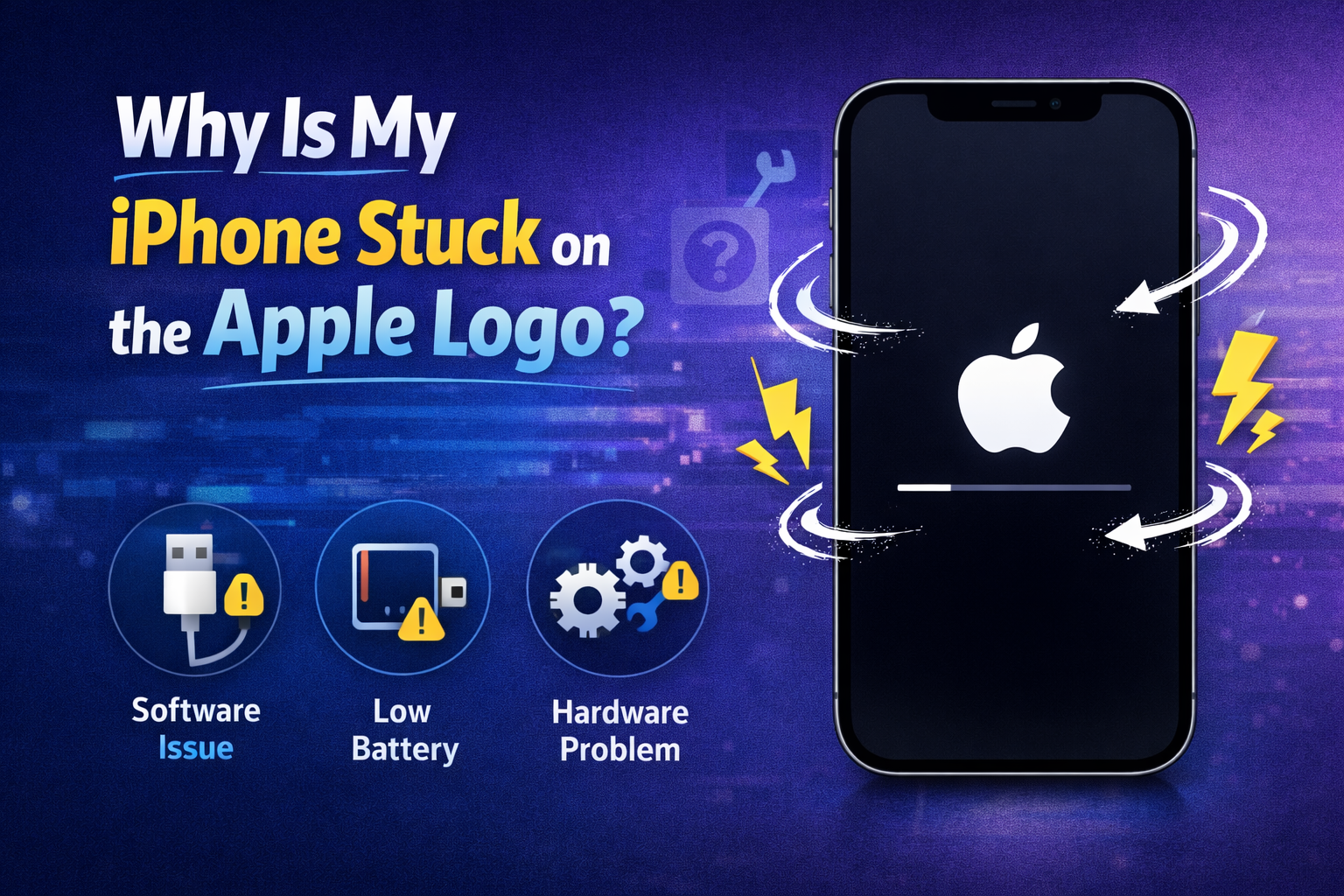
Before fixing the issue, it helps to understand why it happens. Common causes include:
- iOS update failed or interrupted
- Corrupted system files
- Insufficient storage during update
- App crash causing boot loop
- Jailbreak issues
- Hardware damage (rare but possible)
Real-world example:
Many users report this issue right after updating to a new iOS version overnight. The phone shows the Apple logo in the morning and never finishes booting.
Fix iPhone Stuck on Apple Logo in Minutes (Quick Overview)
Here’s the order you should follow:
- Force restart your iPhone
- Charge and wait briefly
- Use Recovery Mode
- Update iOS using a computer
- Restore iPhone (last option)
- Try DFU Mode (advanced)
Start from the top and move down only if needed.
Method 1: Force Restart iPhone (Fastest Fix)
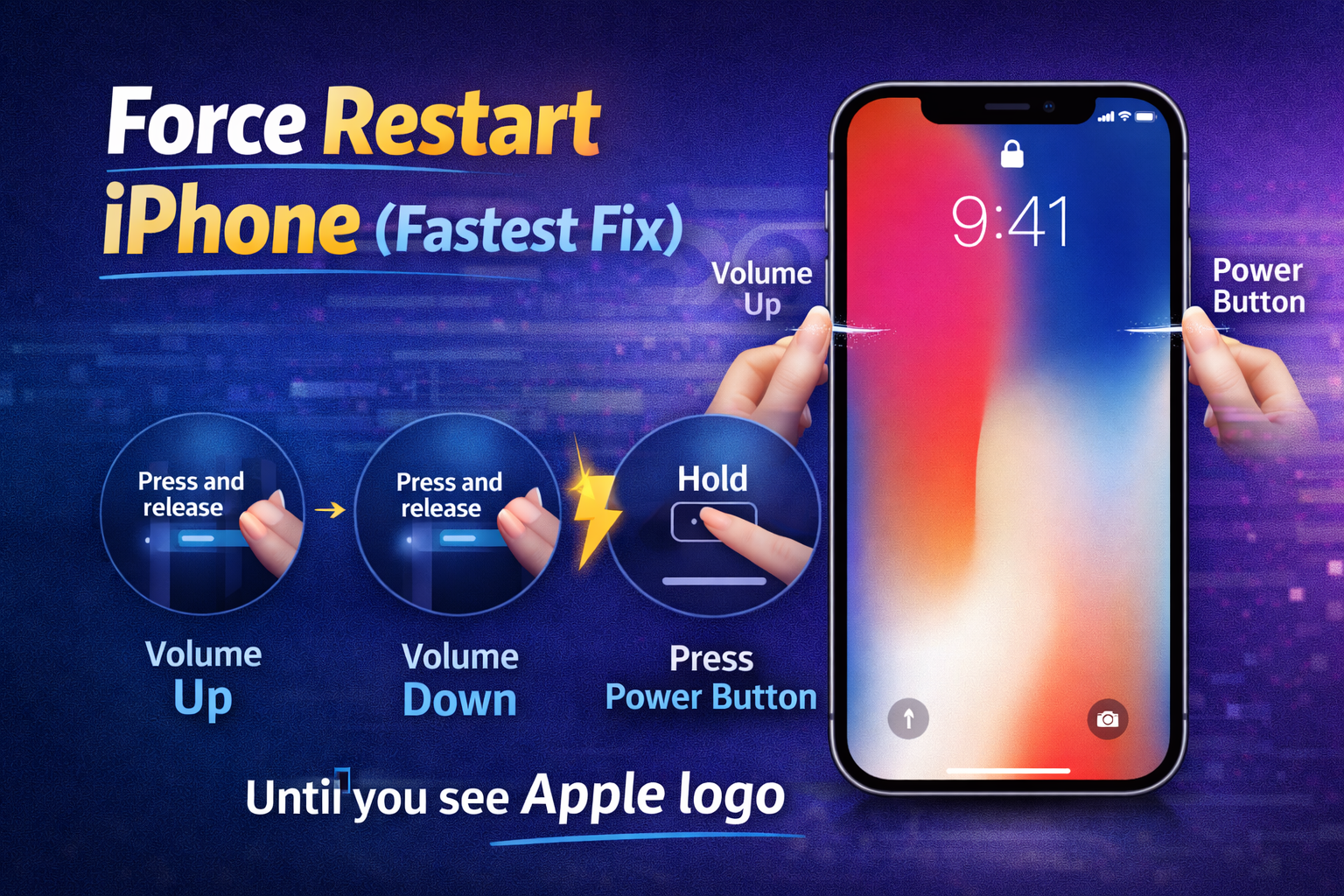
A force restart fixes temporary system glitches and works in many cases.
Steps for Different iPhone Models
iPhone 8, X, 11, 12, 13, 14, 15
- Quickly press Volume Up, then release
- Quickly press Volume Down, then release
- Press and hold the Side button
- Release when the Apple logo appears
iPhone 7 / 7 Plus
- Press and hold Volume Down + Power button
- Keep holding until Apple logo appears
iPhone 6s or earlier
- Press and hold Home + Power button
- Release when you see the Apple logo
Real-world example:
A user’s iPhone 11 froze after installing an app. A force restart fixed it in under 30 seconds.
If your iPhone boots normally, you’re done.
If it’s still stuck, continue.
Method 2: Charge the iPhone and Wait
Sometimes the battery is too low to finish booting.
What to Do
- Plug your iPhone into a wall charger
- Charge for 20–30 minutes
- Try force restart again
Why this helps:
Low battery can interrupt startup, especially after updates.
Method 3: Fix iPhone Stuck on Apple Logo Using Recovery Mode
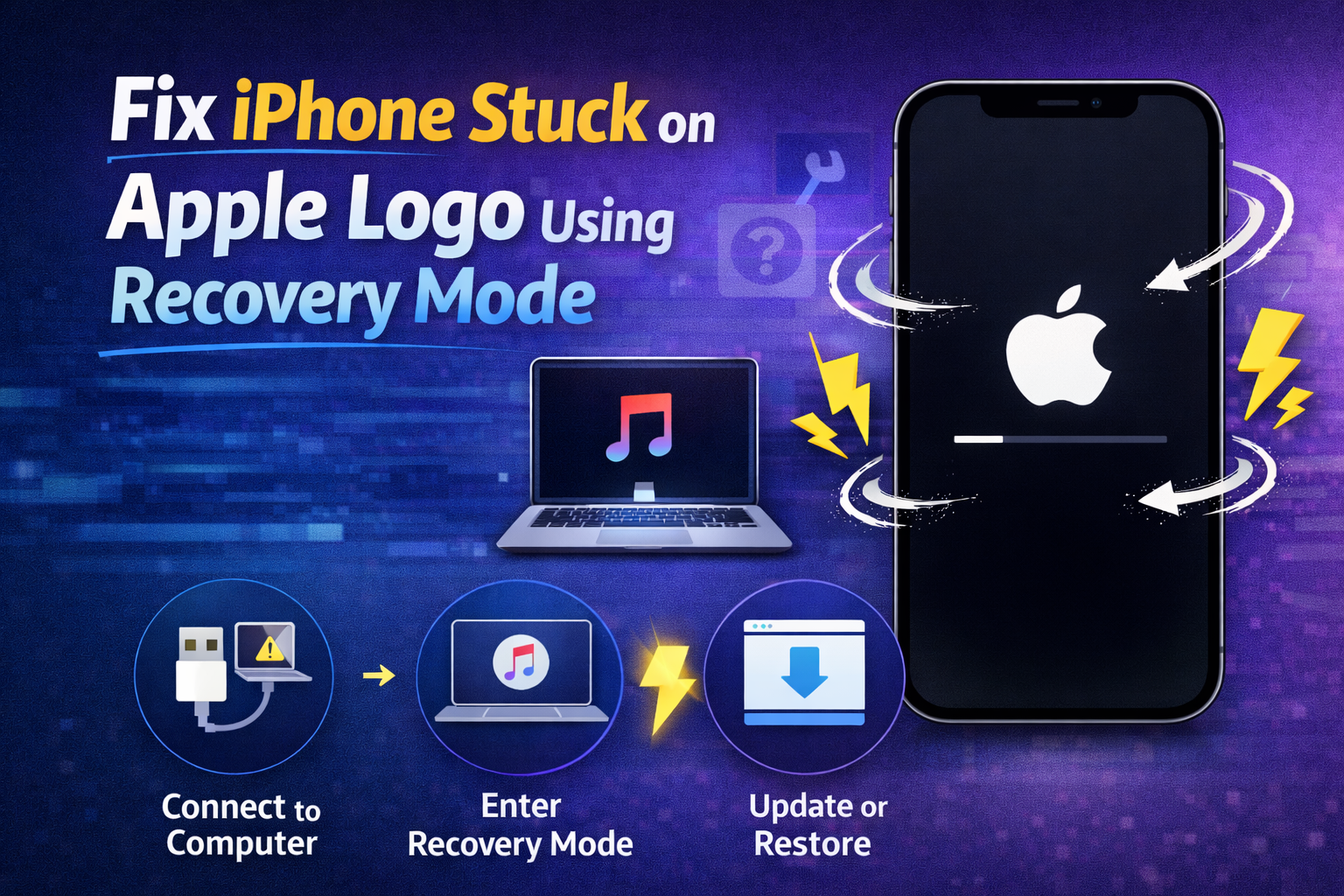
If simple fixes don’t work, Recovery Mode is the next step.
What You Need
- A Windows PC or Mac
- Latest version of iTunes (Windows) or Finder (Mac)
Steps to Enter Recovery Mode
- Connect iPhone to computer
- Force restart but keep holding buttons
- Release only when you see the Recovery Mode screen
- A message appears on your computer
Choose Update first (important).
Why Choose “Update” First?
- Reinstalls iOS
- Keeps your data
- Fixes system corruption
Real-world example:
An iPhone XR stuck on Apple logo after update was fixed in 10 minutes using Recovery Mode → Update.
Method 4: Update iOS to Fix iPhone Stuck on Apple Logo
This method often works when system files are damaged.
Steps
- Open iTunes or Finder
- Select your iPhone
- Click Update
- Wait for download and installation
Do not unplug your iPhone during the process.
Method 5: Restore iPhone (Data Will Be Erased)
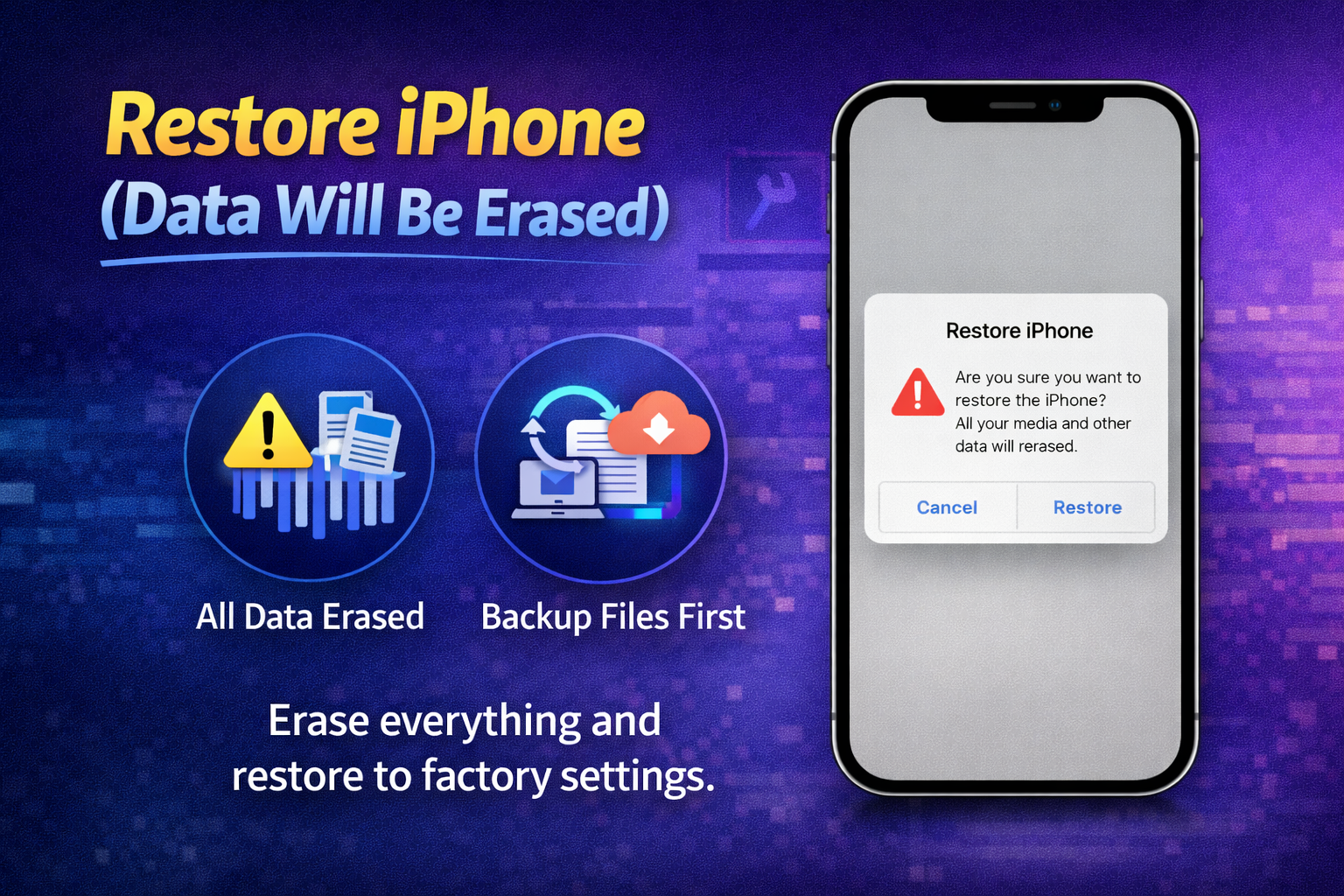
If updating fails, restoring is the next option.
When to Use This
- iPhone stuck on Apple logo continuously
- Update option doesn’t work
- You have a recent backup
Steps
- Enter Recovery Mode
- Choose Restore
- Confirm and wait
Important:
This erases all data. After restoring, you can recover data from iCloud or computer backup.
Real-world example:
A user with an iPhone 8 stuck in a boot loop restored it and recovered data from iCloud successfully.
Method 6: Use DFU Mode (Advanced but Powerful)
DFU (Device Firmware Update) mode reloads both firmware and software.
When to Use DFU Mode
- Recovery Mode fails
- iPhone stuck on Apple logo for hours
- Severe iOS corruption
Basic DFU Steps (iPhone 8 and newer)
- Connect iPhone to computer
- Press Volume Up → release
- Press Volume Down → release
- Hold Side button until screen turns black
- Hold Volume Down + Side button (5 seconds)
- Release Side button, keep holding Volume Down
- Screen stays black (DFU Mode)
Restore iPhone when prompted.
Use this only if other methods fail.
What If iPhone Is Still Stuck on Apple Logo?
If none of the above works, possible causes include:
- Hardware failure (battery, logic board)
- Water damage
- Severe internal corruption
At this point, contact Apple Support or visit an authorized repair center.
How to Prevent iPhone Stuck on Apple Logo in the Future
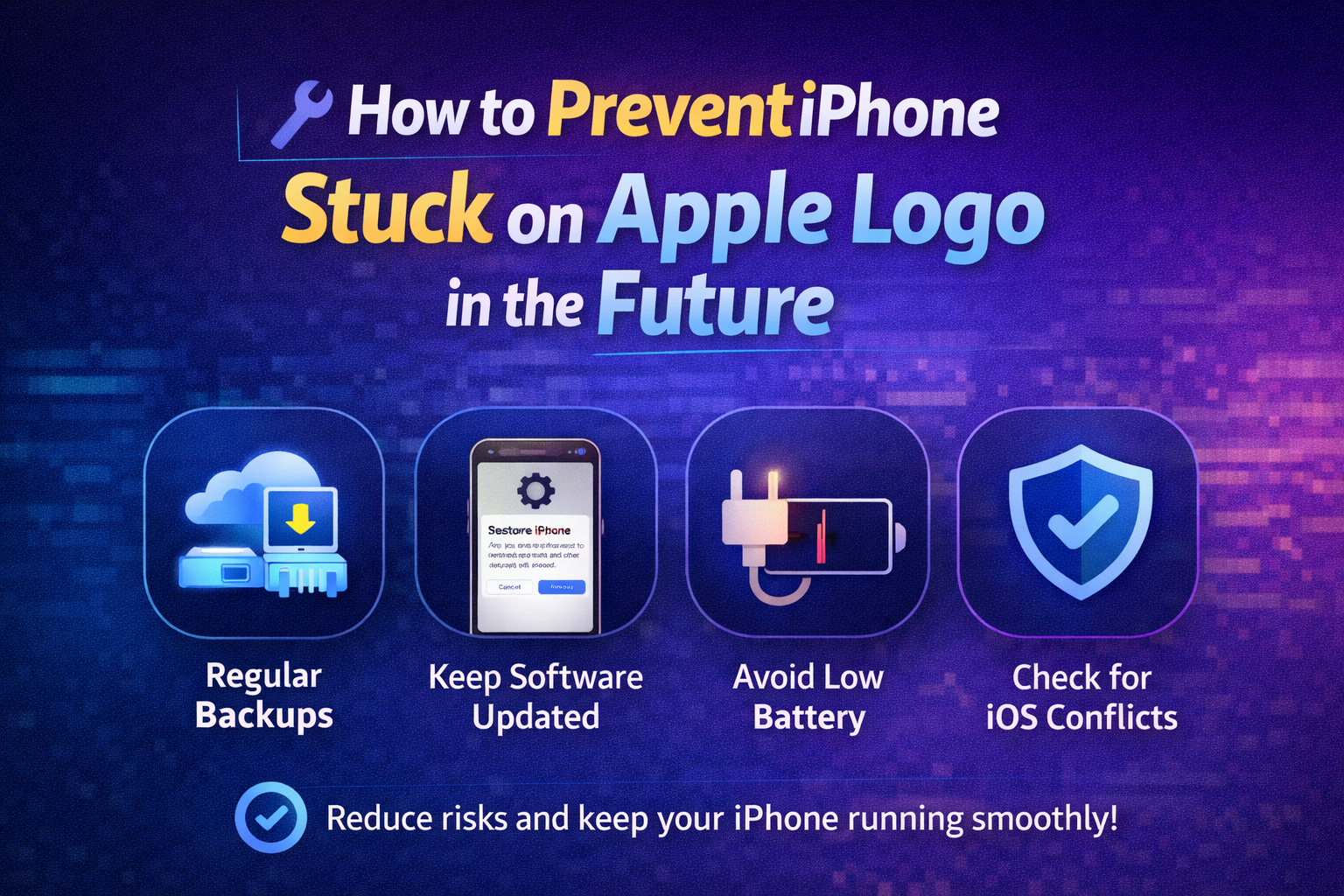
Follow these tips to avoid this issue:
- Keep at least 5–10 GB free storage
- Update iOS with stable internet
- Avoid interrupting updates
- Don’t install untrusted apps
- Backup iPhone regularly
Frequently Asked Questions (FAQ)
1. How long should an iPhone stay on the Apple logo?
Normally, only 10–30 seconds. More than 5 minutes means it’s stuck.
2. Will I lose data if my iPhone is stuck on Apple logo?
Not always. Force restart and Update usually keep your data.
3. Can a force restart damage my iPhone?
No. It’s safe and recommended by Apple.
4. Does Recovery Mode erase everything?
Only if you choose Restore. Update keeps your data.
5. Why does my iPhone get stuck after an update?
Common reasons include low storage, poor internet, or corrupted update files.
Conclusion
An iPhone stuck on Apple logo looks scary, but it’s usually easy to fix. Start with a force restart, then move to Recovery Mode and iOS update if needed. Most users can fix the issue in minutes without professional help.
If you follow the steps carefully and keep backups, this problem becomes much less stressful—and much easier to solve.