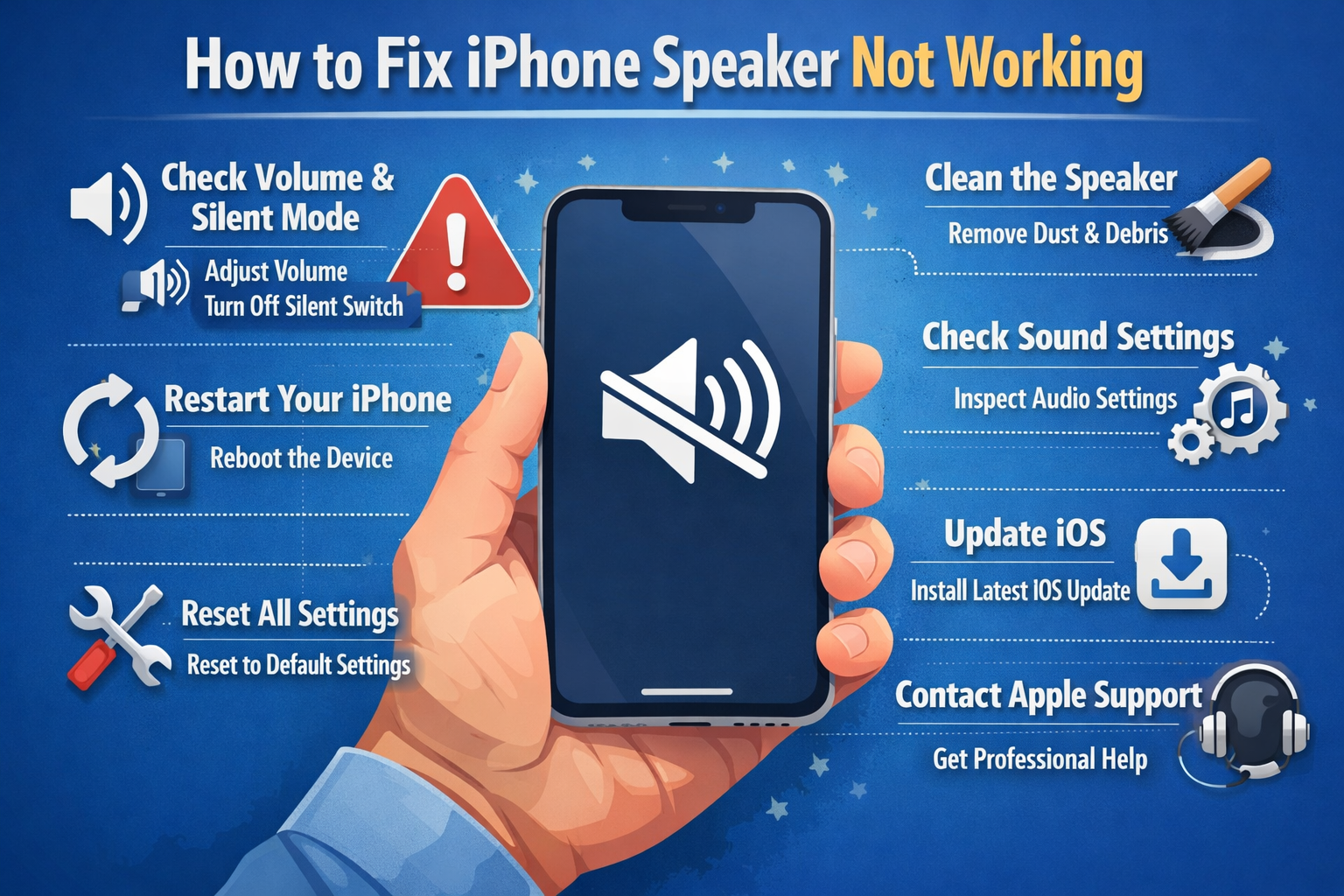
How to Fix iPhone Speaker Not Working (Step-by-Step Guide for Beginners)
If your iPhone speaker not working problem is driving you crazy, you’re not alone. Many iPhone users suddenly face issues like no sound during calls, videos playing silently, or notification sounds disappearing. The good news? In most cases, you can fix iPhone speaker problems yourself—no repair shop needed.
In this beginner-friendly guide, you’ll learn how to fix iPhone speaker not working using simple, step-by-step methods. We’ll cover common causes, real-world examples, and practical solutions that work for everyday users.
Why Is My iPhone Speaker Not Working?
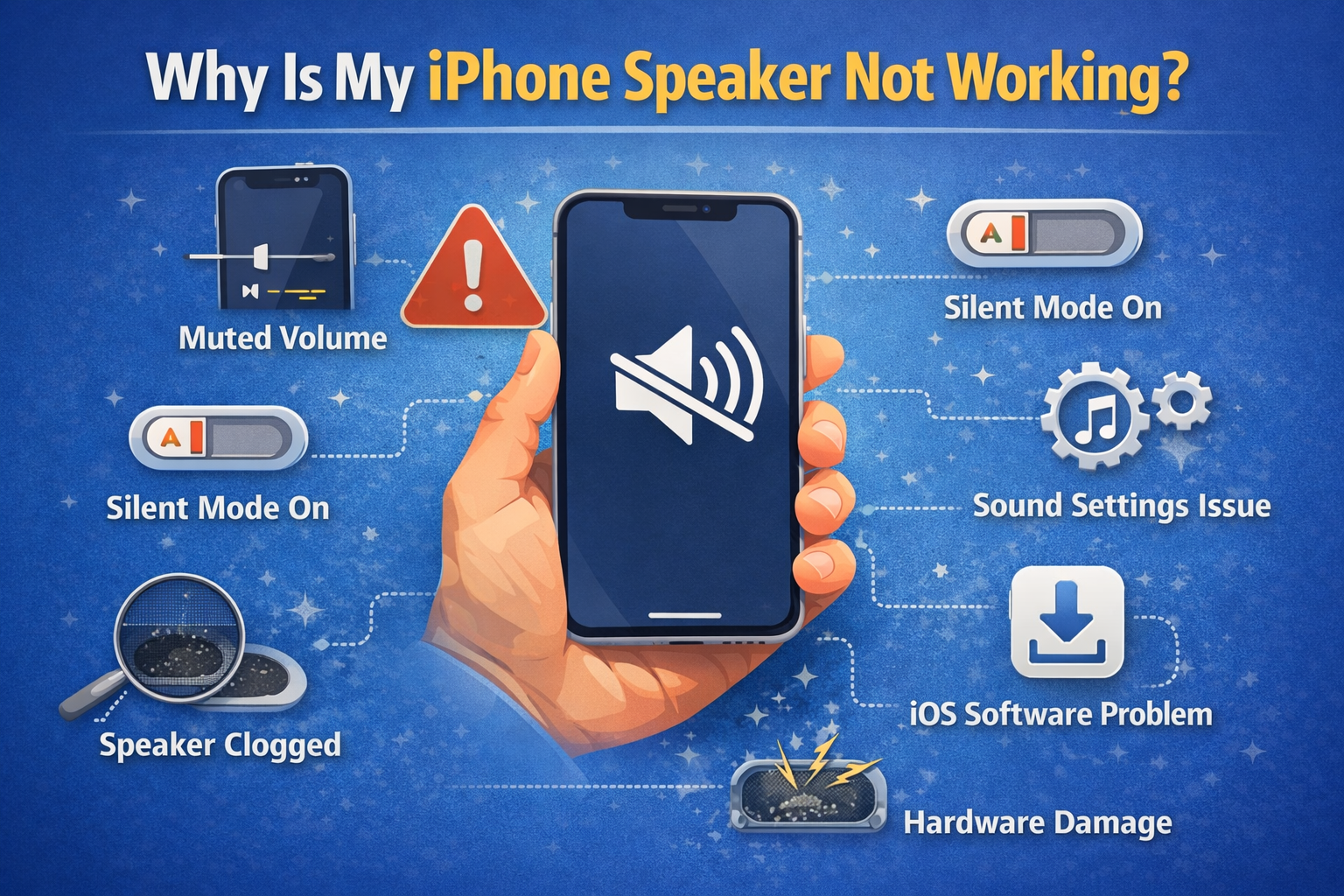
Before fixing the problem, it helps to understand what might be causing it. An iPhone speaker can stop working due to software glitches, incorrect settings, or hardware issues.
Common Reasons iPhone Speakers Stop Working
- Volume turned down or muted
- Silent Mode or Focus Mode enabled
- Bluetooth connected to another device
- Dust or dirt blocking the speaker grille
- iOS software bugs
- Water or moisture damage
- Faulty speaker hardware
Real-world example:
You watch a YouTube video and see the volume bar moving, but hear nothing. Later, you realize your iPhone is still connected to your car’s Bluetooth system.
Basic Checks to Fix iPhone Speaker Not Working
Start with these simple checks. They solve many iPhone speaker problems in minutes.
1. Turn Up the Volume Properly

- Press the Volume Up button on the side of your iPhone
- Go to Settings > Sounds & Haptics
- Drag the Ringer and Alerts slider to the right
Try playing music or a video to test the speaker.
2. Disable Silent Mode
Check the Ring/Silent switch on the left side of your iPhone.
- If you see an orange line, Silent Mode is ON
- Flip the switch to turn it OFF
Silent Mode blocks most sounds, including notifications.
3. Turn Off Bluetooth
Your iPhone may be sending sound to another device.
- Go to Settings > Bluetooth
- Toggle Bluetooth OFF
- Test the speaker again
This is one of the most common causes of “iPhone speaker not working.”
How to Fix iPhone Speaker Not Working Due to Settings
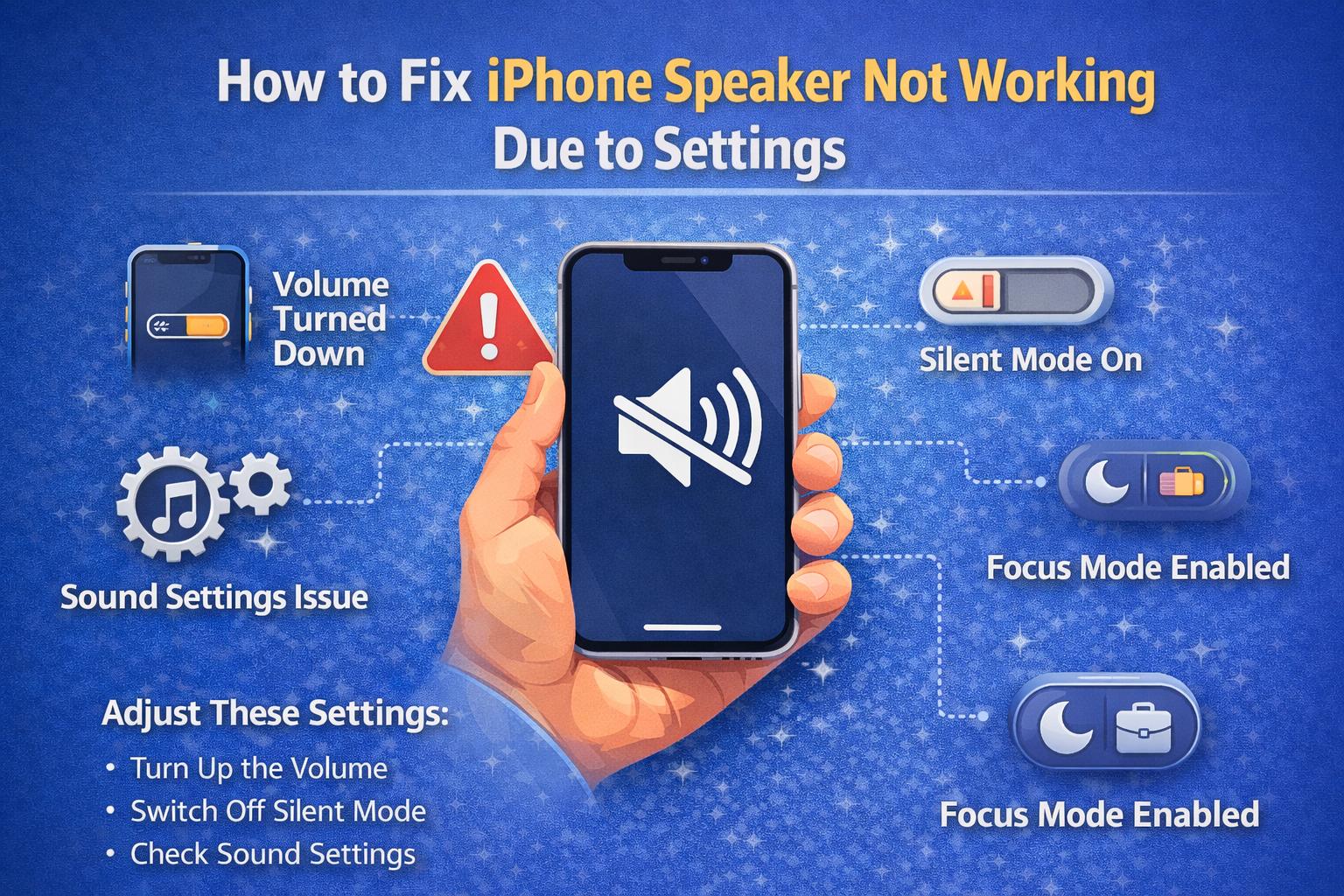
If basic checks don’t help, dig into iPhone settings.
4. Check Focus and Do Not Disturb Mode
- Go to Settings > Focus
- Turn off Do Not Disturb or other Focus modes
- Make sure no sound filters are active
Focus Mode can silence calls, alerts, and notifications.
5. Check Audio Balance Settings
- Open Settings > Accessibility
- Tap Audio/Visual
- Ensure the Balance slider is centered
If audio balance is shifted, one speaker may seem broken.
Fix iPhone Speaker Not Working During Calls
If you can’t hear people during phone calls, the issue may be with call audio settings.
6. Turn Off Phone Noise Cancellation
- Go to Settings > Accessibility
- Tap Audio/Visual
- Turn Phone Noise Cancellation OFF
Some users report clearer call audio after disabling this feature.
7. Try Speakerphone During Calls
- Make a call
- Tap the Speaker button
- Check if sound works through the loudspeaker
If speakerphone works but normal calls don’t, the earpiece speaker may be blocked or damaged.
Clean the Speaker to Fix Sound Problems

Dust and lint are silent sound killers.
8. Clean the iPhone Speaker Safely
Use:
- A soft toothbrush
- A dry cotton swab
- A small brush
Do NOT use water, needles, or sharp objects.
Real-world example:
Many users fix low-volume speaker issues just by cleaning pocket lint from the speaker grille.
Fix iPhone Speaker Not Working Due to Software Issues
9. Restart Your iPhone
A simple restart can fix temporary glitches.
- Hold Power + Volume button
- Slide to power off
- Wait 30 seconds and turn it back on
This refreshes the system and clears minor bugs.
10. Update iOS to the Latest Version
- Go to Settings > General > Software Update
- Install any available updates
iOS updates often fix sound-related bugs.
11. Reset All Settings (Safe Option)
This won’t delete your data.
- Go to Settings > General > Transfer or Reset iPhone
- Tap Reset
- Choose Reset All Settings
This resets sound, network, and system settings only.
Check for Hardware or Water Damage
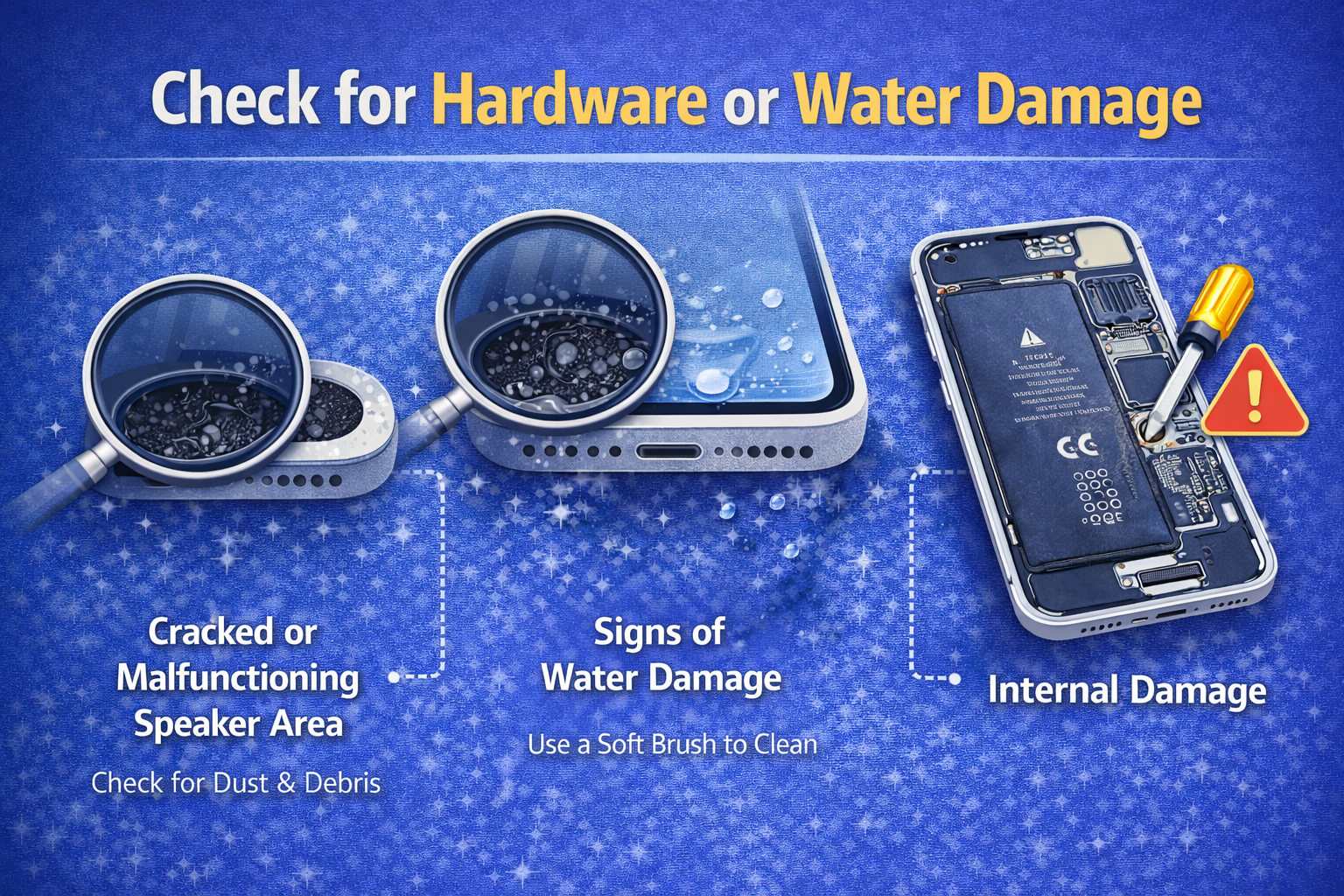
12. Check for Water Exposure
If your iPhone got wet:
- Turn it OFF immediately
- Let it dry for at least 24 hours
- Avoid charging during this time
Water damage can affect the speaker even if the phone still works.
13. Test with Headphones
- Plug in wired or wireless headphones
- Play audio
If sound works through headphones but not speakers, the speaker hardware may be faulty.
When to Contact Apple Support or a Repair Shop
If none of the steps fix your iPhone speaker not working, it’s likely a hardware issue.
You should seek professional help if:
- Speaker is completely silent
- Sound is distorted even after cleaning
- Phone was dropped or exposed to water
- Speaker works intermittently
Speaker replacement is often affordable and fast.
Frequently Asked Questions (FAQ)
1. Why is my iPhone speaker not working but headphones work?
This usually indicates a hardware speaker problem or blocked speaker grille.
2. Why can’t I hear calls but media sound works?
Your earpiece speaker may be dirty or damaged, while the main speaker still works.
3. Can software updates cause speaker issues?
Yes. Bugs in iOS updates can affect sound, but updates often fix them too.
4. How do I know if my iPhone speaker is broken?
If no sound comes out after cleaning, resetting settings, and testing apps, it’s likely broken.
5. Is it safe to clean iPhone speakers at home?
Yes—if you use dry, soft tools and avoid liquids or sharp objects.
Conclusion: Fix iPhone Speaker Not Working the Smart Way
An iPhone speaker not working problem can be frustrating, but it’s often easy to fix. Start with simple checks like volume, Bluetooth, and Silent Mode. Clean the speaker carefully, update iOS, and reset settings if needed.
If all else fails, professional repair may be the best solution—but at least now you know you tried everything first.
Follow these steps, and you’ll likely have your iPhone speaker working again in no time.